
With Sortly, you can add up to 8 photos to each item and folder, whether you're on desktop or the mobile app. This guide walks through adding and editing photos on both, along with answers to a few common questions.
In this article
Adding and editing photos on the web
Adding a photo to an item
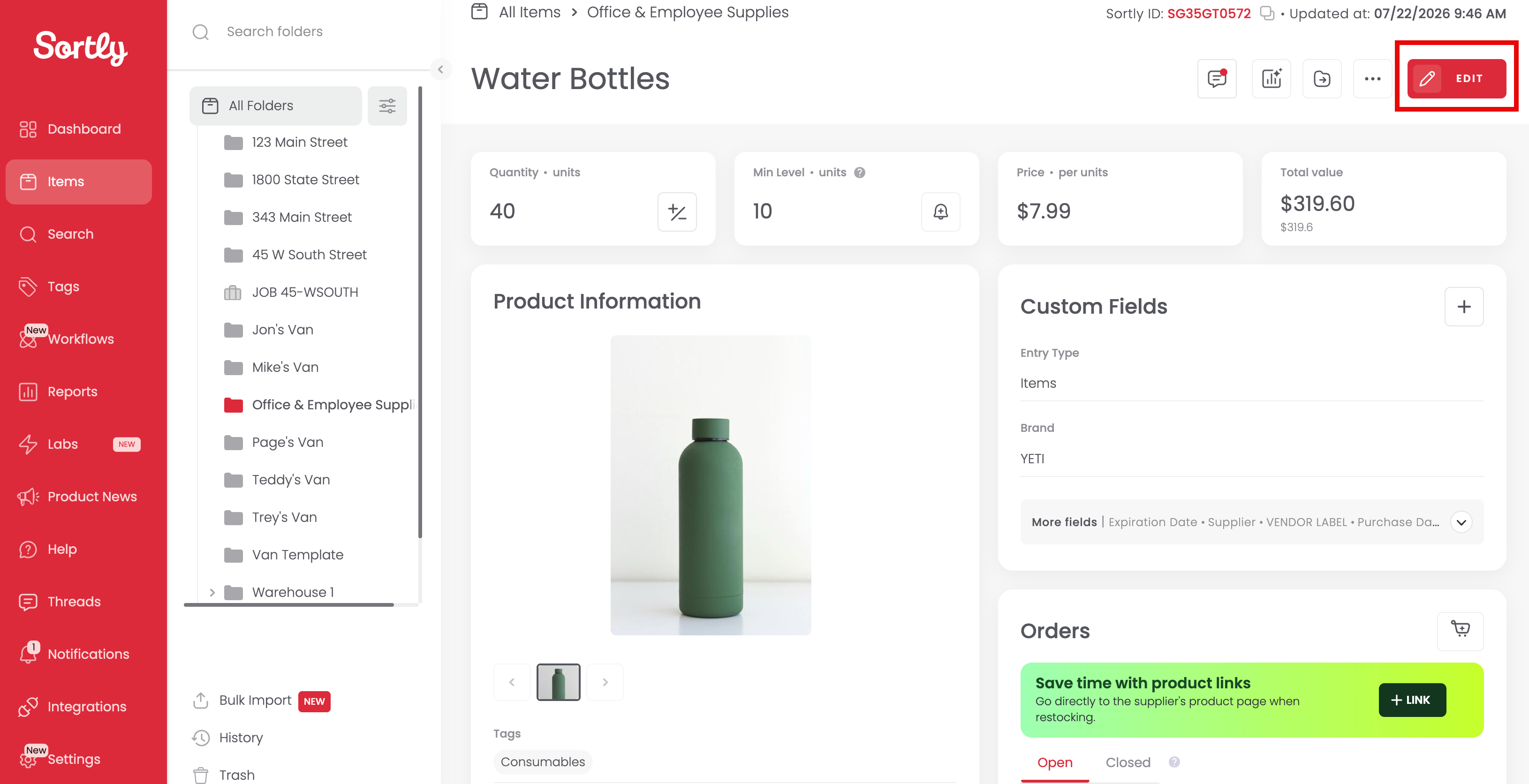
1Click the item, then click Edit at the top right.
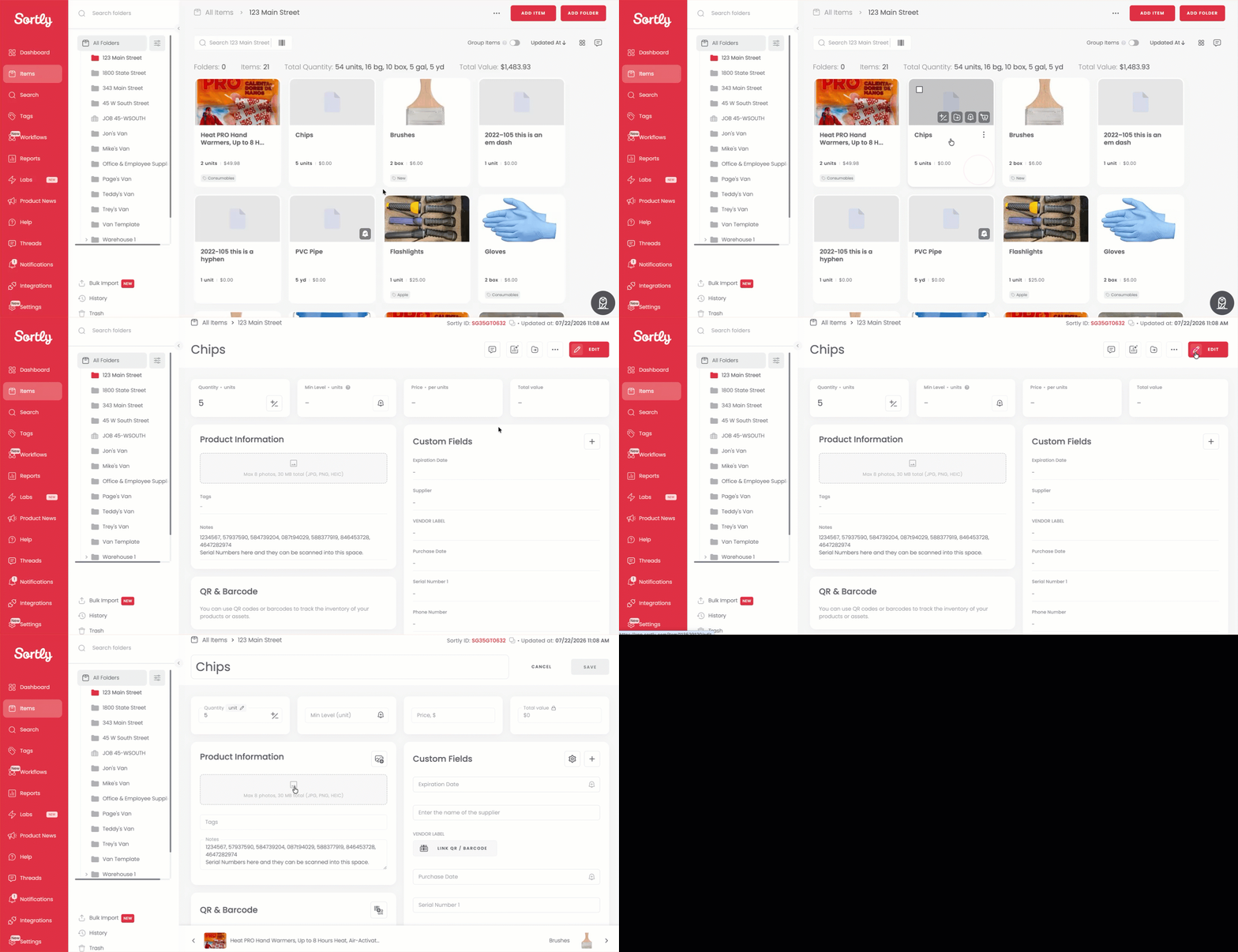
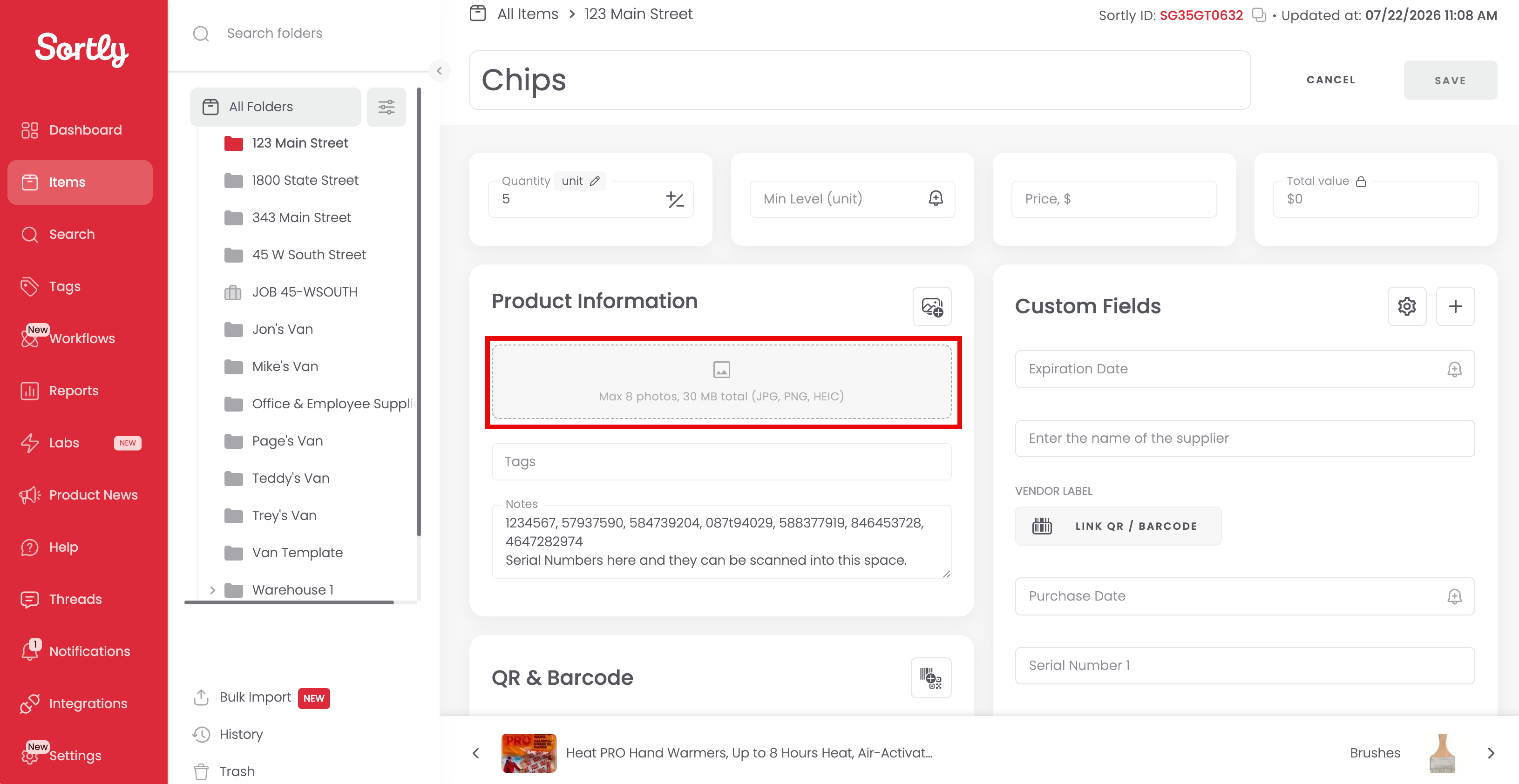
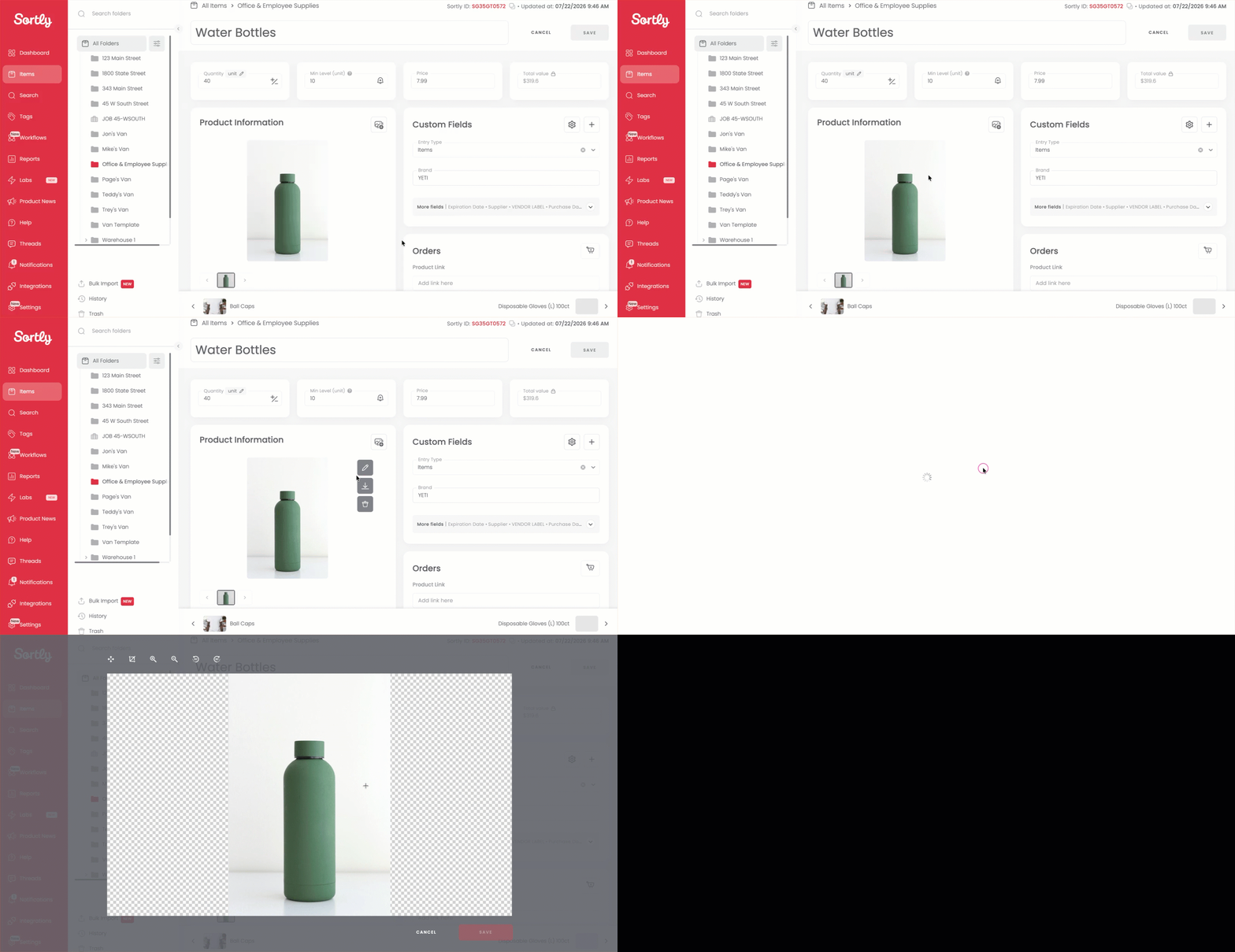
2Under Product Information, click the photo block.
3Select the photo and click Open, then click Save at the top right.
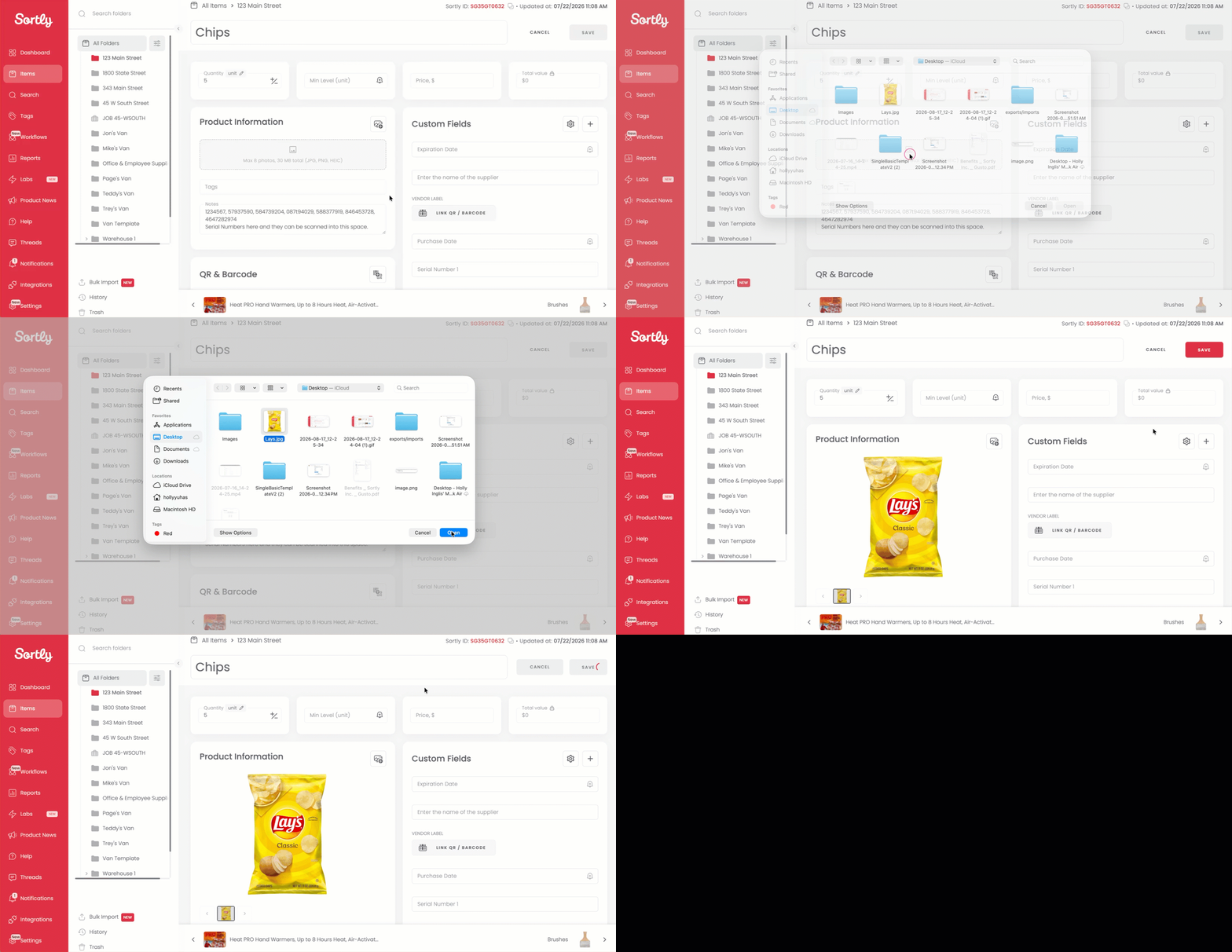
4Repeat this process to add up to 8 photos total.
Adding photos via CSV/Excel bulk import
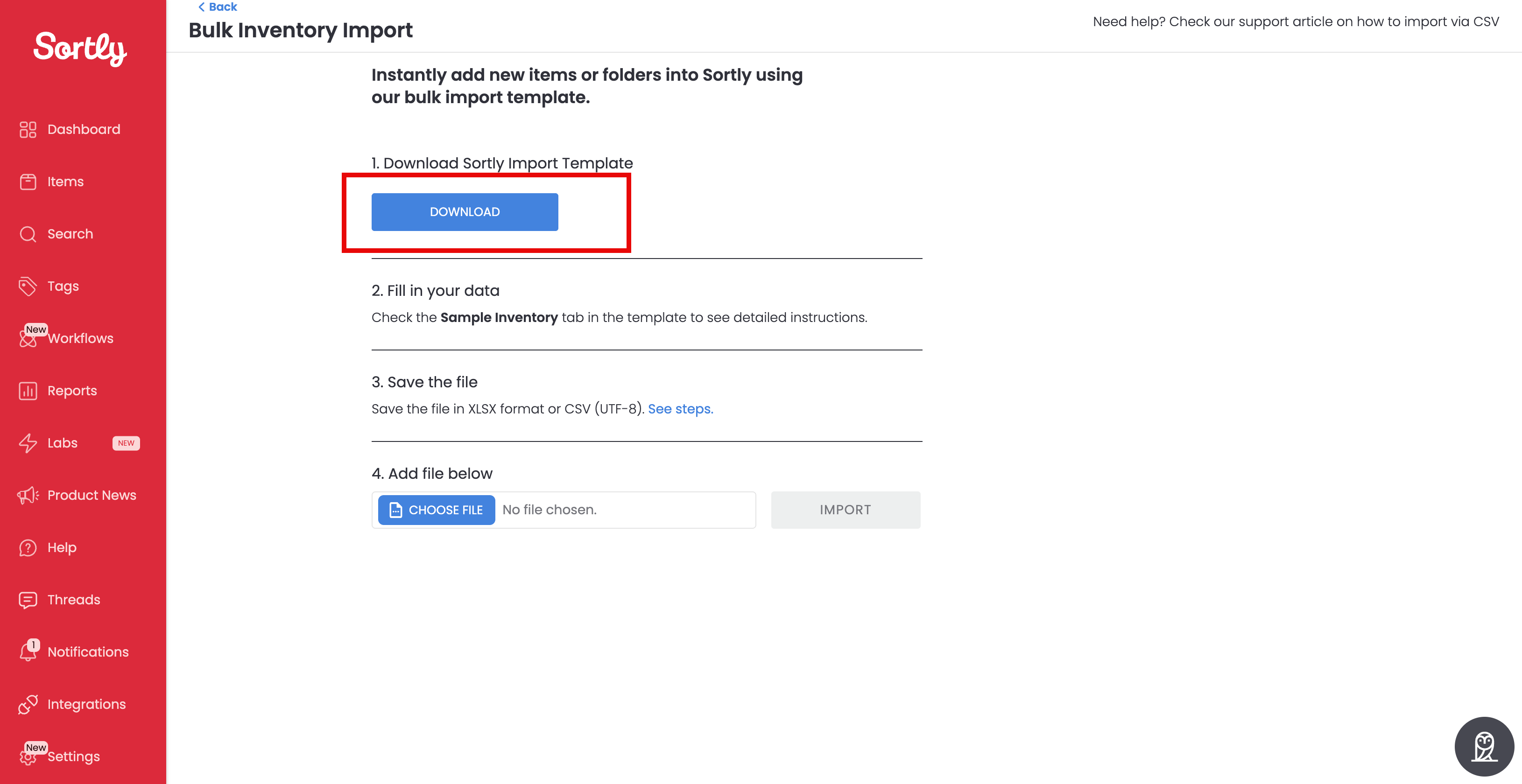
To add a photo through bulk import, you'll need a public URL for the photo that's searchable via Google or another search engine. This is only available with the Expert template from the Advanced Import option.
Editing photos
Adjust zoom, orientation, crop, and order right from Sortly. Full editing is available on the web at app.sortly.com; the mobile app only supports adding or removing photos.
1Navigate to the photo you want to edit and click the Edit icon in the upper right.
2Click the pencil icon next to the photo.
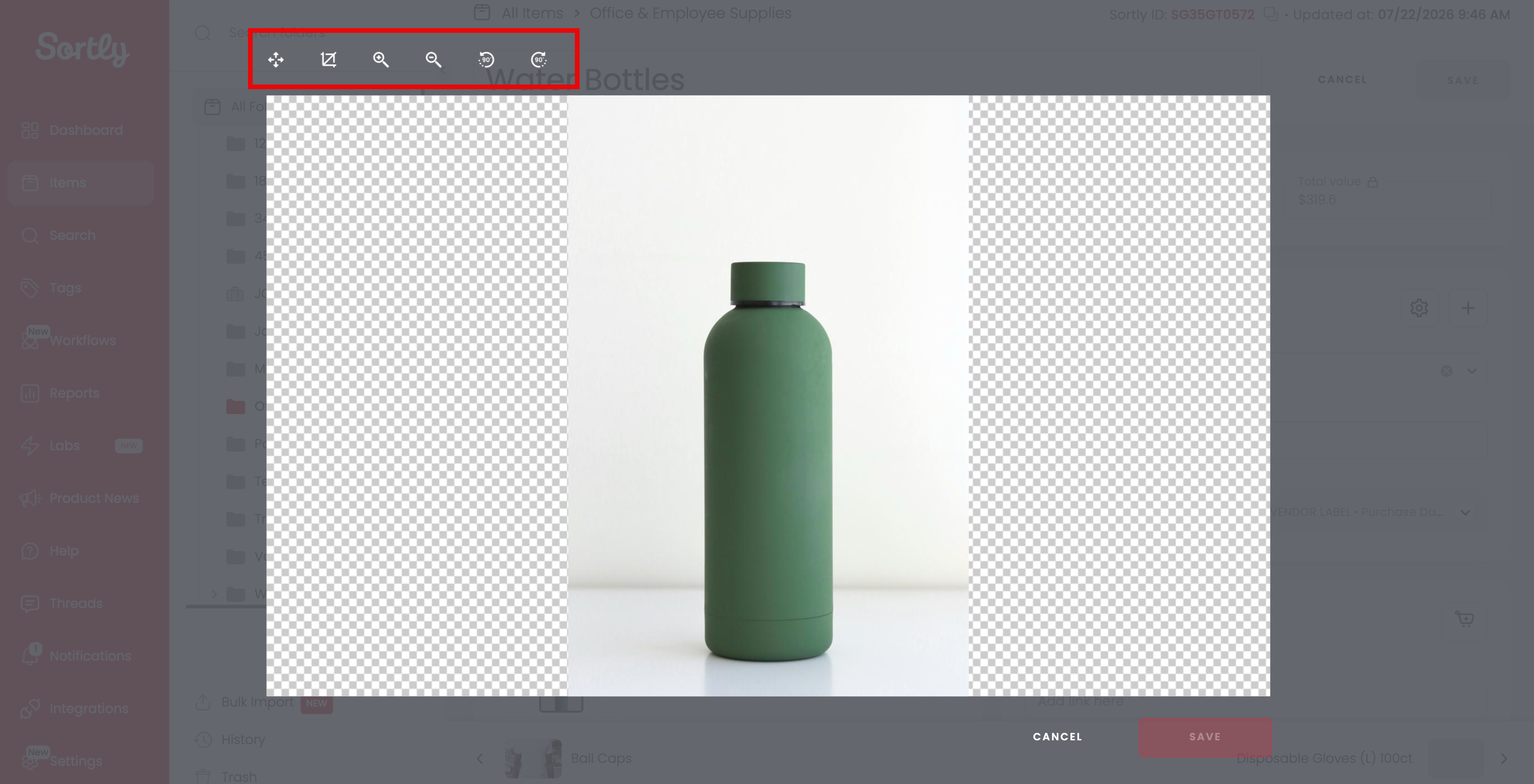
3Choose your edit option from the toolbar shown.
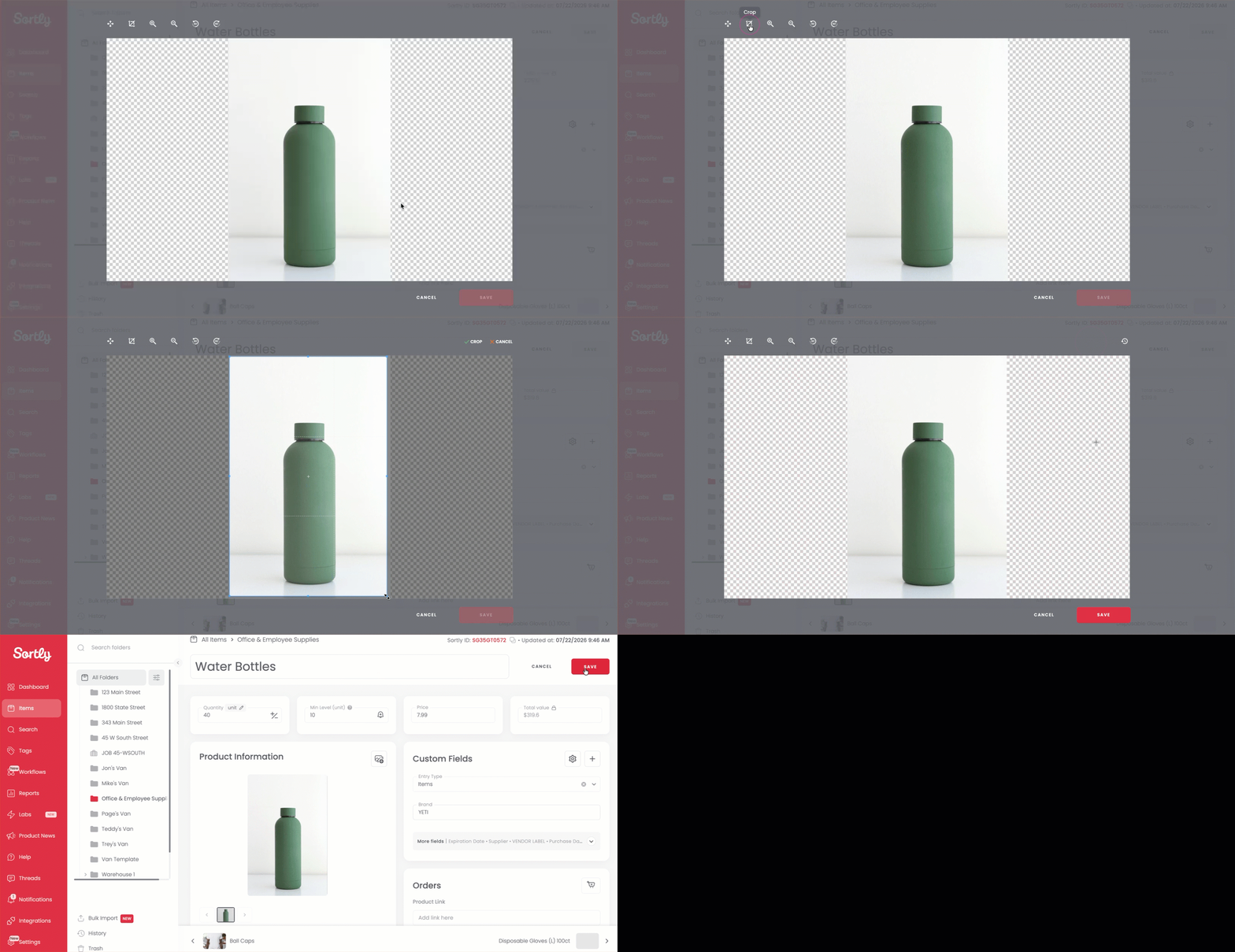
Once you're happy with your edits, click Save at the bottom, then Save again at the top right.
Adding photos to items on mobile
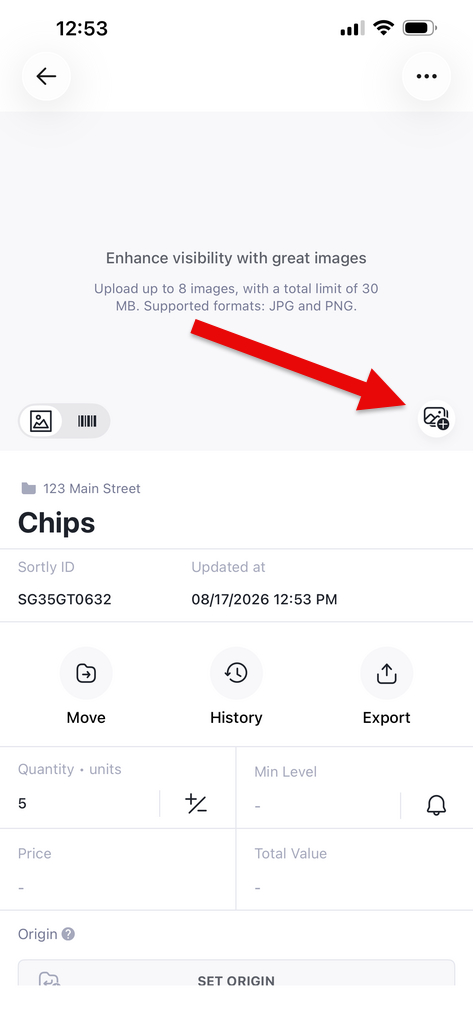
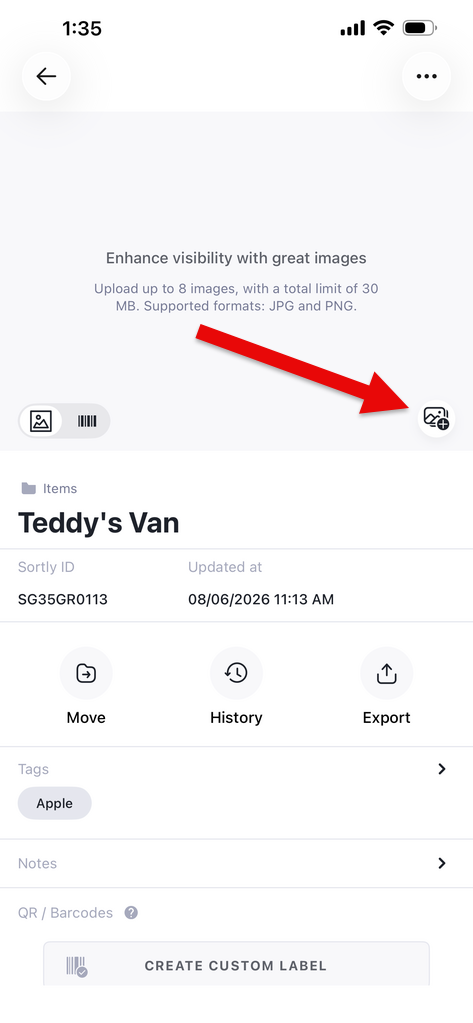
1Click the item, then tap the photo icon.
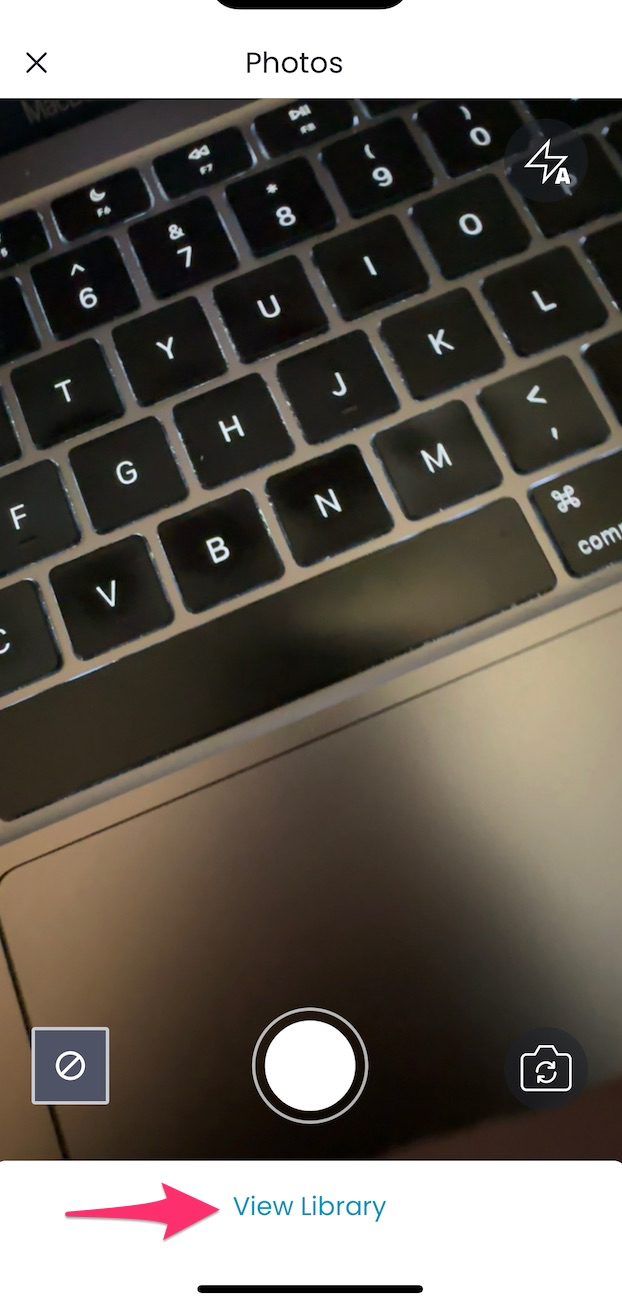
2Take a photo, or tap View Library to choose one from your device.
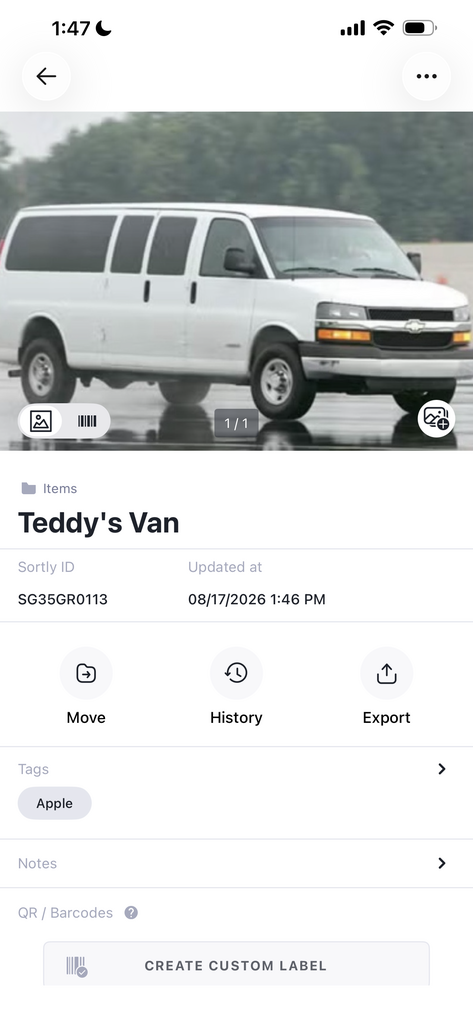
3Select the photo, tap Add, then Save.
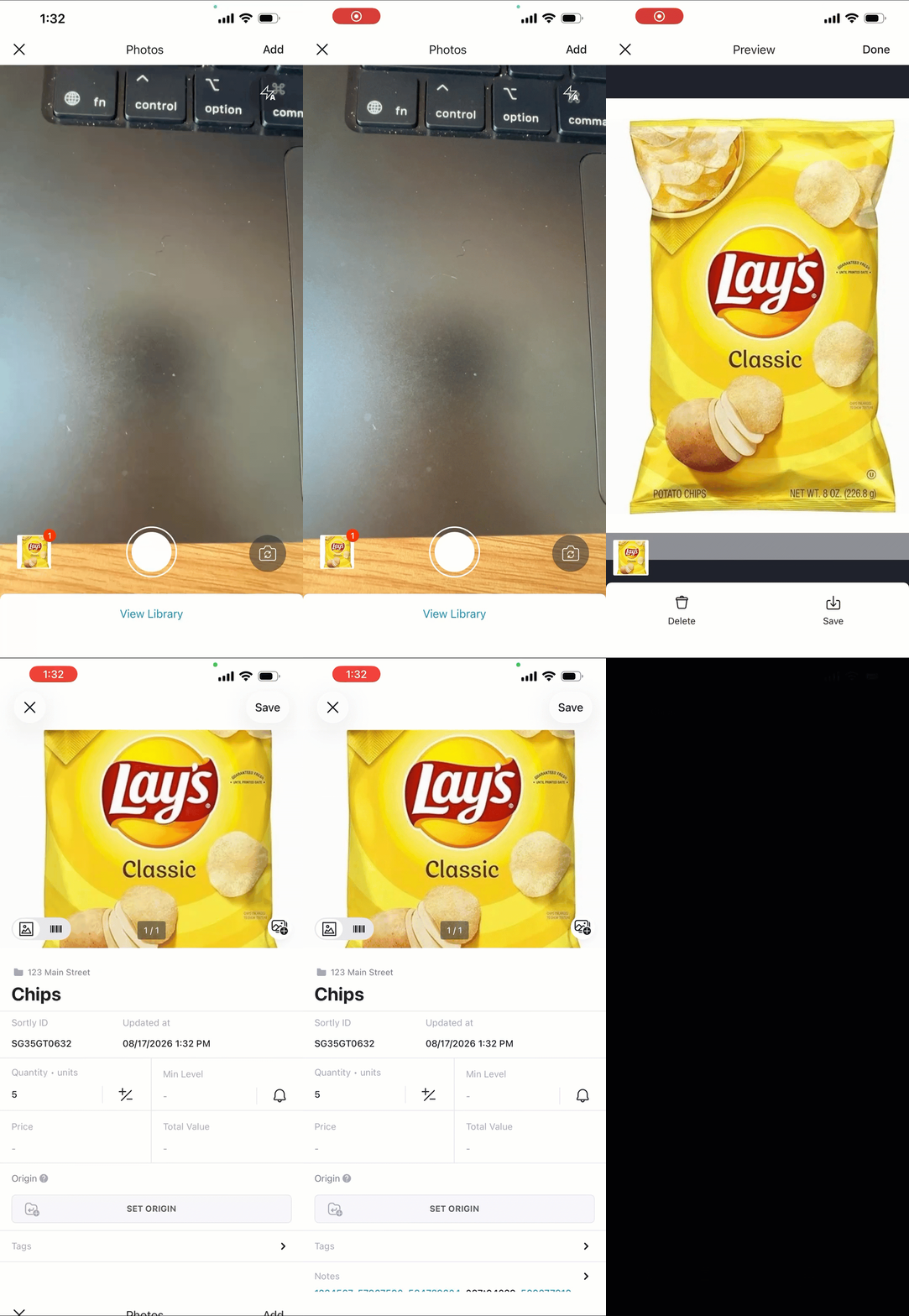
4Repeat to add additional photos.
Adding photos to folders on mobile
1Tap the three dots next to the folder, then select Details.
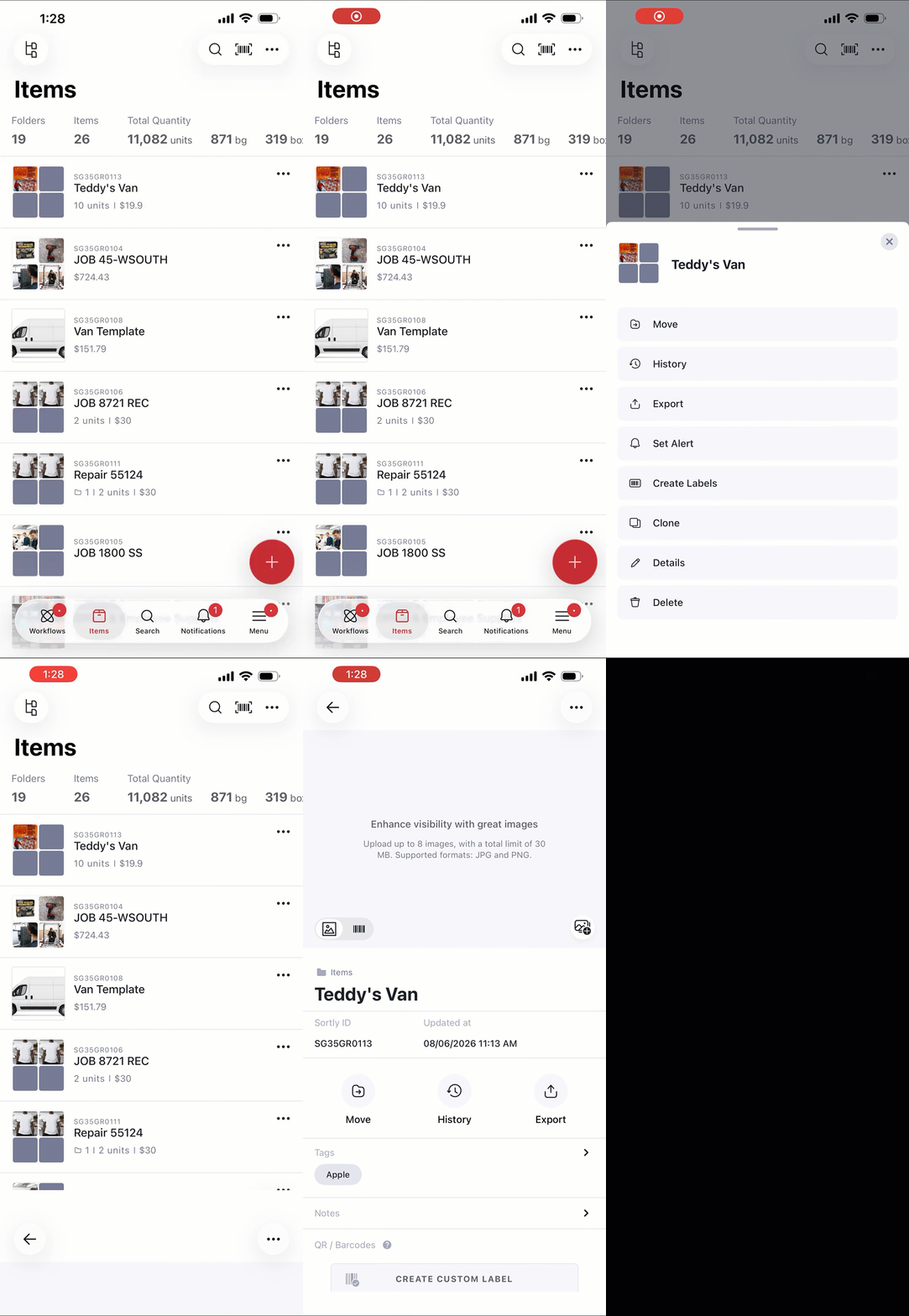
2Tap the photo icon at the bottom right of the image box.
3Take a photo, or tap View Library to choose one from your device.
4Select the photo, tap Add, then Save.
Frequently Asked Questions
Questions? Please contact our Support Team.