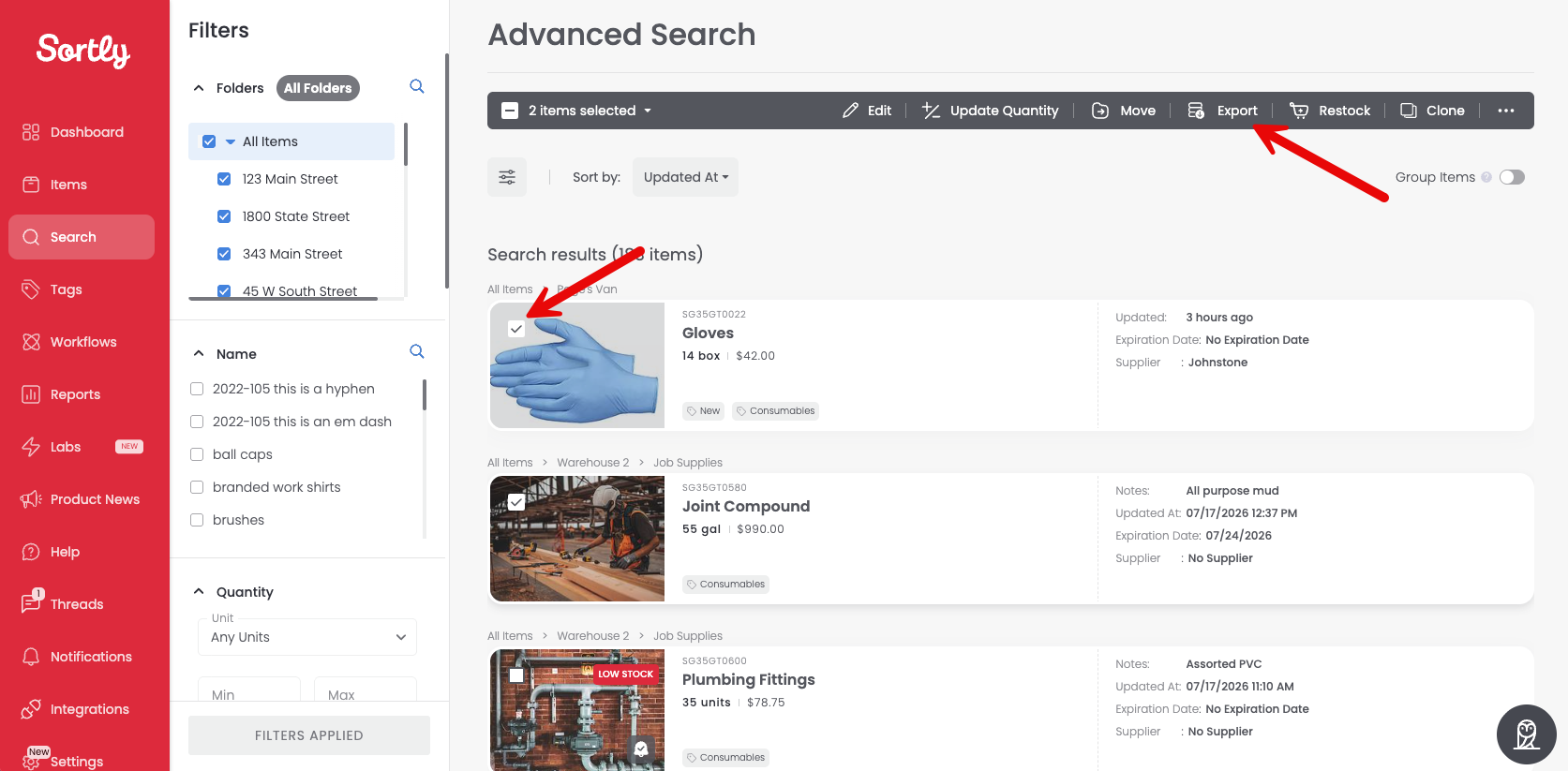
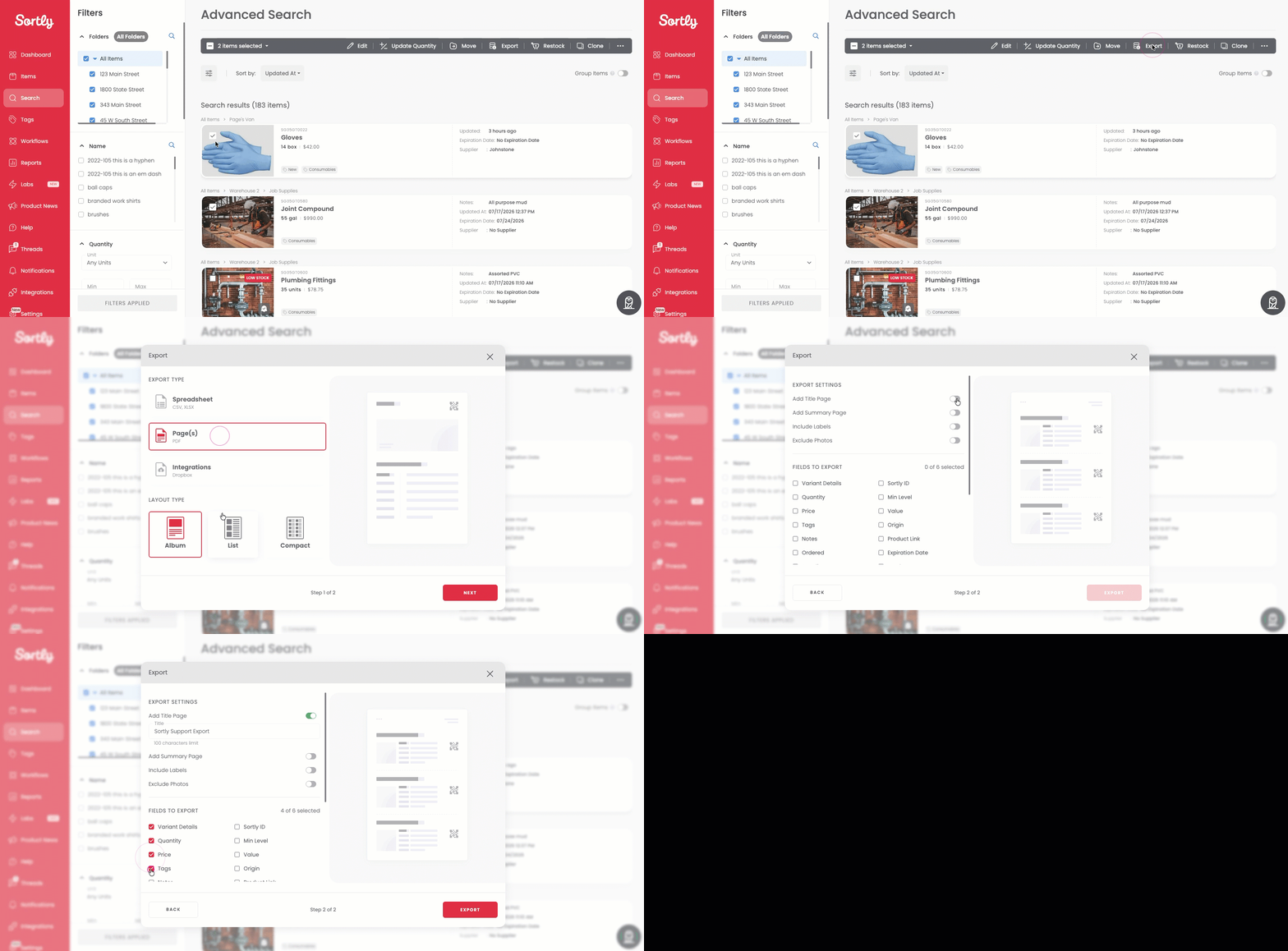
Save time by finding exactly the items you need with Advanced Search. Filter by folder, Sortly ID (SID), tags, price, quantity, custom fields, and more to build a list of items that match your conditions, then sort it and export it as a spreadsheet or PDF to share or analyze. This article walks you through opening Advanced Search, applying filters, sorting your results, and exporting them.
In this article
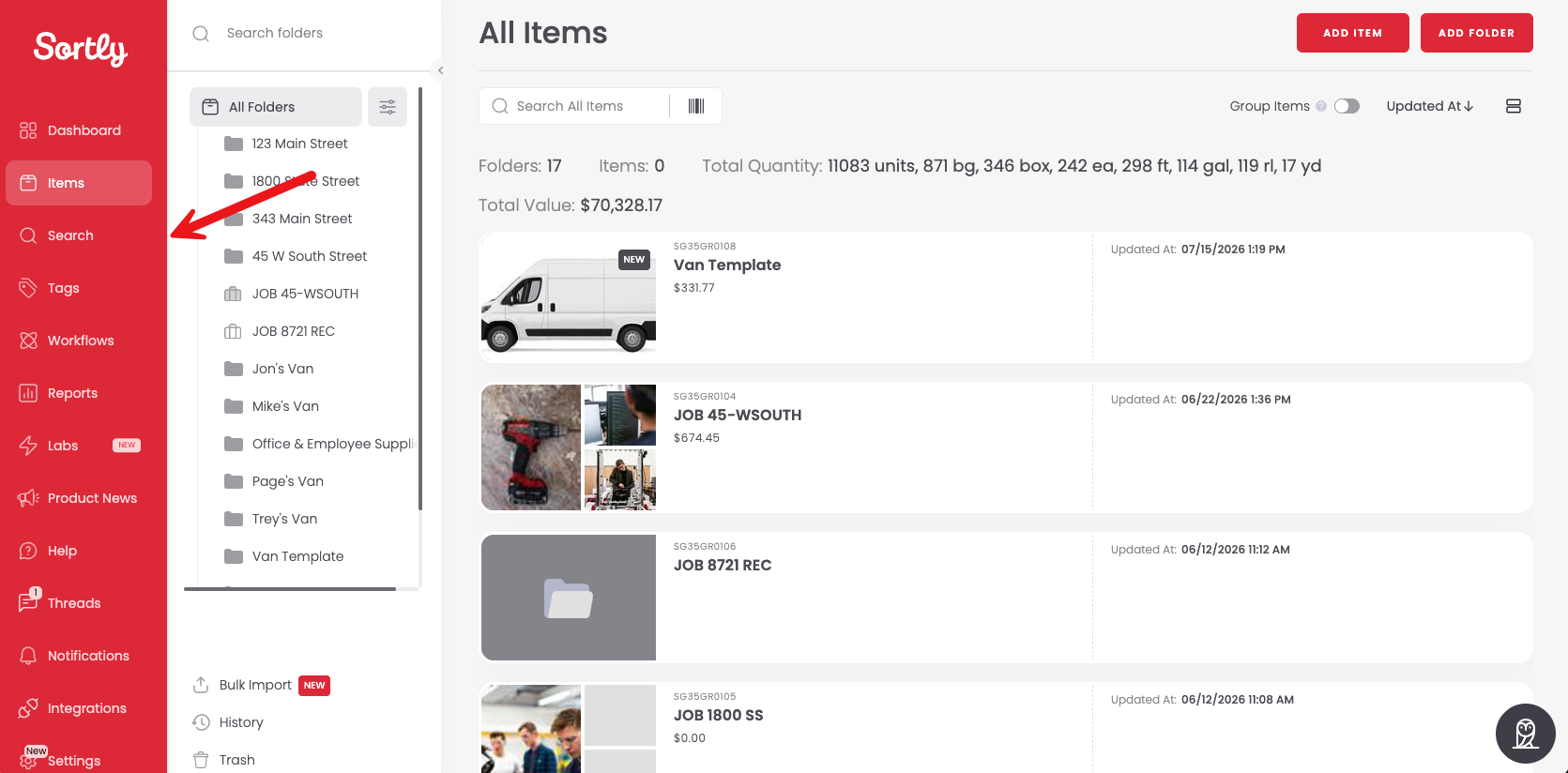
Open Advanced Search
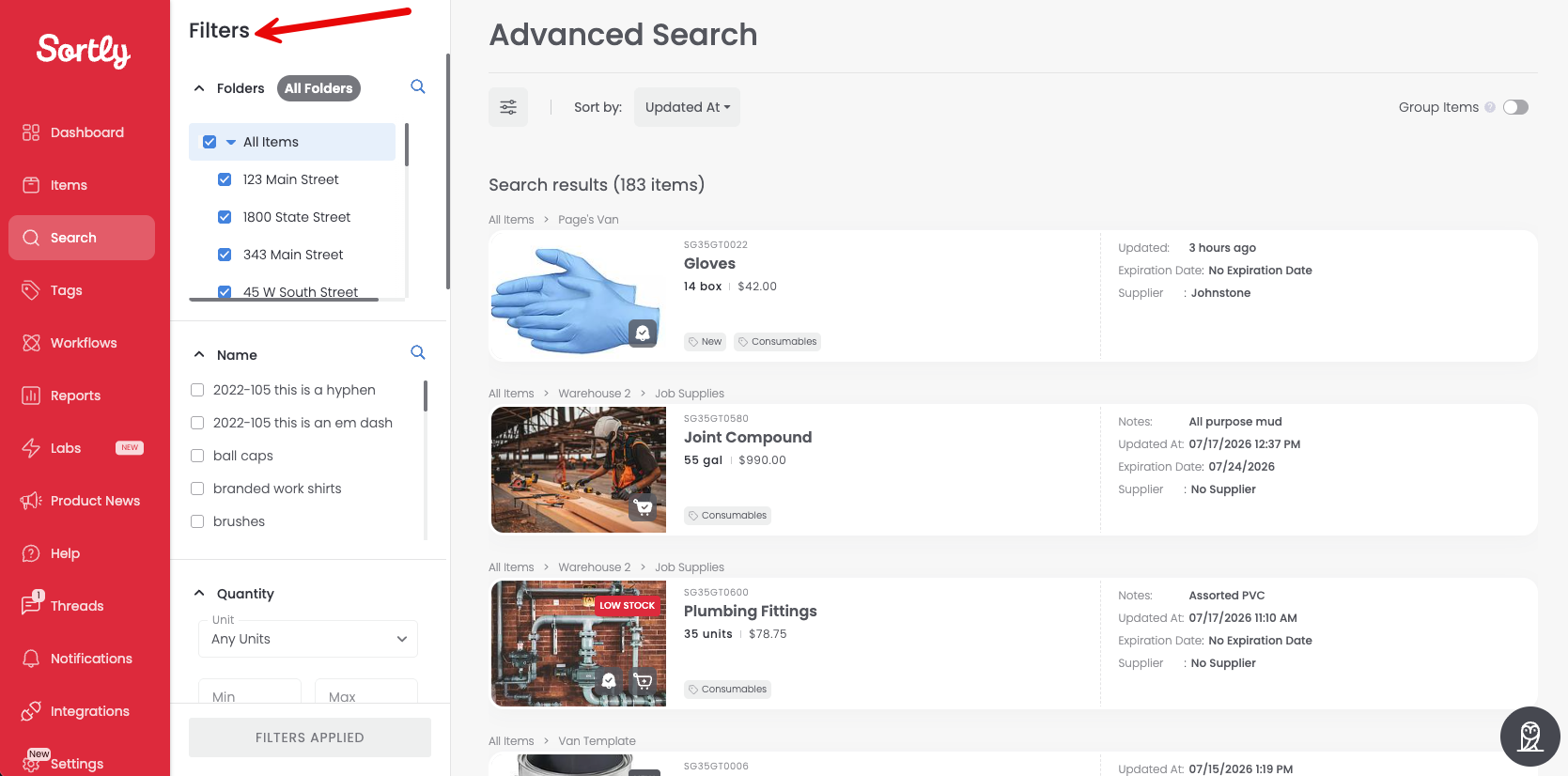
The Advanced Search page opens, with the Filters panel on the left and your search results on the right.
Apply filters
You can combine as many filters as you need. Options include Folders, Name, Quantity, Min Level, Price, SID, custom fields, and more.
Want to see how much of an item you have in total? Select Group Items at the top right of the results to see each item's total quantity combined across all the folders it appears in.
Filtering by folder narrows your results to items in that folder, but the folder itself won't appear as a row in the search results. You can still see which folder each item belongs to in the folder path shown above each item.
Sort your results
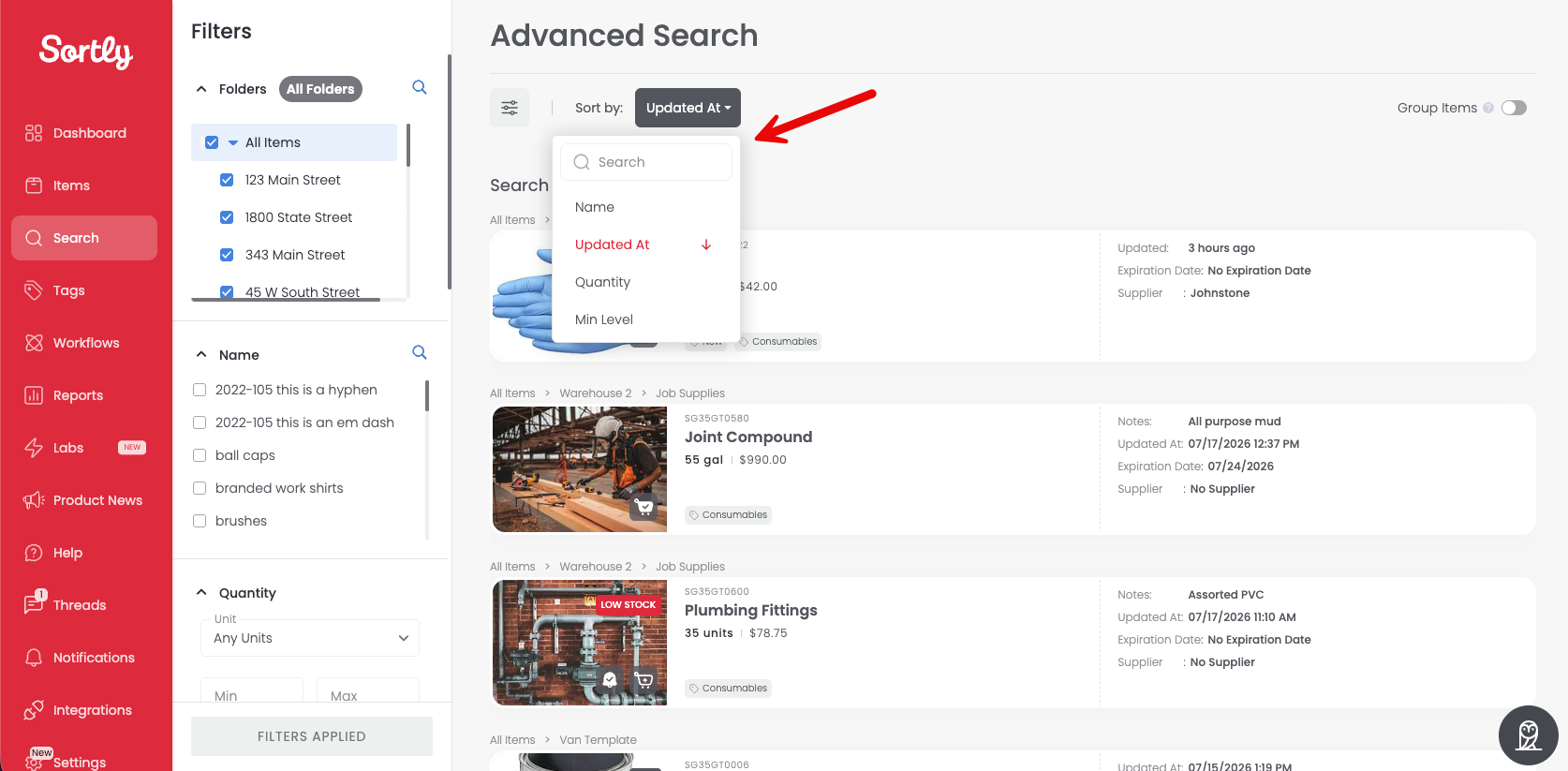
Export your search results