Skip to content
  • There are no suggestions because the search field is empty.

AI-Powered Bulk Import

Save time by bringing your existing inventory spreadsheet into Sortly as it is, with no prep work. Upload your file and Sortly Assistant matches your columns, creates any missing fields, and flags errors for you to review, all in one session. This article walks you through uploading your file, reviewing the field mapping, fixing errors, and completing your import.

Advanced
Ultra
Premium
Enterprise

How it works

Upload your existing spreadsheet as it is and Sortly Assistant does the heavy lifting. There's no reformatting, no template, and no prep work.

Here is what Sortly Assistant does for you:

  • It matches your columns to Sortly fields. Sortly Assistant reads your column headers and works out what goes where, even when the names are different. For example, "Product Name" maps to "Item Name".
  • It creates custom fields for you. If your file has columns that Sortly doesn't have a field for yet, Sortly Assistant creates them so nothing gets left behind.
  • It spots and fixes errors. Sortly Assistant flags data issues and suggests fixes you can review and apply in one step.
  • It works with imperfect files. If some rows still have issues, you can import the good ones now and come back to fix the rest later.

Who can use this feature

Owners and Admins can use AI-powered Bulk Import. Team Members and people with Limited Access can't.

Role
Can use AI-powered Bulk Import
Owner
Yes
Admin
Yes
Team Member
No
Limited Access
No

Step 1: Upload your file

1
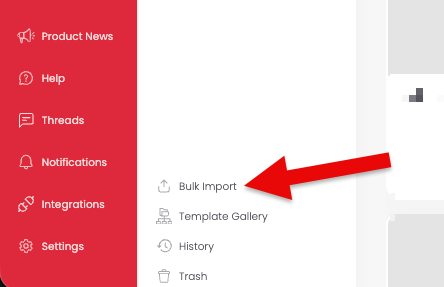
In the left menu, select Bulk Import.
Bulk Import in the left menu, under the folder tree
2
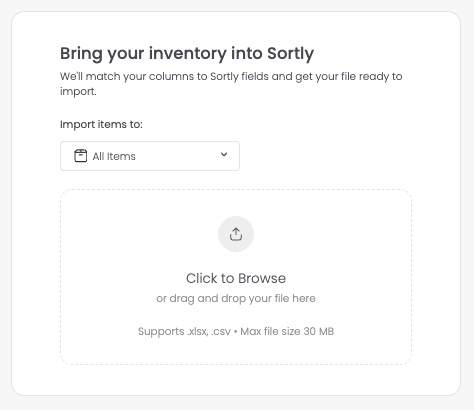
Under Import items to:, choose the folder you want your items to go into.
3
Select Click to Browse, or drag and drop your spreadsheet onto the page. Sortly accepts .xlsx and .csv files up to 30 MB. You don't need to reformat your file or use a Sortly template.
Bring your inventory into Sortly upload screen with the Import items to dropdown and Click to Browse area
4
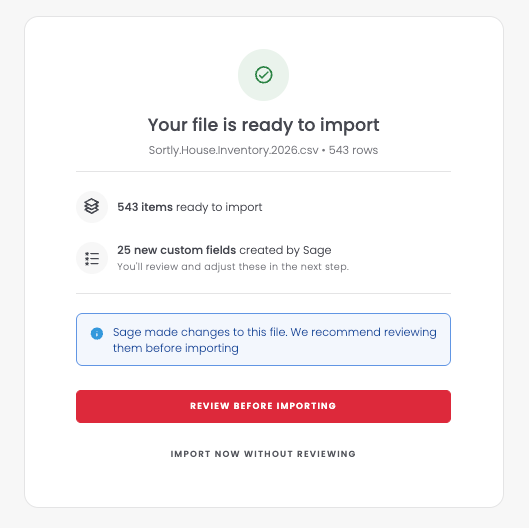
Review the summary. Once your file is processed, Sortly shows how many items are ready to import and any new custom fields Sortly Assistant created. Select Review Before Importing to review and adjust the field mapping first, or Import Now Without Reviewing to go ahead with the suggested mapping.
Your file is ready to import summary with Review Before Importing and Import Now Without Reviewing

Step 2: Review field mapping

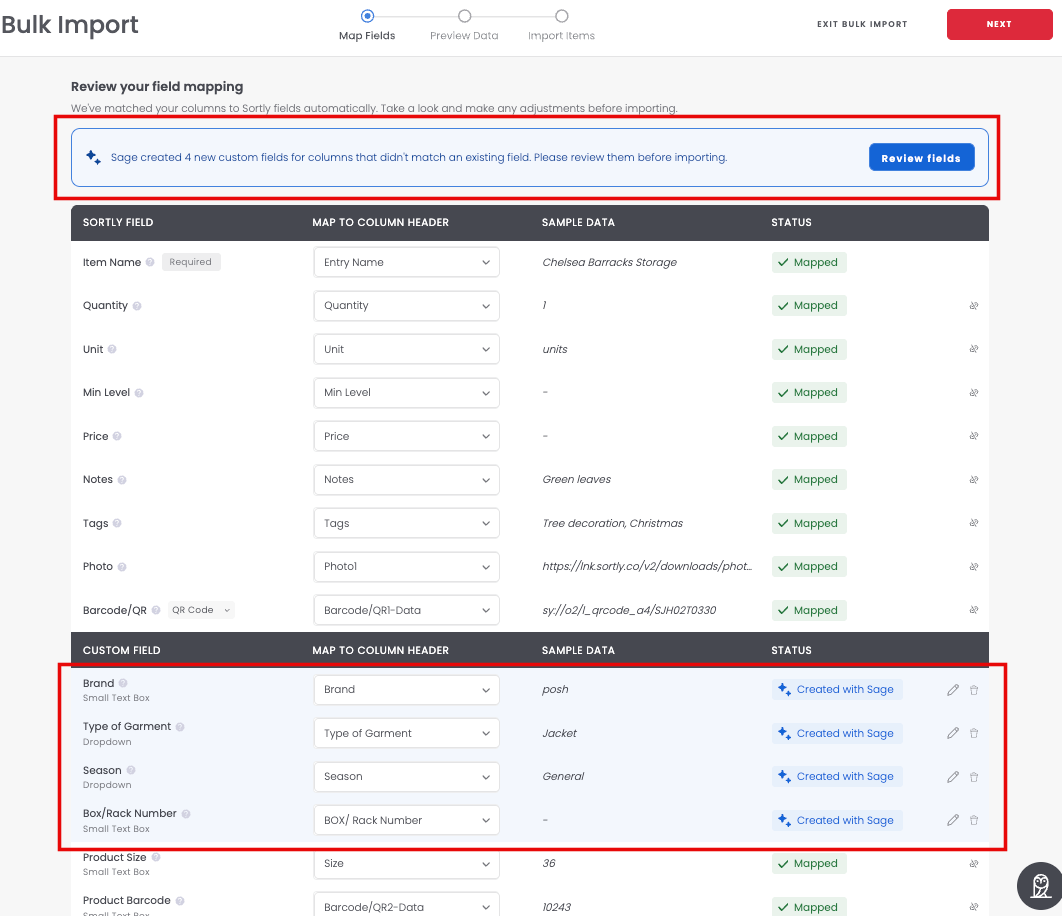
The Map Fields screen shows each Sortly field next to the column from your file that Sortly Assistant matched to it, plus a sample value. If Sortly Assistant created new custom fields for columns that didn't match an existing Sortly field, a blue banner appears at the top with a Review fields button.
1
Review the column mapping. Each standard Sortly field shows Mapped when it's matched to a column in your file, and each custom field Sortly Assistant created shows Created with Sortly Assistant. To change a mapping, select the dropdown in the Map to Column Header column and choose a different column.
Map Fields screen showing mapped Sortly fields and new custom fields with the Review fields banner
2
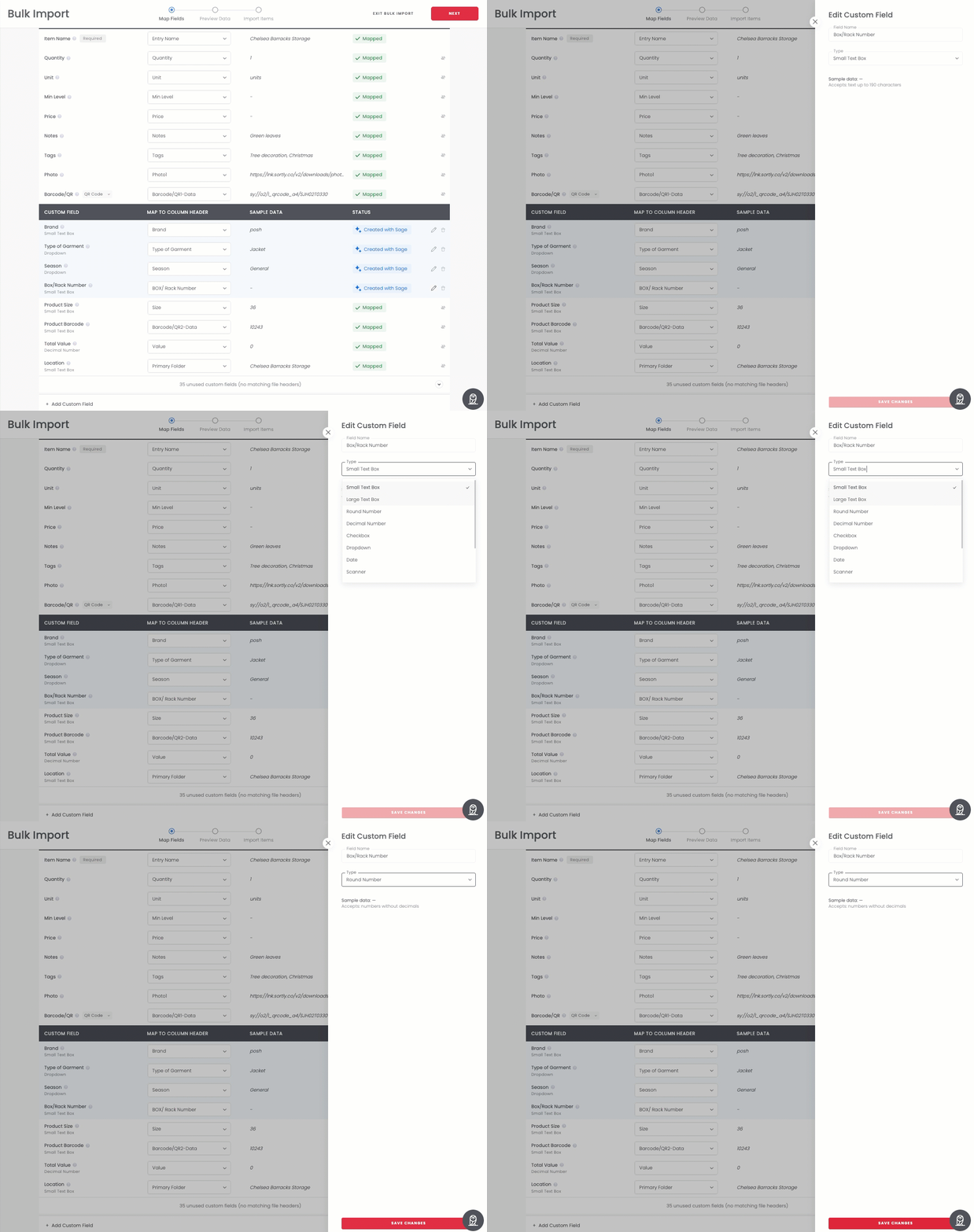
To change a custom field that Sortly Assistant created, select the pencil icon on its row. In Edit Custom Field, update the Field Name or Type, then select Save Changes.
Editing a custom field name and type in the Edit Custom Field panel
3
When the mapping looks right, select Next in the top right to go to the data preview.

Step 3: Preview and fix your data

The Preview Data screen shows all your items in a spreadsheet-style table. At the top you can see how many items are ready to import and how many have errors. Rows with errors won't be imported, so fix them here before you continue. Select Only show errors to see only the rows that need attention.
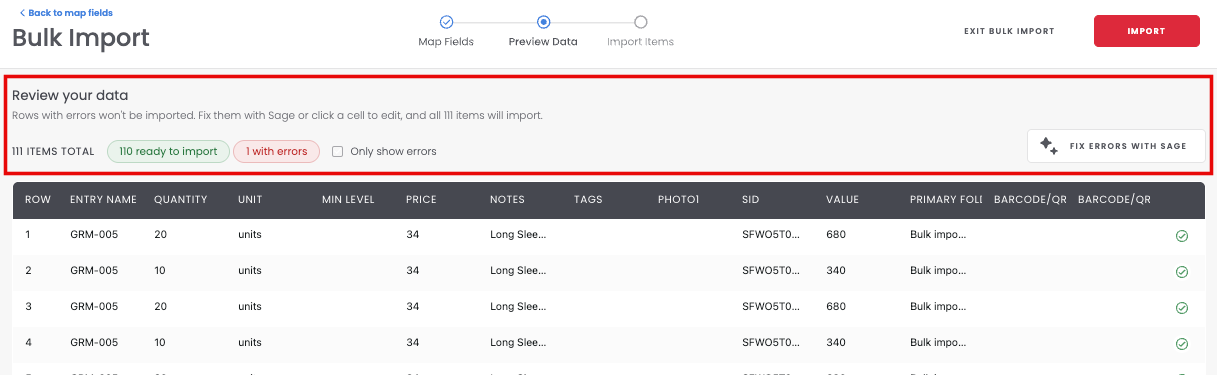
Preview Data screen showing items ready to import, items with errors, and the Fix Errors button

Edit a cell

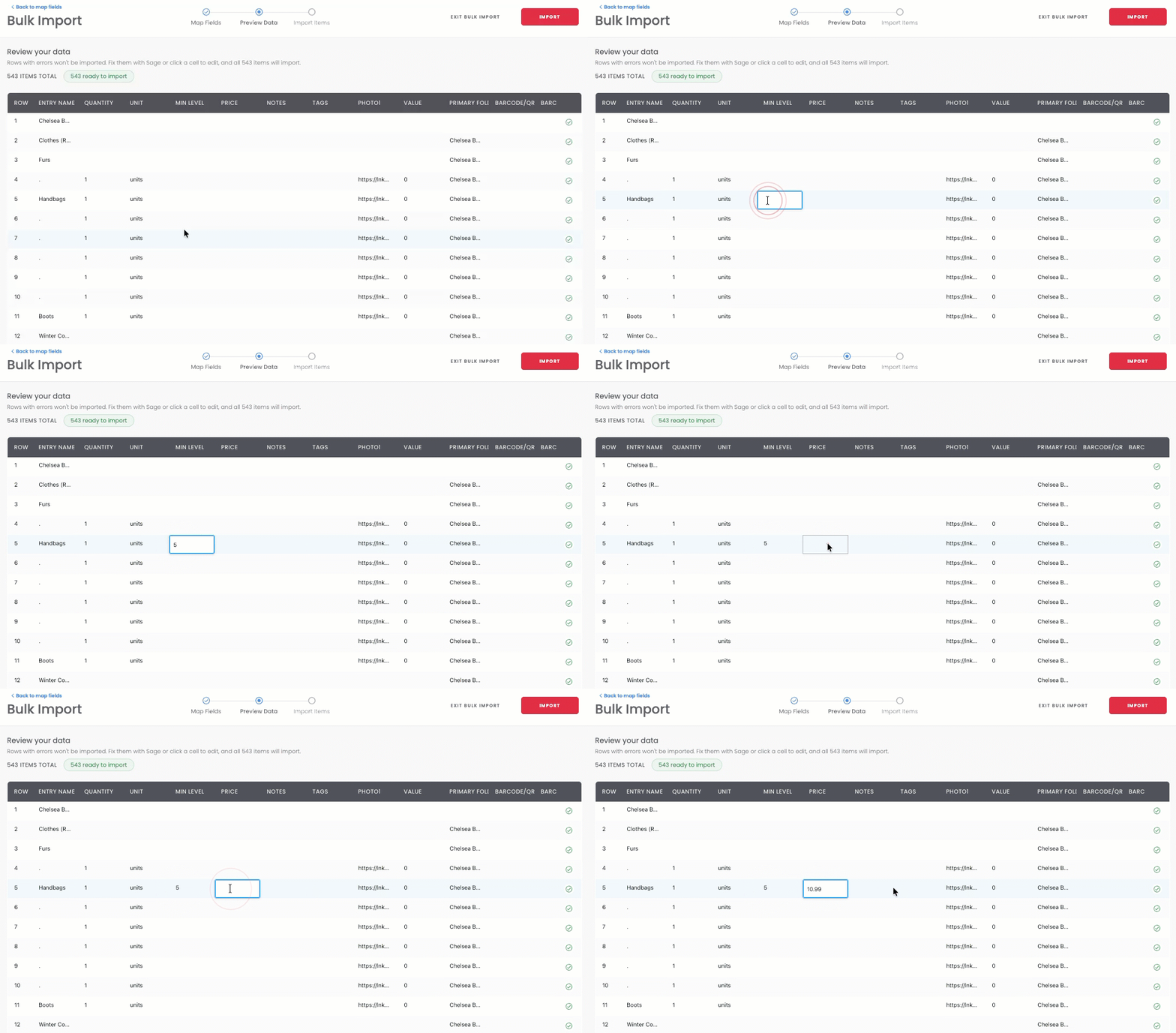
Need to correct one or two values, such as a typo or a unit? You can edit any cell directly in the table.
1
Select the cell you want to change.
2
Type the new value.
Selecting a cell in the data preview and typing a new price

Fix errors with Sortly Assistant

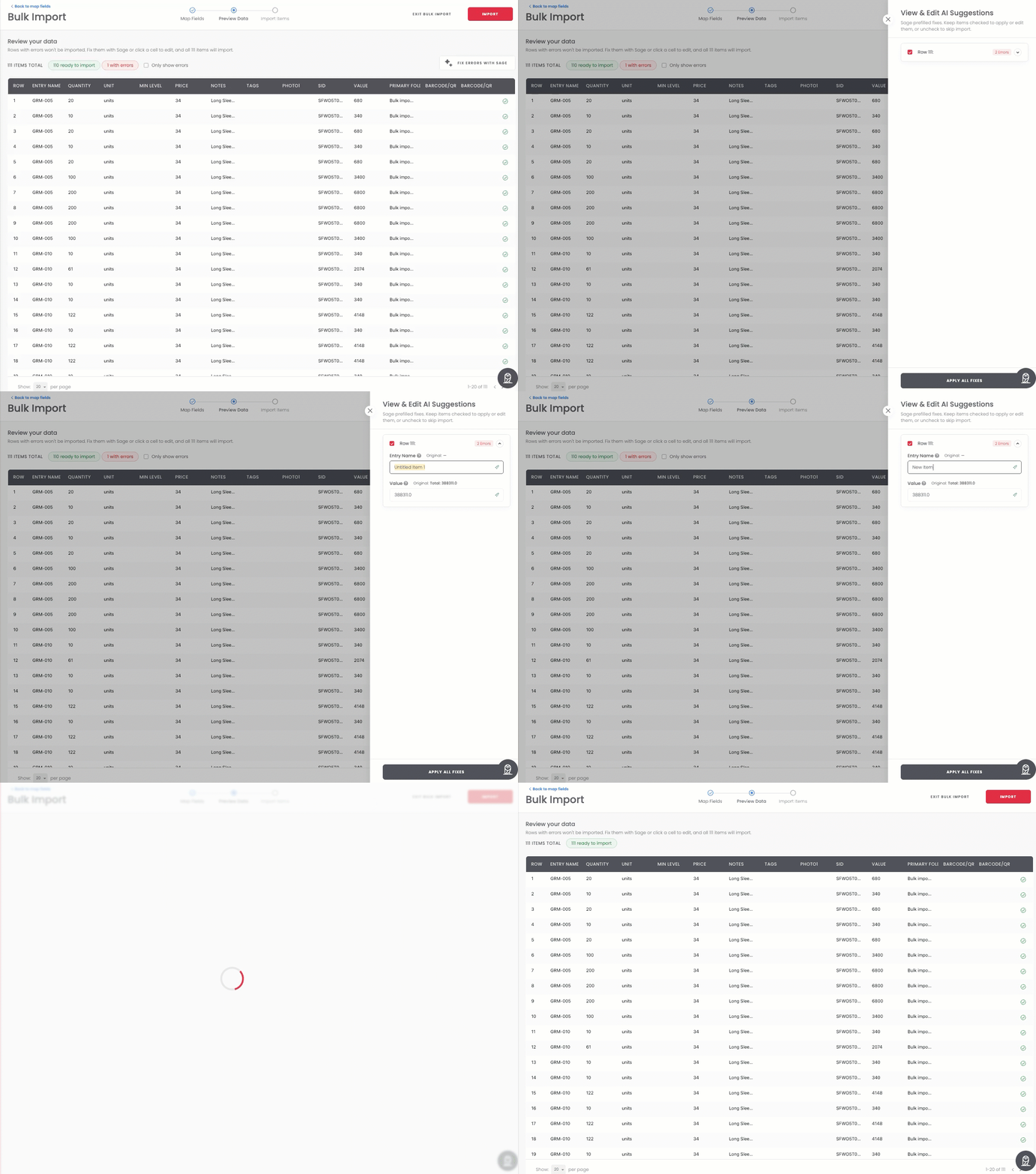
Have several errors to fix? Sortly Assistant can suggest a correction for each one so you can fix them all at once.
1
Select Fix Errors with Sortly Assistant.
2
In View & Edit AI Suggestions, review the suggested fixes, grouped by row. Edit any suggestion you want to change, and don't select a row if you want to skip it.
3
Select Apply All Fixes to update everything at once.
Reviewing suggested fixes in View and Edit AI Suggestions and selecting Apply All Fixes

Step 4: Complete your import

1
When your data looks right, select Import in the top right to add your items to Sortly.
2
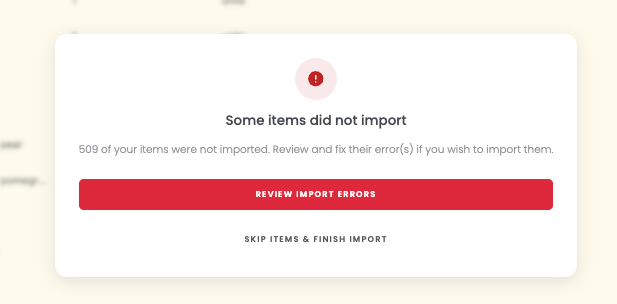
If some rows couldn't be imported, Sortly shows a Some items did not import screen with the number of affected rows. Select Review Import Errors to see which rows failed and why, or Skip Items & Finish Import to finish with the rows that worked and handle the rest separately.
Some items did not import screen with Review Import Errors and Skip Items and Finish Import
3
When the import is done, Sortly shows an Import Complete confirmation. Select Exit Bulk Import to return to your inventory.

Frequently Asked Questions

Do I need to reformat my spreadsheet before uploading?
No. You can upload your existing file as it is. Sortly Assistant reads your column headers and maps them to Sortly fields, even when the names are different from Sortly's default fields.
What file formats are supported?
Sortly accepts .xlsx and .csv files. The maximum file size is 30 MB.
What happens if some rows have errors Sortly Assistant can't fix?
Rows with unresolved errors aren't imported. After the import, Sortly shows you which rows failed and why. You can review and fix the errors, or skip those rows and finish the import with the rows that worked.
Can I change a column mapping that Sortly Assistant got wrong?
Yes. On the Map Fields screen, select the dropdown next to any Sortly field to change which column from your file it maps to. You can change any of the suggestions before you continue.
What happens if my file has columns that don't match any Sortly field?
Sortly Assistant detects unmatched columns and creates them as custom fields in your Sortly account. A blue banner on the Map Fields screen lets you know, and each new custom field shows Created with Sortly Assistant. You can edit or delete these before you continue.
Can I import items into a specific folder?
Yes. On the upload screen, use the Import items to: dropdown to choose a destination folder. If your file includes a folder or location column, Sortly Assistant can also use it to organize items into folders.
Is this feature available on mobile?
AI-powered Bulk Import is available on the Sortly web app only.
Why don't I see AI-powered Bulk Import on my account?
AI-powered Bulk Import is available on all new Advanced, Ultra, Premium, and Enterprise accounts. If you have an existing account and don't see the feature yet, reach out to our support team.