The Amazon Business integration lets you restock inventory directly from Sortly using your company's Amazon Business account. When something runs low, you can reorder right away, without building a list or starting a Purchase Order.
Once connected, you can also see your recent Amazon Business orders inside Sortly, so your restocking history stays in one place.
In this article
How the Amazon Business integration works
The Amazon Business integration lets you:
- Connect your Sortly account to your company's Amazon Business account.
- Search Amazon from inside Sortly when you need to reorder.
- Place Amazon Business orders while you're working in Sortly.
- View your recent Amazon Business order history in Sortly.
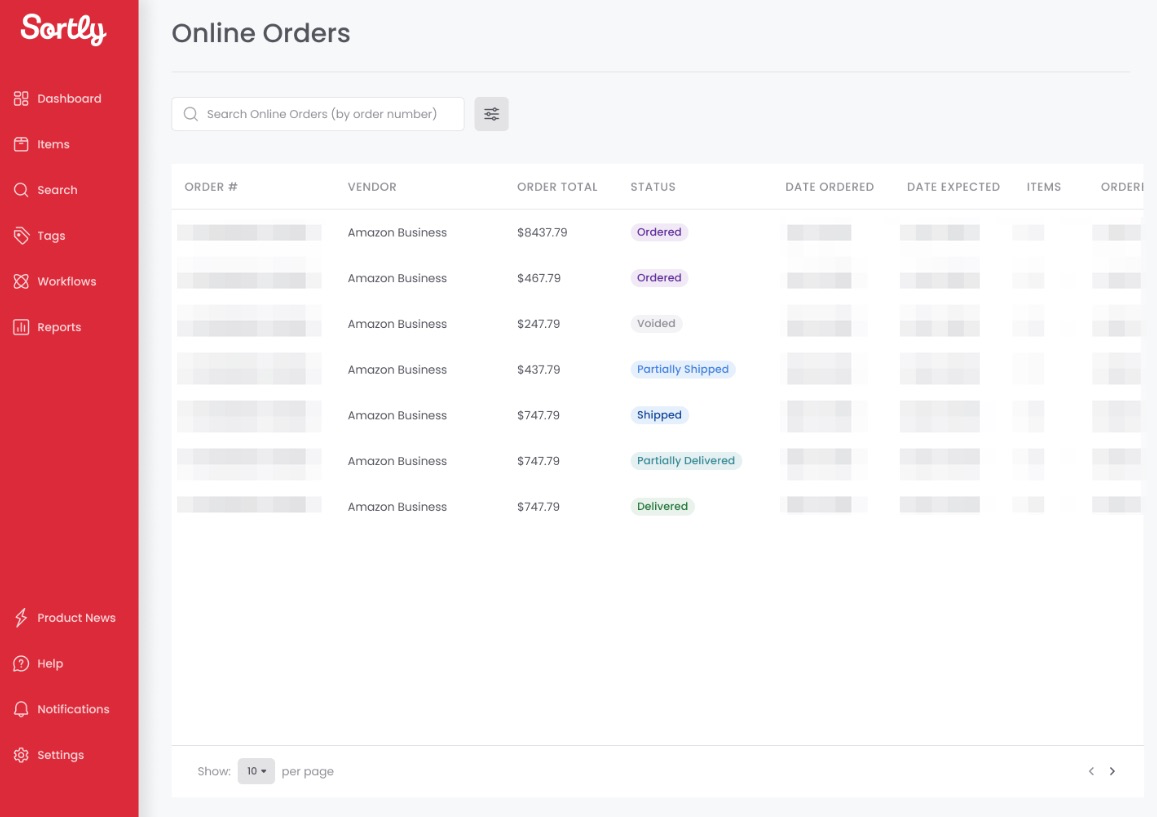
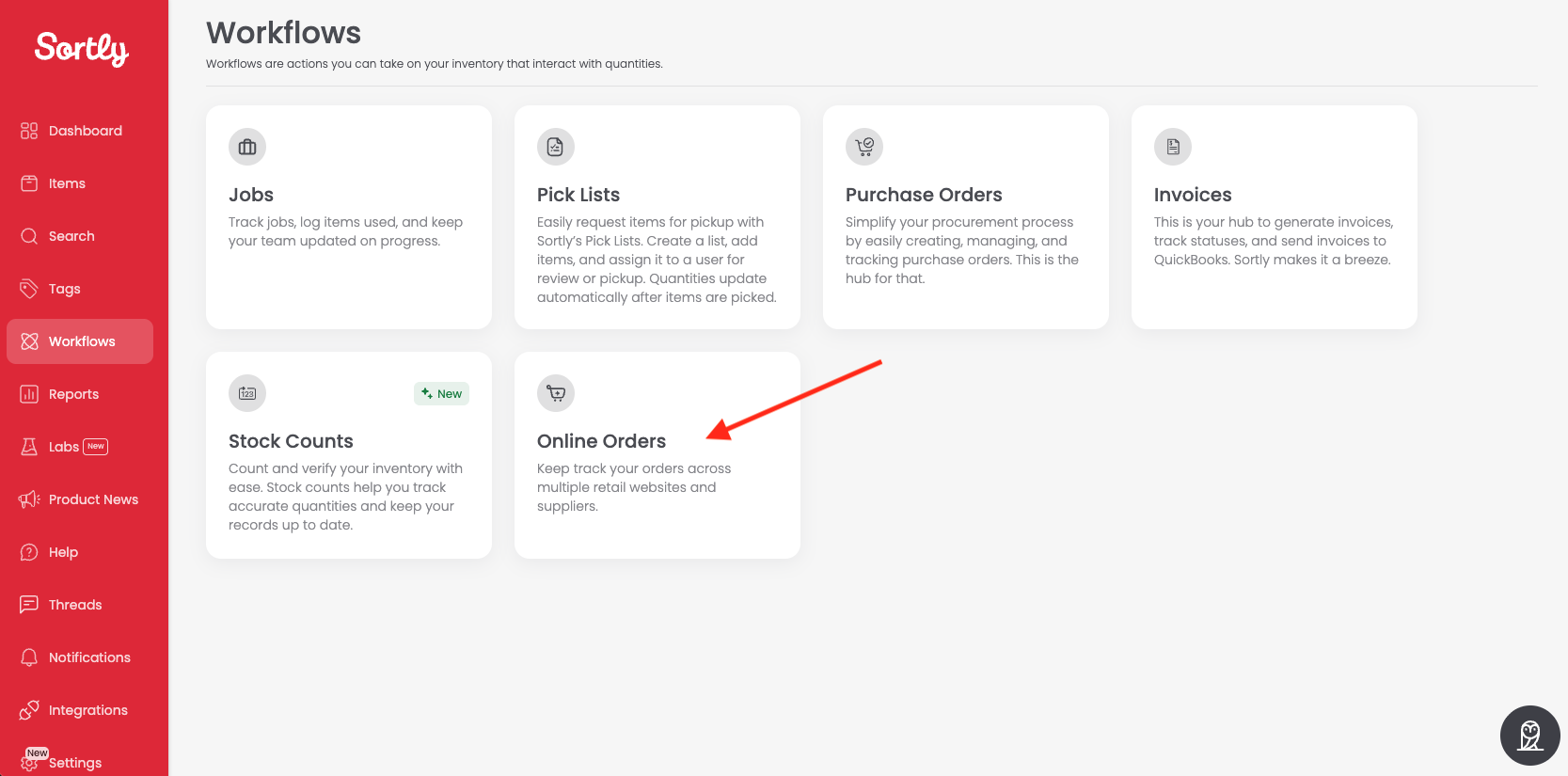
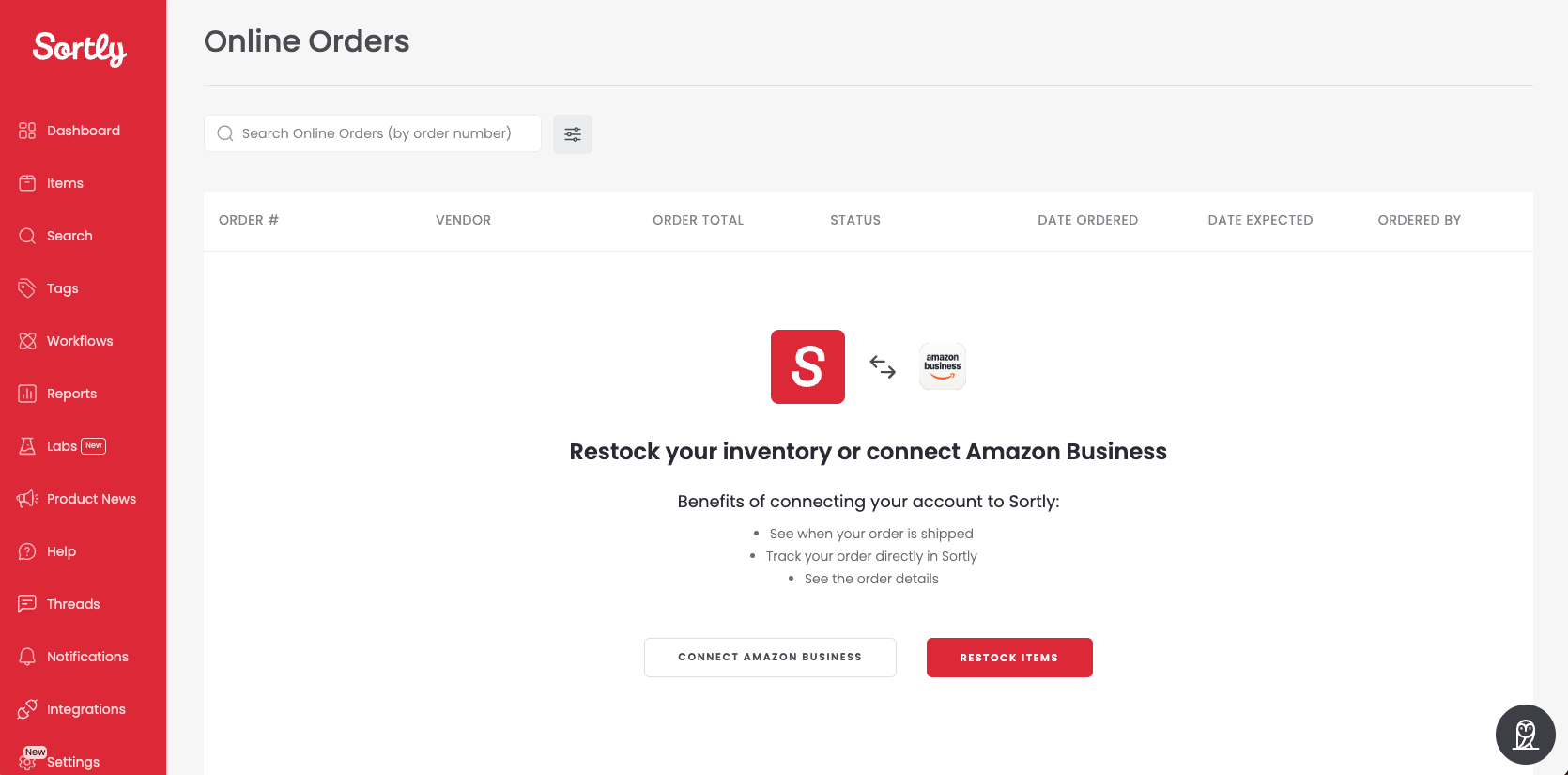
Once connected, Sortly automatically syncs your Amazon Business orders from up to one month before your connection date. You'll find these under Workflows > Online Orders.
Plans & permissions
* Team Member access may depend on account permissions set by an Admin or Owner.
How to connect Amazon Business
You only need to do this once.
-
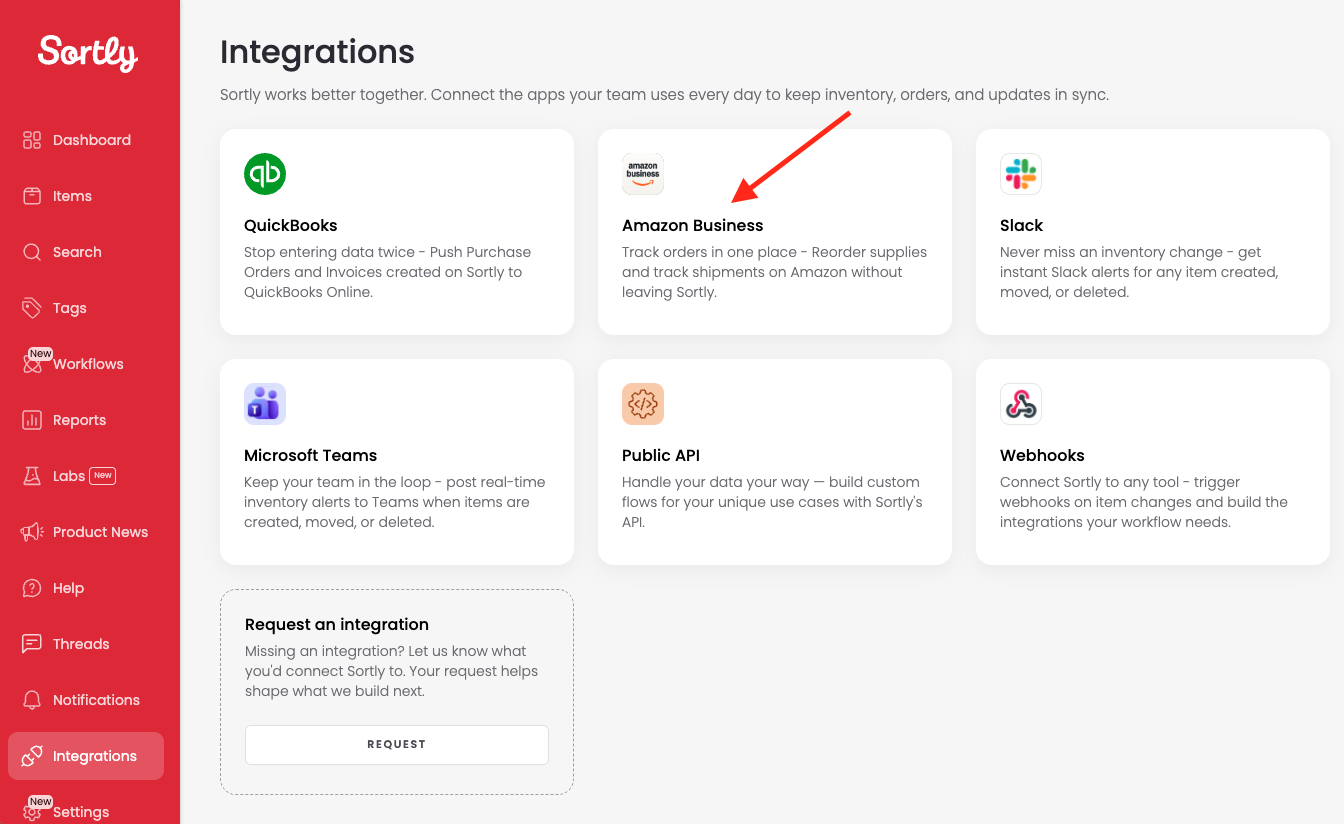
1Go to Integrations
In Sortly, go to Integrations.
-
2Select Amazon Business
Select Amazon Business.
-
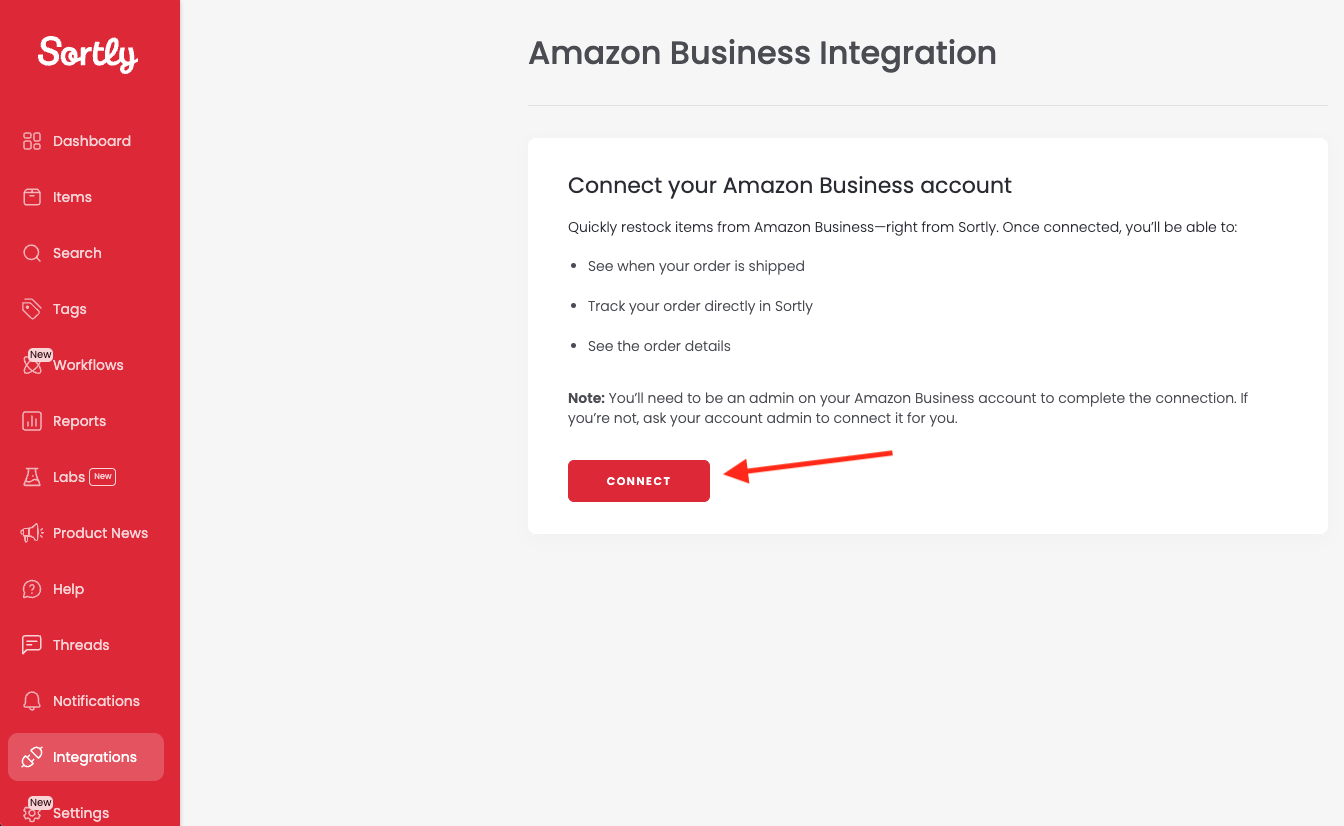
3Click "Connect"
Click Connect.
-
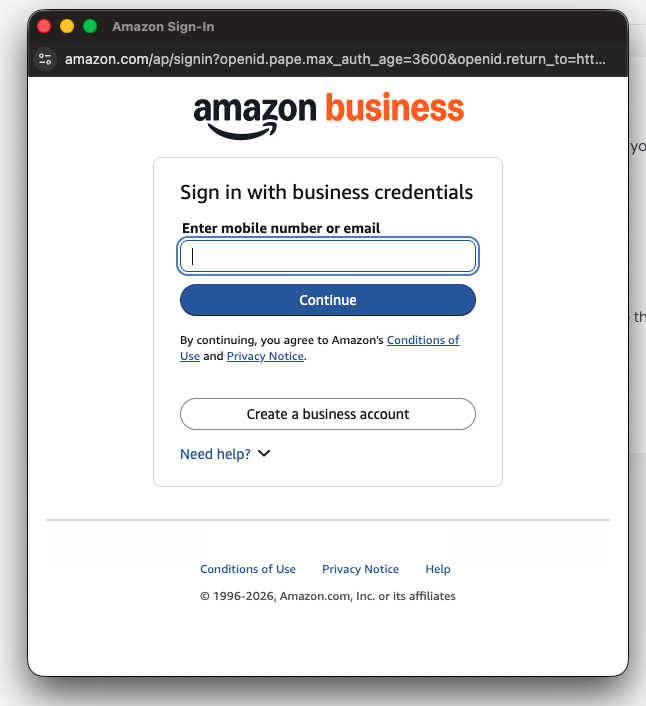
4Sign in and approve access
Follow the prompts to sign in and approve access to your Amazon Business account.
You can also connect from Workflows > Online Orders. If you're not connected yet, Sortly will guide you through it there.
How to restock with Amazon Business
When you're ready to reorder an item through Amazon Business:
-
1Open the Restock window
See "Where you can restock from" below.
-
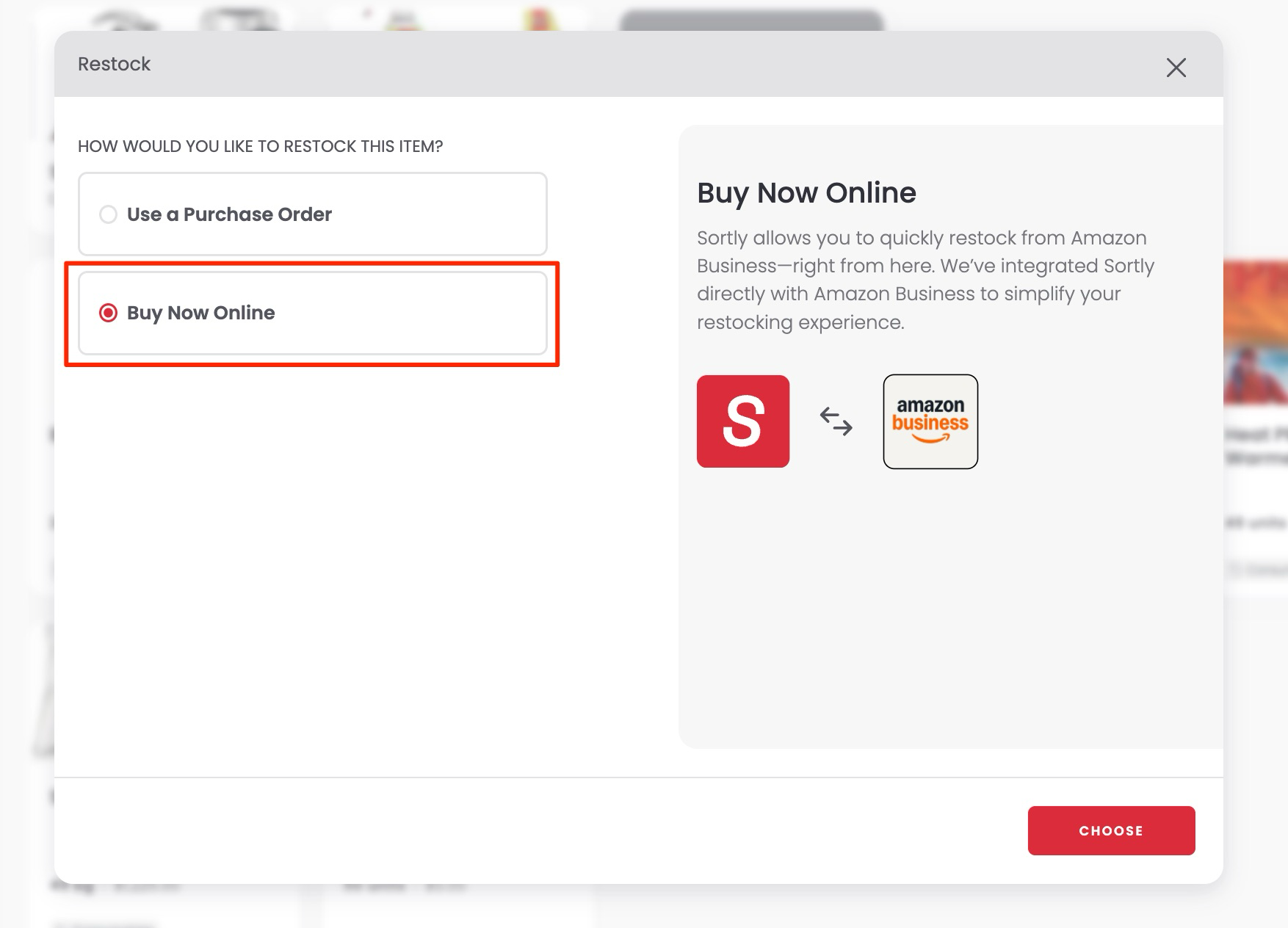
2Select "Buy Now Online"
Select Buy Now Online and click Choose.
-
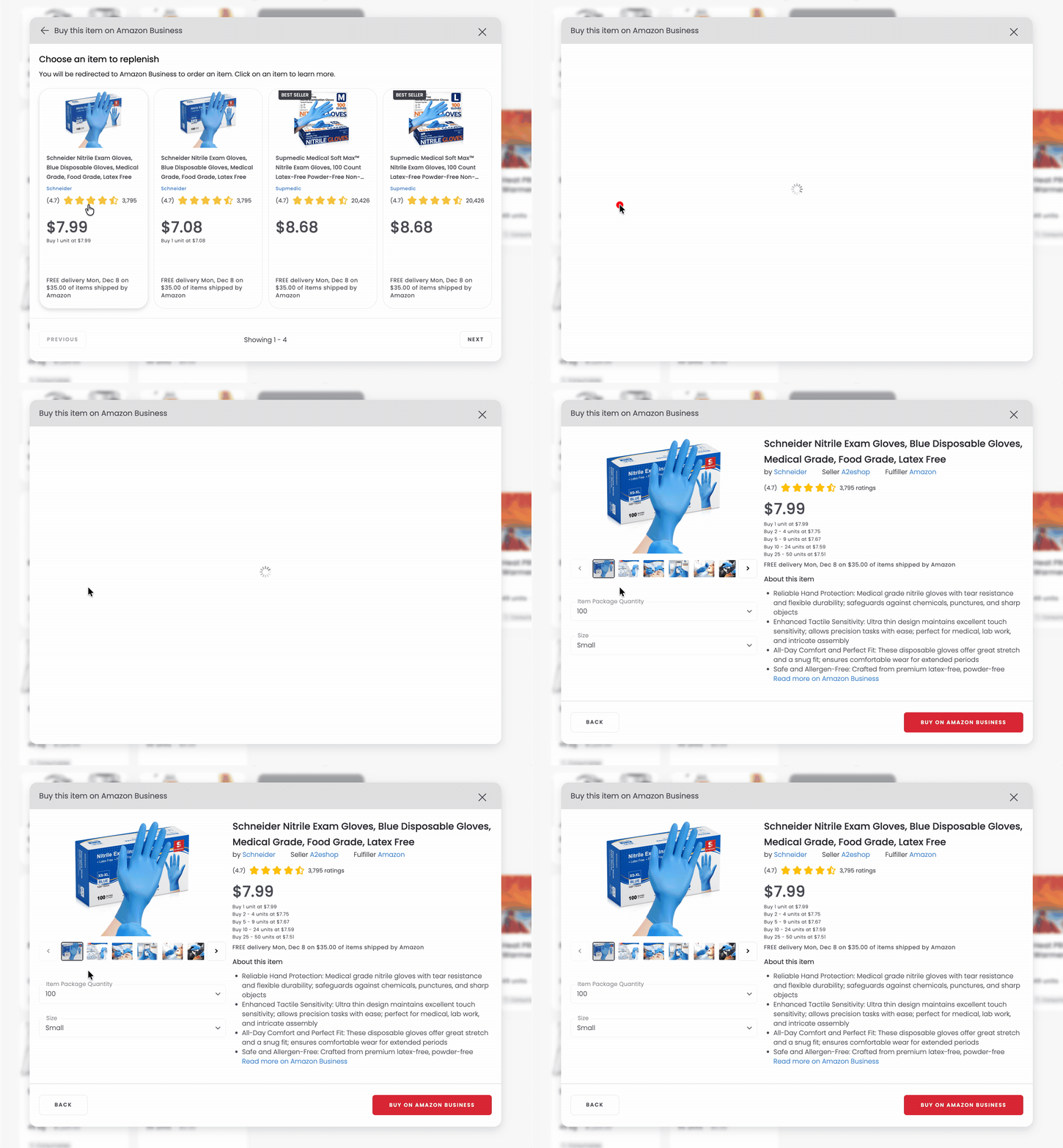
3Review the Amazon results
Review the Amazon results and select the product you want.
-
4Complete your order in Amazon Business
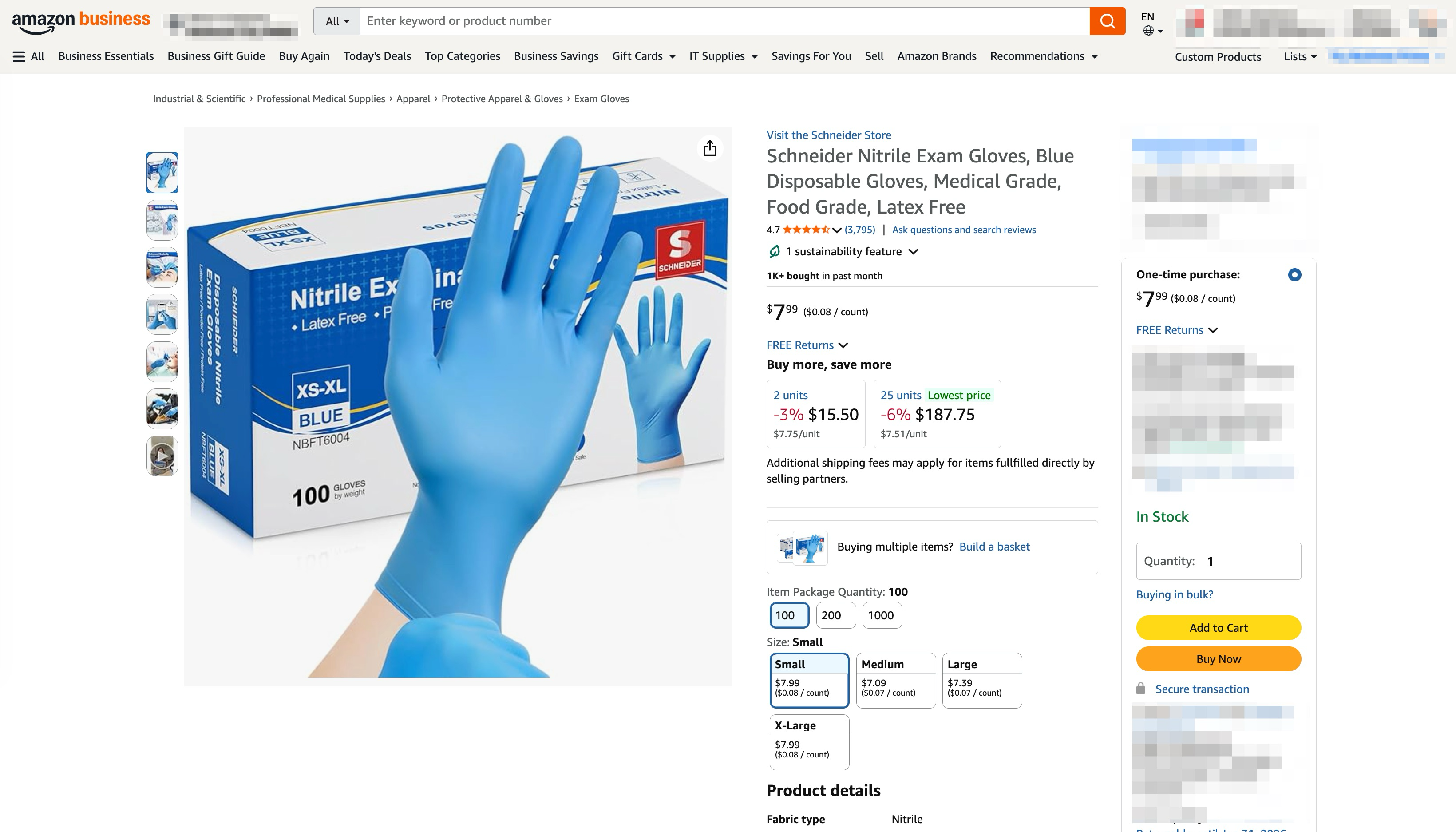
After your order is placed, it will appear in your Amazon Business order history in Sortly.
How to restock when items run low
When an item is running low or out of stock, Sortly gives you a quick way to reorder right away. The restock option shows up automatically where you're already working, so you don't need to build a list first.
When Restock shows up
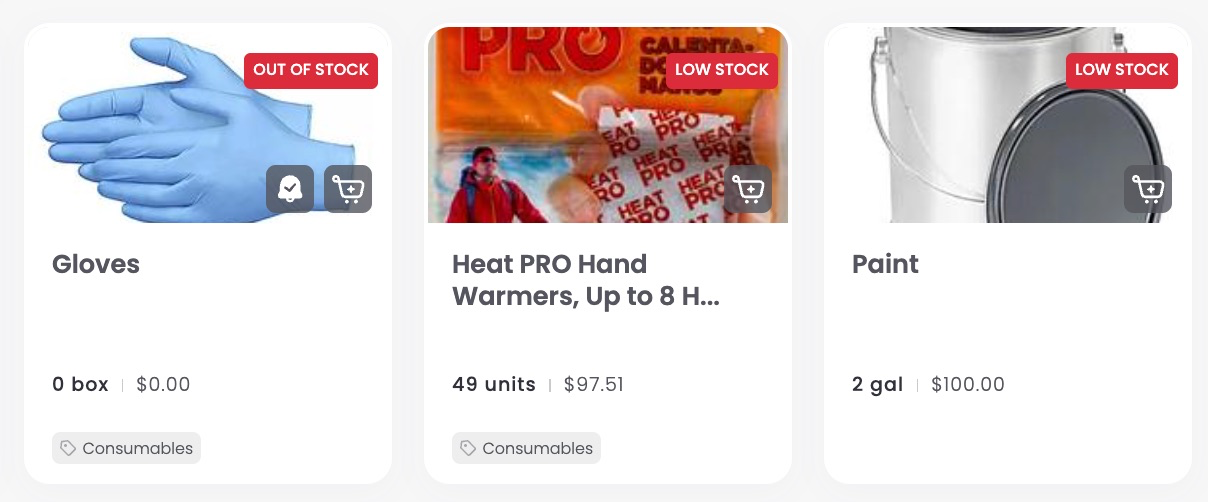
Restock options appear when:
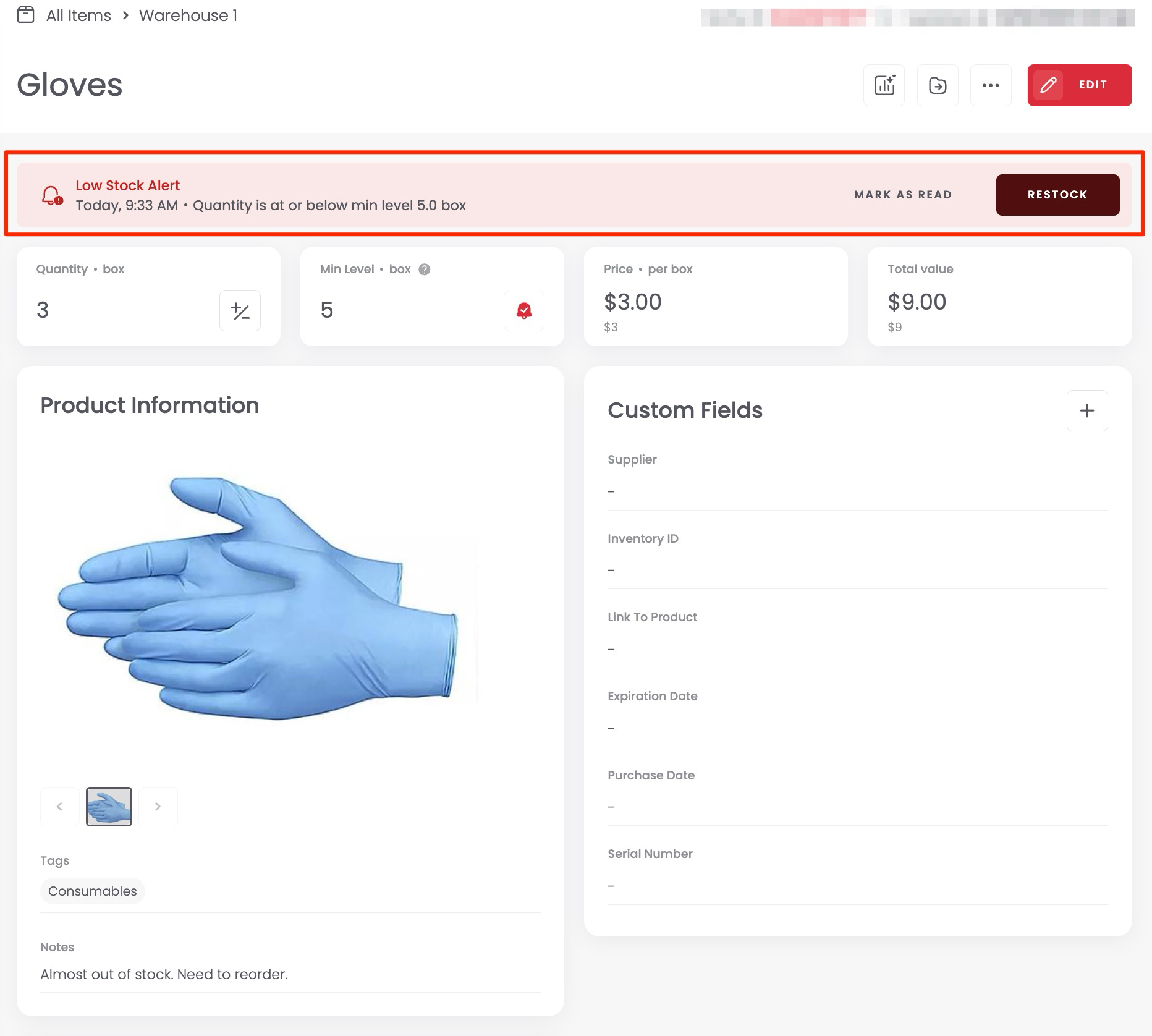
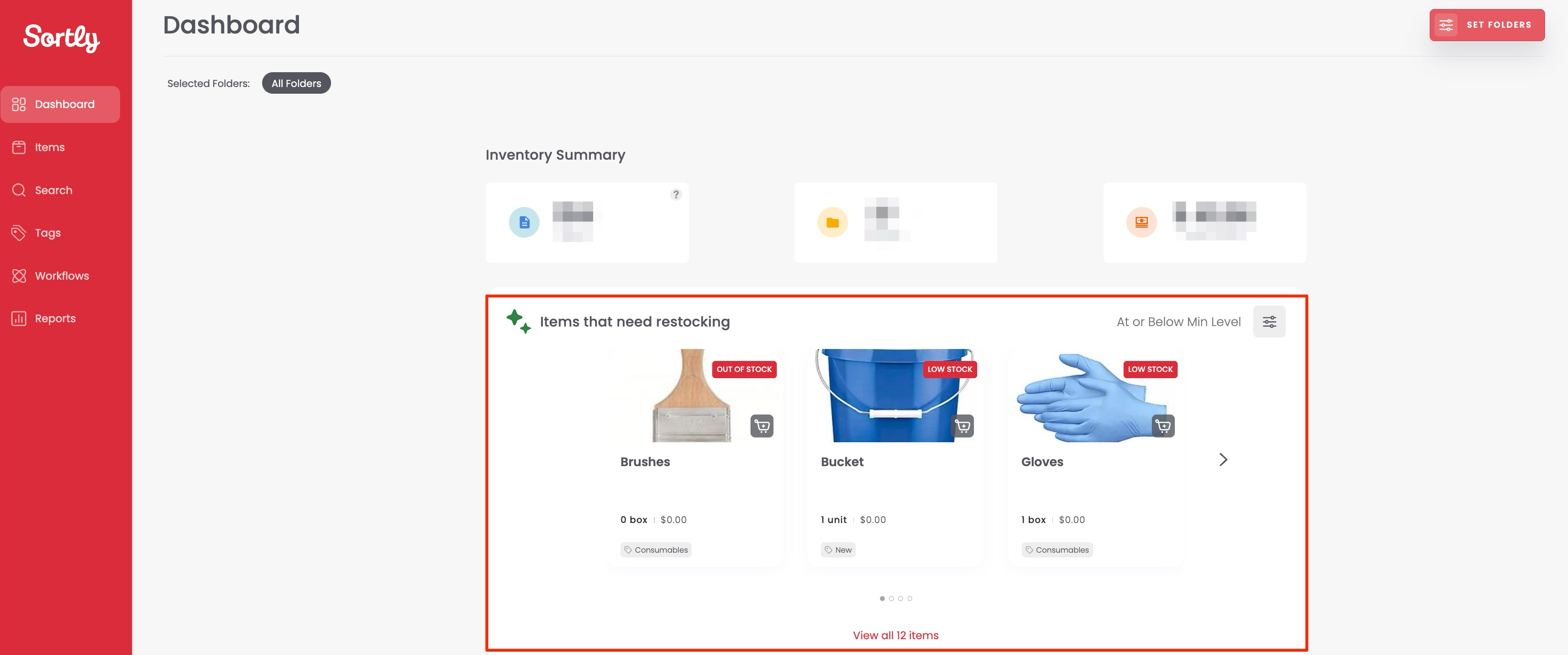
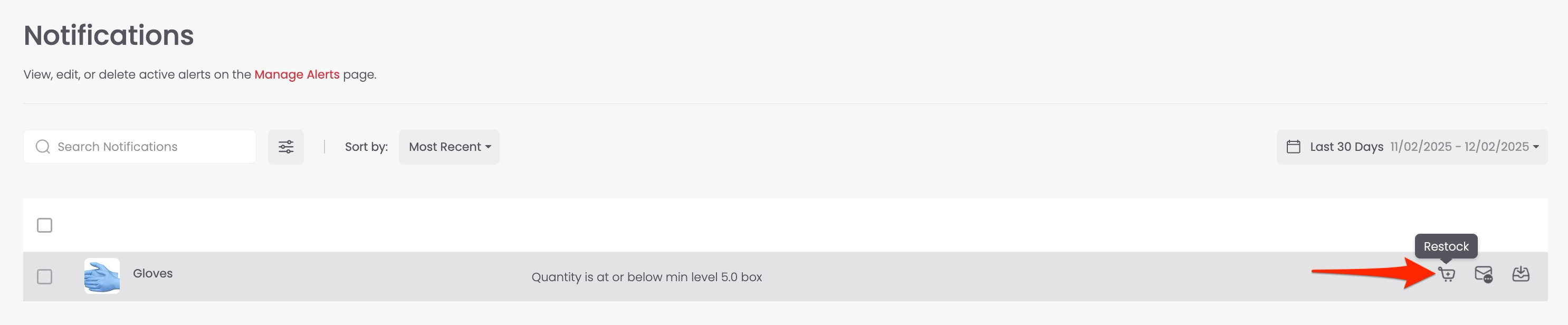
- An item reaches or drops below its minimum stock level, labeled Low Stock.
- An item hits zero, labeled Out of Stock.
Where you can restock from
You may see Restock options in:
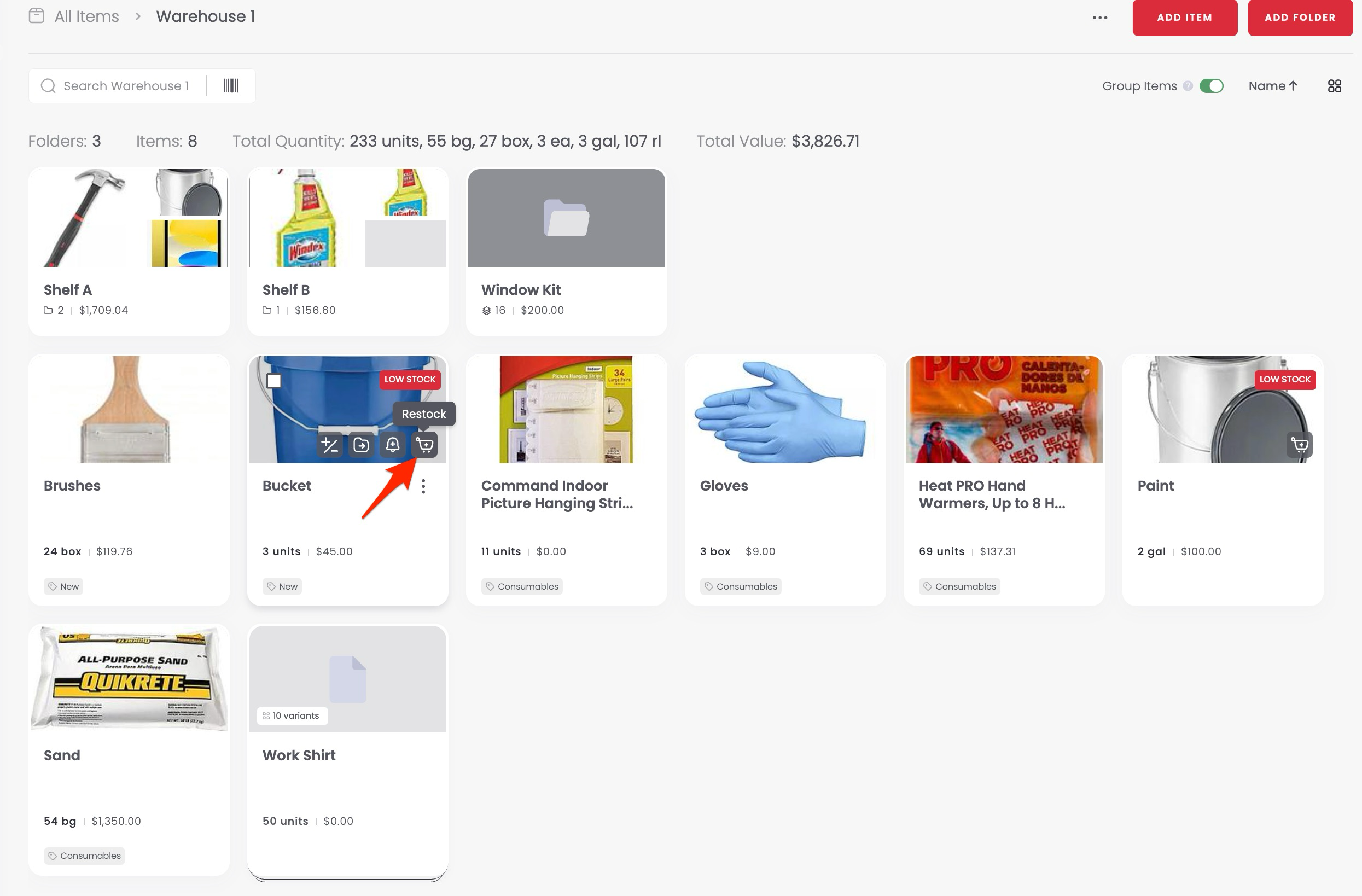
- Item cards
- Item detail pages
- Dashboard
- In-app notifications
How to open Restock
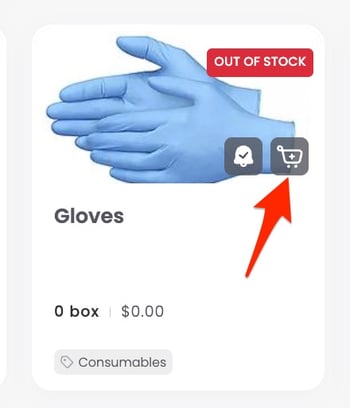
- If an item is Low Stock or Out of Stock, a shopping cart with a "+" appears on the item card. Click it to restock.
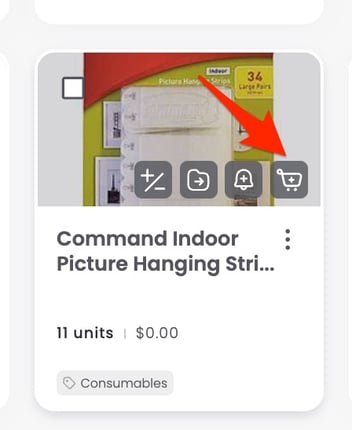
- For items that aren't low yet, hover over the item card to reveal the restock icon, then click it.
- You can also click the three-dot menu on any item and select Restock.
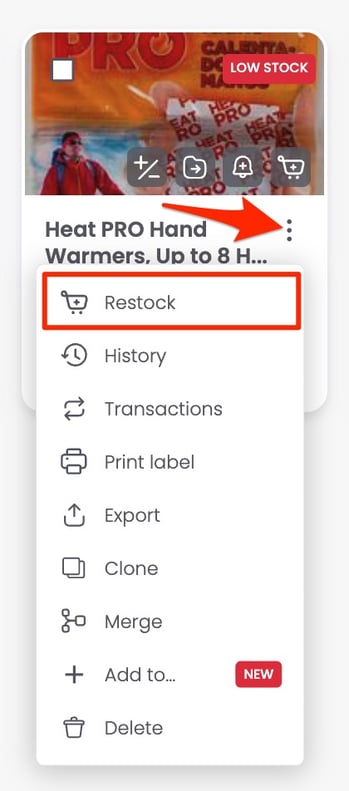
From there, you can choose to Buy Now Online or Use a Purchase Order.
Viewing your Amazon Business order history
All synced Amazon Business orders appear in Sortly once your account is connected.
-
1Go to Workflows
-
2Click "Online Orders"
Click Online Orders.
You'll see details like:
- Purchase date
- Order total
- Amazon order number
- Tracking info (when available)
Orders placed outside Sortly will still appear here, as long as they're part of the connected Amazon Business account.