---
title: AppFolio Integration
description: Connect Sortly to AppFolio to keep inventory details for work orders up to date in both systems.
---
[Skip to content](https://help.sortly.com/appfolio-integration#main-content)

Open main navigation
Close main navigation
Looking for answers? Start here.
- There are no suggestions because the search field is empty.
1. [Sortly Help Center](https://help.sortly.com/?hsLang=en)
2. [Customizing Account](https://help.sortly.com/customizing-account?hsLang=en)
3. [Integrations](https://help.sortly.com/customizing-account?hsLang=en#integrations)
# AppFolio Integration
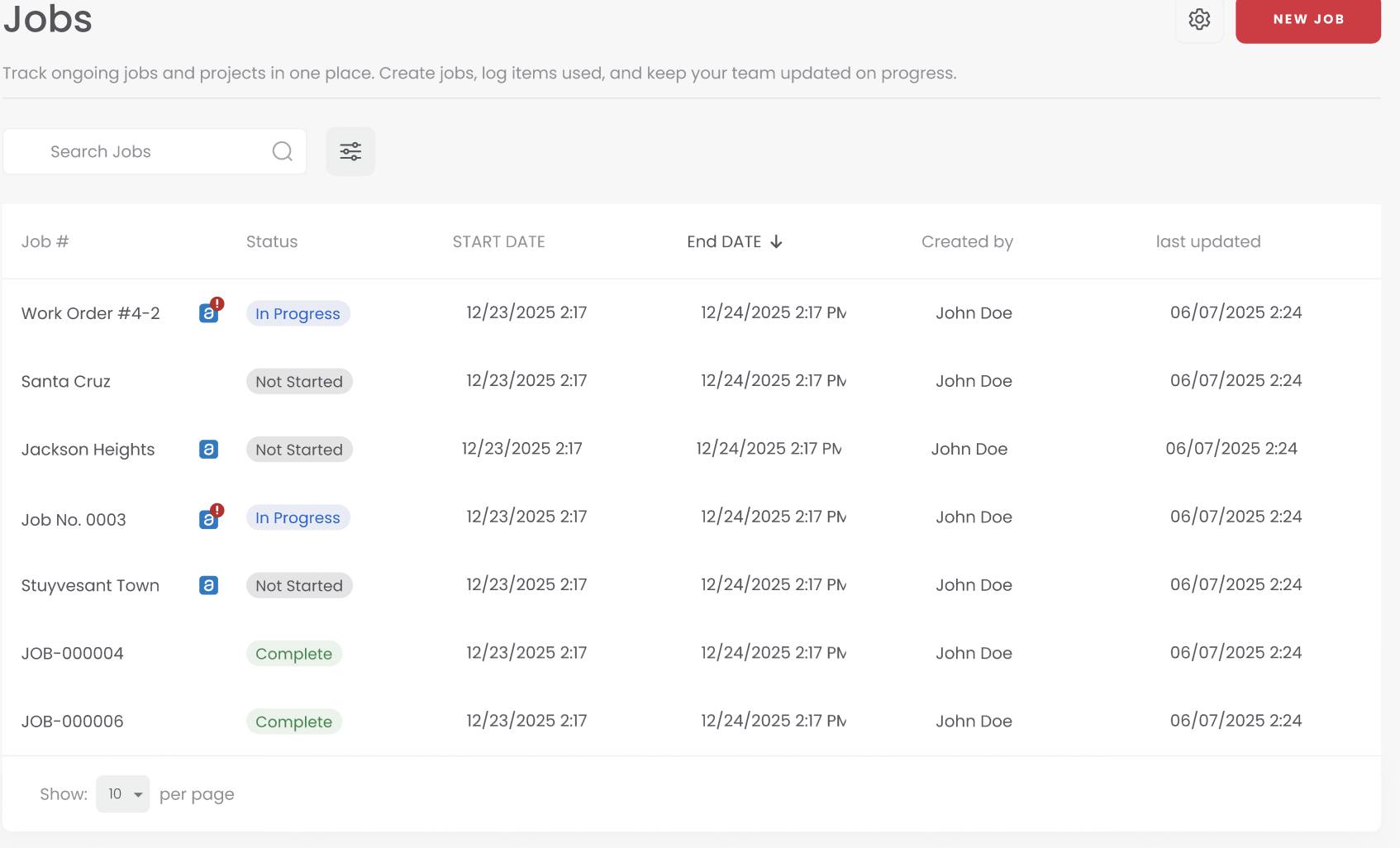
Connect Sortly to AppFolio to keep inventory details for work orders up to date in both systems. Once connected, work order parts and quantities flow between AppFolio and Sortly automatically, so your team never has to enter the same information twice.
**Enterprise**
In this article
1. [Connecting to AppFolio](https://help.sortly.com/appfolio-integration#connect)
2. [Setting a Price Markup](https://help.sortly.com/appfolio-integration#markup)
3. [Add items to Work Orders](https://help.sortly.com/appfolio-integration#add-items)
4. [Closing Work Orders](https://help.sortly.com/appfolio-integration#closing)
5. [FAQ](https://help.sortly.com/appfolio-integration#faq)
### Connecting to AppFolio
1. 1**Go to AppFolio**
Sign in to your AppFolio account.
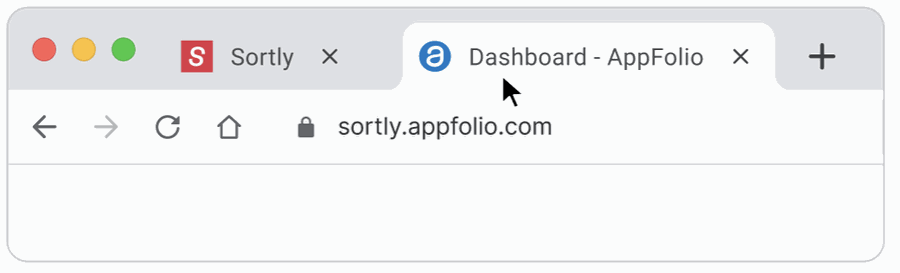
2. 2**Open the Sortly integration**
Click Add Functionality, then Integrations.

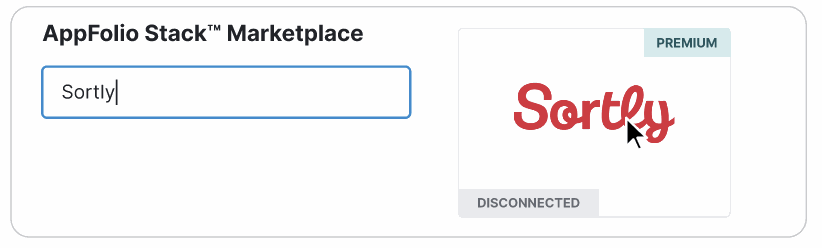
3. 3**Find Sortly in the marketplace**
Search for Sortly and select the tile.
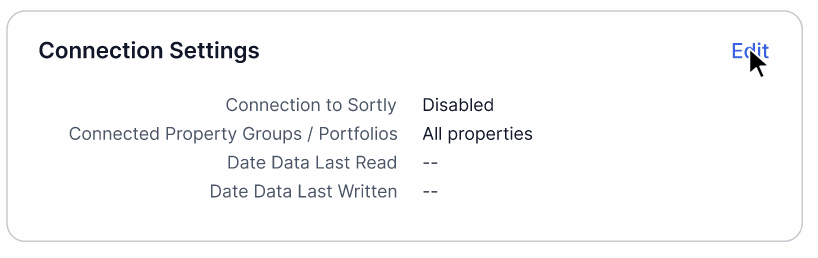
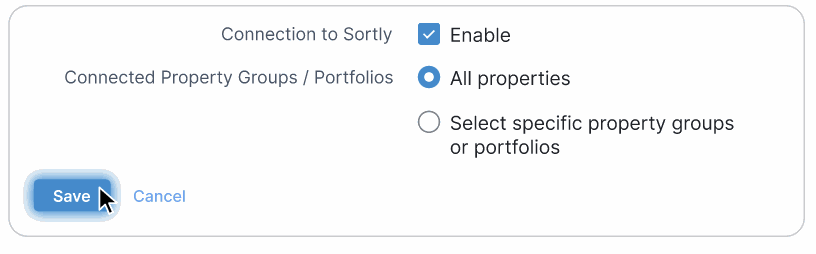
4. 4**Open connection settings**
Under Connection Settings, click Edit.
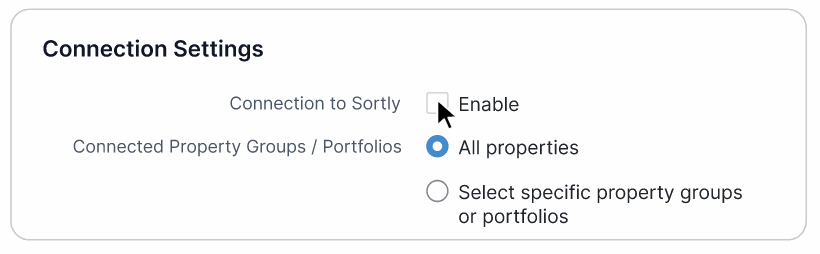
5. 5**Enable the integration**
Click Enable.
6. 6**Save your settings**
Click Save to confirm the connection.
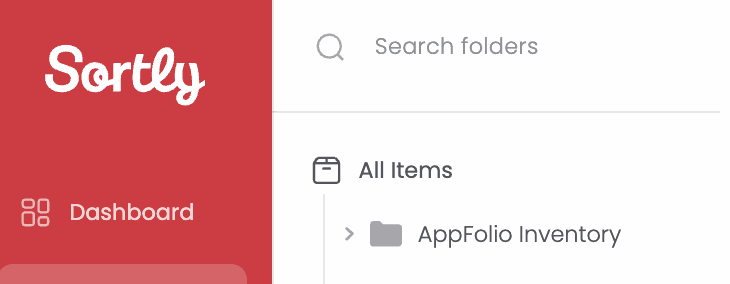
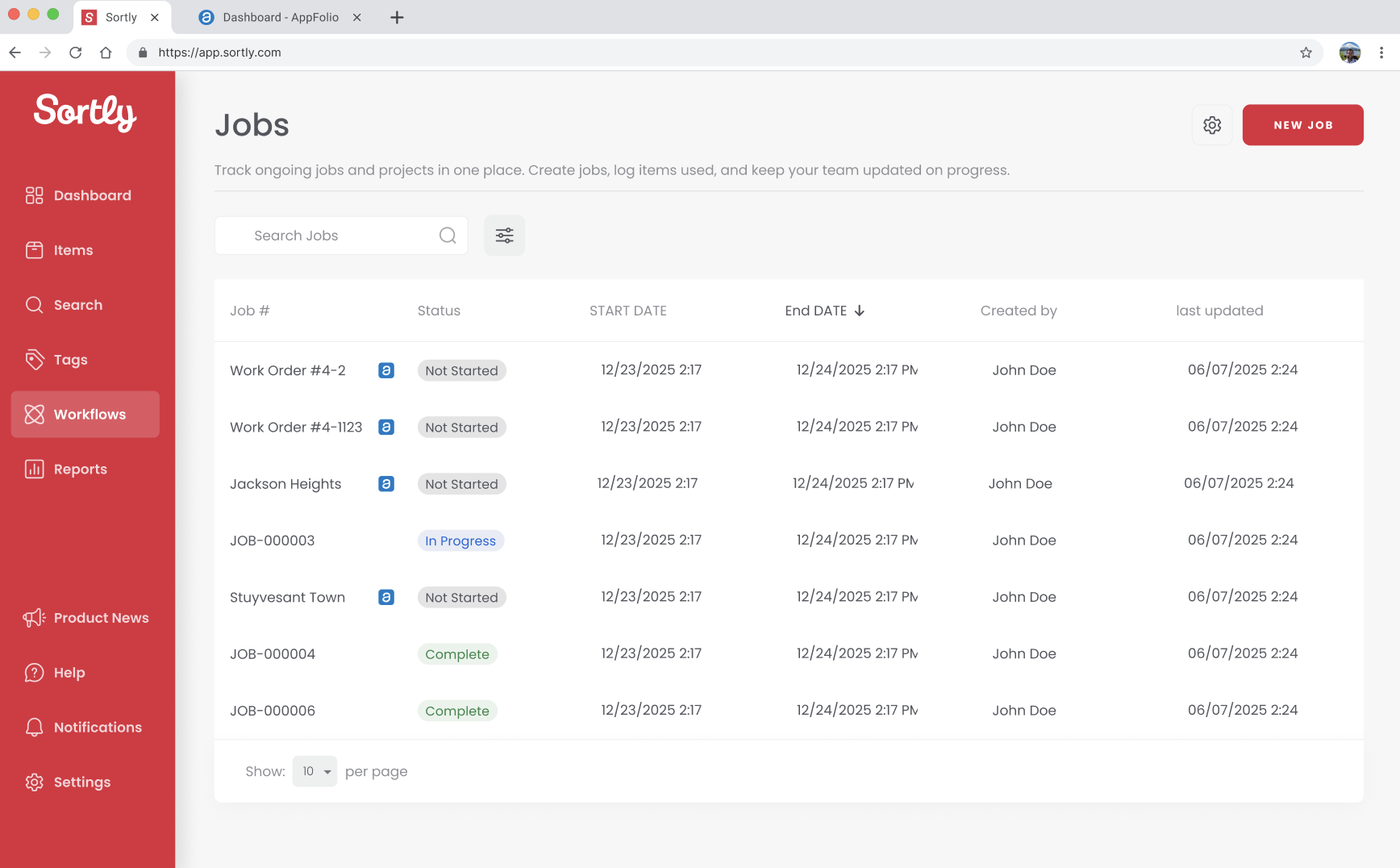
✅ Once connected, all inventory from AppFolio imports into an **AppFolio Inventory** folder in Sortly, and all active work orders import as Jobs.
### Setting a Price Markup
You can set an account-level price markup with the AppFolio integration. When item prices are pushed from Sortly to AppFolio, the markup is automatically applied to calculate the selling price displayed on AppFolio work orders.
1. 1**Open Integrations**
Click Integrations in the left-hand menu.
2. 2**Select AppFolio Stack**
Select the AppFolio Stack integration.
3. 3**Open the menu**
Click the three-dot menu in the upper-right corner.
4. 4**Choose Price Markup**
Select Price Markup.
5. 5**Save your markup**
Enter your desired markup details and click Save to apply your changes.

### Add items to Work Orders
1. 1**Open a work order**
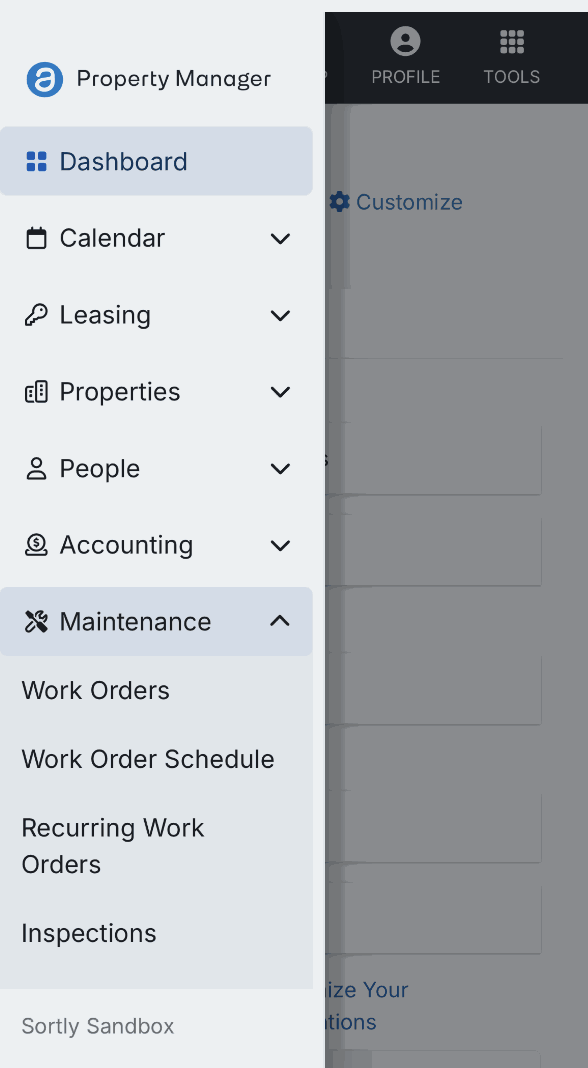
In AppFolio, go to Maintenance \> Work Orders and open an active work order.
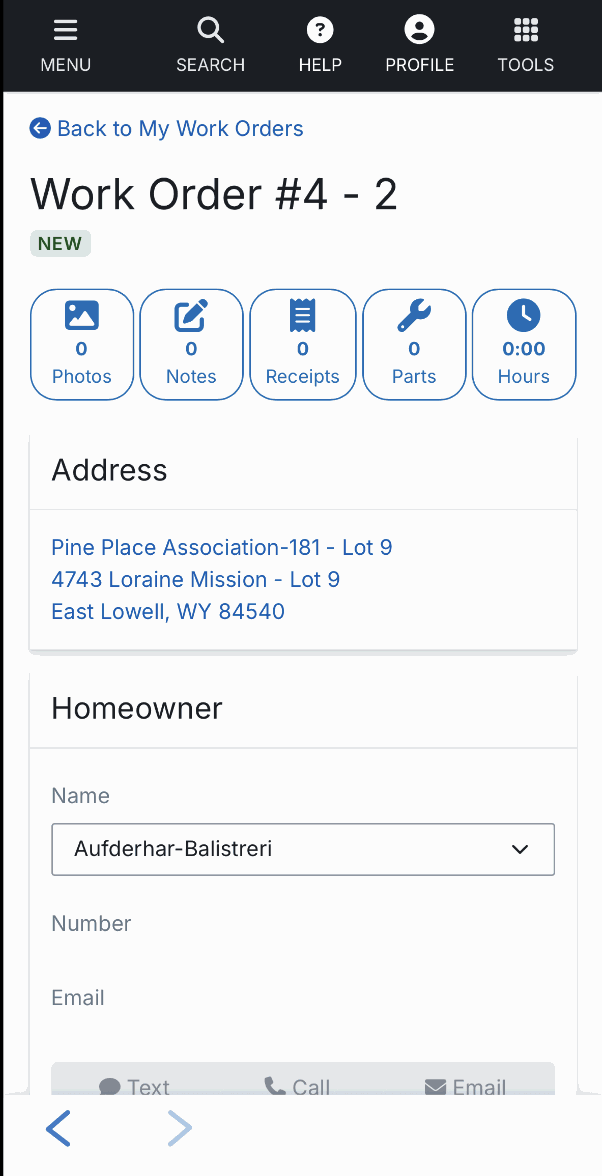
2. 2**Open the Parts tab**
Click Parts on the work order.
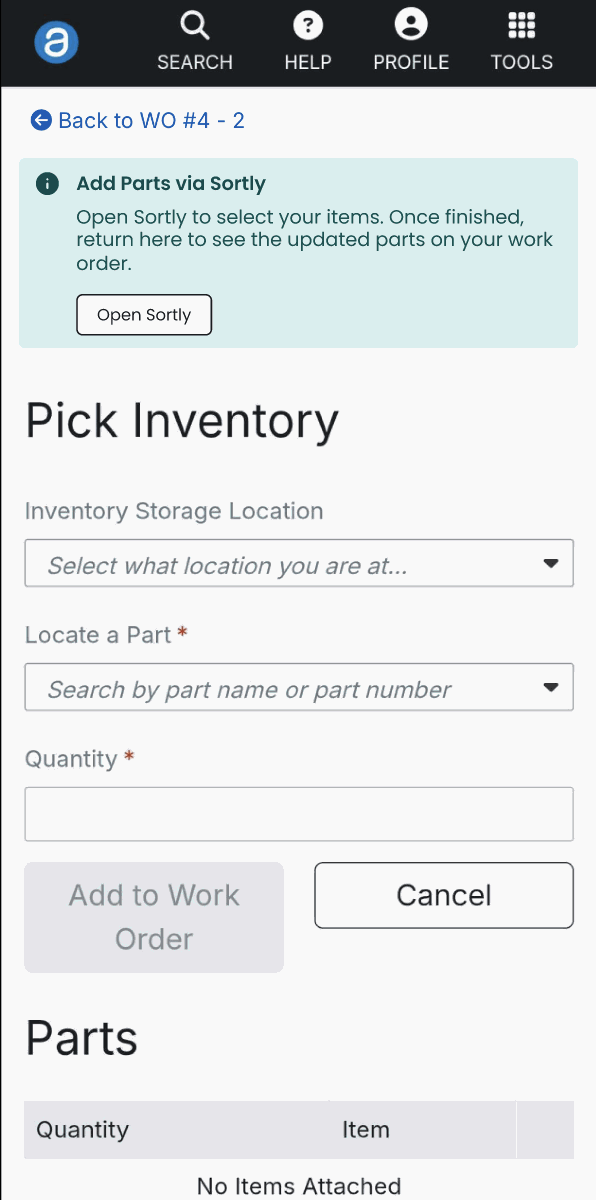
3. 3**Open Sortly**
Click Open Sortly.
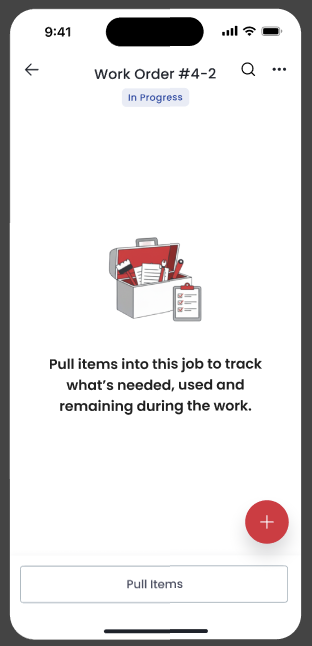
4. 4**Pull items into the Job**
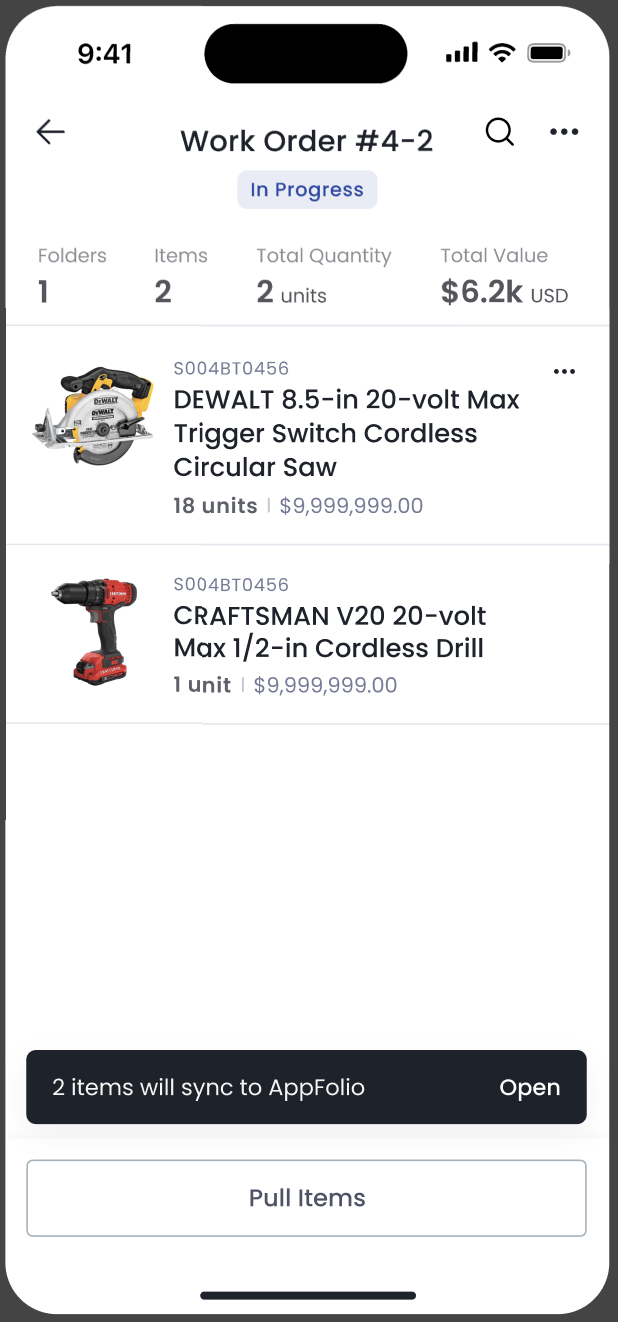
For every work order in AppFolio, a Sortly Job is auto-created. You'll be redirected to the corresponding Sortly Job. Click Pull Items.
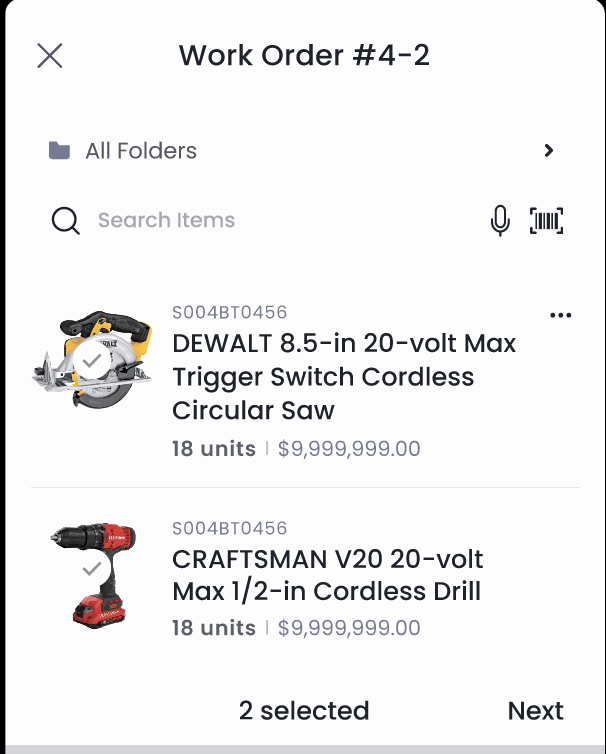
5. 5**Add items and enter quantities**
Add items to the job and enter the quantity used for the job. You can even use the barcode scanning feature to add items to the job. Items that share the same SID show as one row in Sortly. They're only split into separate rows if they have different prices.
6. 6**Return to AppFolio**
Once items are added to the job, click the Open button on the toast to go back to the AppFolio work order.
7. 7**Finish up in AppFolio**
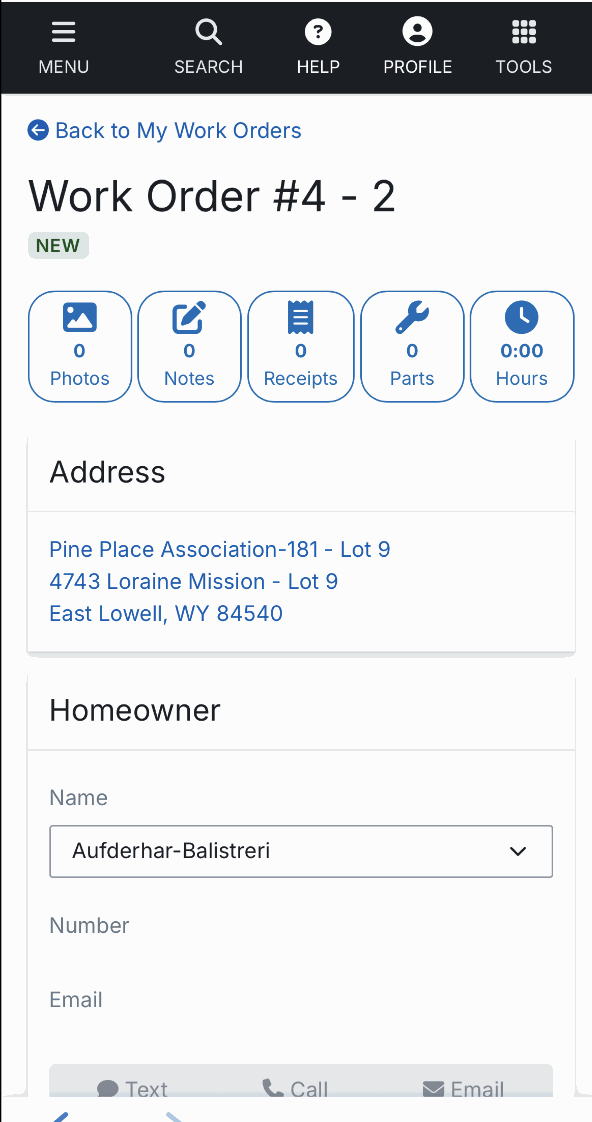
In AppFolio, add any remaining details, such as hours, receipts, or notes.
### Closing Work Orders
1. 1**Close the work order**
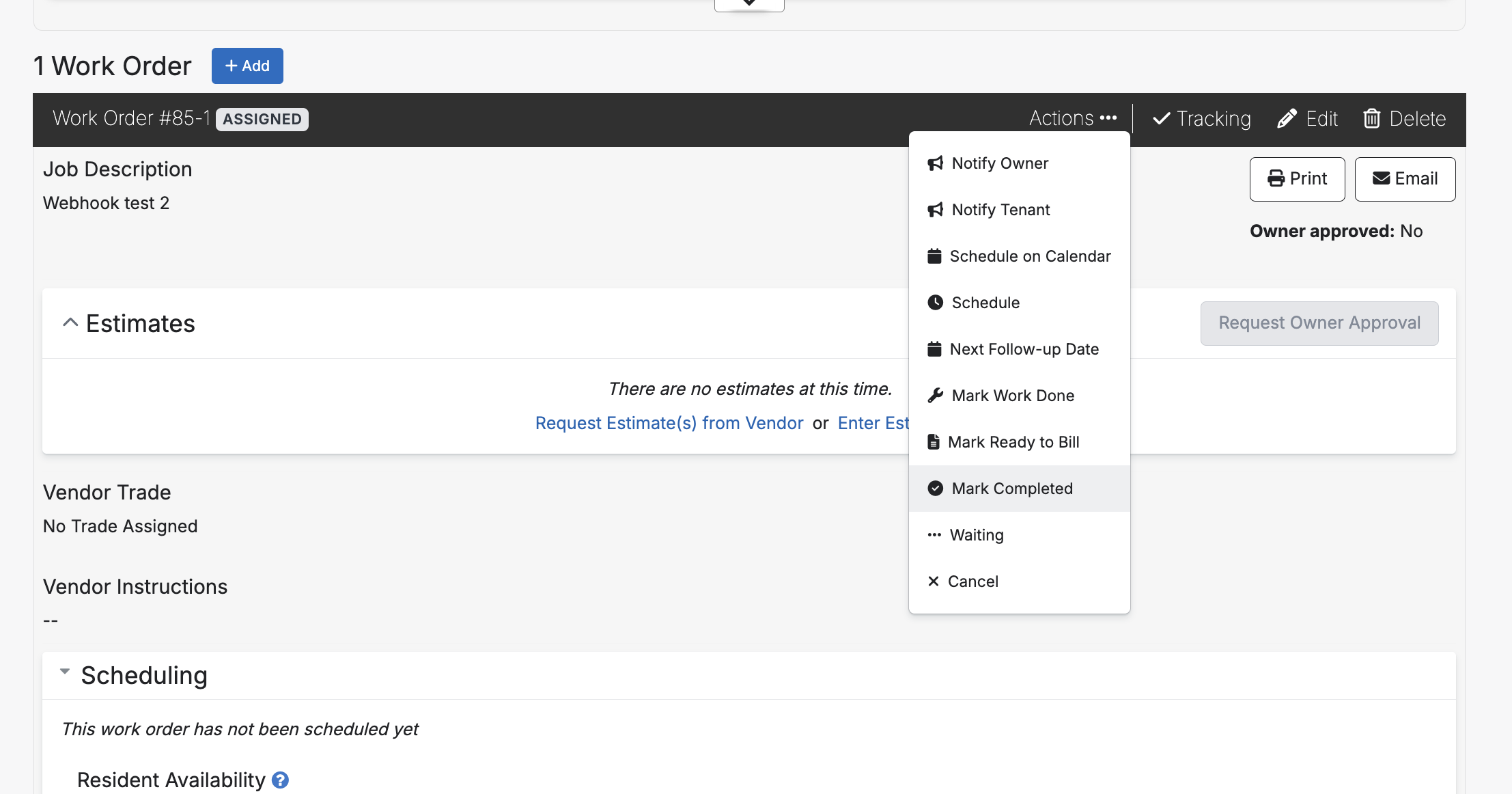
Mark the work order as Done in AppFolio. This triggers completion of the corresponding job in Sortly.
2. 2**Matching items complete the job automatically**
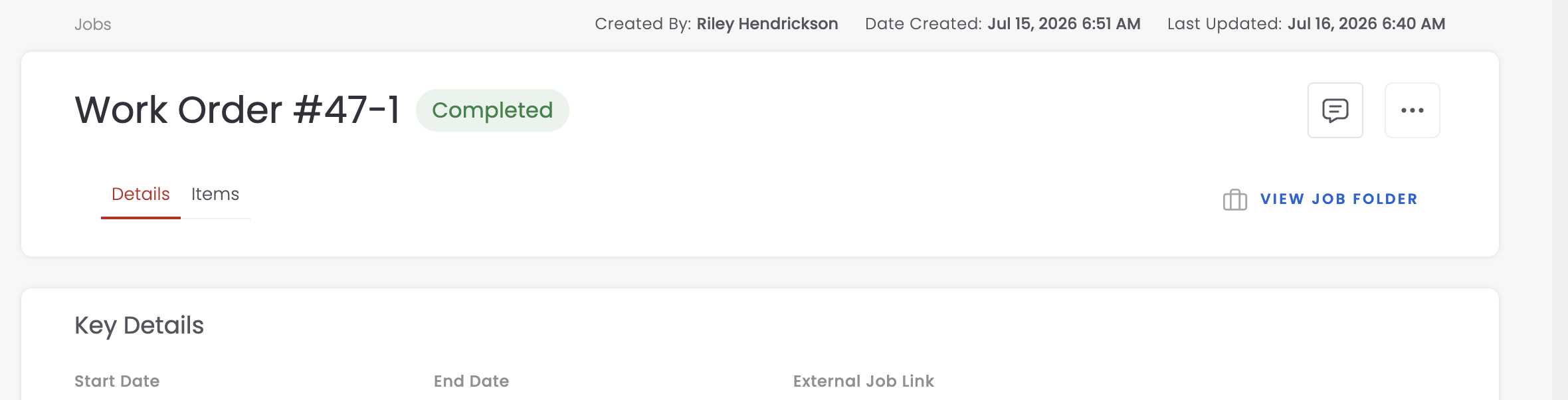
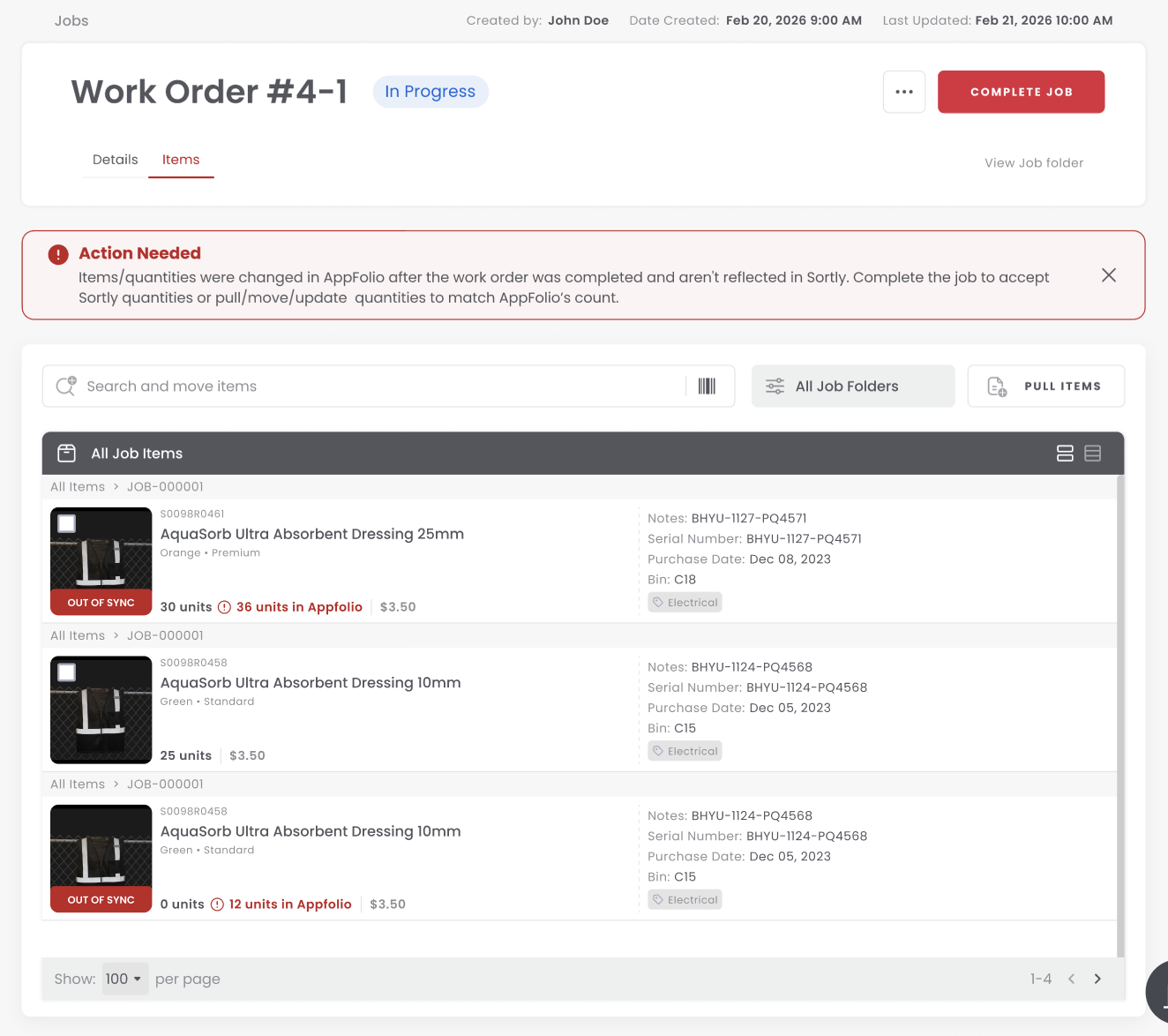
If the item list and their quantity on the AppFolio work order matches the items in the Sortly Job, the Job will be marked as complete.
3. 3**Resolve mismatches manually**
If a technician adds or removes items in AppFolio before closing the work order, the item list or quantities may no longer match Sortly. In this case, the Sortly Job remains open with a conflict. Users must manually resolve the conflict by pulling items or moving them out of the Job to match AppFolio, then mark the Job complete.
### Frequently Asked Questions
What are the plan requirements?
AppFolio Plus or Max plan, plus a Sortly Enterprise plan.
What information syncs between AppFolio and Sortly?
Item name, quantity, and price sync for inventory recorded against a connected Job. More detailed inventory information stays in Sortly.
Can I connect more than one AppFolio account?
No, only one AppFolio account can link per Sortly account.
[](https://www.sortly.com/)
Copyright © 2026, Sortly Inc.