
Connect Sortly to AppFolio to keep inventory details for work orders up to date in both systems. Once connected, work order parts and quantities flow between AppFolio and Sortly automatically, so your team never has to enter the same information twice.
In this article
-
1Go to AppFolio
Sign in to your AppFolio account.
-
-
2Open the Sortly integration
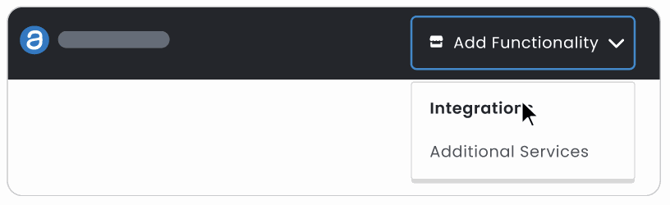
Click Add Functionality, then Integrations.
-
-
3Find Sortly in the marketplace
Search for Sortly and select the tile.
-
-
4Open connection settings
Under Connection Settings, click Edit.
-
-
5Enable the integration
Click Enable.
-
-
6Save your settings
Click Save to confirm the connection.
-
-
1Open a work order
In AppFolio, go to Maintenance > Work Orders and open an active work order.
-
2Open the Parts tab
Click Parts on the work order.
-
-
-
3Open Sortly
Click Open Sortly.
-
-
4Pull items into the Job
For every work order in AppFolio, a Sortly Job is auto-created. You will be redirected to corresponding Sortly Job, click on Pull Items.
-
-
5Add items and enter quantities
Add items to the job and enter the quantity used for the job. You can even use can feature to add items to the job.
-
-
-
6Return to AppFolio
- Once items are added to the job, click Open button on the toast to access the AppFolio work order..
-
-
7Finish up in AppFolio
In AppFolio, add any remaining details, such as hours, receipts, or notes, and mark the work order as Done. This step would auto-complete the corresponding job in Sortly.
-