---
title: Bulk Edit
description: Bulk Edit lets you update many items at once, each with its own value, in a spreadsheet.
---
[Skip to content](https://help.sortly.com/bulk-edit#main-content)

Open main navigation
Close main navigation
Looking for answers? Start here.
- There are no suggestions because the search field is empty.
1. [Sortly Help Center](https://help.sortly.com/?hsLang=en)
2. [Getting started](https://help.sortly.com/getting-started?hsLang=en)
3. [Updating Inventory](https://help.sortly.com/getting-started?hsLang=en#updating-inventory)
# Bulk Edit
Save time by updating many items at once, each with its own value, in one spreadsheet. Unlike the standard bulk edit tool, which applies one value to every item you select, Bulk Edit lets each row have its own price, quantity, tags, and more. This article walks you through who can use Bulk Edit, how to enable it, how to edit and apply your updates, and which fields you can change.
Advanced
Ultra
Premium
Enterprise
In this article
1. [What is Bulk Edit?](https://help.sortly.com/bulk-edit#what-is-bulk-edit)
2. [Who can use Bulk Edit](https://help.sortly.com/bulk-edit#who-can-use)
3. [Enable Bulk Edit](https://help.sortly.com/bulk-edit#turning-on)
4. [Start a Bulk Edit session](https://help.sortly.com/bulk-edit#starting-session)
5. [Edit items in the spreadsheet](https://help.sortly.com/bulk-edit#editing-grid)
6. [Apply your updates](https://help.sortly.com/bulk-edit#confirming-updates)
7. [What you can and can't edit](https://help.sortly.com/bulk-edit#editable-fields)
8. [Frequently asked questions](https://help.sortly.com/bulk-edit#faq)
### What is Bulk Edit?
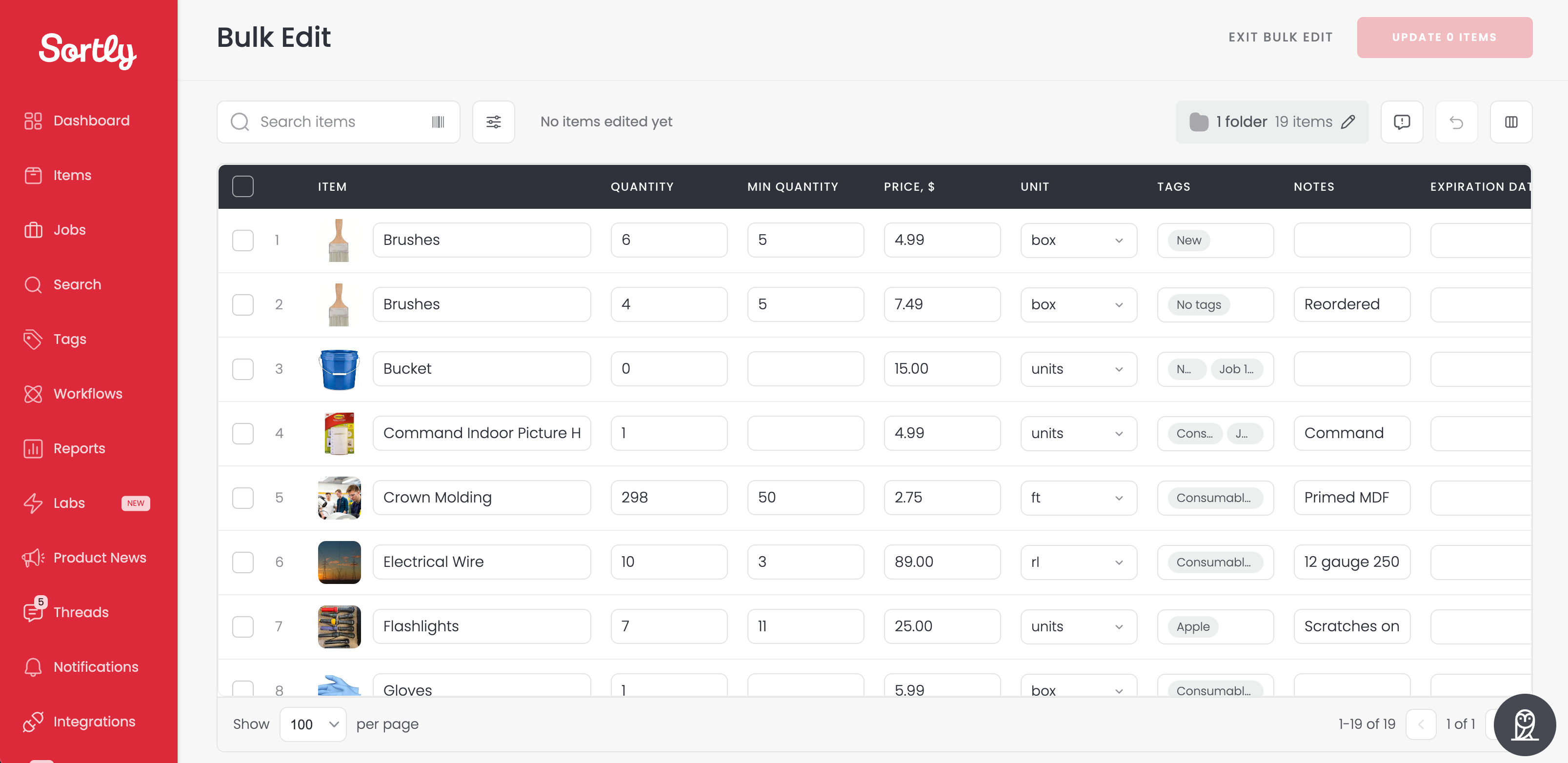
Bulk Edit opens a spreadsheet so you can update items in bulk, with a different value for each one. Select any cell in a row to edit fields like Item, Quantity, Min Quantity, Price, Tags, Notes, and most custom fields.
Bulk Edit updates items you already have. To add new items, use Bulk Import instead.
---
### Who can use Bulk Edit
Bulk Edit is available on paid and trial plans. It isn't available on the Free plan.
Role
Can enable or disable
Can use
Owner
Yes
Yes
Admin
Yes
Yes
Any other role that can edit items
No, can request access
Yes, once enabled
Once Bulk Edit is enabled, anyone who can edit items can use it, in the folders they already have access to.
---
### Enable Bulk Edit
Owners and Admins can enable Bulk Edit from Labs.
1
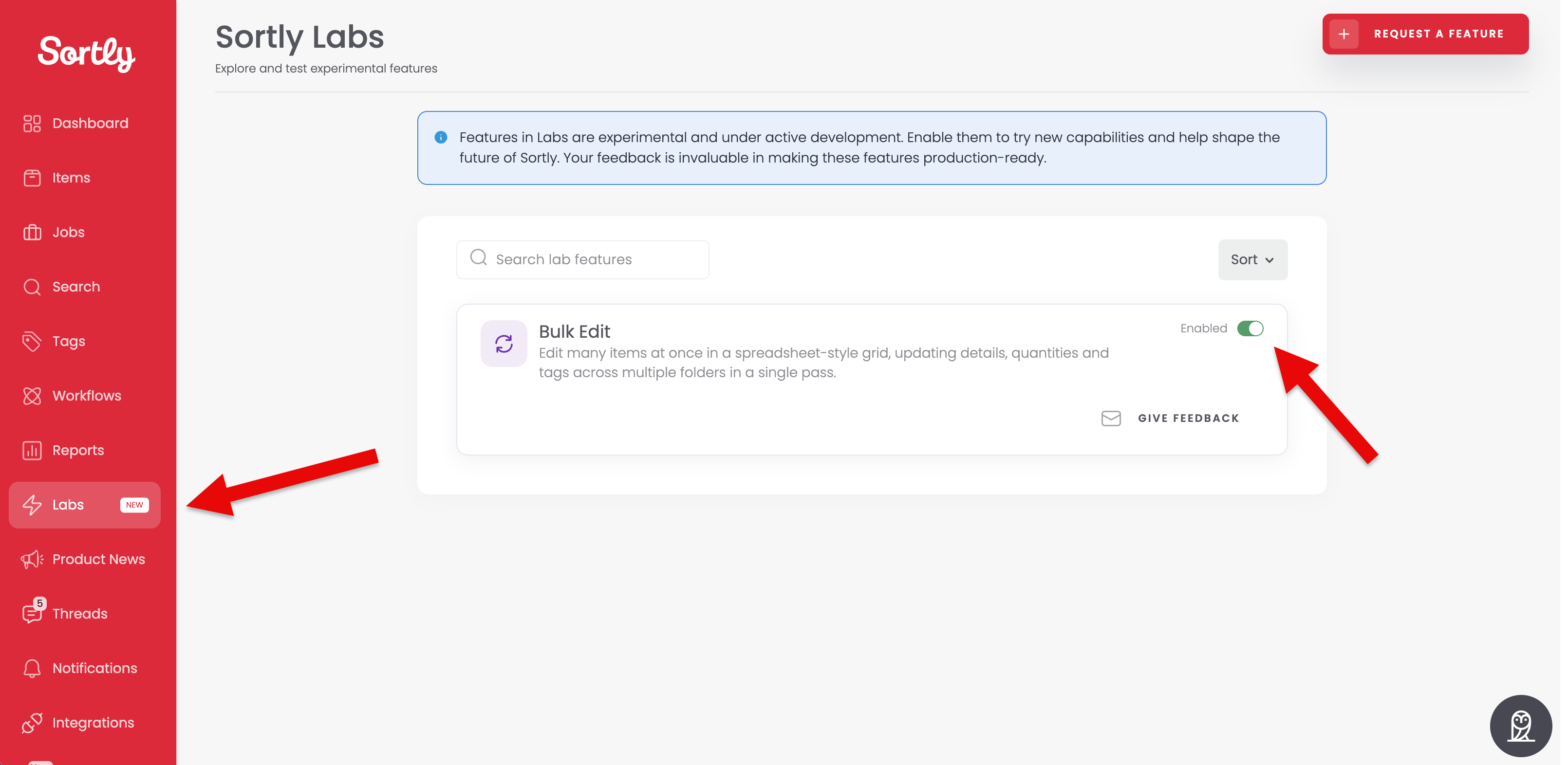
In the left menu, select Labs.
2
On the Bulk Edit card, select the switch so it shows Enabled. A confirmation message lets you know it's ready to use.
If an Owner or Admin later disables Bulk Edit, they'll be asked to share why before the change is saved.
---
### Start a Bulk Edit session
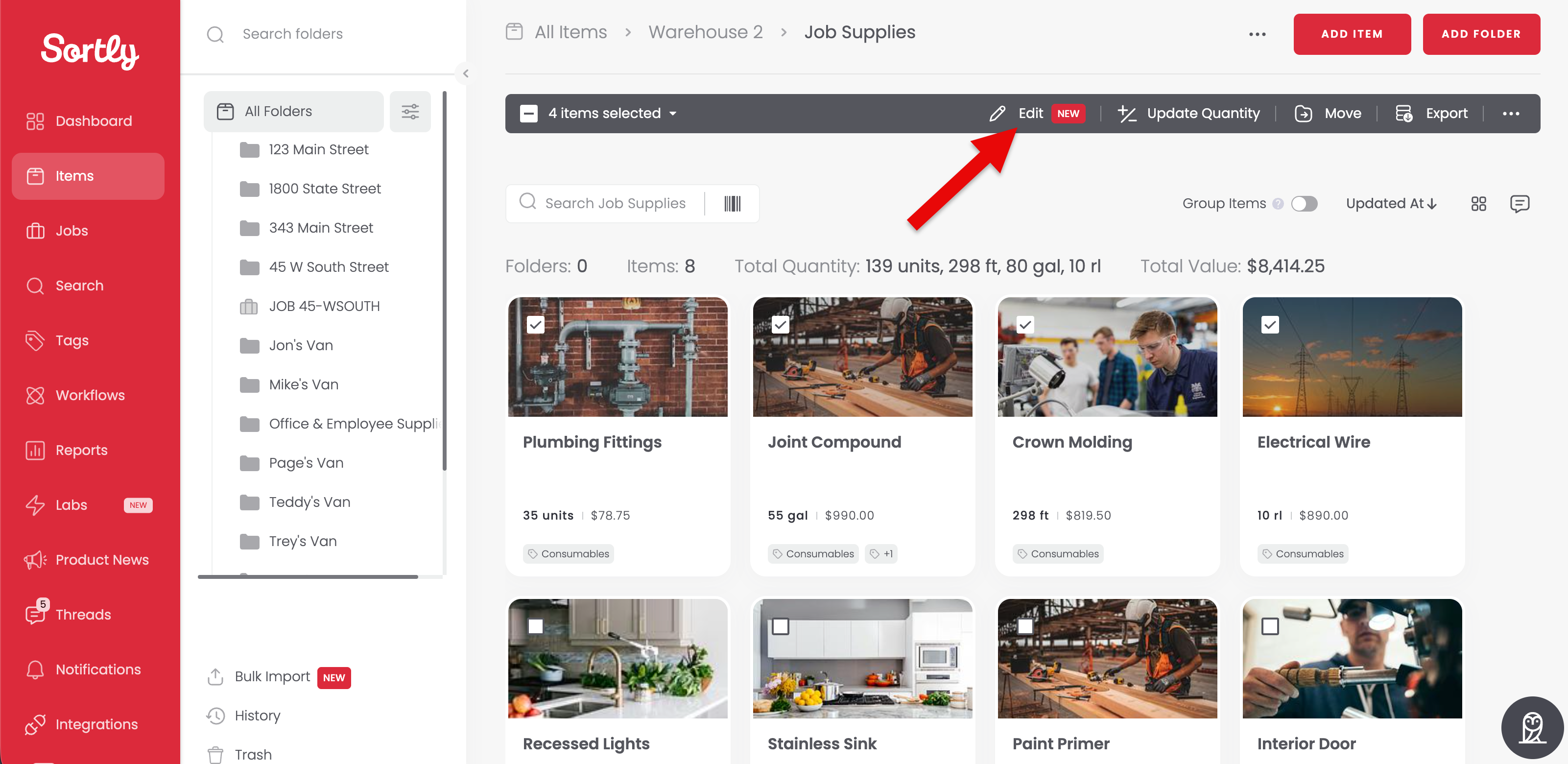
Once Bulk Edit is enabled, you can open it from several places, depending on what you're already doing:
- Select one or more items or folders, then select Edit in the toolbar.
- From Advanced Search results, select one or more items, then select Edit.
- From the ... menu on the Items page, select Bulk Edit \[LABS\]. No selection needed.
- From the ... menu on a specific folder, select Bulk Edit \[LABS\]. No selection needed.
#### Confirm which items are included
Before the spreadsheet opens, the Bulk Edit Items window shows which items you're about to update:
- If you selected specific items, those exact items are included.
- If you selected a folder, or opened Bulk Edit from a folder, all of that folder's items are included. Include subfolder items is selected by default, so subfolder items come along too. Remove the selection if you only want that folder's own items.
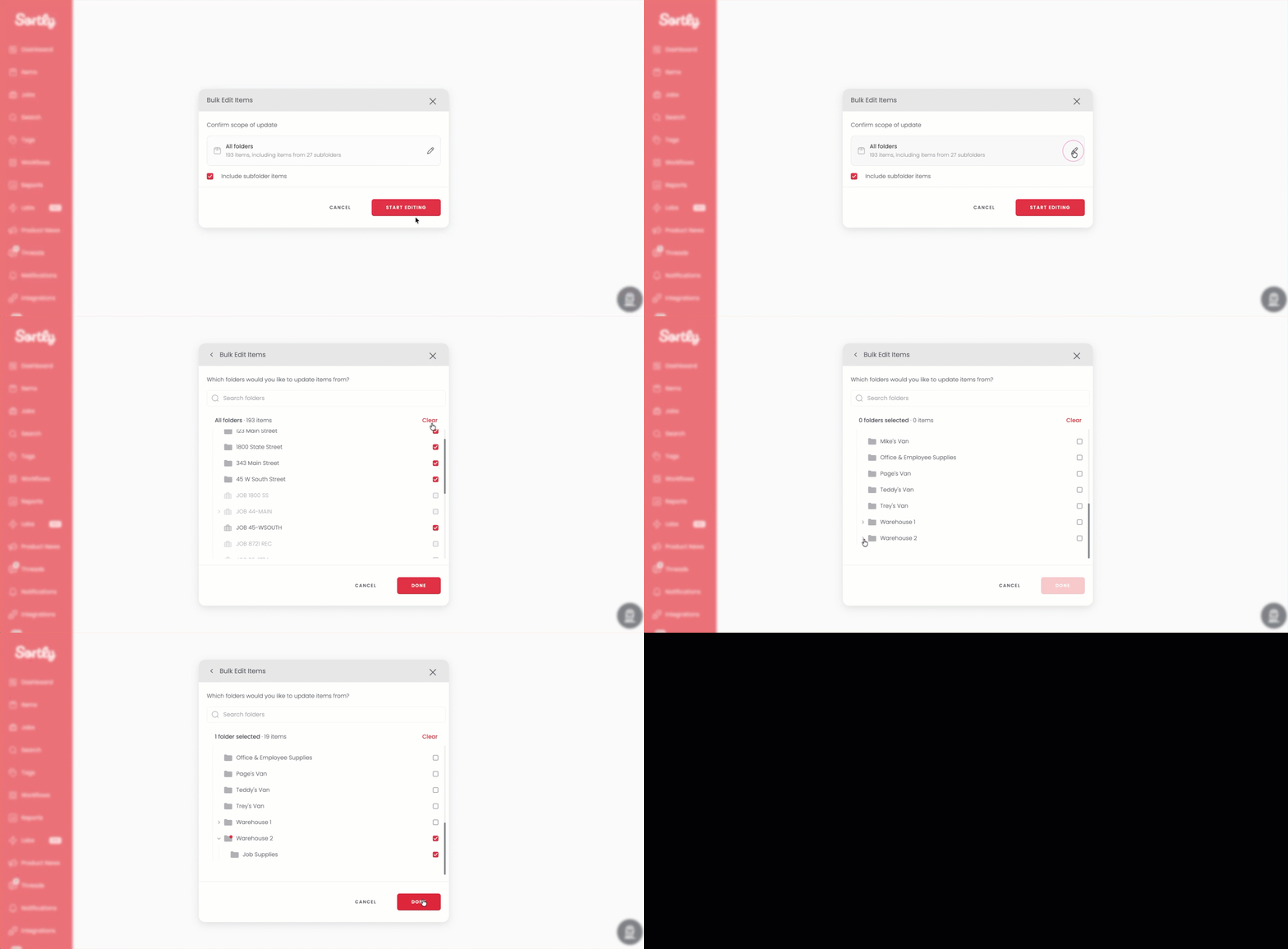
The item count updates as you change that selection. To work with different folders:
1
Select the pencil icon next to the folder name.
2
Under Which folders would you like to update items from?, select the folders you want.
3
Select Done.
4
Select Start Editing to open the spreadsheet.
⚠️ You can include up to 2,000 items in a single Bulk Edit session. If you reach this limit, you'll see a warning and any items beyond it will be disabled for editing.
---
### Edit items in the spreadsheet
The spreadsheet opens with one row per item. Select any cell to edit it, and press Tab to move to the next cell.
#### Undo a change
Press Cmd+Z (Mac) or Ctrl+Z (Windows), or select the undo button in the toolbar, to revert your last change.
#### Search within the spreadsheet
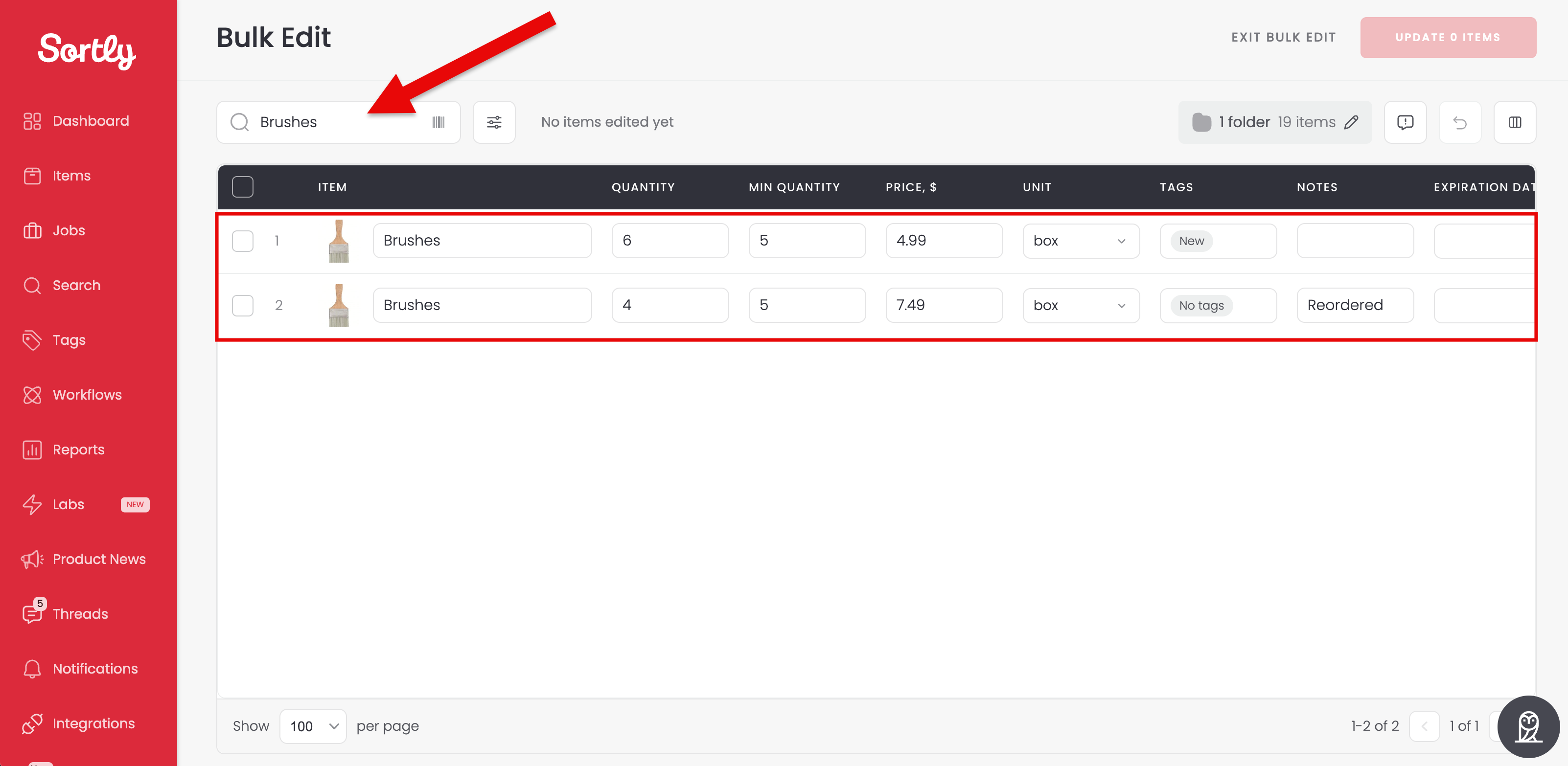
Use the Search items bar at the top of the spreadsheet to find items by name, SID, barcode or QR code, tags, notes, custom fields, or folder. Enter at least 3 characters to search. You can use AND, OR, or quotation marks for an exact phrase, the same as search elsewhere in Sortly.
#### Fix an invalid value
If a value doesn't meet a field's requirements, such as a negative quantity, that cell is highlighted in red with a tooltip explaining the issue. Fix the value in the spreadsheet and Sortly validates it again automatically.
💡 Leaving a cell blank means "don't update this field." Sortly never overwrites an existing value with a blank one.
⚠️ If any single field in a row is invalid, that entire row is skipped when you apply your updates. The rest of your valid rows are still updated.
---
### Apply your updates
There's no separate preview screen in Bulk Edit. The spreadsheet itself is where you review your changes before applying them.
1
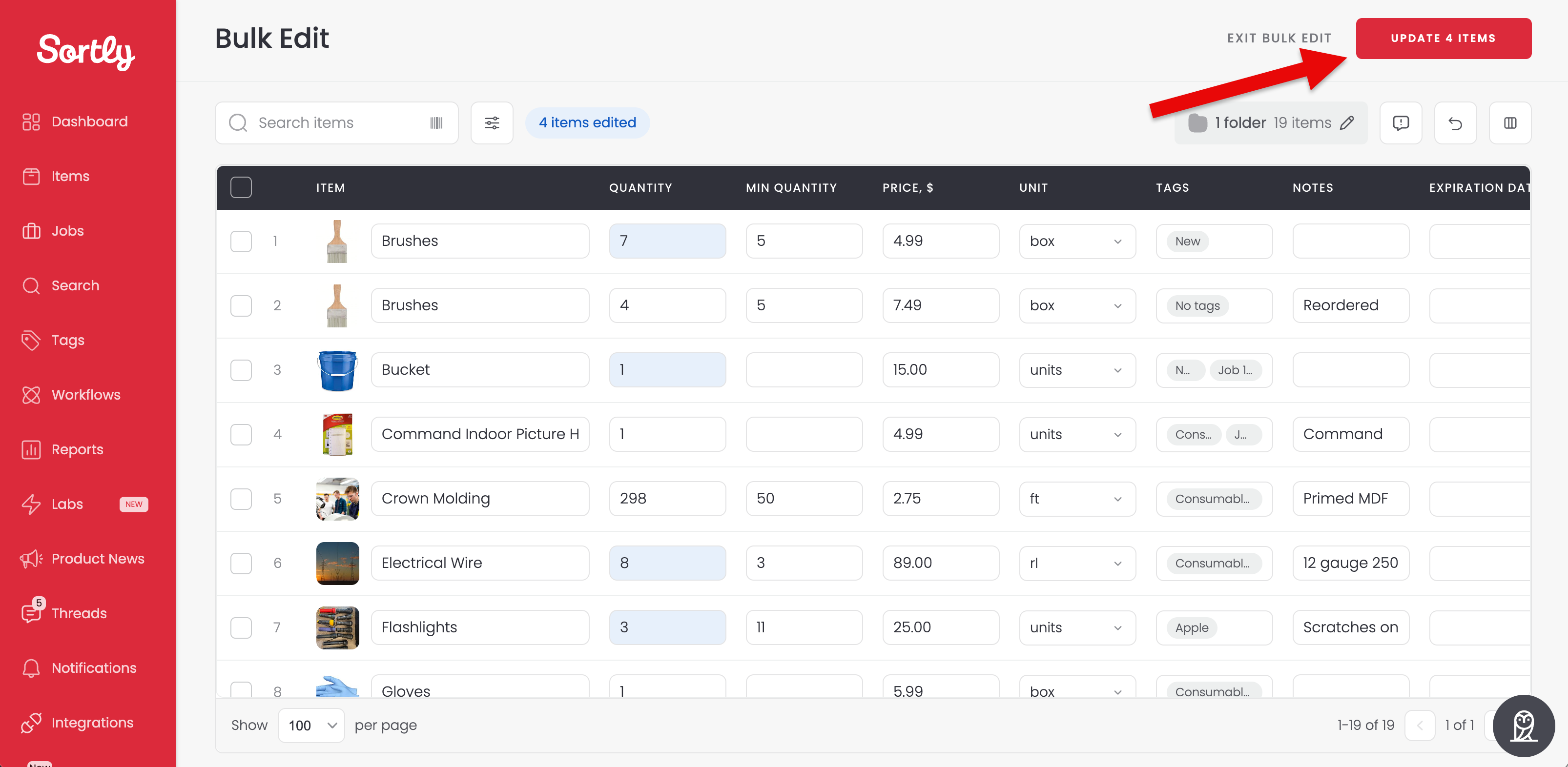
When you're ready, select Update \[number\] Items at the top right of the spreadsheet.
2
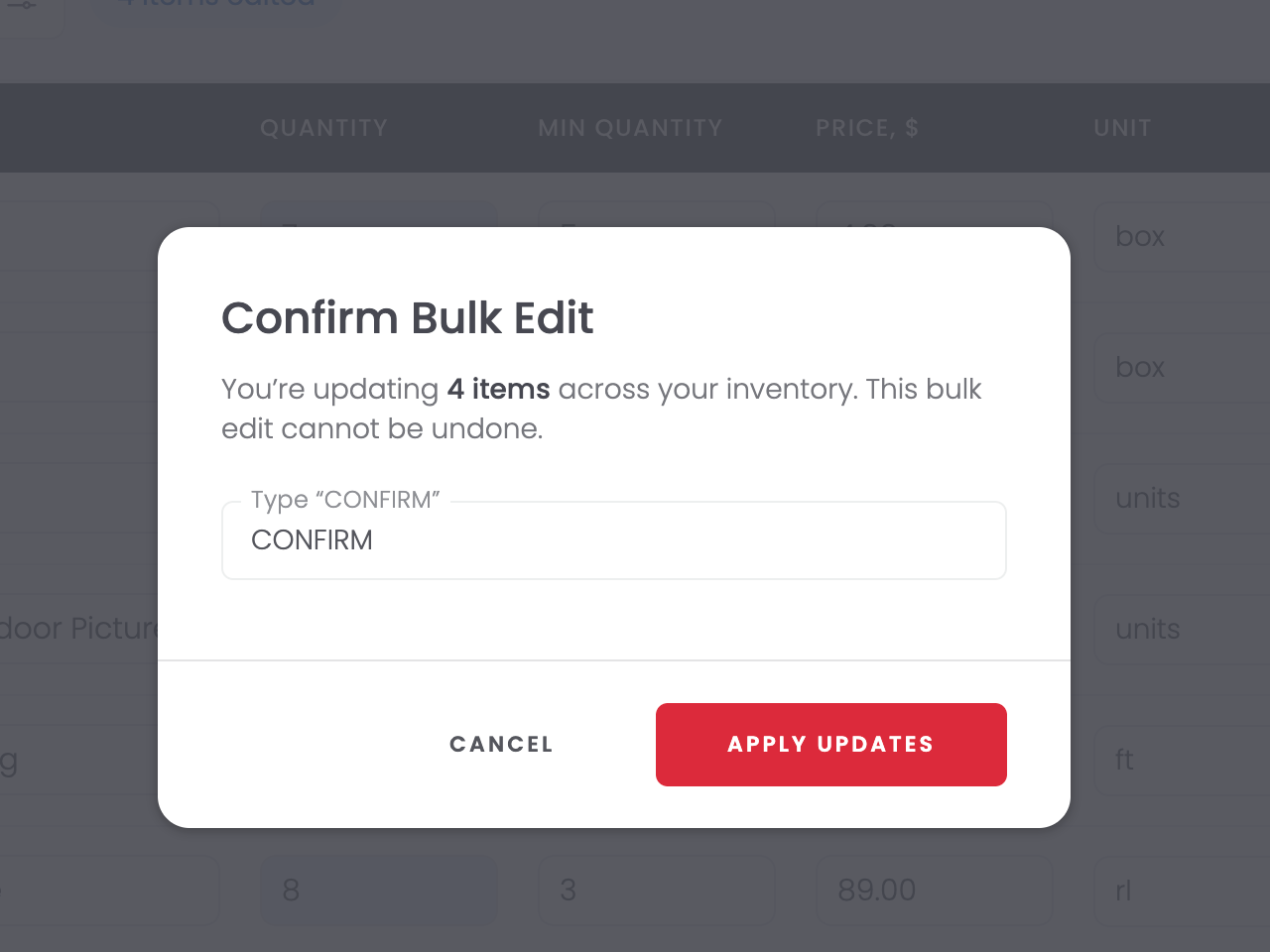
In the Confirm Bulk Edit window, check how many items you're about to update. This bulk edit can't be undone.
3
Type CONFIRM in the field. This step can only be completed once per session.
4
Select Apply Updates.
5
Wait while Sortly applies your updates. Larger sessions take a little longer, but the update finishes on its own, even if your connection drops midway through.
6
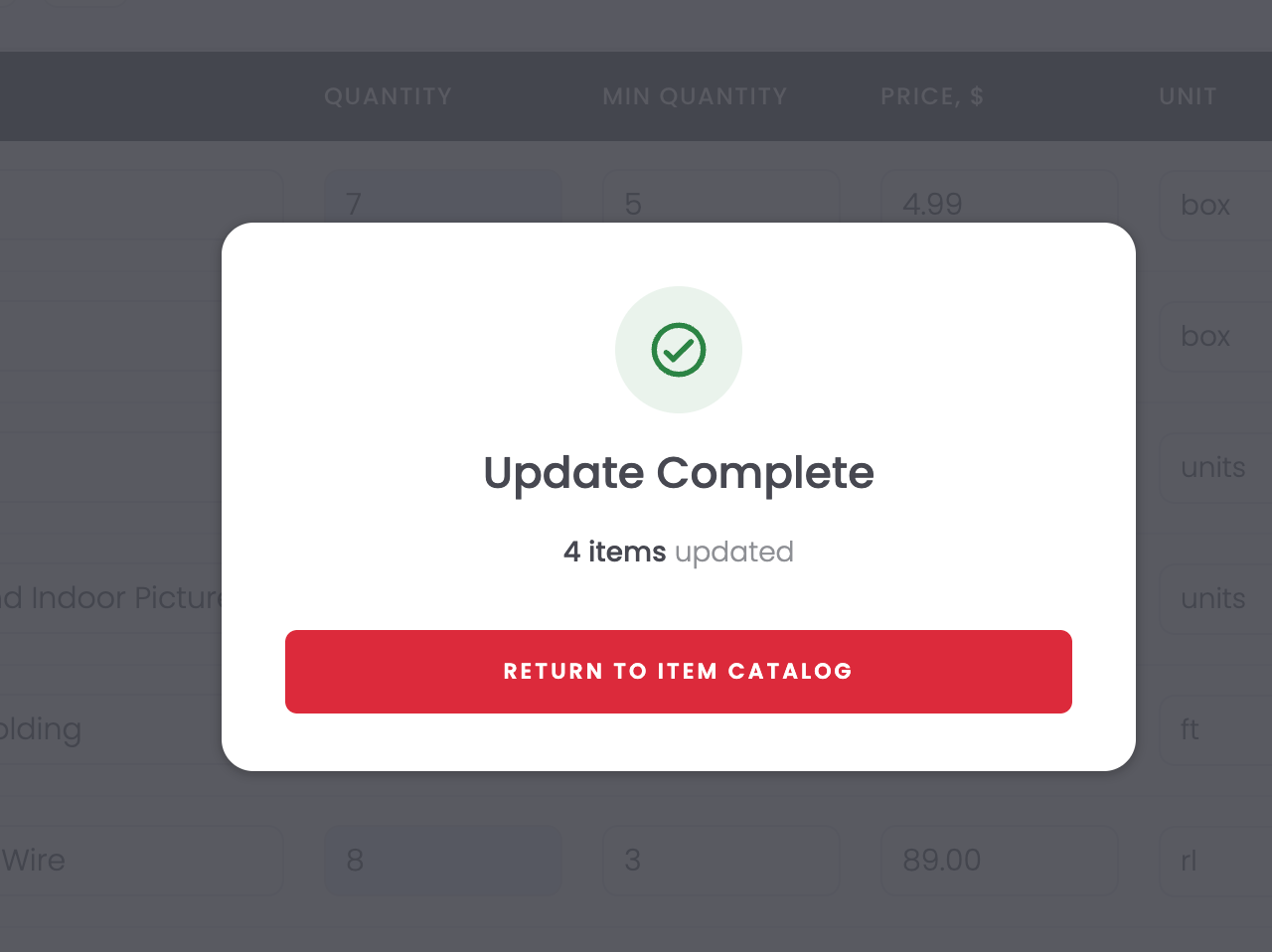
Review the Update Complete summary, which shows how many items were updated. If some items couldn't be updated, for example because someone else edited or deleted them during your session, that count is shown here too.
7
Select Return to Item Catalog.
💡 Updates appear in the item's Activity History like any other edit. A single field change logs as that update (for example, "Quantity Update"), while multiple fields log as "Update Item" with each change listed underneath.
You can leave a session at any time before applying updates by selecting Exit Bulk Edit. Keep in mind that Bulk Edit doesn't save drafts. If you exit, refresh the page, or lose your connection before applying updates, you'll need to start the session over.
---
### What you can and can't edit
Bulk Edit supports edits only. You can't create or delete items, move items between folders, or make quantity adjustments like +5 or -10. Every value you enter replaces the existing one.
Field
Editable
Notes
Item (name)
Yes
Max 190 characters
Quantity
Yes
Whole numbers or decimals, depending on your account settings. No negative values
Price
Yes
No currency symbol. No negative values
Min Quantity
Yes
Decimals allowed. No negative values
Tags
Yes
Notes
Yes
Unit
Yes
Only units that already exist can be selected. You can't create a new unit from the spreadsheet
Custom field: Small Text Box
Yes
Max 190 characters
Custom field: Large Text Box
Yes
Max 4,000 characters
Custom field: Whole Number
Yes
0 to 2,147,483,647, whole numbers only
Custom field: Decimal
Yes
Up to 6 digits after the decimal point
Custom field: Checkbox
Yes
Selected or not selected
Custom field: Dropdown
Yes
Existing options only, up to 250. You can't create new options from the spreadsheet
Custom field: Date
Yes
Follows your account's date format
Custom field: Web Link, Email, Phone
Yes
No character limit
SID
No
Shown with a lock icon. Used to identify each item
Folder
No
Use Move outside of Bulk Edit instead
Barcode / QR code
No
Shown with a lock icon
Variant attributes (size, color, and so on)
No
Visible in the spreadsheet, but locked. Edit the item's variant settings to change these
Custom field: Scanner, File Attachment
No
Not supported in Bulk Edit yet
### Frequently Asked Questions
How is Bulk Edit different from Sortly's other bulk tools?
The standard bulk edit tool applies one value to every item you select. Bulk Edit lets you enter a different value for each item in a spreadsheet. It's also separate from Bulk Import, which brings new items into Sortly rather than updating items that already exist.
Is Bulk Edit available on mobile?
Bulk Edit is currently only available on web.
How do I get access to Bulk Edit?
If you're an Owner or Admin, you can enable it yourself from Labs. If you're not, select Request Access to email your company's Owner or Admin.
What can't I do with Bulk Edit?
Bulk Edit only updates items that already exist. It can't create new items, delete existing ones, or move items between folders. It also doesn't support quantity adjustments like +5 or -10, so you enter the new value directly. Leaving a cell blank means "don't update this field," so it never overwrites existing data.
Is there a limit to how many items I can include in one session?
Yes, up to 2,000 items per session. If you go over that, you'll see a warning and the extra items will be disabled for editing.
What happens if I exit or refresh the page before applying my updates?
Your edits aren't saved. Bulk Edit doesn't currently support drafts, so if you exit, refresh, or lose your connection before selecting Apply Updates, you'll need to start the session over.
What happens if something changes or fails partway through my session?
If someone else edits or deletes an item while you're in a Bulk Edit session, that item is left out of your update and counted in the "couldn't be updated" total. If your connection drops before your request goes through, nothing is applied and it's safe to try again. If it drops after your update has already started processing, it finishes on its own.
Can I edit items that are part of a variant group?
Yes. Variant items show up as their own rows and can be edited on the same fields as any other item. The variant itself, such as size or color, stays locked, and Bulk Edit can't create new variant groups or convert items into variants.
Will my changes show up in item history?
Yes. A single field change logs as its own event, like "Quantity Update." If you update multiple fields on the same item, it logs as "Update Item," with each field change listed underneath.
[](https://www.sortly.com/)
Copyright © 2026, Sortly Inc.