---
title: Bulk Importing New Items/Folders
description: Learn how to bulk import items, variants, and folders into Sortly with the Advanced Import template, and how to fix common import errors.
---
[Skip to content](https://help.sortly.com/bulk-importing-new-items-folders#main-content)

Open main navigation
Close main navigation
Looking for answers? Start here.
- There are no suggestions because the search field is empty.
1. [Sortly Help Center](https://help.sortly.com/?hsLang=en)
2. [Getting started](https://help.sortly.com/getting-started?hsLang=en)
3. [Adding Inventory](https://help.sortly.com/getting-started?hsLang=en#adding-inventory)
# Bulk Importing New Items/Folders
Easily add new items to your Sortly inventory by uploading a CSV or Excel file using our **Advanced Import** template. Importing your inventory in bulk from Excel, Numbers, Google Sheets, or another spreadsheet can save you valuable time and effort.
⚠️ Before importing, you must create any custom fields and custom units of measure in your Sortly account. Folders can be created before importing, or added during the import process.
In this article
1. [How to bulk import](https://help.sortly.com/bulk-importing-new-items-folders#how-to-bulk-import)
2. [Error messages](https://help.sortly.com/bulk-importing-new-items-folders#error-messages)
3. [FAQs](https://help.sortly.com/bulk-importing-new-items-folders#faq)
### How to bulk import
Use the **Advanced Import** template to add items across multiple folders, import items with variants, and create folders.
1. 1**Go to Bulk Import**
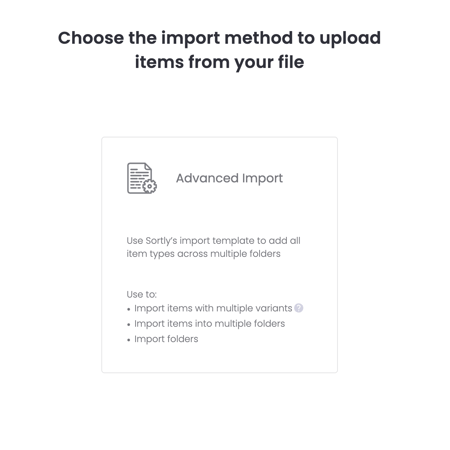
In your Sortly workspace, go to Settings \> Bulk Import, then choose Advanced Import to add all item types across multiple folders. Use Advanced Import to import items with multiple variants, import items into multiple folders, or import folders.
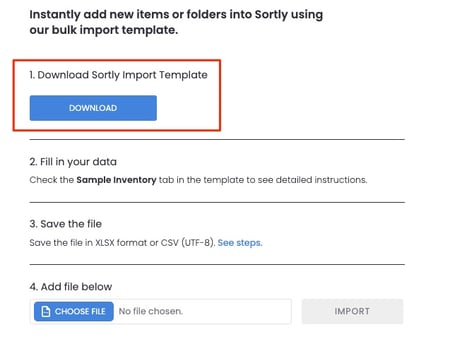
2. 2**Click Download**
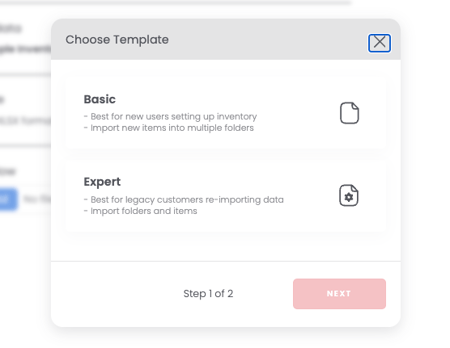
3. 3**Select your template**
Choose Basic or Expert:
4. 4**Select your item type (Expert only)**
If you choose Expert, select your item type:
- **Standard Items**: example, a lamp in a single size or color
- **Standard Items + Variants**: example, a shirt in different sizes and colors
5. 5**Download the Import Template**
Download the template that matches your selection.
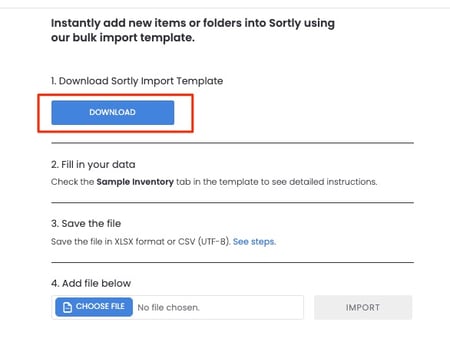
⚠️ Once you have the template, do not change the order of columns or rename any headers. Just fill in your information under the existing columns.
6. 6**Prepare your data**
Enter your data in the ADD NEW INVENTORY tab.
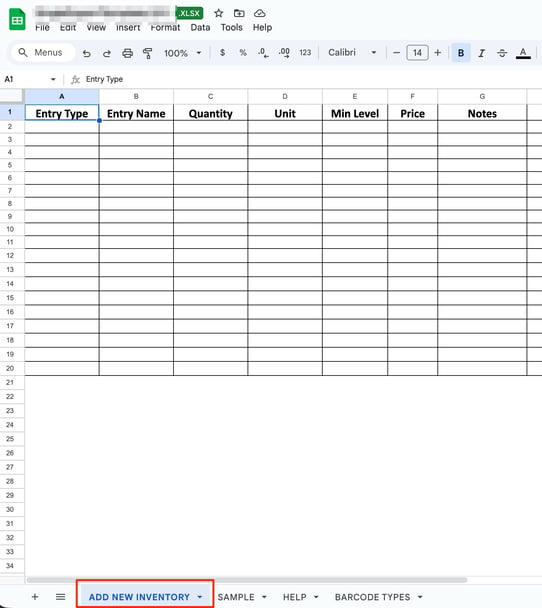
Use the SAMPLE tab as a guide.
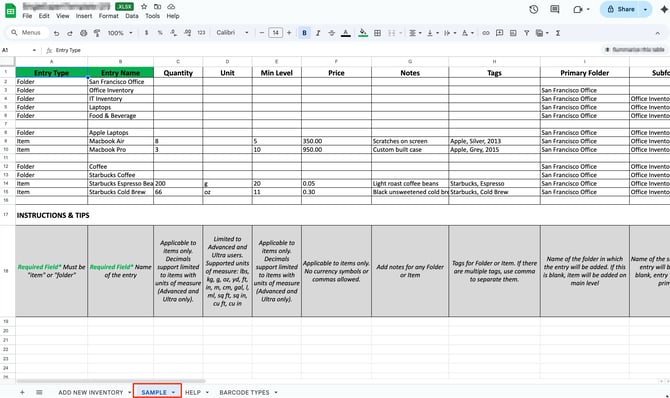
✅ Pre-create custom fields in your Sortly account before downloading the template. Otherwise, they won't appear.
Do not rename or add columns. Refer to the HELP tab in your template for formatting rules.
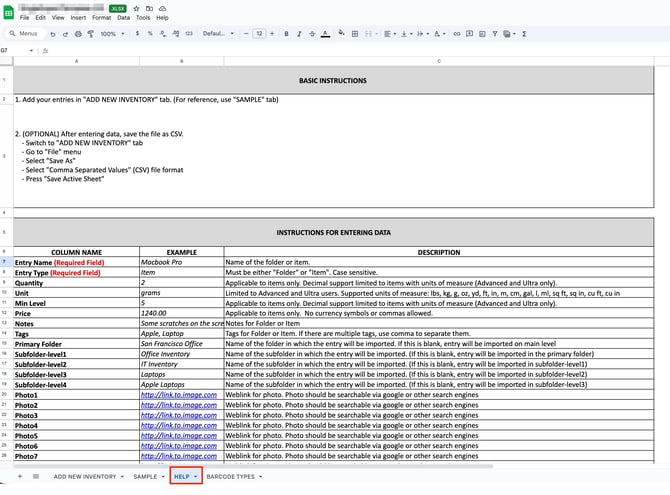
**Helpful tips from the HELP tab:**
7. 7**Save your file**
Save as **CSV** (recommended) or **XLSX**. To save as CSV: switch to the ADD NEW INVENTORY tab, then File \> Save As \> CSV (Comma Separated Values) \> Save Active Sheet.
8. 8**Upload your file**
Return to Bulk Import and upload your completed template.
### Error messages
If you receive errors:
- Download the error report to see which rows were affected.
- Review the reasons for each error and fix them directly in your spreadsheet.
⚠️ Once corrected, remove any rows that have already been successfully imported. Otherwise, re-importing will duplicate those items.
**Example messages:**
Error message
What to do
"Barcode/QR-1 Type is not supported"
Use **Barcode/QR-2 Type** for third-party barcodes.
"Entry Name cannot be empty"
This field is required. Add a name and re-import.
"Folder does not exist"
The folder listed is not currently in your account. Add the folder, then re-import.
If you continue to have issues, please reach out to our [Support Team](https://help.sortly.com/hc/en-us/requests/new?hsLang=en) and provide:
1. A copy of the spreadsheet you attempted to import
2. The error spreadsheet you downloaded
### Frequently Asked Questions
Is there a quicker way to import my items?
Yes. Try our AI Bulk Import option. It works the same way our previous Quick Import did, and it includes a built-in AI interface to help guide you through adding items quickly.
Can I update my inventory through a bulk import?
Right now, bulk import can only add new items, not update existing ones. If you need to make updates in bulk, you can use the Sortly API (Enterprise only). Spreadsheet-based updates are on our roadmap.
Why did my items duplicate when I re-imported after a failure?
When you re-import, any rows that were successful the first time will import again unless you remove them. If only some rows fail, the others still go through. To avoid duplicates, delete the successfully imported items before re-uploading the failed ones.
Why don't I see the Bulk Import option in Settings?
Bulk Import is only available to users with the required permissions. If you don't see this option, your current role may not have access. Please contact your account owner to confirm your permissions.
What do the error messages mean?
Please refer to the HELP tab on the Sortly import template for more information.
Why am I getting an Upload Failure?
Your file may exceed your plan's total item limit or per-import limit. Each row equals 1 item, and folders also count toward the limit.
[](https://www.sortly.com/)
Copyright © 2026, Sortly Inc.