---
title: Can an Item Be in Multiple Locations?
description: Yes, an item can be in multiple locations. Learn how to clone an item or move a quantity to another folder and track stock separately in each place.
---
[Skip to content](https://help.sortly.com/can-an-item-be-in-multiple-locations#main-content)

Open main navigation
Close main navigation
Looking for answers? Start here.
- There are no suggestions because the search field is empty.
1. [Sortly Help Center](https://help.sortly.com/?hsLang=en)
2. [FAQs](https://help.sortly.com/faqs?hsLang=en)
3. [FAQ](https://help.sortly.com/faqs?hsLang=en#faq)
# Can an Item Be in Multiple Locations?
Make sure every location has an accurate count, even when the same item is stored in more than one place. Yes, a single item can be in multiple locations at once, such as different warehouses, job sites, or departments. Each location keeps its own quantity, activity, and movement history, so changes in one folder don't affect the others. This article walks you through cloning an item into another folder and moving part of an item's quantity to a new location.
In this article
1. [Clone an item](https://help.sortly.com/can-an-item-be-in-multiple-locations#cloning-items)
2. [Move a quantity of an item](https://help.sortly.com/can-an-item-be-in-multiple-locations#moving-quantity)
3. [Frequently asked questions](https://help.sortly.com/can-an-item-be-in-multiple-locations#faq)
### Clone an item
Need the same item in another folder, with the same name, tags, and custom fields, but tracked separately? Clone it. You can clone items on web and mobile.
When you clone an item, you can:
- Rename the cloned items
- Choose how many copies to create, up to 30 at a time
- Choose whether each clone gets its own Sortly ID
- Choose the folder the clones go to
1
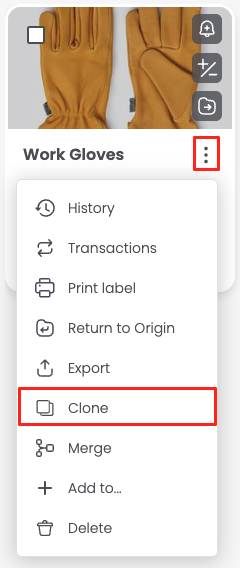
Select the three-dot menu on the item you want to clone.
2
Select Clone.
3
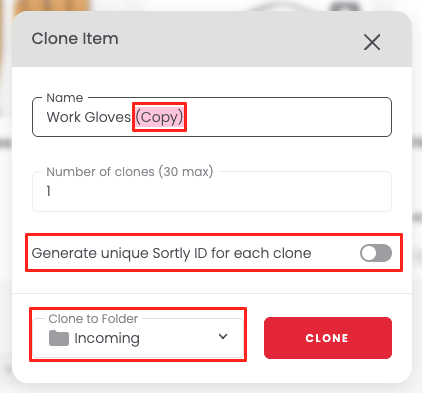
In the Clone Item window, edit the Name if needed. Sortly adds (Copy) to the end of the name. Remove it if you want the item to show up with the same name in each location.
4
In Number of clones (30 max), enter how many copies to create.
5
Don't select Generate unique Sortly ID for each clone if you want the clones to share the original item's Sortly ID. Select it to give each clone its own ID.
6
Under Clone to Folder, choose the destination folder.
7
Select Clone.
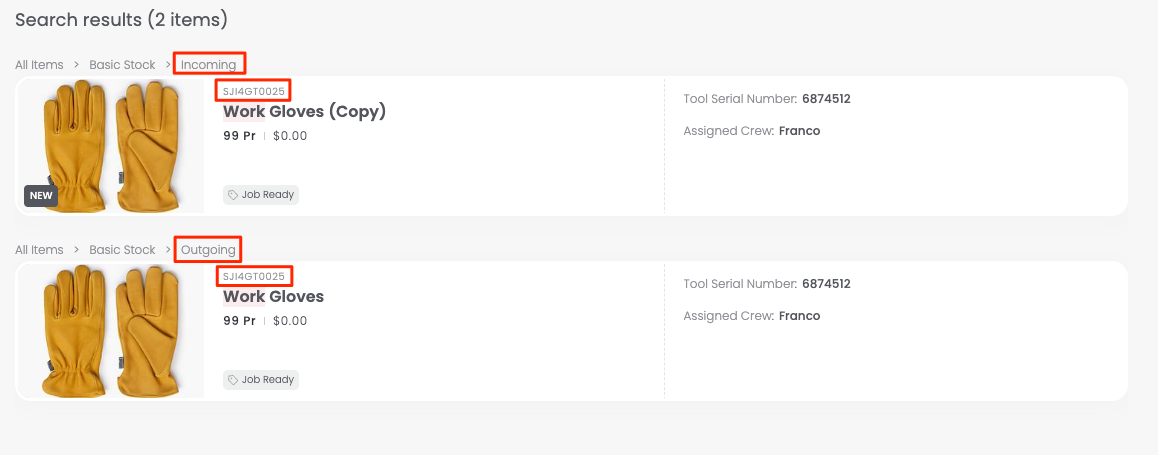
The item now shows up in both folders. If you didn't select Generate unique Sortly ID for each clone, both items share the same Sortly ID, so they show up together in search results. Each one is still tracked on its own, so updates in one folder, like quantity or activity, don't affect the other.
Cloning is limited to 30 items at a time. To add a larger batch, repeat the steps as often as you need.
💡 Use cloning when you want identical items in multiple folders with the same details, such as name, custom fields, and photos, but tracked separately.
---
### Move a quantity of an item
Need to transfer only part of an item's stock to another location, such as 10 units from Warehouse A to Warehouse B? Move that quantity to the other folder. This keeps your total inventory accurate across all locations and keeps a record of the transfer. You can move items on web and mobile; the steps below show web.
1
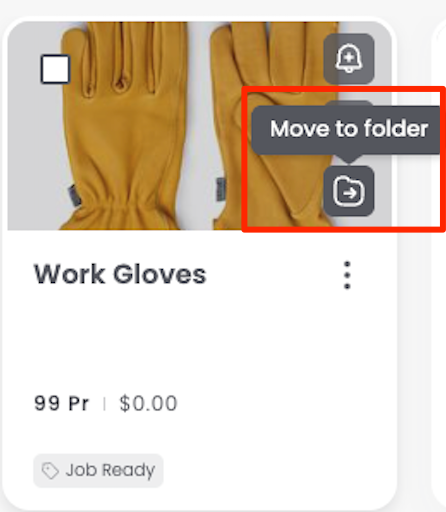
Hover over the item and select the Move to folder icon (a folder with an arrow).
2
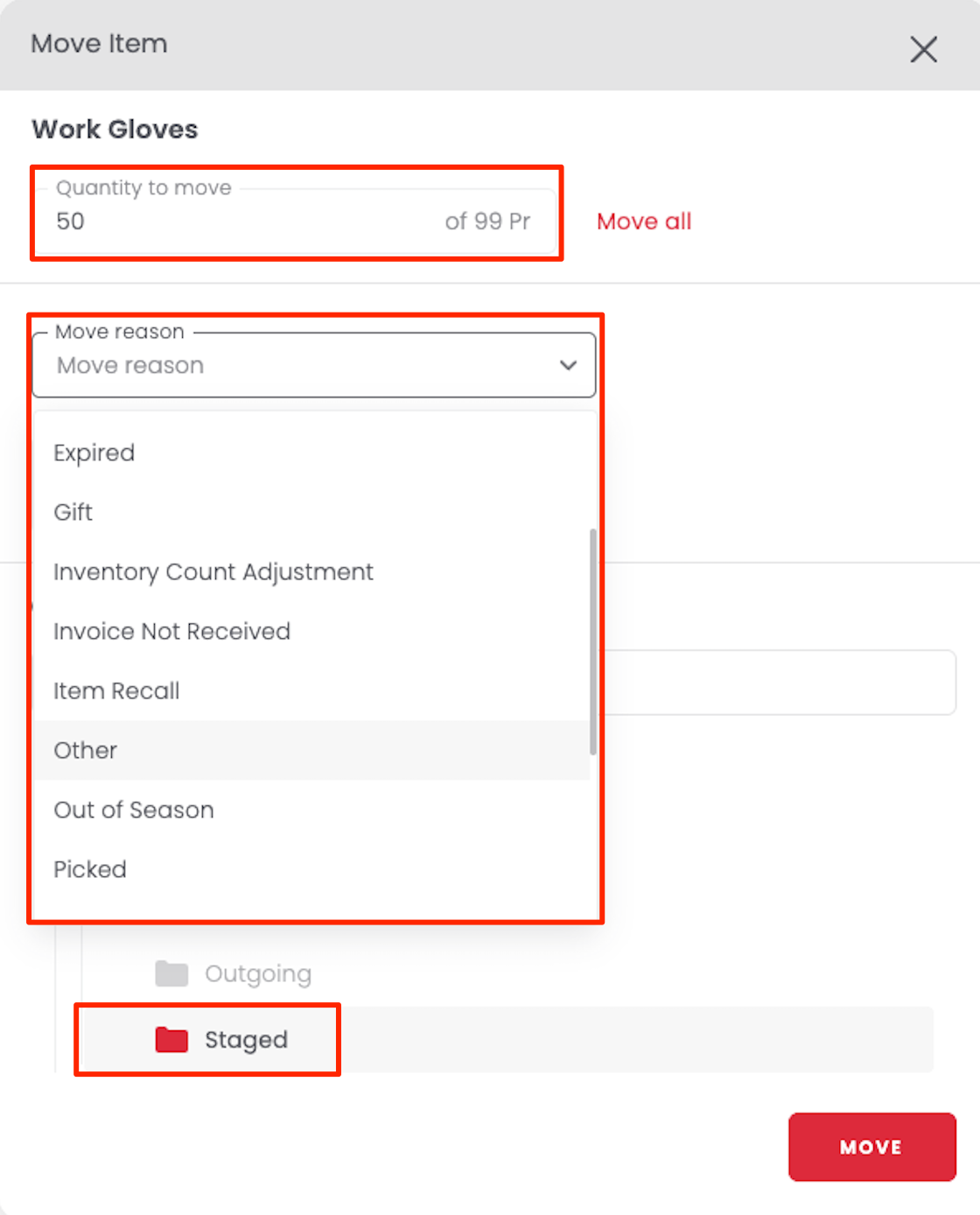
In the Move Item window, enter the Quantity to move, or select Move all to move the entire quantity.
3
If you'd like, choose a Move reason, such as Expired, Gift, Inventory Count Adjustment, Item Recall, Out of Season, or Picked, or add a note for your records.
4
Select the destination folder.
5
Select Move.
Sortly adjusts the quantities for you, lowering the count in the original location and adding it to the new one. This works well when you're transferring stock between sites or want to track how items move over time.
✅ Each item's History shows a transaction entry with the date, the quantity moved, and who made the move.
### Frequently Asked Questions
What's the difference between cloning an item and moving a quantity?
Cloning creates a new, separate copy of an item in another folder, which is useful when you want the same item to exist separately in two places. Moving a quantity transfers part or all of an existing item's count from one folder to another, keeping a single running total across your inventory.
Do cloned items share the same Sortly ID?
Only if you don't select Generate unique Sortly ID for each clone. Then both items keep the same ID and show up together in search results, even though they're in different folders. Select it if you'd rather give each clone its own ID.
Is there a limit to how many items I can clone at once?
Yes, you can clone up to 30 items at a time. To add a larger batch, repeat the steps as many times as you need.
Will updating a cloned item affect the original?
No. Once an item is cloned, each copy is tracked on its own. Changes to quantity, activity, or history in one folder don't affect the item in any other folder.
Can I clone or move items from the mobile app?
Yes. You can clone items and move a quantity on both web and mobile. The steps in this article show web.
[](https://www.sortly.com/)
Copyright © 2026, Sortly Inc.