---
title: Create QR Code and Barcode Labels
description: Learn how to create QR code and barcode labels for your Sortly items, print them individually or in bulk, and choose the right size and printer.
---
[Skip to content](https://help.sortly.com/create-qr-code-and-barcode-labels#main-content)

Open main navigation
Close main navigation
Looking for answers? Start here.
- There are no suggestions because the search field is empty.
1. [Sortly Help Center](https://help.sortly.com/?hsLang=en)
2. [QR Labels & Barcodes](https://help.sortly.com/qr-labels-barcodes?hsLang=en)
3. [Understanding Labels](https://help.sortly.com/qr-labels-barcodes?hsLang=en#understanding-labels)
# Create QR Code and Barcode Labels
Sortly lets you create QR Code and Barcode labels for any item in your inventory. Choose your paper size, label size, and the details you want to include, then download a ready-to-print PDF.
Labels work with standard office printers using Avery-style sheets, or with single-label and thermal printers for individual labels.
Advanced
Ultra
Premium
Enterprise
⚠️ Label creation requires an Advanced plan or above. **Barcode labels** require Ultra, Premium, or Enterprise. Free plan users cannot create labels.
In this article
1. [Create Labels on the Web](https://help.sortly.com/create-qr-code-and-barcode-labels#h_01G8Y1A00VKDDR6JJ901YBQ780)
2. [Create QR and Barcode Labels in Bulk](https://help.sortly.com/create-qr-code-and-barcode-labels#h_01HZFC67C2538C3J1Z68PSNCM7)
3. [Reprinting Existing Labels](https://help.sortly.com/create-qr-code-and-barcode-labels#h_01GZY6P4X6WSF1MKNYQF953CBE)
4. [Create Labels on the Mobile App](https://help.sortly.com/create-qr-code-and-barcode-labels#h_01G8Y2PP2WM8BFF9QDBM01C6T3)
5. [FAQ](https://help.sortly.com/create-qr-code-and-barcode-labels#h_01G8Y2PGN8C8YZNFZDAGT02SEQ)
### Create Labels on the Web
💡 Haven't added your items to Sortly yet? You can still print a batch of QR labels now and connect each one to an item later. See [Can I Print QR Labels Before Adding Items to Sortly?](https://help.sortly.com/hc/en-us/articles/52668420975771-Can-I-Print-QR-Labels-Before-Adding-Items-to-Sortly?hsLang=en)
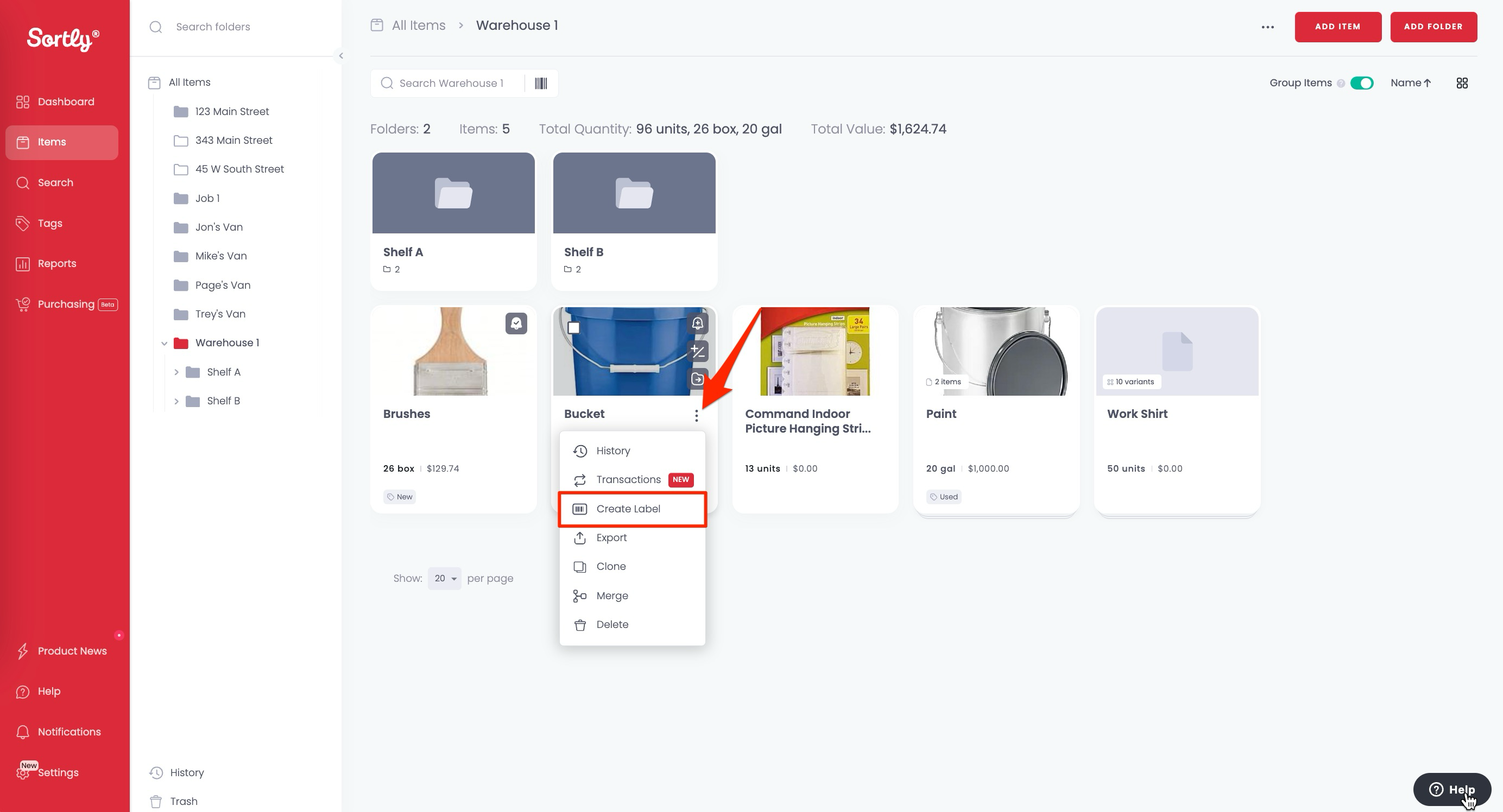
Select an item and click Create Label to get started.
Not sure which label size or paper type you need? See [Choosing the Right Labels in Sortly](https://help.sortly.com/choosing-the-right-labels-in-sortly?hsLang=en) for a full breakdown of QR and Barcode label types, sizes, and which printers each one works with.
### Create QR and Barcode Labels in Bulk
You can generate labels for multiple items at once from a folder or using Advanced Search.
#### Printing Item Labels from a Folder (Web)
1. 1**Navigate to the folder and select the items.**
Click the checkmark on each item, or choose All from the Bulk Edit Bar.
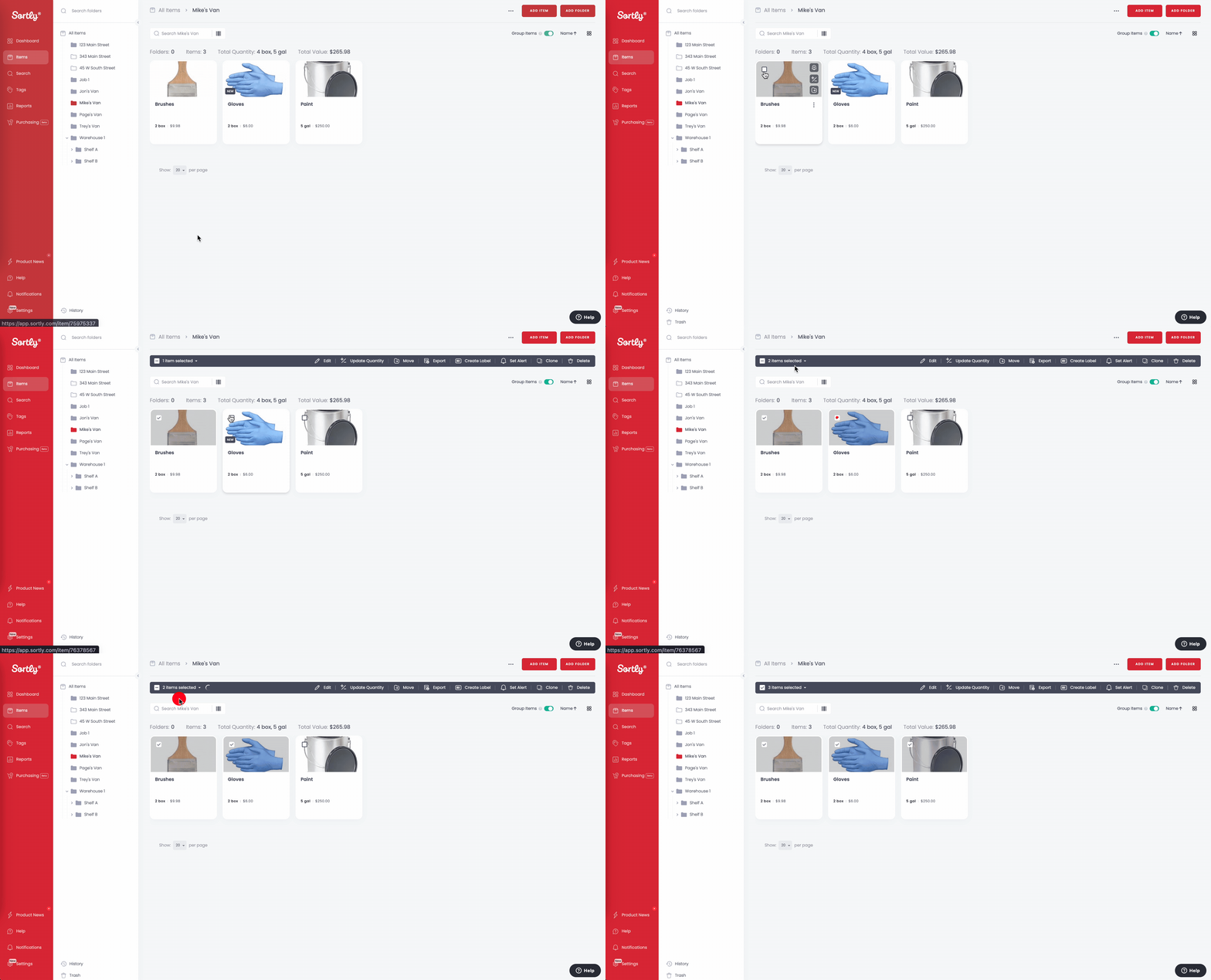
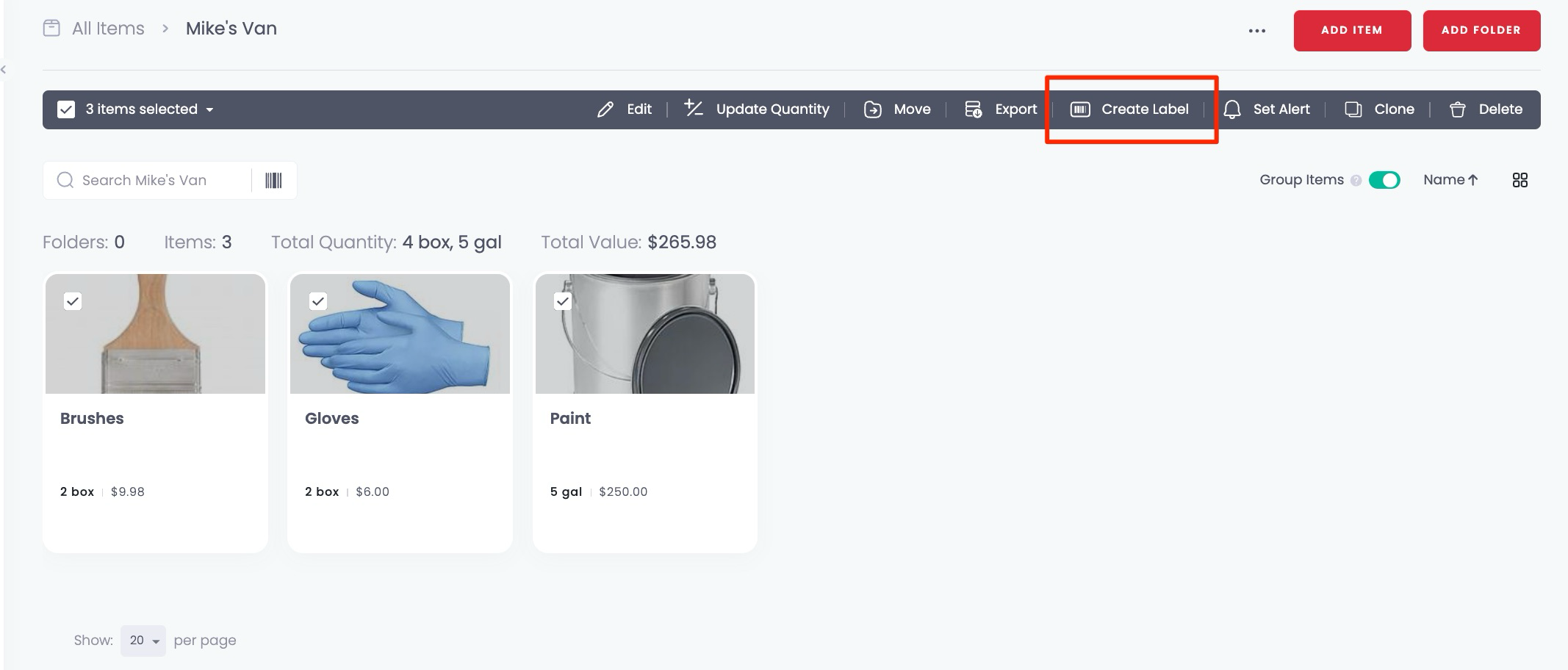
2. 2**Click Create Label from the Bulk Edit Bar.**
💡 Need help choosing your label type and size? See [Choosing the Right Labels in Sortly](https://help.sortly.com/choosing-the-right-labels-in-sortly?hsLang=en).
#### Printing Item Labels from a Folder (Mobile)
1. 1**Navigate to the folder and long press the items you want to print.**
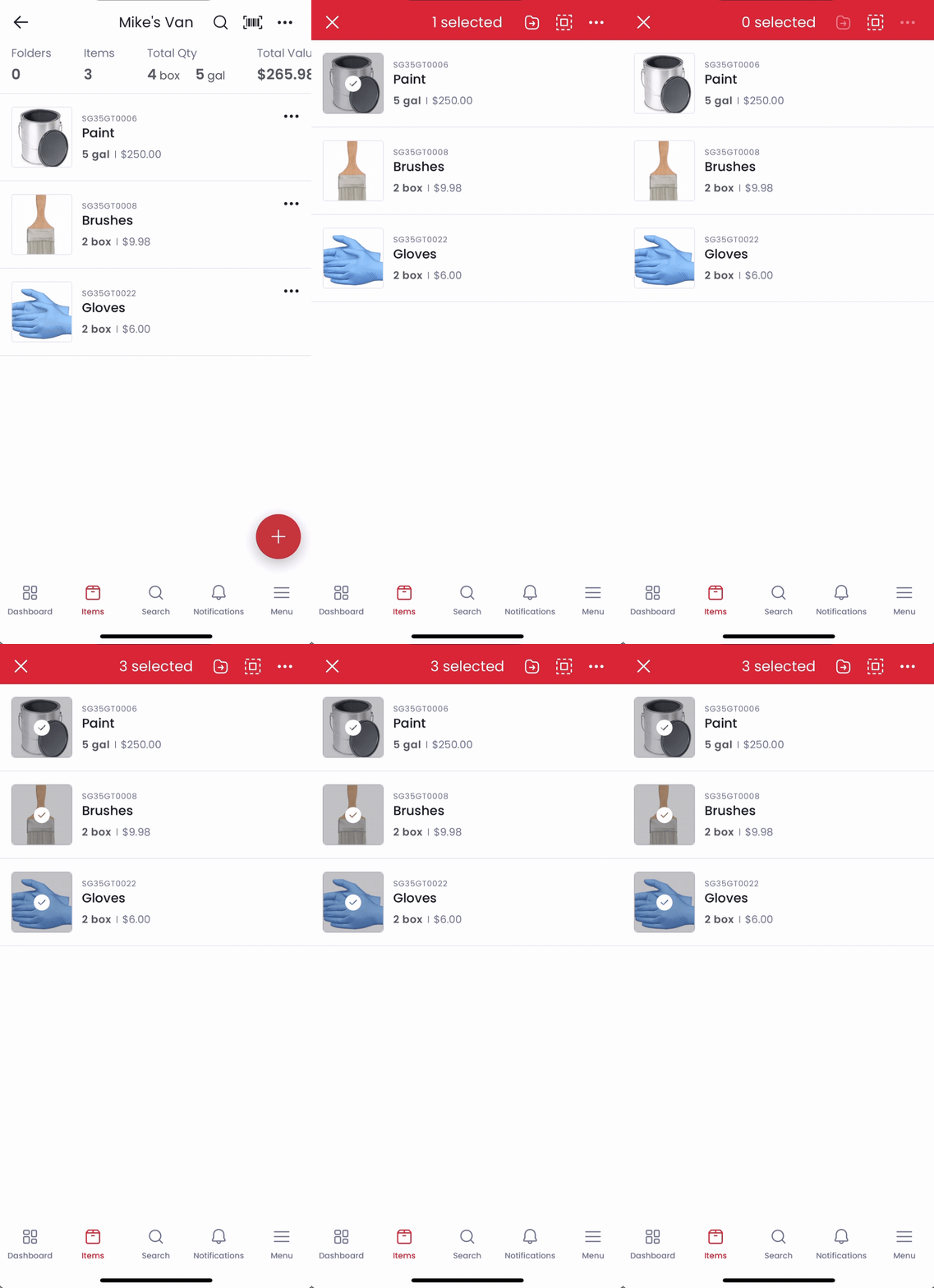
2. 2**Tap the three dots in the upper right and choose Create Labels.**
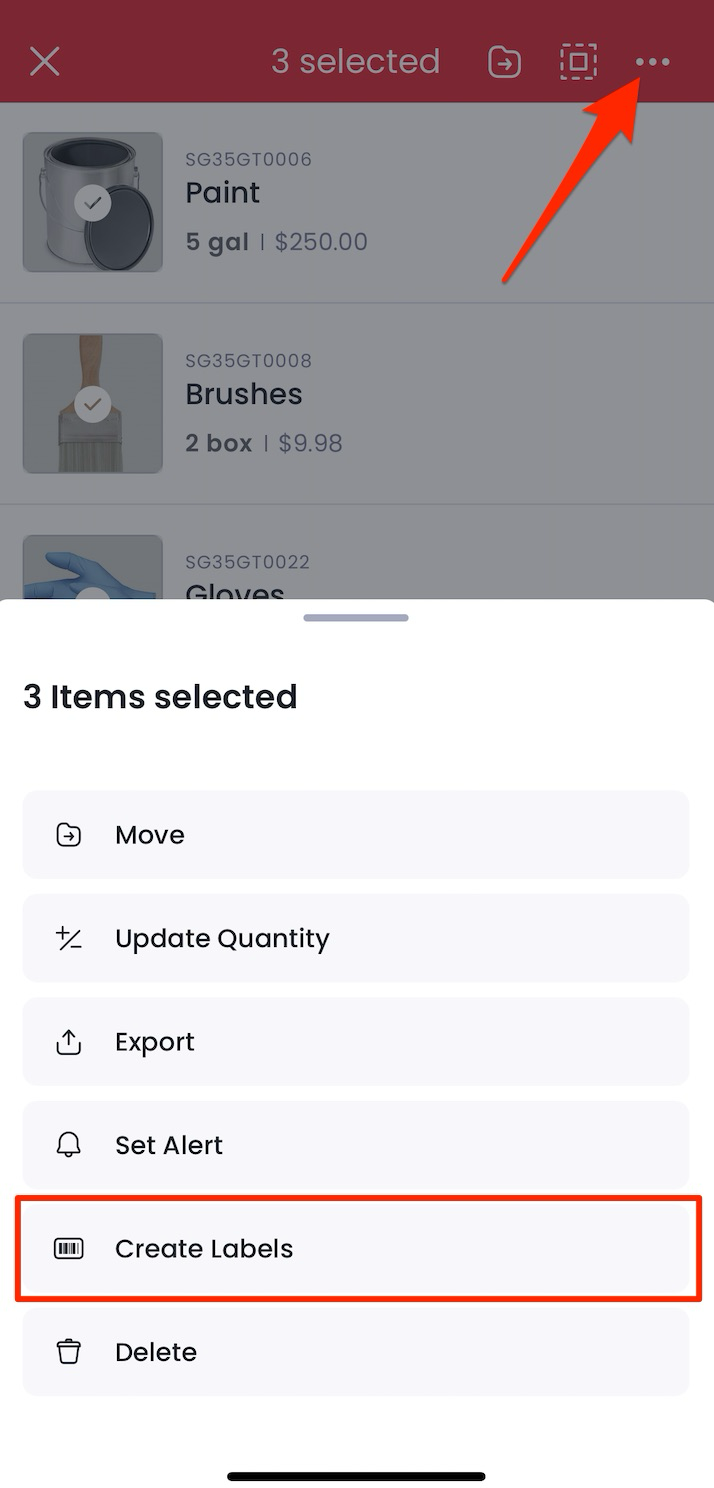
💡 From here, follow the steps in the [Create Labels on the Mobile App](https://help.sortly.com/create-qr-code-and-barcode-labels#h_01G8Y2PP2WM8BFF9QDBM01C6T3) section above for label type, size, and printing options.
#### Printing Item Labels from Several Folders (Web)
1. 1**Go to Advanced Search, apply any filters, and select the items.**
Click the checkmark on each item, or choose All from the Bulk Edit Bar.
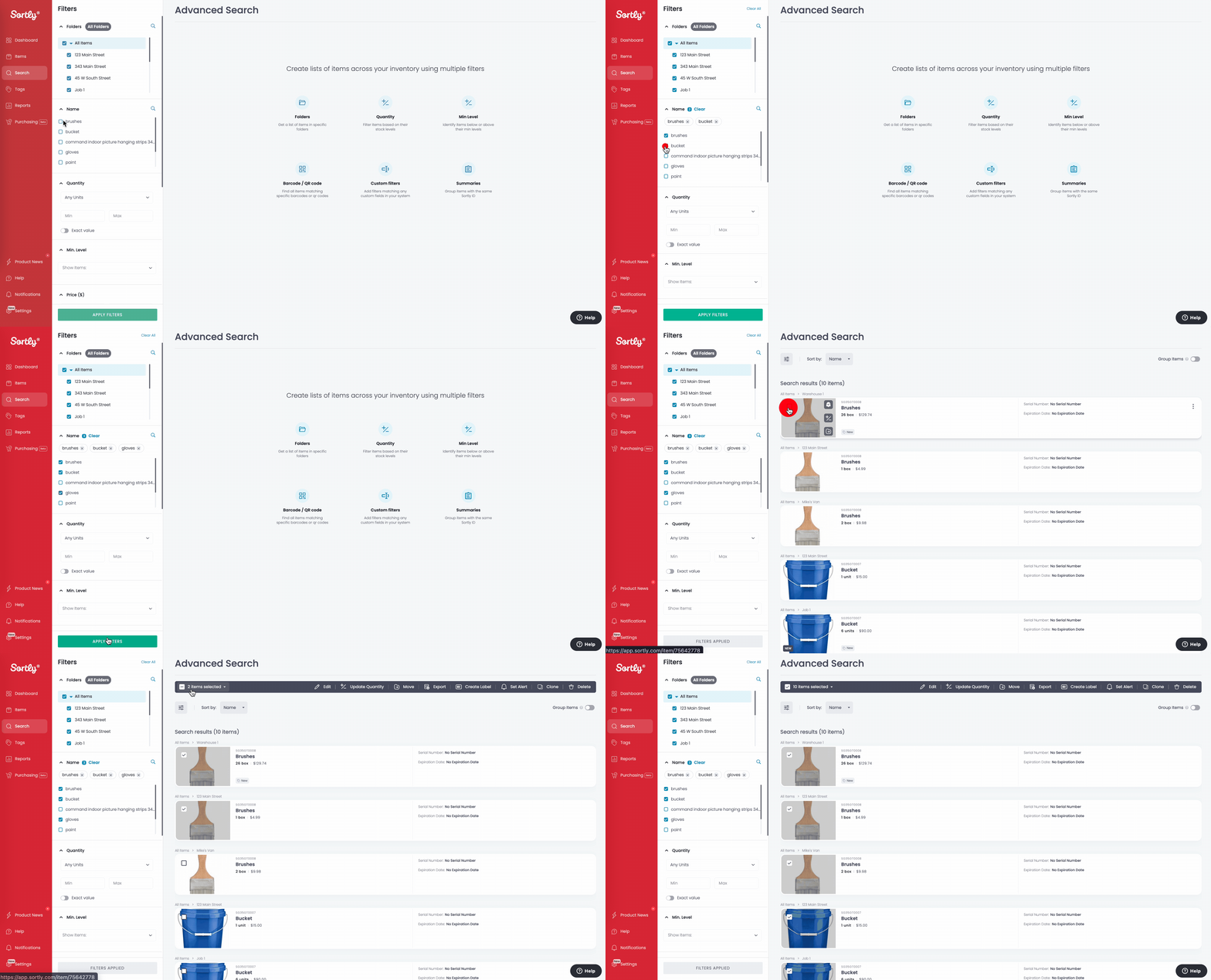
2. 2**Click the three dots on the far right of the Bulk Edit Bar and choose Create Label.**
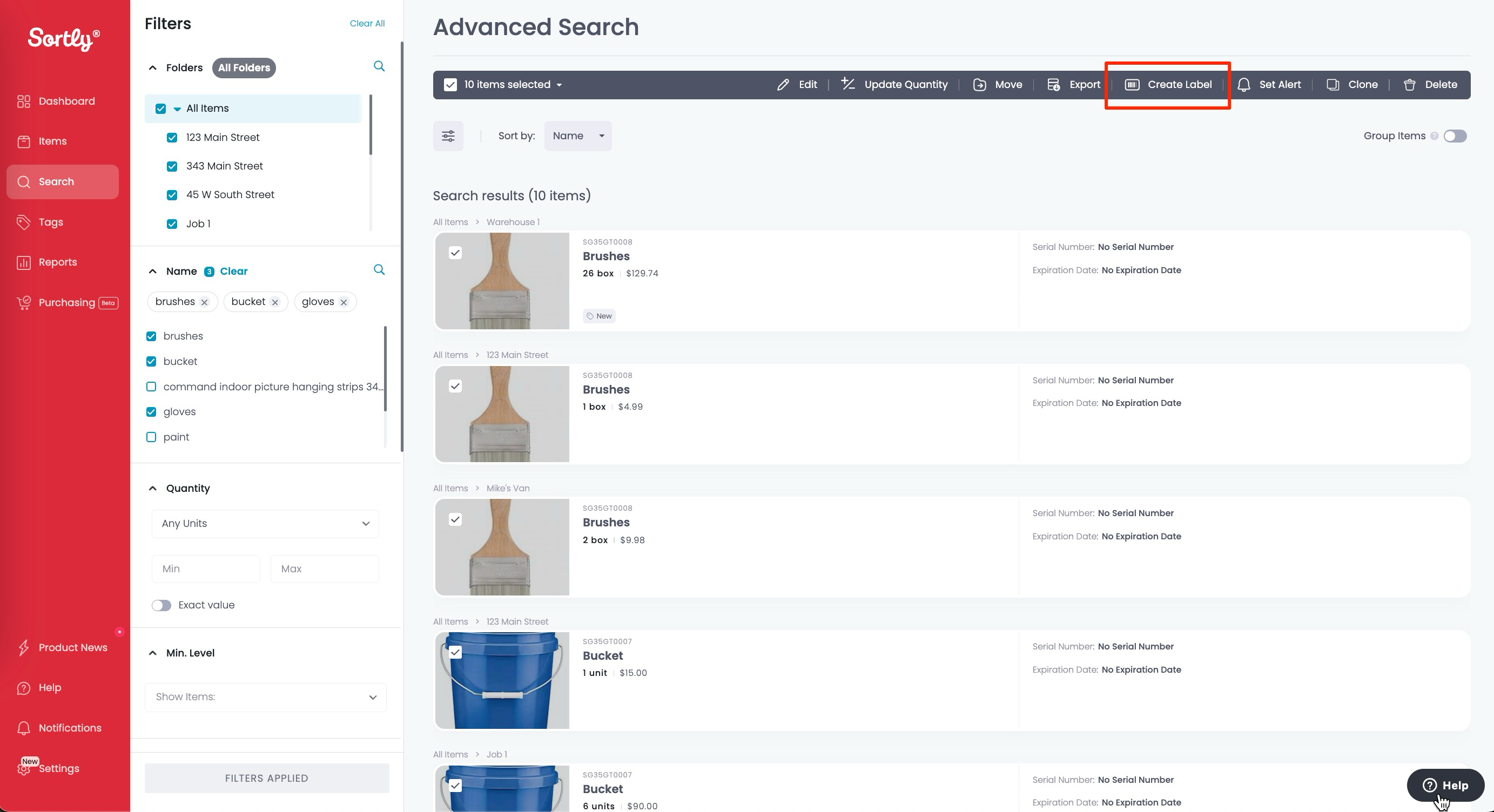
💡 Need help choosing your label type and size? See [Choosing the Right Labels in Sortly](https://help.sortly.com/choosing-the-right-labels-in-sortly?hsLang=en).
### Reprinting Existing Labels
When reprinting, the QR code or Barcode itself will not change, but you can adjust the label size, information, and add custom notes.
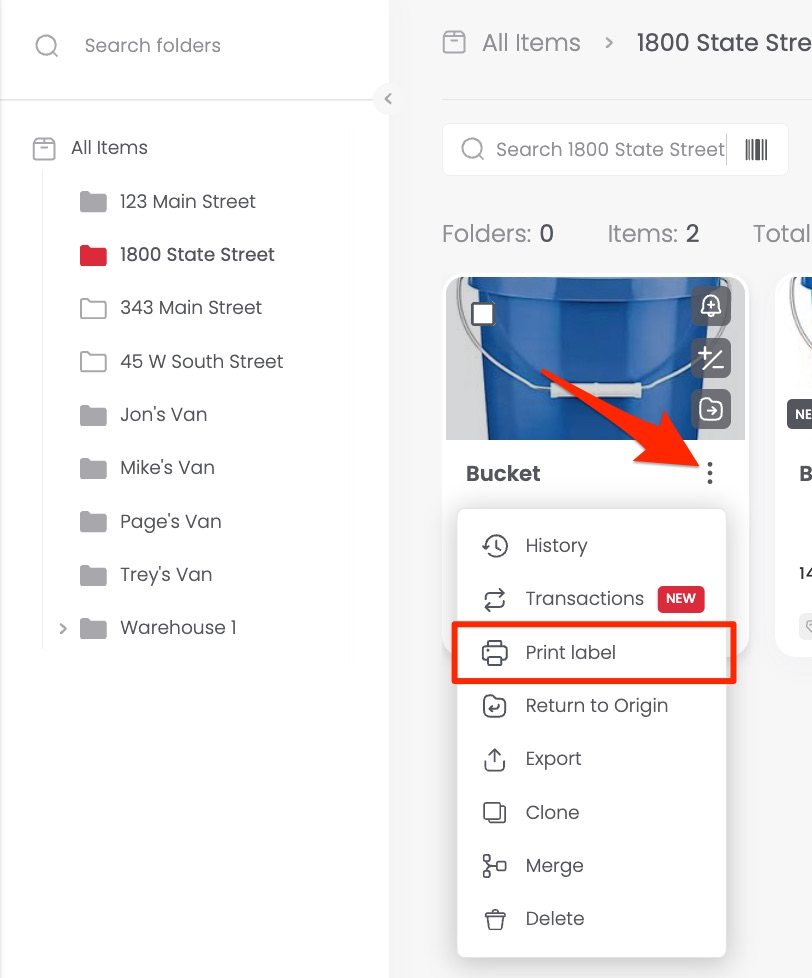
Navigate to the item and click the Printer icon:
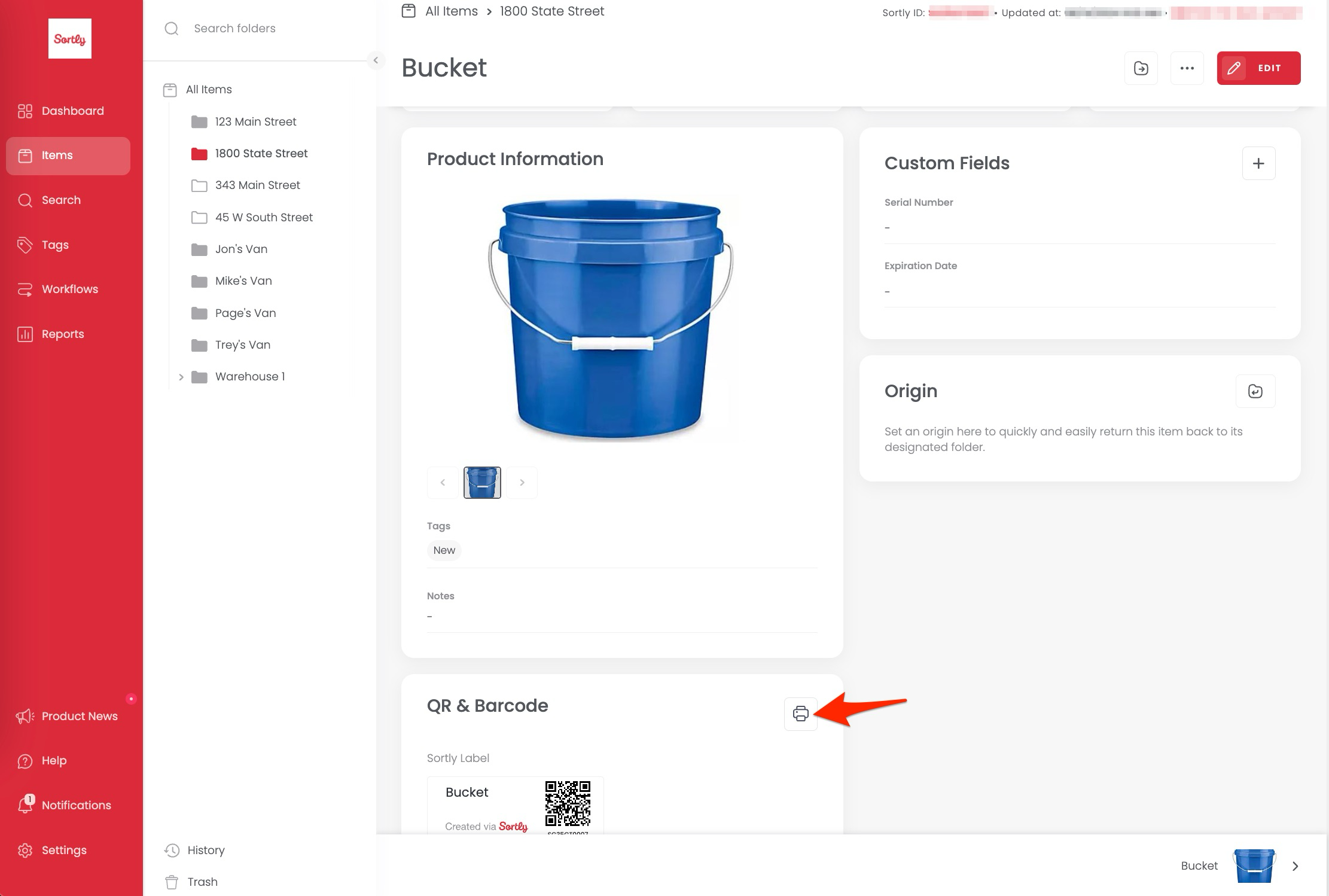
Or click the three dots and choose Print Label:
 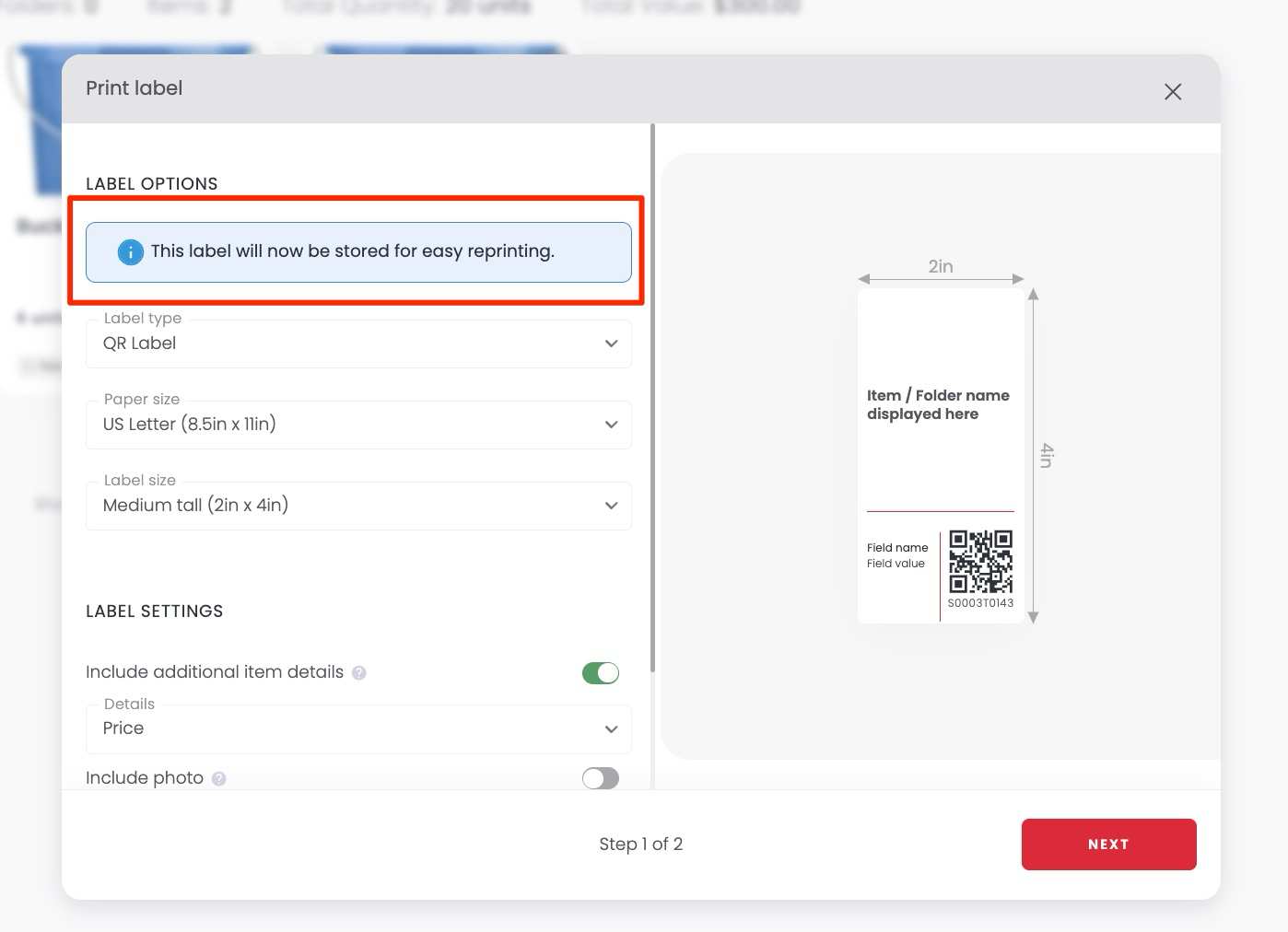
✅ Send a copy of your label PDF to your email when you first create a label. This makes reprinting quick without going through all the setup steps again.
### Create Labels on the Mobile App
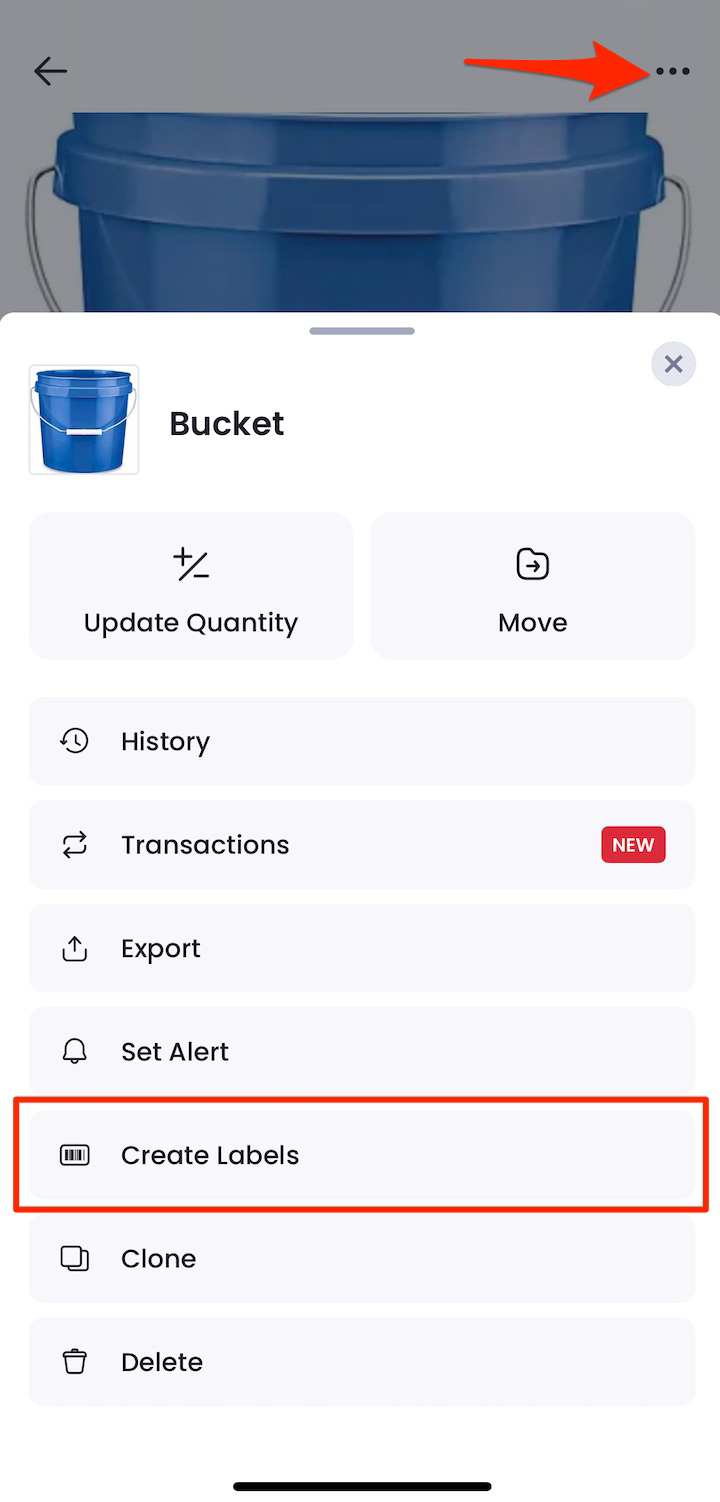
1. 1**Select one or more items.**
**Single item:** Tap the three dots to the right of the item.
**Multiple items:** Long press one item, then tap additional items to select them.
2. 2**Tap Create Labels.**
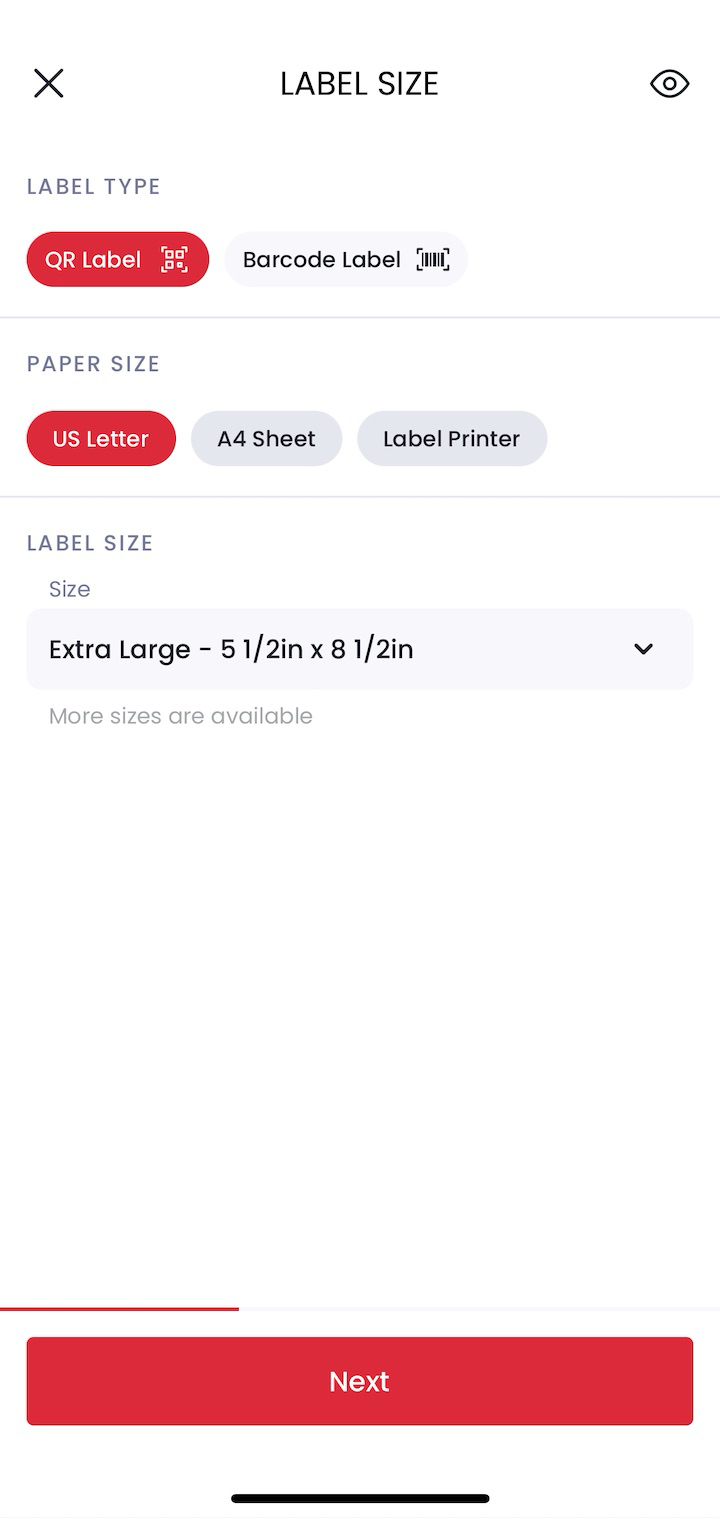
3. 3**Choose your label type, paper size, and label size.**
Select QR Label or Barcode Label (Ultra, Premium, and Enterprise plans only), then pick your paper and label size. Not sure which size to choose? See [Choosing the Right Labels in Sortly](https://help.sortly.com/choosing-the-right-labels-in-sortly?hsLang=en).
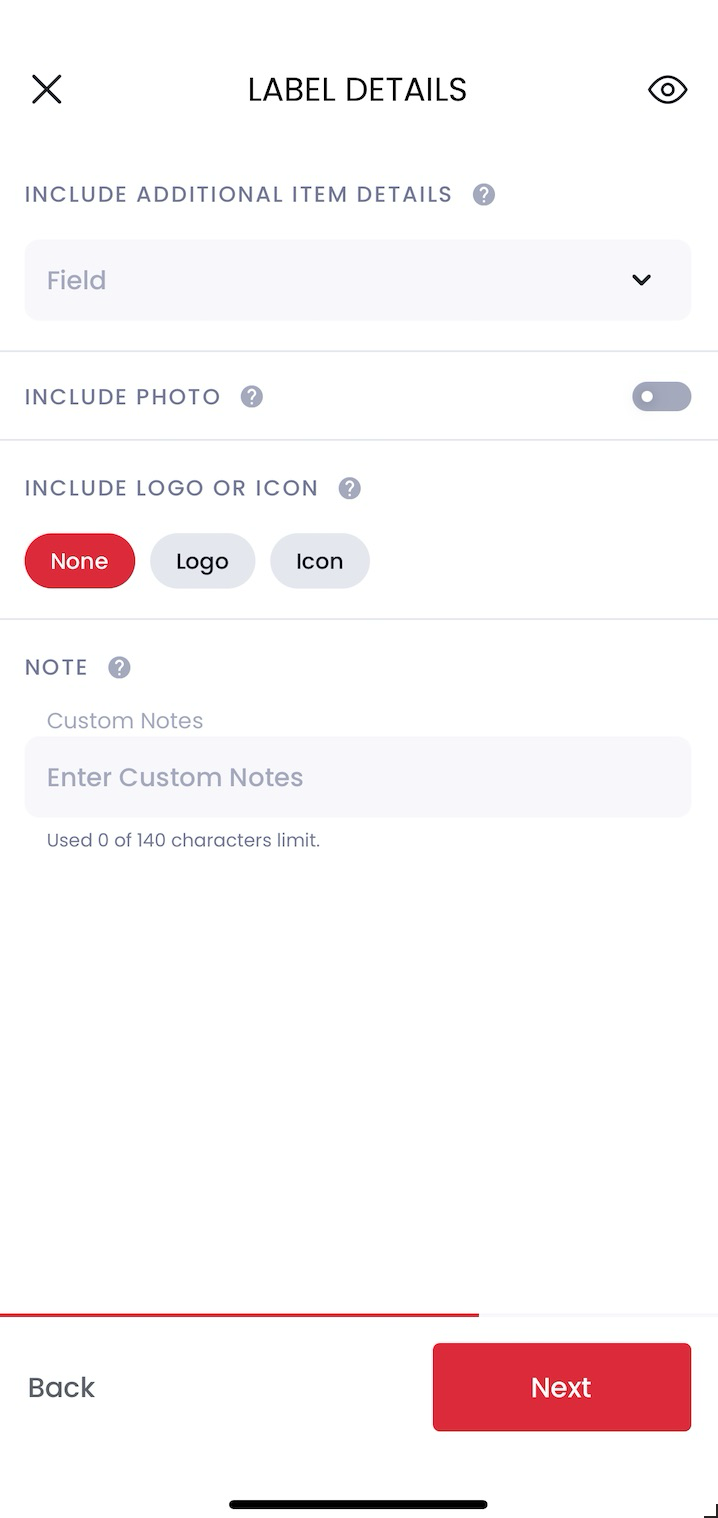
4. 4**Tap Next and add item details and logo (if supported).**
You can include **notes**, **price**, **tags**, **total value**, or a **custom field**. Only one attribute can be selected at this time. A logo or icon can be added if the label size supports it.
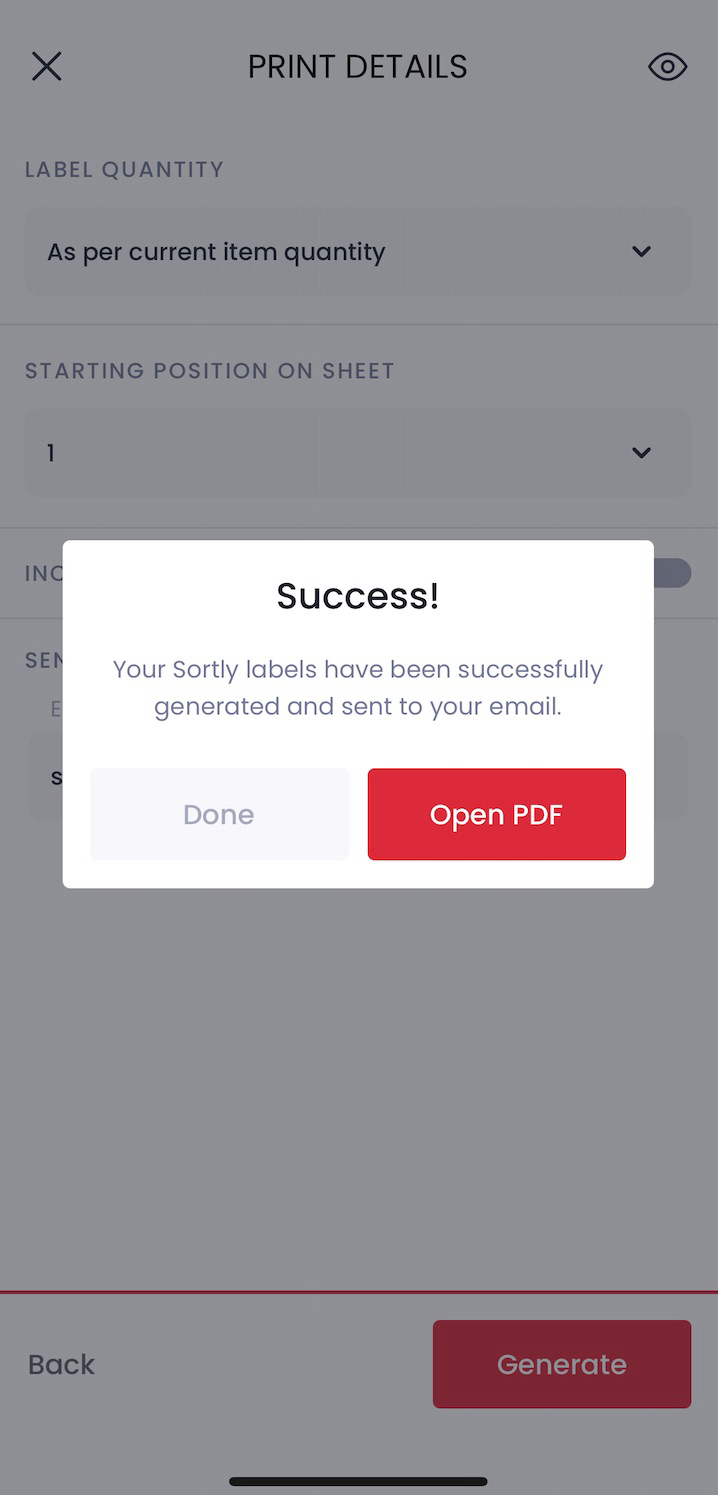
5. 5**Select your Printing Options.**
**Label quantity:** Print multiples of the same label.
**Label start position:** Start from a specific position on a partially used sheet to reduce waste.
**Printing Instructions:** Choose whether to include an instruction sheet in the PDF.
**Send copy to email:** Recommended for easy reprinting later.
6. 6**Tap Generate.**
You will be prompted to open the PDF directly or check your email for the file.
### Frequently Asked Questions
Can I include a photo on a label?
Yes. Photos can be added to Medium (tall), Large, and Extra Large labels. Smaller label sizes do not support photos.
My labels aren't printing correctly. What should I do?
Our Support Team can help. To speed up troubleshooting, please gather the following and [contact us here](https://help.sortly.com/hc/en-us/requests/new?hsLang=en):
- A screenshot of your Print Label screen in Sortly
- A screenshot of your printer settings
- Your printer brand and model
- The label brand, size, and template you are using (if applicable)
- A PDF export of the label you are attempting to print
Where can I use Sortly-generated QR codes and barcodes?
Sortly-generated QR codes and barcodes are designed for use within Sortly. When scanned, they direct the user to the associated item or folder in your Sortly account. The person scanning must have access to your account. These codes are best used for internal inventory management rather than external tracking.
Can I edit the label PDF in another software before printing?
This is not recommended. Editing the PDF in third-party software (e.g., Adobe Illustrator, Photoshop, or other label design tools) may cause formatting errors, barcode distortion, or alignment issues. For best results, print directly from the Sortly-generated PDF.
What type of labels can I print with my plan?
Advanced plan users can create QR labels. Ultra, Premium, and Enterprise users can create both QR and Barcode labels. See [Choosing the Right Labels in Sortly](https://help.sortly.com/choosing-the-right-labels-in-sortly?hsLang=en) for a full breakdown by plan, size, and printer type.
What do the label quantity options mean?
- **1 per Item:** Generates one label for each selected item. If you select three items, three labels print.
- **Custom:** Lets you specify a total number of labels to print. An error will show if you exceed the maximum allowed.
- **As per item quantity:** Prints labels based on the quantity value of each item. Only available for items using the default unit of measure (Unit). For example: Item 1 at Qty 2 prints 2 labels, Item 2 at Qty 4 prints 4 labels, Item 3 at Qty 1 prints 1 label.
How do I get waterproof or durable labels?
For specialized material labels or asset tags, we recommend ordering through our partner [Camcode](https://camcode.com/). After creating your labels, you can connect them to Sortly by following [these steps](https://help.sortly.com/hc/en-us/articles/360000737832?hsLang=en).
Can I print to a Bluetooth or wireless printer?
On iOS mobile, only AirPrint-compatible printers are supported. On other devices, any printer that can be found on your mobile device should be able to receive the generated PDF.
Can I print labels for Folders in bulk?
At this time, bulk label printing is only available for Items. To check the status of this feature request, [click here](https://sortlyinc.frill.co/b/5079l5m1/feature-ideas/bulk-print-labels-for-folderssubfolders).
Is there a limit to the number of labels I can print at once?
The limit depends on your label size. You may need to print in batches.
- Extra Large: 50 labels
- Large: 150 labels
- Medium: 250 labels
- Small: 350 labels
- Extra Small: 750 labels
- Micro: 1,500 labels
[](https://www.sortly.com/)
Copyright © 2026, Sortly Inc.