---
title: Custom Transaction Reasons
description: Transaction reasons let you track why inventory changes happen.
---
[Skip to content](https://help.sortly.com/custom-transaction-reasons#main-content)

Open main navigation
Close main navigation
Looking for answers? Start here.
- There are no suggestions because the search field is empty.
1. [Sortly Help Center](https://help.sortly.com/?hsLang=en)
2. [Getting started](https://help.sortly.com/getting-started?hsLang=en)
3. [Updating Inventory](https://help.sortly.com/getting-started?hsLang=en#updating-inventory)
# Custom Transaction Reasons
Keep track of why your inventory changes. Every time someone updates a quantity or moves an item, they can pick a reason, so your history and reports show what happened and your team stays accountable. Sortly comes with built-in reasons, and on paid plans Owners and Admins can add their own, hide the ones you don't use, set a default, and require a reason on every transaction. This article walks you through how reasons work, creating and managing your own, and the reasons Sortly includes.
Advanced
Ultra
Premium
Enterprise
In this article
1. [How transaction reasons work for your team](https://help.sortly.com/custom-transaction-reasons#how-it-works)
2. [Who can manage transaction reasons](https://help.sortly.com/custom-transaction-reasons#who-can)
3. [Create a custom reason](https://help.sortly.com/custom-transaction-reasons#create)
4. [Set a default reason](https://help.sortly.com/custom-transaction-reasons#default)
5. [Hide or show reasons](https://help.sortly.com/custom-transaction-reasons#hide)
6. [Require a reason for transactions](https://help.sortly.com/custom-transaction-reasons#require)
7. [Edit or delete a custom reason](https://help.sortly.com/custom-transaction-reasons#edit-delete)
8. [Sortly's built-in default reasons](https://help.sortly.com/custom-transaction-reasons#default-reasons)
9. [Frequently asked questions](https://help.sortly.com/custom-transaction-reasons#faq)
### How transaction reasons work for your team
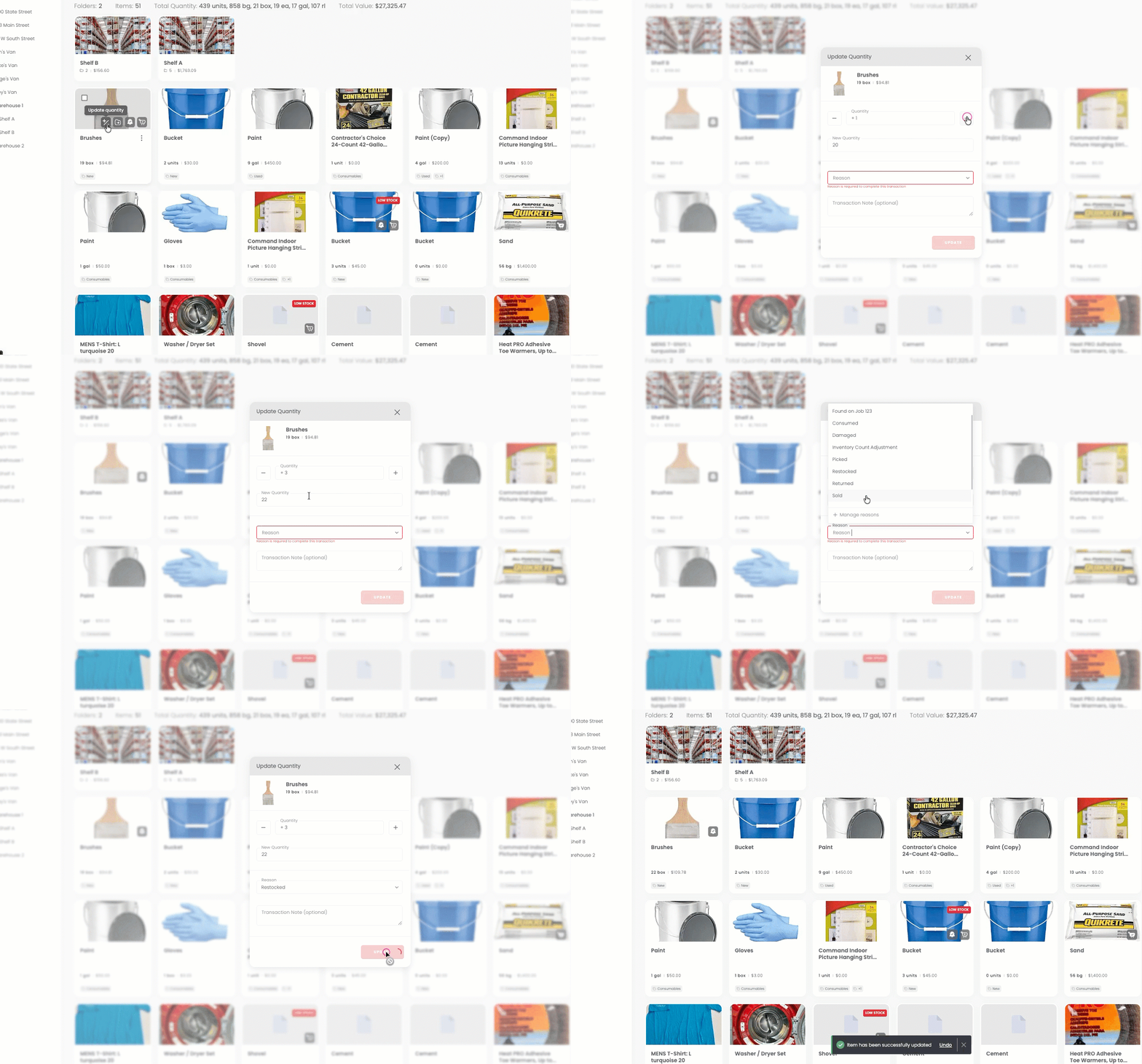
When a team member updates inventory, they see a Reason field in the transaction window. They pick the reason that applies, and it's saved in the item's transaction history and your reports. Here's what that looks like:
1
Hover over an item and select the Update quantity icon (plus and minus signs). The Update Quantity window opens.
2
In Quantity, use the minus or plus buttons, or type the amount to add or remove.
3
Select the Reason dropdown and choose a reason. If a default reason is set, it's already filled in.
4
Select Update. The reason is saved in the item's transaction history and shows in your reports.
---
### Who can manage transaction reasons
Only Owners and Admins can create, edit, hide, or delete reasons. Team Members and other roles can pick a reason when they log a transaction, but they can't change the list.
Custom transaction reasons are available on Advanced, Ultra, Premium, and Enterprise plans. Free plan accounts can use Sortly's built-in default reasons but can't create custom ones.
---
### Create a custom reason
You can create up to 15 custom reasons per transaction type: 15 for quantity updates and 15 for moves. Reason names can be up to 20 characters long.
1
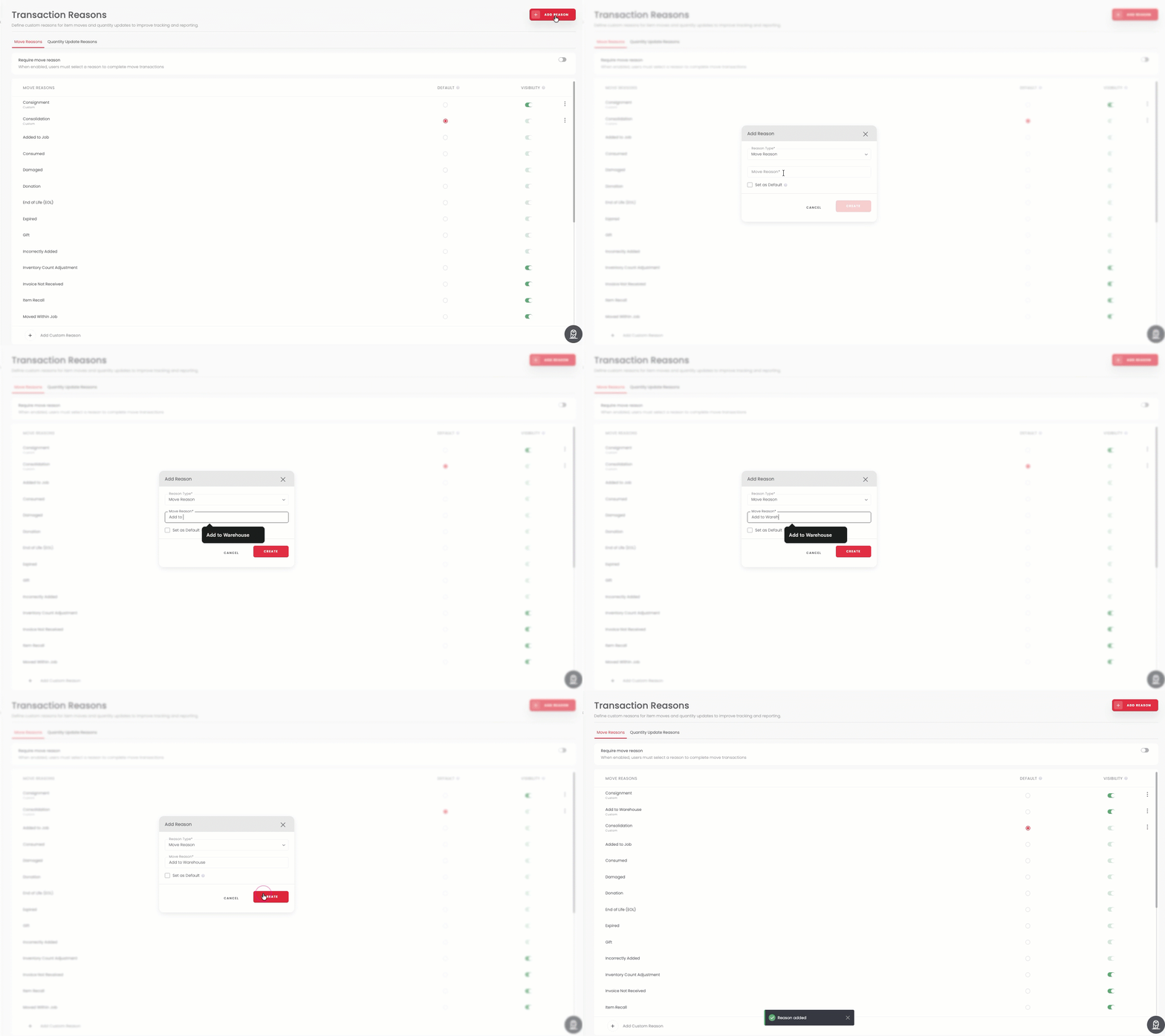
Select Settings in the left menu.
2
Select Transaction Reasons. You'll see two tabs: Move Reasons and Quantity Update Reasons.
3
Select the tab for the type of reason you want to add. Each type has its own list of reasons.
4
Select Add Reason at the top right. The Add Reason window opens.
5
Make sure Reason Type shows the type you want, then type a clear name (up to 20 characters) in the reason name field. To make it the default right away, select Set as Default.
6
Select Create. The new reason appears at the top of the list, marked Custom, and your team can use it right away.
💡 If you've reached the 15-reason limit for a type, the Add Reason button is unavailable. Hide or delete reasons you no longer use to free up space.
---
### Set a default reason
A default reason is filled in automatically whenever your team logs a transaction, which speeds up common workflows. You can set one default per transaction type.
To make a reason the default, select the circle in the Default column on that reason's row. Choosing a new default automatically replaces the previous one.
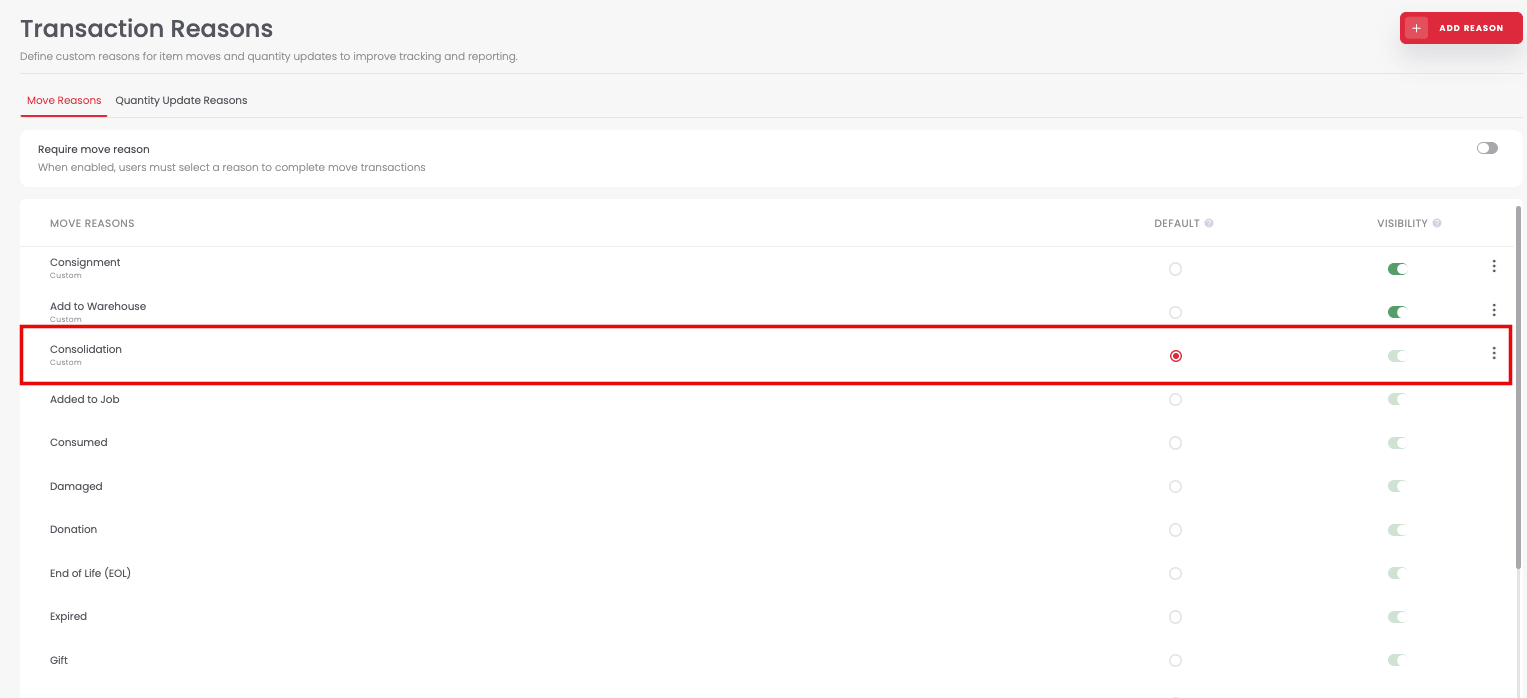
⚠️ A reason that is set as the default can't be hidden. If you want to hide it, make a different reason the default first.
---
### Hide or show reasons
If a reason doesn't fit how your team works, you can hide it so it isn't offered during transactions. Hidden reasons stay in your settings, and you can show them again at any time.
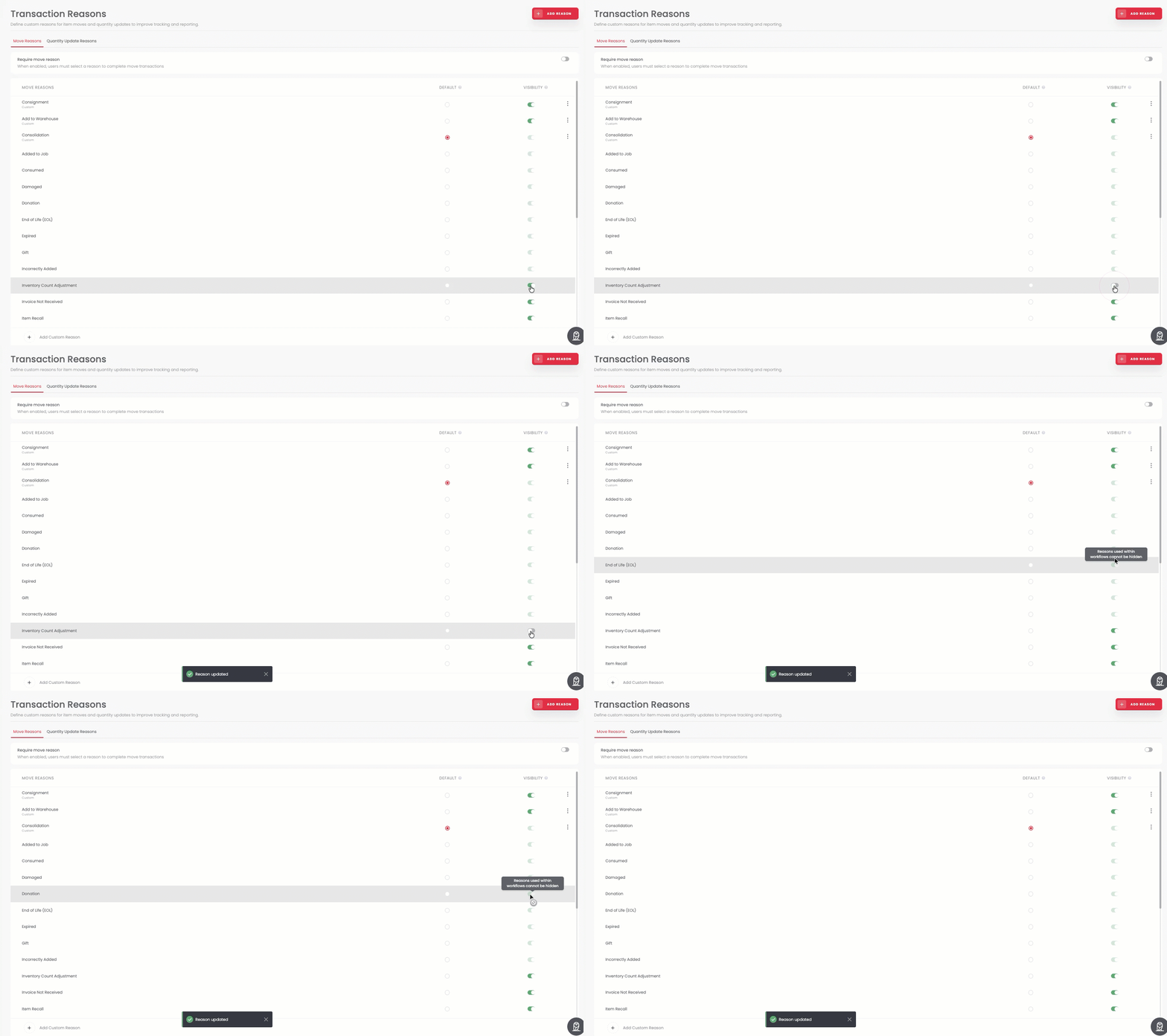
Use the switch in the Visibility column on any reason's row to show or hide it. This works for both Sortly's default reasons and your custom reasons.
Some reasons are tied to Sortly workflows and can't be hidden. Their switch is grayed out in your settings. See [Sortly's built-in default reasons](https://help.sortly.com/custom-transaction-reasons#default-reasons) for the full list.
---
### Require a reason for transactions
You can make reasons required, so your team has to pick one before completing a quantity update or a move. Each transaction type has its own setting, so you can require a reason for moves only, quantity updates only, or both.
At the top of the Move Reasons tab, select the switch next to Require move reason. At the top of the Quantity Update Reasons tab, select the switch next to Require quantity update reason.

✅ When a reason is required, Sortly makes sure at least one reason always stays visible. You can't hide every reason for that transaction type while the setting is on.
---
### Edit or delete a custom reason
#### Edit a custom reason
Renaming a reason changes it for all future transactions right away.
1
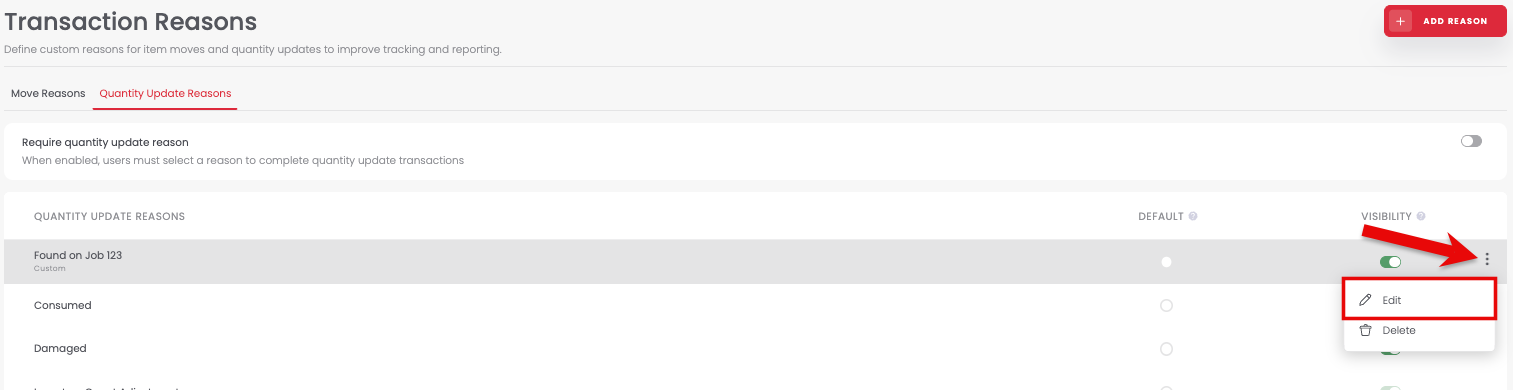
Select the three-dot menu at the end of the custom reason's row.
2
Select Edit.
3
Enter the new name and save your change.
⚠️ Renaming a reason doesn't change its name on past transactions. If consistent history matters to you, create a new reason instead of renaming an existing one.
#### Delete a custom reason
1
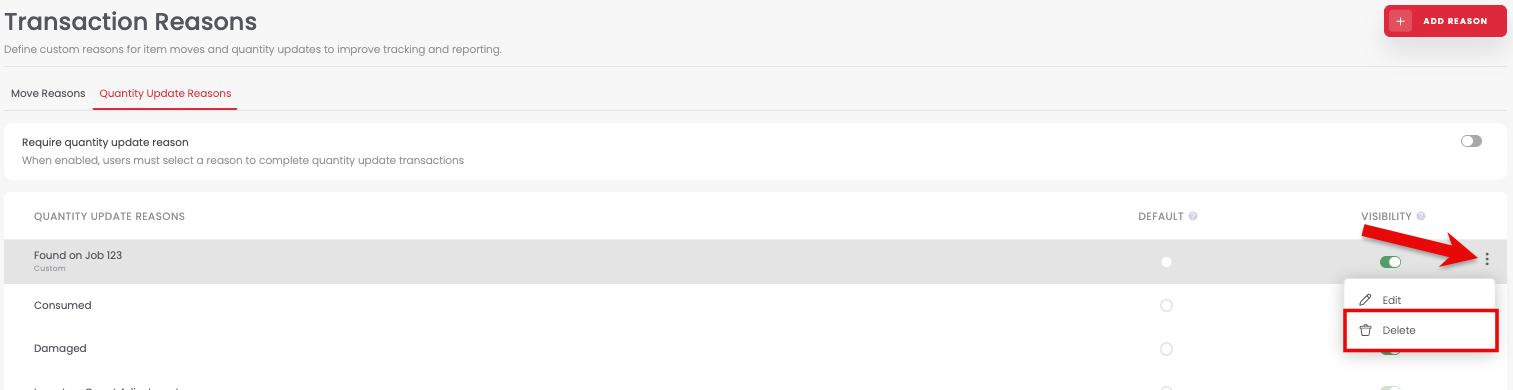
Select the three-dot menu at the end of the custom reason's row.
2
Select Delete.
3
Confirm that you want to delete the reason.
🗑️ Deleting a reason is permanent and can't be undone. Deleted reasons still show on past transactions and in reports for activity logged before you deleted them, but they won't be available for new transactions.
Only custom reasons can be deleted. Sortly's built-in default reasons can't be removed, though most can be hidden.
---
### Sortly's built-in default reasons
These reasons come with every Sortly account and can't be deleted. Most can be hidden if they don't apply to your workflows. The ones tied to Sortly features can't be hidden.
#### Quantity Update Reasons
Reason
Can be hidden
Consumed
Yes
Damaged
Yes
Inventory Count Adjustment
No
Picked
No
Restocked
No
Returned
Yes
Sold
Yes
Stock Take
Yes
#### Move Reasons
Reason
Can be hidden
Added to Job
No
Consumed
No
Damaged
No
Donation
No
End of Life (EOL)
No
Expired
No
Gift
No
Incorrectly Added
No
Inventory Count Adjustment
Yes
Invoice Not Received
Yes
Item Recall
Yes
Other
Yes
Out of Season
Yes
Picked
No
Quality Control
Yes
Replenish
Yes
Return to Supplier
Yes
Signed In
Yes
Signed Out
Yes
Sold
Yes
---
### Frequently Asked Questions
How many custom reasons can I create?
You can create up to 15 custom reasons per transaction type. Move reasons and quantity update reasons each have their own limit of 15, so you can have up to 15 of each.
Is there a character limit for reason names?
Yes. Reason names can be up to 20 characters. Short, clear names are easier for your team to scan and pick.
Can I delete Sortly's built-in default reasons?
No. Sortly's built-in default reasons can't be deleted. You can hide most of them so they don't appear in your team's dropdown, but they always stay in your account. Some reasons tied to Sortly workflows, like Restocked and Inventory Count Adjustment, can't be hidden either.
Why can't I hide a certain reason?
Some reasons are tied to Sortly workflows and can't be hidden. They're marked No in the built-in reasons tables above. Also, a reason that is set as the default can't be hidden until you make a different reason the default.
If I delete or rename a reason, what happens to past transactions?
Past transactions aren't affected. They always keep the reason name that was chosen at the time, even if that reason was later renamed, hidden, or deleted. Your transaction history and reports keep showing the original reason.
Can team members create or manage transaction reasons?
No. Only Owners and Admins can create, edit, hide, or delete transaction reasons. Team Members can see and pick from the available reasons when they complete a transaction, but they can't change the list.
Can I manage transaction reasons from the mobile app?
You can pick reasons on mobile when you complete a transaction, but creating, editing, hiding, or deleting reasons is only available on the web app. To manage your reasons, sign in to Sortly on the web at app.sortly.com.
Do transaction reasons work with bulk moves and bulk quantity updates?
Yes. Transaction reasons work with both bulk moves and bulk quantity updates. When you update items in bulk, you're still asked to pick a reason, or your default reason is filled in if you've set one.
What happens if I require a reason but hide all my reasons?
Sortly won't let that happen. When a reason is required, at least one reason must stay visible at all times.
[](https://www.sortly.com/)
Copyright © 2026, Sortly Inc.