---
title: Customize Sortly
description: Customize Sortly with your company details, logo, regional settings, zero-quantity move preference, and personal preferences.
---
[Skip to content](https://help.sortly.com/customize-sortly#main-content)

Open main navigation
Close main navigation
Looking for answers? Start here.
- There are no suggestions because the search field is empty.
1. [Sortly Help Center](https://help.sortly.com/?hsLang=en)
2. [Billing & Account](https://help.sortly.com/billing-account?hsLang=en)
3. [Account Settings](https://help.sortly.com/billing-account?hsLang=en#account-settings)
# Customize Sortly
Customize Sortly with your company details, regional settings, and personal preferences. You can update your logo and app color, choose formats for dates and time, set how zero-quantity items behave after a move, and select defaults for your own view.
In this article
1. [Update company details](https://help.sortly.com/customize-sortly#company-details)
2. [Manage general settings](https://help.sortly.com/customize-sortly#general-settings)
3. [Choose a zero-quantity move preference](https://help.sortly.com/customize-sortly#move-preferences)
4. [Set your preferences](https://help.sortly.com/customize-sortly#preferences)
5. [Frequently asked questions](https://help.sortly.com/customize-sortly#faq)
### Update company details
Open the [Company Details](https://app.sortly.com/company-details) page in Sortly. Select a field to edit it, or select the pencil icon next to your logo.
1. 1**Open Company Details**
Go to the [Company Details](https://app.sortly.com/company-details) page.
2. 2**Edit your company information**
Update your company name, industry, app color, or initials. You can also add or replace your company logo.

💡 For the best result, use a company logo that is approximately 300 by 100 pixels.
### Manage general settings
On the Company Details page, use the General Settings section to manage your country, time zone, time format, date format, currency, zero-quantity move preference, and price decimals.
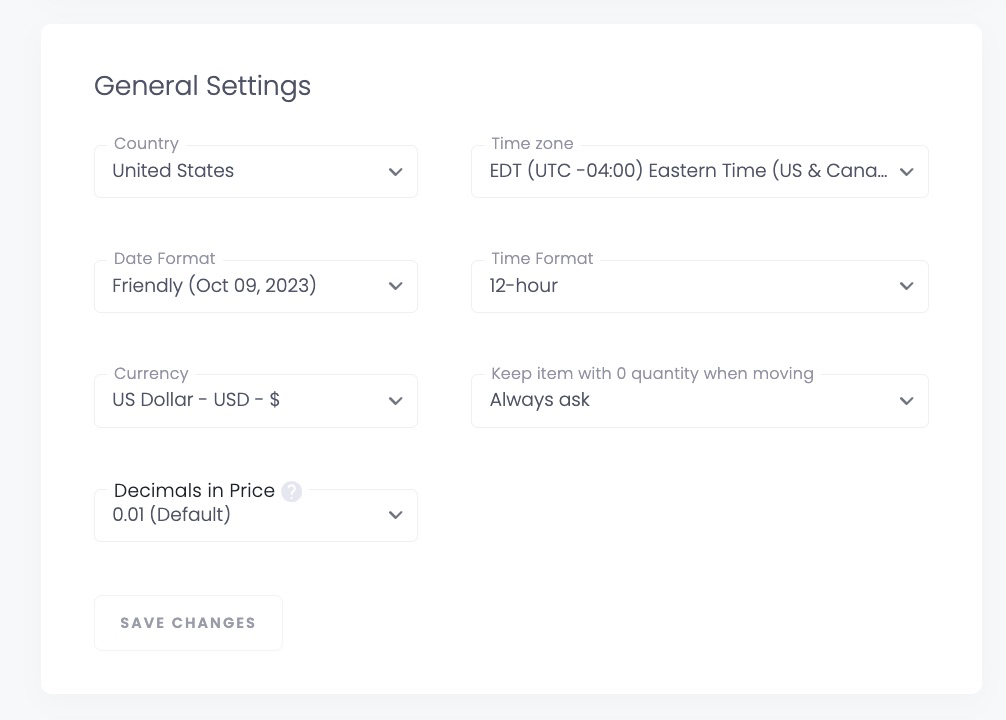
Setting
What it affects
Country
Sortly defaults this to the country selected during registration, based on your locale. You can change it manually.
Time zone
Sortly defaults this from your local browser or device. You can change it manually for the web experience. Date alerts and weekly reports trigger at 8:00 AM in the selected account time zone. It also affects dates in the Activity History, Alerts, All Transactions, and Transaction screens, plus the footer date on exported PDF reports.
Time format
Choose 12-hour or 24-hour time. This change applies throughout Sortly, including alerts and reports.
Date format
This applies on web and mobile for everyone on the account. CSV and XLSX exports use the selected format. PDF exports use DD/MM/YYYY.
Currency
This applies on web and mobile for everyone on the account. If Sortly does not detect your location, the default is USD.
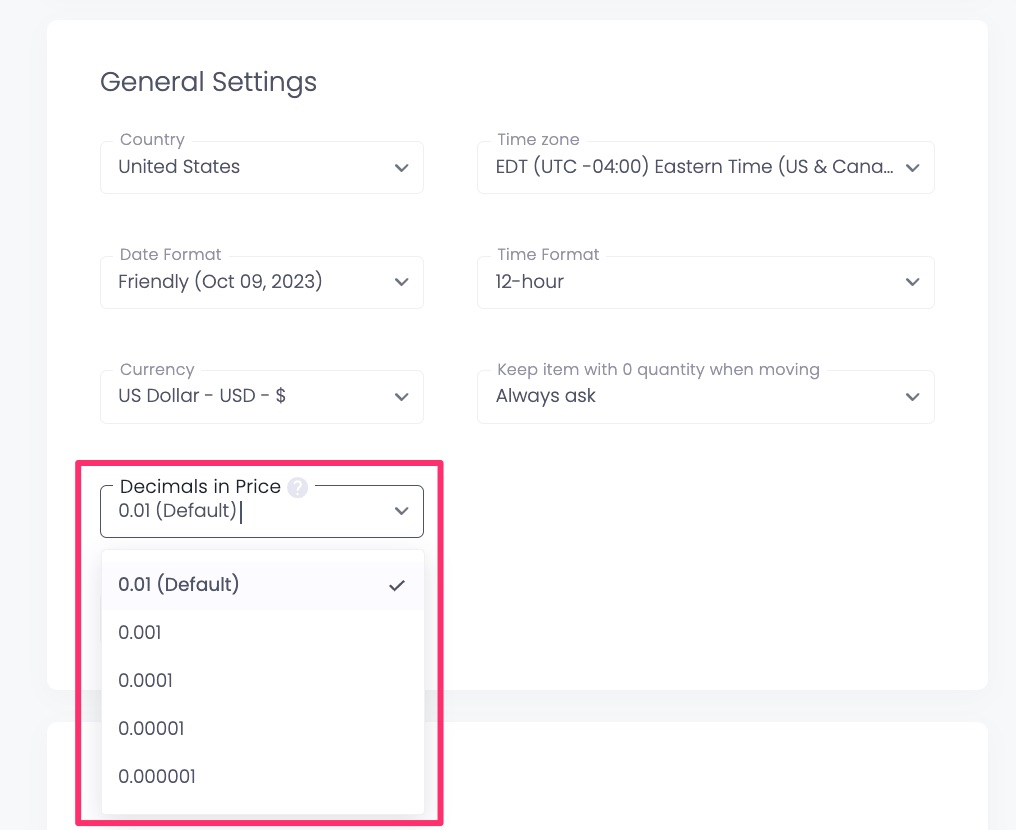
Decimals in Price
Prices use two decimal places by default. You can select up to six decimal places.
### Choose a zero-quantity move preference
Decide what happens when an item reaches a quantity of zero after you move it.

Option
What happens
Always ask to keep the item
Sortly prompts the user to choose an option each time an item is moved.
Never
Sortly automatically moves the zero-quantity item to the trash.
Always keep the item
The zero-quantity item remains in its folder.
⚠️ Choose Always keep the item if you do not want zero-quantity items moved to the trash.
### Set your preferences
Your preferences help tailor Sortly to how you work.
**General Preferences**
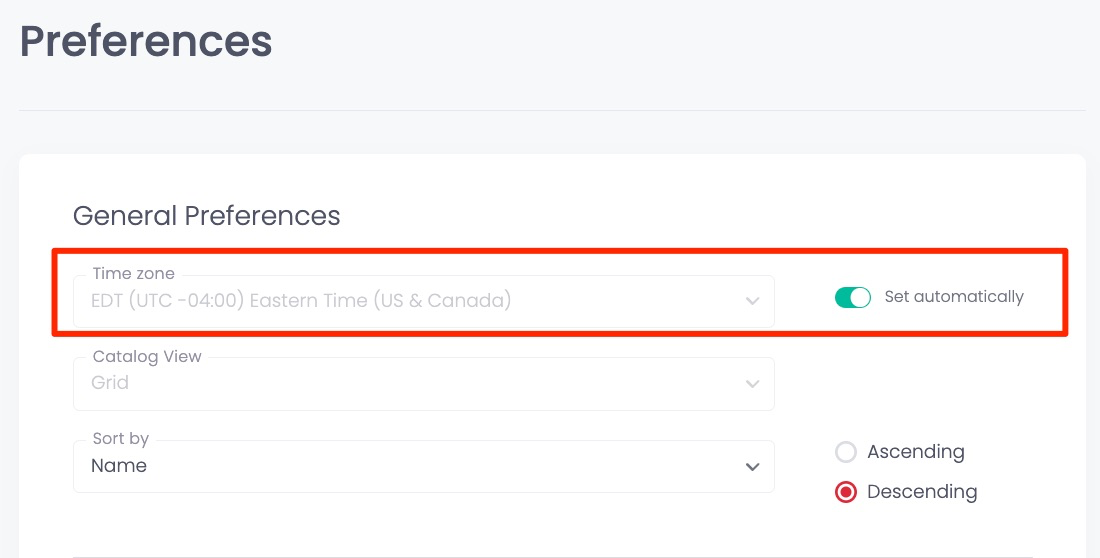
- Set your time zone automatically based on your location.
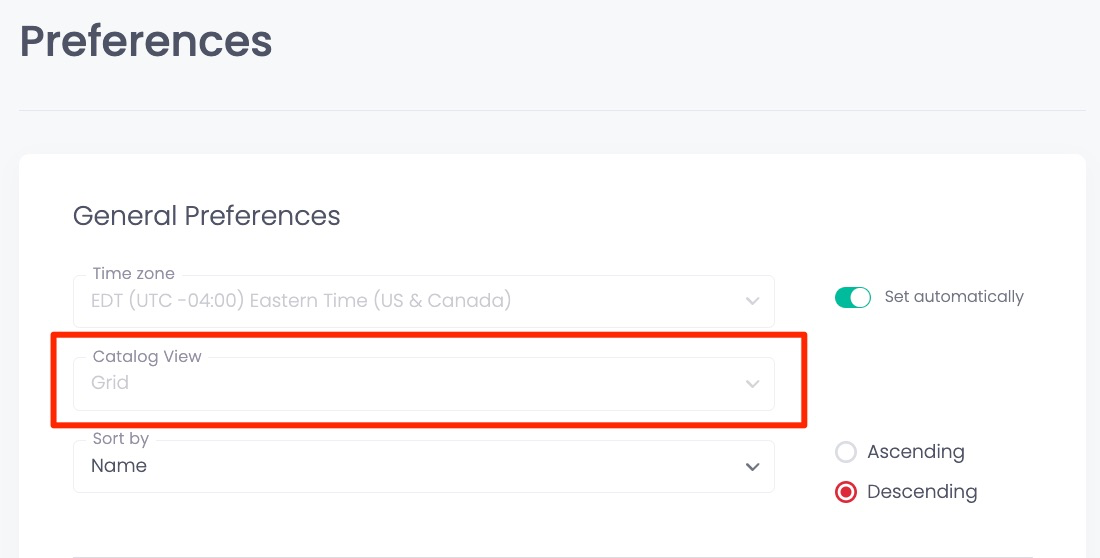
- Choose Grid, List, or Table as your default catalog view.
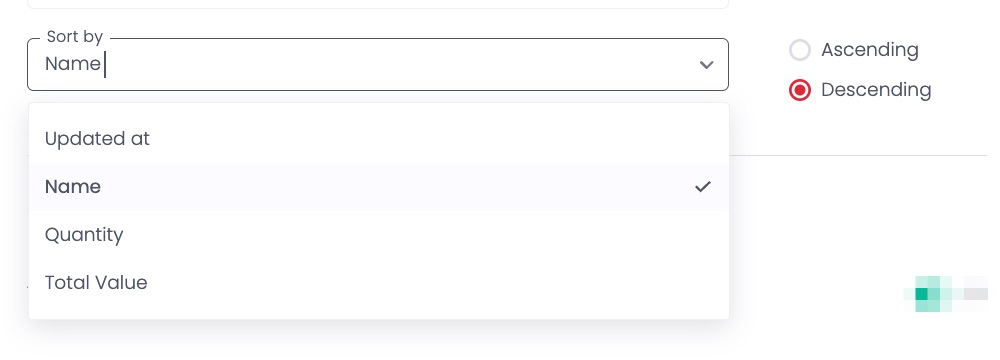
- Choose Name, Updated At, Quantity, or Total Value as your default sort order.
**Set your time zone automatically**
**Choose your default catalog view**
**Choose your default sort order**
**Email Preferences**
- Choose whether date- or quantity-based email alerts are sent to the email address on your account.
- Choose whether to receive email alerts when purchase orders change.

---
### Frequently asked questions
Who can see my date format and currency settings?
These apply on web and mobile for everyone on the account.
What happens to zero-quantity items I do not want to lose?
Choose Always keep the item so zero-quantity items stay in their folder instead of moving to the trash.
How many decimal places can I use for prices?
Prices use two decimal places by default. You can select up to six.
What date format do PDF exports use?
PDF exports use DD/MM/YYYY. CSV and XLSX exports use the date format you selected.
When do date alerts and weekly reports send?
They trigger at 8:00 AM in the time zone selected for your account.
[](https://www.sortly.com/)
Copyright © 2026, Sortly Inc.