---
title: Pick Lists
description: Create Pick Lists manually or from an Invoice, add items in bulk, scan to pick on mobile, and track picks in reports. For Ultra, Premium, and Enterprise.
---
[Skip to content](https://help.sortly.com/pick-lists#main-content)

Open main navigation
Close main navigation
Looking for answers? Start here.
- There are no suggestions because the search field is empty.
1. [Sortly Help Center](https://help.sortly.com/?hsLang=en)
2. [Workflows](https://help.sortly.com/workflows?hsLang=en)
3. [Workflows](https://help.sortly.com/workflows?hsLang=en#workflows)
# Pick Lists
Pick Lists help your team gather and prepare inventory for jobs, shipments, or transfers, all in one place. You can also create one directly from an existing Invoice, so there's no need to enter items manually.
Ultra
Premium
Enterprise
In this article
1. [How Pick Lists Work](https://help.sortly.com/pick-lists#how-it-works)
2. [Who Can Use Pick Lists](https://help.sortly.com/pick-lists#permissions)
3. [Create a Pick List Manually](https://help.sortly.com/pick-lists#create-manually)
4. [Create a Pick List from an Invoice](https://help.sortly.com/pick-lists#create-from-invoice)
5. [Clone a Pick List](https://help.sortly.com/pick-lists#clone)
6. [Add Multiple Items at Once](https://help.sortly.com/pick-lists#bulk-add)
7. [Mobile Workflow](https://help.sortly.com/pick-lists#mobile)
8. [Scan to Pick](https://help.sortly.com/pick-lists#scan-to-pick)
9. [Reporting on a Pick List](https://help.sortly.com/pick-lists#reports)
10. [Frequently asked questions](https://help.sortly.com/pick-lists#faq)
### How Pick Lists Work
#### Statuses
Every Pick List moves through a simple lifecycle:
- **Draft:** still being put together.
- **Ready to Pick:** ready for your team to start.
- **In Progress:** currently being picked.
- **Partially Complete:** some items picked, inventory updated.
- **Complete:** everything picked, inventory fully updated.
#### Assigning a Pick List
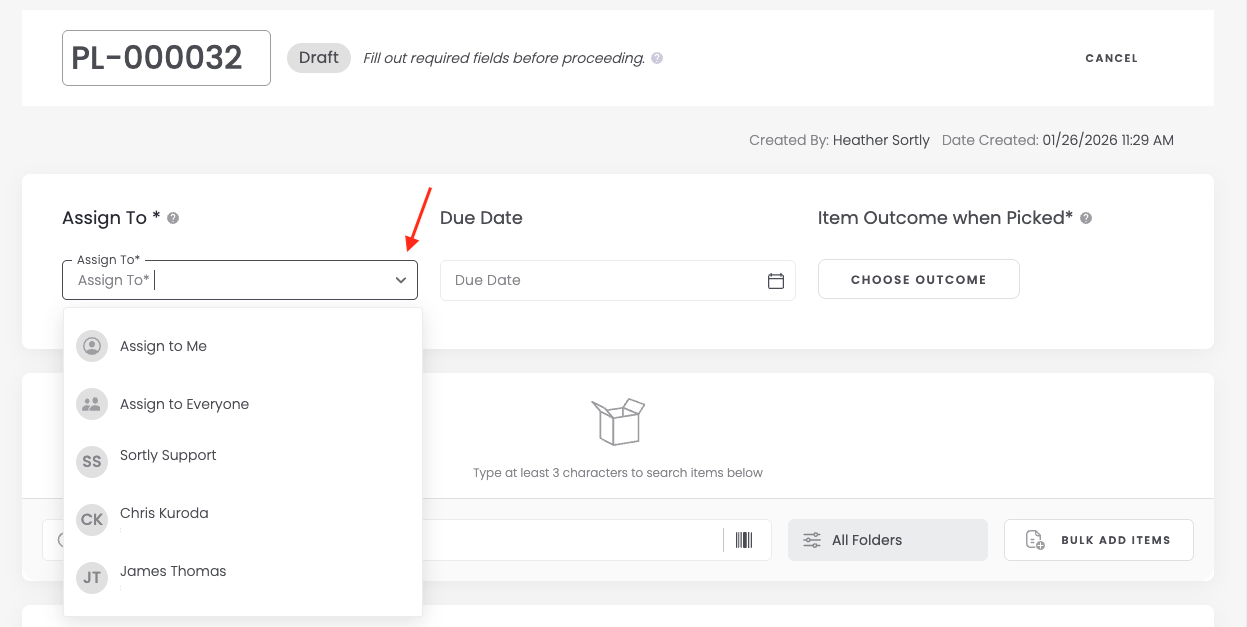
Use the Assign To dropdown to assign it to yourself, to the whole team, or to one specific person.
#### Choosing an item outcome
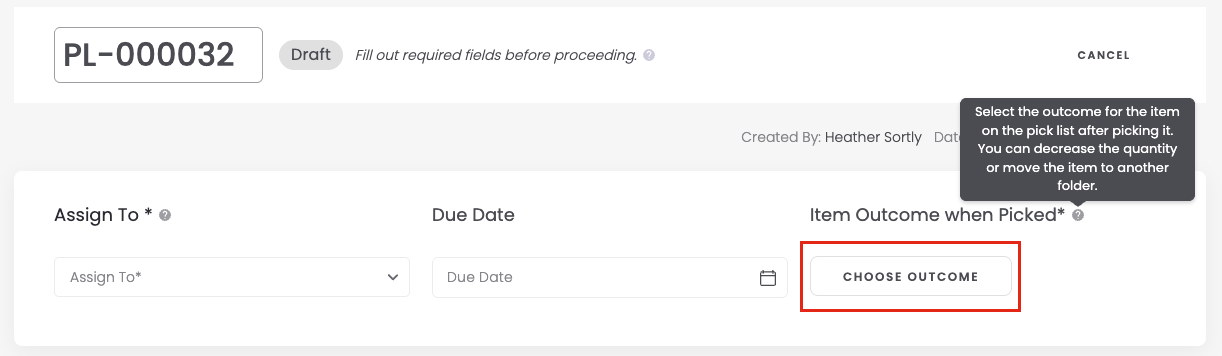
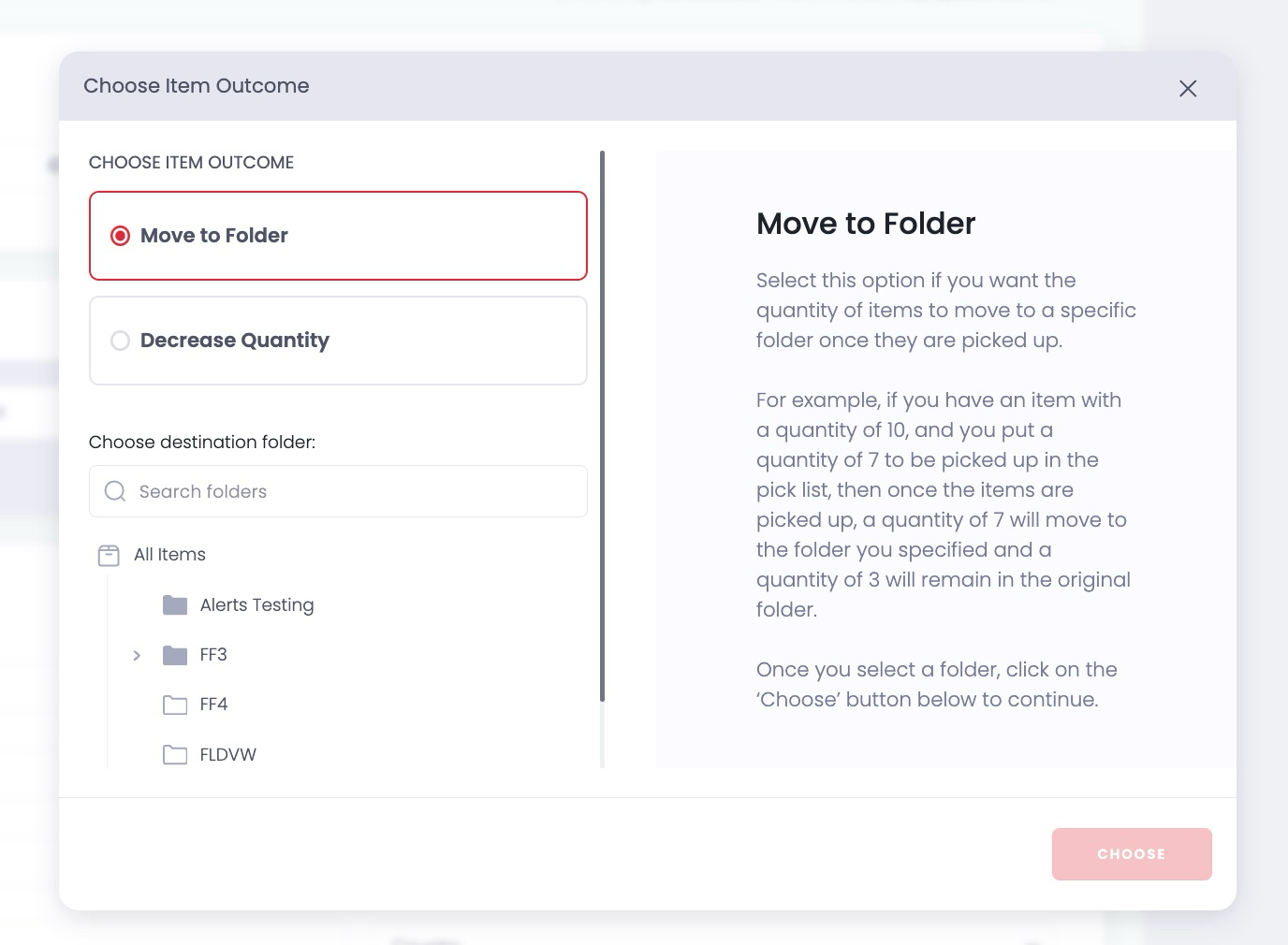
**Move to Folder** moves the picked quantity to a different folder. Pick 7 of 10, and 7 move over while 3 remain.
**Decrease Quantity** subtracts the picked amount from inventory instead. Pick 7 of 10, and 3 remain.
#### Adding items
Search and add items one at a time, use Bulk Add, or add directly from an Item Card.

#### Address and notes
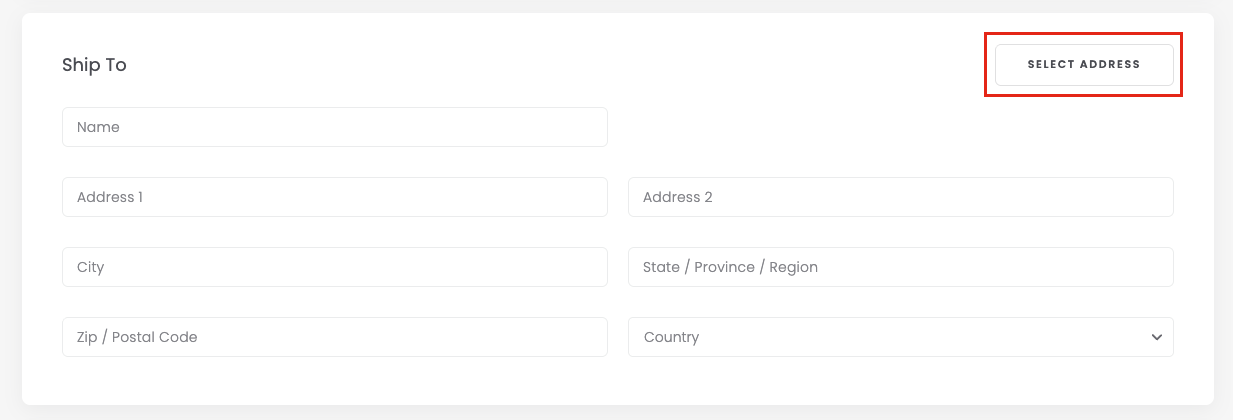
Add a ship-to address and any internal notes for your team.
#### Exporting a Pick List
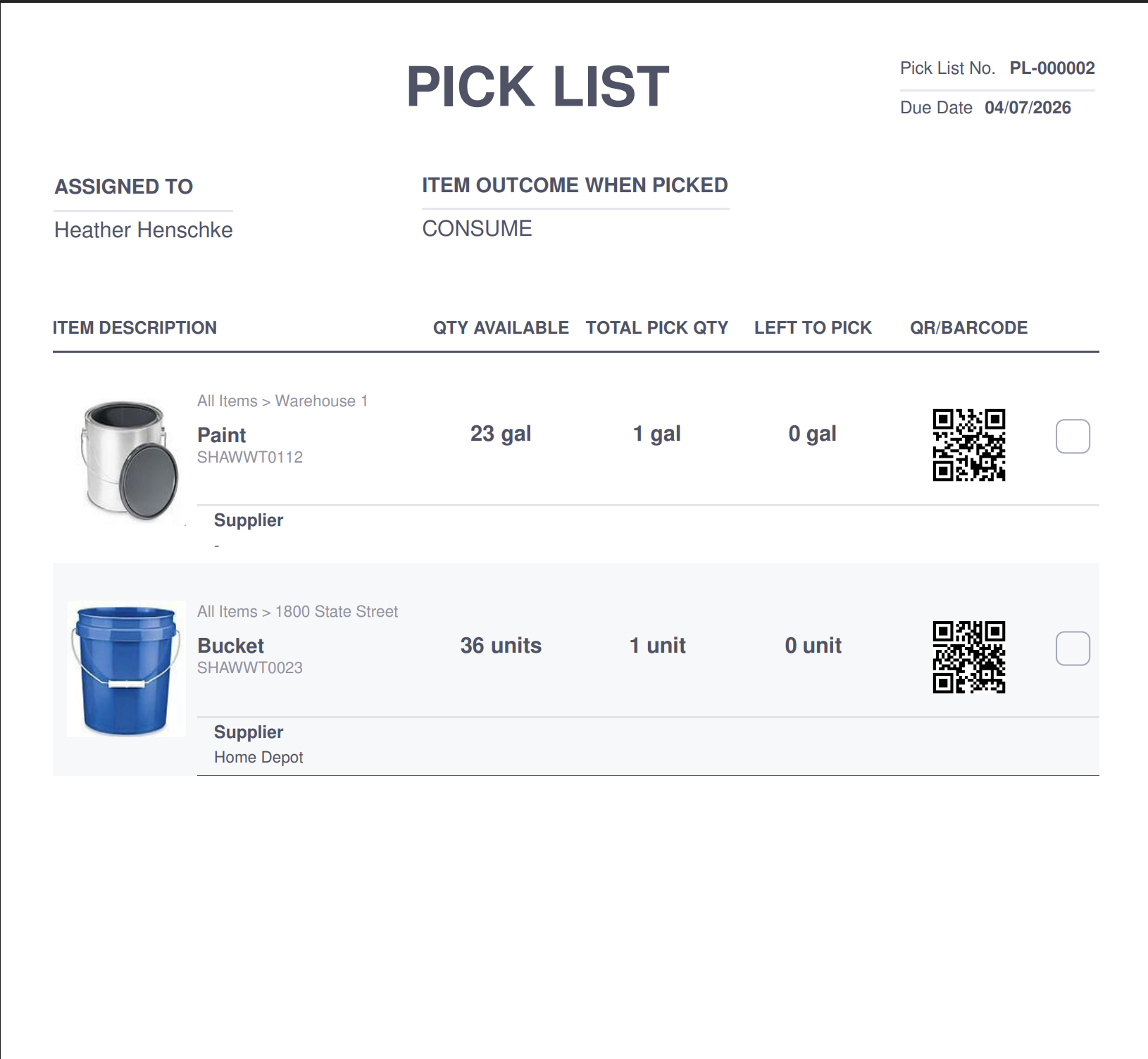
Open the Pick List, click Export, choose the fields to include, and export. You'll get a ready-to-print PDF.
### Who Can Use Pick Lists
Role
What they can do
Owner / Admin
Can see, create, edit, assign, or delete any Pick List.
Team Member
Can create Pick Lists, and edit any list they created or are assigned to.
Custom Role (Premium & Enterprise)
Can create Pick Lists and add items to any list they have view access to.
Limited Access Seat (Enterprise only)
Can create Pick Lists and work on any list they're assigned to.
### Create a Pick List Manually
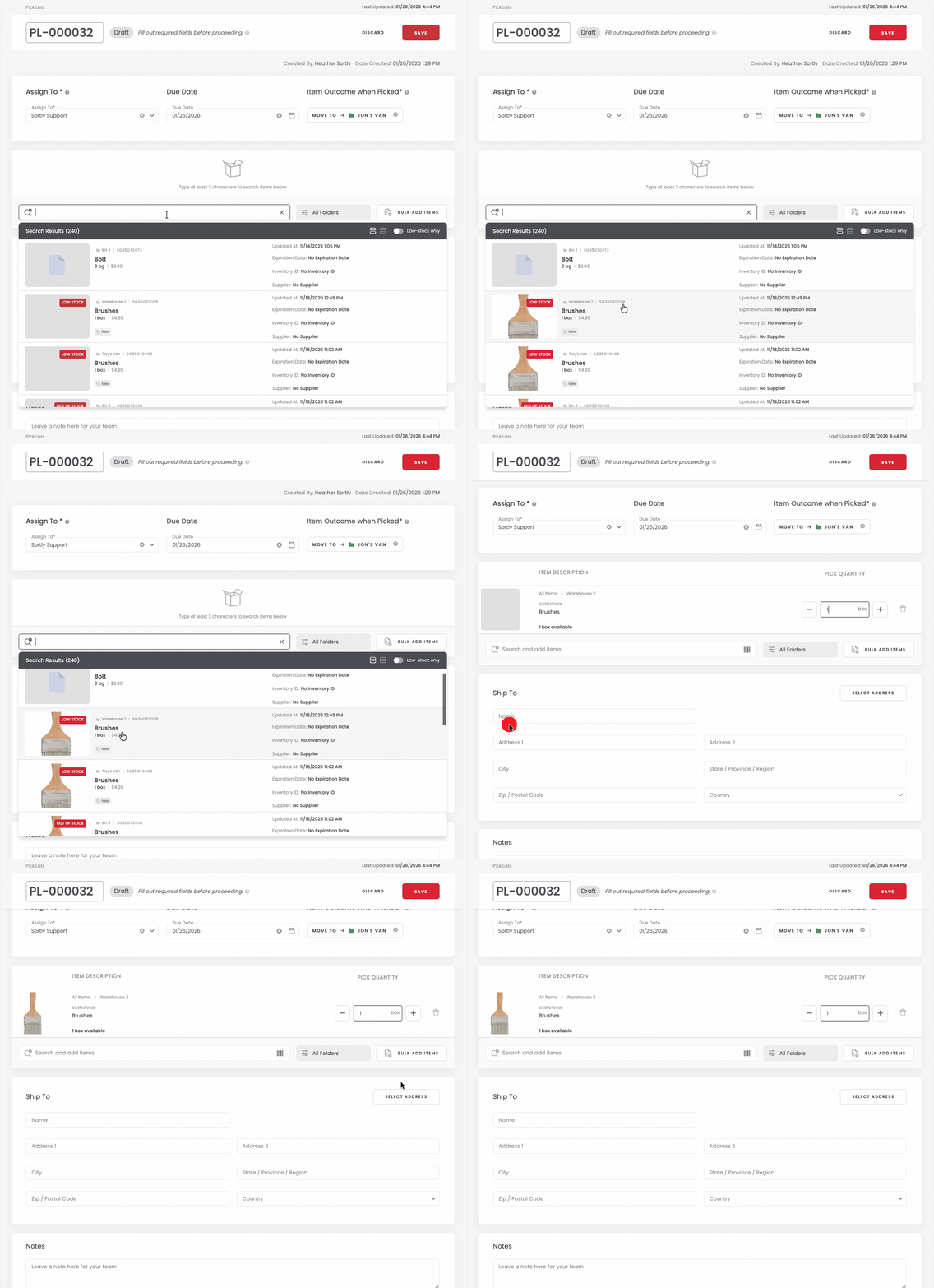
1. 1**Go to Workflows \> Pick Lists**, then click New Pick List
2. 2**Add a title, notes, and items,** choosing quantities and folders as needed
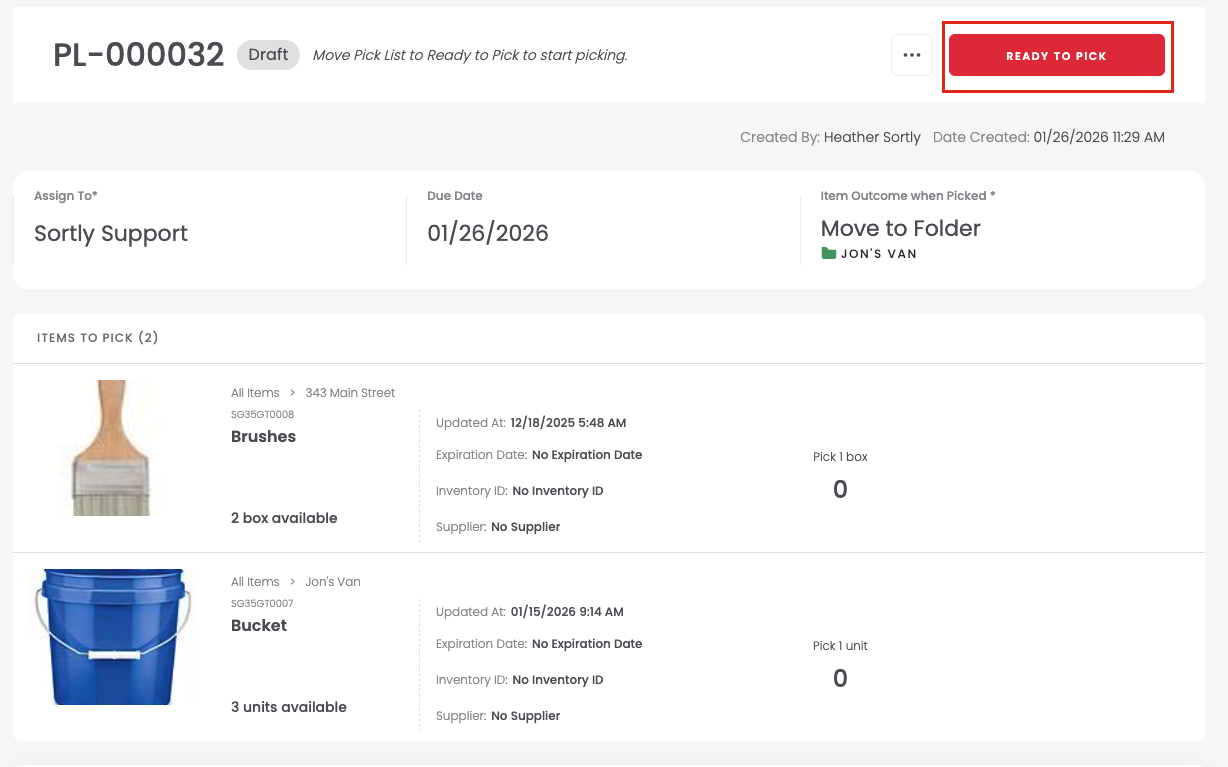
3. 3**Save it, then mark it Ready to Pick** when your team is ready to begin
4. 4**Pick the items,** partially or fully. This moves the status to In Progress
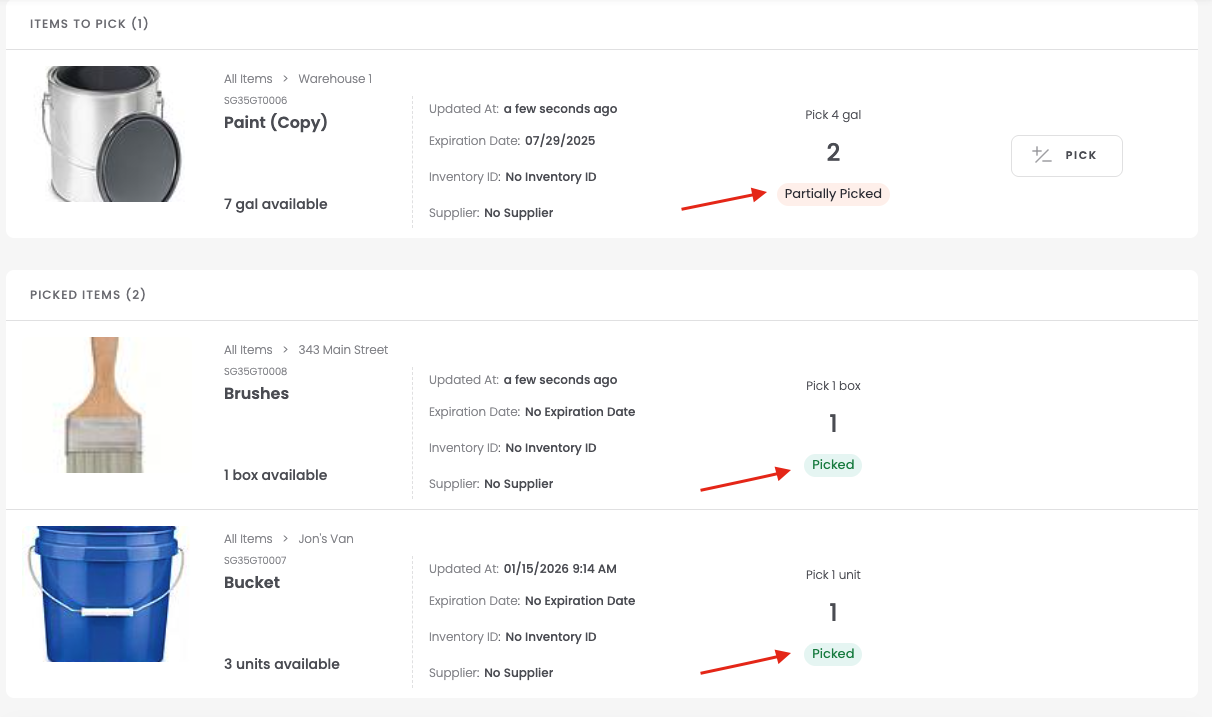
5. 5**Click Complete Pick** once everything is picked, to move the status to Complete
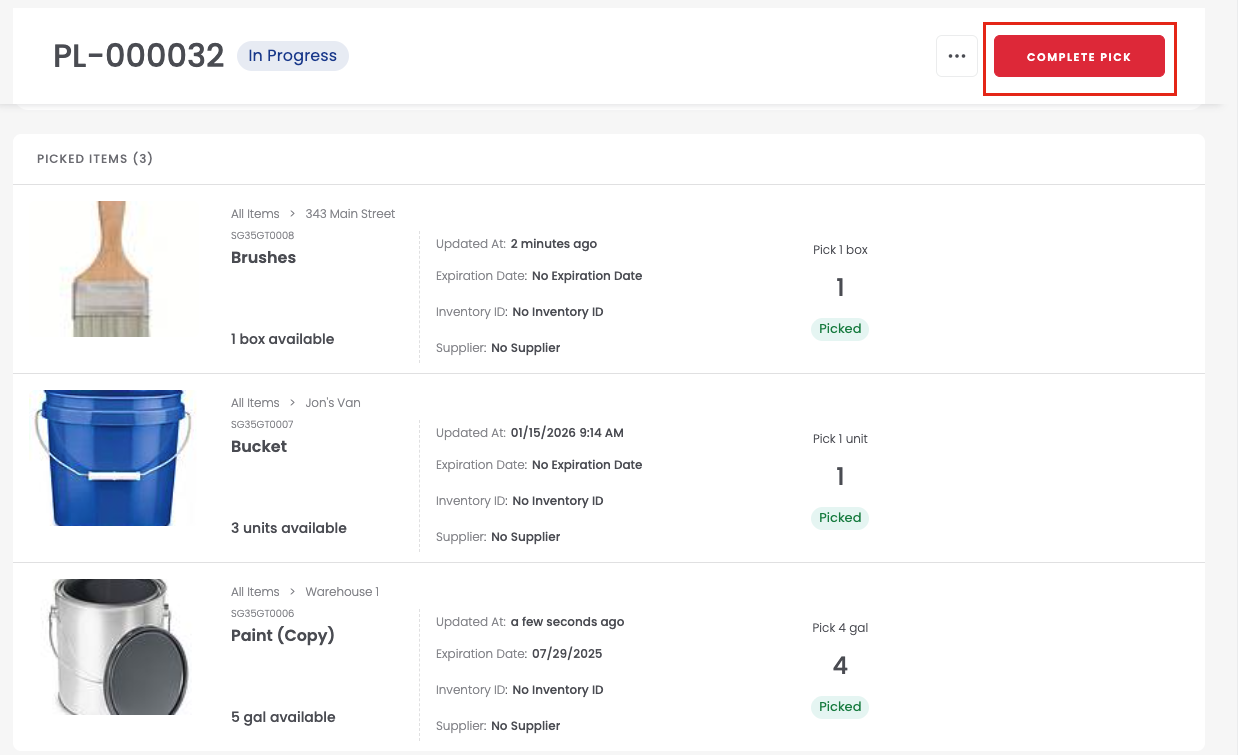
⚠️ Clicking Complete Pick before everything is picked will permanently skip the remaining items. Make sure picking is finished first.
Click Export at any point to generate a PDF so your team knows exactly what to grab. Back on the Pick Lists tab, use the Filter icon to filter by status.
### Create a Pick List from an Invoice
1. Open the Invoice you want to use and click Create Pick List.
2. A confirmation message appears with a link to the new Pick List, created in Draft status.
3. You can repeat this process at any time to create a new Pick List with the latest invoice data.
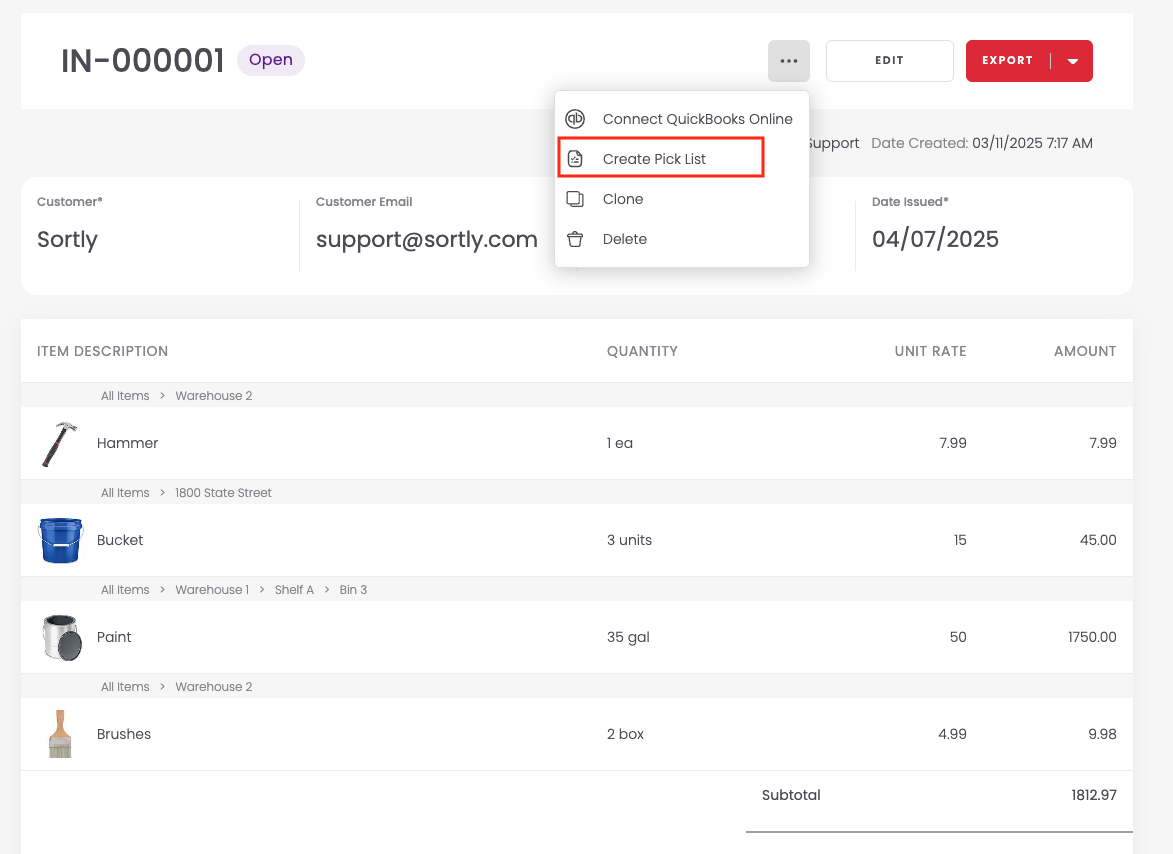
💡 Once you create a Pick List from an Invoice, the two are no longer connected. Edits to one won't carry over to the other.
### Clone a Pick List
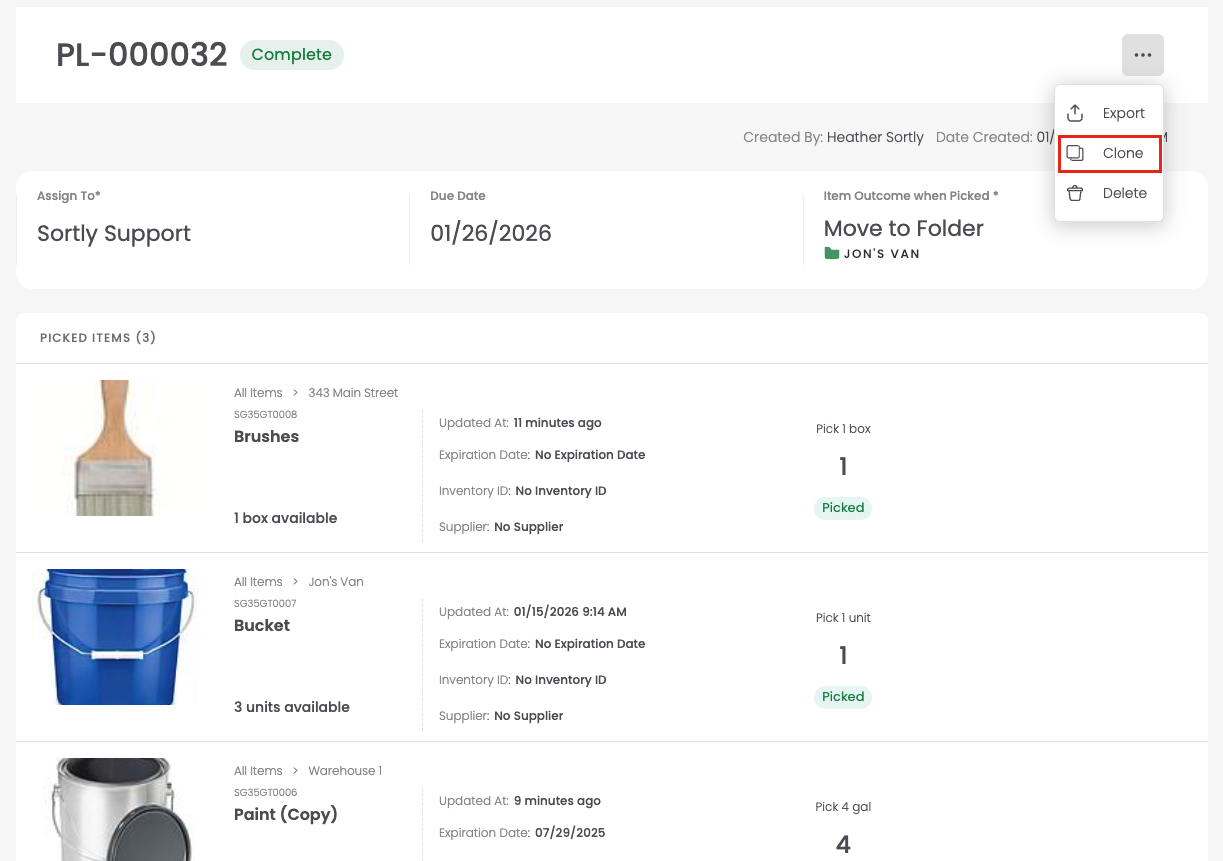
Open [Pick Lists](https://app.sortly.com/pick-lists), click the three dots on any list, then click Clone. The copy opens in Draft status with items, quantities, ship-to address, and notes carried over.
### Add Multiple Items at Once
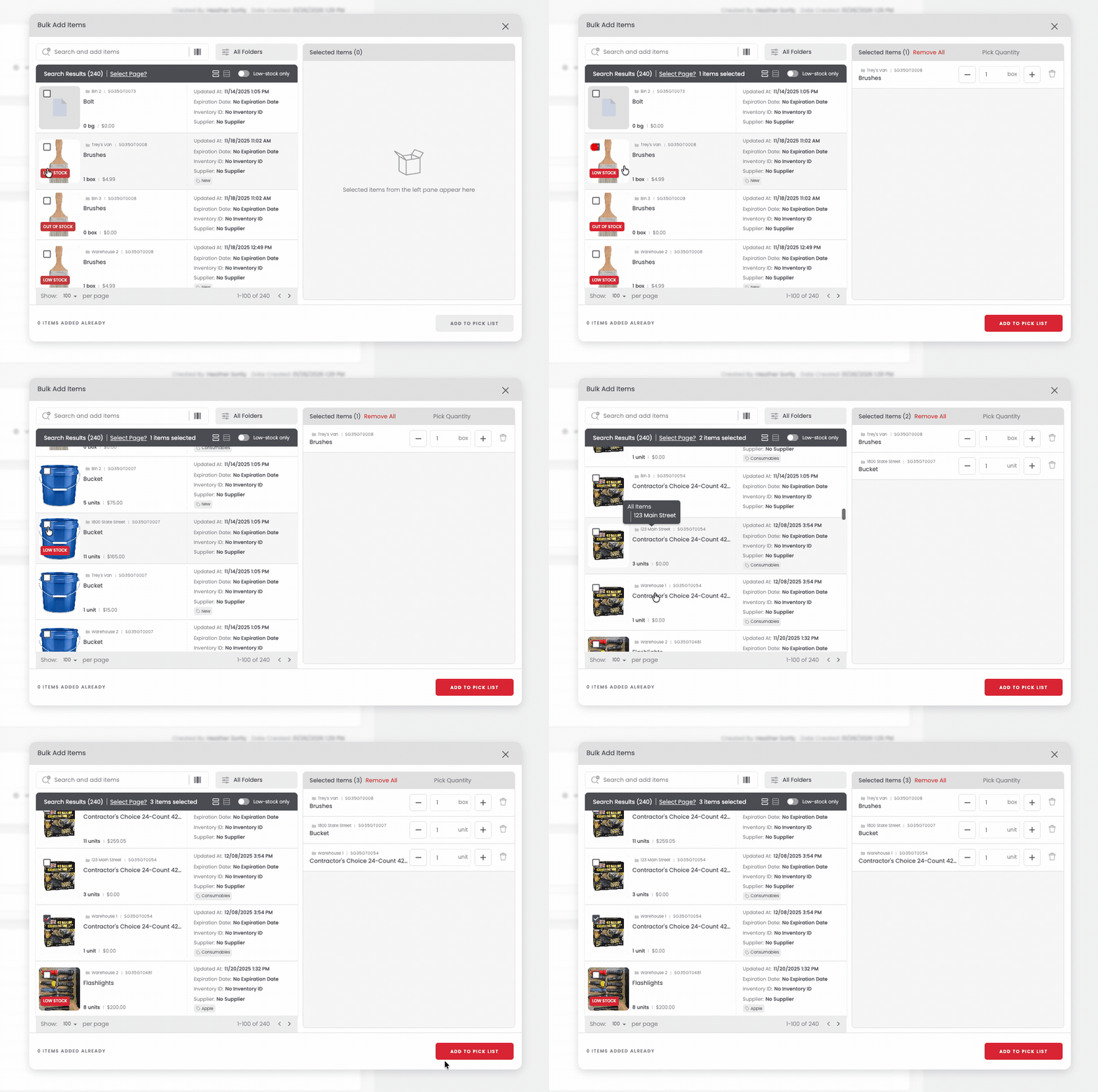
You can add many items to a Pick List at once, using Bulk Add Items from the Pick List creation page, from a Folder, or via Advanced Search.
#### Bulk Add Items
Click Bulk Add Items instead of searching, choose your items, then select Bulk Add to Pick List.
#### Advanced Search or a Folder
1. 1Apply filters in Advanced Search, or open the Folder you want
2. 2Use the checkboxes to select items
3. 3In the bulk-edit bar, click Add To \> Pick List
4. 4Choose a quantity for each item, then click Next
5. 5Add the items to a New or Existing Pick List and confirm

### Mobile Workflow
#### Create and pick
1. 1Tap Workflows \> Pick Lists, then the + icon
2. 2Name the list and tap Add Items, using manual search, voice search, or scan to search
3. 3Tap Done. The list appears as a Draft, Ready to Pick
4. 4Open it and tap Ready to Pick to begin. Picking any item moves the status to In Progress
5. 5Once everything is picked, tap Complete Pick
⚠️ Clicking Complete Pick before everything is picked will permanently skip the remaining items. Make sure picking is finished first.
#### Export and manage on mobile
Tap the three-dot menu on a Pick List and select Export to PDF. The file opens in your device's PDF viewer and is also sent to your email, with the Item Name, Location, Quantity, and any QR codes or barcodes included. Back on the Pick Lists tab, use the Filter icon to filter by status or sort your lists.
### Scan to Pick
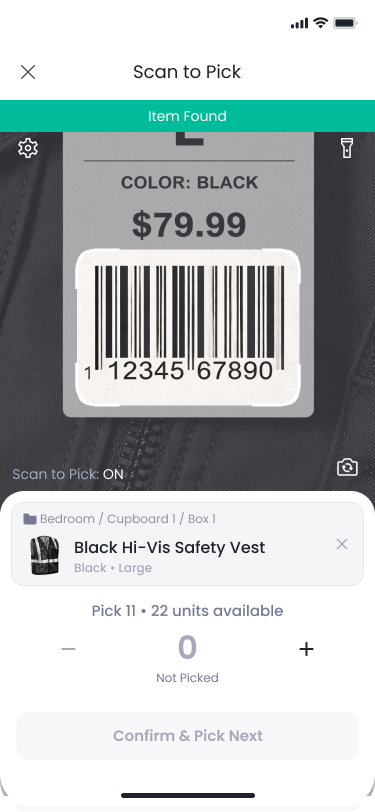
Scan a linked QR code or barcode to find and pick items quickly, without manually searching.
**To turn it on:** open a Pick List, tap the gear icon, tap Scan to Pick, toggle it on, and save.
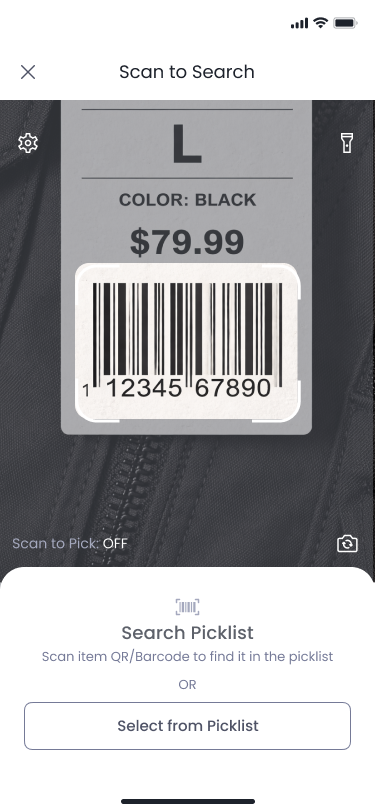
**To pick:** tap the barcode icon, scan an item's barcode, then pick manually or continue scanning to increment the quantity by one each time. Tap Confirm & Pick Next to move to the next item, and Complete once you're done.
### Reporting on a Pick List
Open the Transaction report and filter by Transaction Type: Moved (Picked) or Update Quantity (Picked). Notes appear as "Item picked as per Pick List #PL-000011," so you can see when a list was created, who created it, and what changed.

### Frequently Asked Questions
Is there an extra cost, and how many items can I add?
No extra cost on Ultra, Premium, or Enterprise. Pick Lists aren't available on Free or Advanced. Each list can hold up to 100 items.
Who gets notified about a Pick List?
Only the assigned user, or the creator if it's assigned to Everyone. We don't currently notify the entire account.
Can multiple people work on the same list, and can I delete one?
Yes to both. Multiple users can collaborate on a list at the same time, and Owners can delete a Pick List in any status.
What if an item is out of stock, or the list becomes unavailable mid-pick?
An out-of-stock item can still be added, but you'll only be able to pick up to what's available. If a list is locked or deleted while someone is working in it, they'll see an error and need to restart.
How do I view transaction history for picked items?
Go to Reports \> Transactions, filter by date range, and look for Picked in the Transaction Type column.
What gets copied when I clone a Pick List?
Items, quantities, ship-to address, and notes. Assignees, due dates, and item outcomes aren't copied. Any role can clone a list, from any status, and the copy always starts as Draft.
What if some items are in folders I can't access?
Only items in folders you can access will be copied. Restricted items are left off the clone.
Who can create a Pick List from an Invoice, and what gets copied?
Owners and Admins on Ultra, Premium, and Enterprise. Item name and quantity per line item carry over, duplicated if an item repeats on the invoice. Deleted or hidden invoice items are skipped.
Are the Invoice and Pick List linked, and does the invoice need to be sent first?
No to both. They're separate once created, so changes to one won't affect the other, and you can create a Pick List from an Invoice in any status, including Draft.
Is Scan to Pick available on web, and does scanning update inventory?
Scan to Pick itself is mobile-only, though Pick Lists sync across web and mobile in real time either way. Scanning updates the picked quantity on the list, not your inventory, which updates once the pick is completed.
Who can pick versus finalize, and what if I scan the wrong item?
Owners, Admins, Creators, Custom Roles, and Limited Access users can all pick items. Only Owners, Admins, and Creators can finalize quantities. Scanning an item that's not on the list just shows a notification and changes nothing, you can add it and continue.
What if an item on the list has been moved or deleted?
It will be flagged clearly. You can skip it, remove it from the list, or restore access, picking continues normally for everything else.
[](https://www.sortly.com/)
Copyright © 2026, Sortly Inc.