
Sortly gives you three ways to export your inventory: a spreadsheet for data analysis, a PDF report for visual records, or a Dropbox export for full backups with original photo files. All three are available on web and mobile.
In this article
Choosing the right export format
Not sure which export to use? Here's a quick comparison:
Export to CSV or Excel (Inventory Summary)
The Inventory Summary report is the best way to export your full inventory data. It includes every item and field, organized by folder and location.
-
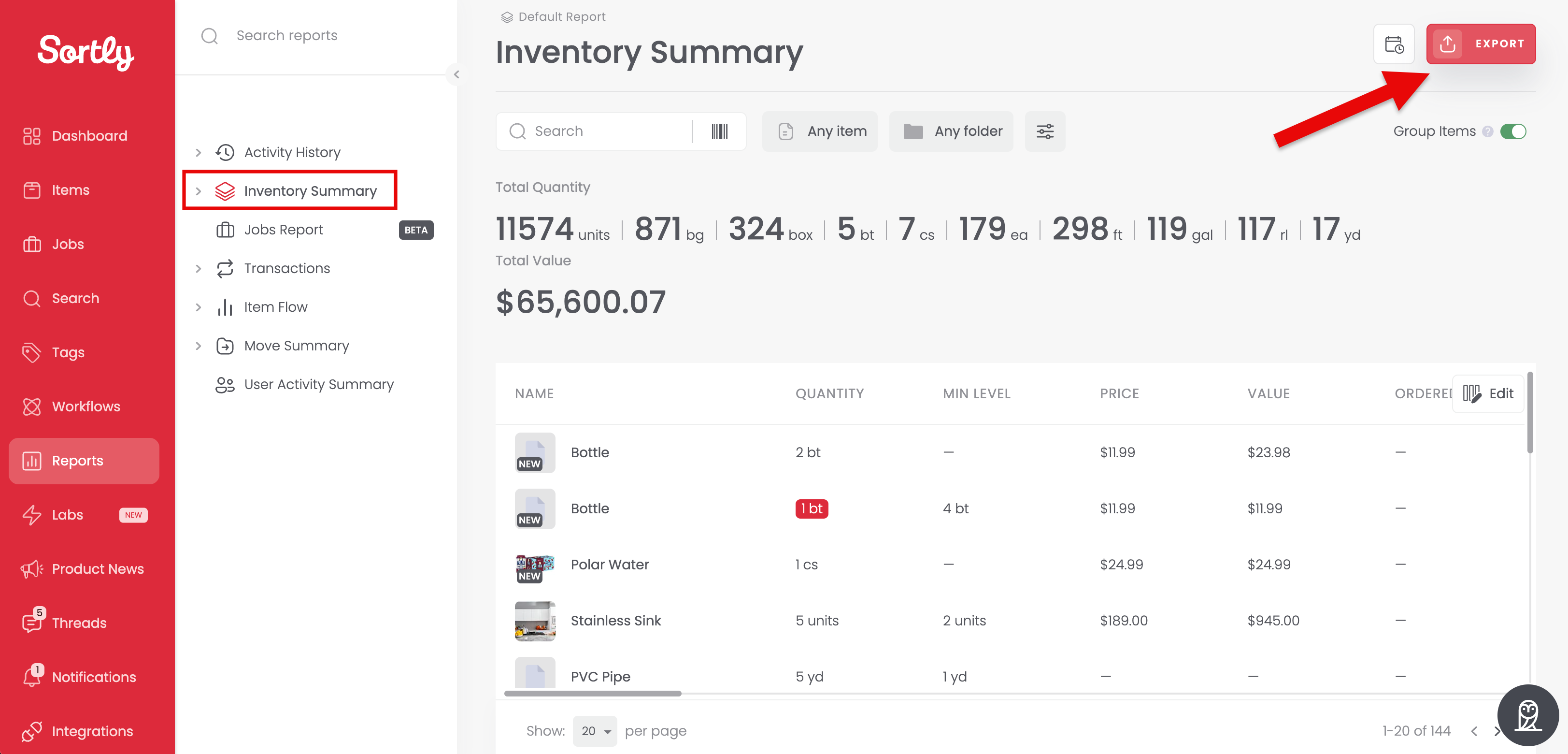
1Go to the Reports section.
-
2Select Inventory Summary.
-
3Click Export.
-
4Choose either CSV or Excel (XLSX).
-
5Click Export to download your file.
What's included:
- All item details, including custom fields, tags, quantities, and pricing
- Folder structure and locations
- Public URLs for item images (not the image files themselves)
Use this option if you need structured data for reporting, importing into other tools, or creating a backup.
Export to PDF (with photos)
If you need a formatted report with item photos and layout styling, export your inventory as a PDF.
-
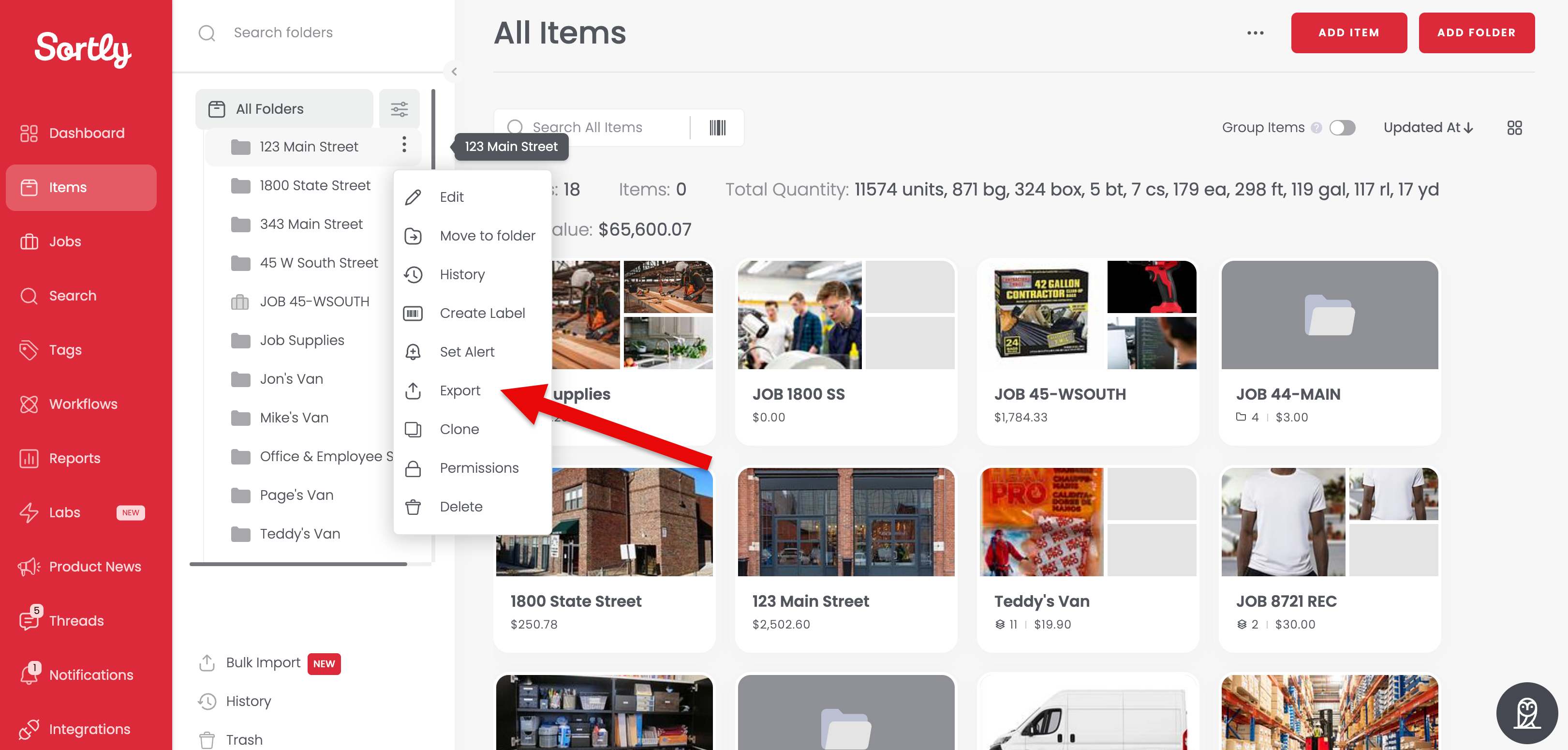
1Navigate to the items or folder you want to export.
-
2Click the three dots, then Export.
-
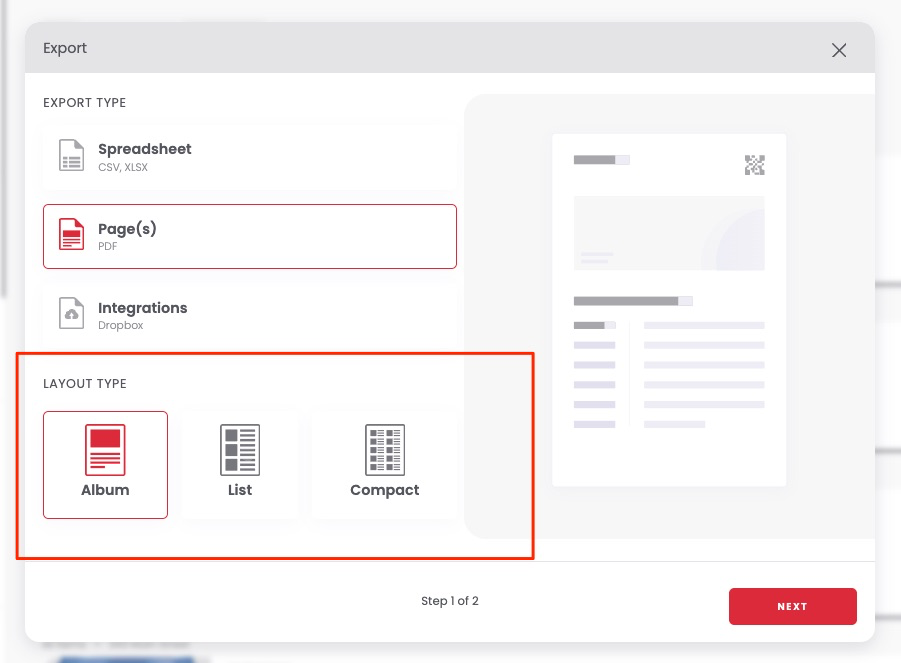
3Choose PDF.
-
4Select your formatting preferences.
-
5Click Export to generate and download the file.
What's included:
- Key item details and custom fields
- Visible item images, embedded in the report
- Optional sections such as folders, tags, or notes
Exporting a PDF from multiple folders
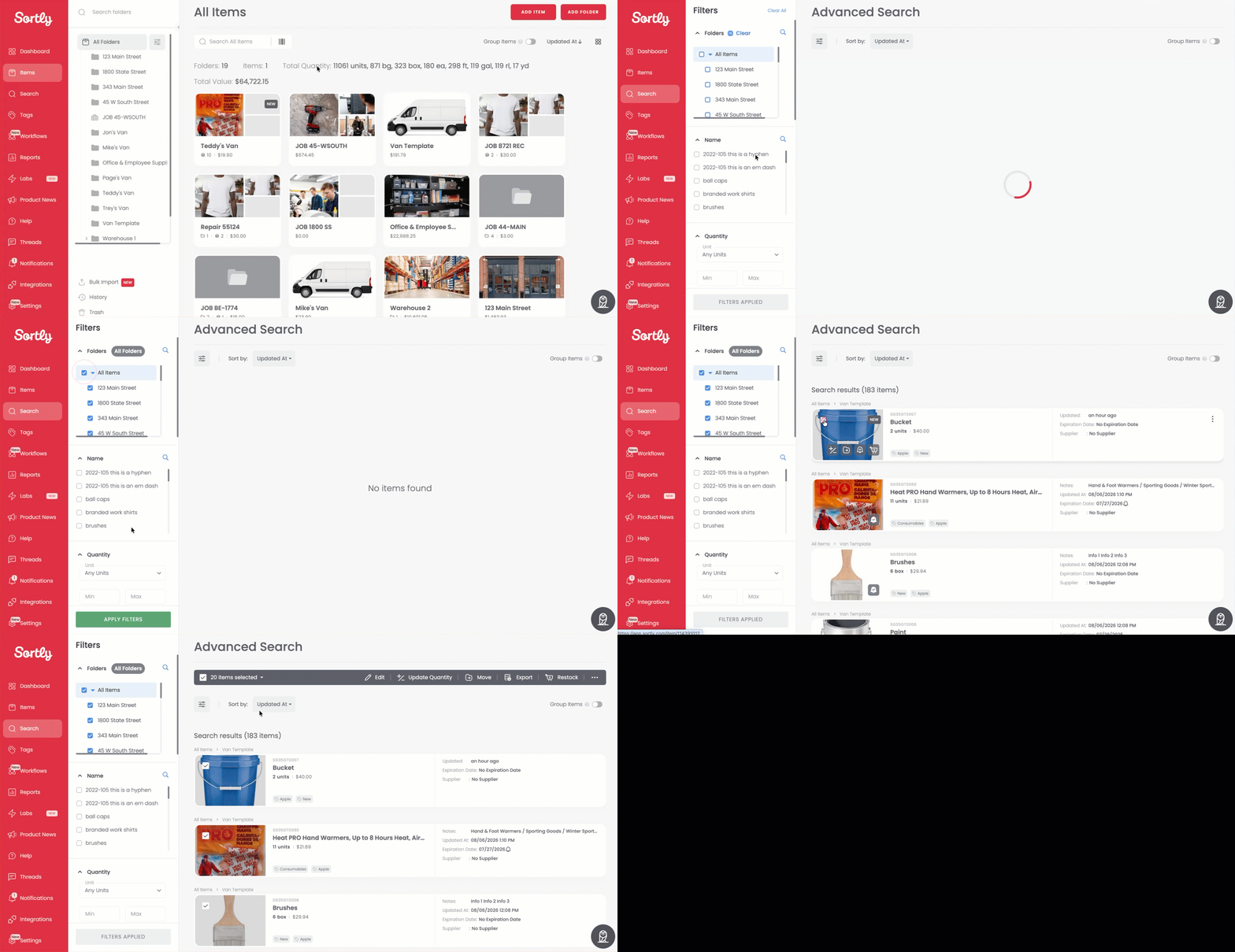
Use Advanced Search to filter your inventory first, by tags, custom fields, or folder names. Then:
-
1Select the items you want to export, then click Export > PDF to generate the report.
Export to Dropbox (CSV + image files)
Need both your inventory data and your original image files? Export to Dropbox.
-
1Select the items or folders you want to export.
-
2Click Export.
-
3Select Dropbox.
-
4Connect your Dropbox account, if you haven't already.
-
5Choose whether to include the CSV file, image files, or both.
-
6Click Export.
What's included:
- A CSV file with item data, similar to Inventory Summary
- A Dropbox folder containing the original image files for your items