
Updating your inventory is simple to do using Sortly! You can either move items from one folder to another or change quantities. This will allow you to see what you have in stock, what you have given out (or sold), and who has it.
While you can change the quantity of the item, we recommend you move items between folders to reflect their movement in the real world. This can be performed on the desktop or mobile app using the app's built-in scanner.
In this article
Moving Items
Moving items between folders lets you reflect where they are in the real world. For example, you might use one folder for inventory that is available and another for inventory that is out on a job, sold, or rented out.
-
1Start by creating folders that match how your inventory moves, such as a folder for items you have on hand and a folder for items that are out or sold.
-
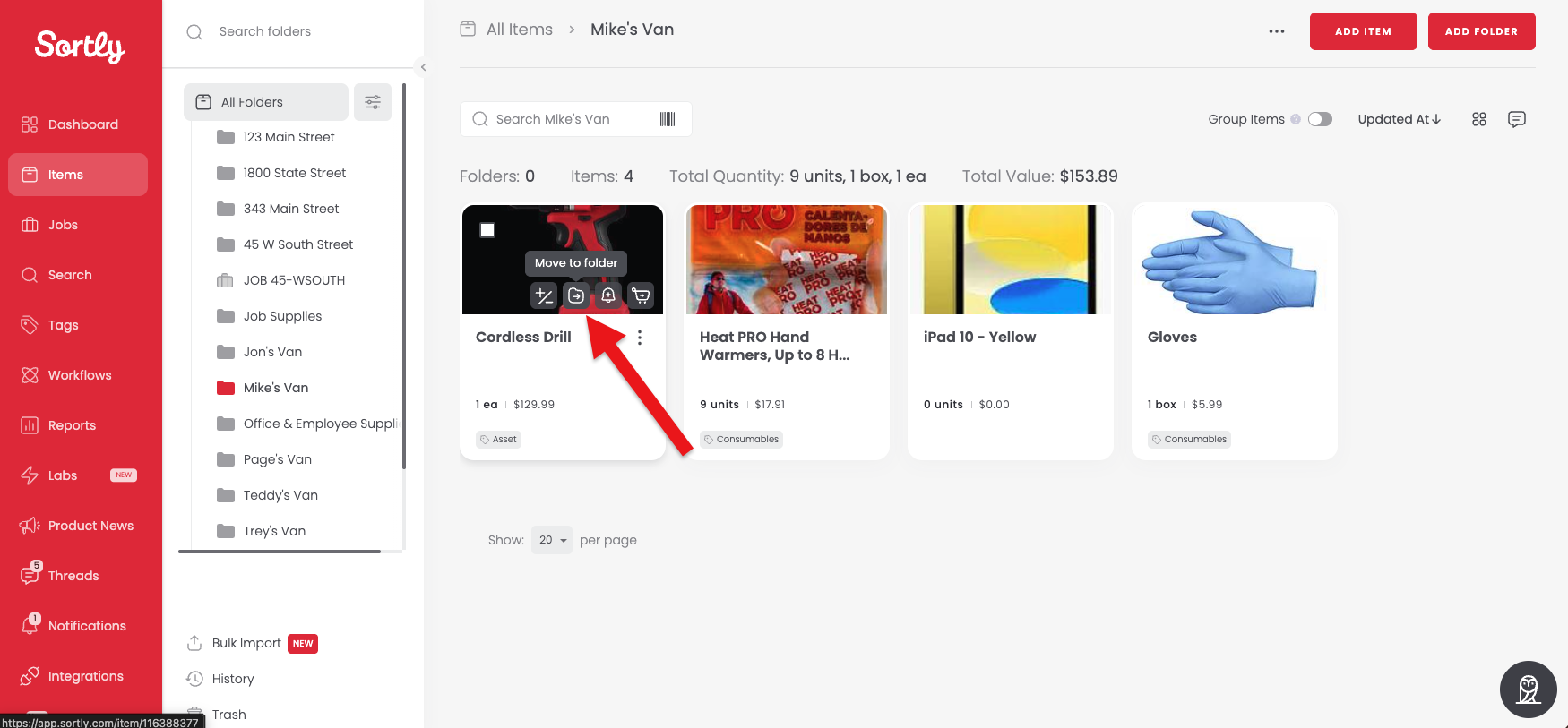
2When an item changes location, such as when it goes out or is sold, select the item and click the Move to Folder button.
-
3Choose what quantity of the item you want to move and then select the relevant destination folder you want to move them to.
Note: if you are moving the total quantity, you will get the option to leave "0" quantity of the item in the original folder.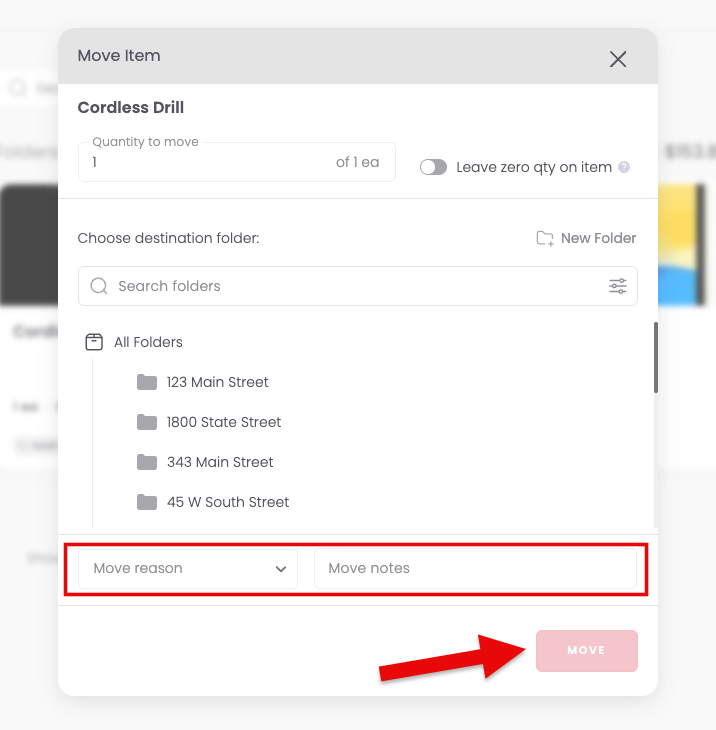
Note: If you want to track items going to specific customers, jobs, or places, you can create sub-folders for each of them inside the destination folder and move the items into the appropriate sub-folder.
-
4If you want to track and move items using QR codes or Barcodes, you can do so using the Quick Actions function on the mobile app. It works similarly to a check-out scanner at the grocery (but with a little more flexibility).
-
5To update returning items, use the same process to move them back to the folder where they are stored.
Move Reasons
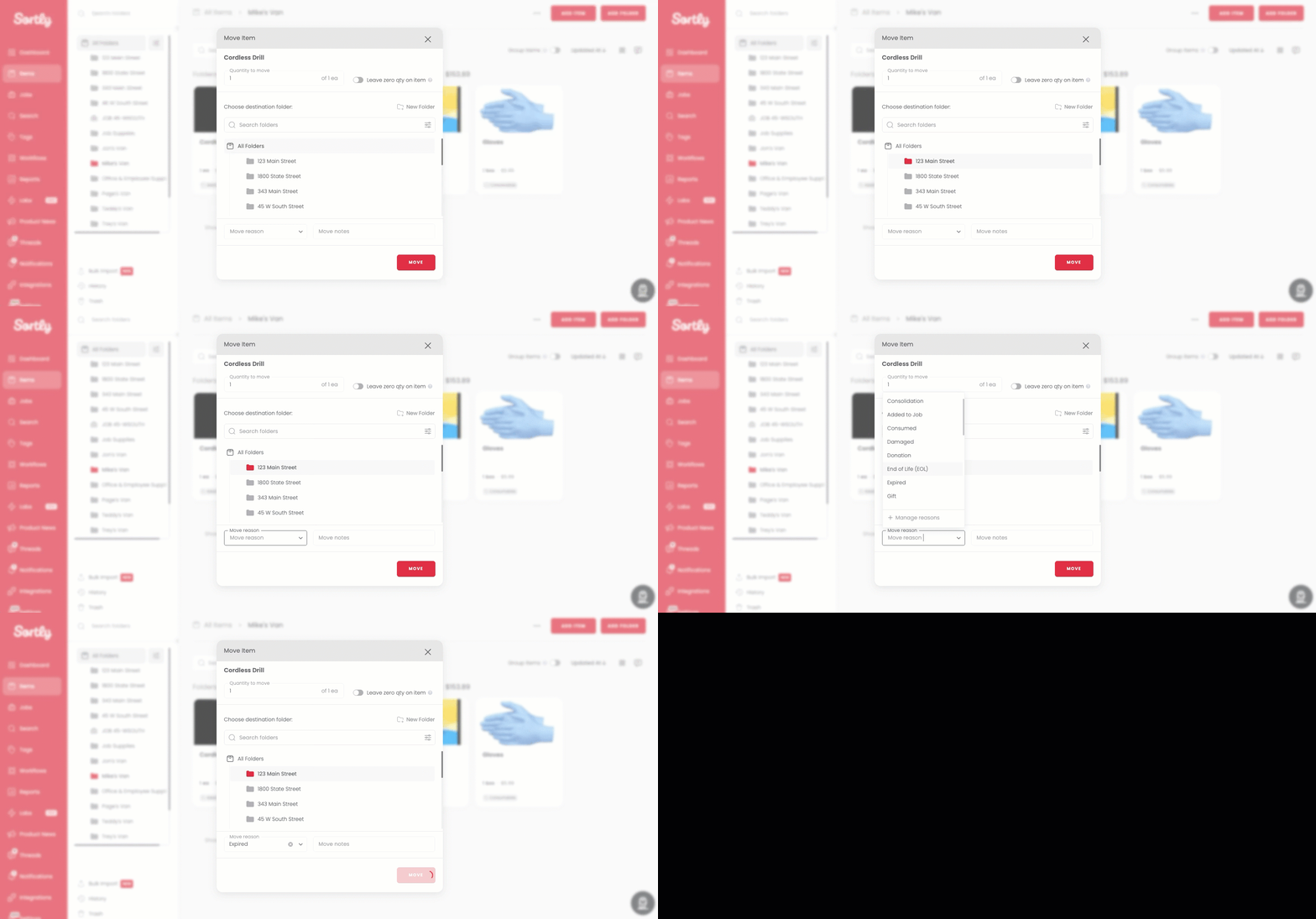
You can choose from a variety of reasons when you move an item on the web version of the app, such as Consumed, Damaged, Donation, or Sold. You can also create custom move reasons to fit your workflow. See Custom Transaction Reasons to learn more.
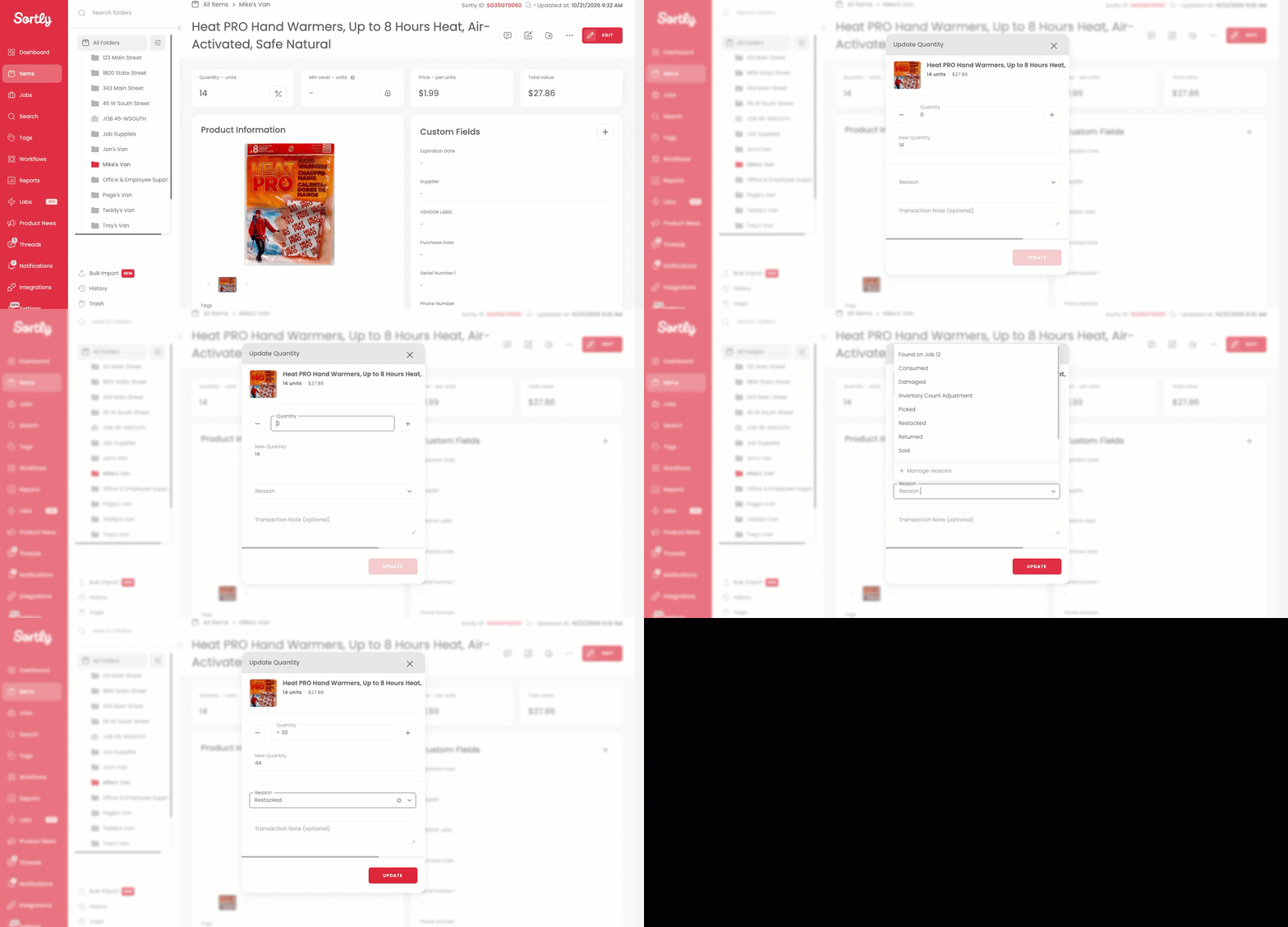
Updating Quantity
To update the quantity of an item, you can do one of the following:
Click the Update Quantity icon on the item card
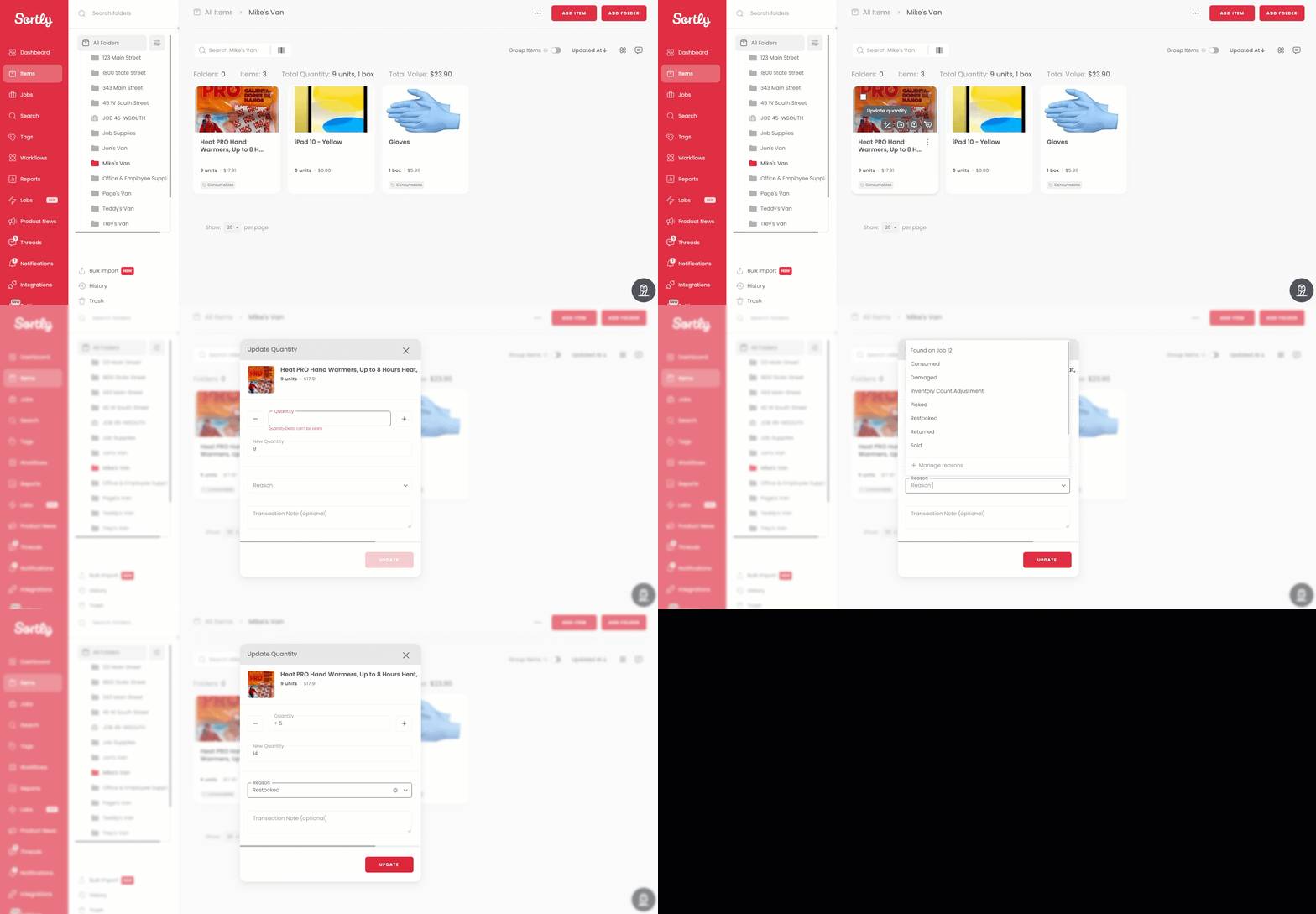
EDIT from within the item
What Counts as a Transaction in Sortly?
In Sortly, a transaction is any recorded activity that affects the state of your inventory and appears in your Activity History or Reports.
Transactions are created when you:
- ✅ Add or remove stock (quantity update)
- ✅ Move items or folders between locations
- ✅ Create or delete items or folders
- ✅ Edit item details (e.g., name, custom fields, tags)
- ✅ Merge items
- ✅ Use Bulk Edit or Check-In / Check-Out workflows
If you perform one of these actions and don’t see a transaction recorded, contact our Support Team so we can investigate further.
Note: Simply viewing or searching items does not create a transaction.