Ready to organize your inventory but haven't entered everything into Sortly yet? No problem. You can print a batch of QR codes right now, apply them to your shelves, bins, or items, and link each one to the right item or folder later using the Sortly mobile app, whenever it's convenient for you.
In this article
An unlinked QR label isn't connected to an item yet when you print it. This is perfect for labeling shelves, bins, or inventory ahead of time, so you can connect each one to the right item whenever you're ready.
Once your labels are printed and applied, open the Sortly mobile app and scan each code to link it to the item or folder it belongs to. You can also use an external QR or barcode scanner connected to your device instead of your phone's camera.
-
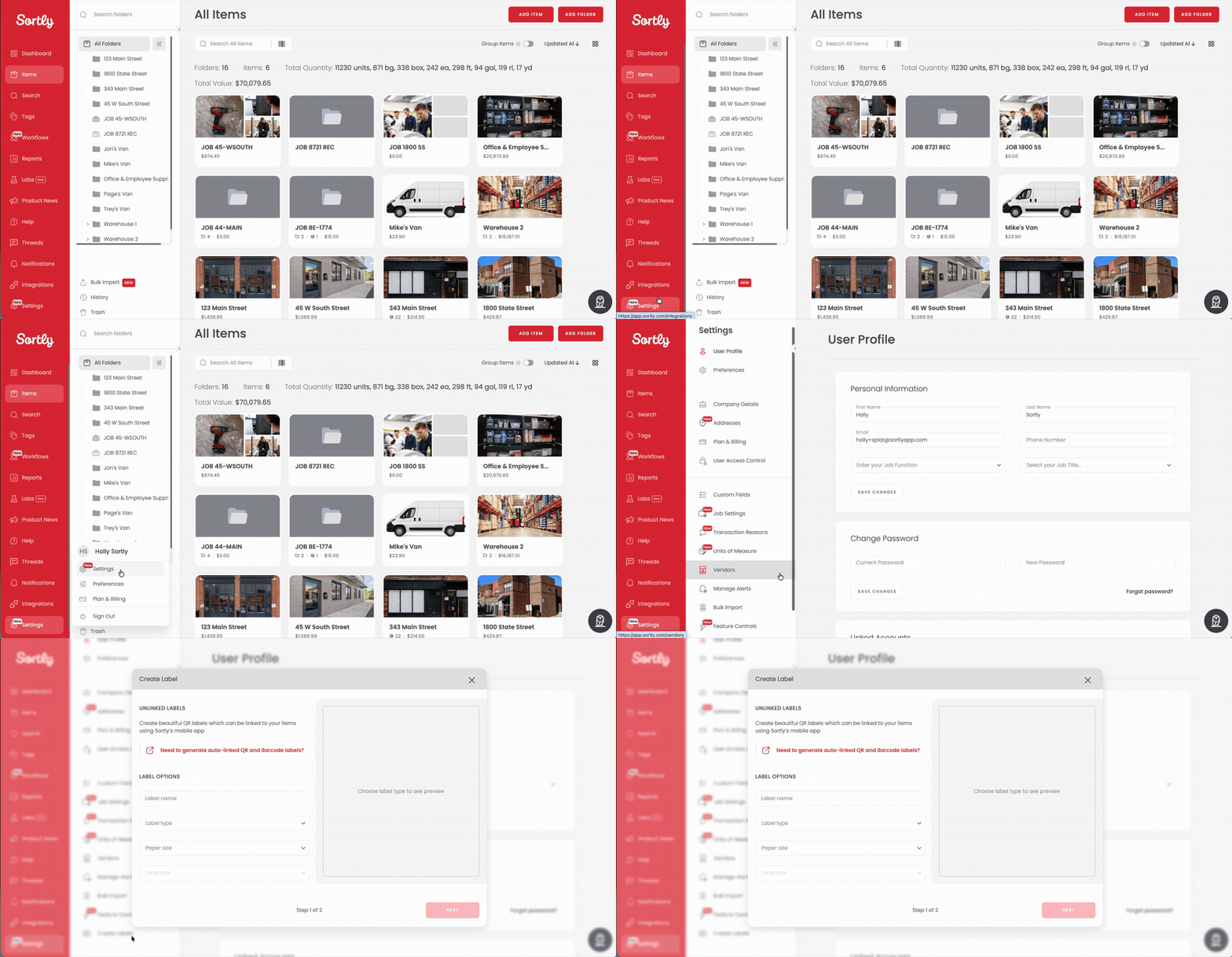
1Open Settings
Click the gear icon at the bottom of the left sidebar, then select Create Labels near the bottom of the Settings menu.
-
2Set up your label options
The Create Label window opens under Unlinked Labels. Enter a Label name, confirm the Label type is set to QR Label, then choose your Paper size, and Label size. A preview on the right updates as you make selections.
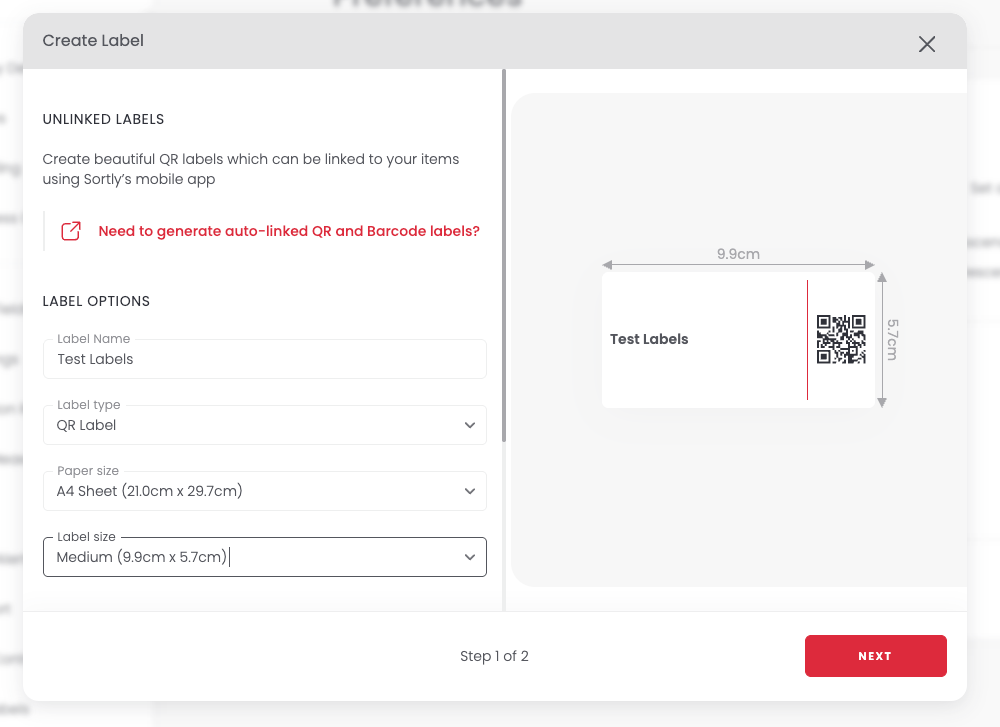
Click Next to continue.
-
3Choose your printing options
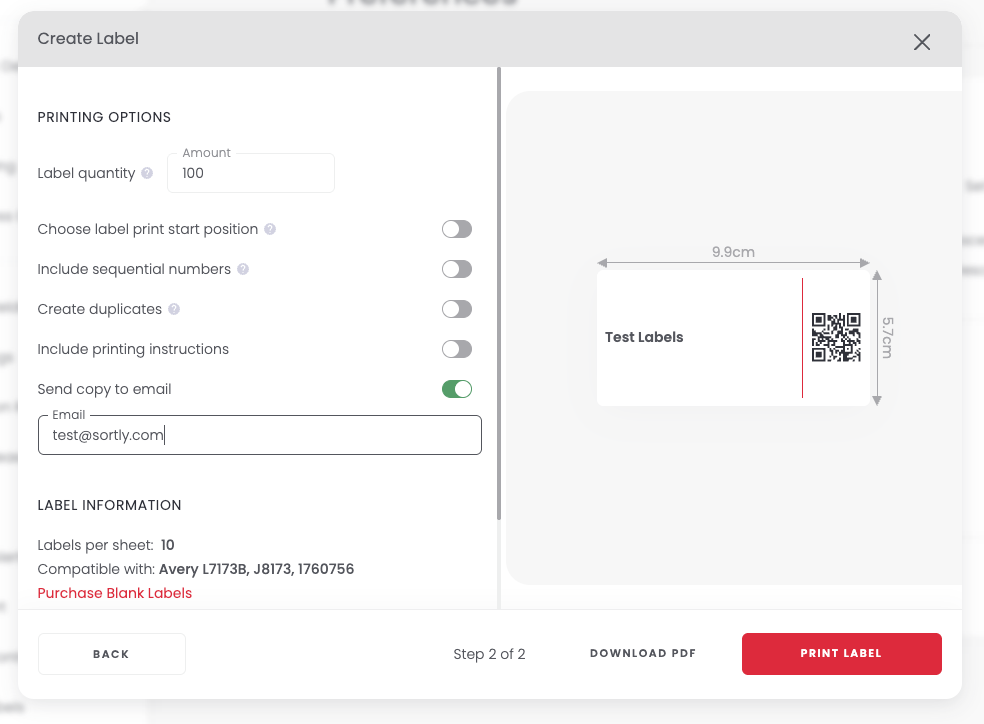
On step 2 of 2, set your Label quantity and toggle on any of the optional printing settings. See Printing options explained below for what each one does.
-
4Download or print
Click Download PDF to save your labels, or Print Label to send them straight to your printer.
-
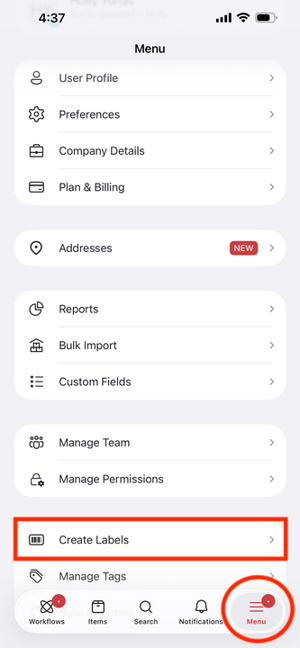
1Open the Menu
Tap Menu in the bottom navigation bar, then tap Create Labels.
-
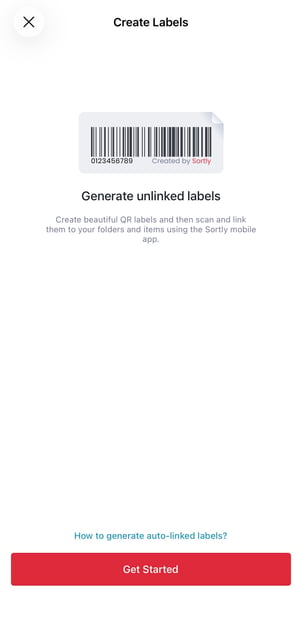
2Tap Get Started
Tap Get Started to continue.
-
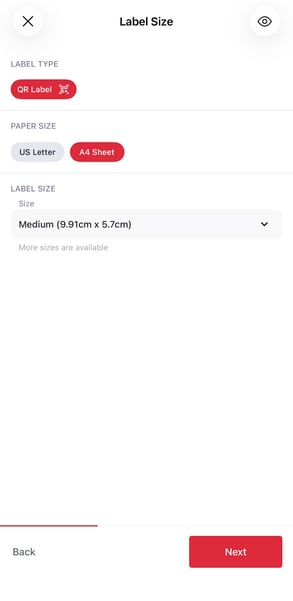
3Choose your label size
Confirm QR Label is selected, then choose a Paper size (US Letter, A4 Sheet, or Label Printer) and a Label size. Tap Next.
-
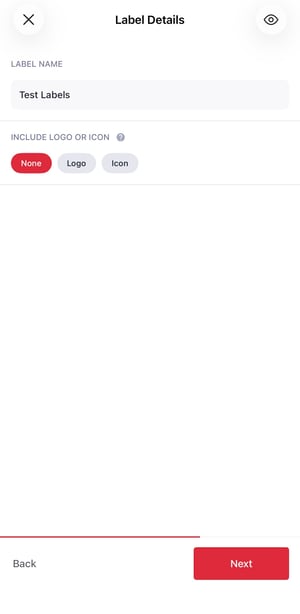
4Add label details (optional)
On the Label Details screen you can choose a Field to show additional item details, turn on Include Photo, add a Logo or Icon, and enter a custom note up to 140 characters. Tap Next.
-
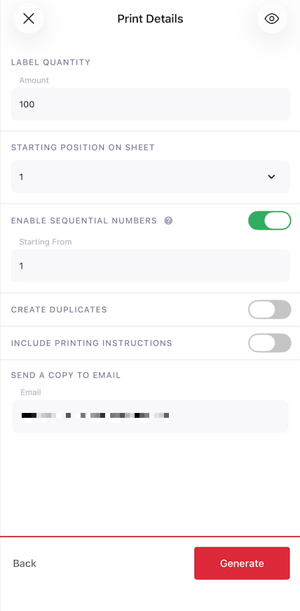
5Set your print details and generate
Choose your label quantity and starting position on the sheet, then tap Generate. When your labels are ready, tap Open PDF to view and print them, or Done to close the window. A copy is also sent to your email.