Threads lets you start conversations directly on an item, folder, or workflow, so communication stays tied to your inventory instead of scattered across email or external tools. Reply, @mention a teammate, and keep every conversation right where the work is happening.
In this article
How Threads works
Threads is Sortly's built in messaging feature. Instead of emailing your team or using external tools to talk about a specific item, folder, stock count, pick list, or purchase order, you can leave a comment right on it. Anyone who needs the context can find the conversation later, right where the inventory lives.
With Threads you can:
- Start a conversation on any item, folder, or workflow
- Reply to a comment and @mention a teammate to hand off a task or ask a question
- Edit or delete your own messages at any time
- Check the Threads Inbox to see everything happening across your account, plus a tab dedicated to comments that mention you
-
Get an email if you are mentioned while you are away from Sortly
Starting a conversation
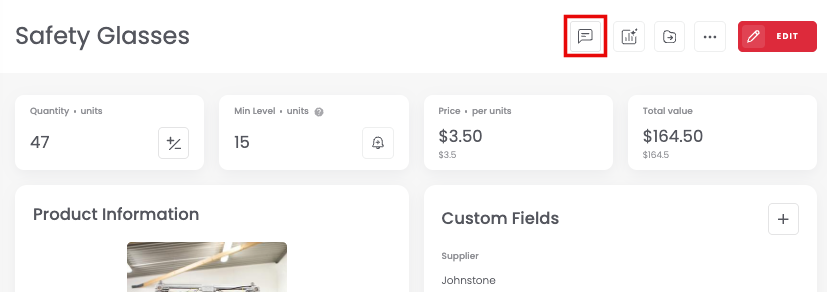
Once Threads is on, a chat icon appears in a few places: the item detail page, the toolbar inside a folder, and the header of stock counts, pick lists, and purchase orders.
-
1Open the thread panel
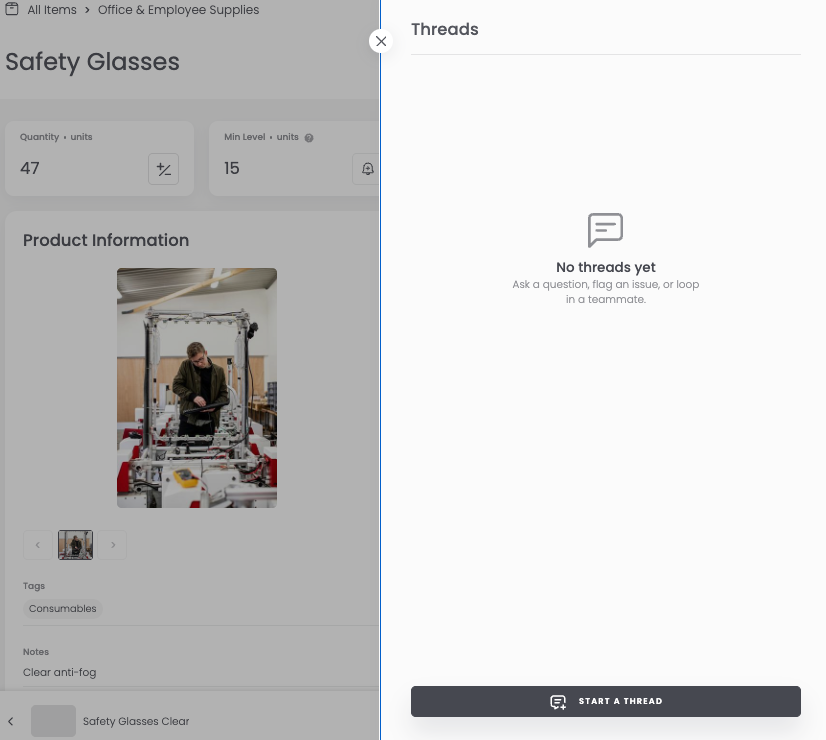
Click the chat icon in the header of the item, folder, or workflow you want to discuss. A panel slides in from the right showing every existing thread tied to it.
-
2Add a comment
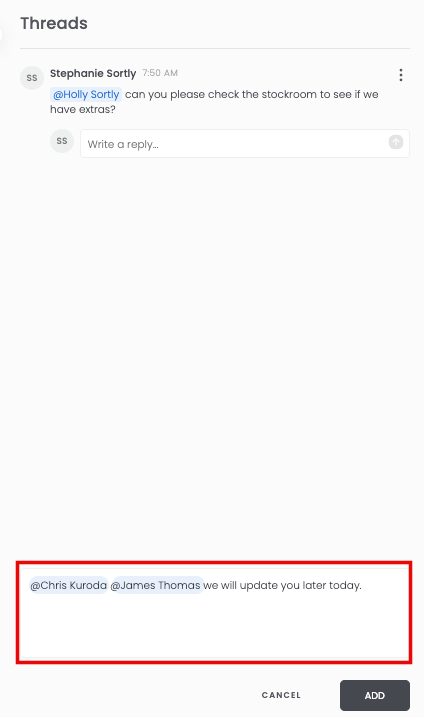
Click the comment box at the bottom of the panel and type your message. Type @ to mention a teammate or teammates, then press Enter to post.
-
3Reply to a comment
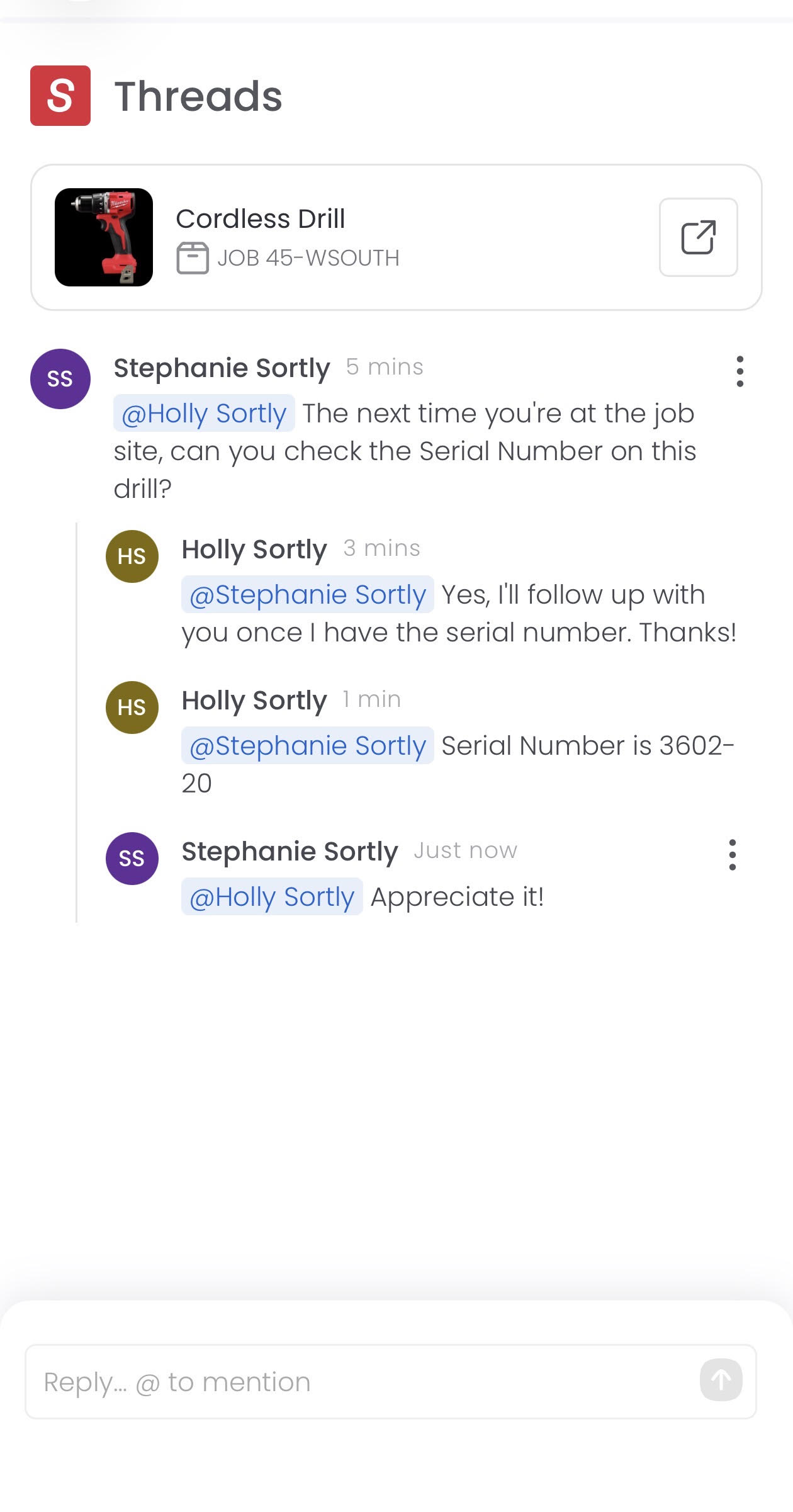
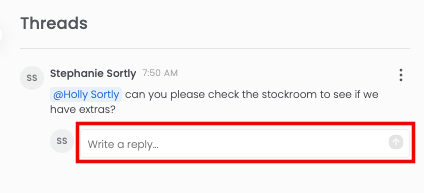
Find the comment and reply directly below. This pre-fills an @mention of that comment's author, so the right person is tagged automatically.
@Mentioning teammates
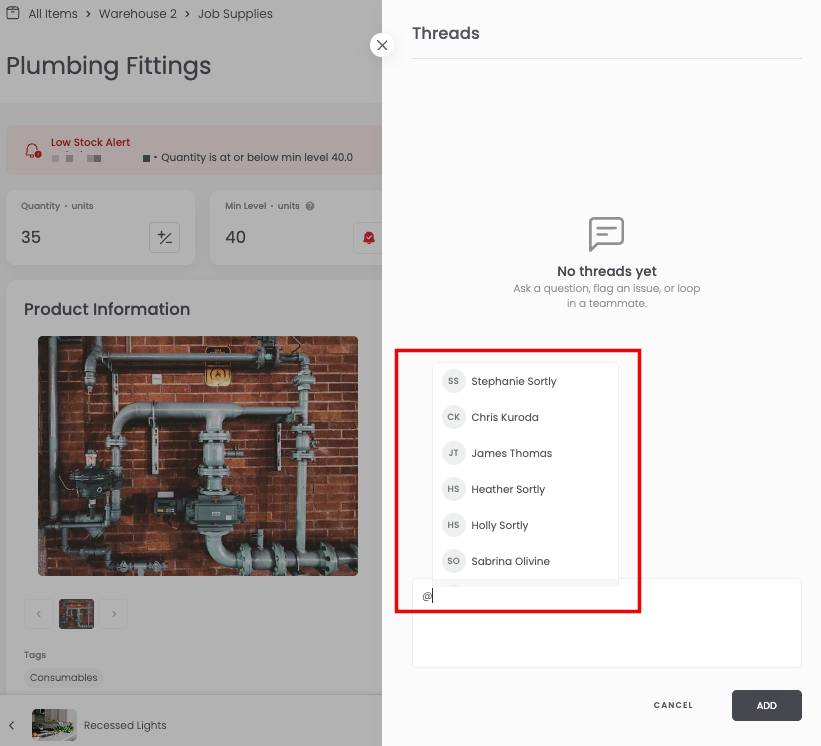
Type @ in any comment box to open a list of your teammates. Keep typing to filter the list by name, use the arrow keys to move through it, and press Enter or Tab to insert your selection.
The Threads Inbox
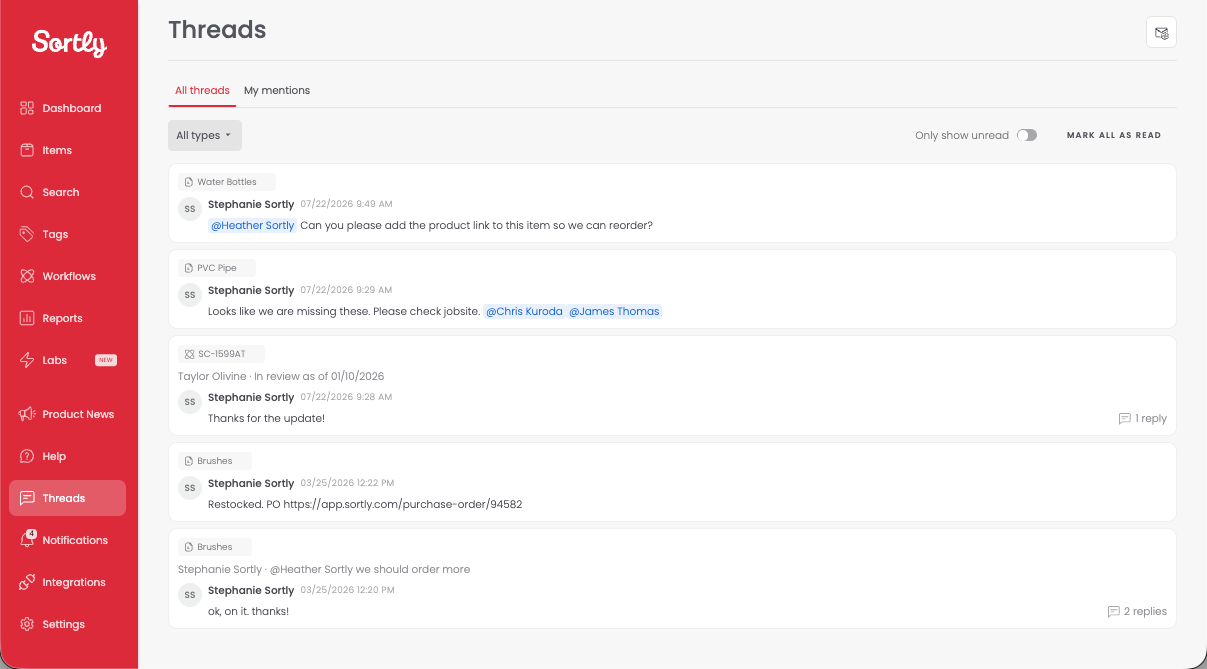
Click the chat icon in the left hand navigation to open your Threads Inbox. It has two tabs.
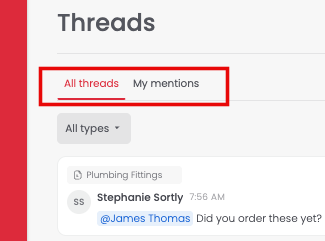
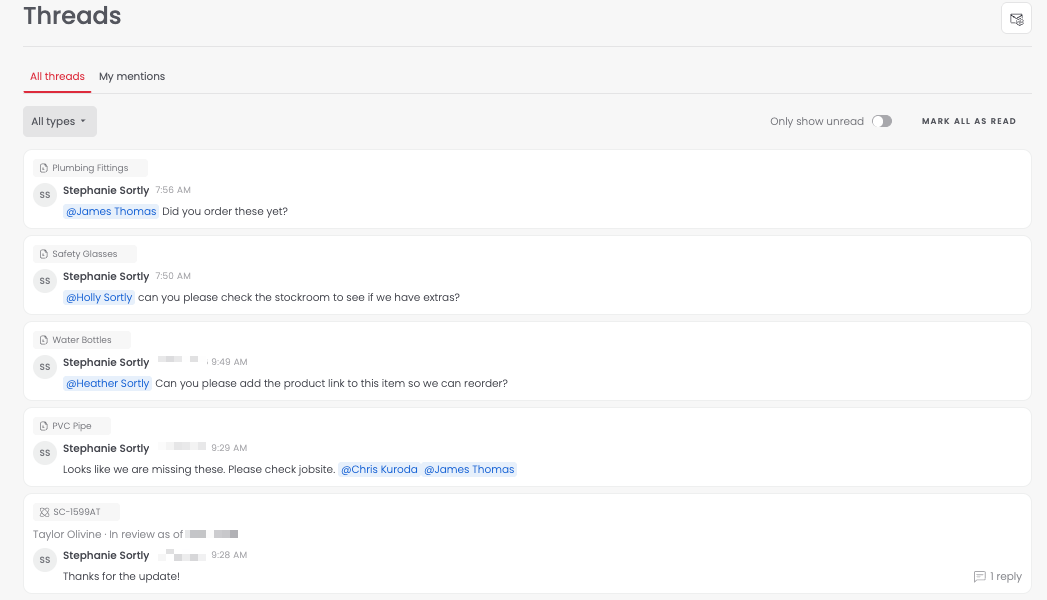
All Threads
Shows every conversation happening across your account, with the most recently active ones at the top. Each card shows you the item, folder, or workflow it's tied to, along with the latest comment and how many replies it has.
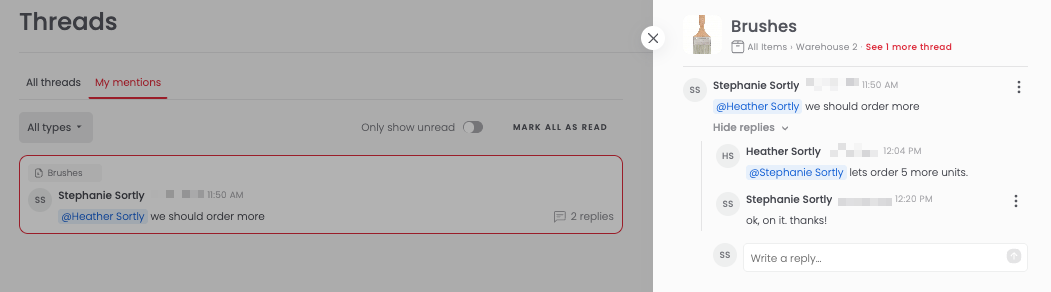
My Mentions
Shows every comment where someone has @mentioned you, even if it's a reply buried deep in a conversation, so you never miss being tagged. Click a card and you'll be taken right to that comment, briefly highlighted so it's easy to spot.
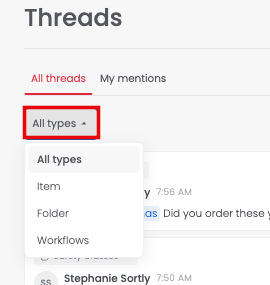
You can narrow down either tab by item, folder, or workflow, switch on a filter to see only what's unread, and mark everything as read in one click.
Email notifications
As soon as you're @mentioned, you'll get an email with who mentioned you, the name of the item, folder, or workflow it's tied to, a snippet of the comment, and a button that takes you straight to the thread. You'll only get this email when you're actually @mentioned, so you won't be emailed just for other activity on a thread you're part of. If you don't have permission to view that item, folder, or workflow, the email will tell you that instead of showing the comment, along with a note to contact your admin to request access.
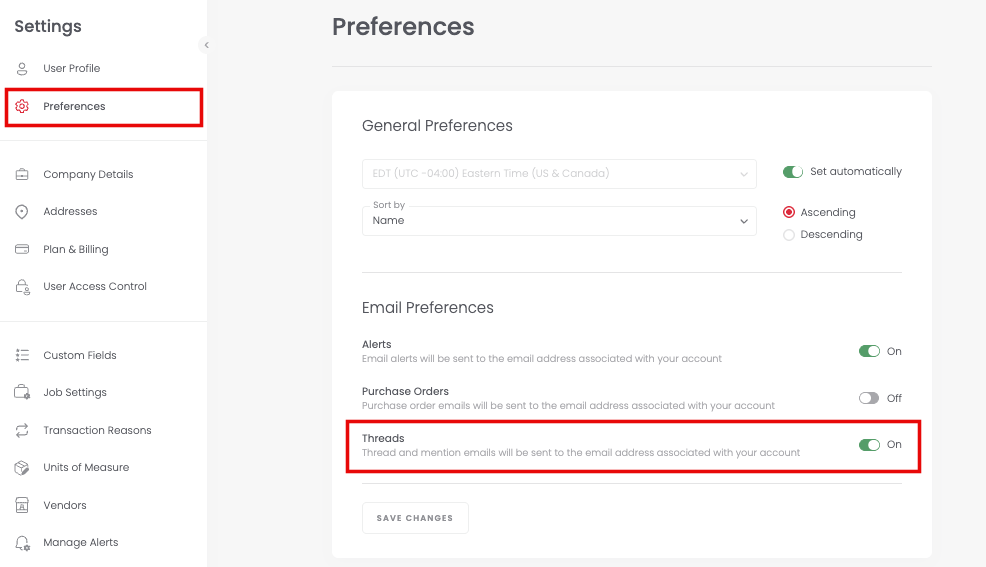
To turn these emails off, go to Settings Preferences and switching off the Threads toggle. You can also turn this off directly from the Threads page. Notifications are on by default, we recommend keeping them on so you don't miss a message sent your way.
Editing and deleting your messages
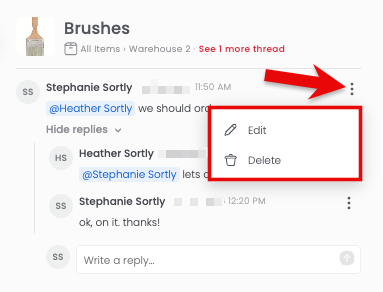
Click the three-dot menu on a comment you authored to reveal Edit and Delete options.
- Edit turns the comment into an editable box pre-filled with your text. Press Enter or Save to update it, or Escape or Cancel to discard your change.
- Delete on a reply removes just that reply.
-
Delete on the first comment in a thread removes the entire thread and all its replies. You will see a confirmation prompt first, since this cannot be undone.