
Jobs booked in Housecall Pro create matching jobs in Sortly, and parts move out of the right technician's folder the moment a job closes — automatically, with no double entry.
In this article
How the integration works
Once connected, Housecall Pro jobs are automatically created in Sortly and stay in sync as they progress.
Jobs sync automatically
Every job booked in Housecall Pro creates a matching job in Sortly — no re-entry.
Materials move with the job
Parts used on a job come out of the right technician's folder the moment it's closed.
Your inventory, matched your way
Sortly matches Housecall Pro materials to items you already have — review and adjust any time.
Connecting to Housecall Pro
Set up the integration in a few steps. Sortly will import your full material list and active jobs from Housecall Pro during setup.
-
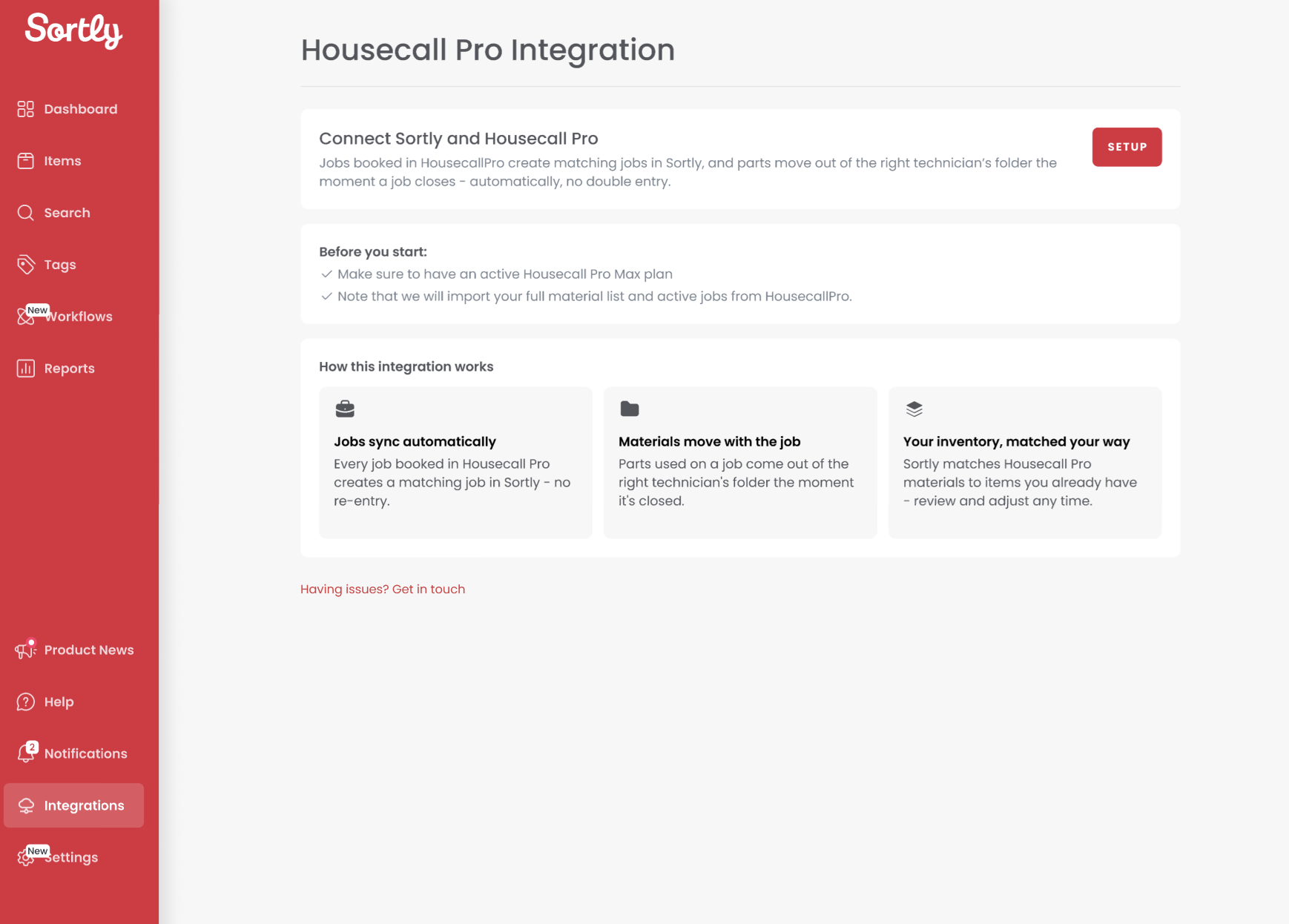
1Open the Housecall Pro integration page
Go to Integrations in Sortly, find Housecall Pro, and click Setup.
-
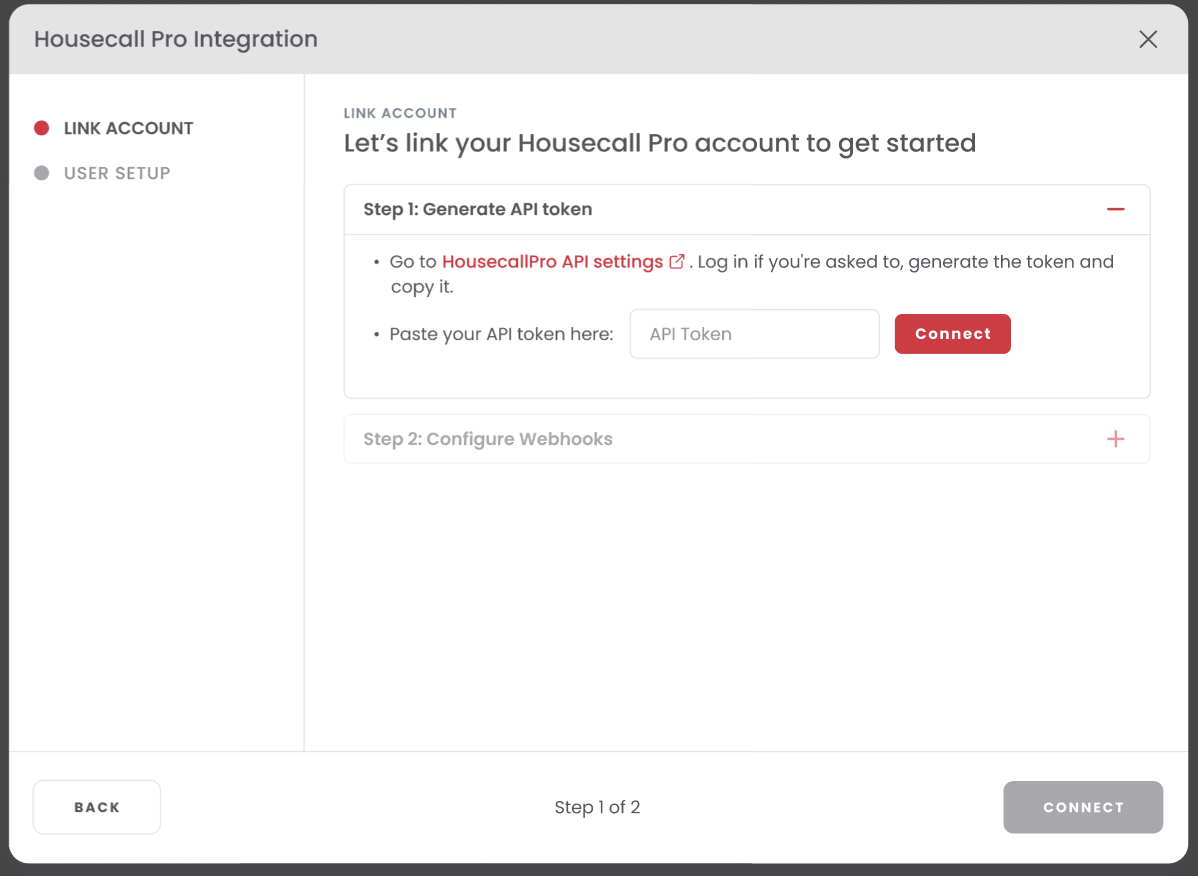
2Generate and connect your API token
In the Link Account step, go to HousecallPro API settings, generate a token, and paste it into Sortly. Click Connect.
-
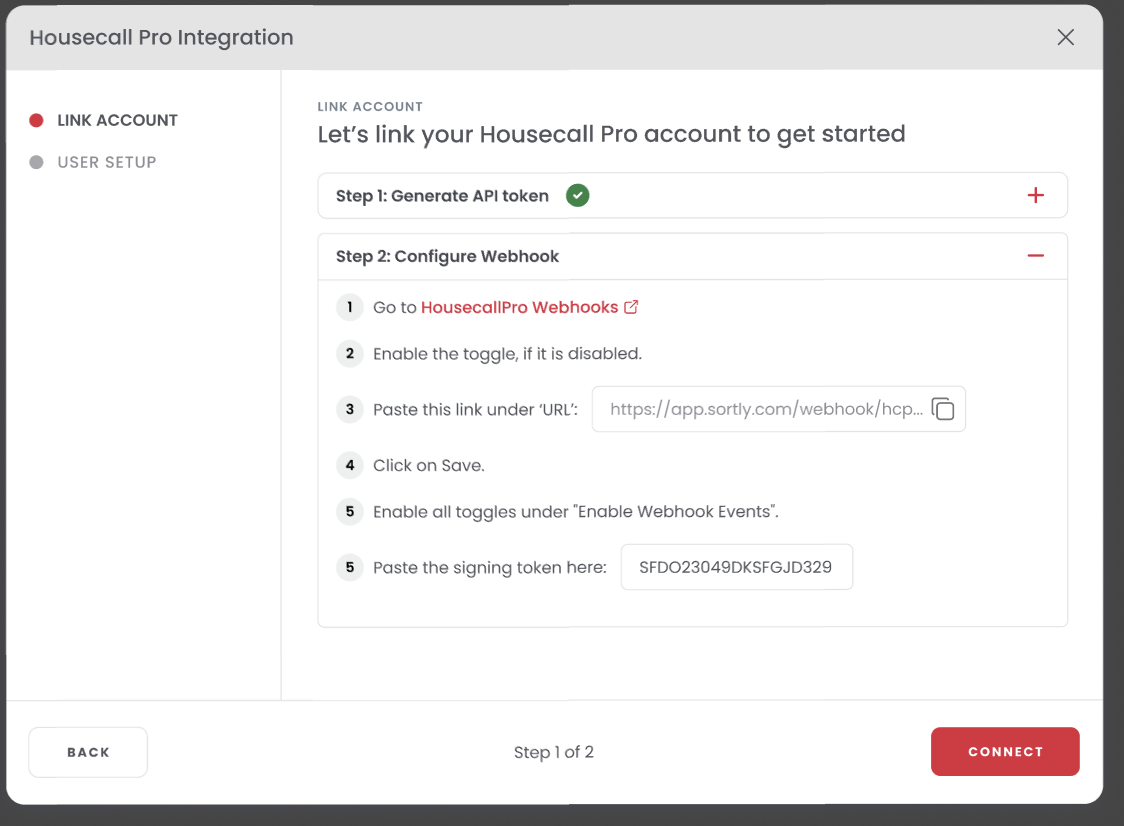
3Configure the webhook
Go to HousecallPro Webhooks, enable the toggle, and paste the URL Sortly provides. Click Save, enable all toggles under "Enable Webhook Events," and paste the signing token. Click Connect to continue.
-
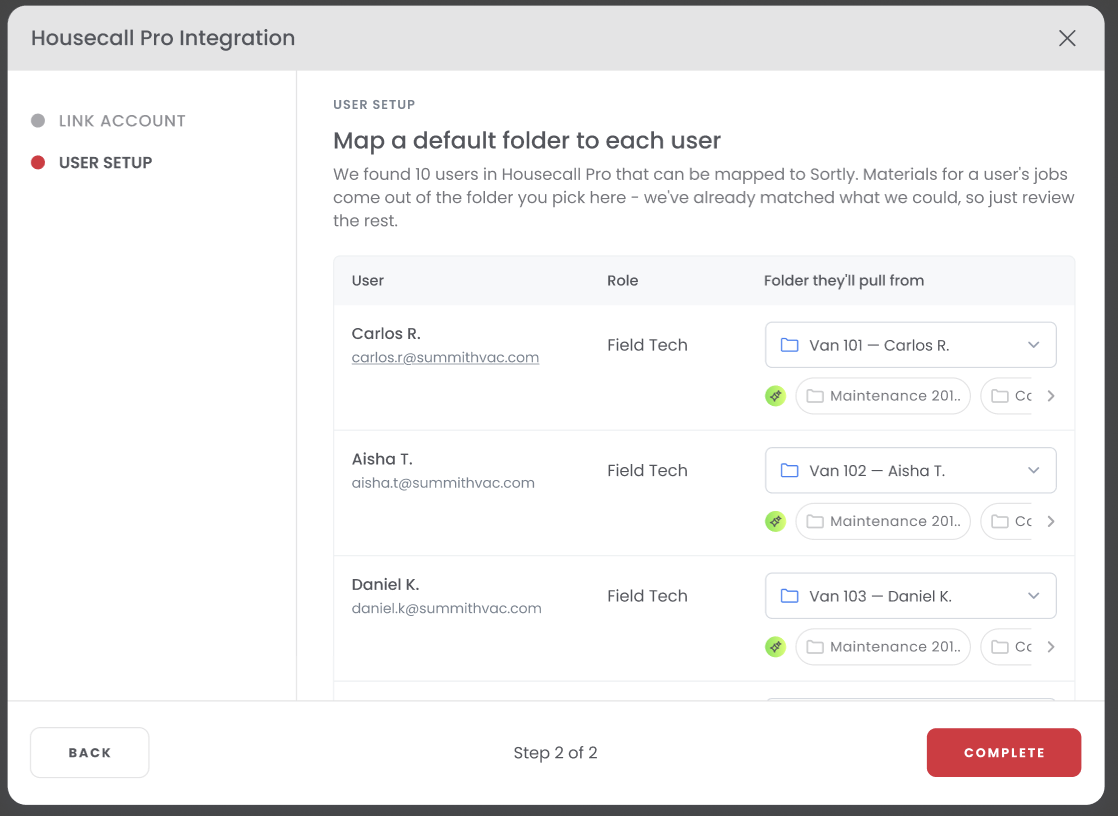
4Map users to default folders
Sortly finds your Housecall Pro users and suggests a default folder for each one based on their transaction history. Every user needs a default folder — such as their van folder — so Sortly knows where to auto-deduct inventory from when a job is completed. Review the suggestions, adjust any that look wrong, then click Complete.
-
5Let Sortly import your data
Sortly imports your active jobs and full Housecall Pro material price book. You'll see a progress banner while this runs.
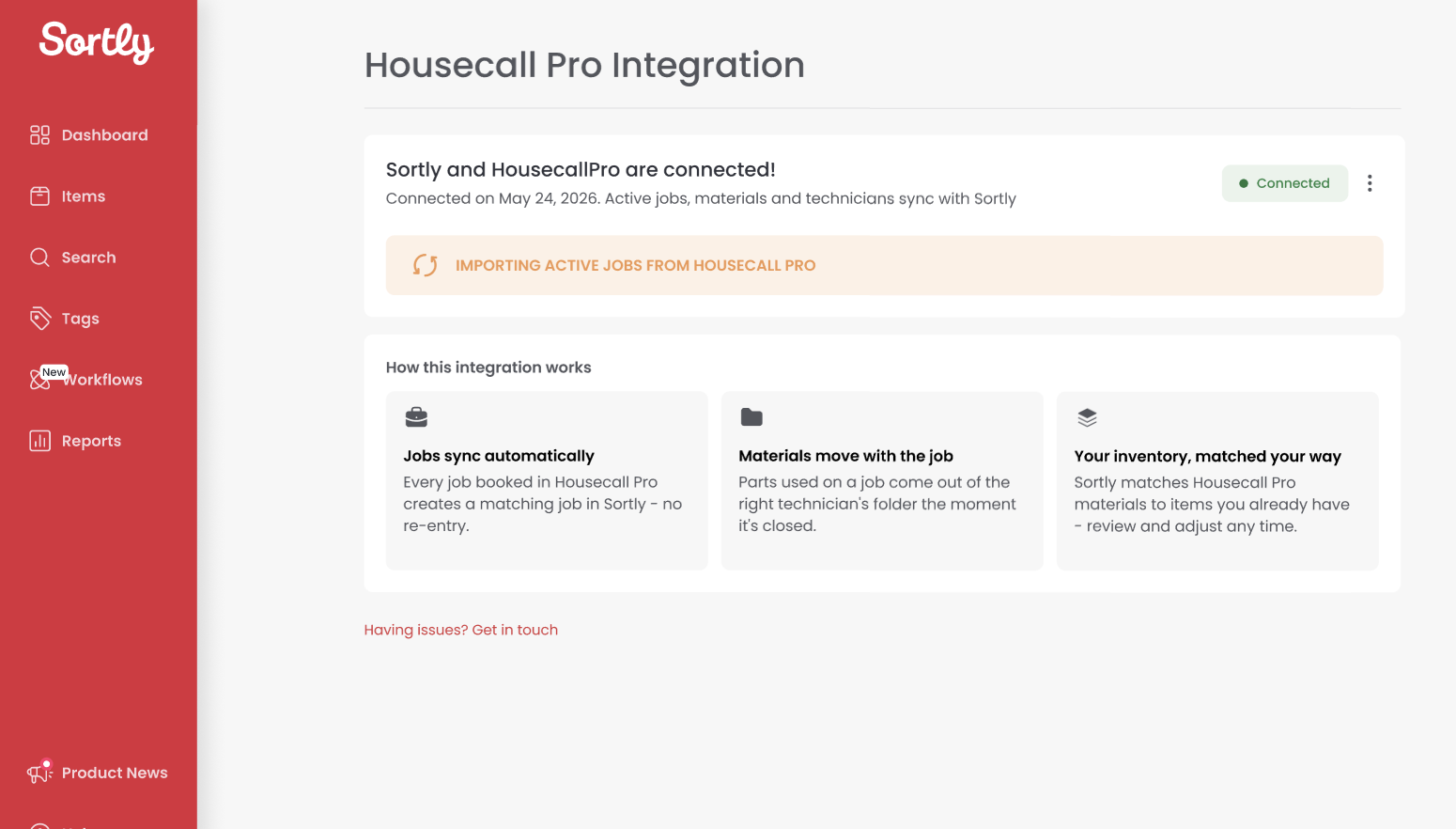
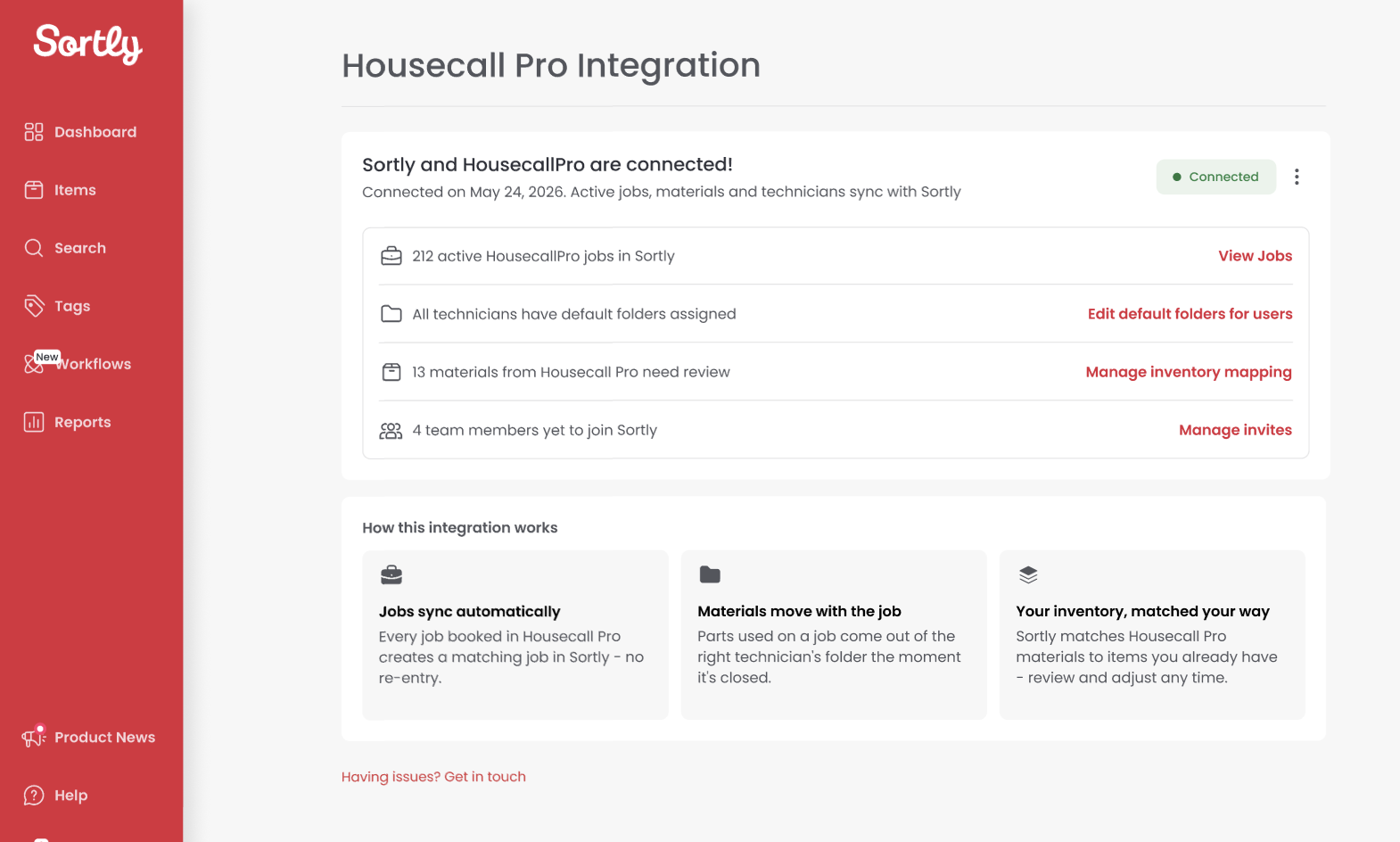
💡 Once the import finishes, the integration page shows a full status summary with quick links to jobs, default folders, inventory mapping, and invites.
Inviting users to Sortly
To attribute inventory to a job performed by a field technician, that technician needs a Sortly account.
-
1Review your Housecall Pro user list
Sortly imports your full user list from Housecall Pro during setup.
-
2Invite users
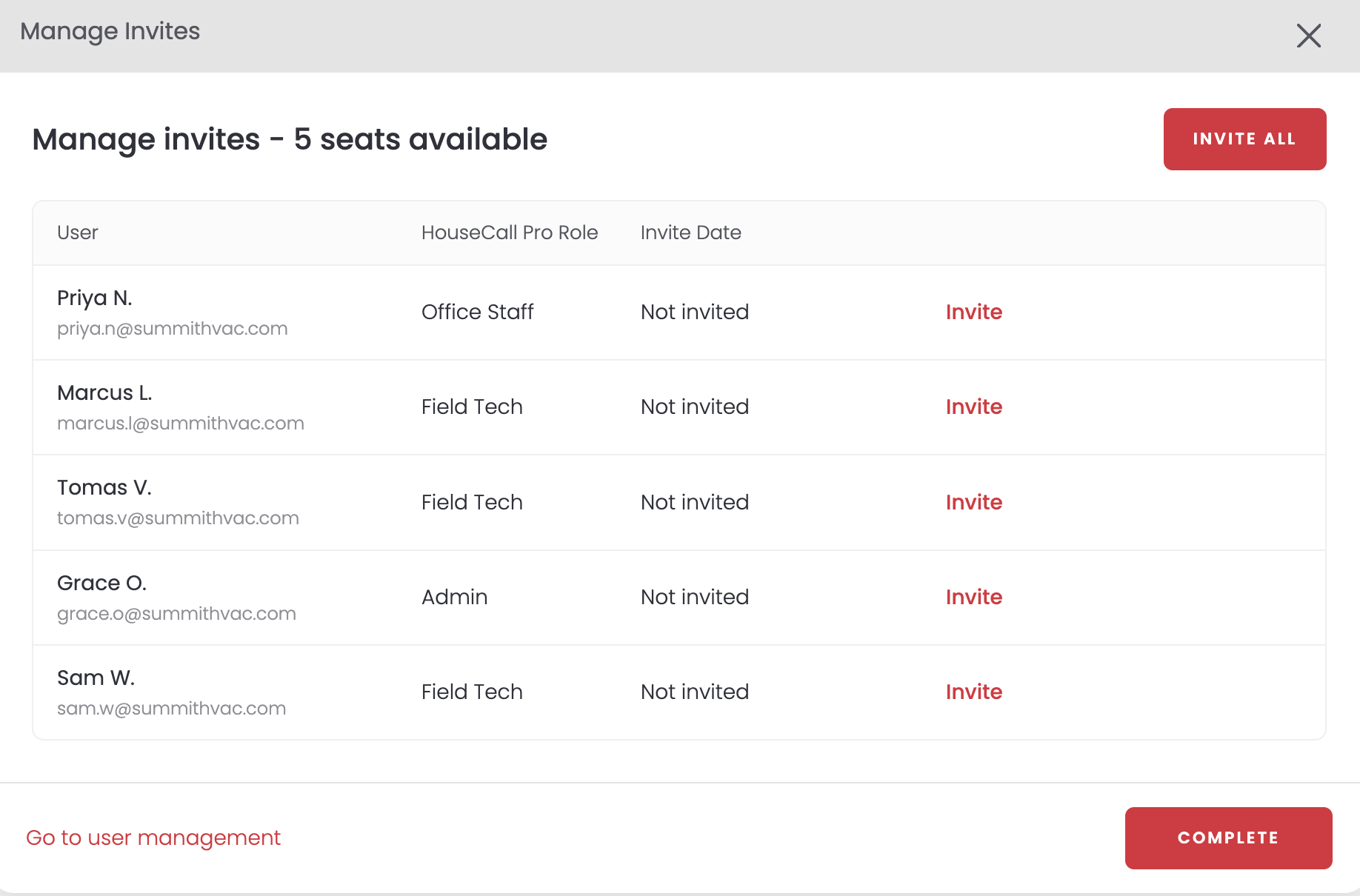
From the connected dashboard, click Manage Invites to invite users to your Sortly account.
-
3Set default folders for new users
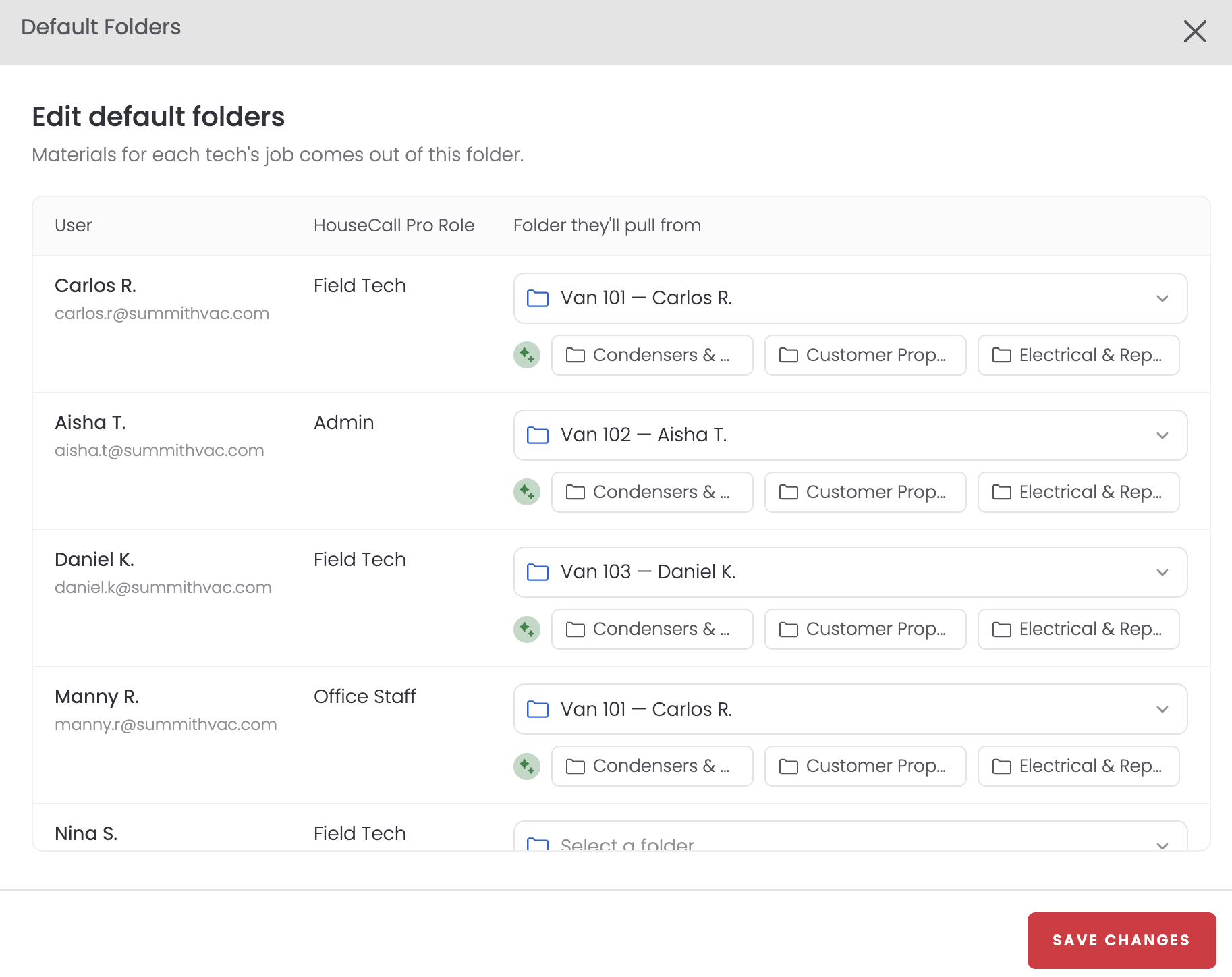
Once a user is added to Sortly, click Edit default folders to set their default folder, then Save Changes.
Inventory mapping
Your Housecall Pro material list is imported into Sortly. For the integration to work, each material needs to be mapped to its corresponding Sortly item, at the SID level.
-
1Open inventory mapping
From the connected dashboard, click Manage inventory mapping.
-
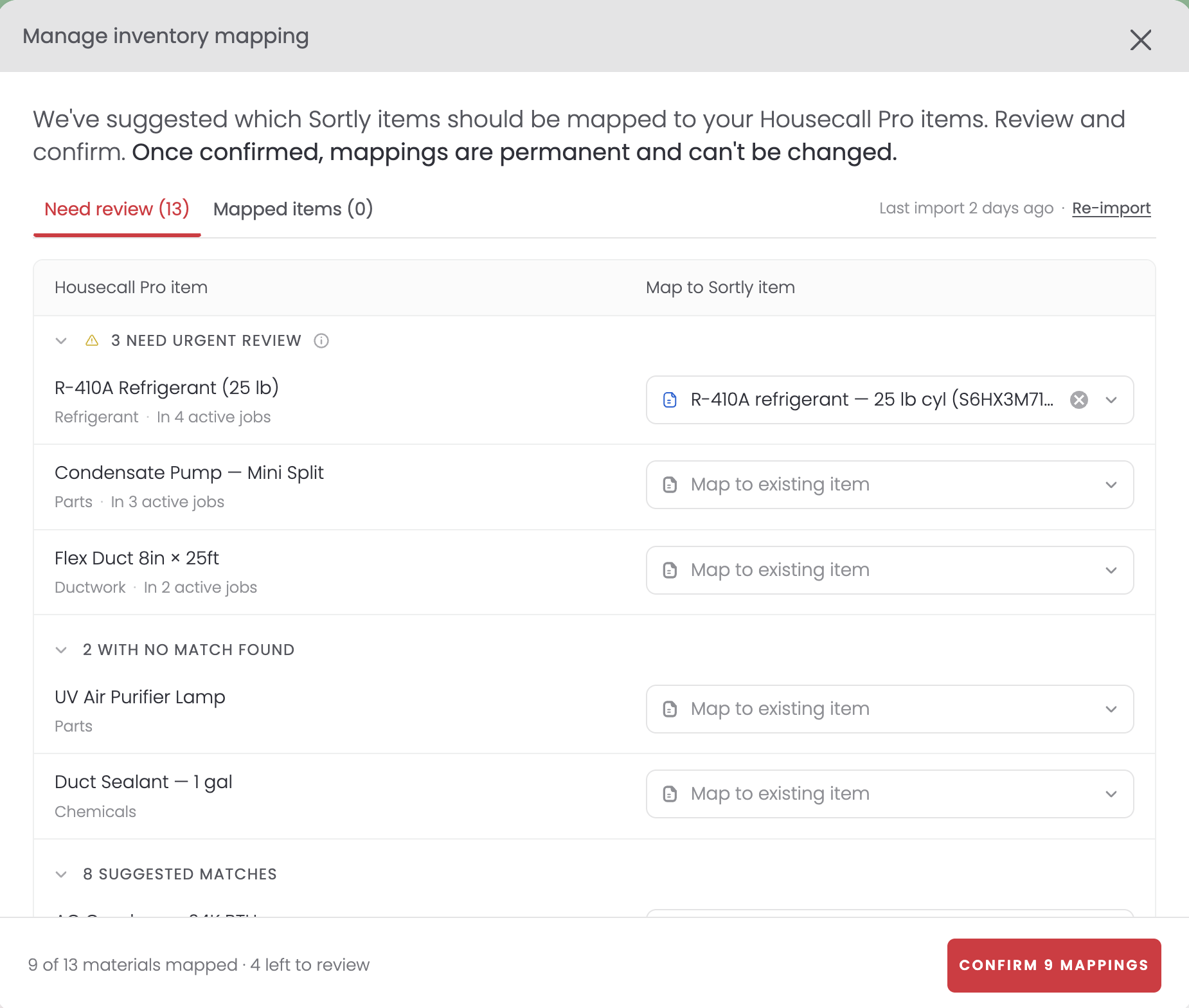
2Review suggested matches
The Need review tab groups items that need urgent attention, items with no match found, and suggested matches. Confirm the suggestions or map manually, then click Confirm Mappings.
-
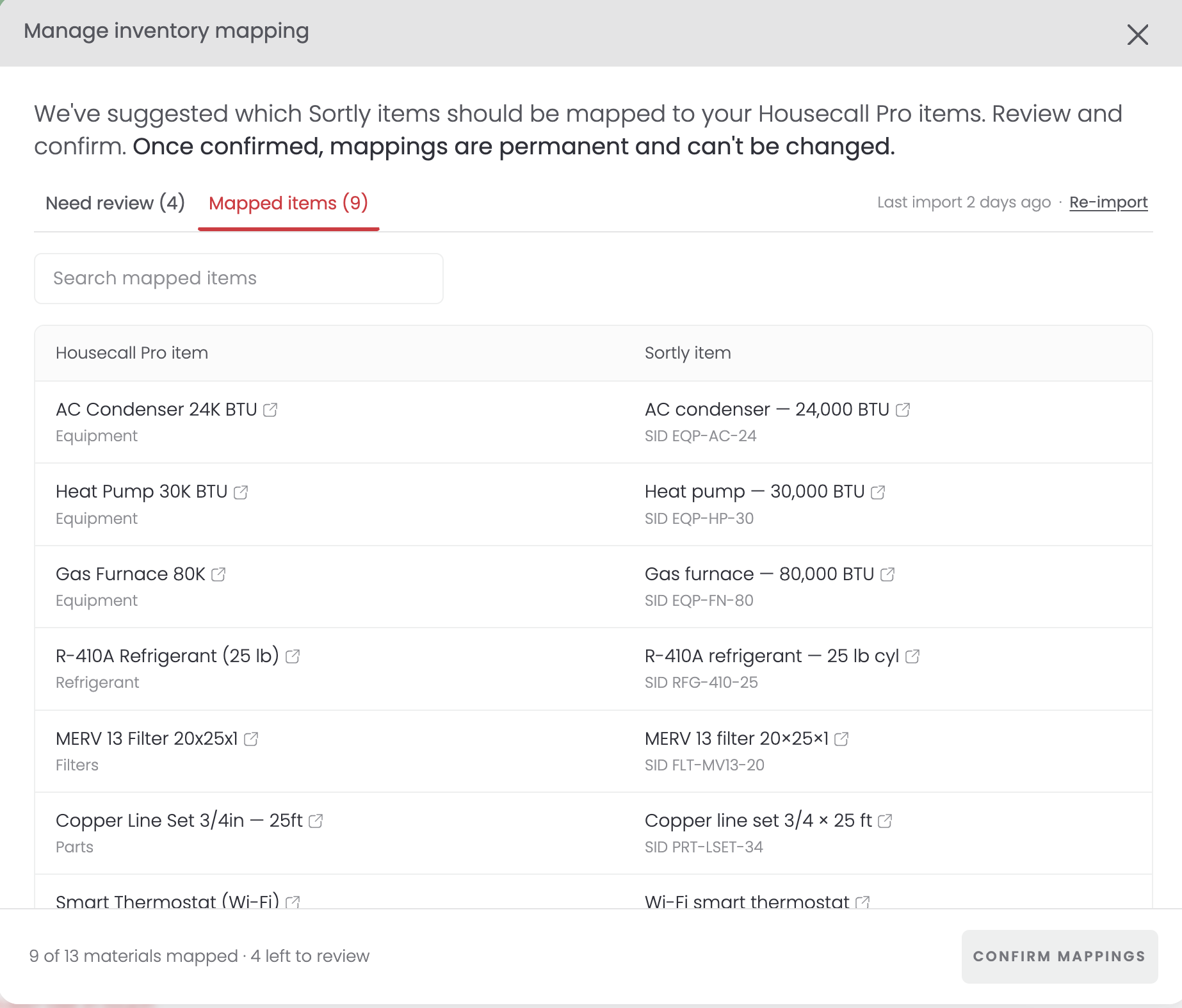
3Review confirmed mappings
Switch to the Mapped items tab to see each Housecall Pro item linked to its Sortly item and SID.
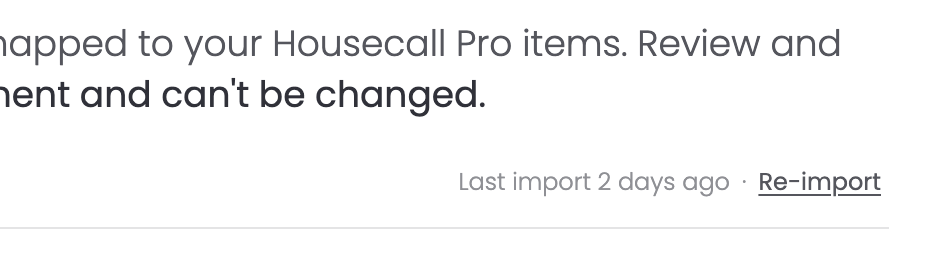
If new materials are added to your Housecall Pro price book later, click Re-import to bring them into Sortly.
Job management
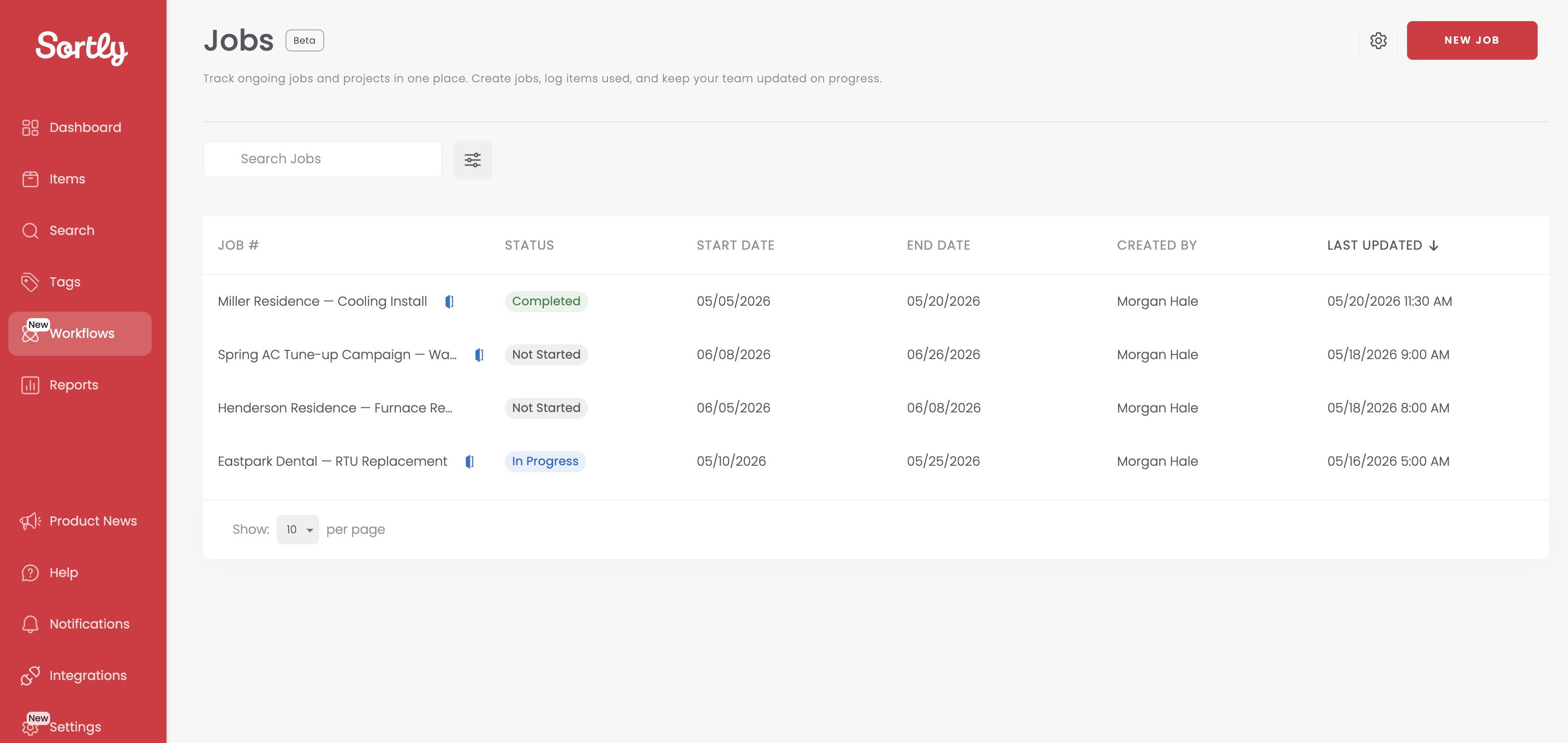
Once the integration is connected, imported jobs appear on your Jobs page with a Housecall Pro icon beside their name.
When a job is completed in Housecall Pro, Sortly automatically moves the listed materials from the assigned technician's default folder into the Sortly job. If the required items and quantities are available, they're moved and the job is marked complete.