---
title: How do I categorize an item as going out to a job or location?
description: Track items as they move from your main inventory to a specific job or location using folders, Custom Fields, Tags, or a combination of all three.
---
[Skip to content](https://help.sortly.com/how-do-i-categorize-an-item-as-going-out-to-a-job-or-location#main-content)

Open main navigation
Close main navigation
Looking for answers? Start here.
- There are no suggestions because the search field is empty.
1. [Sortly Help Center](https://help.sortly.com/?hsLang=en)
2. [FAQs](https://help.sortly.com/faqs?hsLang=en)
3. [FAQ](https://help.sortly.com/faqs?hsLang=en#faq)
# How do I categorize an item as going out to a job or location?
Keep track of items as they leave your main inventory for a specific job or location, so your team always knows what went where. You can use folders, custom fields, tags, or a combination of all three. This article walks you through setting up a folder structure, moving items to a job or location, and using custom fields and tags to label what goes out.
In this article
1. [Set up your folder structure](https://help.sortly.com/how-do-i-categorize-an-item-as-going-out-to-a-job-or-location#folder-structure)
2. [Move an item to a job or location](https://help.sortly.com/how-do-i-categorize-an-item-as-going-out-to-a-job-or-location#move-items)
3. [Use custom fields](https://help.sortly.com/how-do-i-categorize-an-item-as-going-out-to-a-job-or-location#custom-fields)
4. [Use tags](https://help.sortly.com/how-do-i-categorize-an-item-as-going-out-to-a-job-or-location#tags)
### Set up your folder structure
The most straightforward way to track items as they move to a job or location is a folder system that mirrors how you work.
- Create a main folder for your main inventory location, such as Warehouse, Stockroom, or Storage.
- Create a separate folder for each job, location, or project.
- Optional: group all your job and location folders under one parent folder, such as "Jobs & Locations", to make organizing and reporting easier.
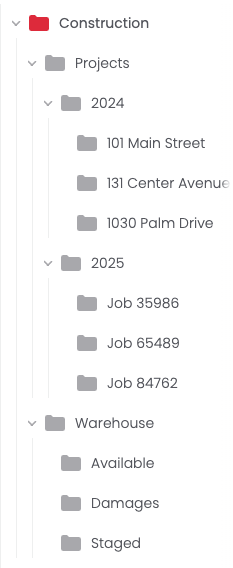
It may look something like this:
#### Tips
- Keep folder names short and clear.
- Set folder-based [user permissions](https://help.sortly.com/manage-permissions?hsLang=en) to control who can move items.
- Use the Activity History or Transactions report to track movements. See [Reports Overview](https://help.sortly.com/reports-overview?hsLang=en#report-details).
---
### Move an item to a job or location
Once your folders are set up, move items into the job or location folder as they go out.
#### On web
Working from your computer? You can move items from your inventory on the web.
1
Hover over the item and select Move to folder (the folder with an arrow icon).
2
Enter the quantity to move.
3
Optionally, select a move reason or enter a note.
4
Select the job or location folder.
5
Select Move.
Read more: [Moving Items](https://help.sortly.com/how-to-update-your-inventory?hsLang=en#h_01G77NDB0FAP99SZ0NKZESWXY8)
#### On mobile
Prefer to scan items as they head out the door? You can move them by scanning in the Sortly mobile app.
1
Assign QR codes or barcodes to your items.
2
Scan the item.
3
Move it to the job or location folder.
4
Tap Save.
Learn more: [Quick Actions on the Sortly Mobile App](https://help.sortly.com/quick-actions-on-the-sortly-mobile-app?hsLang=en)
---
### Use custom fields
💡 See [How to Create Custom Fields](https://help.sortly.com/how-to-create-custom-fields?hsLang=en) for plan, character, and option limits.
Custom fields can help you track and organize items sent to a job or location. Here are a few ideas.
#### A field for the job or location name or number
Create a text or dropdown field for the job or location name or number, such as "Property/Job Number". This helps if you later need to filter or report on items that have moved through multiple jobs, or track them across locations.
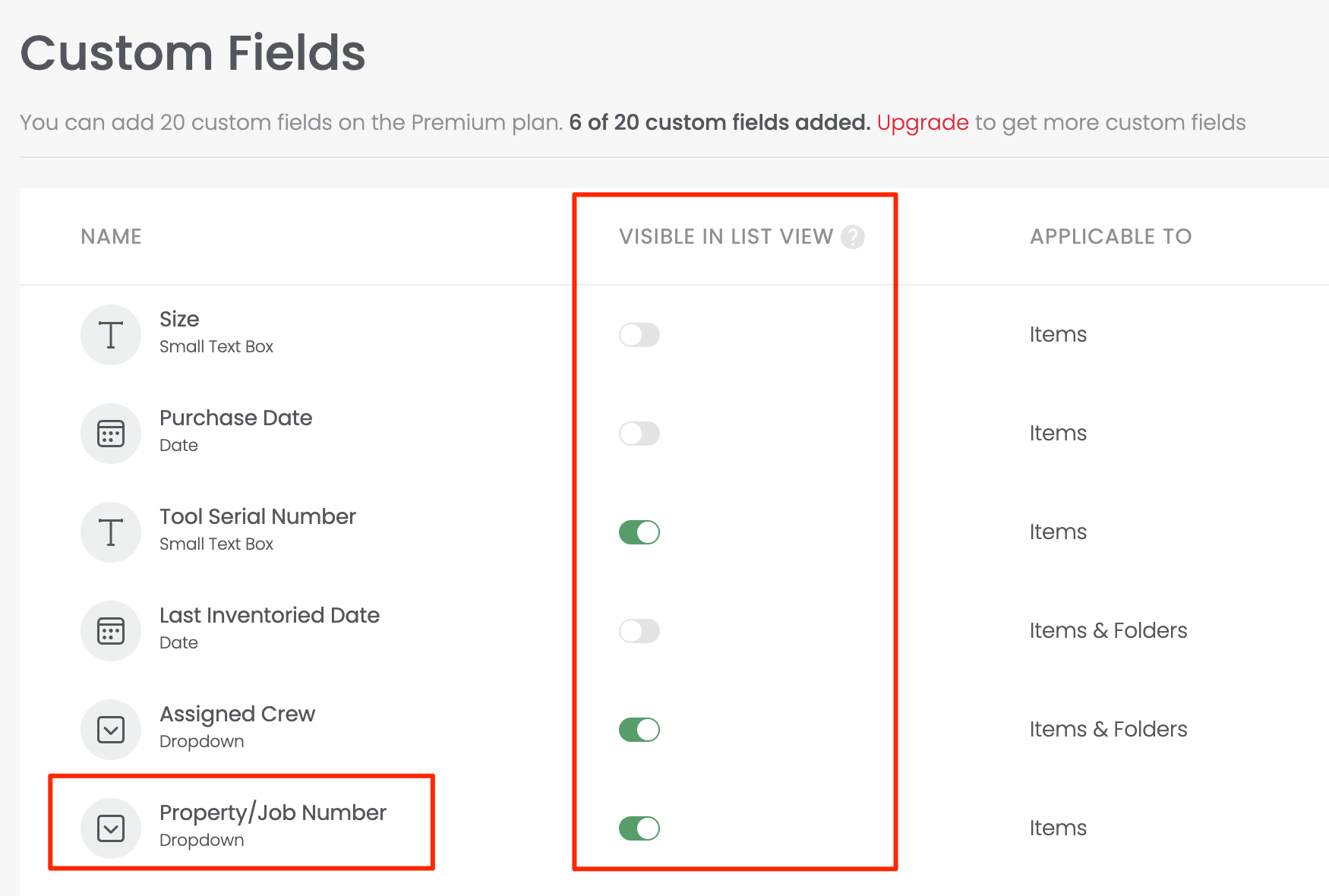
The screenshot above shows the Property/Job Number field set to Visible in List View. You can show up to three custom fields in List view.
#### A field to track status
Create a dropdown field called "Status" with options like:
- Available
- In Transit
- On Site
- Returned
When you move an item to a job or location folder, update the field to show it's In Transit or On Site. Your team can see where things are without digging through notes or folders.
#### A date field
Use a Date field to track when an item left for the job or location, or when it's expected back. You might name it "Date Sent" or "Expected Return Date", depending on your workflow.
#### Tips
- Custom fields are searchable in [Advanced Search](https://help.sortly.com/advanced-search?hsLang=en).
- They also show up in reports and exports.
- You can apply custom fields to items, folders, or both. You can't change this later.
---
### Use tags
Tags are a flexible way to label items that are going out to a job or location.
#### Tag by job or location name or number
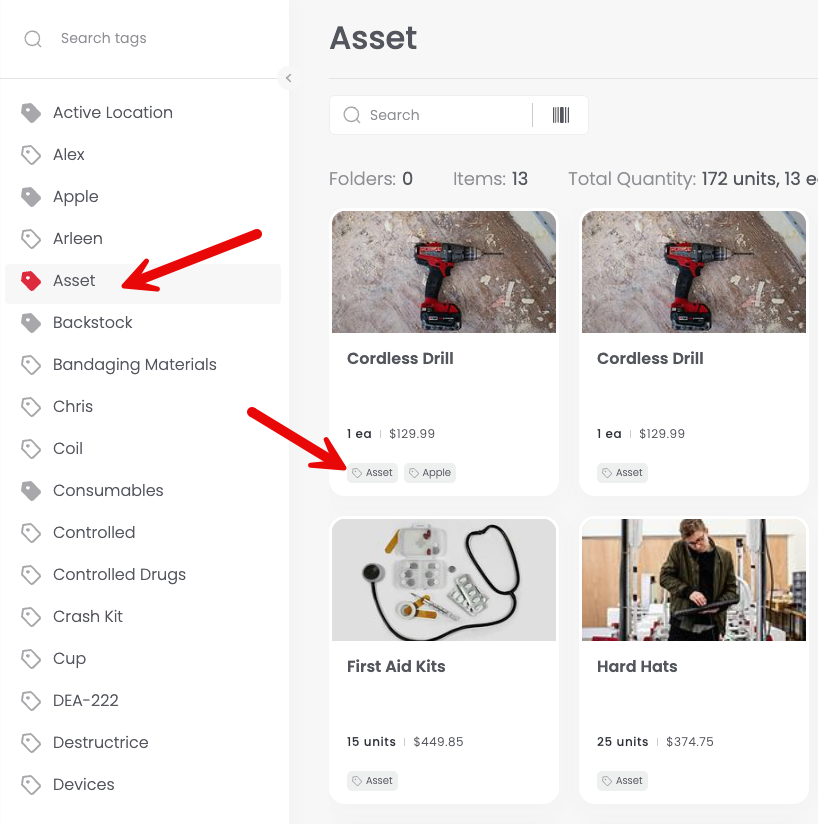
Add a tag like Job-A, Job-B, or J-123 to any items going out. Filter by that tag to see everything assigned to that job or location, no matter where the item is in your folder structure.
#### Tag by status or stage
Create tags like In Transit, Delivered, or Awaiting Pick Up to track movement without a custom field. This helps you see what's being sent out today or still waiting to go.
Learn more: [Using Tags to Organize Your Inventory](https://help.sortly.com/using-tags-to-organize-your-inventory?hsLang=en)
[](https://www.sortly.com/)
Copyright © 2026, Sortly Inc.