
You don't need to delete items one by one in Sortly. Select multiple items at once and remove them in a few clicks, which is ideal for cleaning up outdated or duplicate records. Deleted items aren't gone forever. They go to the Trash, where you can restore them anytime.
In this article
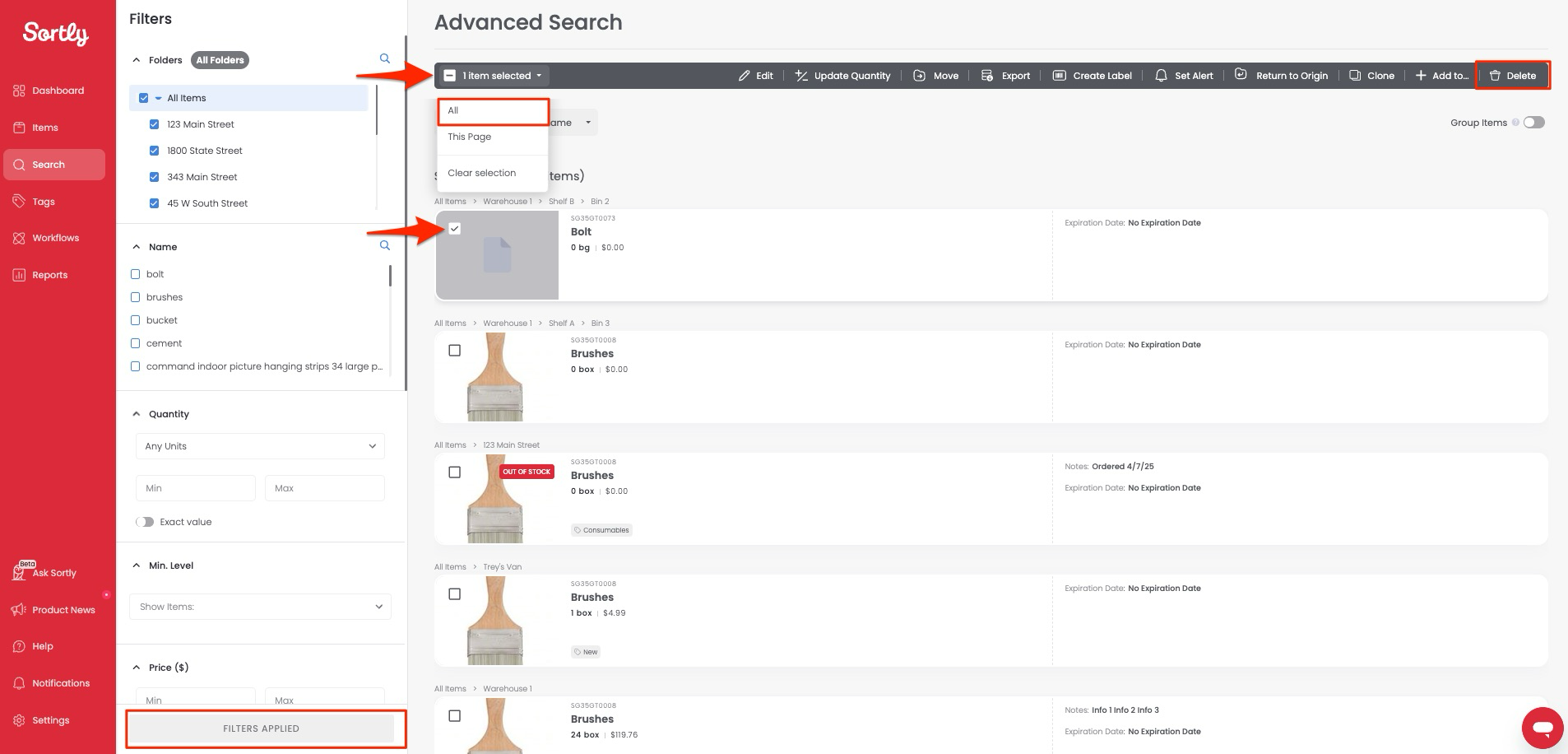
Delete All Items in Bulk
-
1From the left-hand menu, click Search
-
2Choose your filters to narrow the selection down, or just click Apply Filters to see all items
-
3Check the box next to the first item
-
4At the top of the results list, choose the option Select All Items
You'll see a banner showing how many items are selected.
-
5From the bulk action bar, click Delete
-
6Confirm the deletion when prompted
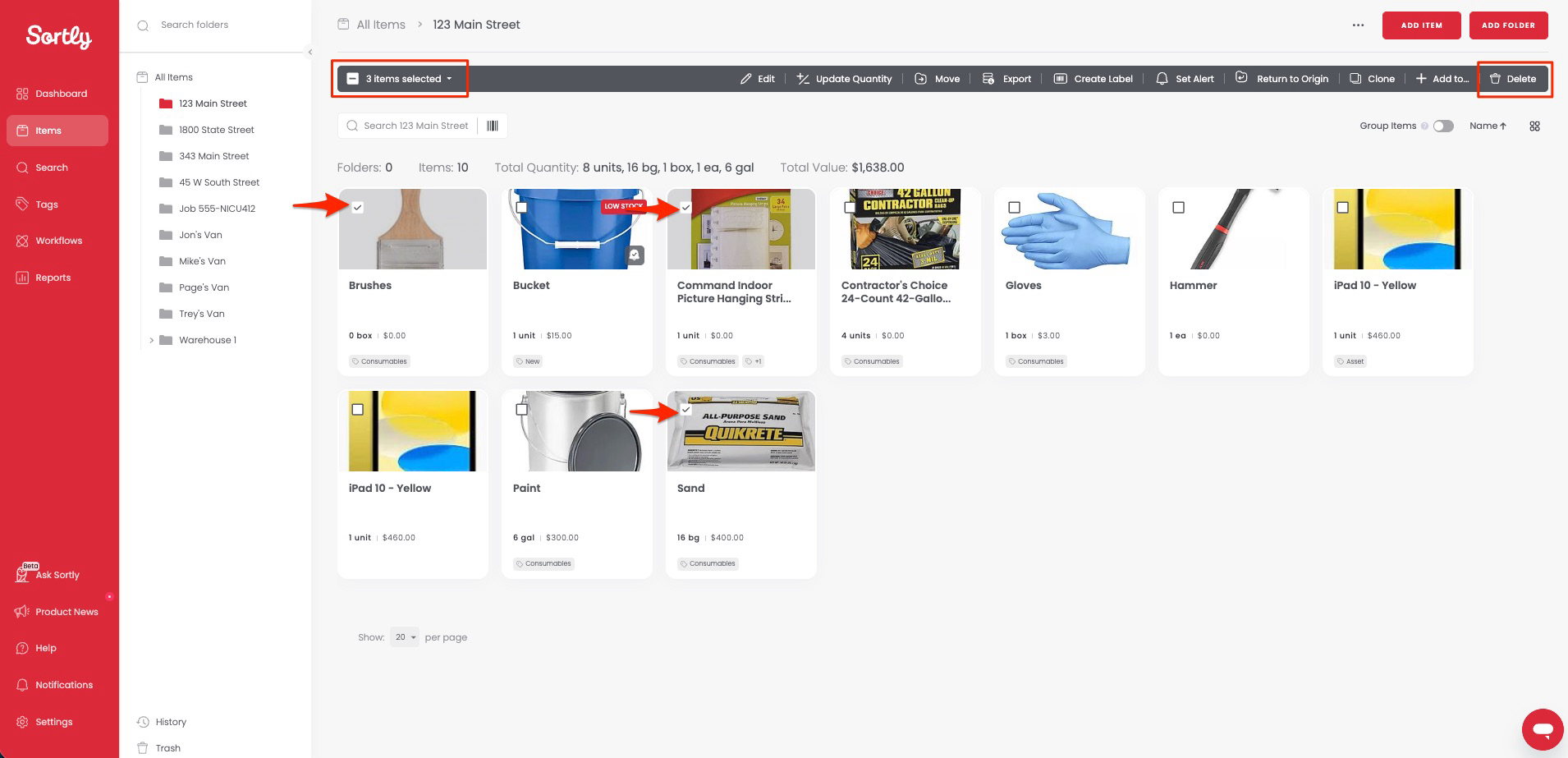
Delete Only Some Items
-
1Navigate to the folder where the items are located
-
2Check the boxes next to the items you want to remove
-
3From the bulk action bar at the top, click Delete
-
4Confirm the deletion
Tips & Notes
- Use filters (such as Name, Quantity, or Price) in Advanced Search to quickly find the items you want to delete.
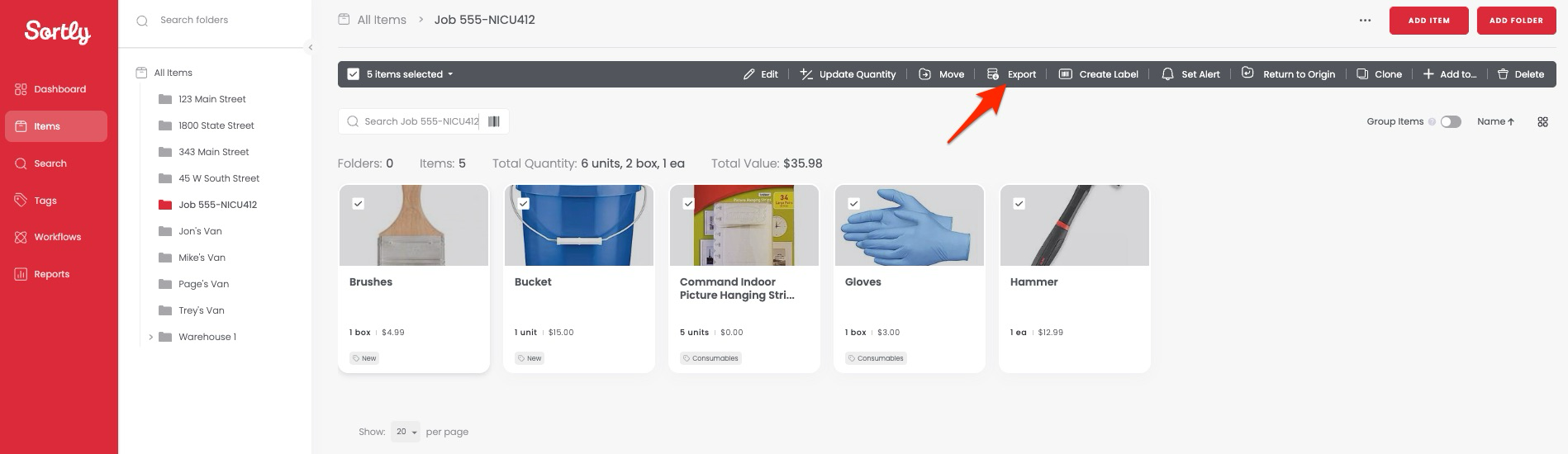
- If you think you may need a record later, export your data first using the Export option in the bulk action bar.
- Don't worry if you delete something by mistake. All deleted items are moved to the Trash and can be restored at any time.