
Make sure every item that needs an alert has one. Advanced Search can list all the items in Sortly that don't have quantity or date alerts set, so nothing runs low or expires without you knowing. This article walks you through finding items without alerts and adding alerts to many of them at once.
In this article
Find items without alerts
1
Select Search in the left menu to open Advanced Search.
2
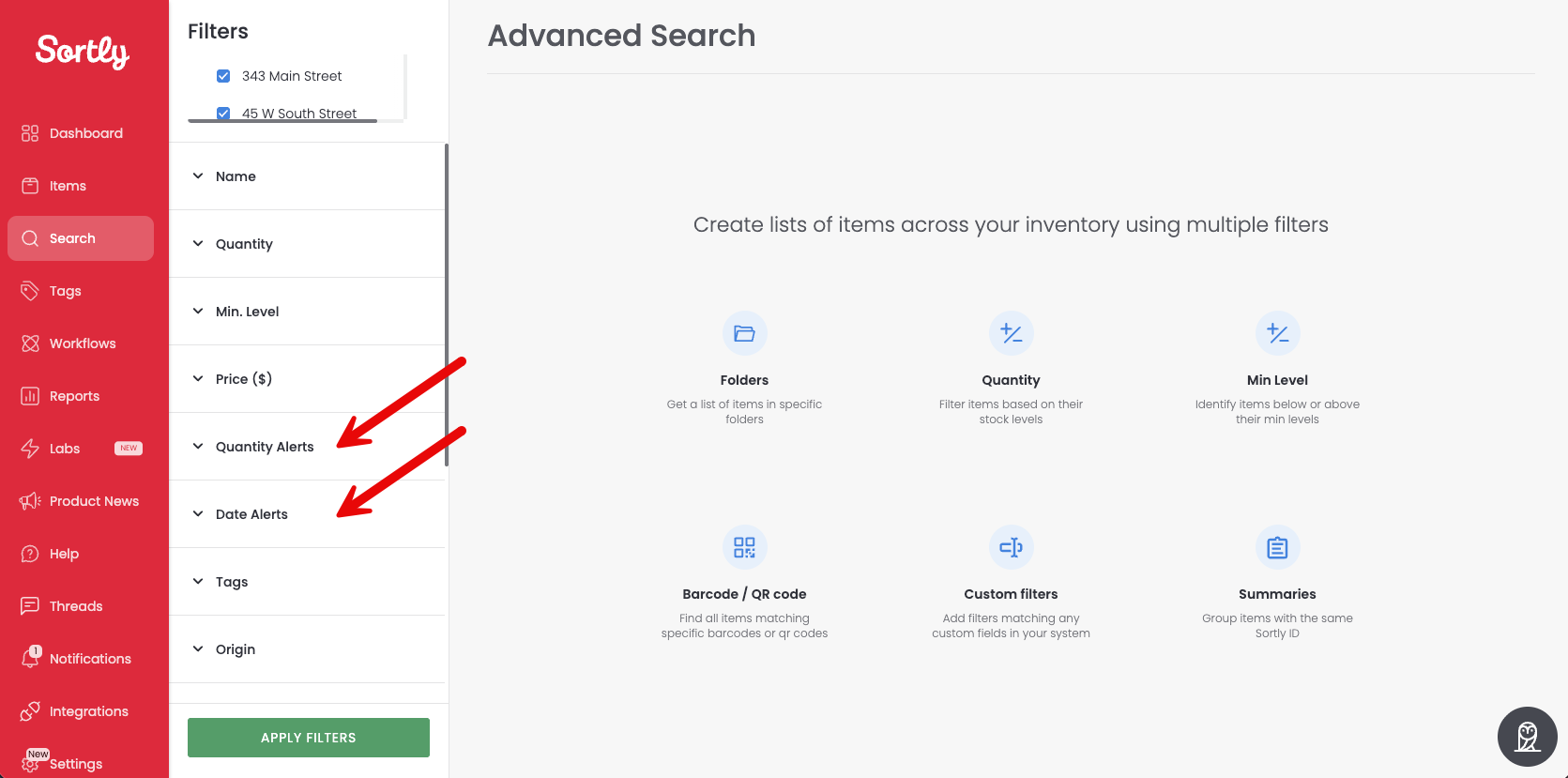
Under Filters, open Quantity Alerts or Date Alerts.
3
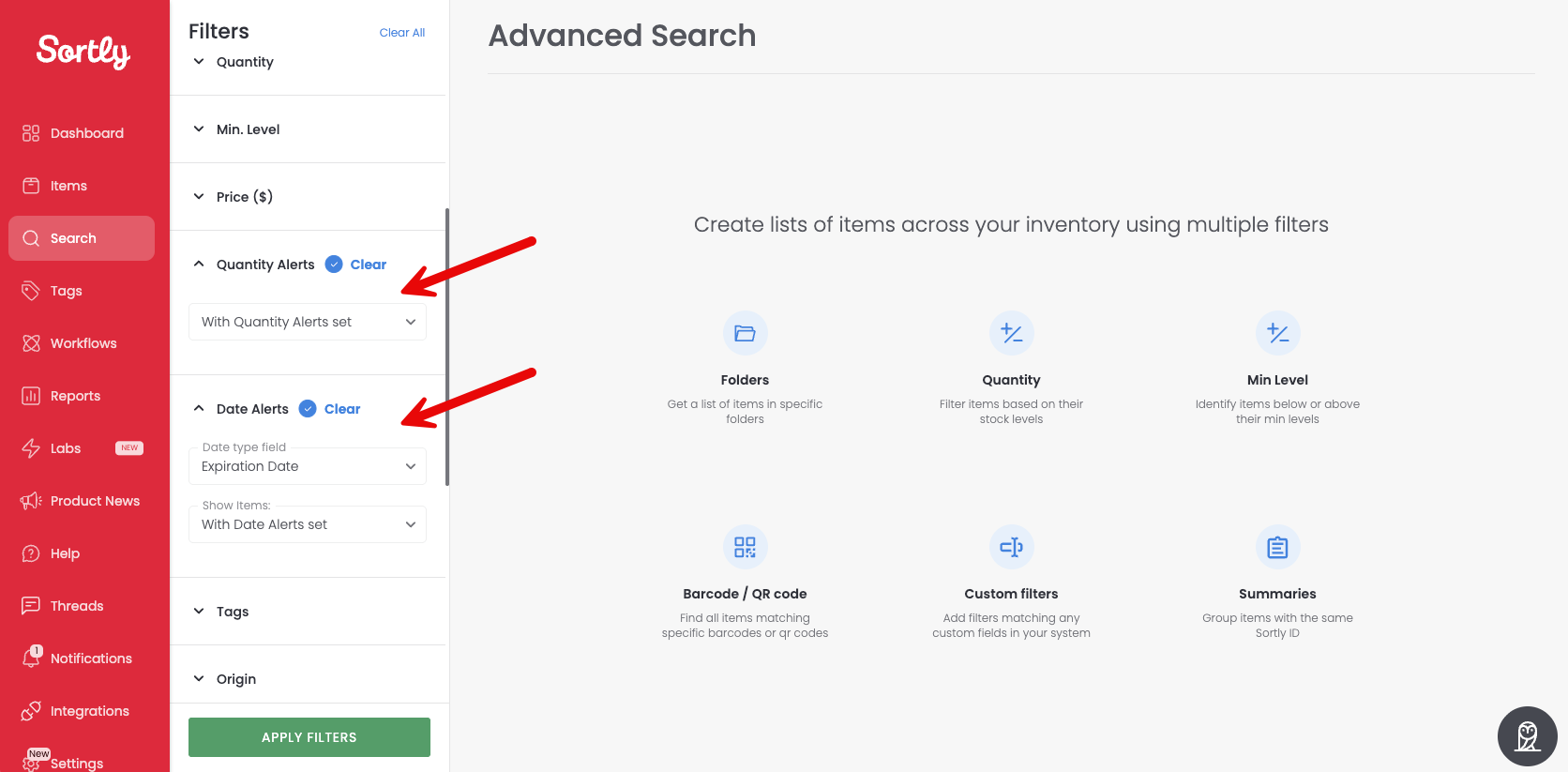
For quantity alerts, choose Without Quantity Alerts set. For date alerts, choose the date field under Date type field (for example, Expiration Date), then choose Without Date Alerts set under Show Items:.
4
Select Apply Filters.
5
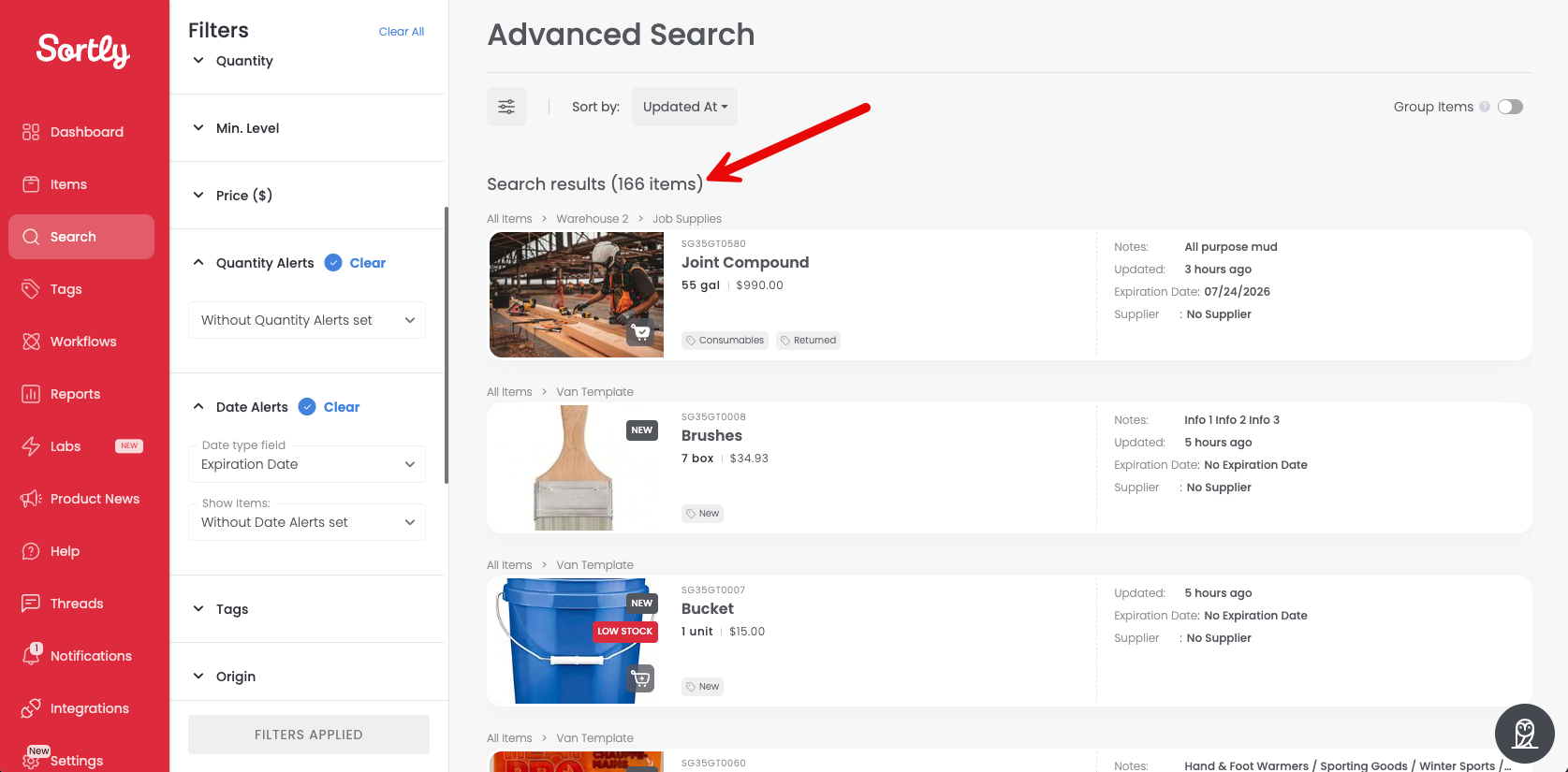
Sortly lists every item that doesn't have these alerts set, with the total number of items at the top of the results.
Add alerts to the items
⚠️ All the items you select get the same alert. If different items need different alerts, select the items that share the same alert settings and repeat these steps for each group.
1
In Advanced Search, find the items you'd like to set alerts for.
2
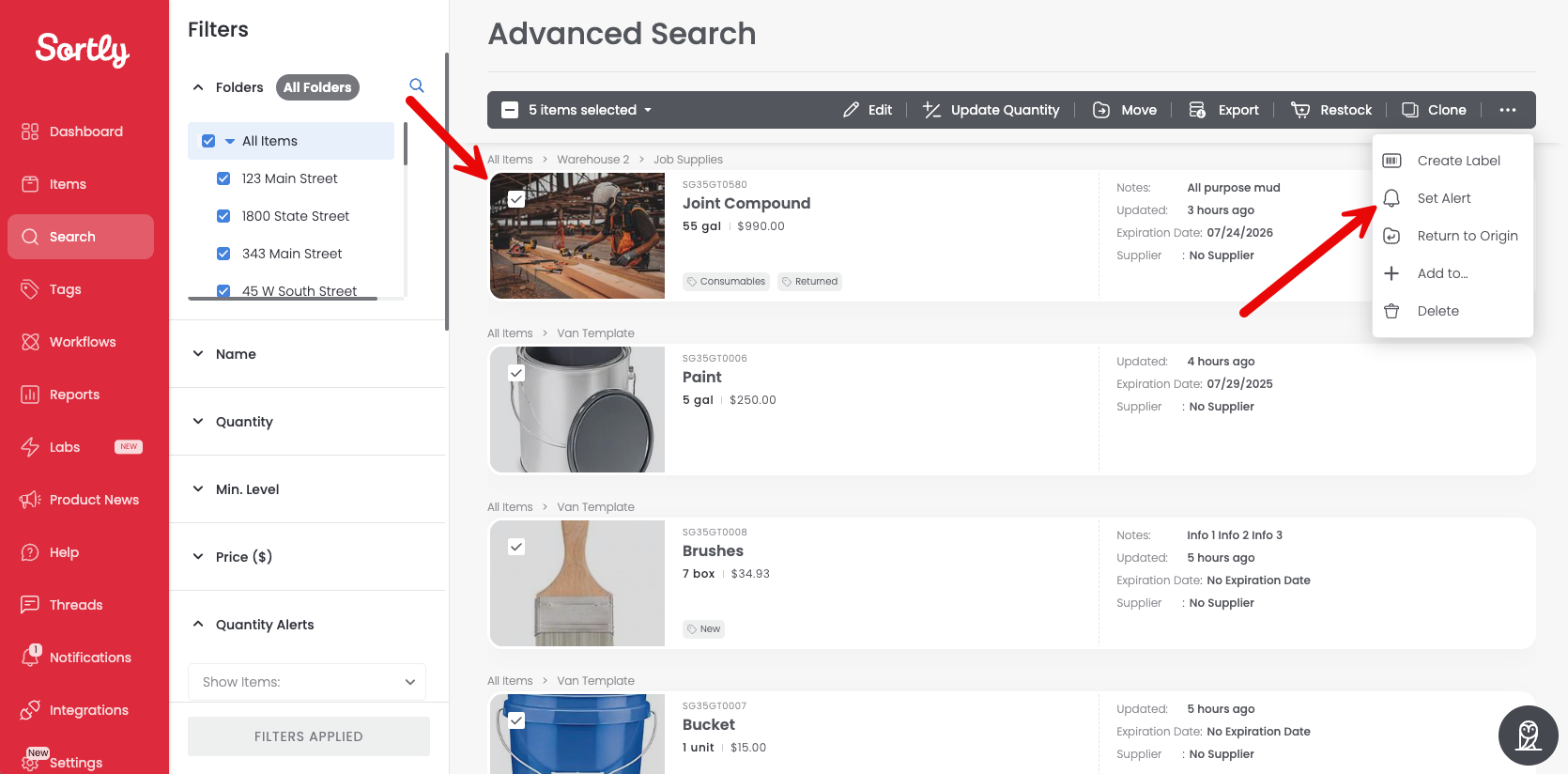
Hover over an item and select the box in the top left corner of its card. Repeat for each item you'd like to include.
3
On the bulk edit bar, select the three-dot menu, then select Set Alert.
4
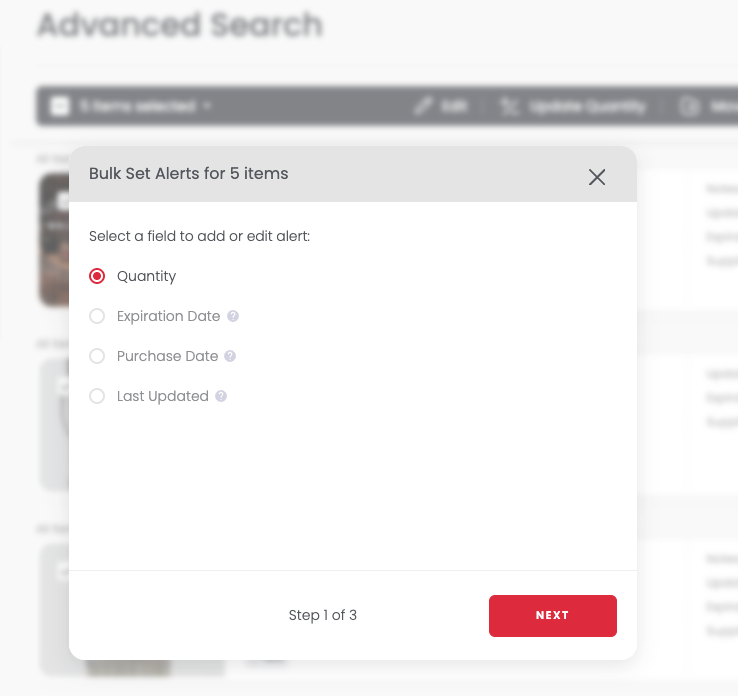
Under Select a field to add or edit alert:, choose the field for the alert, then select Next.
5
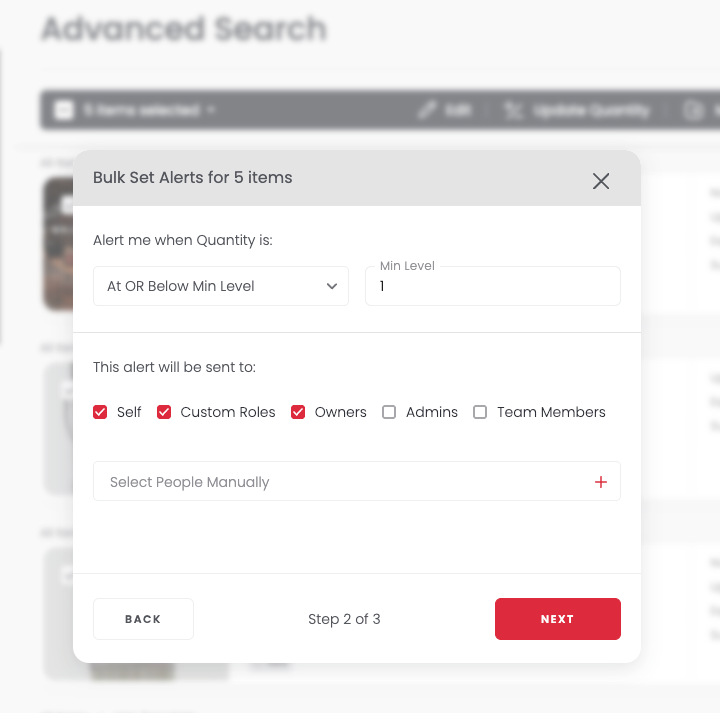
Enter the alert details, choose who it goes to under This alert will be sent to:, then select Next.
6
Select Confirm.
For more on bulk editing items, see Bulk Edit.