---
title: How do I see the quantity of an item on a specific date?
description: The Inventory Summary report always shows your current inventory, so it can't be used to look up quantities from a past date.
---
[Skip to content](https://help.sortly.com/how-do-i-see-the-quantity-of-an-item-on-a-specific-date#main-content)

Open main navigation
Close main navigation
Looking for answers? Start here.
- There are no suggestions because the search field is empty.
1. [Sortly Help Center](https://help.sortly.com/?hsLang=en)
2. [FAQs](https://help.sortly.com/faqs?hsLang=en)
3. [FAQ](https://help.sortly.com/faqs?hsLang=en#faq)
# How do I see the quantity of an item on a specific date?
The Inventory Summary report always shows your **current** inventory, so it can't be used to look up quantities from a past date. To see what quantity you had on a specific date, use the **Transactions report**, export it, and read the **New QTY** column.
**Understanding the key columns**
Before you start, it helps to know the difference between two columns in the exported report:
| Column | What it means |
| --- | --- |
| QTY Change | The amount added or removed in that one transaction. Do not add these up to get a total. |
| New QTY | The item's quantity after that transaction. On the most recent transaction for each item in your date range, this is the quantity on hand at that point in time. |
**Steps**
1. 1**Open the Transactions report**
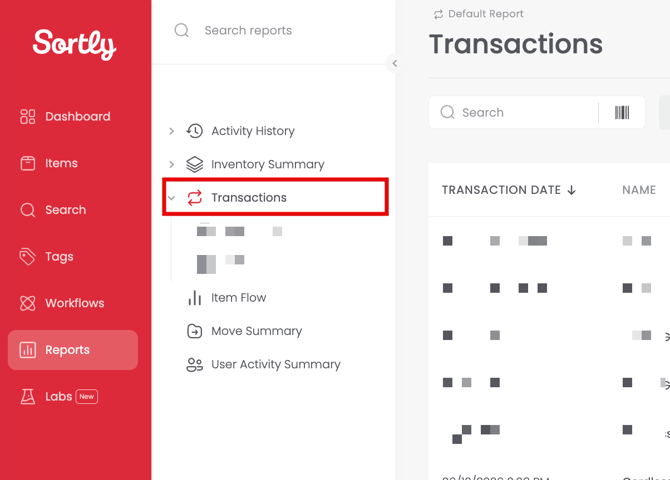
Go to **Reports** in the left navigation and select **Transactions**.
2. 2**Set your date range**
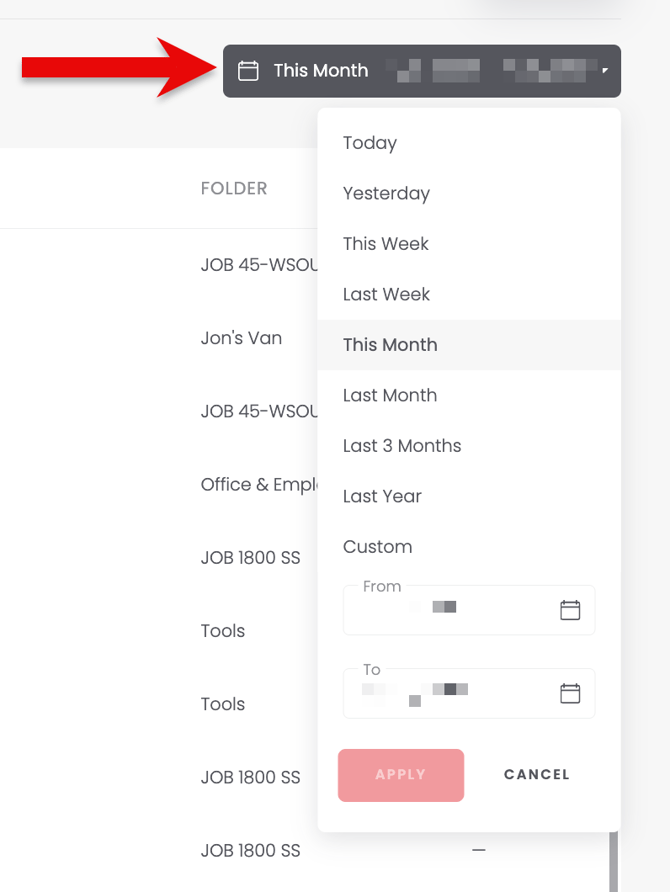
Use the date filter to select the time period you want. For example, to see quantities for May, set the range from May 1 to May 31.
3. 3**Filter by folder or item (optional)**
Use the **Folder** filter or the search bar to narrow results to the items you need. You can skip this step to export all items across all folders.

4. 4**Export the report**
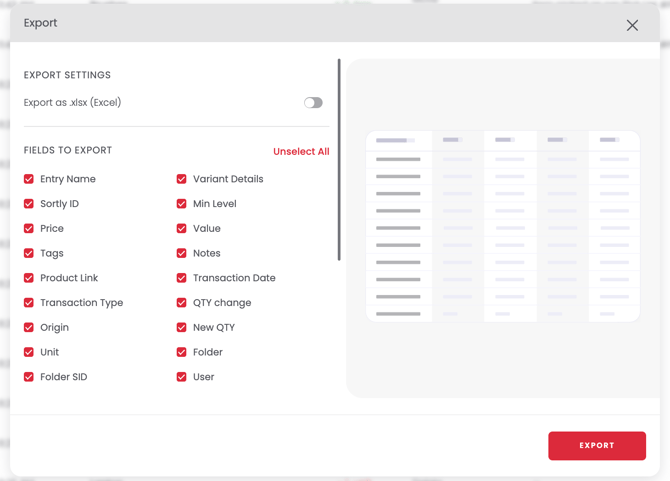
Click **Export** and choose CSV or XLSX. Open the file in Excel or Google Sheets.
5. 5**Sort by Transaction Date, newest first**
In your spreadsheet, sort the **Transaction Date** column from newest to oldest.
6. 6**Read the New QTY on the most recent row for each unique item**
For each unique Sortly ID (SID), find the first row after sorting. The **New QTY** value on that row is the quantity on hand at the end of your selected date range.
✅ Use the **New QTY** column, not QTY Change. Adding up QTY Change values will not give you the correct total.
***Example: Brushes at end of May***
| **Folder** | **New QTY (ending quantity)** |
| --- | --- |
| Warehouse 1 | **22** |
| 123 Main Street | **3** |
| 1800 State Street | **3** |

⚠️ If an item's most recent transaction in your date range is a **Delete**, its New QTY will show as 0. This means the item was removed from that folder during the period, and 0 is the correct ending quantity for that folder.
⚠️ If an item has no transactions in your date range, its quantity did not change during that period. Expand the date range until a transaction appears, then read the New QTY from that row.
[](https://www.sortly.com/)
Copyright © 2026, Sortly Inc.