Skip to content
  • There are no suggestions because the search field is empty.

How do I undo an action in Sortly?

The Undo Action feature in Sortly lets you quickly reverse recent item moves or quantity changes made in error. Whether you accidentally moved an item to the wrong folder or adjusted the wrong quantity, you can undo that action within seconds. There's no need to dig through reports or retrace your steps.

All Plans

Feature overview

If you make a mistake while updating an item's quantity or location, you can undo the change immediately, right from the screen where the action occurred.

Undoing item quantity changes
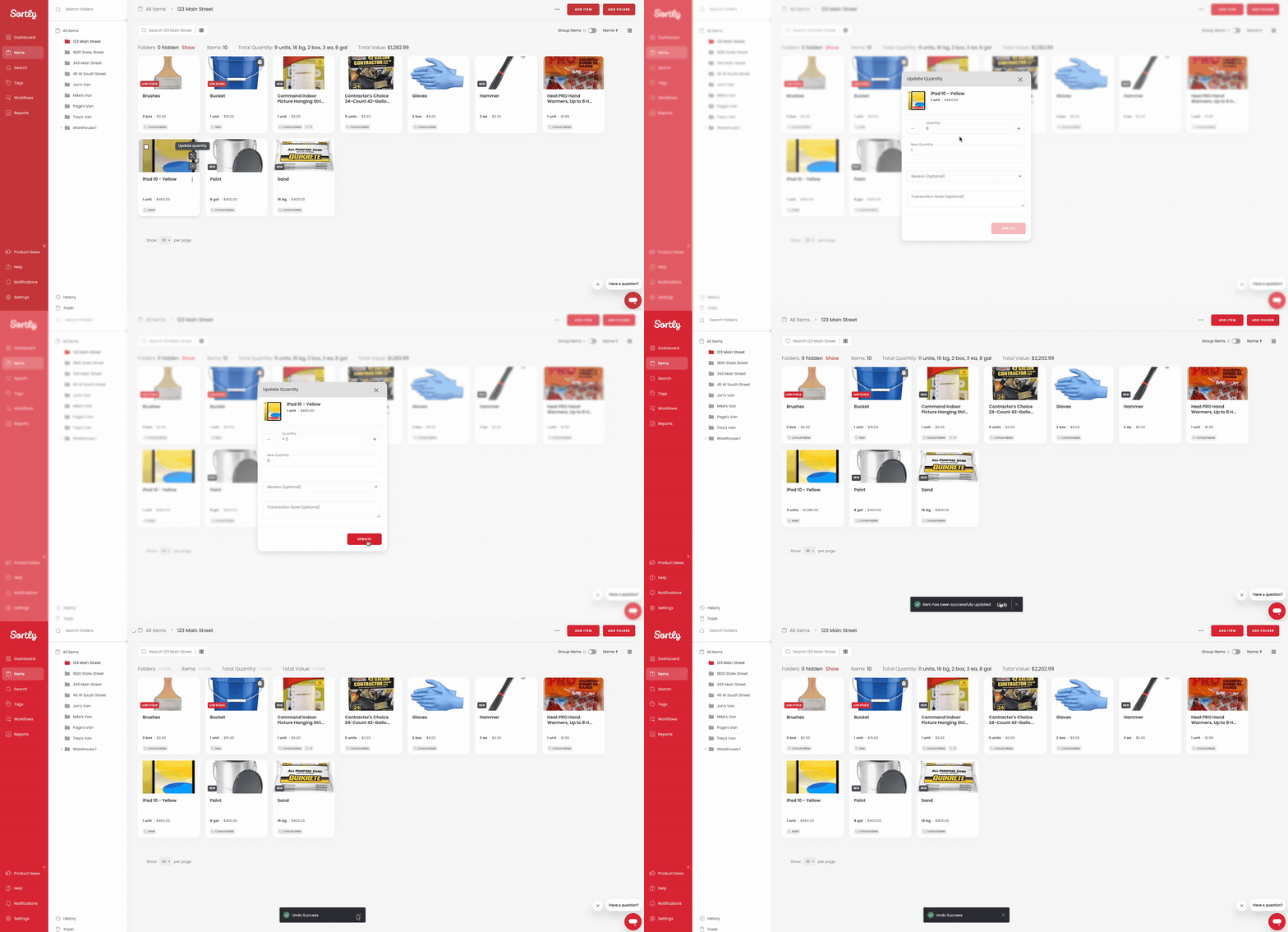
Undoing an item quantity change

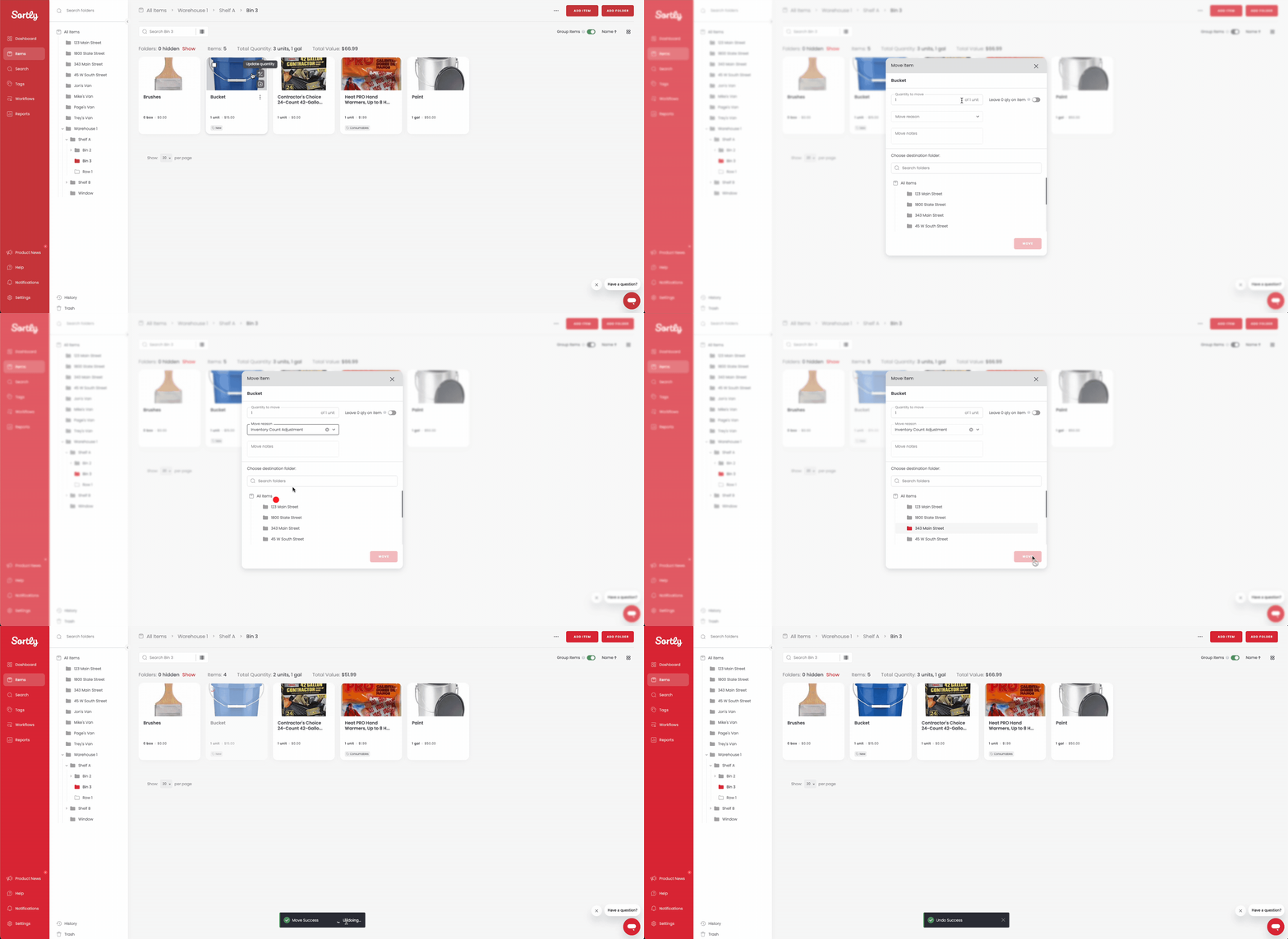
Undoing item moves

Undoing an item move

Works across multiple views

You can use the undo option on any screen where the action was made, including:

  • Dashboard
  • Item Detail View
  • Advanced Search

Undo reasons and notes

When performing an undo, you'll be prompted to select a reason for the reversal. This helps maintain transparency and provides context for auditing or review purposes.

Available undo reasons

  • Accidental
  • Duplicate Update
  • No Longer Needed
  • Other
  • Wrong Quantity

You can also optionally enter an Undo Note to provide further explanation. This note is saved in the Activity History for reference and accountability.
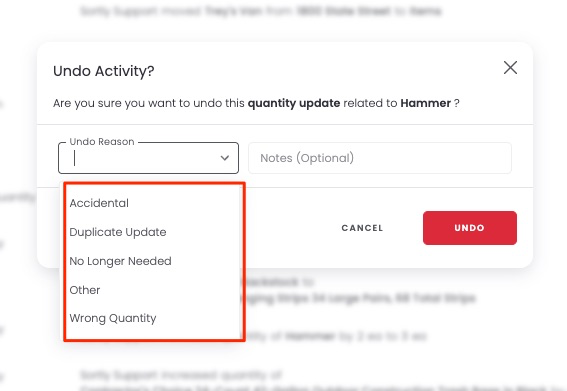
Selecting an undo reason and adding an optional note

Viewing undo activity in the Transactions Report

You can view all Undo Actions alongside other inventory transactions in the Transactions Report.

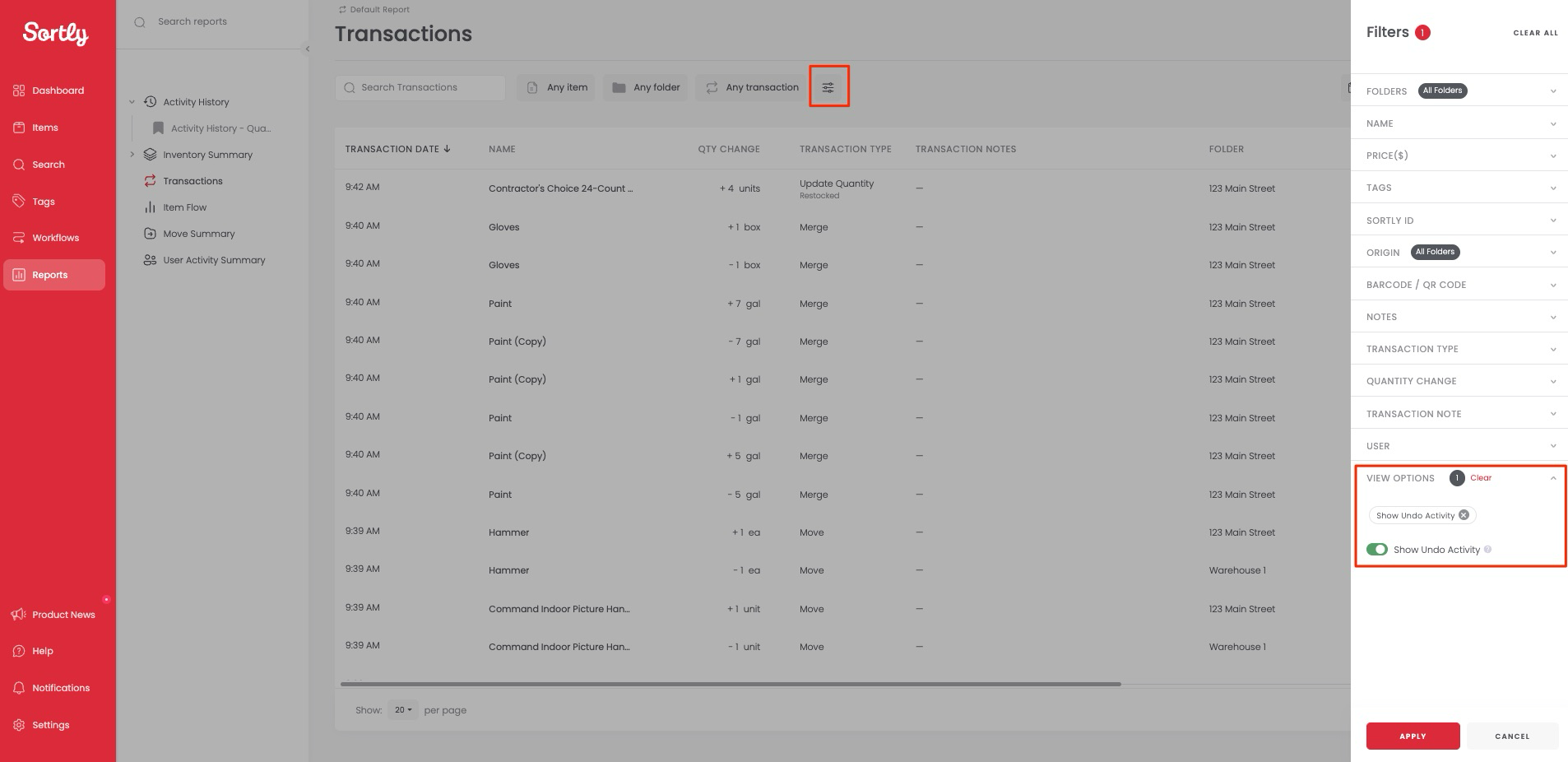
How to view Undo Actions

  1. 1Go to the Transactions Report

  2. 2Click Filter in the top-right corner

  3. 3Select View Options

  4. 4Toggle on Show Undo Activity

Toggling Show Undo Activity in the Transactions Report filter

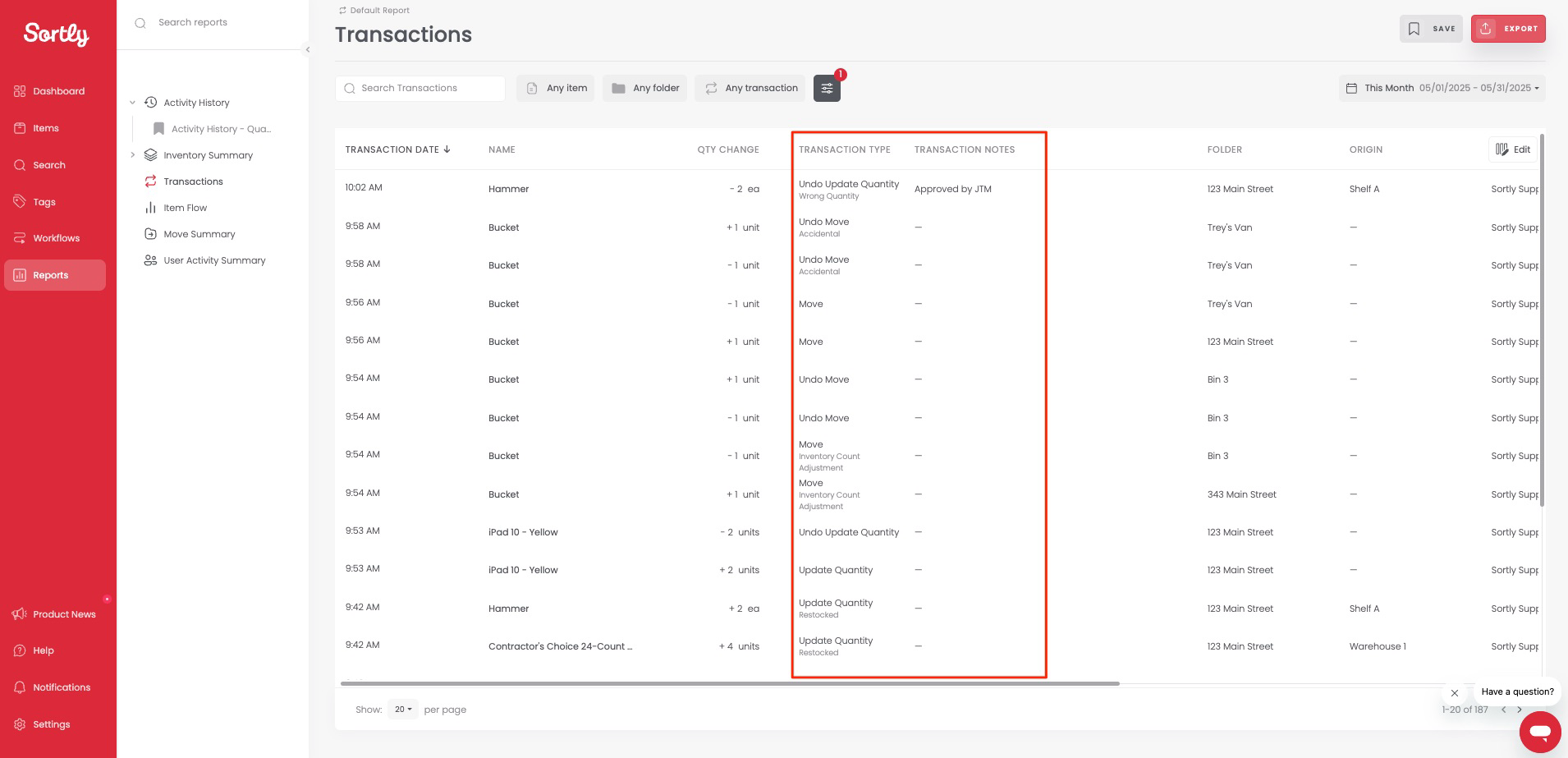
Once enabled, Undo Actions will appear in the report alongside other transaction types such as:

  • Move
  • Create
  • Update Quantity
  • Merge
  • And more

Undo Actions shown in the Transactions Report

This makes it easy to audit and track all inventory activity, including corrections, within a single report.

Undo via Activity History

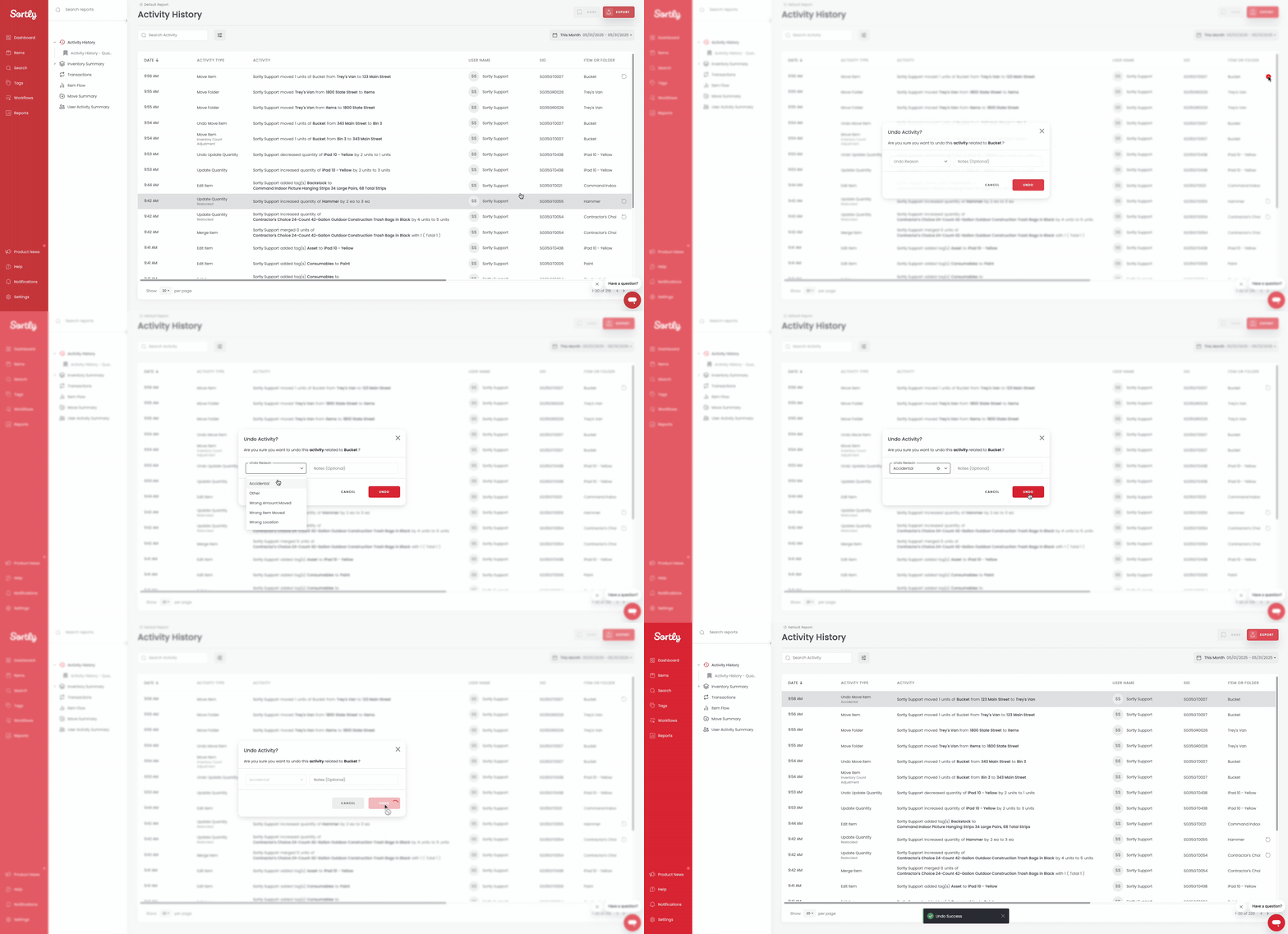
If you don't notice the error right away, you can still undo it later through the Activity History Report.

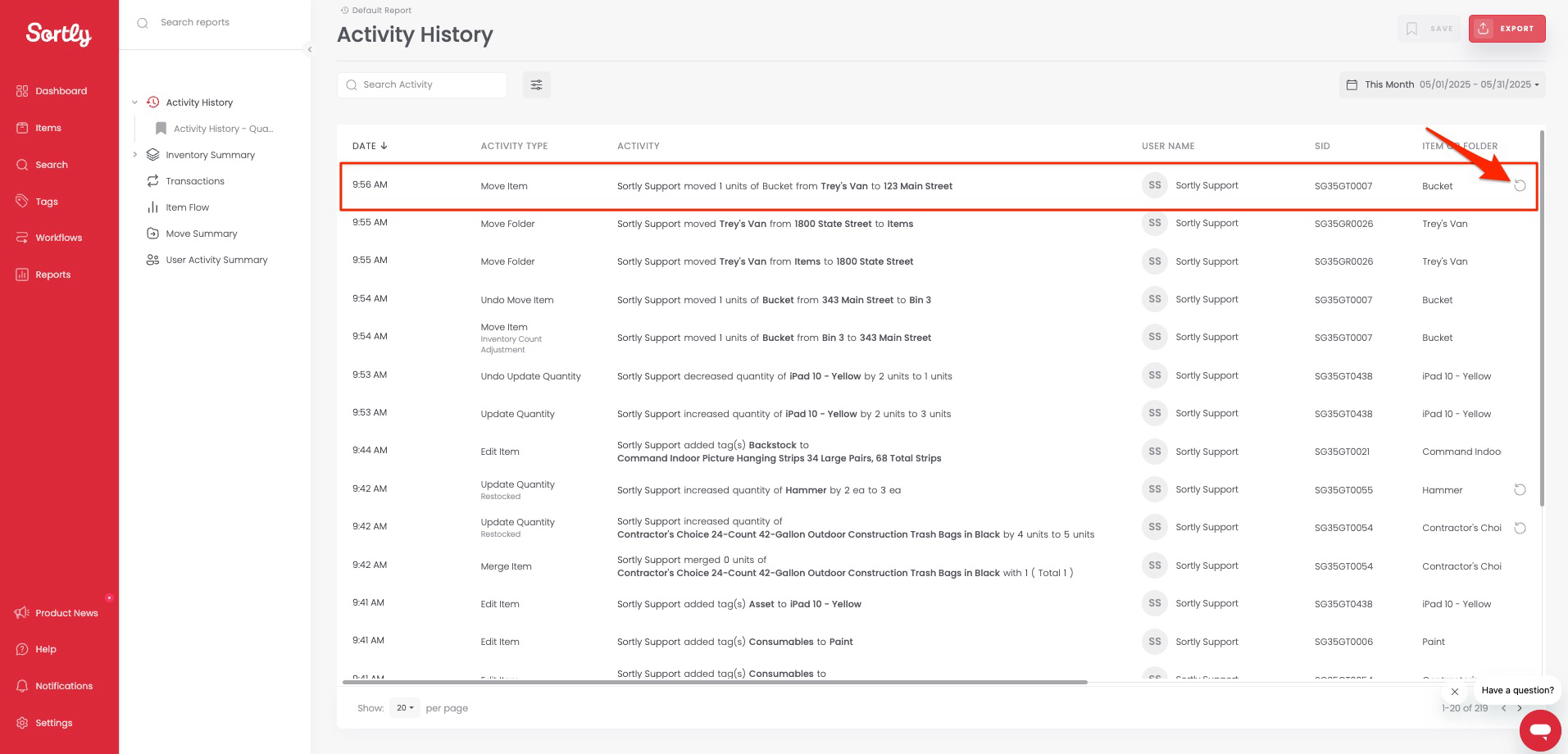
How to undo from Activity History

  1. 1Go to Reports, then Activity History

  2. 2Find the action you want to undo

  3. 3Click Undo

  4. 4Select a reason and optionally enter a note

  5. 5Confirm the undo

Finding an action to undo in Activity History Confirming an undo from Activity History

Frequently Asked Questions

What is the Undo Action feature?
The Undo Action feature lets users reverse move and quantity update actions taken in the system. It helps reduce manual correction work and supports smoother workflows.
How long after an action is taken can I undo it?
You can reverse an action up to seven days after it was taken. To reverse past actions, go to the Activity History Report, select the action, and select Undo.
Why don't I see the Undo option?

The Undo option is only available under specific conditions:

  • Only the most recent action on an item can be undone.
  • Quantity updates made through workflow actions (such as Pick Lists, Purchase Orders, and similar) cannot be undone.
  • The Undo option will only appear if no other actions have been performed on the item since the last update.
  • The latest action must be either a quantity update or a move for the Undo button to appear.

In short, if any other changes were made after a quantity update, or if the update came from a workflow process, the Undo option won't be available.

Who can use the Undo Action feature?

All users have access to the Undo Action feature by default, but access levels vary based on user roles:

Can Team Members undo actions made by others?
No. Team Members can only undo actions they personally performed. They cannot undo actions taken by Owners, Admins, other Team Members, or Custom Role users.
Can Custom Role users undo actions made by others?
No. Custom Role users can only undo their own actions. They cannot undo actions performed by other users, regardless of their role.
Is there a way to control or restrict access to the Undo feature?
Not at this time. There are no additional settings required or available under User Access Controls, then Manage Permissions. The feature is enabled by default for all users based on their role.
Do I need to upgrade my plan to use this feature?
No. The Undo Action feature is available across all plans at no extra cost.
Can I access this on mobile?
Real-time undo on mobile is currently under development. However, you can still undo past actions by going to Menu, then Reports, then Activity History, and tapping Undo on the desired line item.