---
title: How to Add Folders
description: Learn how to add folders in Sortly on the web and mobile app, while moving an item, in bulk, or by cloning, plus how to rename folders and find a folder SID.
---
[Skip to content](https://help.sortly.com/how-to-add-folders#main-content)

Open main navigation
Close main navigation
Looking for answers? Start here.
- There are no suggestions because the search field is empty.
1. [Sortly Help Center](https://help.sortly.com/?hsLang=en)
2. [Getting started](https://help.sortly.com/getting-started?hsLang=en)
3. [Adding Inventory](https://help.sortly.com/getting-started?hsLang=en#adding-inventory)
# How to Add Folders
Adding a folder in Sortly is essential for efficient inventory management. While items can be kept outside folders, organizing them simplifies the process. It enables easy creation of reports based on folder contents, aiding workflow tracking. Start by structuring folders according to location, category, or custom classifications to streamline inventory organization in Sortly.
In this article
1. [Adding Folders on the Web](https://help.sortly.com/how-to-add-folders#adding-folders-web)
2. [Adding a Folder While Moving an Item](https://help.sortly.com/how-to-add-folders#adding-folder-while-moving)
3. [Adding Folders on the Mobile App](https://help.sortly.com/how-to-add-folders#adding-folders-mobile)
4. [Adding Folders in Bulk](https://help.sortly.com/how-to-add-folders#adding-folders-bulk)
5. [Cloning/Duplicating Folders](https://help.sortly.com/how-to-add-folders#cloning-folders)
6. [Frequently asked questions](https://help.sortly.com/how-to-add-folders#faq)
### Adding Folders on the Web
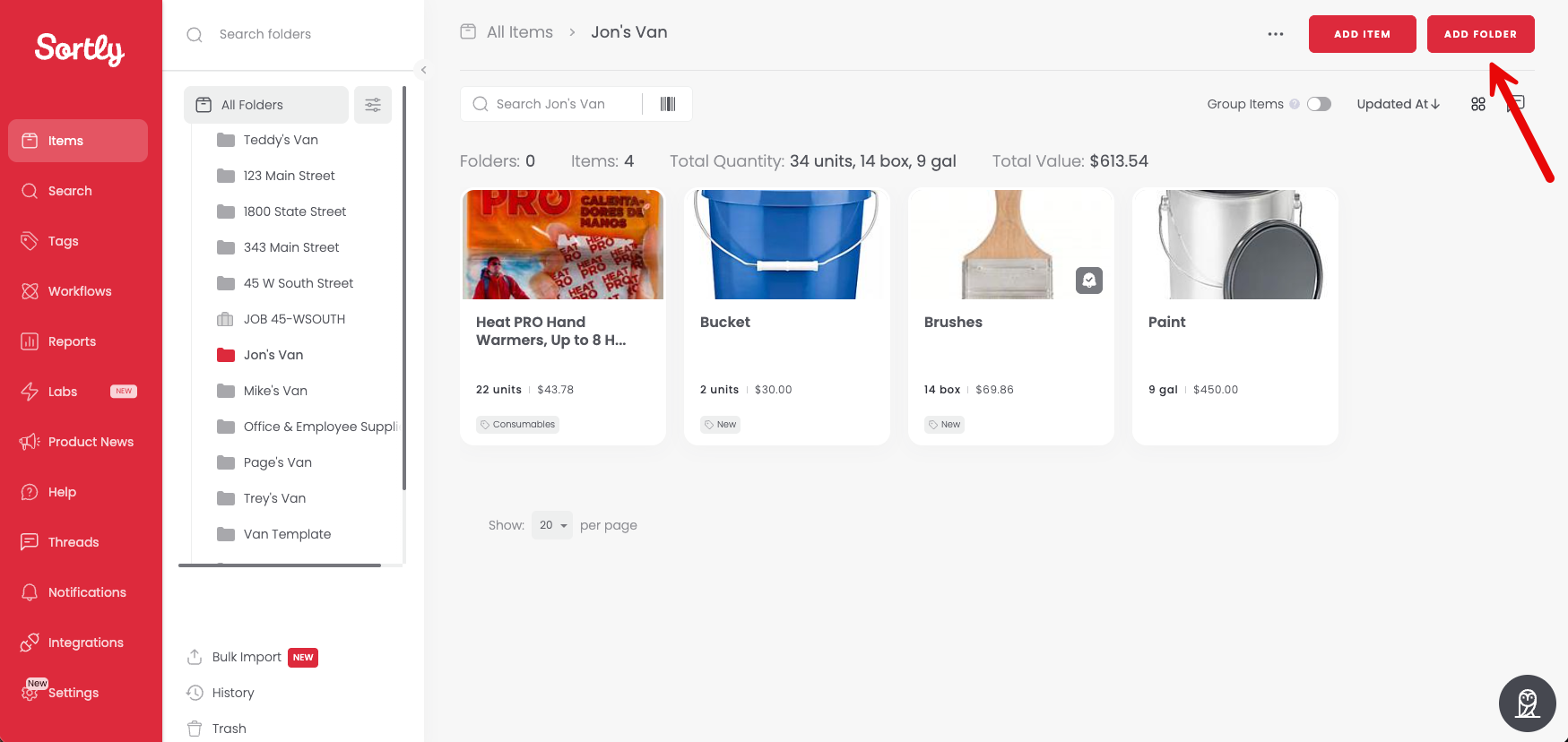
1. 1From the Items tab or within a folder, click Add Folder
2. 2Enter the details about the folder
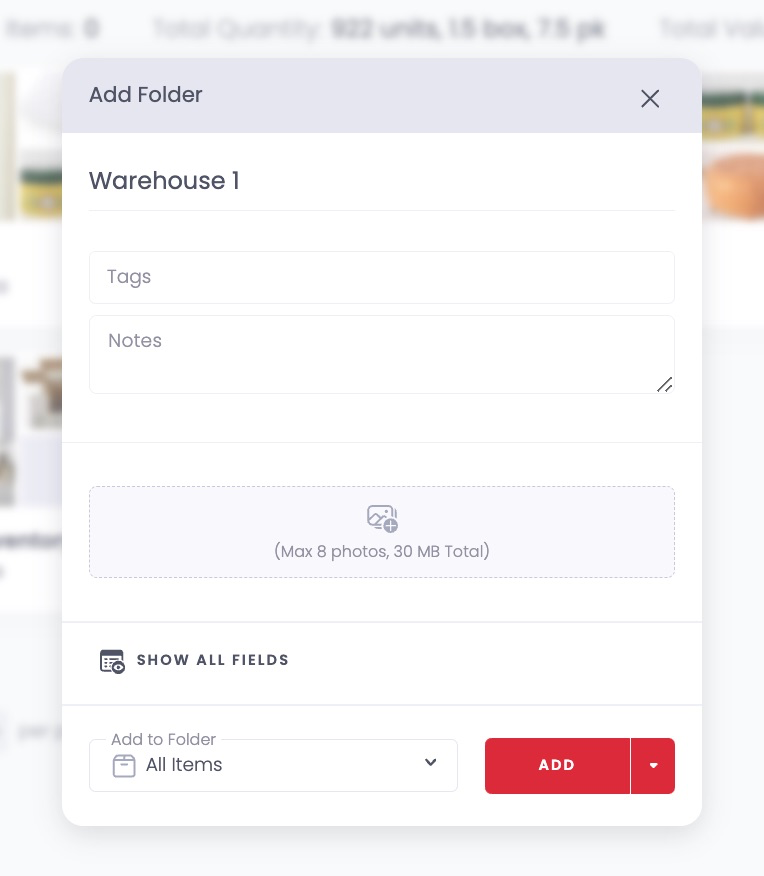
The above image shows all the default fields added to the system that you can use to add details about the folder. **Folder Name** is the only required field. You can choose to add additional information or leave the other fields blank.
The fields that you will see by default are the following:
- Folder Name
- Tags
- Notes
- Add images (up to 8 total images)
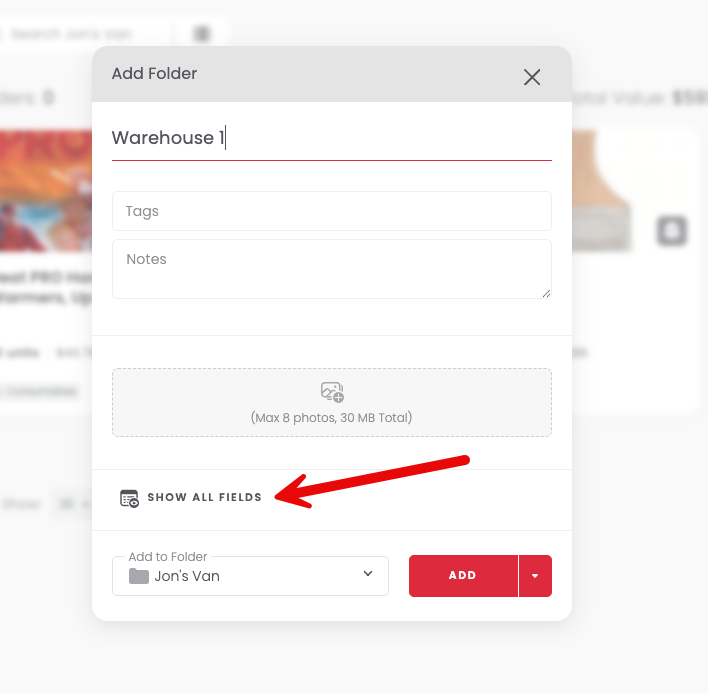
3. 3If you'd like to add all of the folder details at once, you can click the Show All Fields option
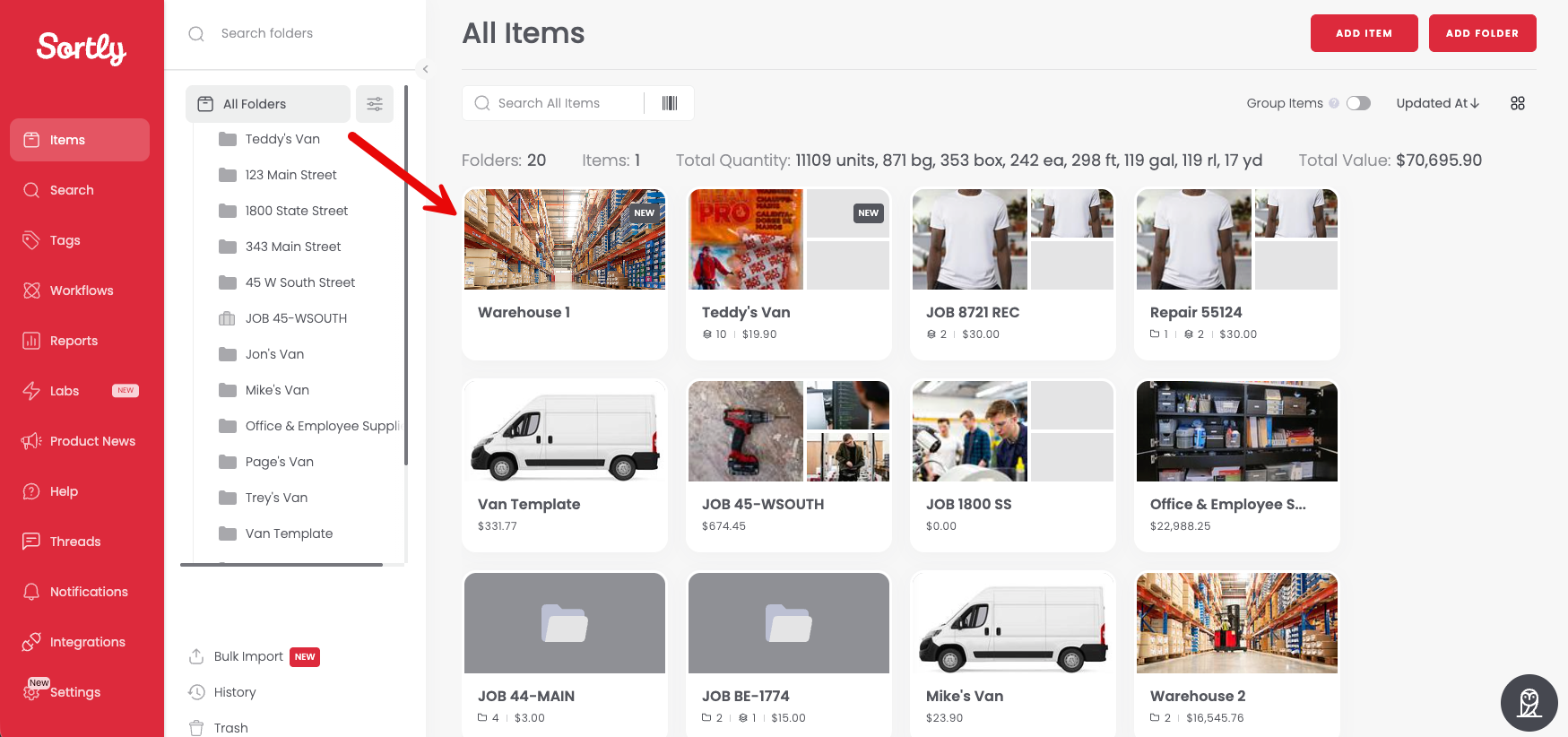
4. 4Click Add, and your folder will be added to your account
---
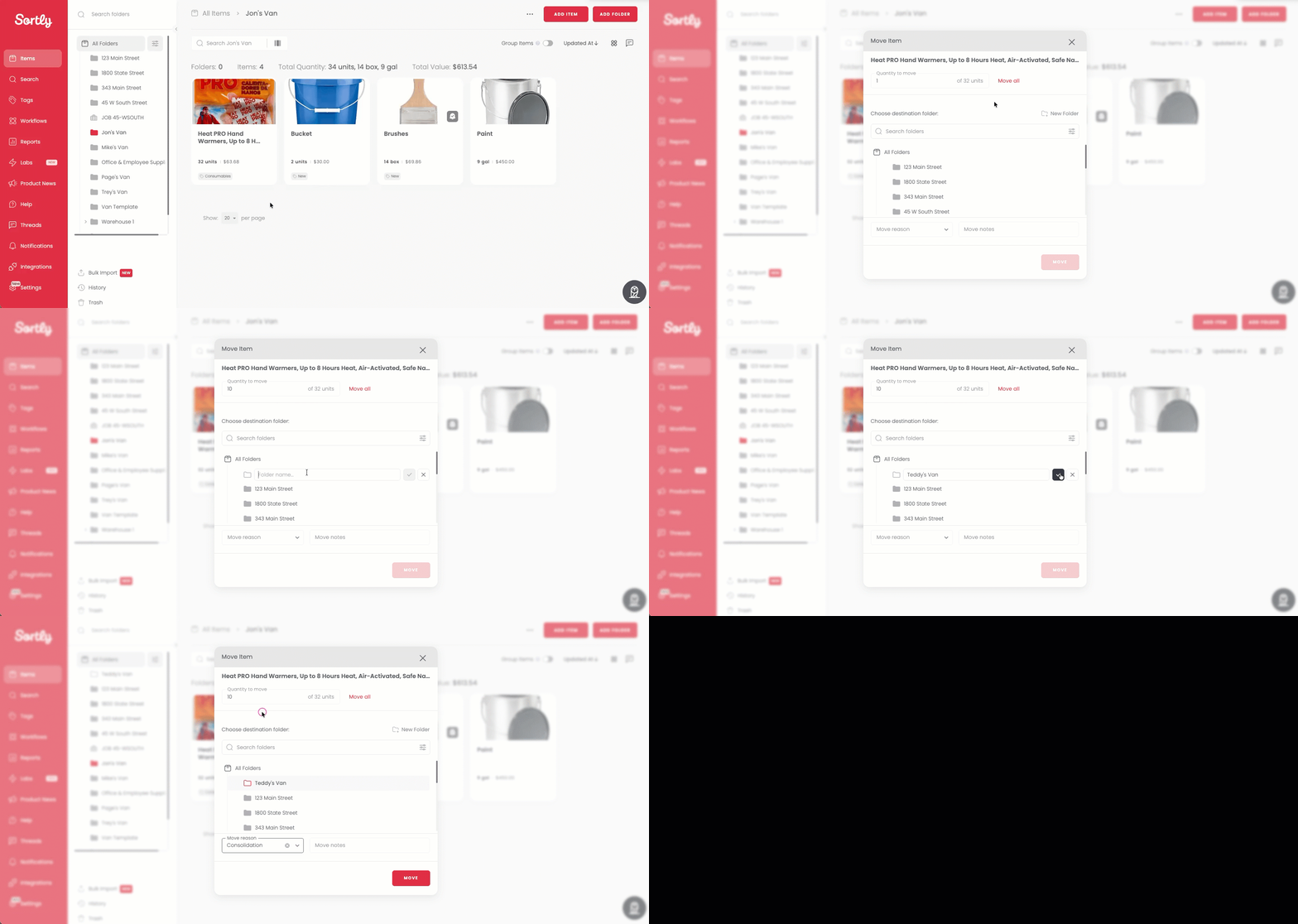
### Adding a Folder While Moving an Item
💡 This workflow is available only on the web version of Sortly.
1. 1From the **All Items** tab or the item details page, click Move
2. 2Select the quantity to move
3. 3Click New Folder
4. 4Create your new folder and click Move
---
### Adding Folders on the Mobile App
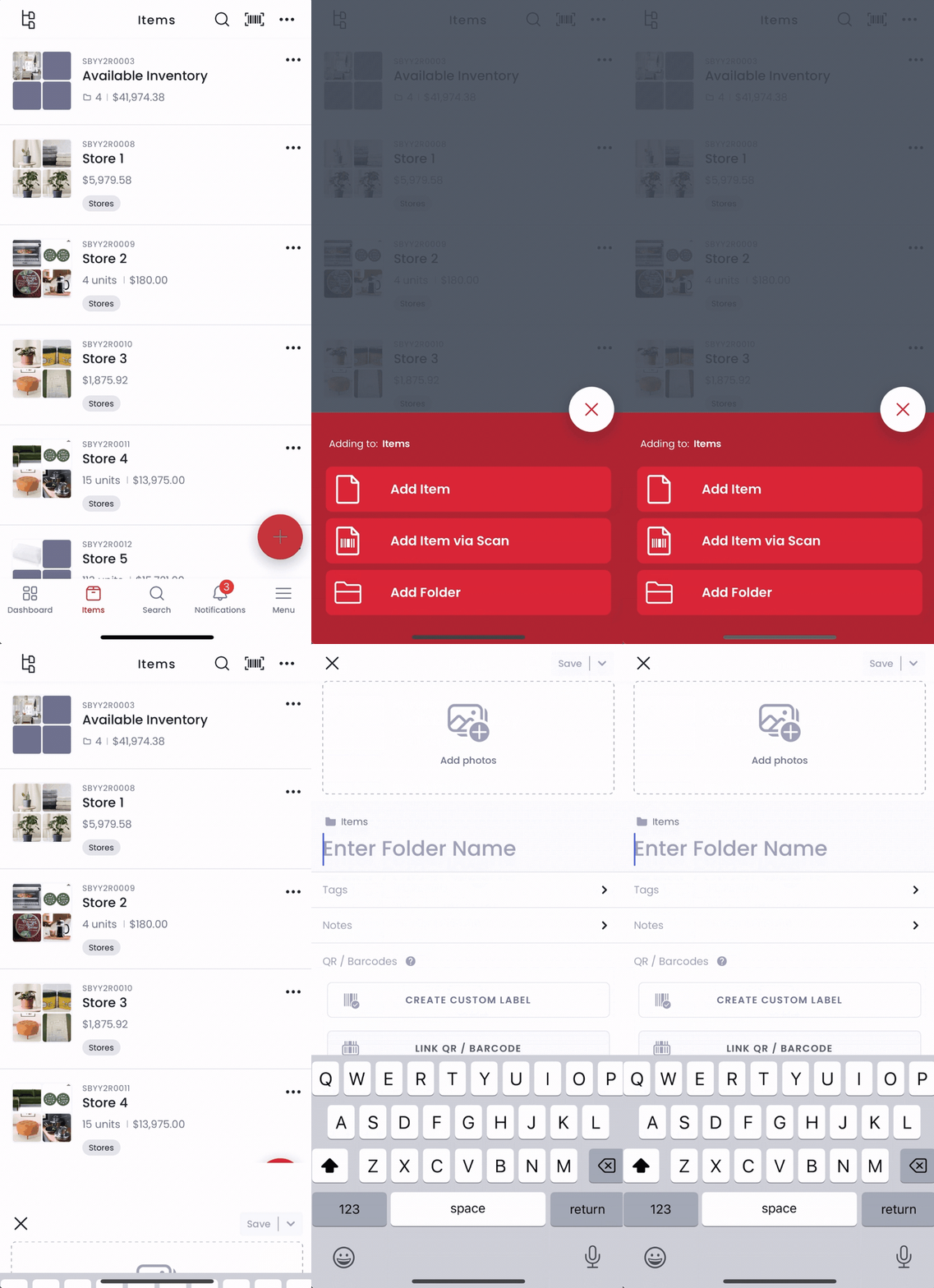
1. 1From the Items tab or within a folder, tap the **+** sign and tap Add Folder
2. 2Enter the details about the folder
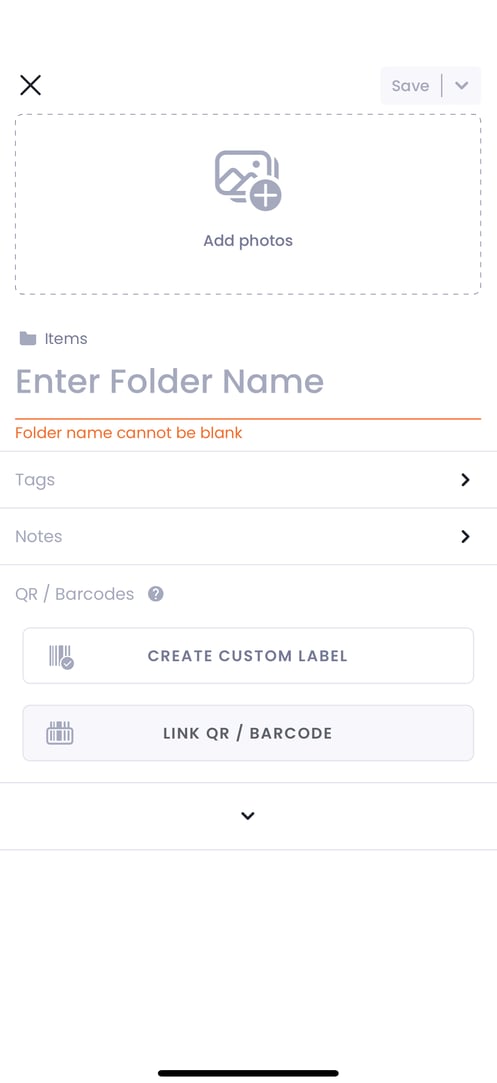
The above image shows all the default fields added to the system that you can use to add details about the folder. **Folder Name** is the only required field. You can choose to add additional information or leave the other fields blank.
The fields that you will see by default are the following:
- Folder Name
- Tags
- Notes
- Add Photos (up to 8 total images)
- Link QR / Barcode or Create a Custom Label
3. 3Click Save, and your folder will be added to your account
---
### Adding Folders in Bulk
To add folders in bulk, check out our [Bulk Import](https://help.sortly.com/hc/en-us/articles/360000735352-How-to-bulk-add-new-inventory-in-Sortly-via-CSV-Excel-Numbers-Google-Sheets-?hsLang=en) feature. You can utilize our prebuilt template or import folders directly from your own Excel file, saving you time and effort.
---
### Cloning/Duplicating Folders
At times, you may need to create a new folder identical to another, including its contents. This can be accomplished by cloning the folder.
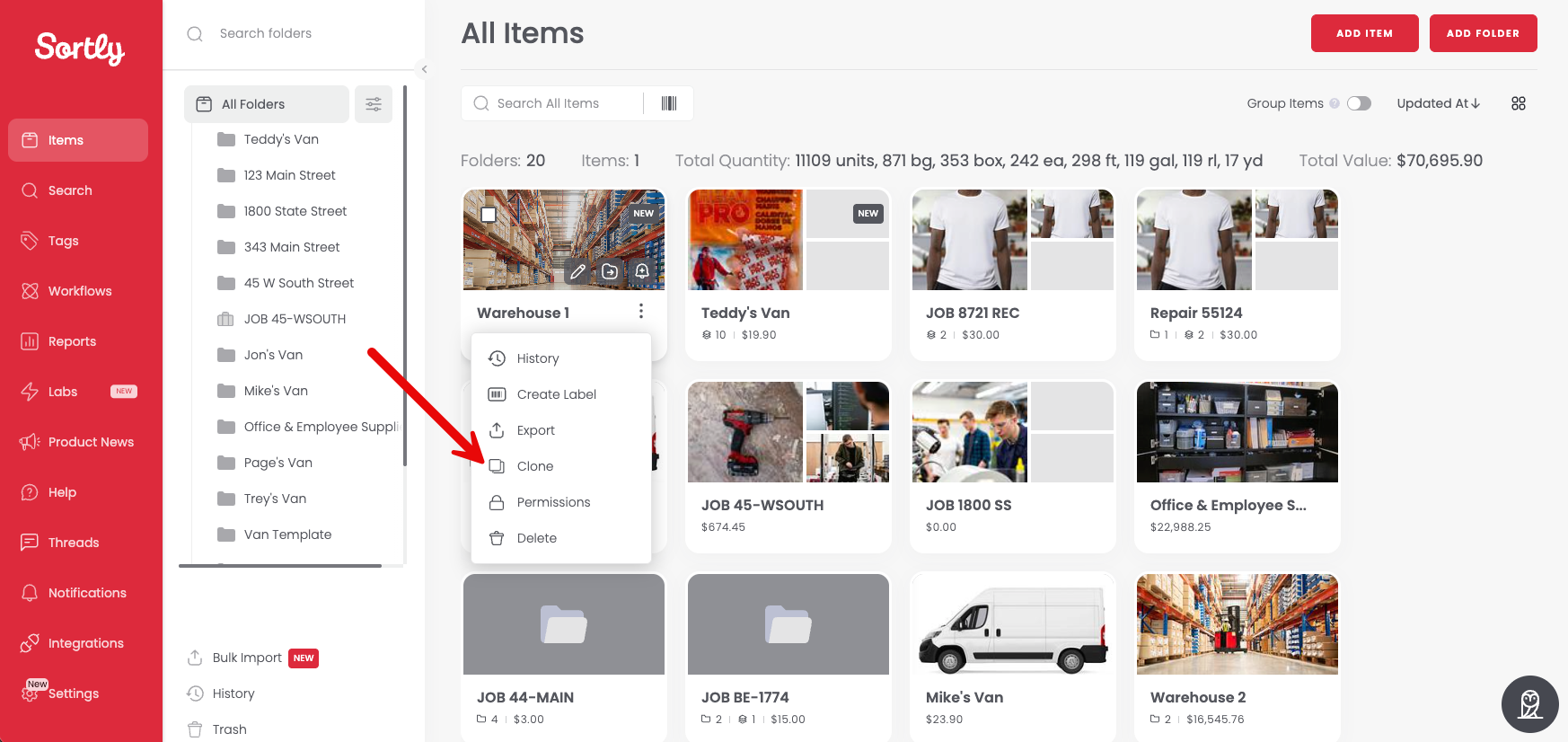
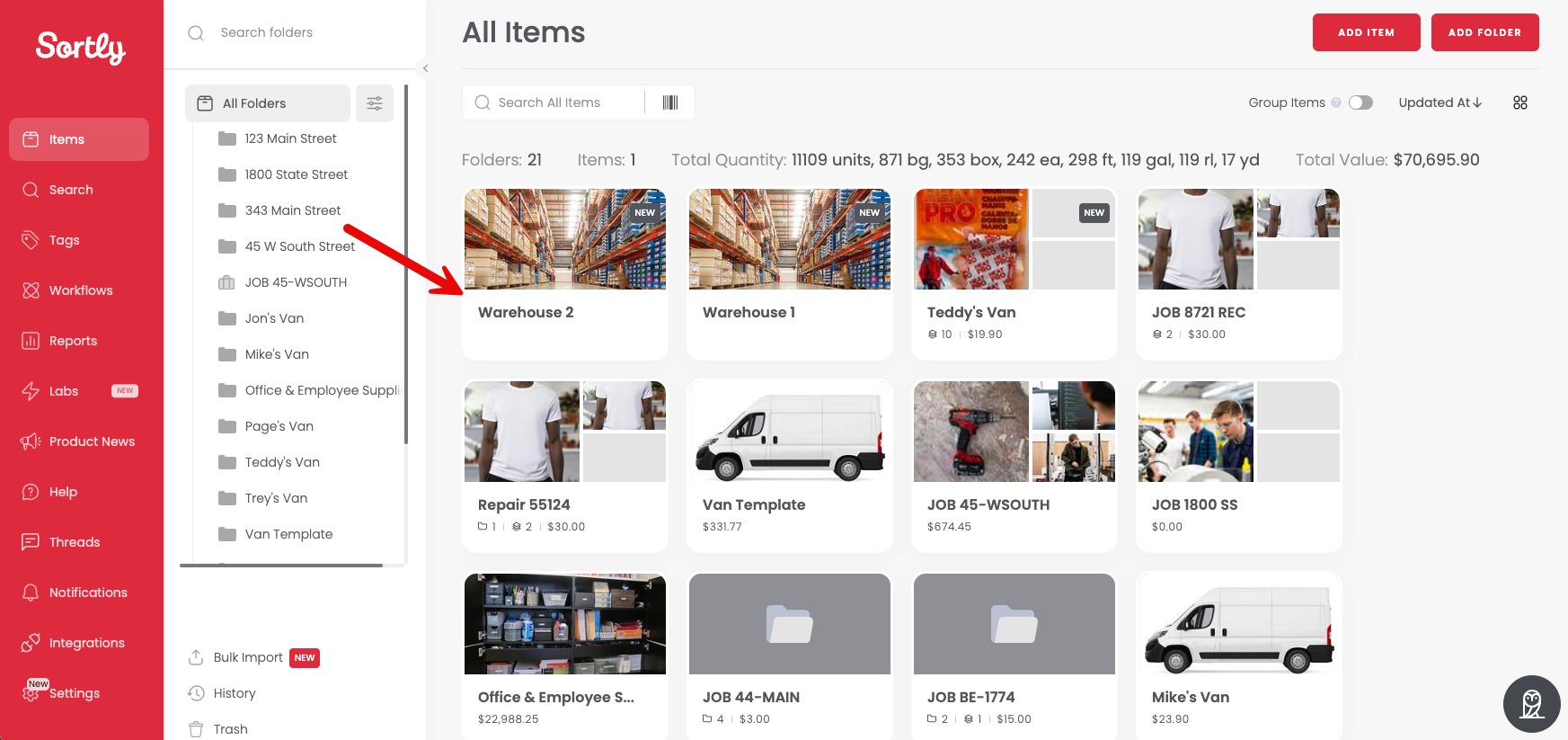
In this example, we want to add another Warehouse folder to our account.
1. 1Click on the three dots on the folder you want to clone and choose Clone
2. 2Change the folder name and choose to include the folder's content (if desired)
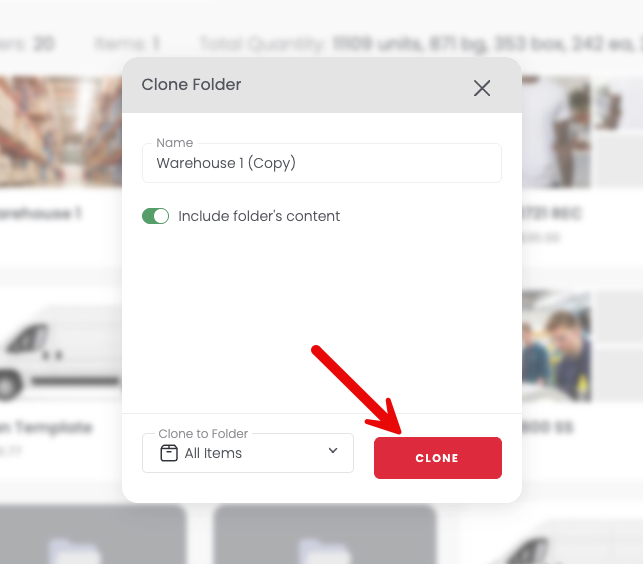
3. 3Click Clone and you will have an identical folder (and contents) with a different name
### Frequently Asked Questions
How do I rename a folder?
1. Go to the Items tab
2. Click on All Items to open your folder list
3. Hover over the folder you need to rename
4. Click the three-dot menu (⋮) and select Edit
5. Update the name
6. Save your changes!
Is there a limit to the number of subfolders?
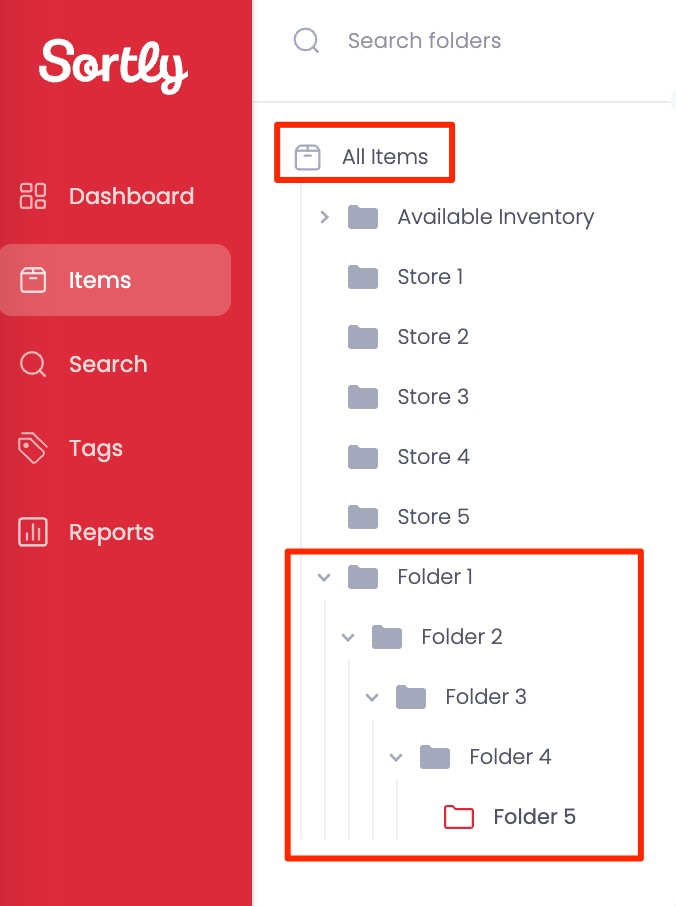
Yes, there's a limit to the depth of folders, not the number of folders you can create. You can nest folders up to six levels deep, and that count starts with the top level All Items folder.
This works the same way as folders on your computer. On a Mac, your hard drive is technically the first folder, even though you probably don't think of it that way. Everything nested inside it, like Documents, then a project folder, then a folder for this year, still counts toward how deep you've gone. Sortly works the same way: All Items is level one, so you have five more levels to nest underneath it.
For example:
- All Items (level 1)
- Folder 1 (level 2)
- Folder 2 (level 3)
- Folder 3 (level 4)
- Folder 4 (level 5)
- Folder 5 (level 6, maximum depth)
💡 If you're not sure how deep a folder already is, count from All Items. All Items is always level 1, so the folder you're looking at is however many clicks away from there.
You can create as many folders as you'd like, as long as no single branch nests deeper than six levels.
How do I find the Folder SID?
To locate the Folder SID in your Sortly account:
1. Go to the Items tab
2. Click on All Items to open your folder list
3. Hover over the folder you need the SID for
4. Click the three-dot menu (⋮) and select Edit
5. Once you're inside the folder settings, the SID (System Identifier) will be displayed
Questions? Please contact our [Support Team](https://help.sortly.com/hc/en-us/requests/new?hsLang=en).
[](https://www.sortly.com/)
Copyright © 2026, Sortly Inc.