
In Sortly, organizing your inventory, assets, or consumption starts with setting up your folder structure. You can create folders and subfolders based on location, category, or any other classification that fits your needs.
In this article
Setup for Tracking Inventory
You can organize folders (and subfolders) by location, category, or any other classification that suits your needs.
Set up your folders to match how your items move. For job-based work, create a main Available Inventory folder plus a folder for each job. If items move between locations, stores, or warehouses, create one folder for each.
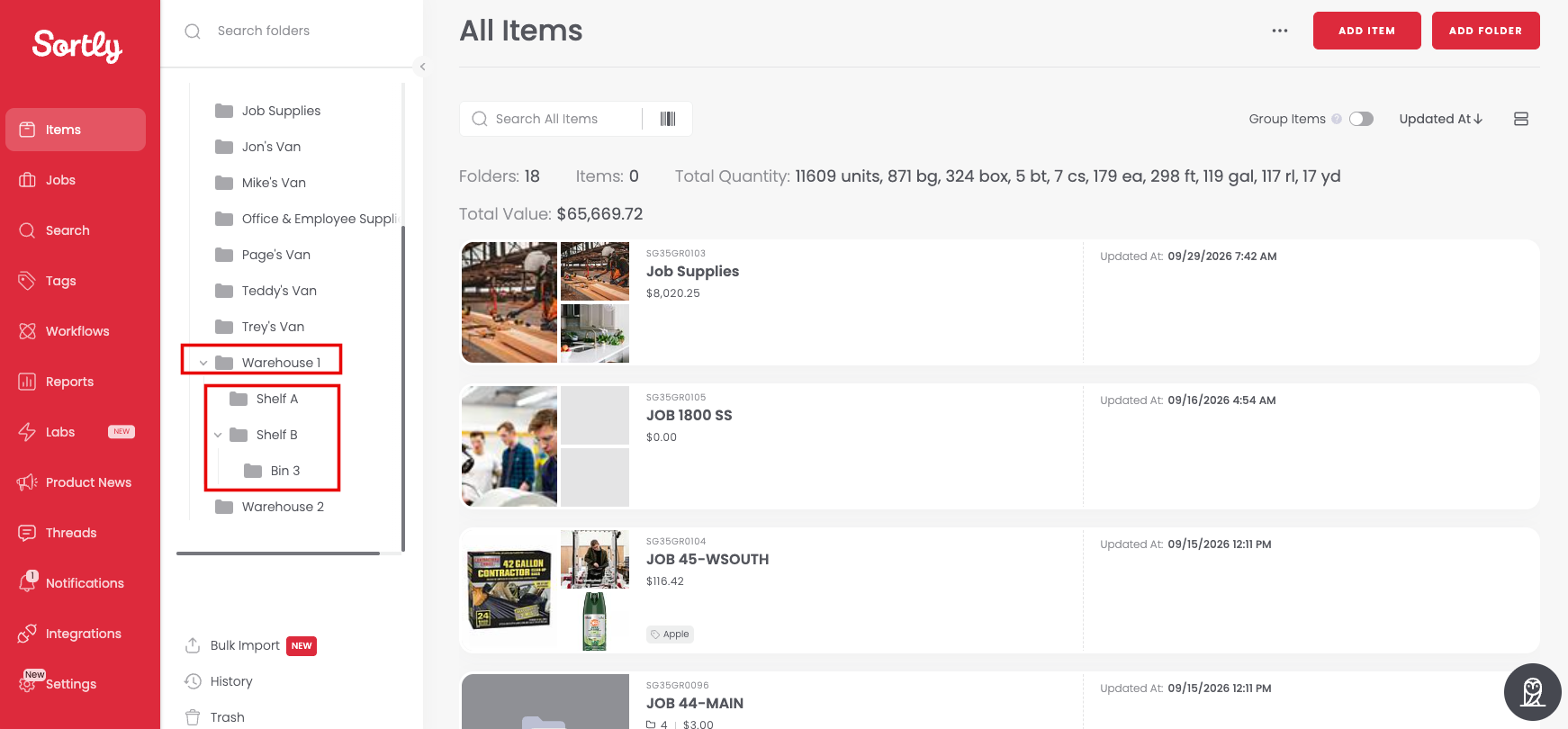
Setup for Tracking Assets or Consumption
If you are using Sortly for consumption or asset tracking, rather than moving items between folders, you should update the quantities and specify a reason for the change (e.g., consumed, sold, restocked). You can also add custom reasons to fit your workflow. See Custom Transaction Reasons to learn more. Additionally, adding a Transaction Note lets you capture further details about the quantity change.
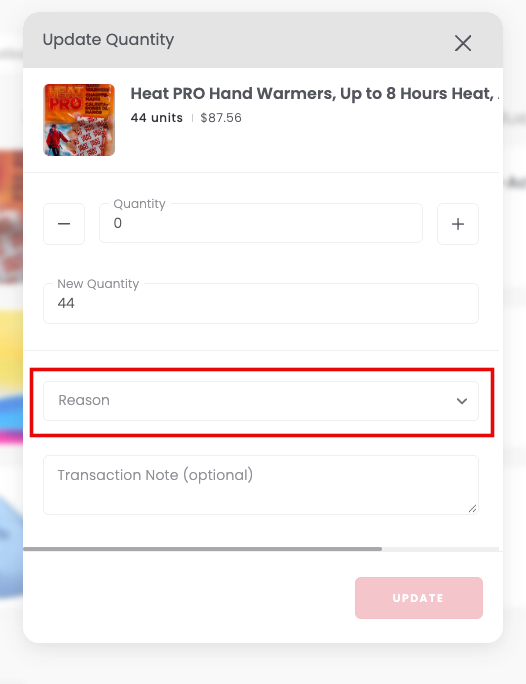
You can then view your Transaction Notes in the Reports tab of your Sortly account here: https://app.sortly.com/reports/all-transactions.