Skip to content
  • There are no suggestions because the search field is empty.

How to Track Individual Items with Unique QR Codes

Keep track of every box, roll, or piece on its own by giving each one a unique QR code. When you clone an item and give each clone its own Sortly ID (SID), every unit gets a code you can scan and track separately, instead of sharing one quantity. This article walks you through when to use this method, how to create the base item, and how to clone it for each piece.

When to use this method

This method works best when you need item-level traceability, so every unit is scanned and tracked on its own instead of as part of a shared count.


Create the base item

1
Select Items in the left menu.
2
Select Add Item and enter a name for the item (for example, Work Gloves).
3
Set Unit of Measure to box, roll, or whatever matches your item.
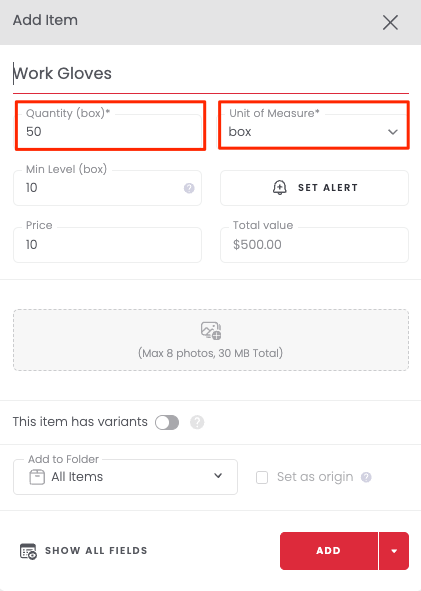
Add Item window for Work Gloves with Quantity (box) set to 50 and Unit of Measure set to box
4
Select Add.

Clone the item for each piece

1
Select the three-dot menu on the base item, then select Clone.
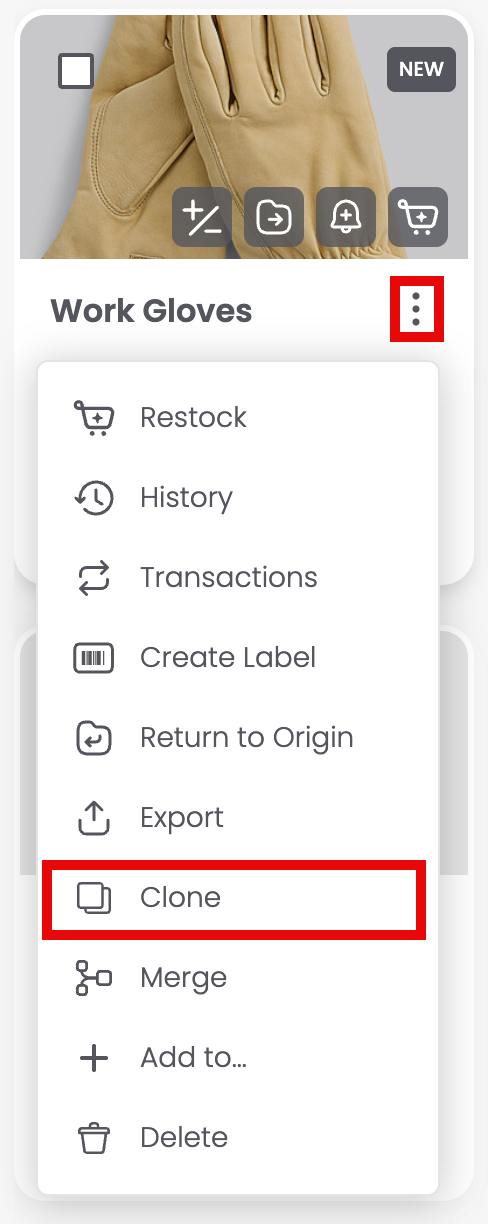
Three-dot menu on the Work Gloves item with Clone highlighted
2
In Clone Item, enter how many copies you need in Number of clones (30 max).
3
Select Generate unique Sortly ID for each clone. This gives each clone its own unique identifier in Sortly.
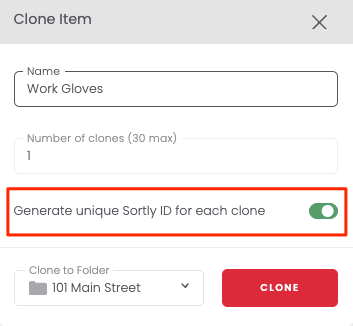
Clone Item window with Generate unique Sortly ID for each clone selected
4
Select Clone.
5
If you need more than 30 clones, repeat these steps.

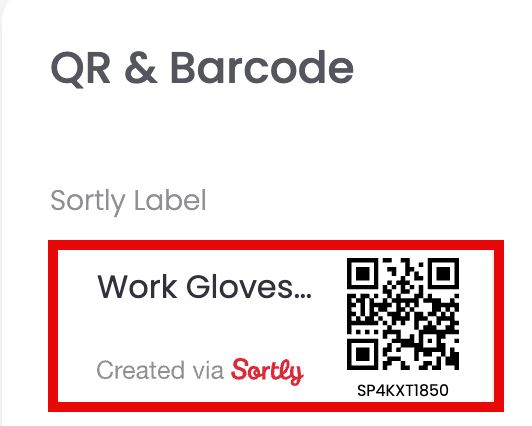
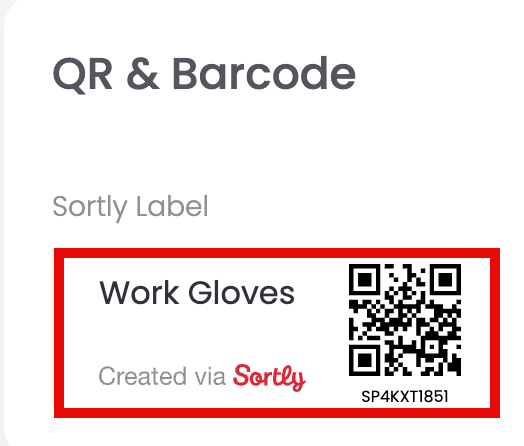
Because each clone has a different SID, its QR code is unique too:
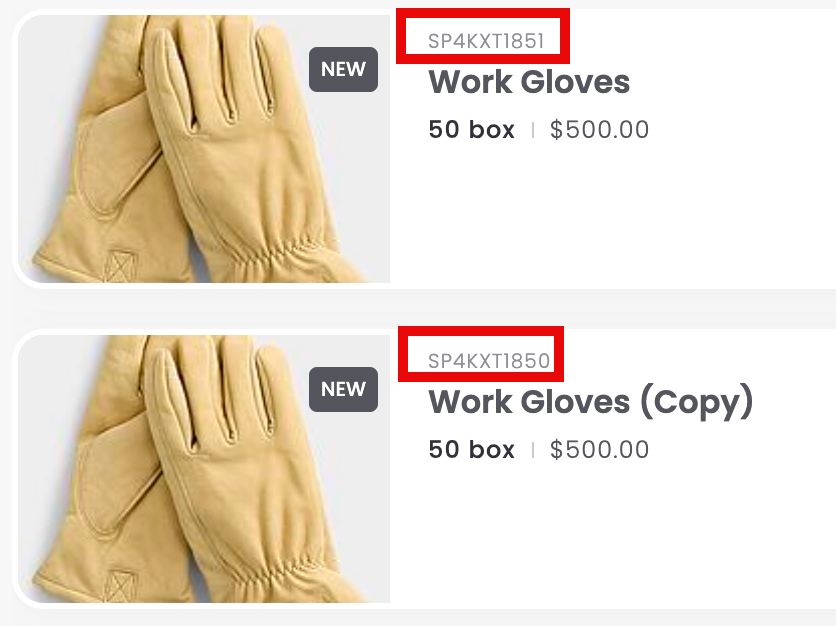
Work Gloves and Work Gloves (Copy) in the item list with different SIDs, SP4KXT1851 and SP4KXT1850
QR & Barcode section of the cloned item showing a Sortly label with SID SP4KXT1850
QR & Barcode section of the original item showing a Sortly label with SID SP4KXT1851

Frequently Asked Questions

Do all clones automatically get their own QR code?
Only if you select Generate unique Sortly ID for each clone when cloning. Without it, the clone shares the same SID and QR code as the original item.
Can I generate unique SIDs when cloning items in bulk?
No. The unique SID option is only available when cloning items individually. Bulk cloning always keeps the same SID across clones, so use this one-at-a-time method whenever you need separately trackable units.
What if I receive more of the same item later?
Select the base item again and repeat the clone steps for however many additional pieces you received.