
Businesses need to document their inventory levels for audits, tax preparation, or financial reporting. Inventory Snapshot makes this easy by automatically creating a saved, point-in-time record of your inventory, no manual exports required.
In this article
How Inventory Snapshot Works
With Inventory Snapshot, you can:
- Subscribe once and automatically receive a monthly snapshot, no manual export needed.
- Access up to 1 year of historical snapshots directly in Sortly.
- Stay audit and tax-ready with consistent, timestamped records.
Accessible to Owners, Admins, Team Members, and Custom Roles.
Subscribe to a Snapshot
-
1Go to Inventory Summary
Open the Inventory Summary report in Sortly.
-
2Click Subscribe
This appears at the top of the report.
-
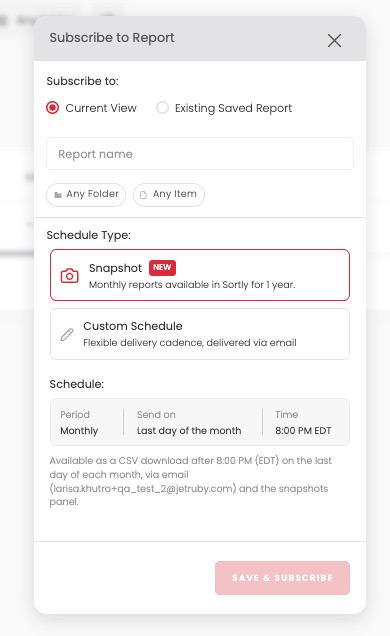
3Choose Current View
Then name your report.
-
4Select Snapshot as the Schedule Type
Snapshot reports run monthly and are saved in Sortly for 1 year.
-
5Click Save & Subscribe
Create a Custom Snapshot
You can also create a custom Inventory Snapshot to focus on specific folders or items instead of your full inventory.
-
1Go to Inventory Summary
-
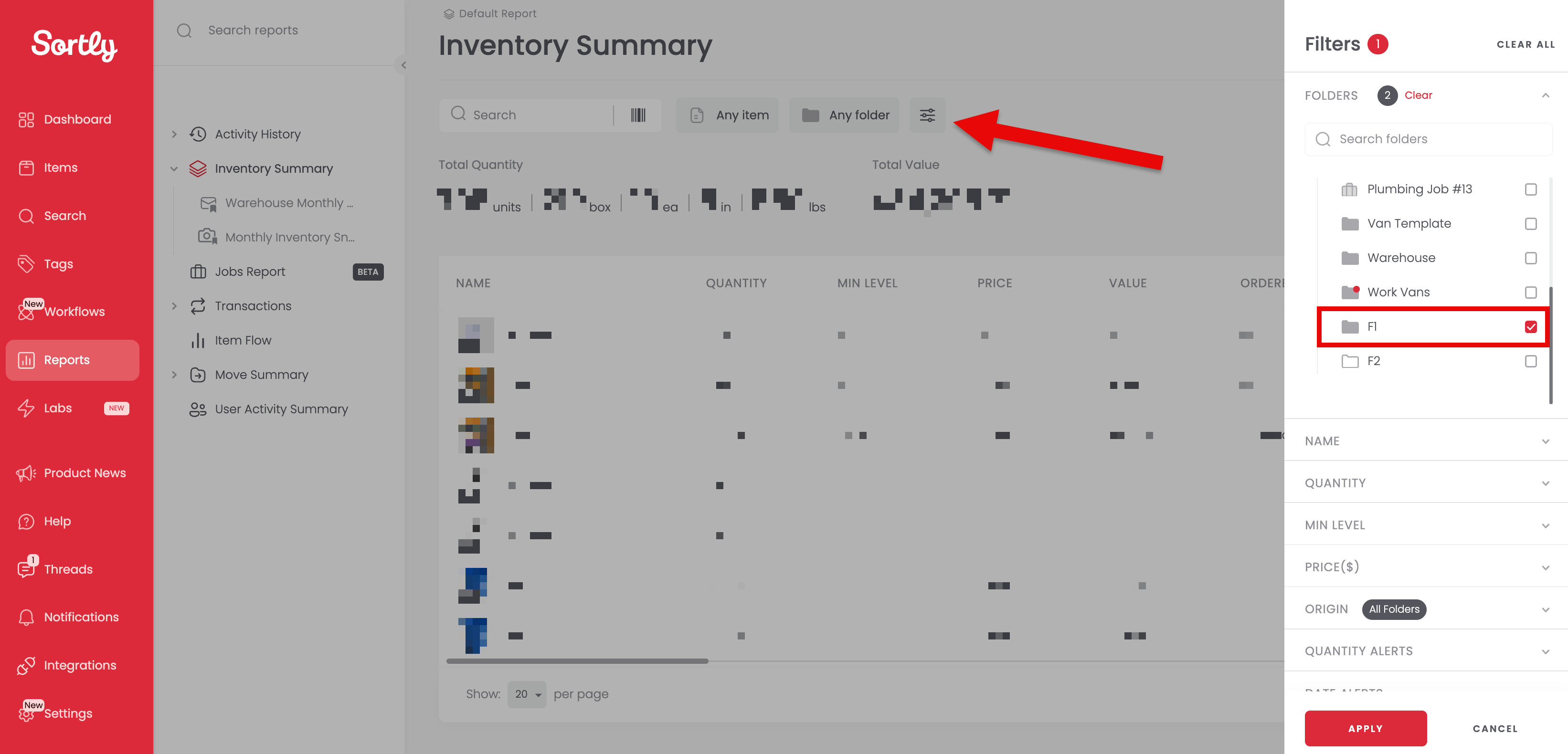
2Choose your filters
For example, select a specific folder to filter down to.
-
3Click Apply
-
4Click Subscribe
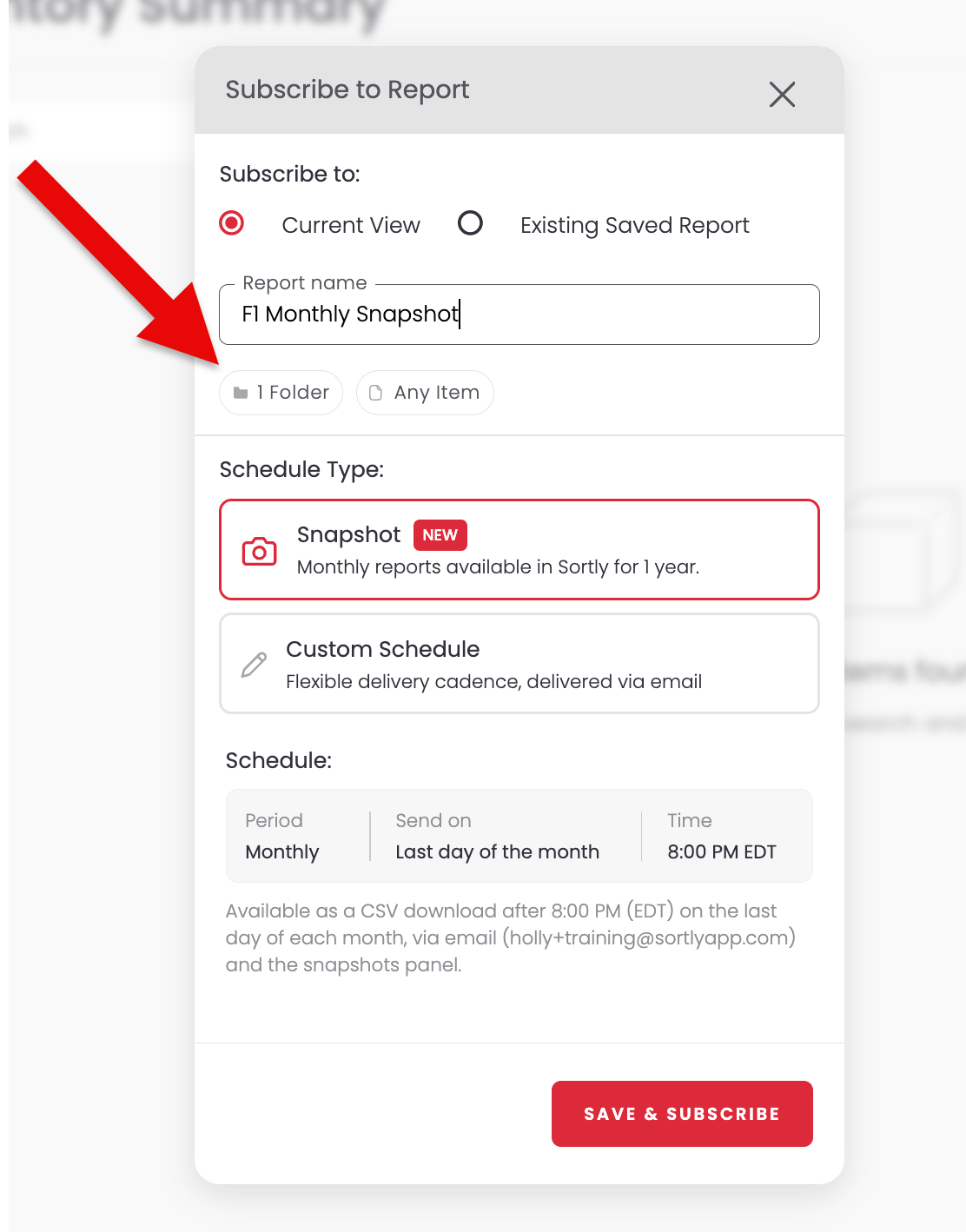
Choose Current View to subscribe to your filtered results.
-
5Enter a report name
For example, "F1 Monthly Snapshot."
-
6Select Snapshot as the Schedule Type
-
7Click Save & Subscribe
Access Past Snapshots
-
1Go to Inventory Summary
-
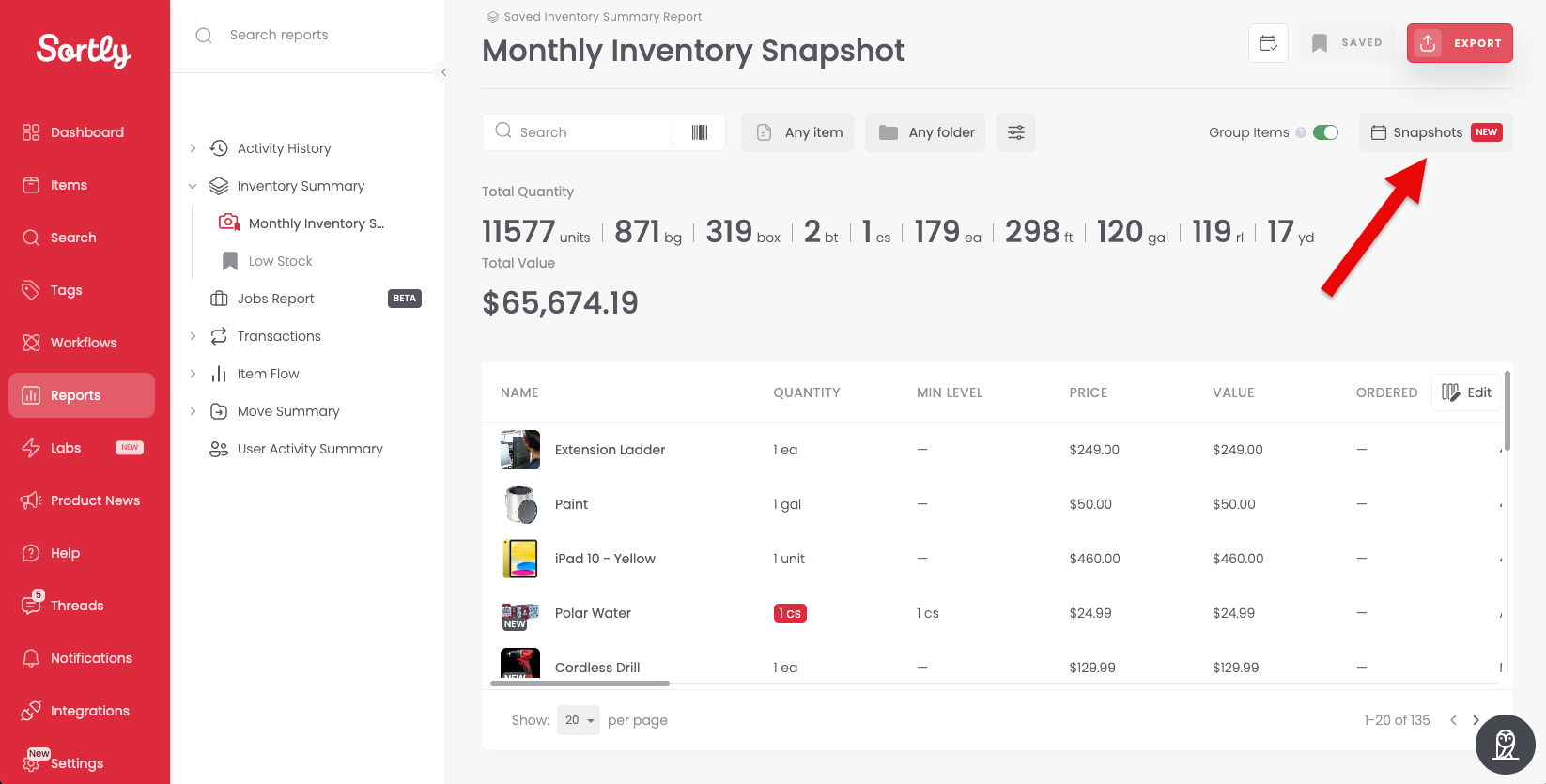
2Click Snapshots
This sits next to the Export button, in the top right of your saved report.
-
3Browse available months
You'll see up to 1 year of historical snapshots in the panel on the right, each available to download.

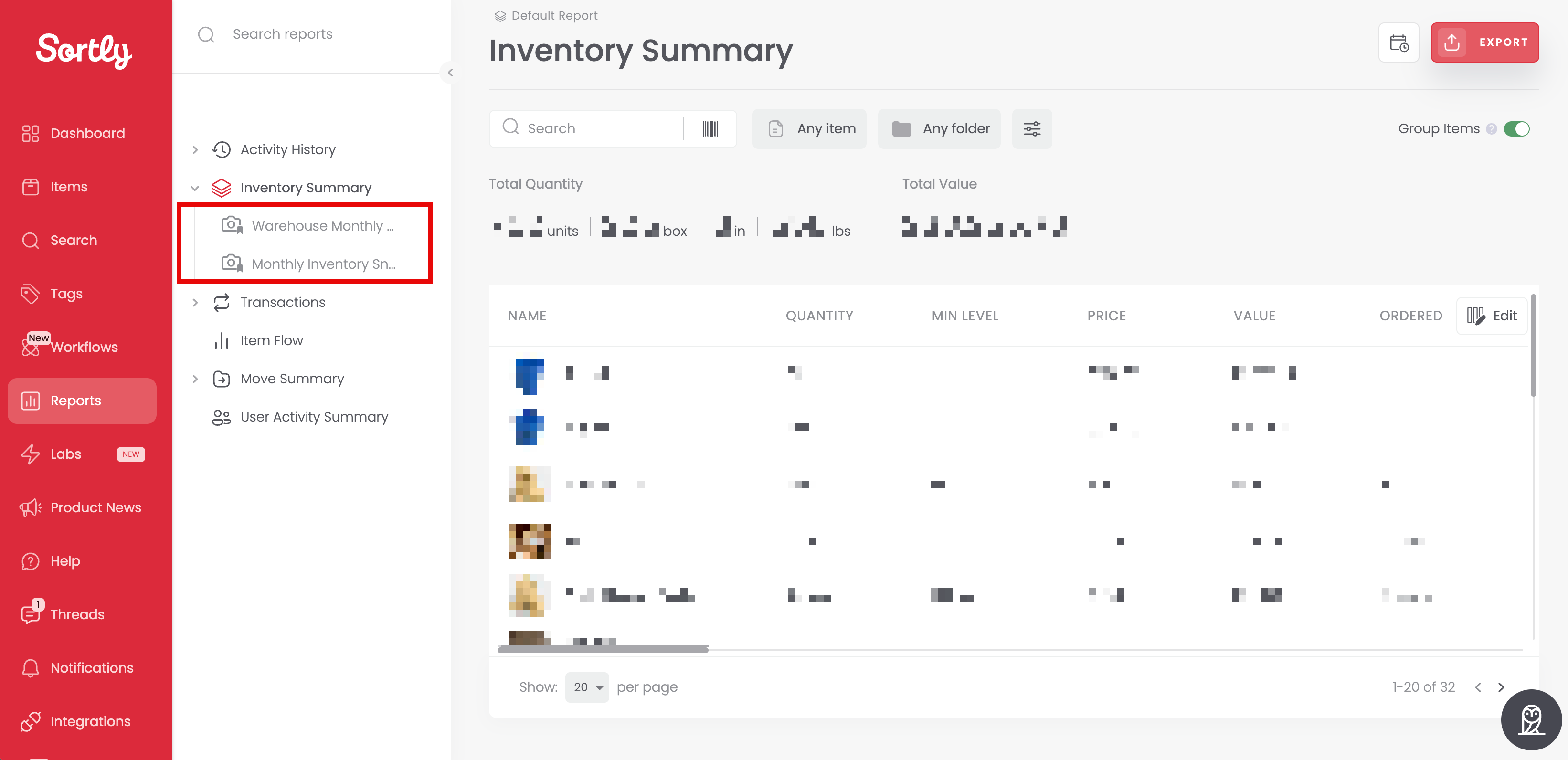
You can also find your snapshots listed in the Reports menu on the left, nested right under Inventory Summary.
Manage Your Snapshot Subscription
-
1Open the subscription settings
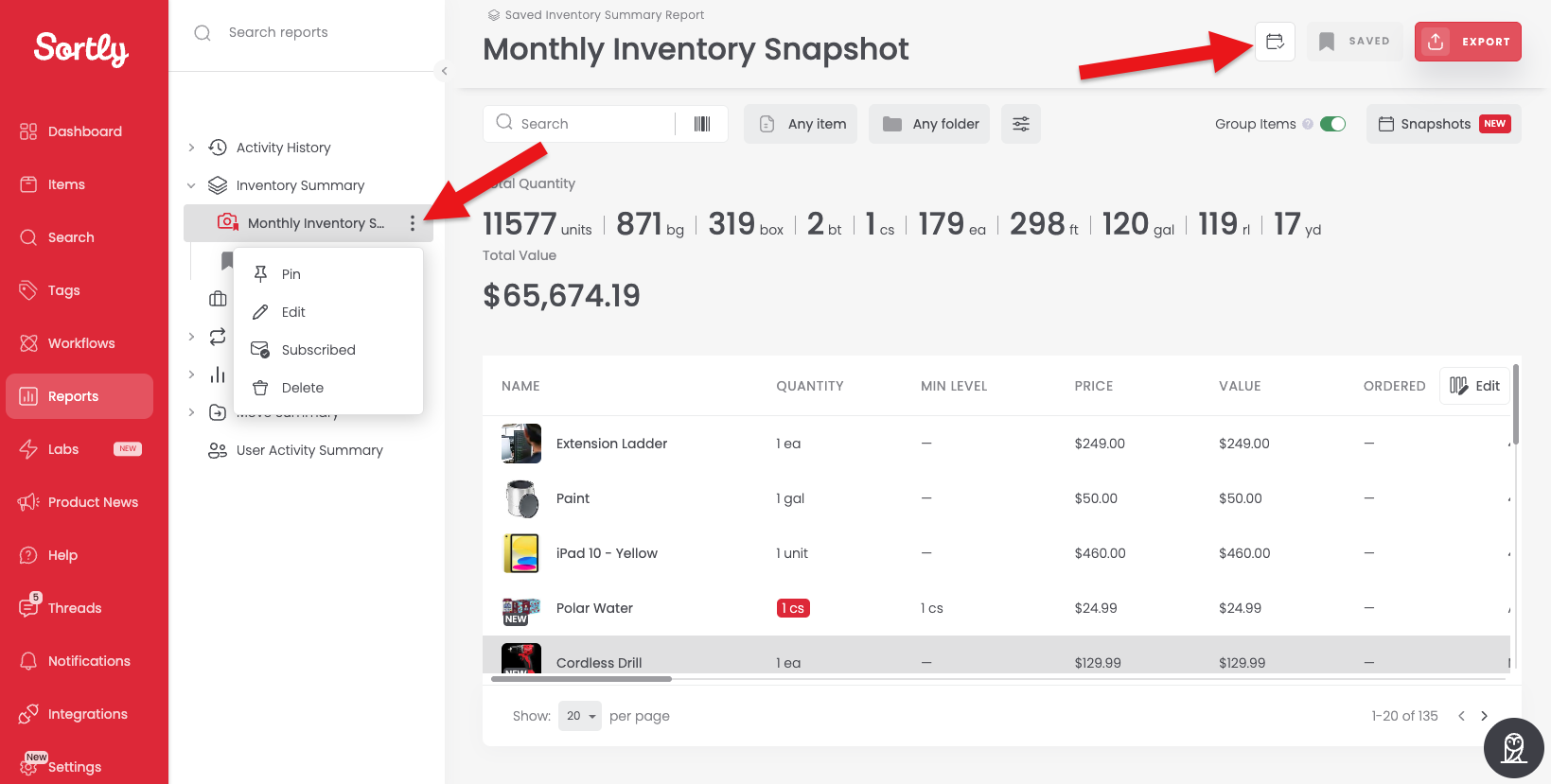
From your saved snapshot report, click the calendar icon at the top right. Or, in the Reports list on the left, click the three dots next to the report name and choose Subscribed.
-
2Choose Unsubscribe
This stops future snapshots from being delivered by email. Your past snapshots (up to 1 year) will still be available in Sortly.
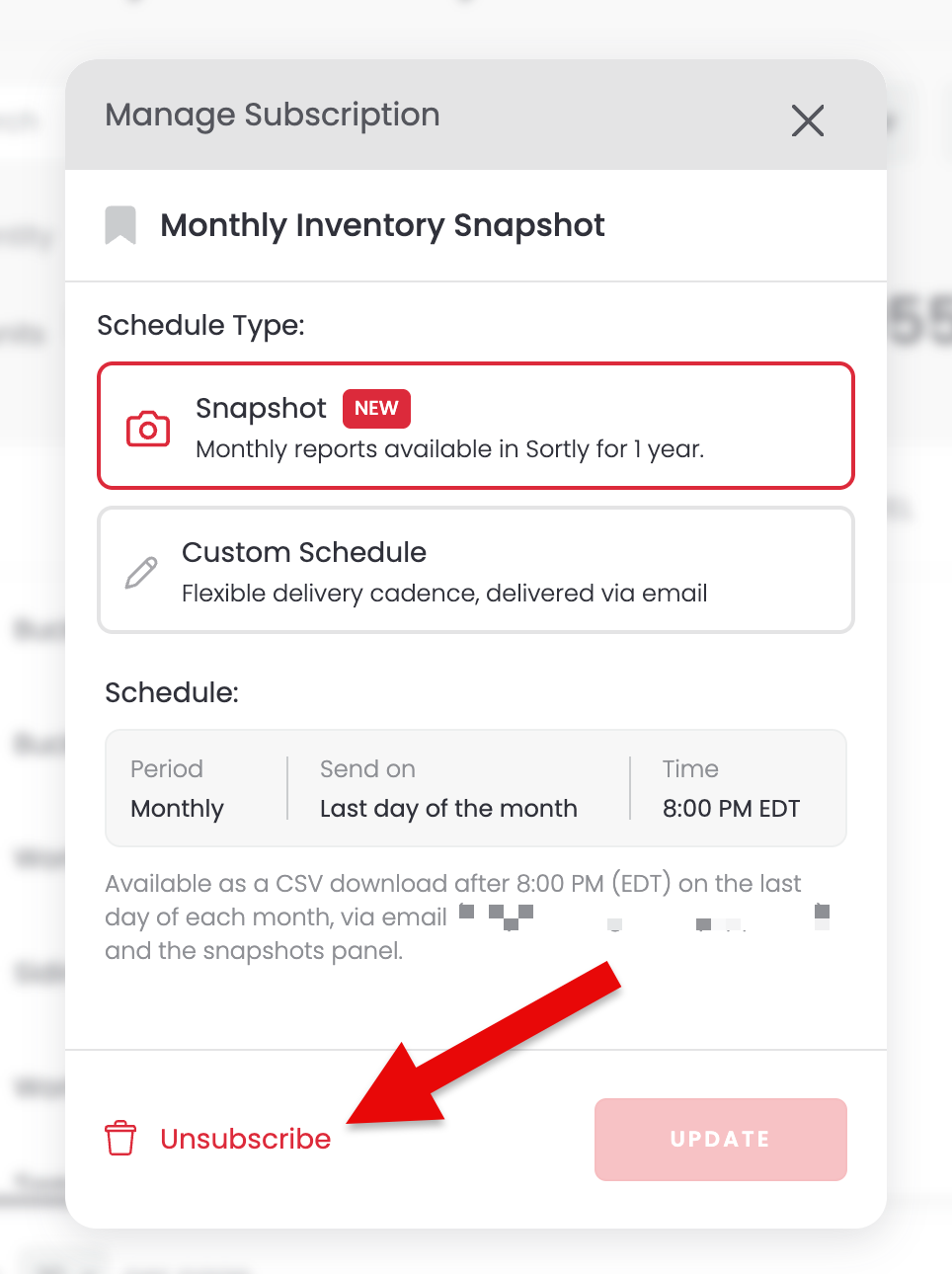
To resubscribe, reopen the subscription settings and click Resubscribe.
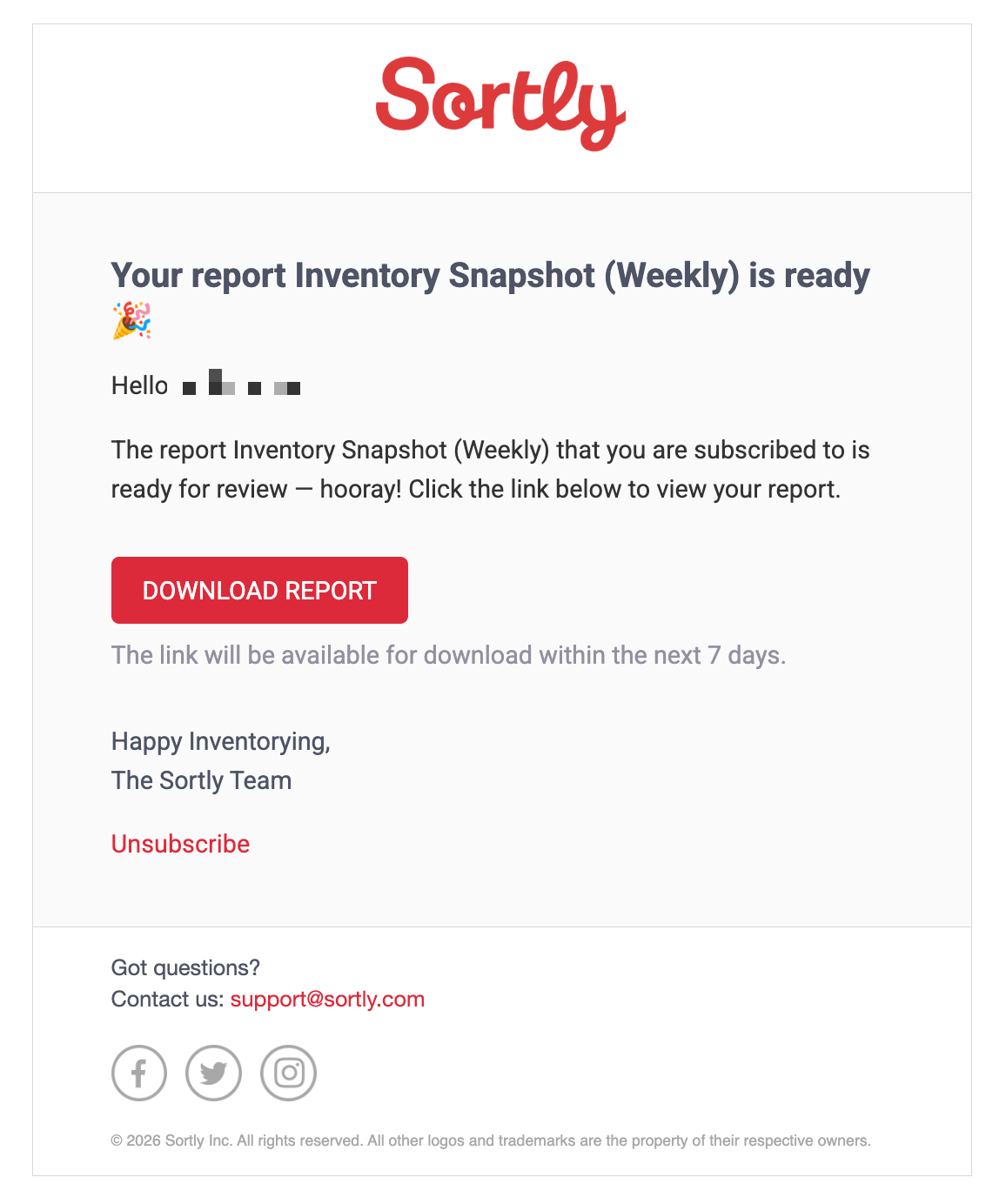
Delivery time: Snapshots are sent after 8:00 PM (your company's time zone) on the last day of each month.