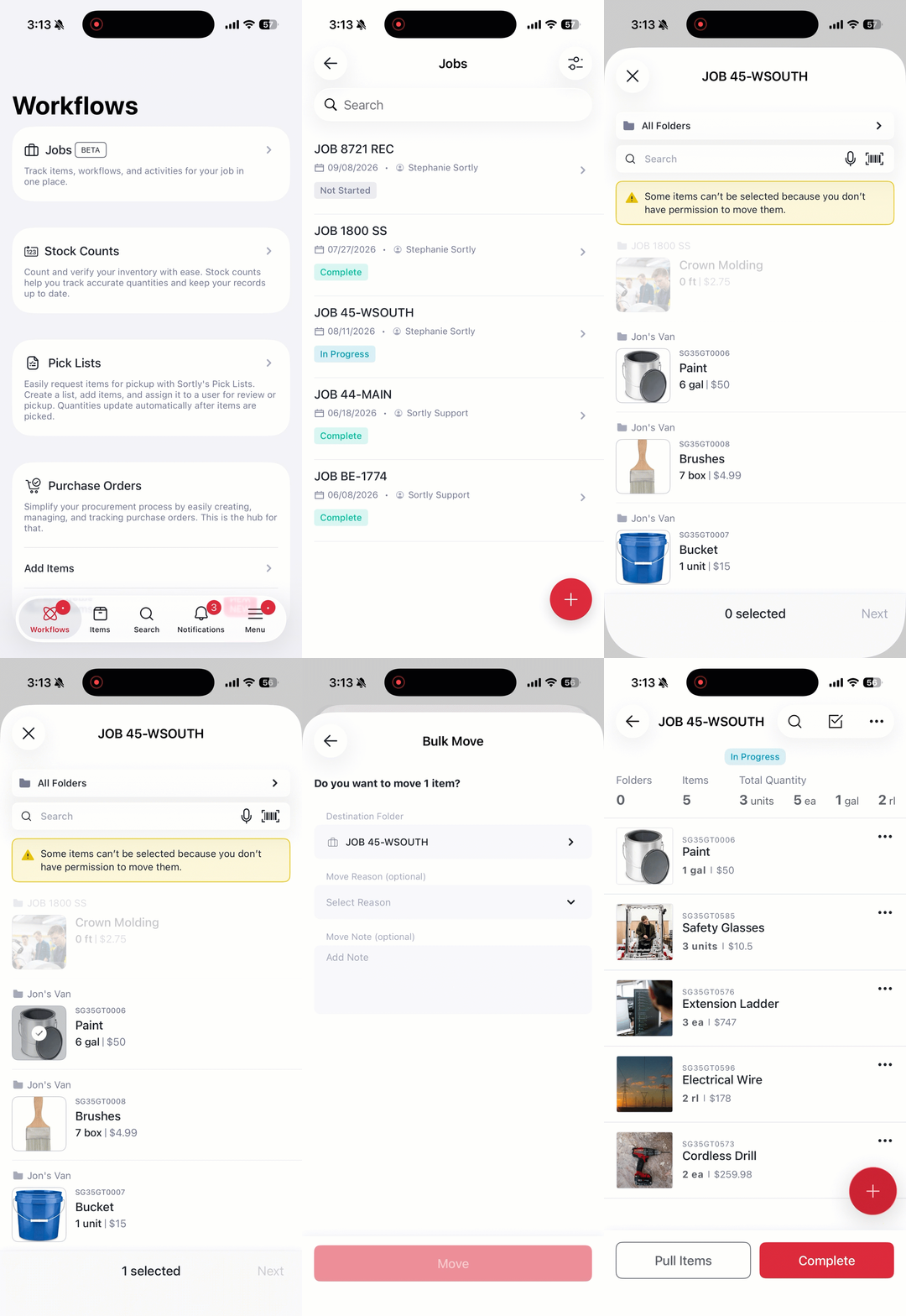
Use Jobs to track all the tools, materials, and assets tied to a specific project or work order, from the moment work starts to the moment it's done.
Pull items from your inventory into a job, track what gets used along the way, and complete the job with a full record of everything that was used. Need to make a change afterward? Owners and Admins can reopen a completed job.
In this article
How Jobs works
Jobs is available in the Workflows section of Sortly, on both web and mobile. Each job gets its own folder, keeping all the materials for that job together and separate from the rest of your inventory.
A job moves through a simple lifecycle:
- Create the job and capture its details
- Organize items into optional subfolders that match how your team works
- Pull items from inventory into the job as they get used
- Track progress by updating the job status and item quantities
- Complete the job and save a full record of everything that was used
Who can use Jobs
Every role can use Jobs. Owners and Admins see every job. Everyone else sees only the jobs they created or were added to as a member.
Within a single job, you control each member's access separately. When you add someone, choose whether they can view only or manage items in that job.
Owners and Admins also have access to org-wide Job Settings, including the ability to define Additional Fields (fields that appear on every job, such as Project or Customer name), Custom Subfolders (a default subfolder structure applied to every new job the team creates), and the ability to reopen a completed job.
Active job limits
A job counts as active until it is marked Completed. How many you can have active at once depends on your plan:
Job Settings
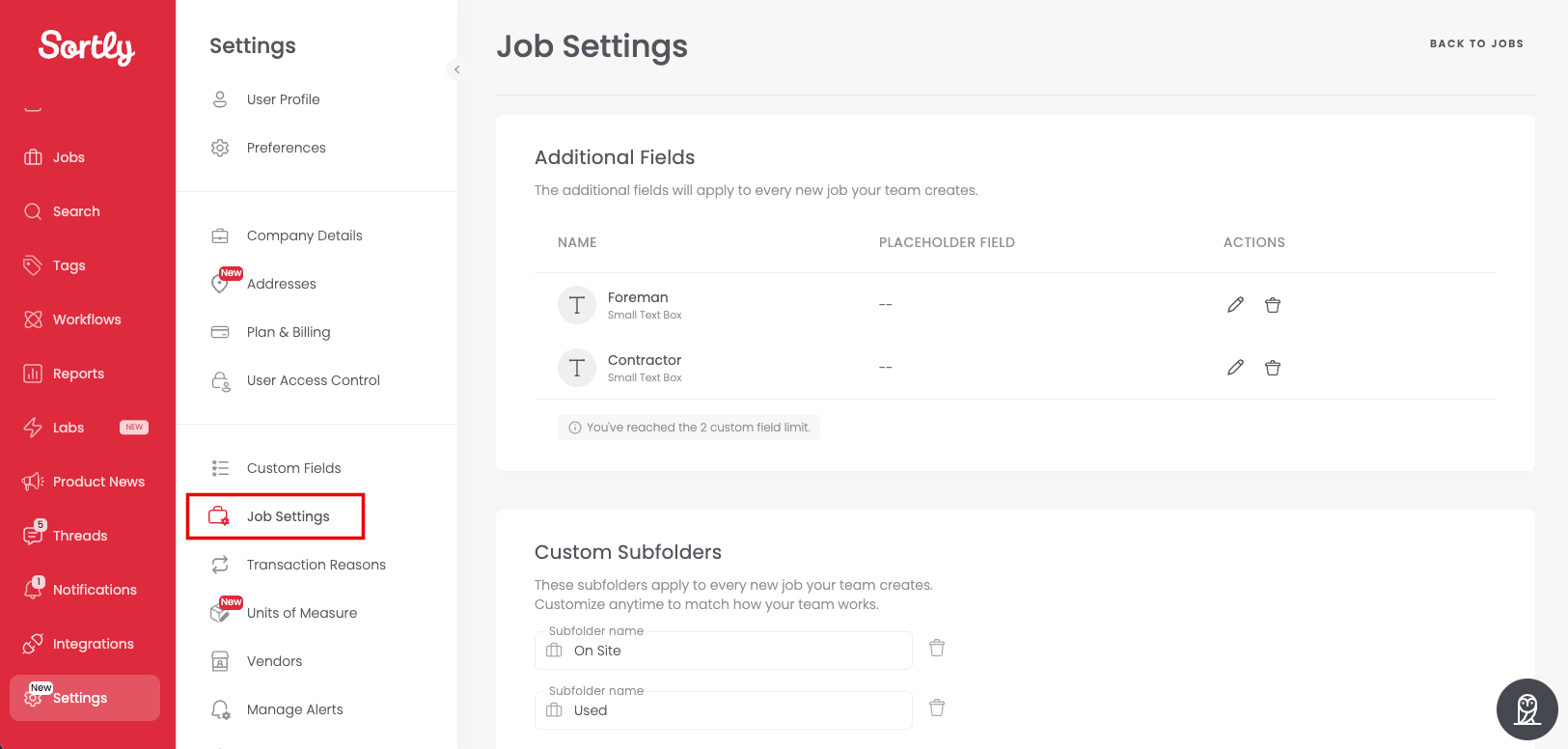
Owners and Admins can configure default additional fields and subfolders that apply to every new job your team creates. Go to Settings and select Job Settings.
Additional Fields
Add additional fields to capture extra details on every job, such as Foreman or Contractor. These fields appear on every new job your team creates. You can add up to 2 additional fields; once you hit the limit, Sortly lets you know before you can add another.
Custom Subfolders
Add subfolder names here to have them pre-populated whenever a new job is created. This saves your team from setting up the same subfolders from scratch each time. You can still add, rename, or remove subfolders on individual jobs at any time.
Understanding Job Statuses
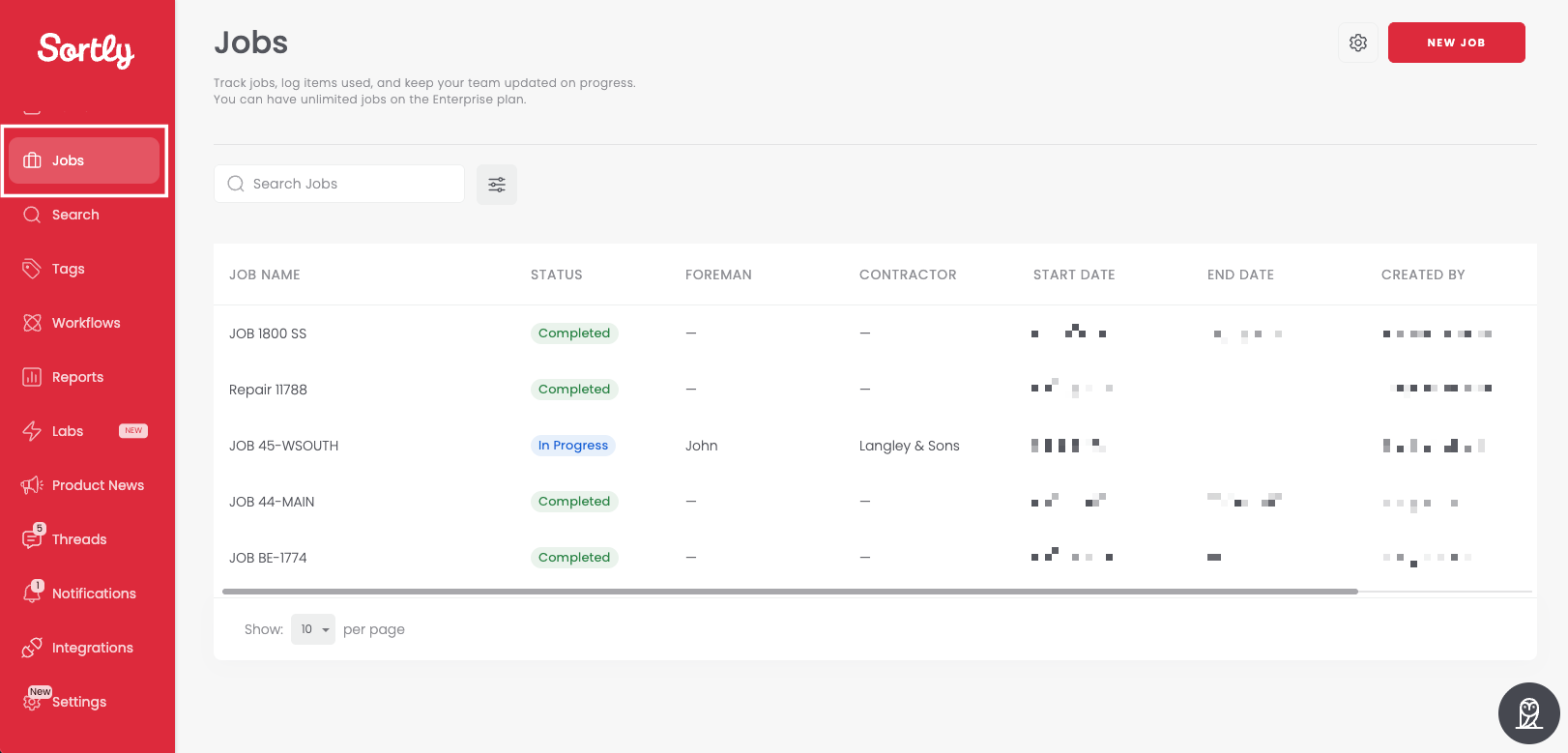
- Not Started: the job has been created but work has not begun
- In Progress: the job is underway. You can add items, move them around, and update quantities
- Completed: the work is done. The job is locked, though an Owner or Admin can reopen it. See Reopen a completed job below
Only an Owner can delete a job, which sends the job folder to Trash.
Completed jobs are automatically hidden from your main inventory view. For more ways to control which folders you see, including showing job folders only, see Filter job and item folders below.
Create and run a job
Follow these steps to take a job from setup through to completion. Steps 2 and 3 are optional.
-
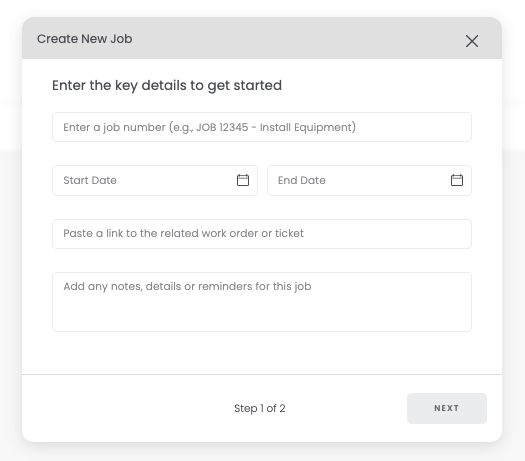
1Create the job
Go to Workflows, open Jobs, and create a new job. Enter job number, dates, notes, and an external job link. A job folder is created automatically. Start Date, End Date, and External Link are optional.
-
2Add subfolders (optional)
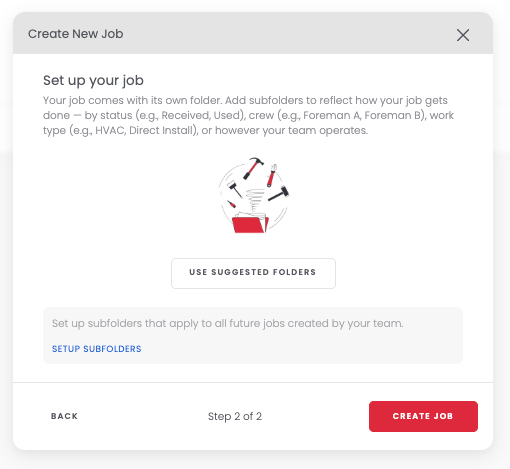
Organize items into subfolders by room, stage, or material family. Suggested subfolders are offered to start. Keep, rename, add, or skip them. You can change subfolders any time while the job is active.
-
3Add members
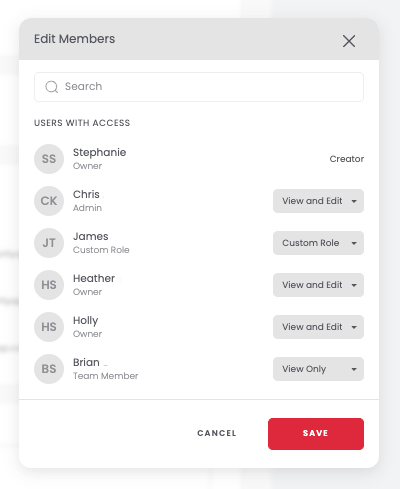
Add teammates using Edit members. Team Members and Custom Roles can each be set to View Only or their role's default access level.
-
4Pull items into the job
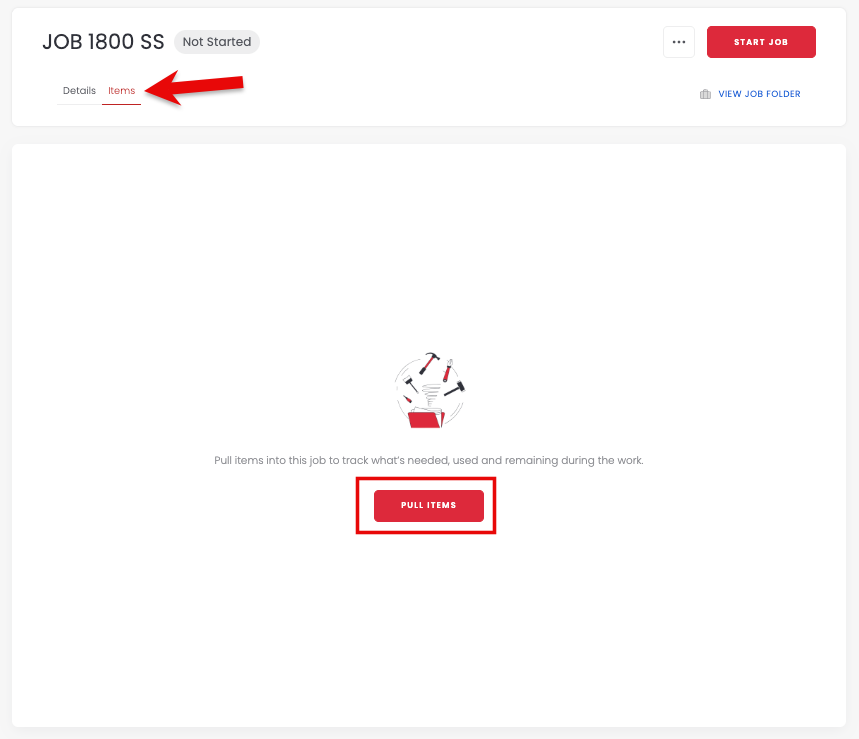
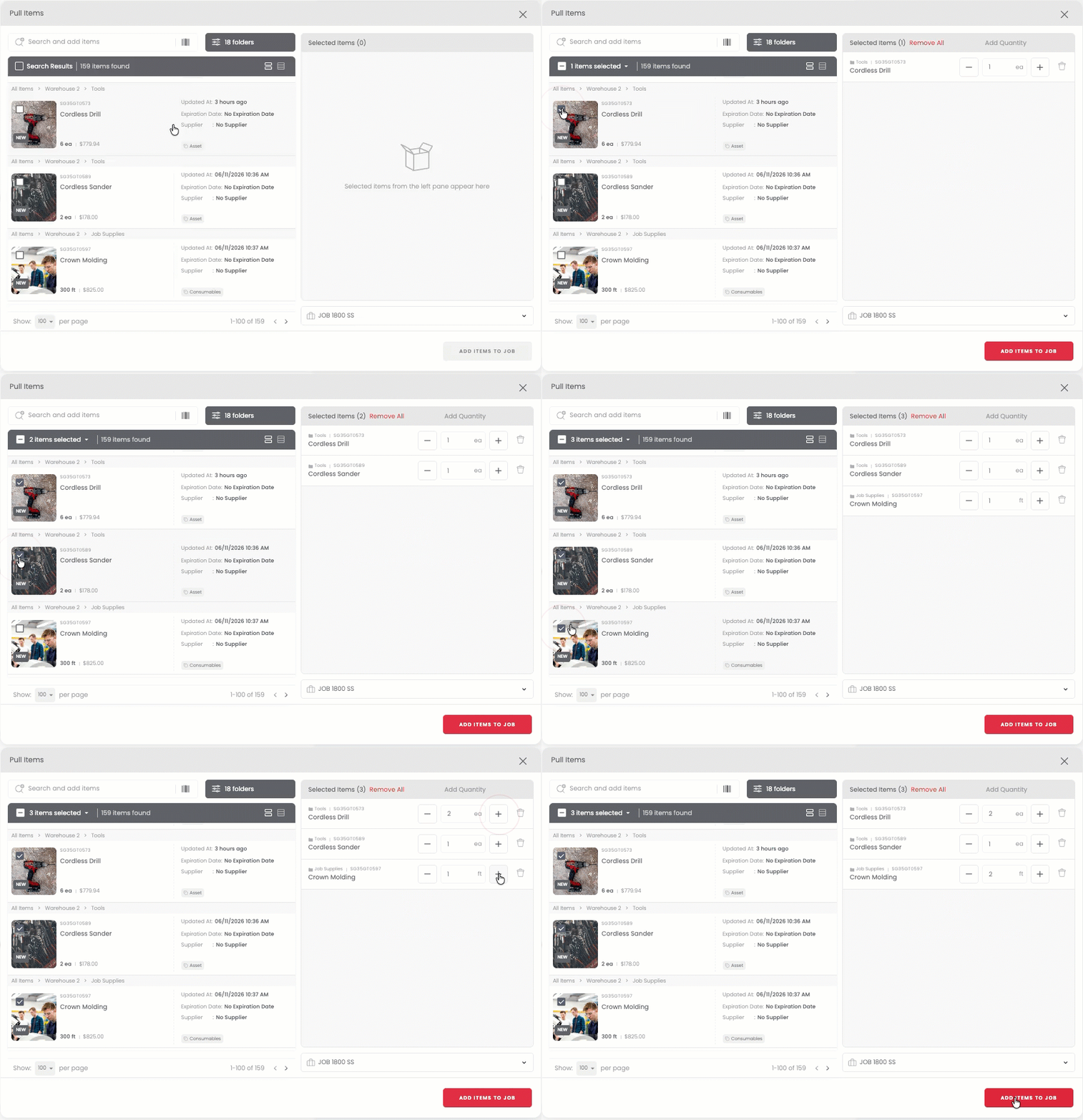
Go to the Items tab and use Pull Items to select the items you want to add to this job. Pulling an item also sets its return location automatically if it doesn't already have one. See Auto-fill return locations below.
-
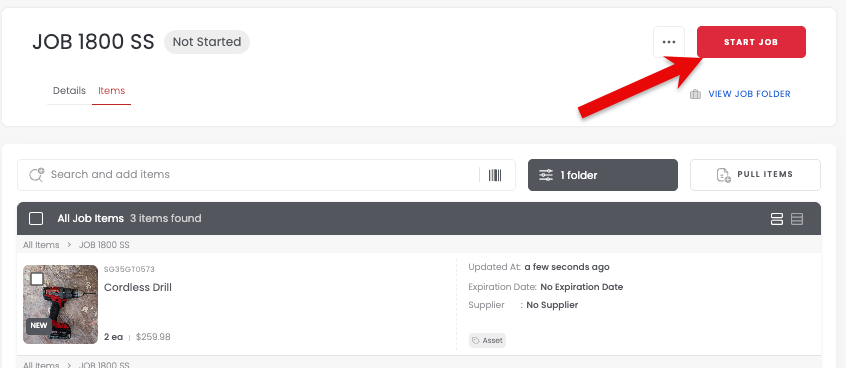
5Start the job
Change the status from Not Started to In Progress. Status is visible in both the job list and the job detail page.
-
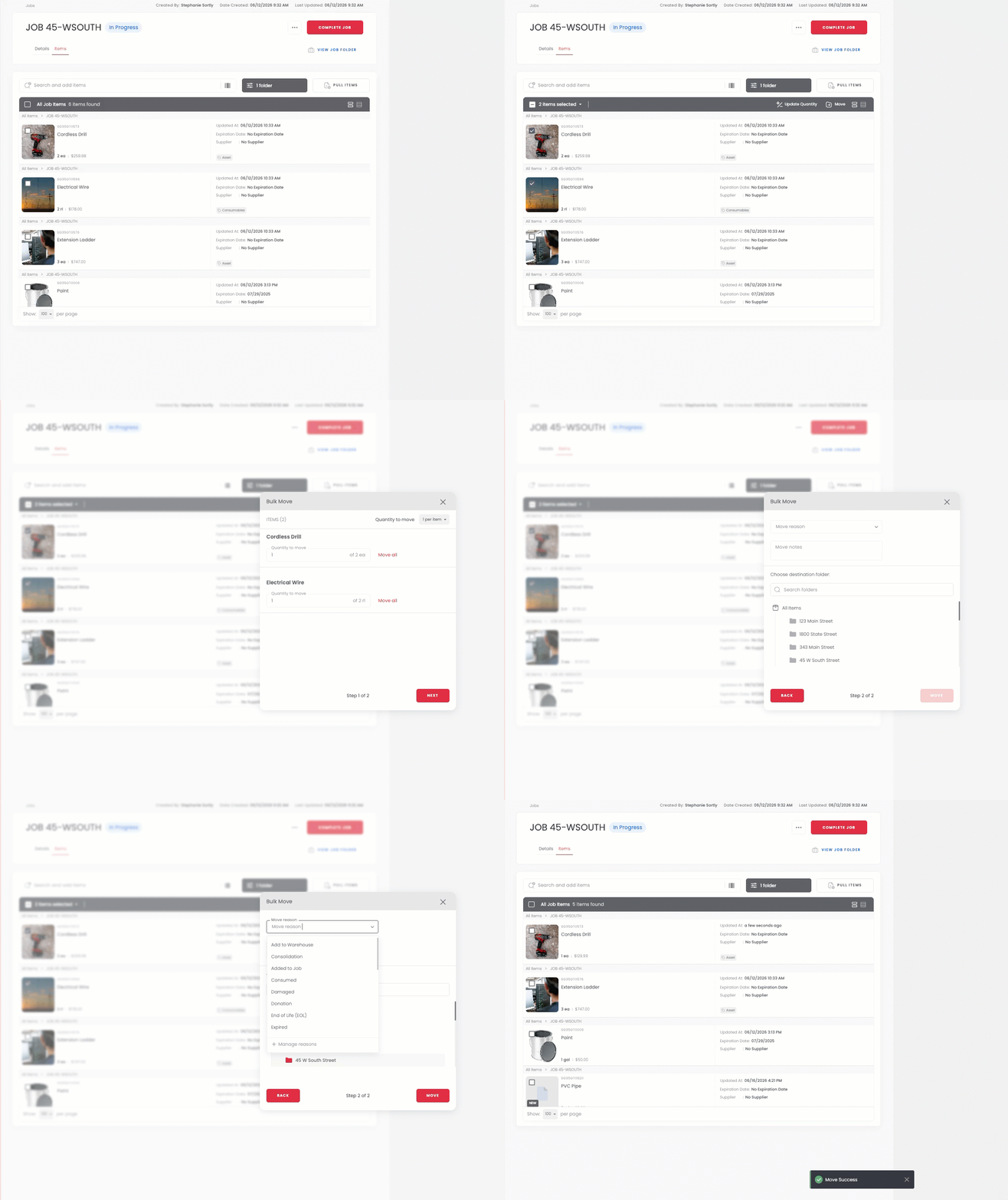
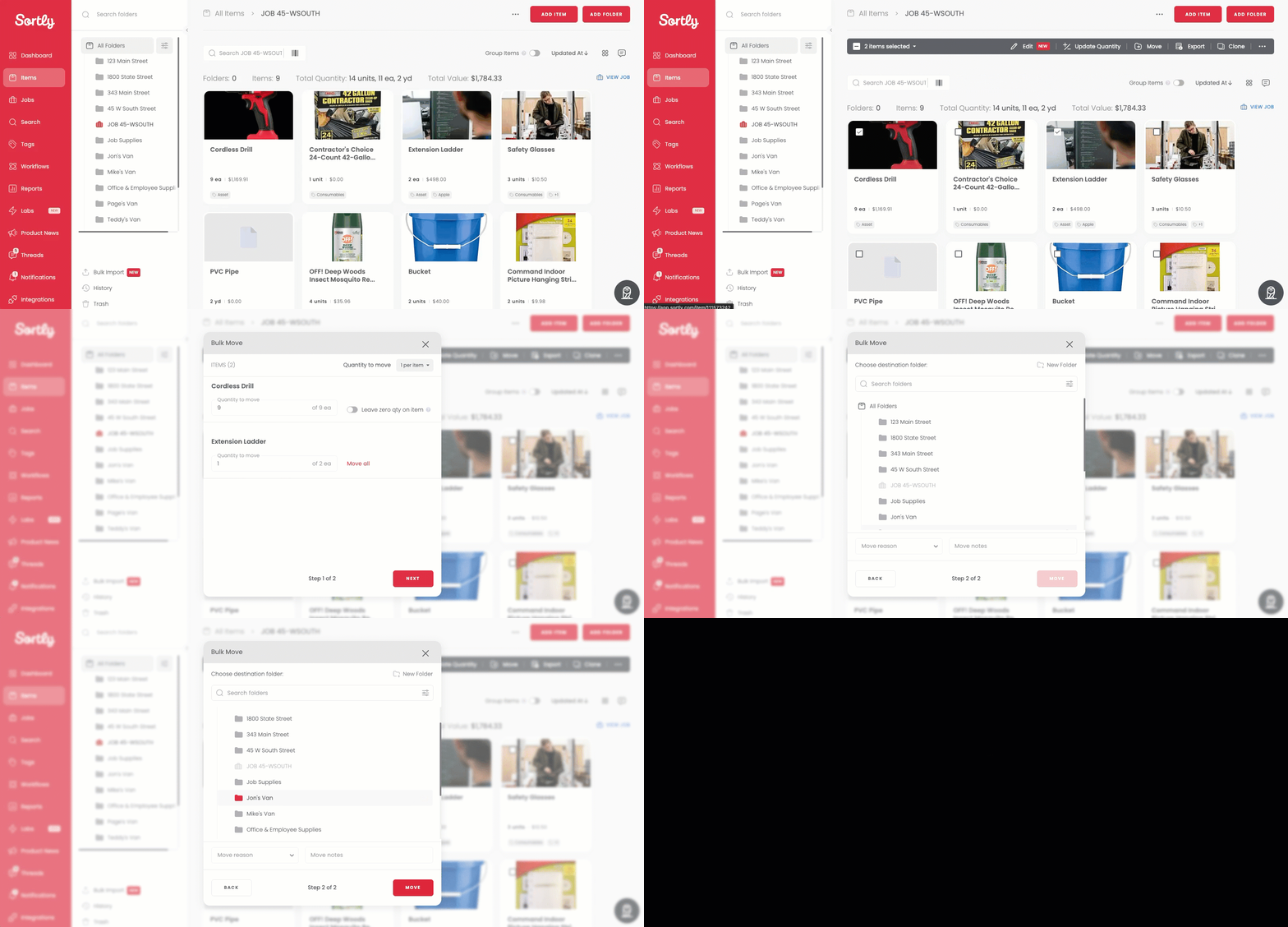
6Track and update items as work happens
You can update quantities and move items between subfolders from two places:
- Workflows > Jobs, open the job and use the Items tab
- All Items > Job folder, navigate directly to the job folder in your inventory
Both show the same items and support the same actions.
-
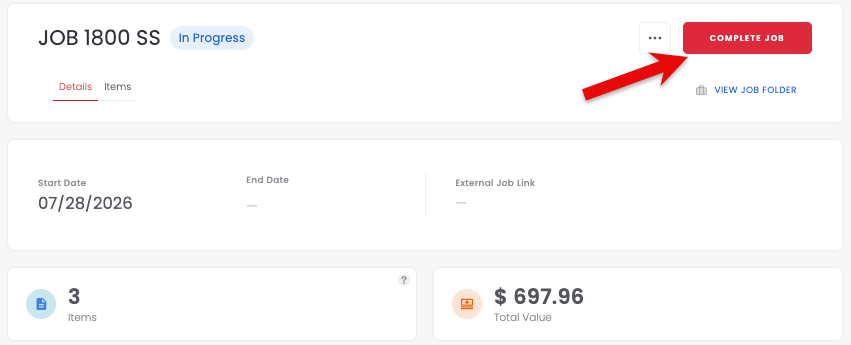
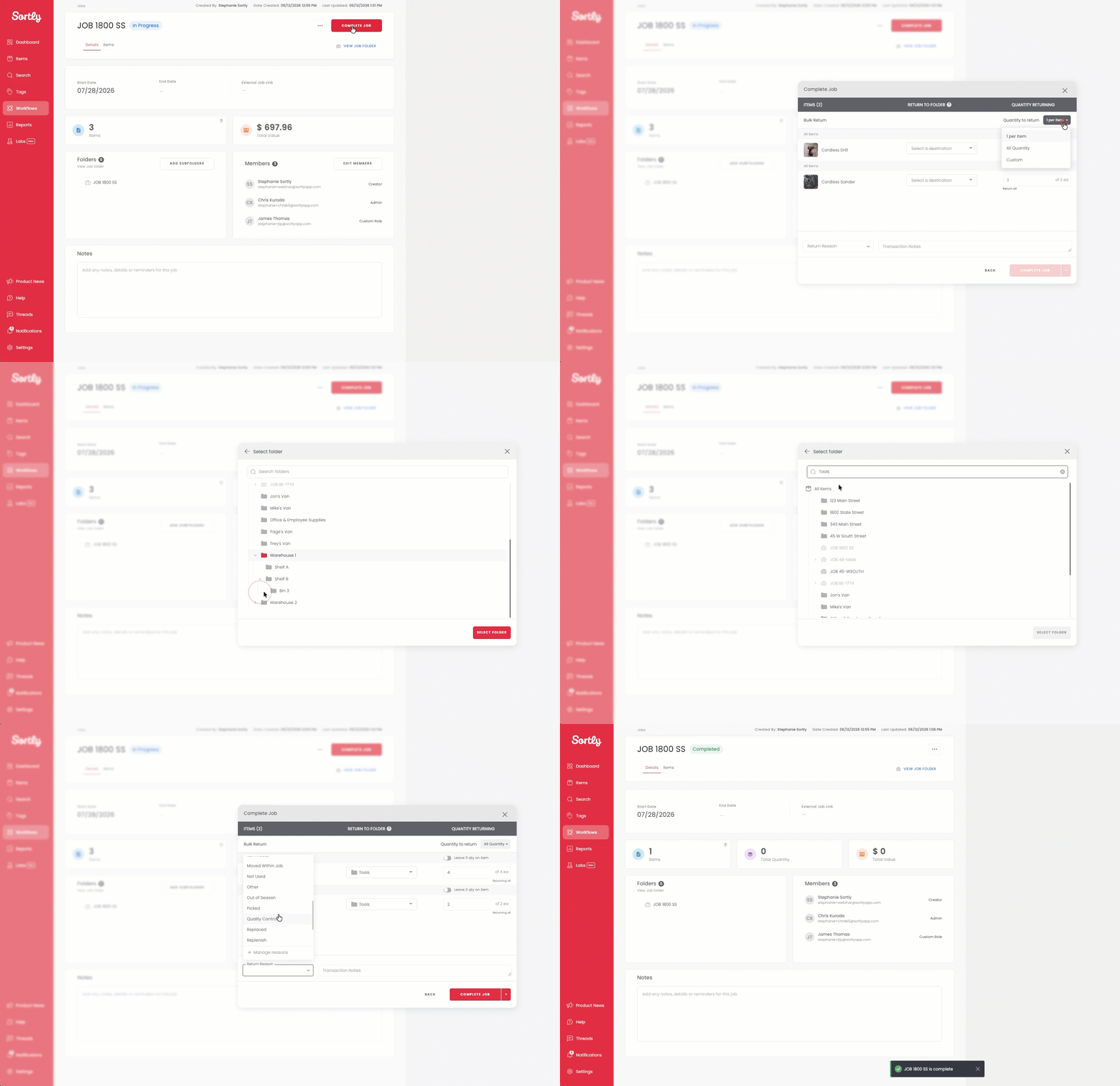
7Complete the job
Change status to Completed. Return any unused items to inventory or another active job, using the prefilled return locations described in Auto-fill return locations below. Only what was actually used stays with the job. Sortly asks you to confirm before the job closes.
-
8Your job history is saved
This gives you a reliable history of exactly what was used, which comes in handy for billing, reviews, and future reference.
Auto-fill return locations
When you return items to inventory, Sortly can automatically suggest and prefill where they should go, based on a return location set for each item.
Setting the return location automatically
Most teams return items to the same location they pulled them from, so Sortly sets this up as items are pulled into a job:
- If the item already has a return location set, nothing changes
- If it doesn't, the location it's pulled from becomes its return location. If it's pulled from more than one location, the first one used becomes the return location
Returning items
When you return an item, its return location is prefilled for you. If the item was pulled from more than one location, up to three of the most recently used pull locations also appear as Other Suggestions.
Choosing a different location
If you pick a location other than the prefilled one, Sortly asks whether you'd like to set it as the new return location going forward. This is off by default, and only appears if you have access to configure return locations for your organization and for that item.
Delete a job
If you created a job by mistake or no longer need it, you can delete it. Open the job, click the three-dot menu (...) in the top right corner, and select Delete. You will be asked to confirm before the job is removed.
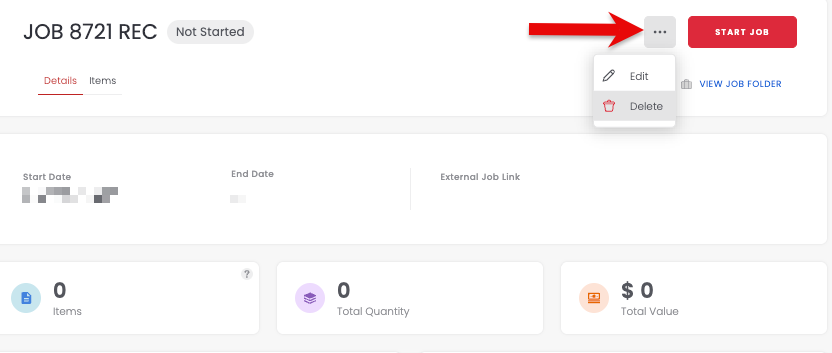
Deleting a job sends the job folder and all its subfolders to Trash. Any items that were still inside the job folder at the time of deletion will also move to Trash. You can restore them from Trash if needed.
Reopen a completed job
Marked a job Completed by mistake, or need to make a change after the fact? Owners and Admins can move it back to In Progress.
-
1Open the completed job
Click the three-dot menu (...) and select Revert Job to In Progress. This is only available to Owners and Admins.
-
2Confirm the change
Sortly shows: "This will re-open the job and you will be able to edit all its attributes. This will remove existing additional field(s), if already deleted." Click Confirm.
-
3Make your edits
With the job back in progress, click the three-dot menu again and select Edit. Item quantities, details, subfolders, and members can all be changed. Click Save when you're done.
-
4Complete the job again
Click Complete Job to lock it once more.
What happens to additional fields
- If an additional field was added while the job was completed, it appears blank on the job so you can fill it in
- If an additional field was deleted while the job was completed, reopening the job removes it, per the confirmation message above
Reopening a job counts against your active job limit (see Active job limits above). If your account is already at that limit, you'll see the same upgrade prompt shown when creating a new job.
Filter job and item folders
Use the Filters screen to control which folders show up in your Items tab. Below your existing View Options, a Folders section lets you choose:
- All Folders
- Job Folders only
- Item Folders only
- Show Completed Jobs (toggle)
A few things to know about how this works:
- If Hide Folders is turned on, these options are dimmed since there's nothing for them to filter. Your previous selection is remembered and restored when you turn Hide Folders back off
- The filter only applies at the top level of your Items tab. Once you open a folder, you'll see everything inside it
- Your selections are saved and stay in place the next time you open the app
Quick Stats reflects what's hidden and breaks it down by reason, for example "Job Folders hidden" or "Completed Jobs hidden," so you always know why a folder isn't showing. If a filter hides everything in a folder, the empty state includes a one-tap Show all folders option.
Reporting on a job
All activity that happens inside a job folder is captured in Sortly's standard reports. Go to Reports and filter by the job folder to see data specific to that job.
Job Reports
For a dedicated view of job activity, use the Job Reports section under Reports. It has two views.
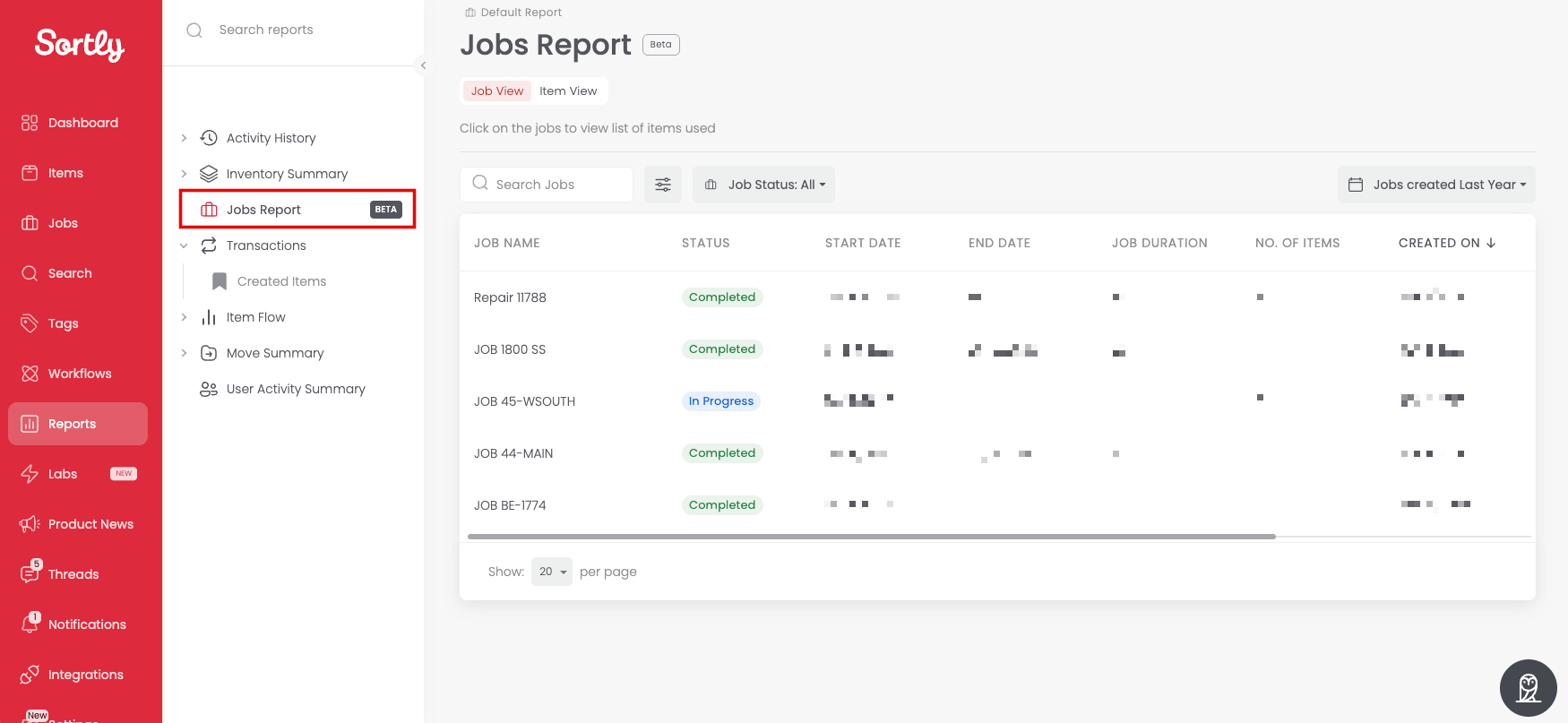
Jobs View
Lists every job created in your selected date range, along with its status, creator, duration, item count, and total value. Search by job name, filter by status or creator, and sort any column.
Open a job to see its item list, including quantity added and returned, quantity still in the job, and, for items that get returned, the longest stretch any unit spent in the job. Open an item from there for its full transaction history within that job.
Items View
Lists every item that's ever been used in a job, with its Sortly ID and how many active and total jobs it's part of. Open an item to see every job it's touched and its overall transaction history.
Both views can be exported, and either one can be filtered down to a specific job, item, or date range.
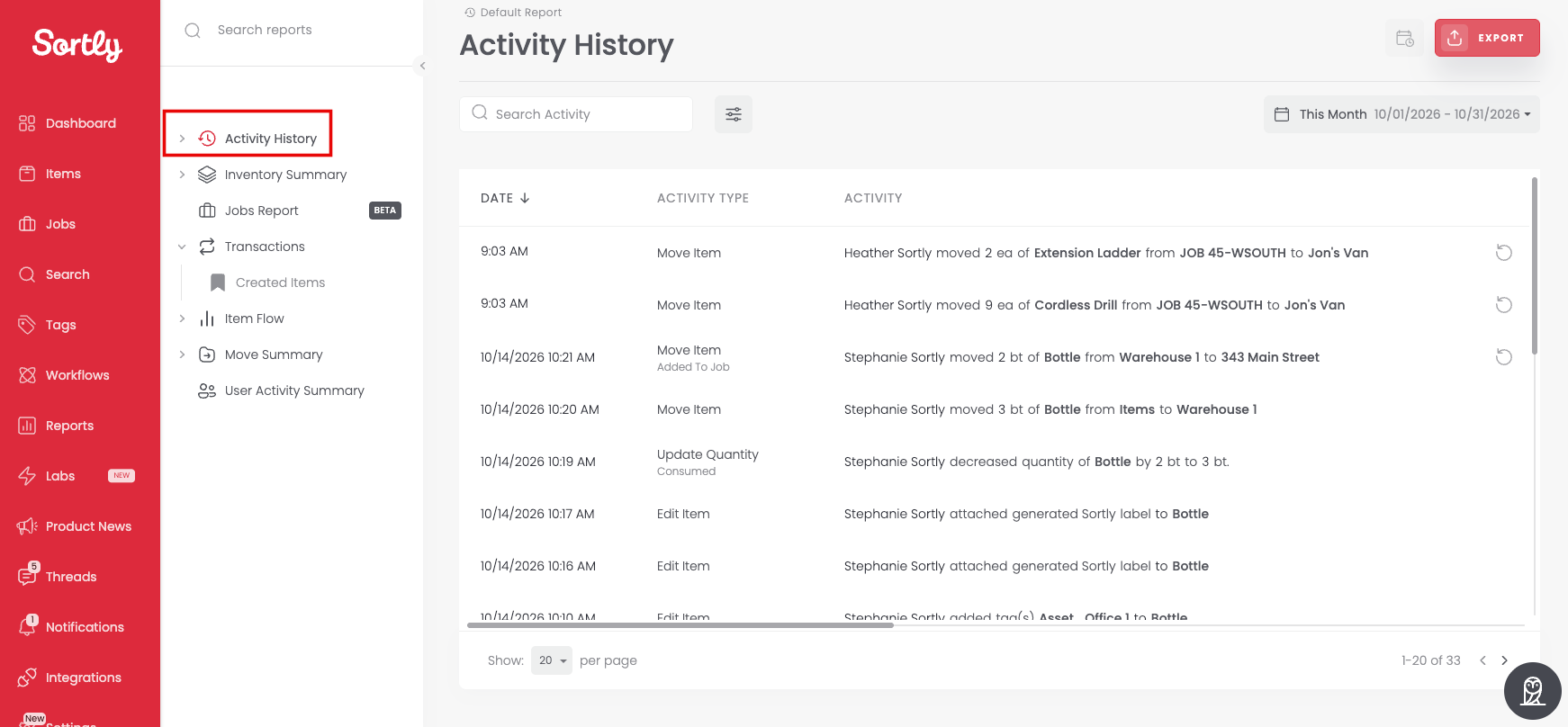
Activity History
Shows a log of every action taken, who performed it, and when. This is the report to use when you want to know who moved an item, who pulled it into the job, or who made a change. Each entry shows the action type (such as Move Item, Added to Job), the user's name, and the item and folders involved.
Transactions
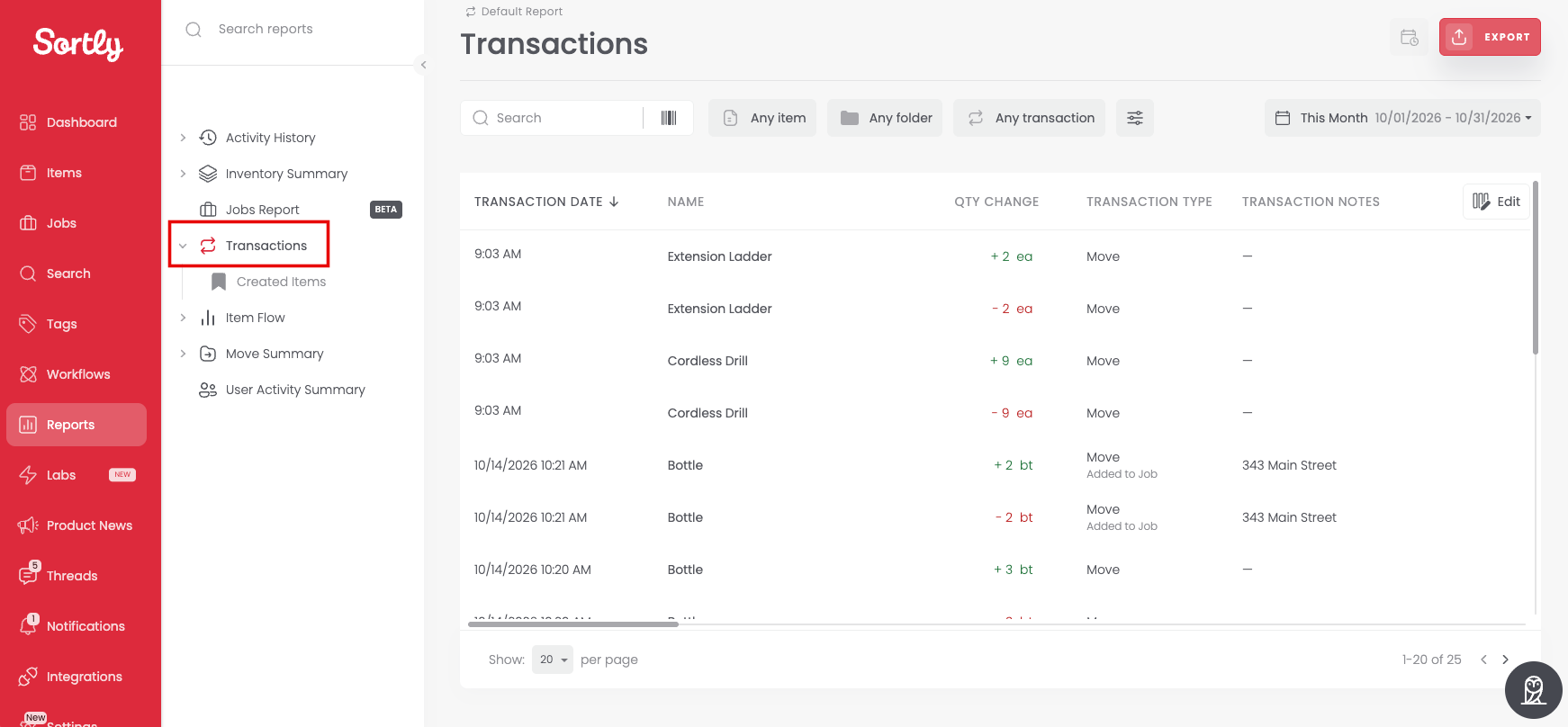
Shows the exact inventory detail behind every movement: quantity change, transaction type, folder, and item price. When an item is pulled into a job, you'll see two matching rows: a positive quantity entry in the job folder and a negative entry in the original folder. This is the report to use for billing, reviewing what was consumed, or reconciling quantities.
Using Jobs on mobile
Jobs is fully supported on the Sortly mobile app for iOS and Android. You can create jobs, pull items, update quantities, move items between subfolders, and complete jobs from your phone or tablet. Item movements made on mobile update your inventory in real time and work offline, syncing when you reconnect.