---
title: Low Stock Report
description: Sortly's Low Stock Report flags items that need reordering so your team can stay ahead of stockouts.
---
[Skip to content](https://help.sortly.com/low-stock-report#main-content)

Open main navigation
Close main navigation
Looking for answers? Start here.
- There are no suggestions because the search field is empty.
1. [Sortly Help Center](https://help.sortly.com/?hsLang=en)
2. [Reporting](https://help.sortly.com/reporting?hsLang=en)
3. [Reporting](https://help.sortly.com/reporting?hsLang=en#reporting)
# Low Stock Report
Sortly's Low Stock Report flags items that need reordering so your team can stay ahead of stockouts.
⚠️ Only items with a Min Level set, and at or below that level, appear in the Low Stock Report. [Learn more about Min Levels](https://help.sortly.com/hc/en-us/articles/360039415611-How-do-I-set-Min-Levels-on-Items?hsLang=en).
In this article
1. [What is the Low Stock Report?](https://help.sortly.com/low-stock-report#what-is-low-stock-report)
2. [How to Access the Low Stock Report](https://help.sortly.com/low-stock-report#access-low-stock-report)
3. [Customizing and Exporting the Report](https://help.sortly.com/low-stock-report#customize-export)
4. [What if I Don't See the Low Stock Report?](https://help.sortly.com/low-stock-report#dont-see-report)
### What is the Low Stock Report?
The Low Stock Report lists items in your inventory that are currently at or below their designated Min Level. This report is especially helpful for managing reorder thresholds and avoiding inventory shortages.
---
### How to Access the Low Stock Report
1. 1Go to the [Reports](https://app.sortly.com/reports) section in your Sortly account
2. 2Click the caret (˅) next to Inventory Summary
3. 3Select Low Stock from the drop-down list

You'll see all items flagged as low stock based on their Min Level settings.
---
### Customizing and Exporting the Report
#### Apply Filters
- Click the Filter icon to refine your data
- Filter by location, item group, tags, and more

#### Edit Columns
- Click the Edit Columns icon to adjust which fields appear in the report
- Rearrange, add, or remove columns as needed

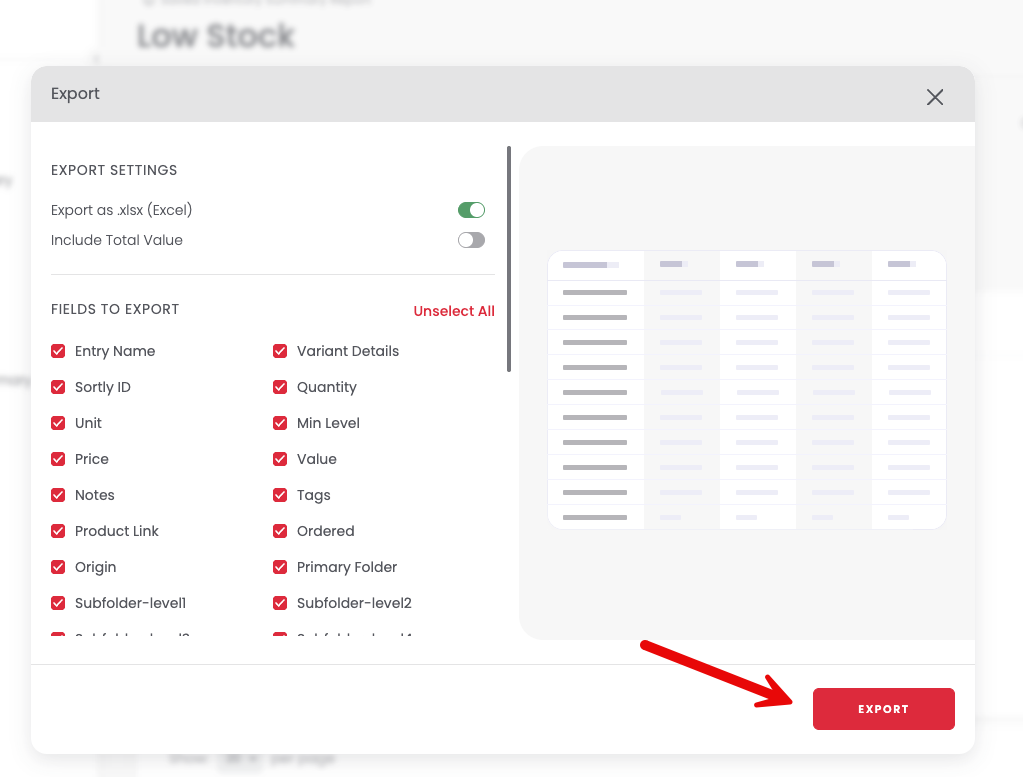
#### Export Your Report
1. 1Click the Export button
2. 2Choose your preferred file format: CSV (default) or Excel
3. 3Select the fields you'd like to include: ✅ checked = included in the export, ❌ unchecked = excluded
---
### What if I Don't See the Low Stock Report?
If you don't see Low Stock listed under Reports, you can manually recreate it.
#### If you have access to Saved Reports
1. 1Go to Inventory Summary
2. 2Filter by Min Level \> At or Below
3. 3Click Apply
4. 4Click Save Report and name it "Low Stock"
Your custom report will now be accessible under Saved Reports.
#### If you don't have access to Saved Reports
1. 1Go to Inventory Summary
2. 2Filter by Min Level \> At or Below
3. 3Click Apply
You'll need to reapply this filter each time, since the report can't be saved.
[](https://www.sortly.com/)
Copyright © 2026, Sortly Inc.