---
title: Manage Alerts
description: Manage Alerts gives you a centralized hub to view, edit, filter, and control who receives your quantity and date-based alerts, all from one page.
---
[Skip to content](https://help.sortly.com/manage-alerts#main-content)

Open main navigation
Close main navigation
Looking for answers? Start here.
- There are no suggestions because the search field is empty.
1. [Sortly Help Center](https://help.sortly.com/?hsLang=en)
2. [Customizing Account](https://help.sortly.com/customizing-account?hsLang=en)
3. [Alerts & Reminders](https://help.sortly.com/customizing-account?hsLang=en#alerts-reminders)
# Manage Alerts
Manage Alerts gives you a centralized hub to view, edit, filter, and control who receives your quantity and date-based alerts, all from one page.
**In this article**
1. [Viewing Alerts in the Manage Alerts Tab](https://help.sortly.com/manage-alerts#viewing-alerts)
2. [Editing Alerts](https://help.sortly.com/manage-alerts#editing-alerts)
- [Change Alert Recipients](https://help.sortly.com/manage-alerts#change-alert-recipients)
- [Adjust Alert Criteria](https://help.sortly.com/manage-alerts#adjust-alert-criteria)
## **Viewing Alerts in the Manage Alerts Tab**
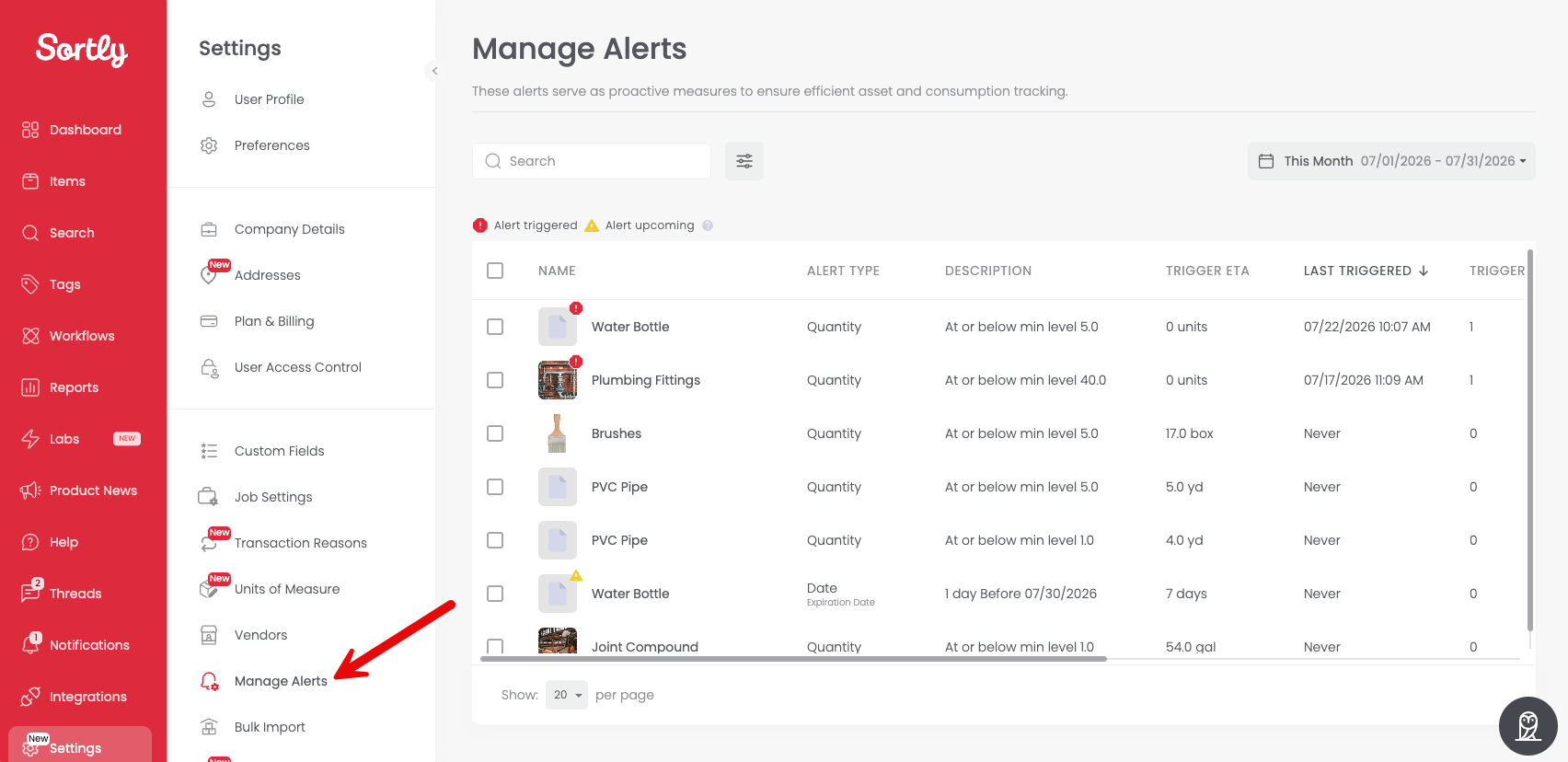
1. 1Navigate to **Settings \> Manage Alerts**
2. 2You'll see an overview of all your alerts, including item, type, criteria, trigger status, and SID
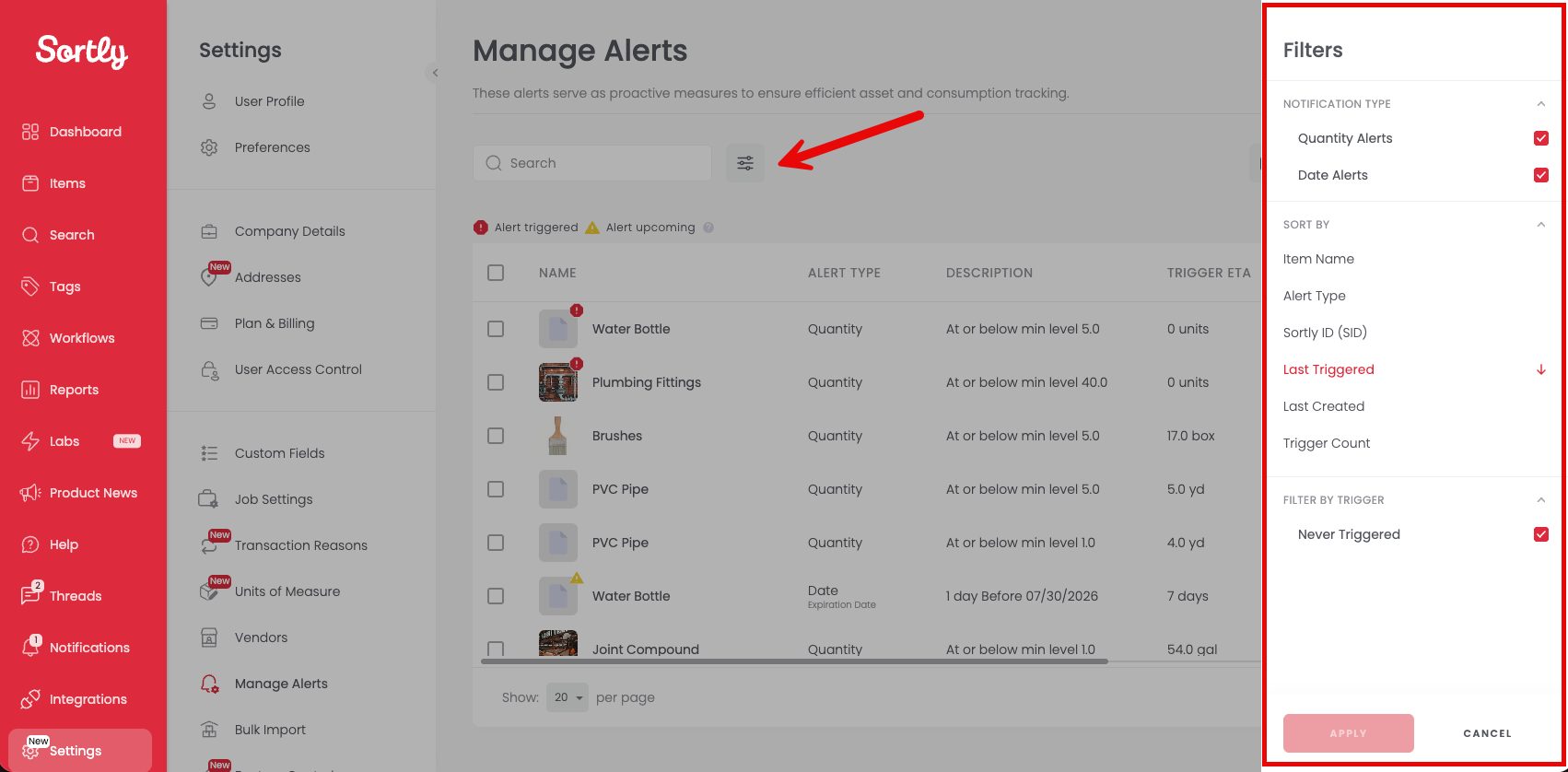
3. 3Click the **Filter icon** or the headers at the top of each column to filter by Item Name, Alert Type, Sortly ID (SID), Last Triggered, Last Created, or Trigger Count. You can also choose Quantity Alerts, Date Alerts, or both. Check **Never Triggered** to see alerts that haven't triggered yet.
4. 4To see alerts triggered within a certain timeframe, select the **Date Filter**
## **Editing Alerts**
### **Change Alert Recipients**
To change who receives the alerts:
1. 1Click the checkbox next to the item(s) you want to edit
2. 2Click **Edit Alerts**
3. 3Check or uncheck the recipients that should be alerted, and manually add specific users if desired
4. 4Click **Confirm**
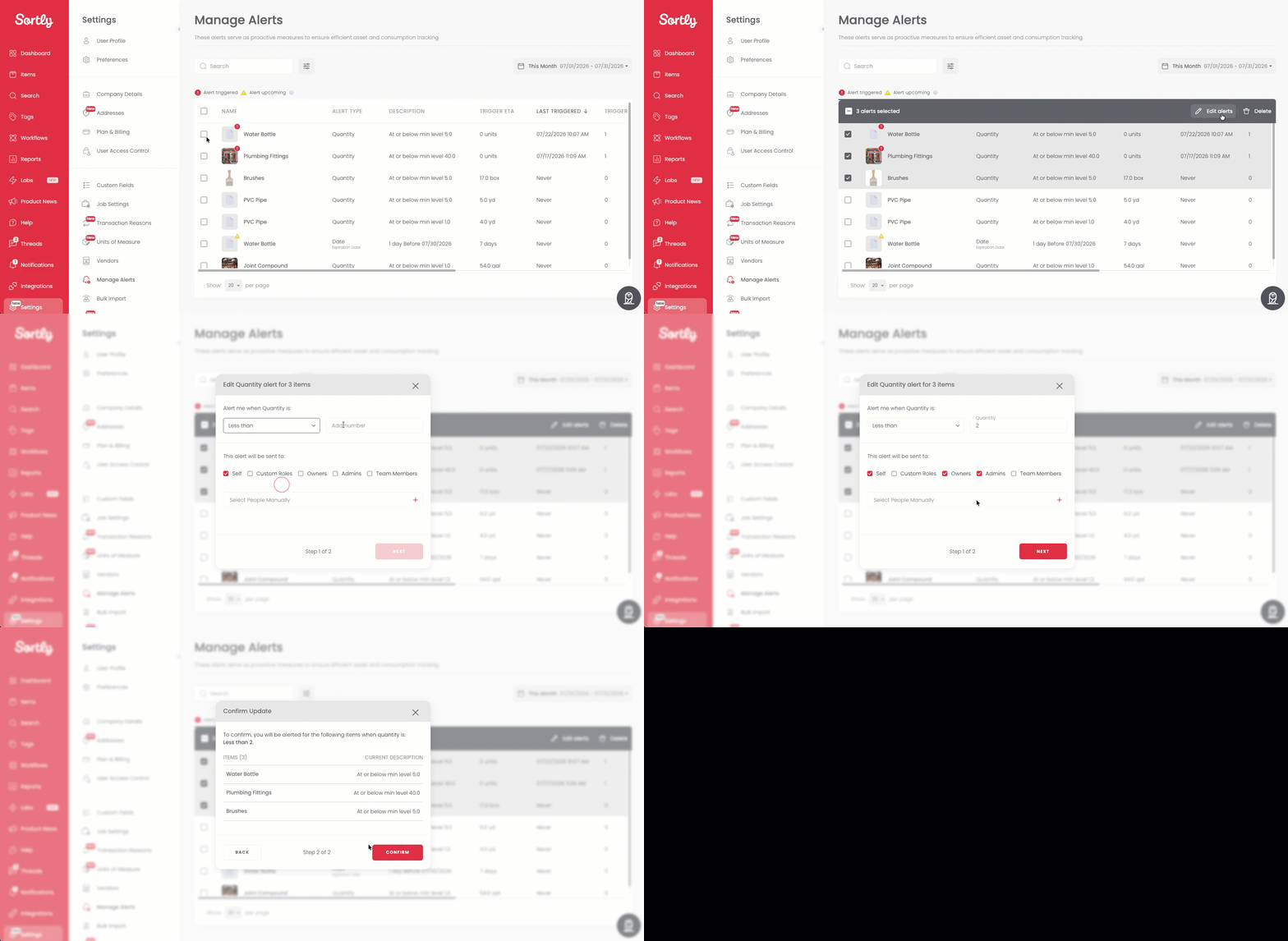
⚠️ Bulk edits apply the same recipients and criteria to every selected item. Only select items that already share the same alert criteria (like Min Level or Date) before editing in bulk.
### **Adjust Alert Criteria**
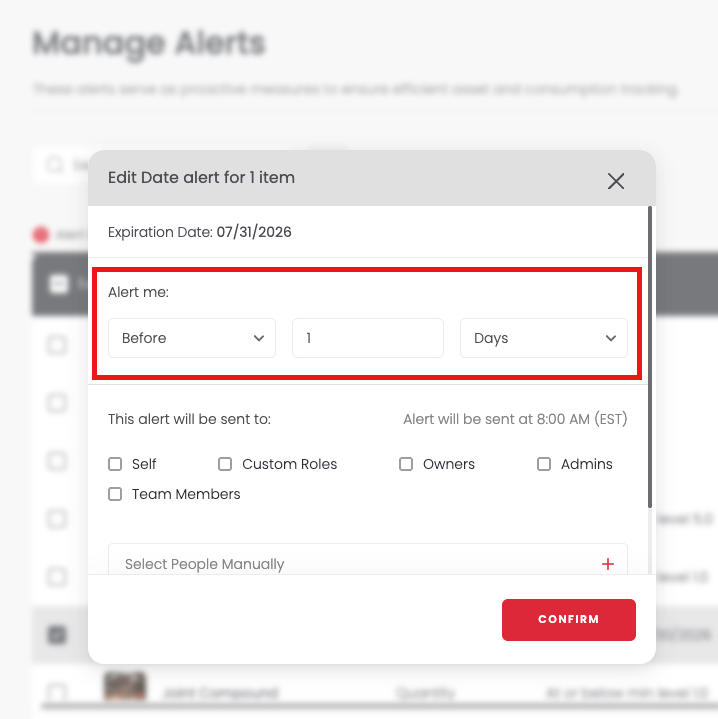
To change an alert's criteria:
1. 1Click the checkbox next to the item(s) you want to edit
2. 2Click **Edit Alerts**
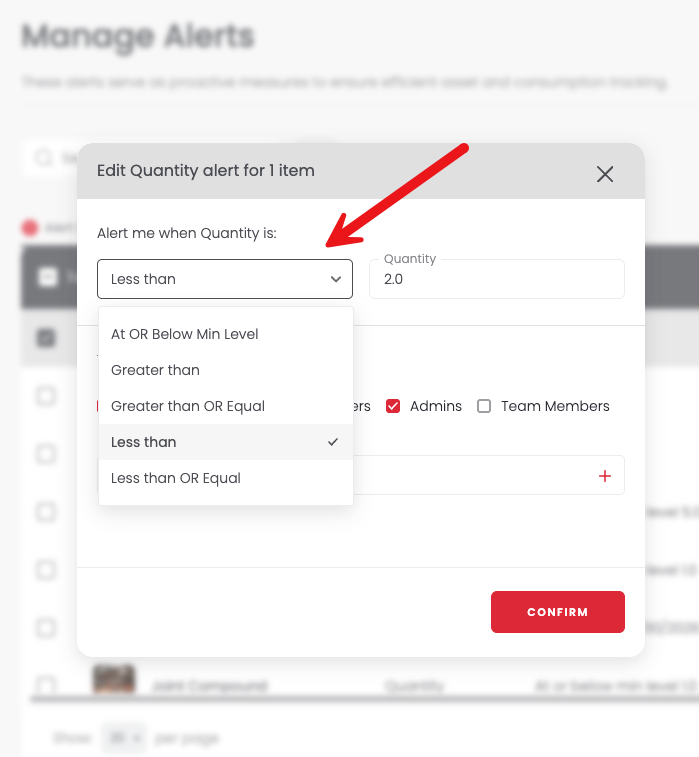
3. 3Update the alert criteria
4. 4Click **Confirm**
**For Quantity Alerts:**
**For Date Alerts:**
[](https://www.sortly.com/)
Copyright © 2026, Sortly Inc.