
Sortly's role permissions let Owners and Admins on Premium and Enterprise plans control who can access and edit items and folders. This article covers the available roles, how to configure a Custom Role with granular permissions, setting alerts for Custom Roles, and inviting users with the Enterprise-only Limited Access Role.
In this article
Role overview
Here's an overview of the different user roles available on the Premium and Enterprise plans:
Custom Role Premium Enterprise
When permissions are enabled, Custom Role users can add, edit, delete, clone, and move items and folders, and hide or show prices. Unless explicitly granted, they cannot access folders outside their assigned scope, view hidden pricing or restricted data, or perform any action not enabled by an Admin or Owner.
Limited Access Role Enterprise
Learn more → Enterprise Limited Access User Role
Configuring Custom Role
To access and manage these role permissions, go to Settings > User Access Control > Manage Permissions.
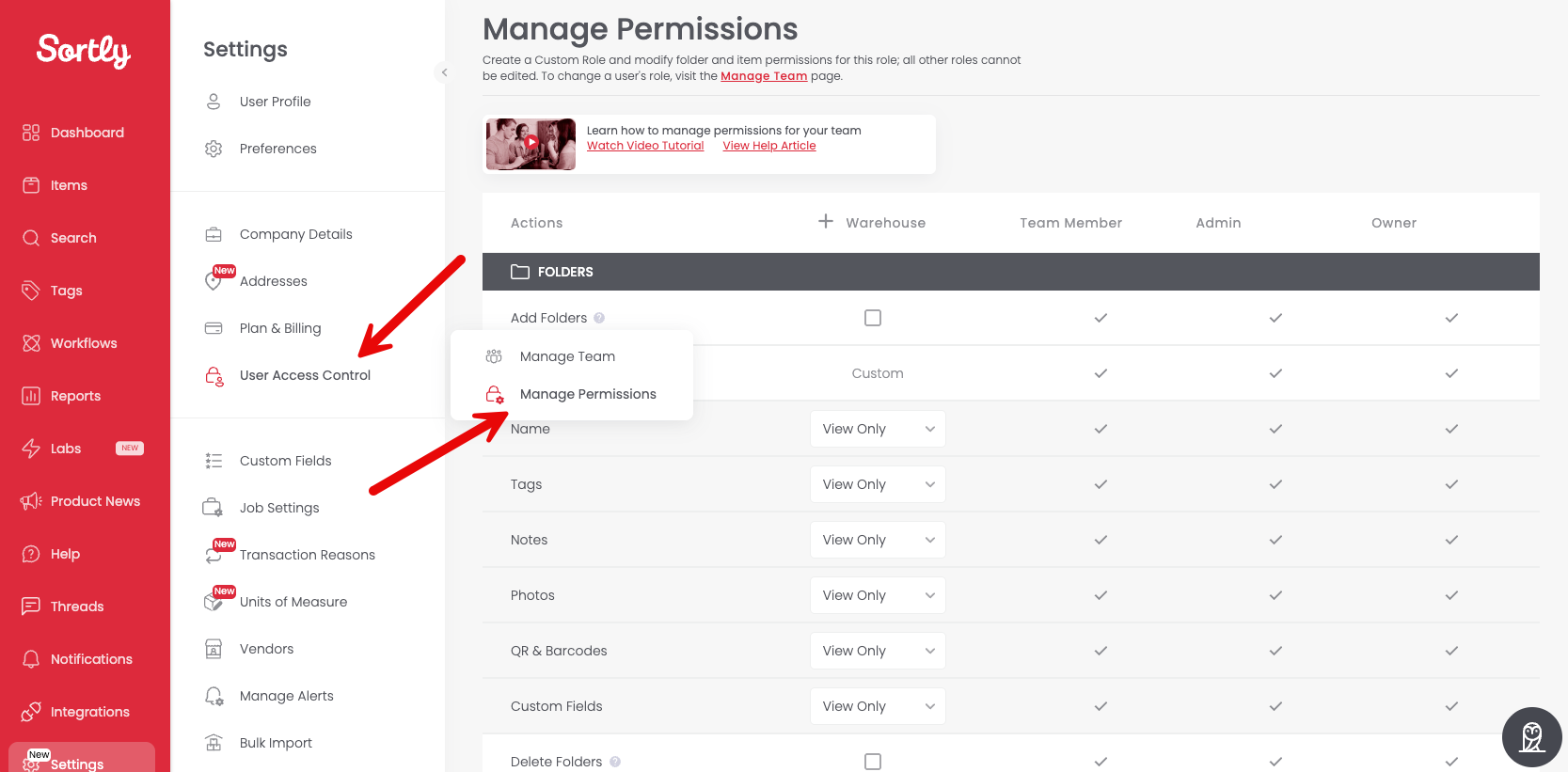
Name the Custom Role and choose which permissions it should have for Folders and Items. Selecting the main checkbox (e.g. Add Folders) also grants edit access to:
- Name
- Tags
- Notes
- Photos
- QR & Barcodes
- Custom Fields
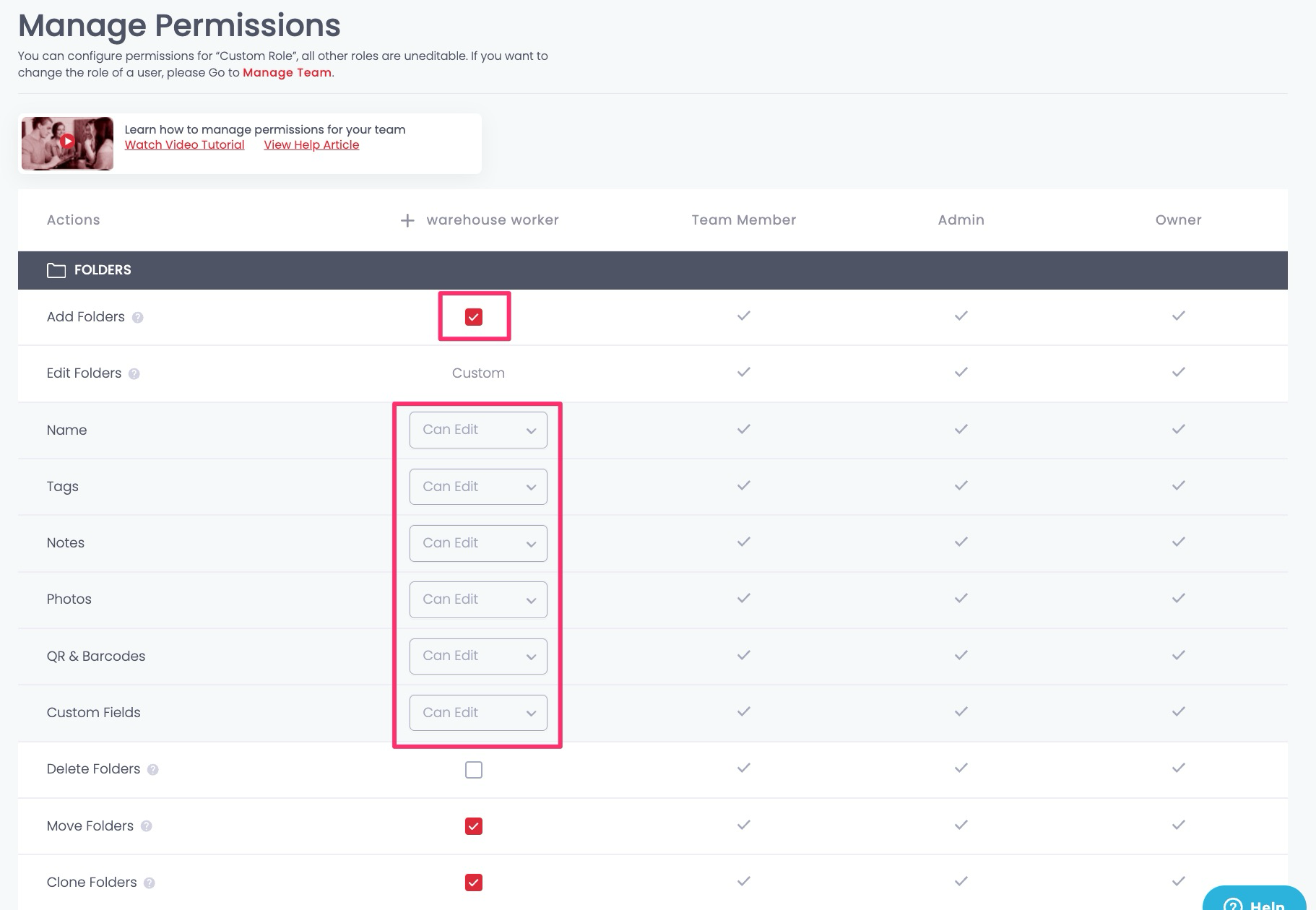
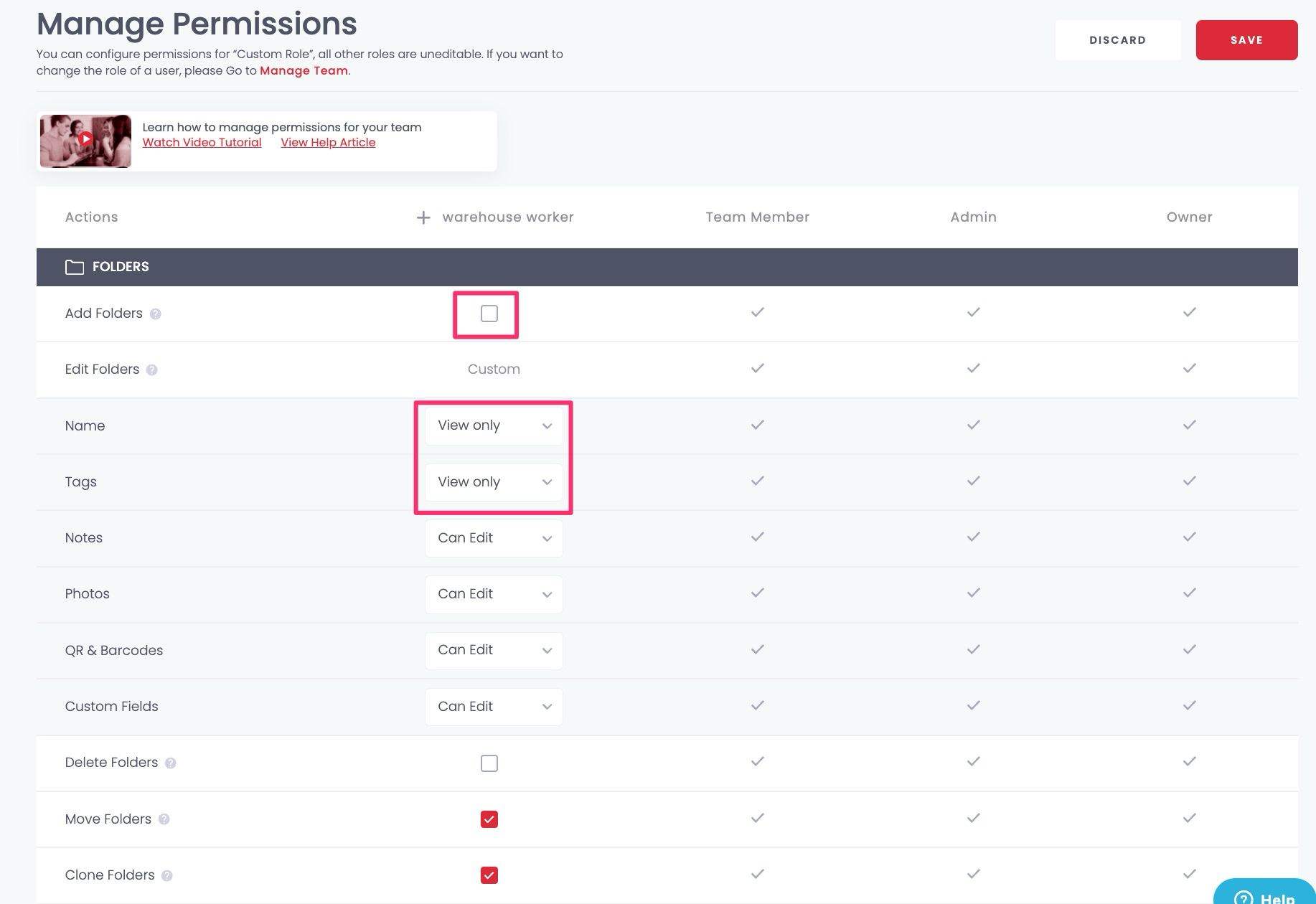
To restrict access further, uncheck the main box and choose individual fields instead. For example, a user could be allowed to Add Folders but only view the Folder Name and Tags:
Hidden Prices
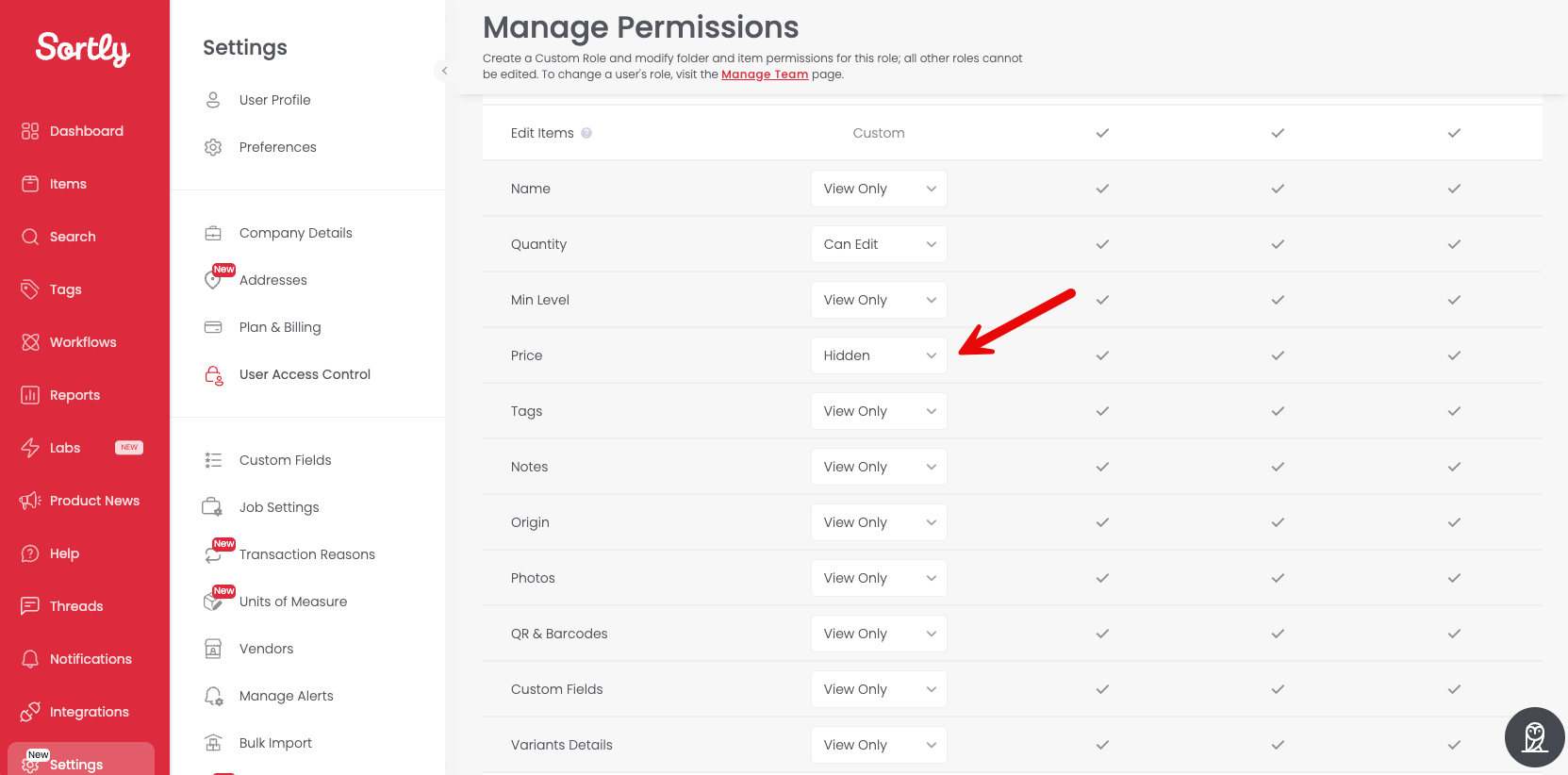
To hide prices entirely, remove the checkmarks from Add Folders and Add Items, scroll to the Price field, select Hidden from the dropdown, then save and confirm.
Custom Role Alerts
Assign alerts to Custom Roles to make sure the right people are notified at the right time.
-
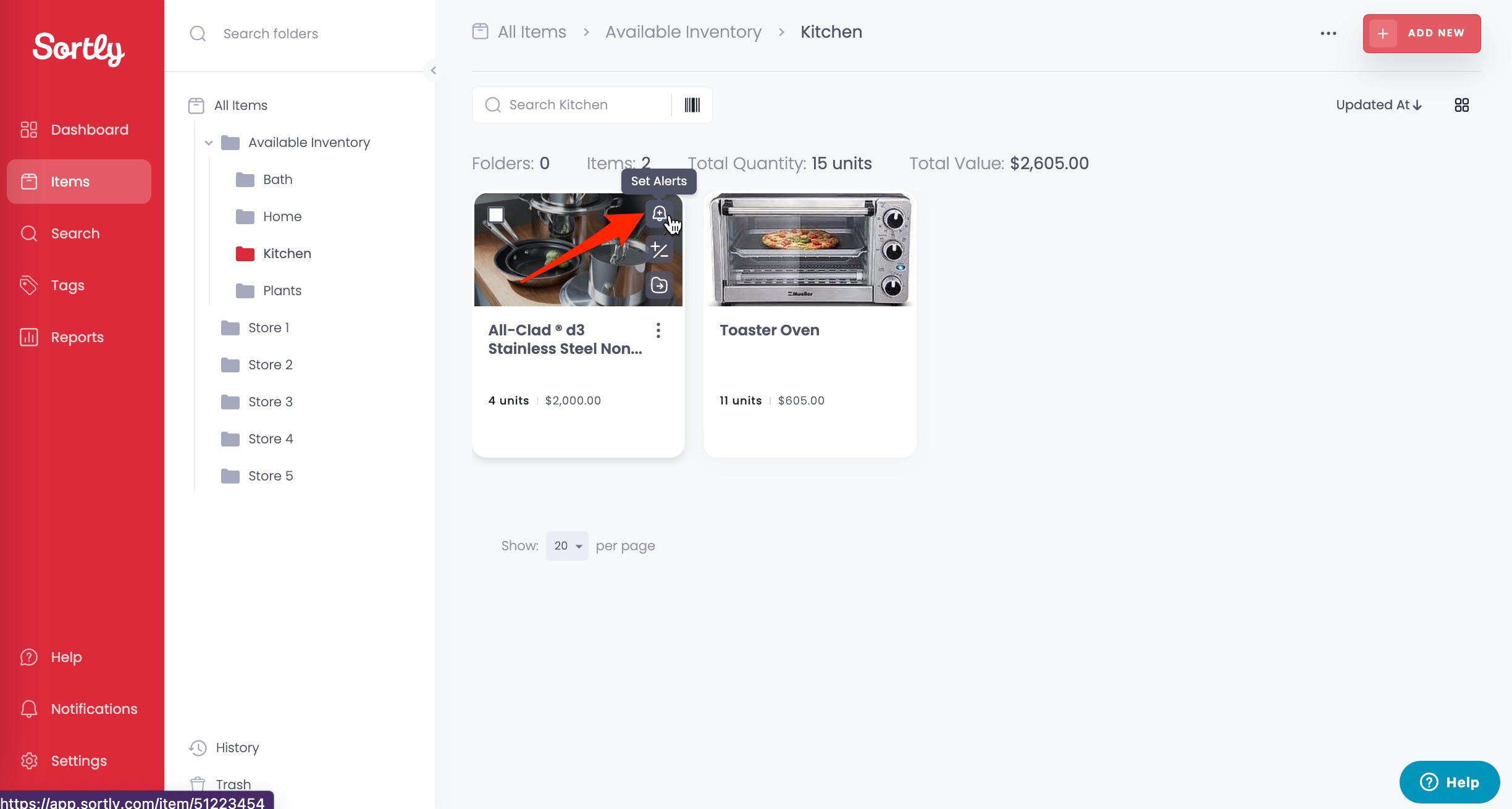
1Navigate to the item and click the bell icon
-
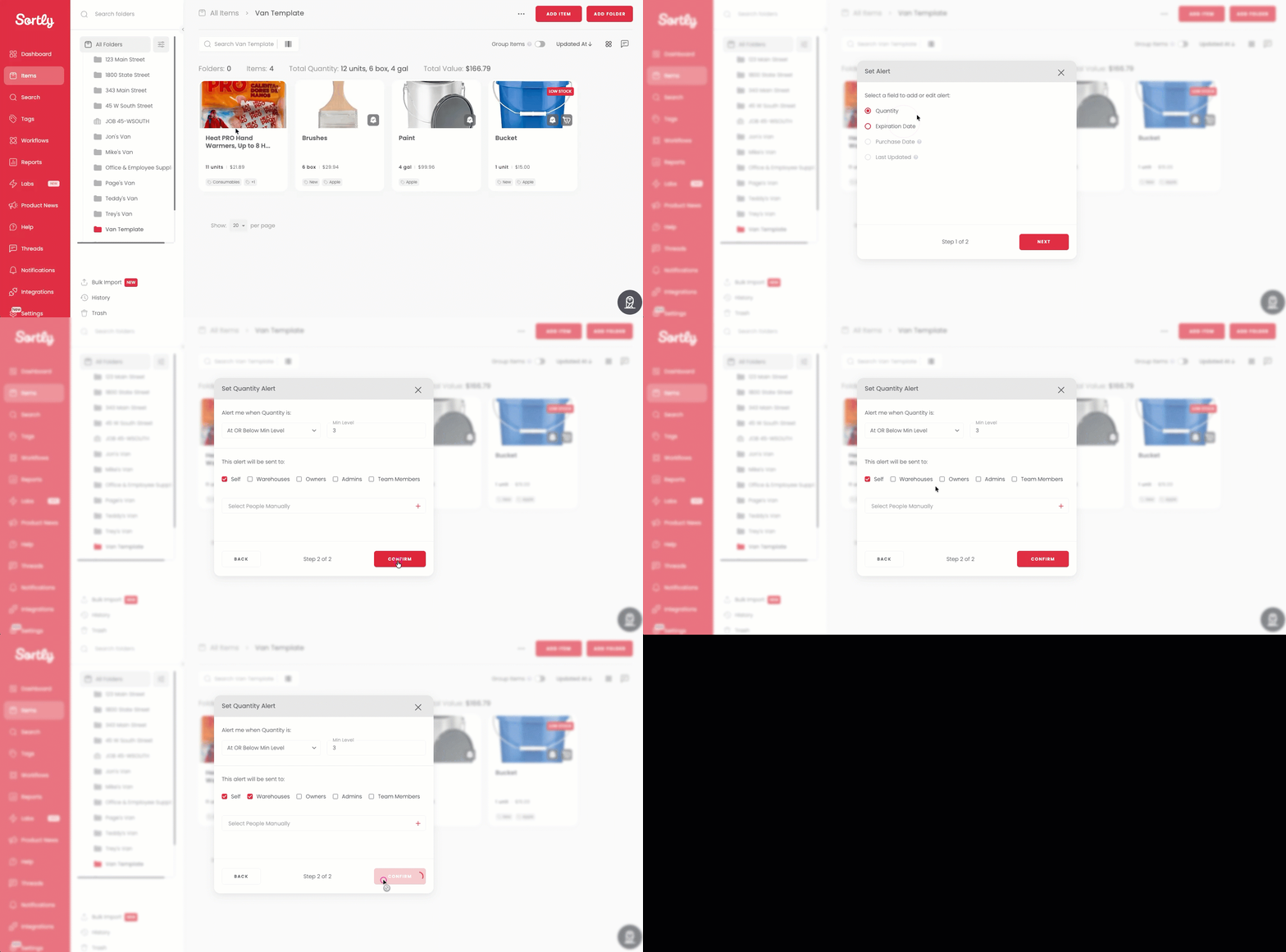
2Select the alert type and Custom Role recipient
Configuring Limited Access Role (Enterprise Only)
The Limited Access Role is designed for team members who need basic inventory access, like scanning or quantity updates, without full account permissions.
To invite someone as a Limited Access user:
-
1Go to your Manage Permissions settings in Sortly
Go to your Manage Permissions settings in Sortly.
-
2Click "Invite User"
-
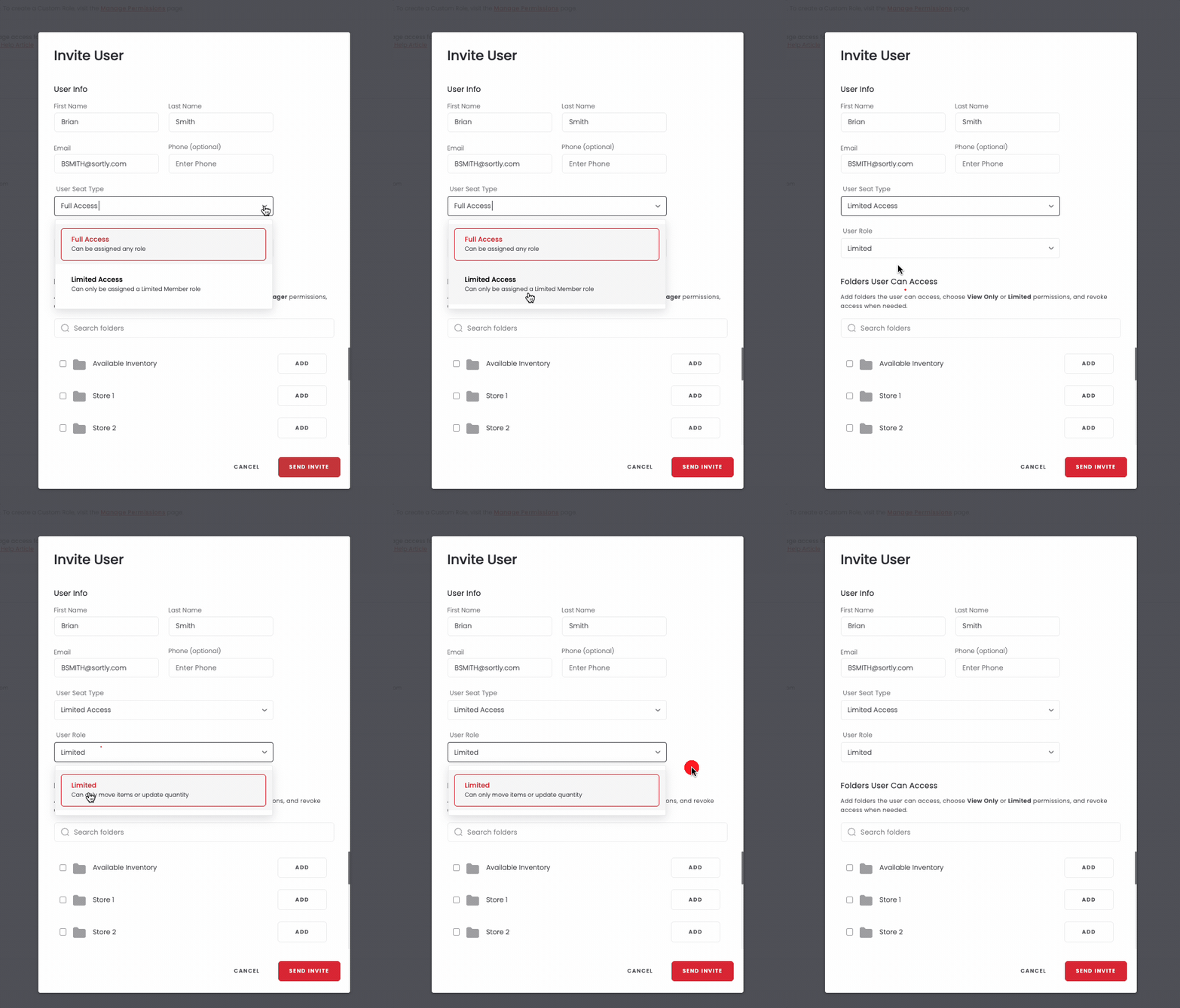
3Choose Limited Access
Under User Seat Type, choose Limited Access, then Limited for the Role.
-
4Complete the rest of the invitation process and send
Learn more → Enterprise Limited Access User Role