---
title: Manage Permissions
description: Sortly's role permissions let Owners and Admins on Premium and Enterprise plans control who can access and edit items and folders.
---
[Skip to content](https://help.sortly.com/manage-permissions#main-content)

Open main navigation
Close main navigation
Looking for answers? Start here.
- There are no suggestions because the search field is empty.
1. [Sortly Help Center](https://help.sortly.com/?hsLang=en)
2. [Getting started](https://help.sortly.com/getting-started?hsLang=en)
3. [Managing Users and Permissions](https://help.sortly.com/getting-started?hsLang=en#managing-users-and-permissions)
# Manage Permissions
Give each person on your team the access they need, and nothing more. Owners and Admins on Premium and Enterprise plans can decide who sees and edits which folders, items, and prices, so the right people can do their work without the risk of changes they shouldn't make. This article walks you through the roles in Sortly, how to set up a Custom Role, how to send alerts to a Custom Role, and how to invite someone with the Limited Access Role.
Premium
Enterprise
In this article
1. [Roles in Sortly](https://help.sortly.com/manage-permissions#role-overview)
2. [Set up a Custom Role](https://help.sortly.com/manage-permissions#configuring-custom-role)
3. [Send alerts to a Custom Role](https://help.sortly.com/manage-permissions#custom-role-alerts)
4. [Invite a Limited Access user](https://help.sortly.com/manage-permissions#configuring-limited-access)
5. [Frequently asked questions](https://help.sortly.com/manage-permissions#faq)
### Roles in Sortly
Every person on your team has one role. The role decides which folders they can reach and what they can change there. Here's what each role can do on the Premium and Enterprise plans.
#### Owner
Full access to all folders and settings. The Owner manages Role Permissions, users, billing, and integrations.
#### Admin
Access to all folders, with limited settings access: Admins can't update billing or manage the subscription. Admins can assign Role Permissions and invite users as a Team Member, a Custom Role, or the Limited Access Role.
For example: an operations manager who invites new staff and sets up what they can do, but doesn't handle the bill.
#### Team Member
Access to one or more folders, with Edit or Read-Only access in each one. Team Members can't change settings, invite users, or manage permissions.
For example: a store manager who edits items in their own store's folder and can only look at the other stores.
#### Custom Role
A Custom Role can do only what an Owner or Admin gives it. That can include adding, editing, deleting, cloning, and moving items and folders, and seeing or hiding prices. Unless you give it access, a Custom Role can't reach folders outside its assigned scope, see hidden prices or restricted data, or do anything else you haven't selected for it. It suits teams that need more control than the standard Team Member role.
A Custom Role works well for people like these:
- Warehouse staff who update quantities and move stock between folders, but shouldn't delete anything or see what items cost.
- A receiving clerk who adds new items and photos, but can only view prices and minimum levels.
#### Limited Access Role
The Limited Access Role is available on the Enterprise plan. It gives scan-only or quantity-update access and works best on mobile devices and scanning hardware. It suits technicians, warehouse staff, delivery drivers, and other people working in the field.
Limited Access users can move items, update quantities, view saved addresses, and work with Pick Lists. They can view and use Pick Lists assigned to them and create new ones. They can edit a Pick List when they're its current assignee or the person who created it, and assign a Pick List when they created it or it's assigned to them.
They can't edit item details such as the name, image, or notes, manage folders or account settings, create or change saved addresses, or generate reports.
⚠️ The Limited Access Role is available only on Enterprise plans. Your Customer Success Manager needs to enable it before you can assign it.
To learn more, see [Enterprise Limited Access User Role](https://help.sortly.com/enterprise-limited-access-user-role?hsLang=en).
---
### Set up a Custom Role
You set up your Custom Role on the Manage Permissions page. The Team Member, Admin, and Owner columns show what those roles can do, and only the Custom Role column can be changed.
1
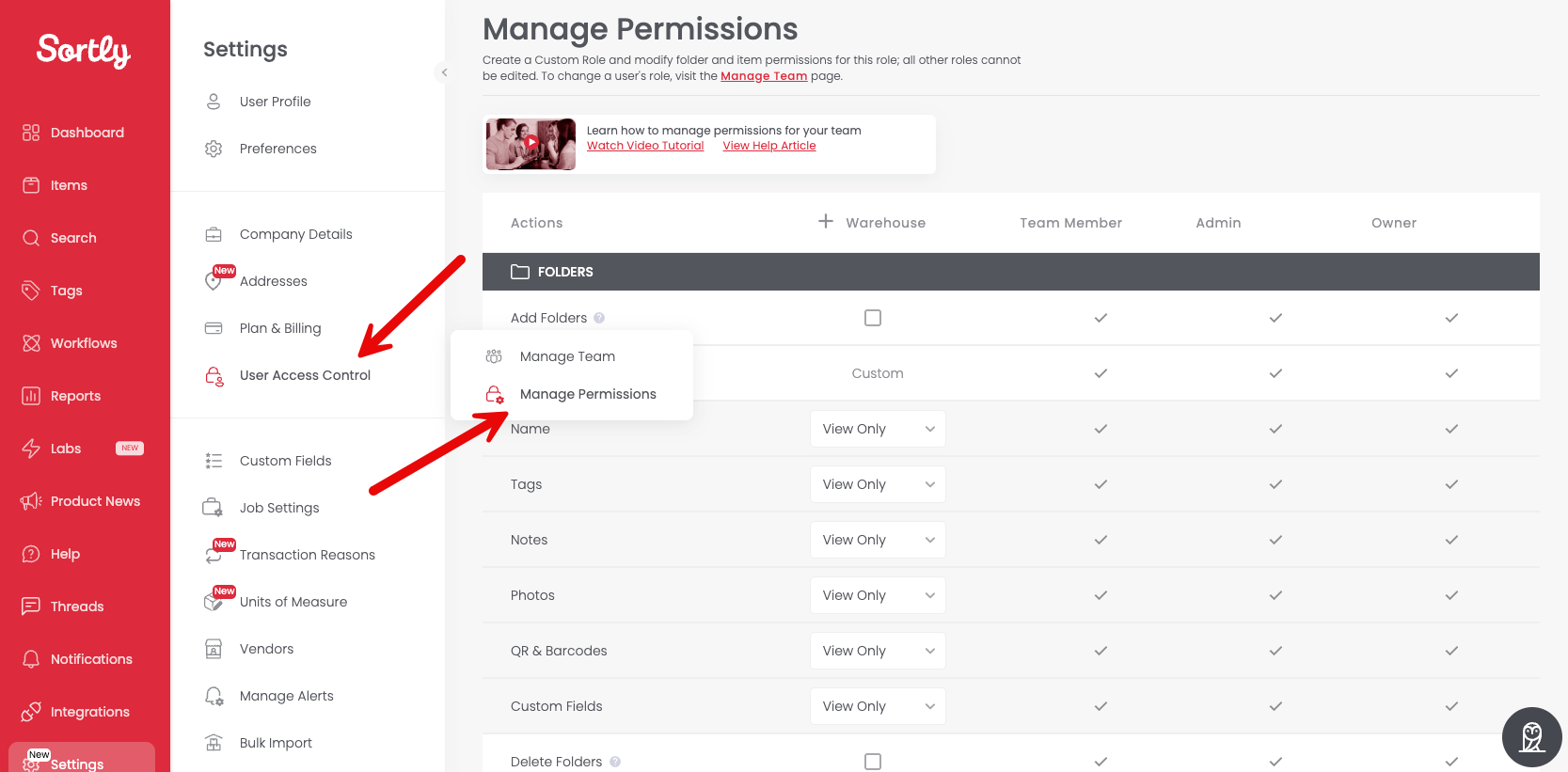
Select Settings in the left menu, then select User Access Control and Manage Permissions.
2
Name your Custom Role. The name appears at the top of its column, next to Team Member, Admin, and Owner.
3
Under FOLDERS and ITEMS, select what this role can do, such as Add Folders, Delete Folders, Move Folders, or Clone Folders.
4
Select Save.
#### Choose which details a role can edit
When you select a main action such as Add Folders, the role can also edit every detail of a folder: Name, Tags, Notes, Photos, QR & Barcodes, and Custom Fields.
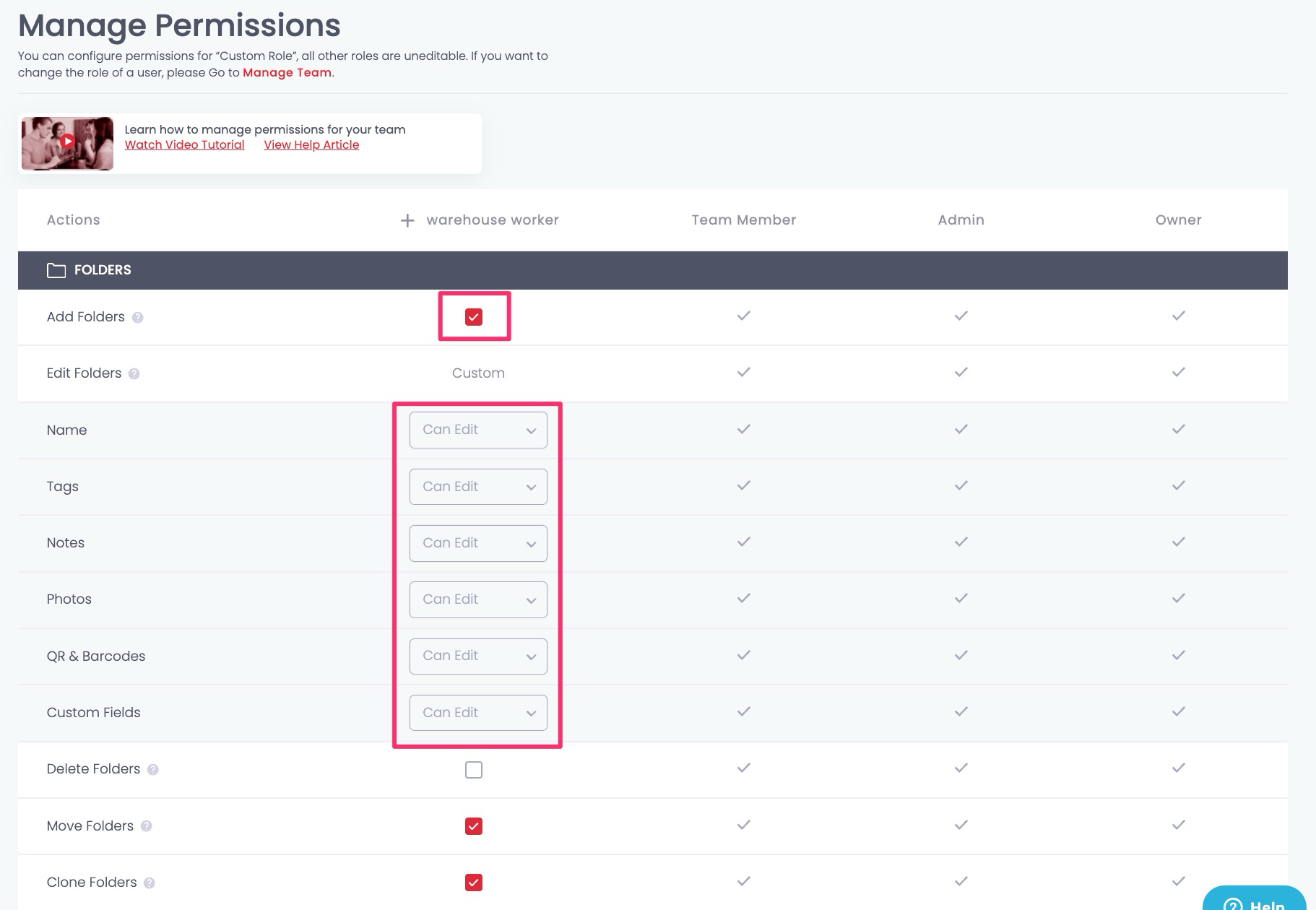
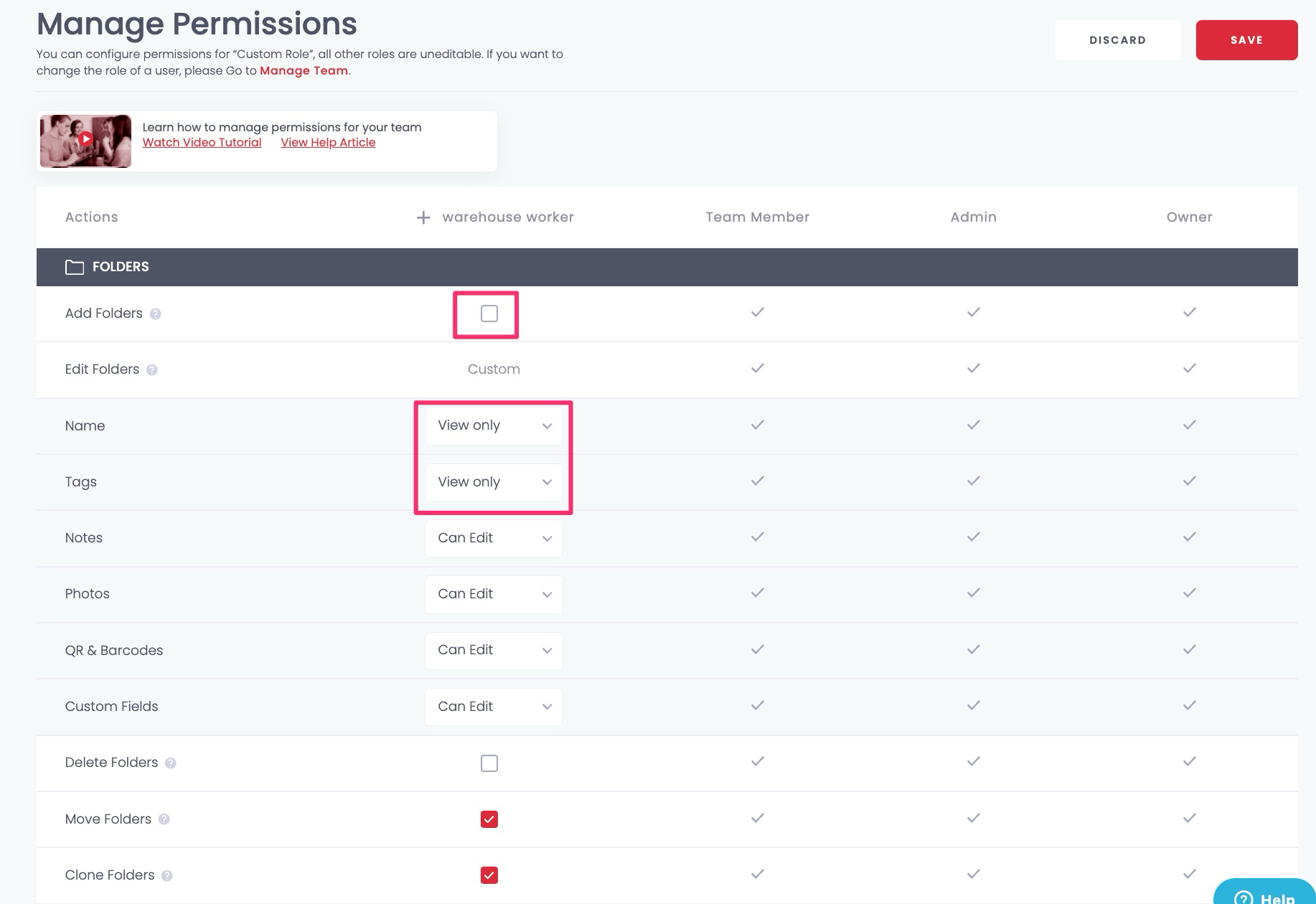
To limit what the role can change, don't select Add Folders. Then, under Edit Folders, choose View Only or Can Edit for each detail. For example, a role can edit a folder's notes and photos, but only view its name and tags.
💡 To choose item details one by one, first make sure neither Add Folders nor Add Items is selected. Otherwise the role can edit every item detail. Then, under Edit Items, choose View Only or Can Edit for each detail, such as Name, Quantity, Min Level, Price, Tags, Notes, Photos, QR & Barcodes, and Custom Fields.
#### Hide prices
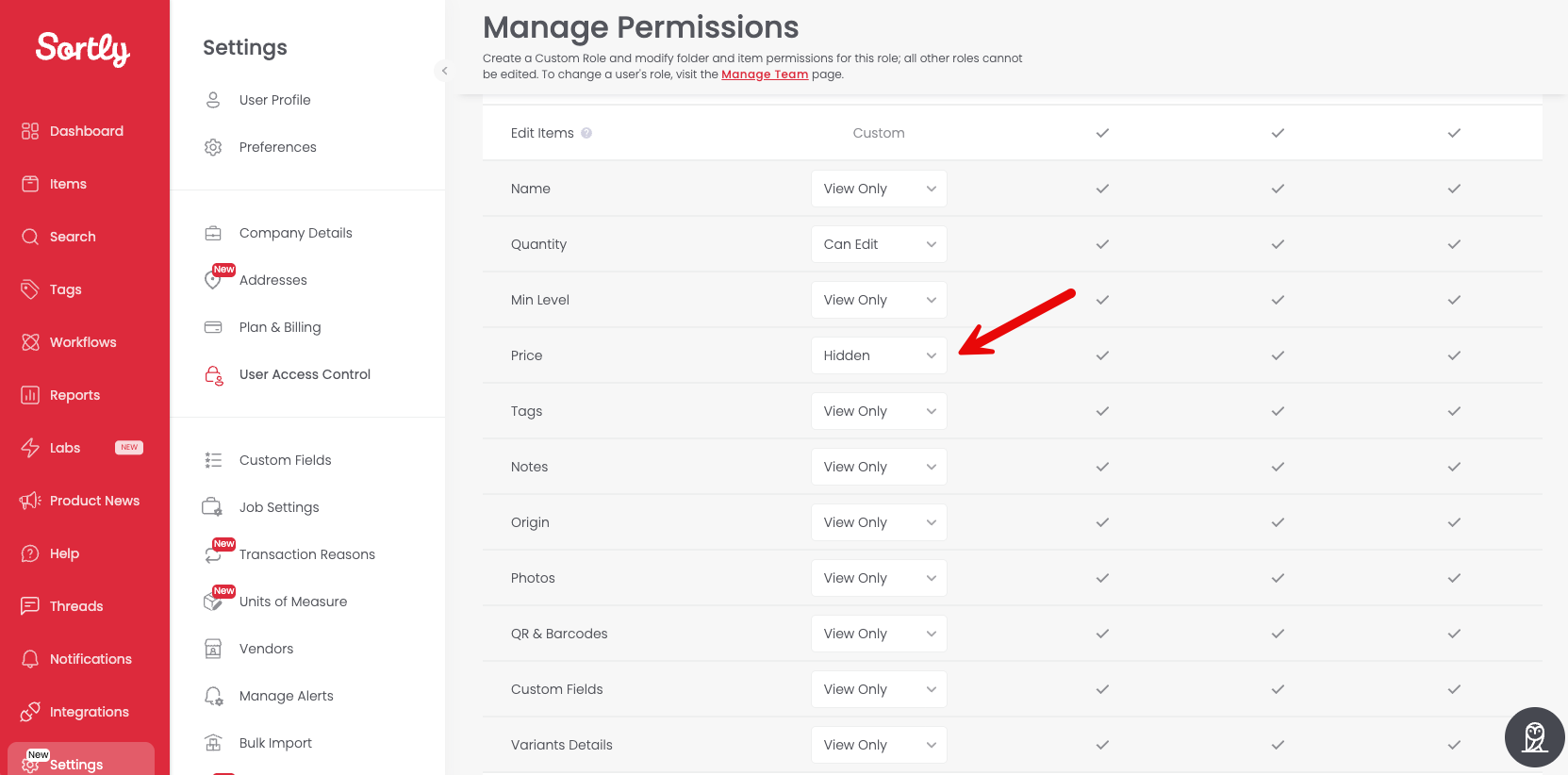
You can keep prices out of sight for a Custom Role completely. Make sure neither Add Folders nor Add Items is selected. Under Edit Items, choose Hidden for Price, then select Save and confirm.
---
### Send alerts to a Custom Role
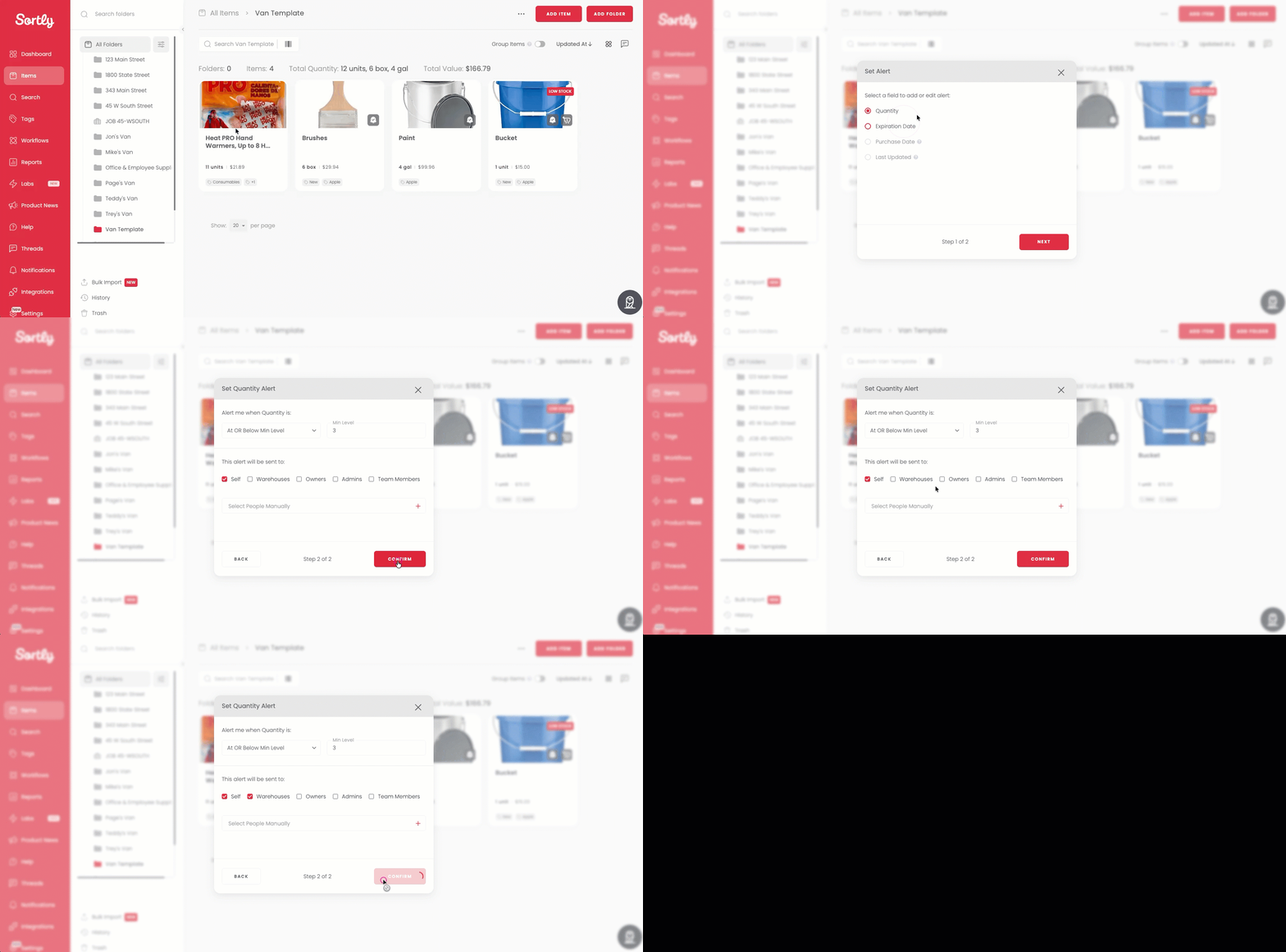
Send an item's alerts to your Custom Role, so the people in that role hear about it at the right time.
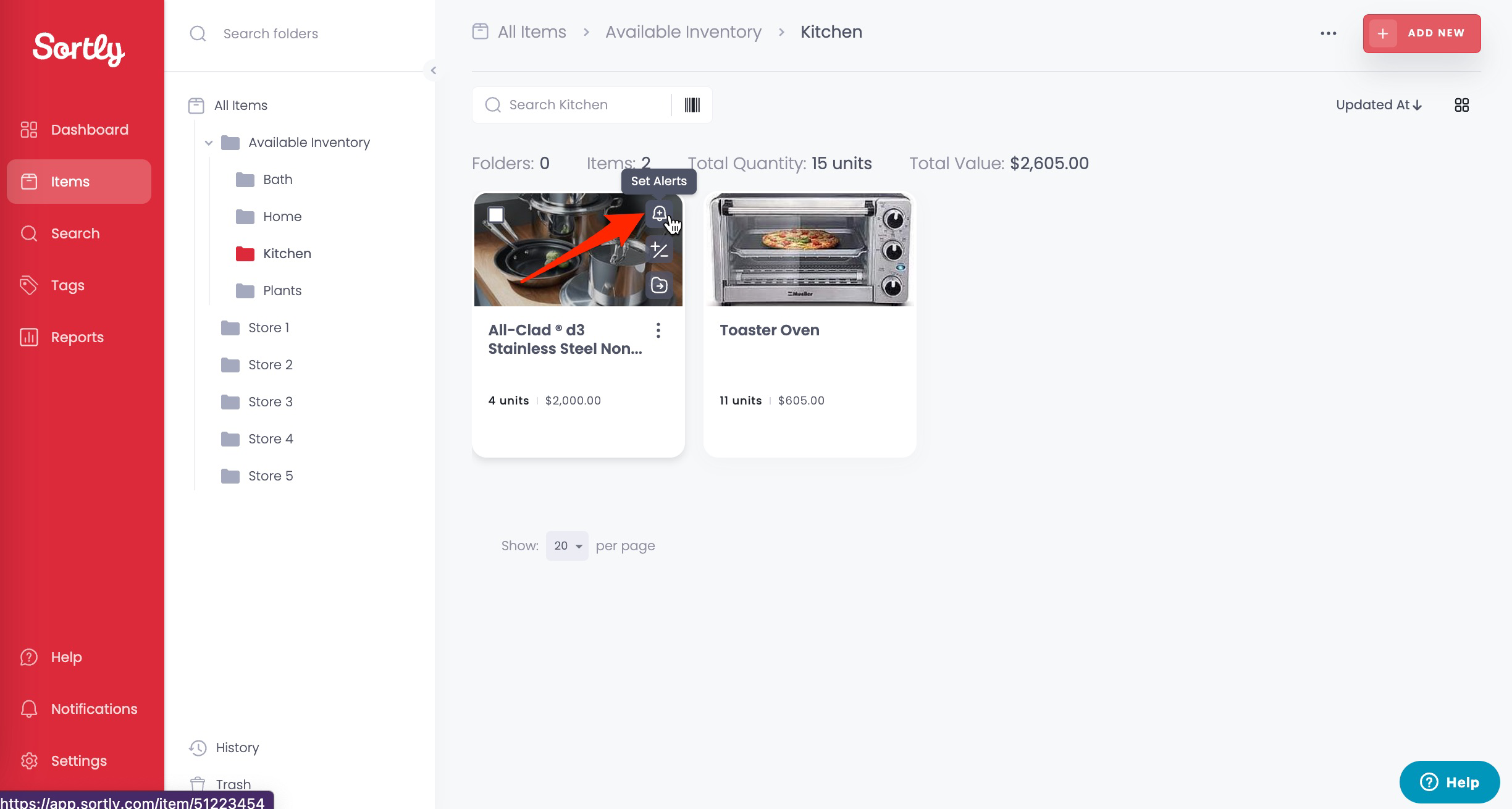
1
Go to the item and select the bell icon (Set Alerts).
2
In Set Alert, select the field the alert is for, such as Quantity, then select Next.
3
Choose when you want the alert, for example At OR Below Min Level.
4
Under This alert will be sent to, select your Custom Role (in this example, Warehouses), then select Confirm.
---
### Invite a Limited Access user
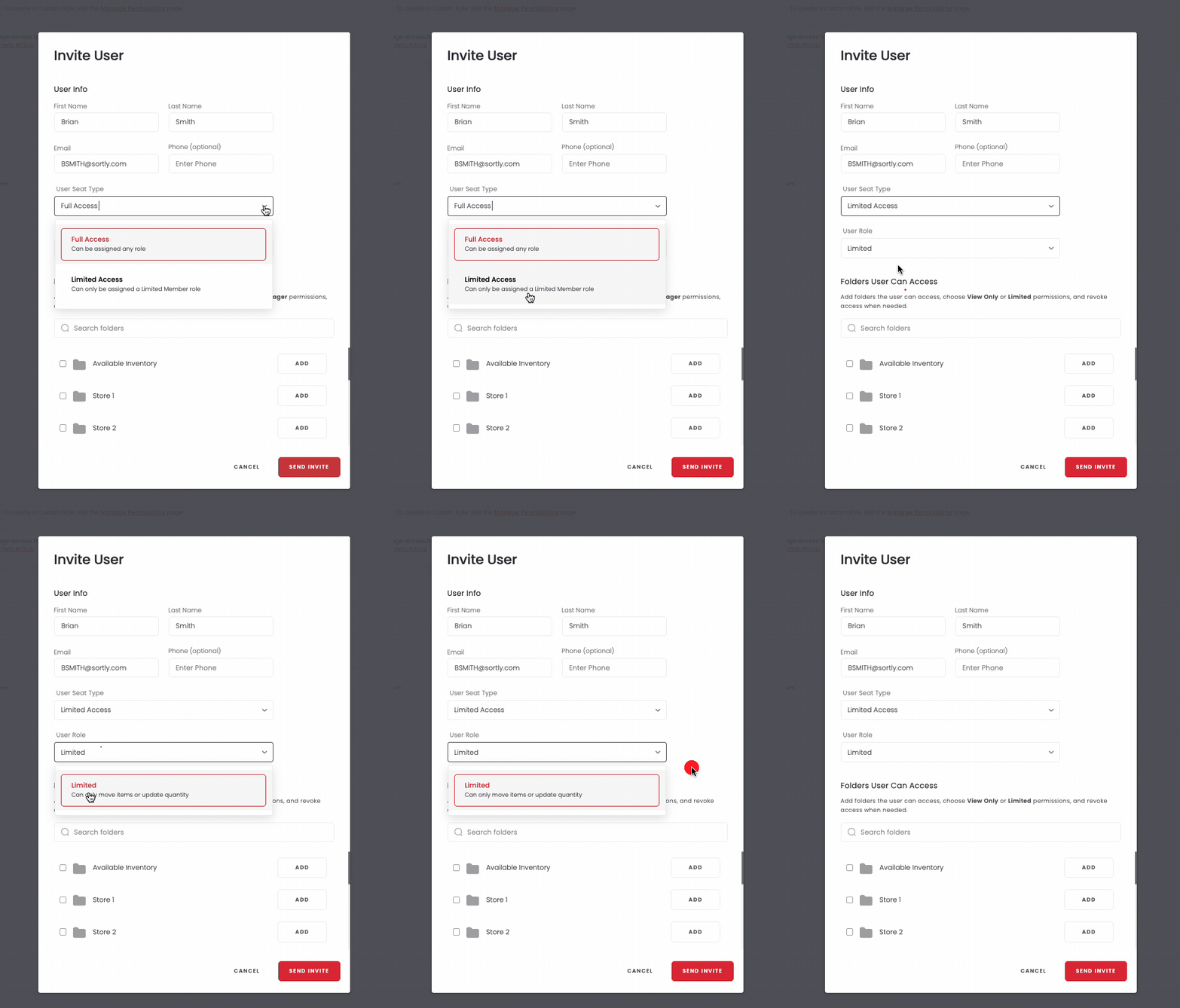
Have someone who only needs to scan items or update quantities? Invite them with the Limited Access Role, so they get basic inventory access without full account access. This is available on the Enterprise plan.
1
Select Settings in the left menu, then select User Access Control and Manage Team.
2
Select Invite User.
3
Under User Seat Type, select Limited Access.
4
Under User Role, select Limited.
5
Fill in the rest of the invitation, including Folders User Can Access, then select Send Invite.
To learn more, see [Enterprise Limited Access User Role](https://help.sortly.com/enterprise-limited-access-user-role?hsLang=en).
### Frequently Asked Questions
Are Custom Roles available on all plans?
No. Custom Roles are available only on the Premium and Enterprise plans.
Can I add more than one Custom Role?
No. You can create one Custom Role per account at this time.
Who has access to Role Permissions?
Owners (all plans) and Admins (Premium and Enterprise) can set up Role Permissions and invite users with role-specific access.
How can I stop Admins from managing team permissions?
Owners can go to Manage Permissions and remove Manage Users from the Admin role. Admins then can no longer manage team and folder access.
Are there any additional costs for Role Permissions?
No. Role Permissions are included in the Premium and Enterprise plans at no extra cost.
Are there limitations on what Admins can do?
Yes. Admins can't:
- Assign or promote themselves or others to the Owner role
- Assign other Admins
- Add or delete seats from the Manage Team page
- View or manage any billing details
[](https://www.sortly.com/)
Copyright © 2026, Sortly Inc.