Skip to content
  • There are no suggestions because the search field is empty.

Microsoft Teams Integration

Connect Sortly to Microsoft Teams to get real time inventory notifications right in the channel your team already watches. Once it's set up, activity in Sortly, like new items, low stock alerts, or completed jobs, shows up automatically in Teams.

Premium
Ultra
Enterprise

This integration is available on Premium, Ultra, and Enterprise plans. If you'd like to upgrade, reach out to support@sortlyapp.com and our team can help.

Installation

  1. 1Open the integration

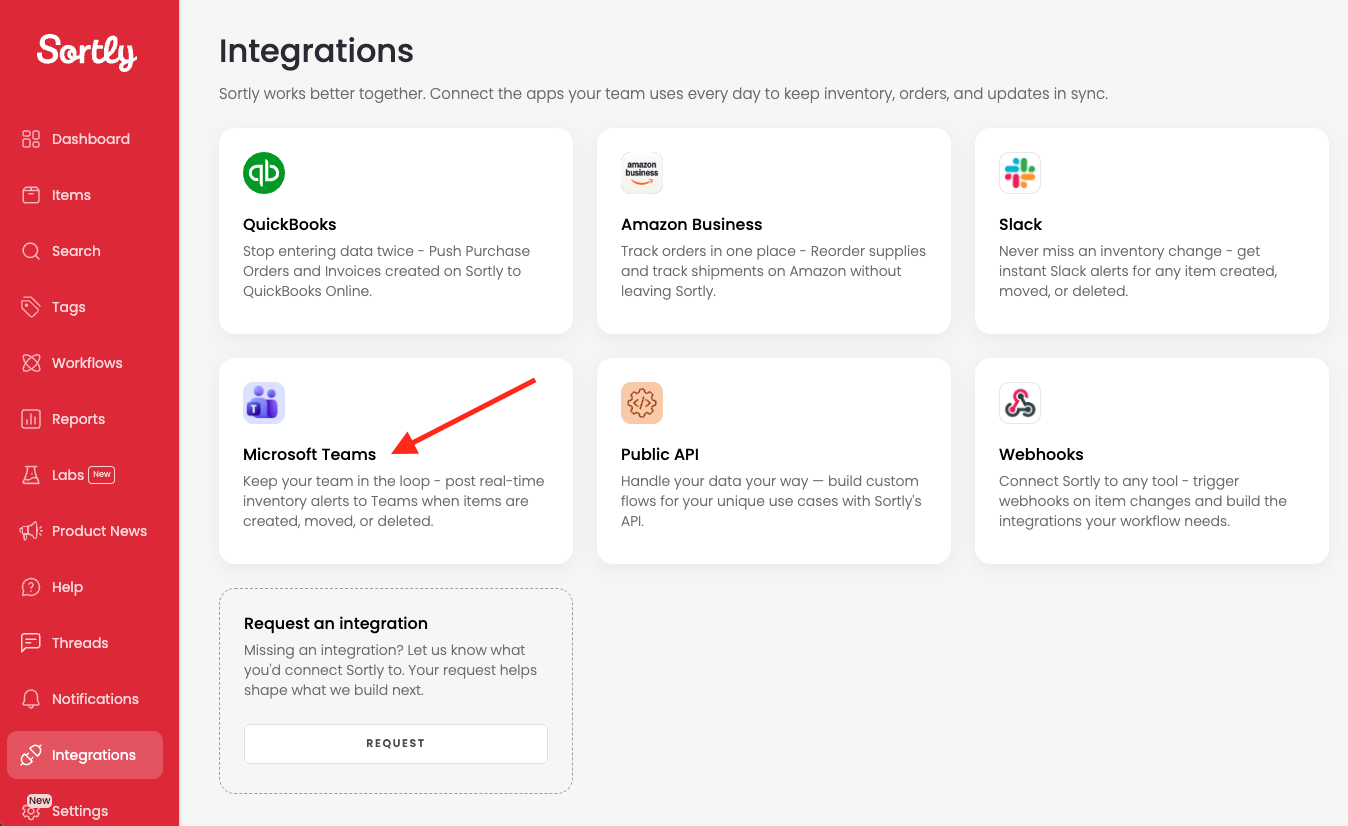
    Go to Integrations in the side panel and select Microsoft Teams.

  2. 2Add a target URL

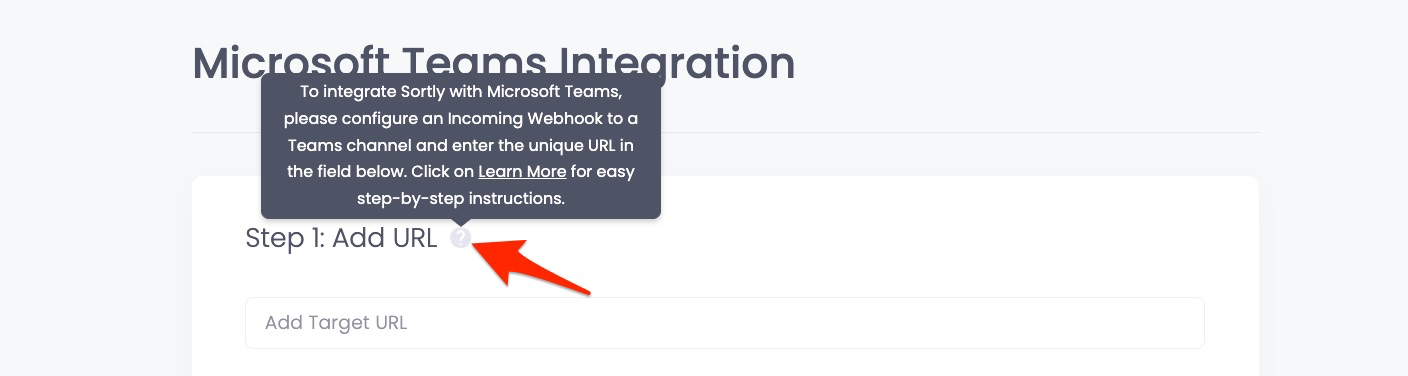
    Click on step 1 to enter your target URL. For instructions on how to get this URL, hover over the tooltip and click Learn More. This links out to Microsoft's guide on creating incoming webhooks.

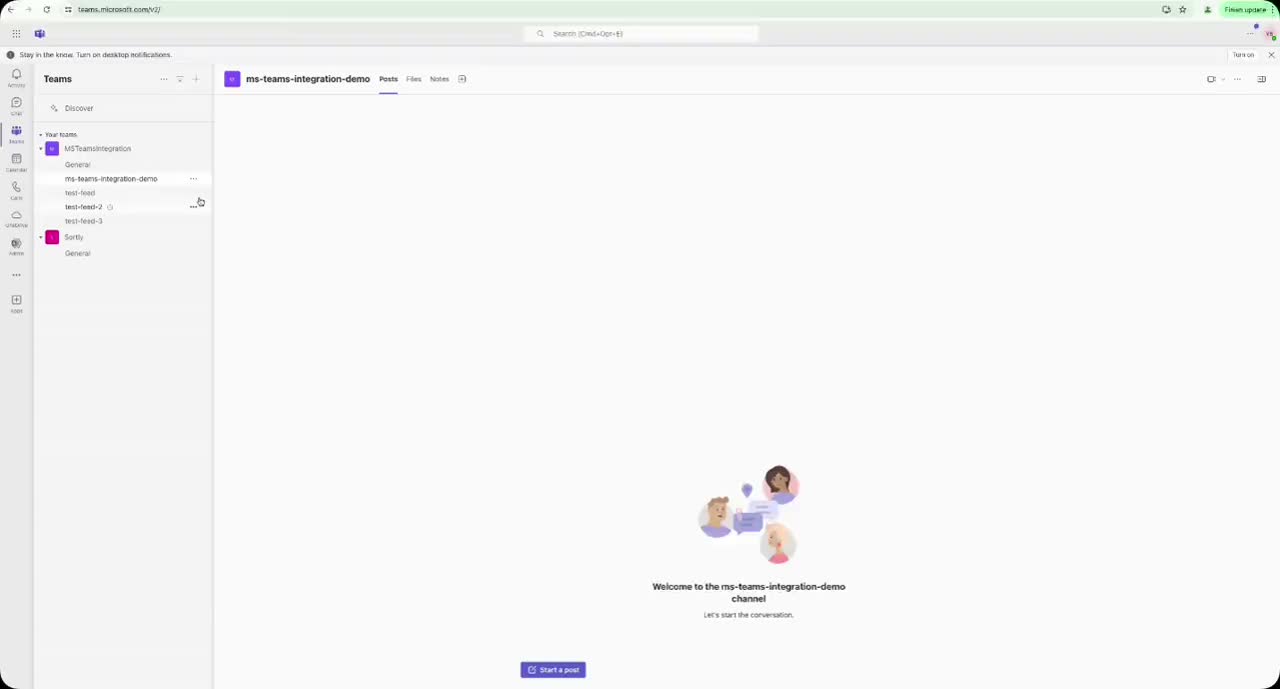
    Follow the steps under Create an Incoming Webhook. Choose the tab that matches your Teams version, New Teams or Classic Teams, and add an incoming webhook to your channel.

  3. 3Select event notifications

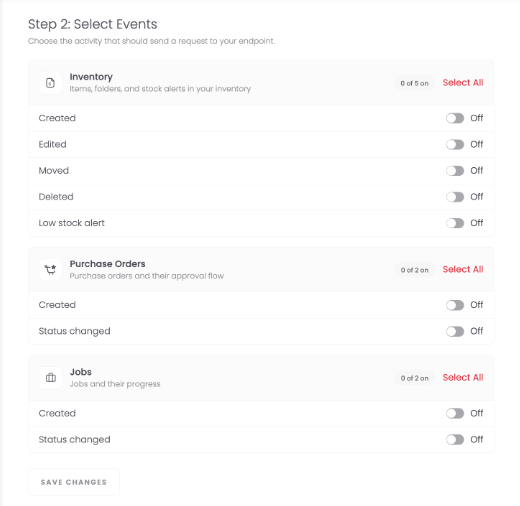
    Choose which Sortly events should send a notification to your endpoint. Toggle on the ones you want under Inventory, Purchase Orders, and Jobs.

  4. 4Save your changes

    Once you've made your selections, click Save Changes. You can come back and update these settings any time.


Using the Microsoft Teams integration

Once it's connected, the integration runs on its own. Actions taken by you or your team in Sortly post automatically to the Microsoft Teams channel you selected, based on the event notifications you turned on.

✅ You'll see event posts show up in the channel as they happen, no extra steps needed on your end.

See our Privacy Policy for details on how we handle your data.