Skip to content
  • There are no suggestions because the search field is empty.

Product Link

Save time on every reorder by keeping your supplier's product page right on the item in Sortly. When stock runs low, open your supplier's site from the Restock flow, place your order there as usual, and come back to Sortly to track it without losing your place. You keep buying from wherever you already buy, without searching for the right page each time. This article walks you through saving a Product Link, restocking with it, tracking the purchase in a Purchase Order, and viewing an item's order history.

Ultra
Premium
Enterprise

How Product Link works

Save the link to your supplier's product page on any item, and Sortly keeps it there for the next time you need to reorder. The flow looks like this:

1
Save your supplier's page link on the item once (Amazon, Home Depot, a distributor, or any other supplier you use).
2
Open that page from the Restock flow when inventory is running low. It opens in a new tab so you stay in Sortly.
3
Place your order on the supplier's site as you normally would.
4
Track it in Sortly using a Purchase Order if you want to keep tabs on what's incoming.

Tracking is optional. If you only needed the supplier link, you can stop after step 2.

💡 Already saving supplier links in a custom Web Link field? Sortly moves those over to Product Link automatically, so there's nothing for you to do.

You can add a Product Link from the item's page or the first time you restock. You only need to set it up once per item.

From the item page

Prefer to set up your links ahead of time? Add one from the item's page whenever it's convenient.
1
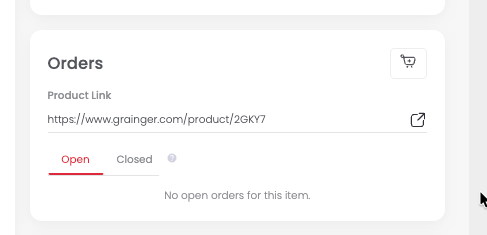
Open the item, then scroll down to the Orders section.
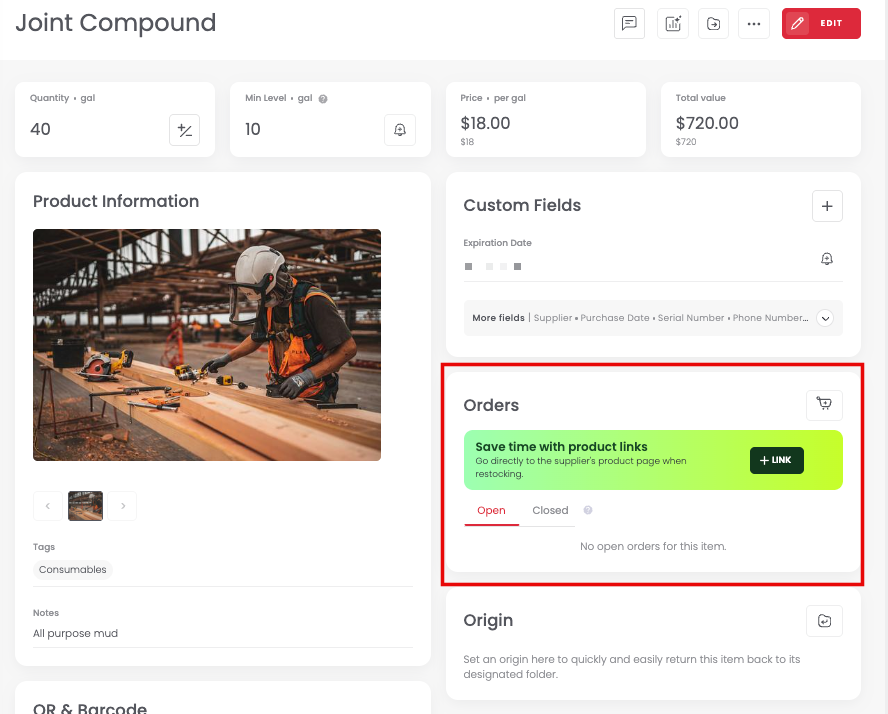
Orders section on an item page with the Save time with product links banner and Link button
2
In the Save time with product links banner, select Link.
3
Paste the link to your supplier's page, then select the checkmark to save it. The link shows up in the Orders section from now on.
Orders section showing a saved Product Link to a Grainger product page

From the Restock flow

Need to reorder an item that doesn't have a link yet? Add one on the spot while you restock, and Sortly remembers it for next time.
1
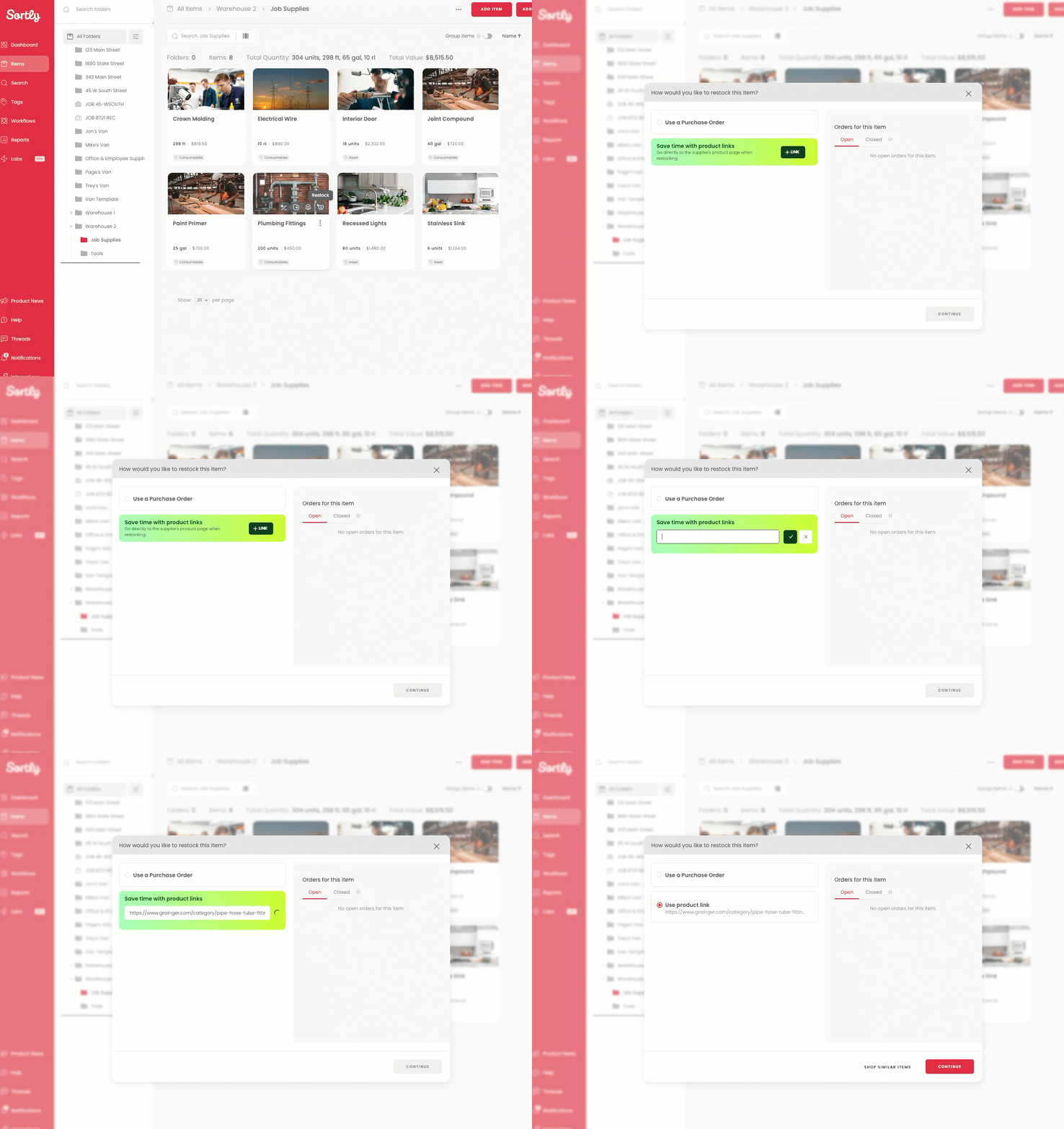
Select Restock on the item.
2
In the Save time with product links banner, select Link.
3
Paste the link to your supplier's page, then select the checkmark to save it. The link now appears under Use product link.
Adding a Product Link from the Restock window by selecting Link, pasting a URL, and saving it

Restock using a Product Link

Once a Product Link is saved on an item, here's how to use it when you need to reorder.

1
Select Restock on the item.

You can start restocking from an item card, the item detail page, a low-stock alert, or the Workflows tab.

On an item card, select the Restock icon:
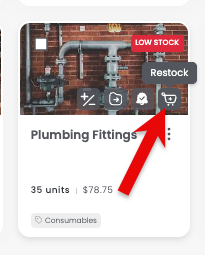
Restock icon on a Plumbing Fittings item card marked Low Stock

On the item detail page, select Restock on the low stock alert, or the cart icon in the Orders section:
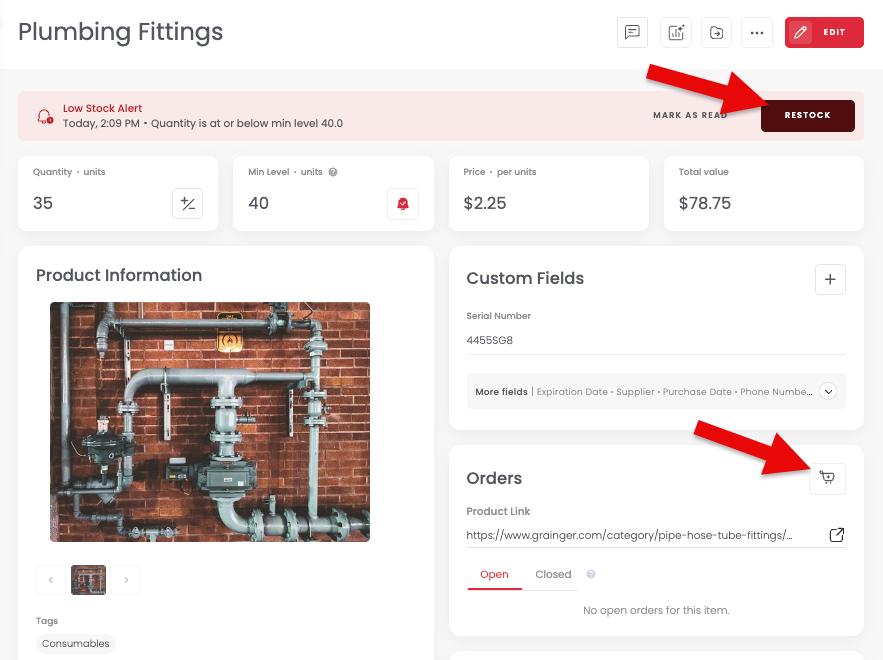
Item detail page with arrows pointing to the Restock button on the low stock alert and the cart icon in the Orders section

The Low Stock report also lists each item's Product Link:
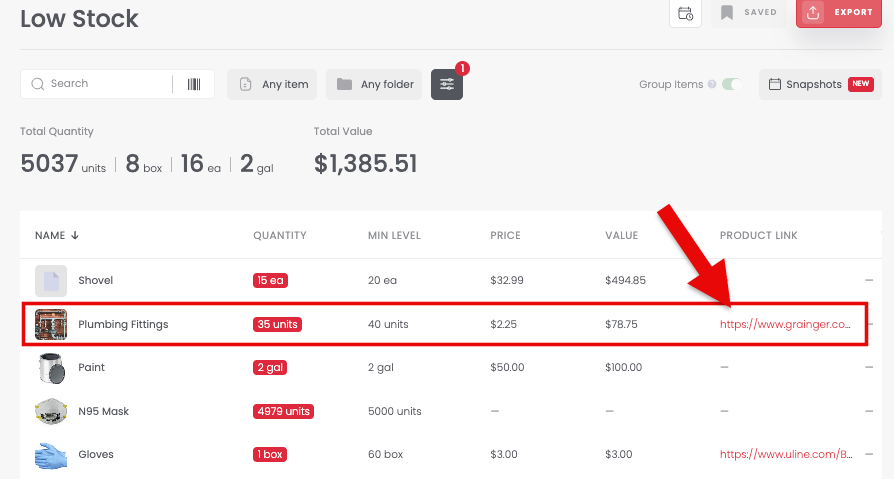
Low Stock report with the Product Link column showing a Grainger link for Plumbing Fittings
2
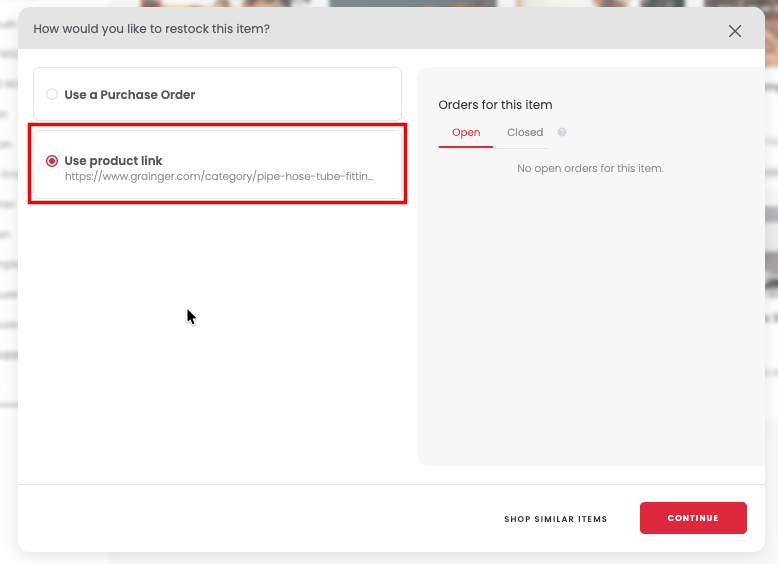
In the How would you like to restock this item? window, select Use product link. Sortly shows the saved link for this item under it.
Restock window with Use product link selected and the saved supplier link shown
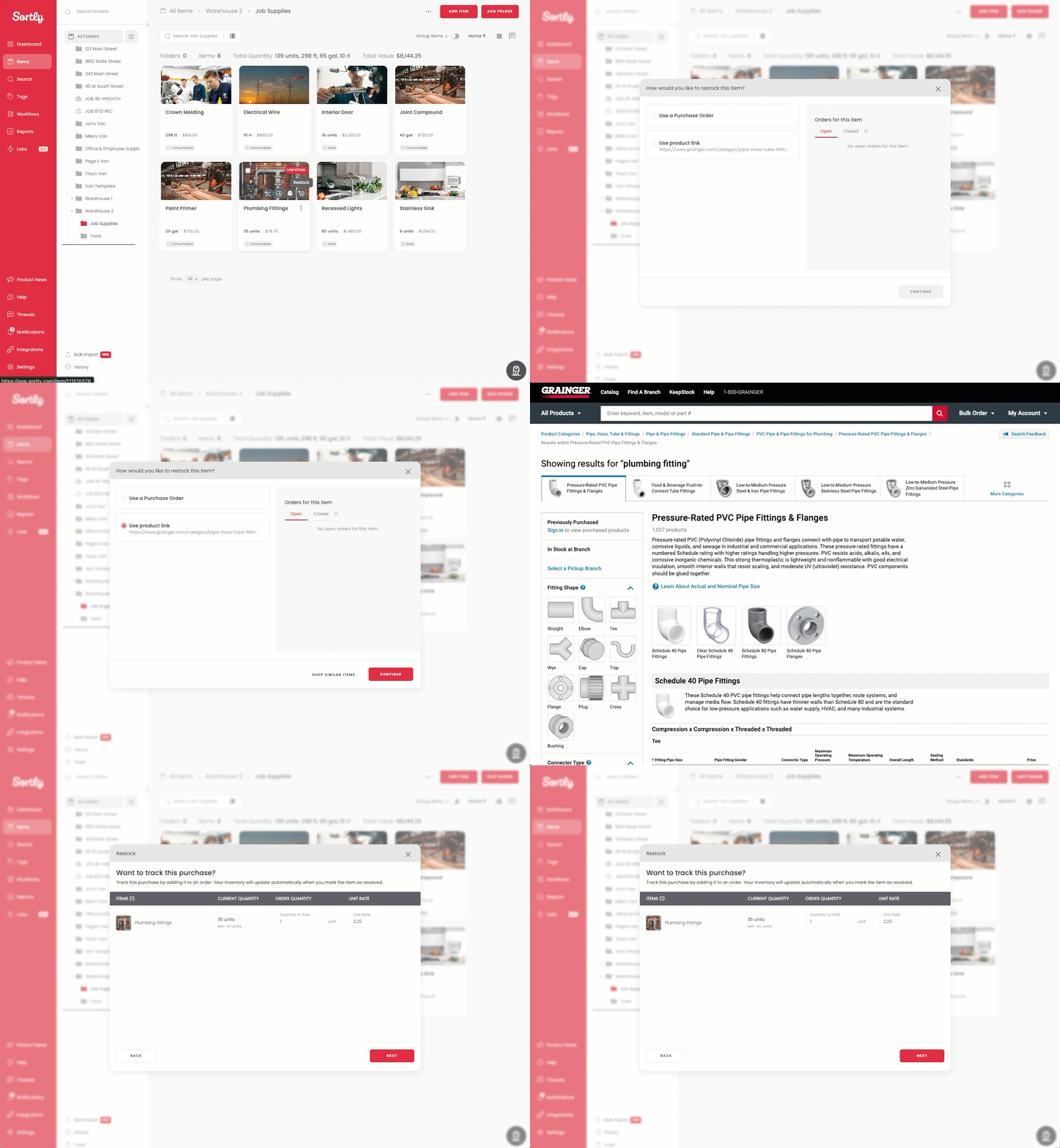
Restocking an item with Use product link, then Continue, which opens the Want to track this purchase? window
3
Select Continue. Your supplier's page opens in a new tab. Complete your order on the supplier's site, then return to Sortly when you're done.

Track the purchase in a Purchase Order

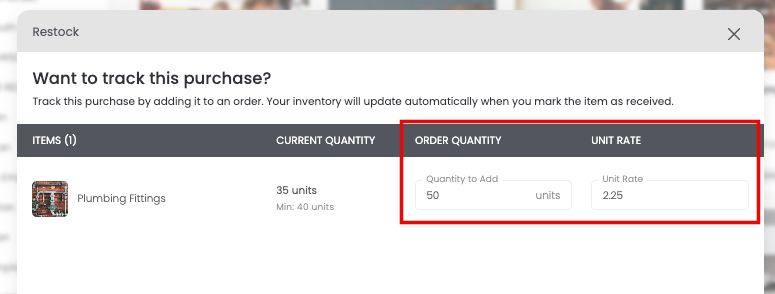
After you select Continue, Sortly asks Want to track this purchase? This is optional. If you don't need to track it, close the window.
1
Enter the Quantity to Add to match what you ordered. It starts at 1. The Unit Rate is filled in if Sortly already has the item's price.
Want to track this purchase? window with the Quantity to Add and Unit Rate fields highlighted
2
Select Next.
3
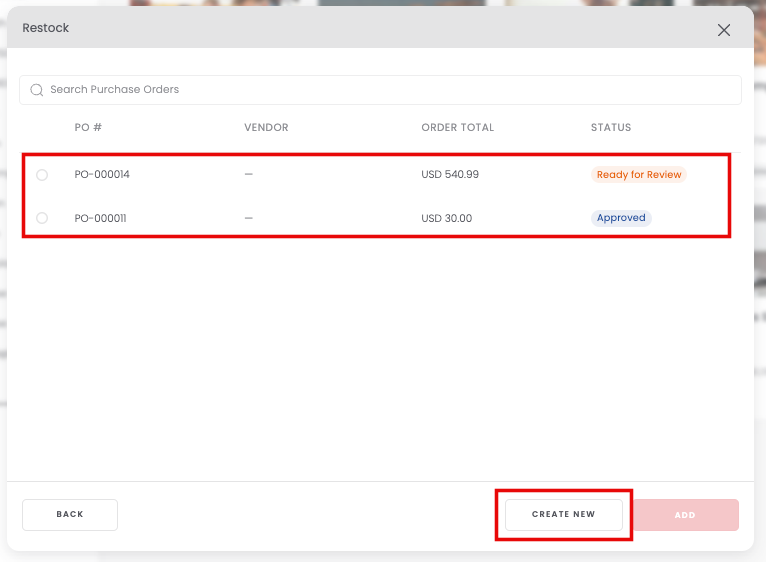
Select an open Purchase Order and then Add, or select Create New to start a new one. From here the flow works the same as any other Purchase Order in Sortly.
List of open Purchase Orders with the Create New button highlighted

Once the item is on a Purchase Order, the supplier link stays attached to it so you can get back to the product page any time you need to.

💡 When your order arrives, receive it the same way you would any other Purchase Order. See Purchase Orders for the full steps.

View order history on an item

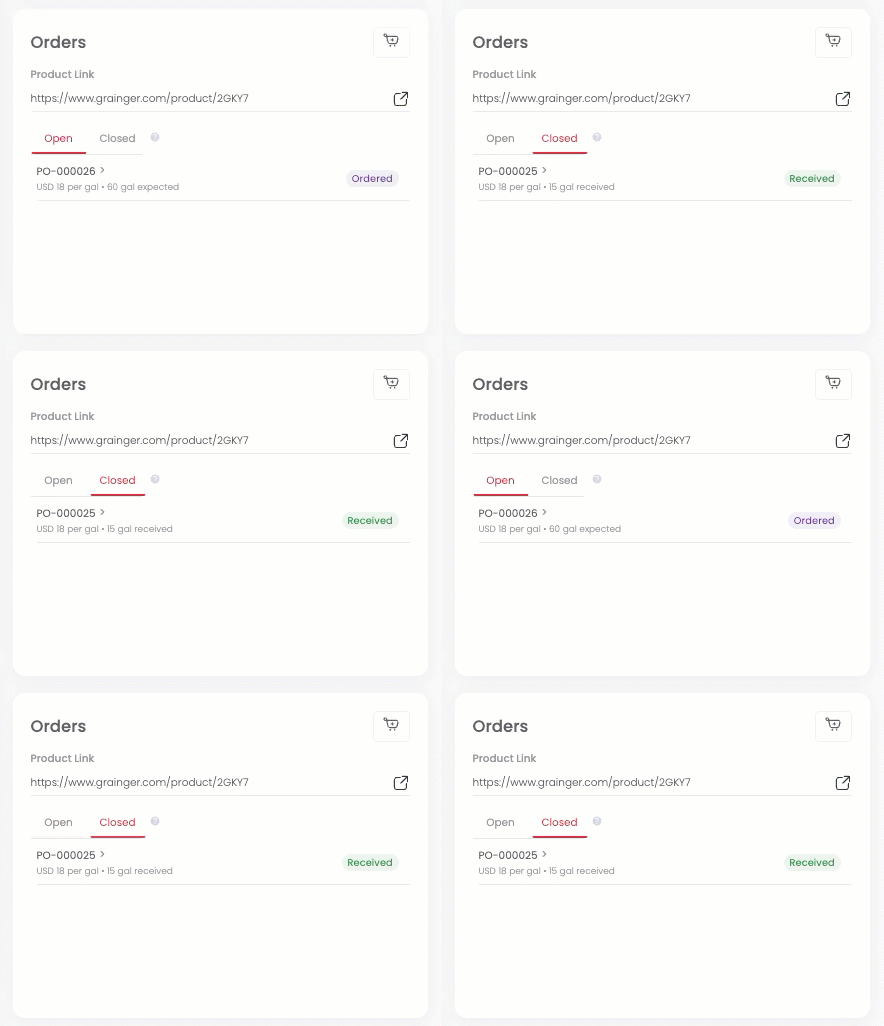
The Orders section on any item page shows every Purchase Order connected to that item. Use the Open and Closed tabs to switch between them. It's a handy way to check things like:

  • Has this already been ordered?
  • Is there an order still in progress?
  • Which Purchase Order has this item on it?
  • Has it already been received?
Orders section switching between the Open tab with an Ordered PO and the Closed tab with a Received PO

Frequently Asked Questions

Does Product Link only work with Amazon?
No, it works with any website. Customers use it with Amazon, Grainger, Ferguson, Home Depot, McKesson, Uline, manufacturer sites, and many others. If you can open it in a browser, you can save it as a Product Link.
Do I have to create a Purchase Order every time?
No. Tracking your purchase in Sortly is optional. You can close the tracking window and use the link to visit your supplier's page. No Purchase Order needed.
Will opening the link take me out of Sortly?
No. The supplier page opens in a new browser tab. Sortly stays open in your original tab with the tracking window ready when you return.
I already have supplier links saved in a custom field. Do I need to move them?
No. If you had links saved in a Web Link custom field, Sortly moves them over to Product Link for you. You don't need to do anything.
Can I change the link if I switch suppliers?
Yes. Open the item, go to the Orders section, and update the Product Link any time. The new link is used the next time you restock.
Does Product Link replace Shop Similar Items?
No, they do different things. Product Link takes you straight to your usual supplier. Shop Similar Items helps you browse similar products on Amazon Business. Both are available when you restock.
Does the supplier link show up in reports?
Yes. Product Link is included in the Inventory Summary, Transactions Report, Activity History, Item Table View, and CSV and PDF exports.
Can I search for items using the supplier link?
Yes. Search by the full URL, part of the URL, or the supplier's website name to find all items linked to that supplier.
Who can see and use Product Links?
Anyone with access to Purchase Orders in Sortly can view, edit, and use Product Links. If a team member doesn't have that access, they won't see the feature.