
With Sortly, you can create quantity alerts on individual items or in bulk to notify you or your team when stock reaches a certain threshold, like a low stock warning. Set them up from desktop or mobile and choose exactly who gets notified, then check in anytime on the Alerts section of the desktop app to see what's active.
In this article
Individual vs. bulk alerts
Not sure whether to set an individual or bulk alert? Here's the difference:
Setting quantity alerts on desktop
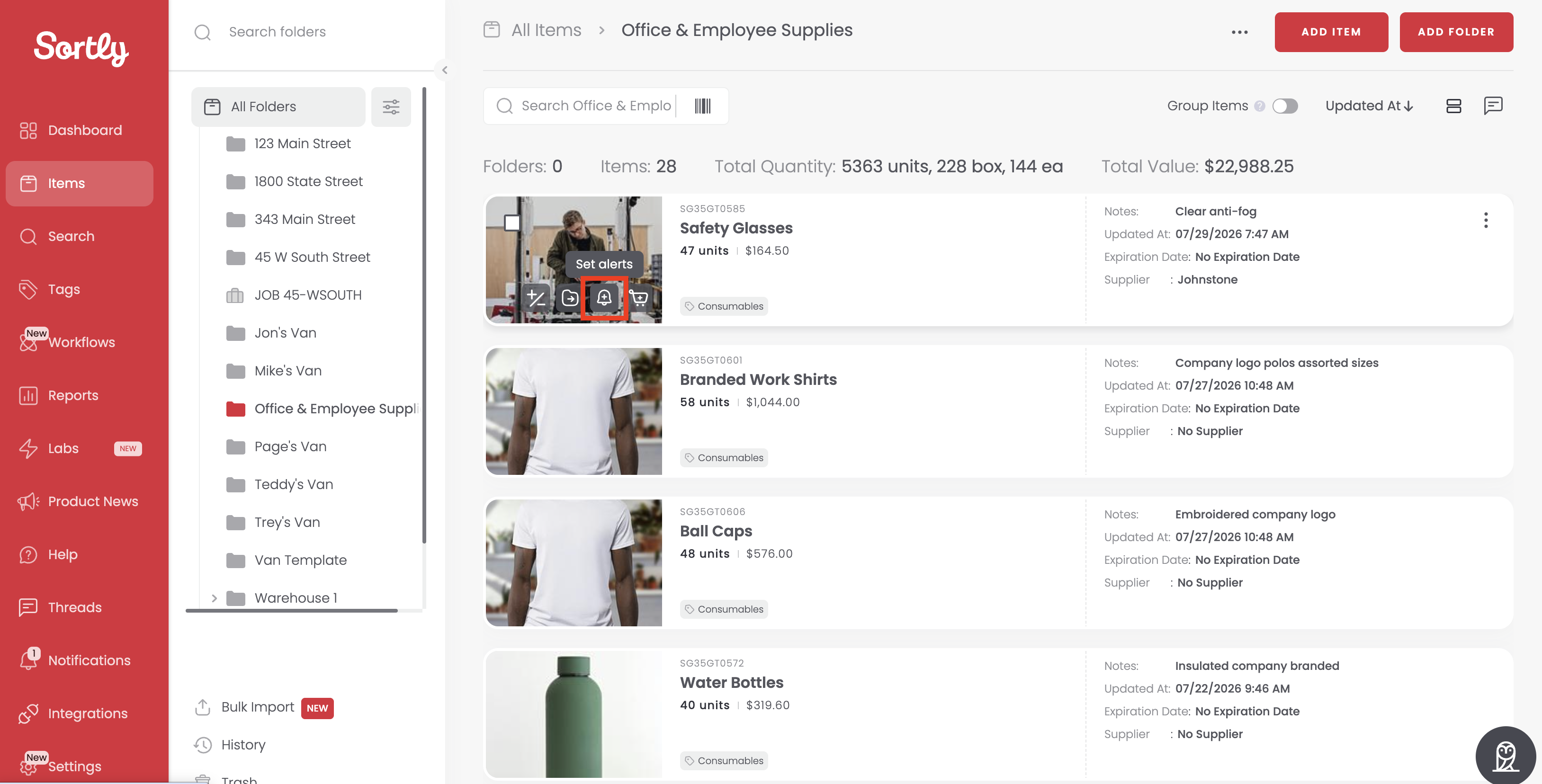
You can set an alert from the item's edit mode or at the folder level.
-
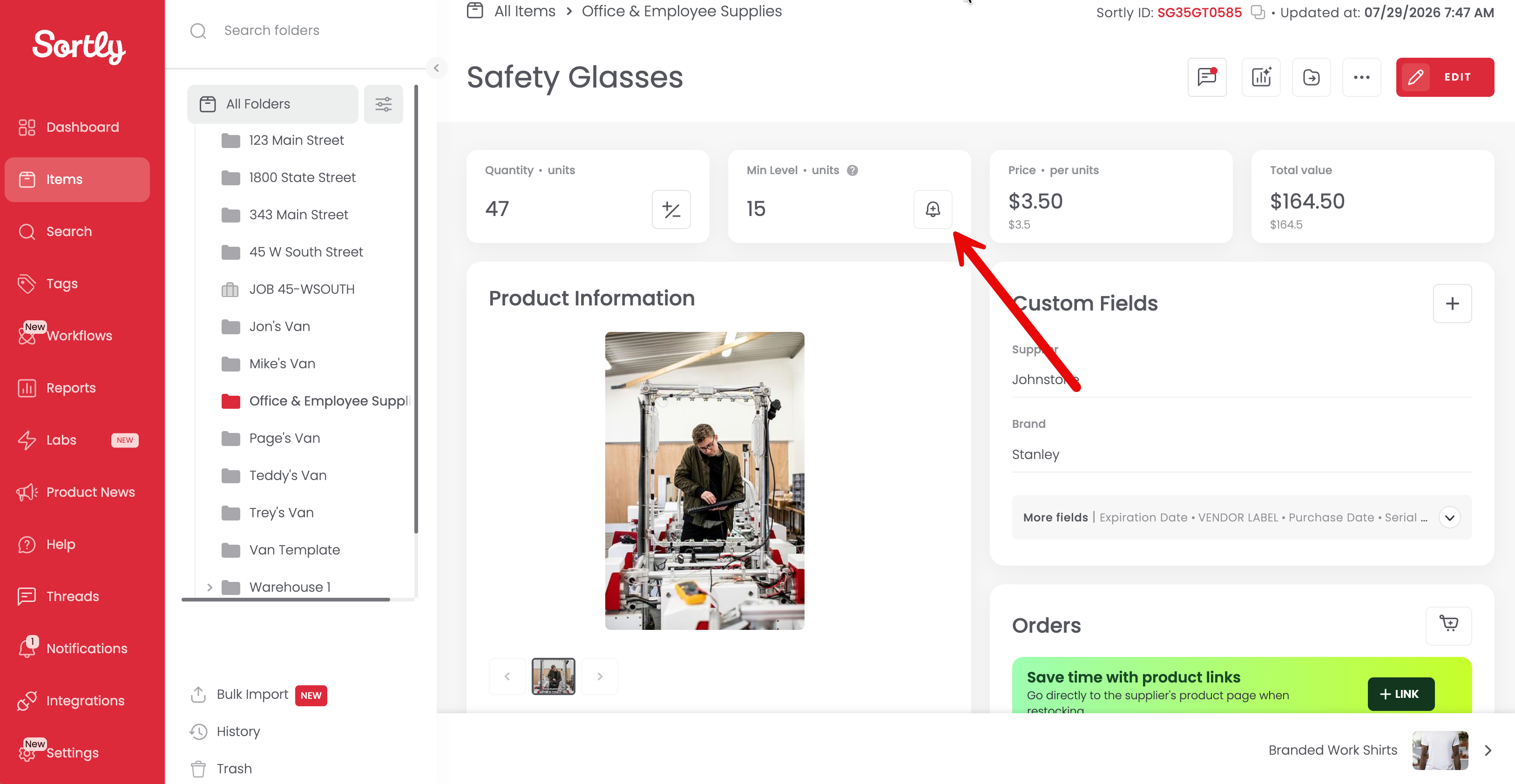
1In the item's Edit mode, click the Bell icon beside the item quantity field.
You can also set the alert at the folder level:
-
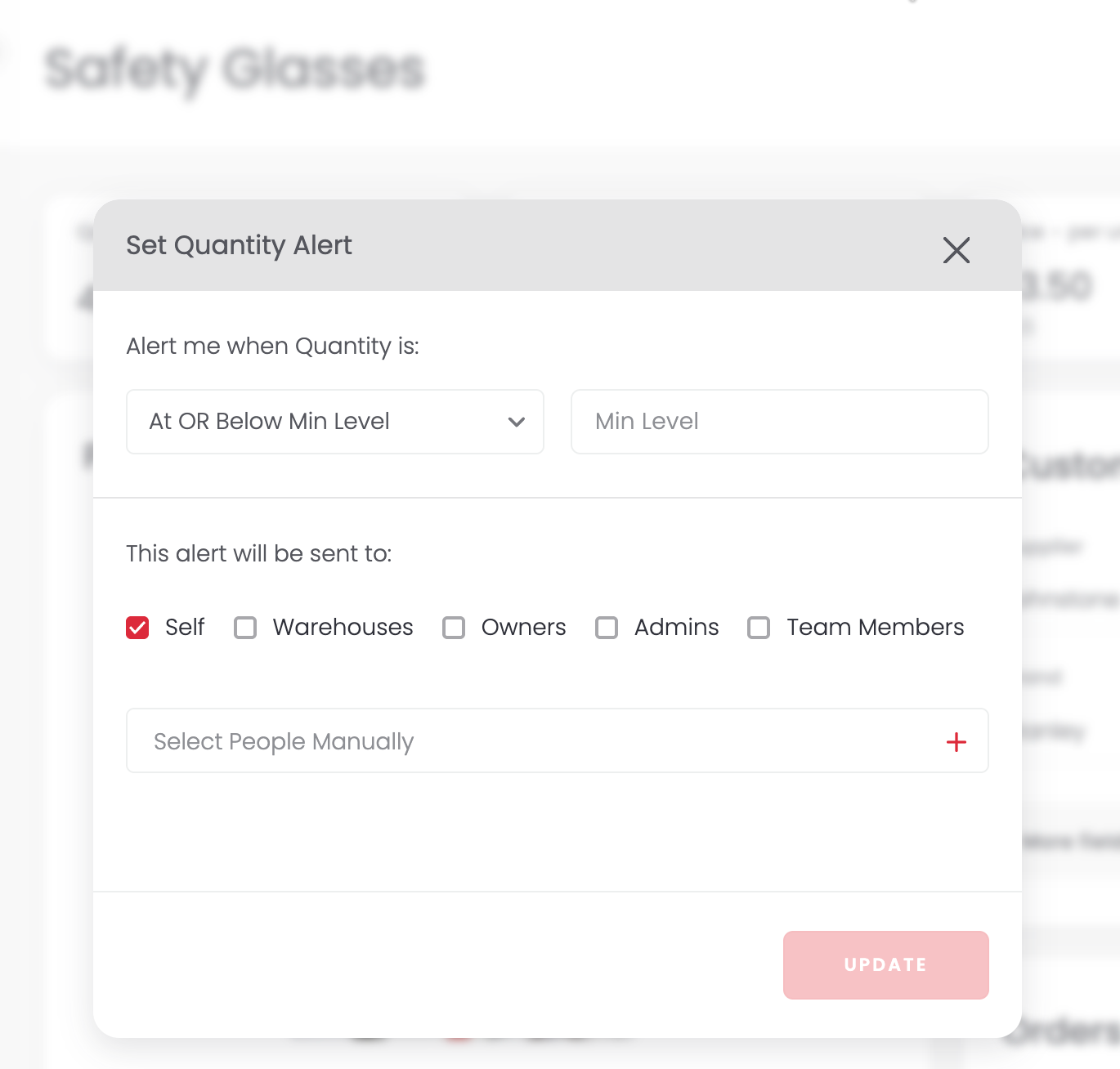
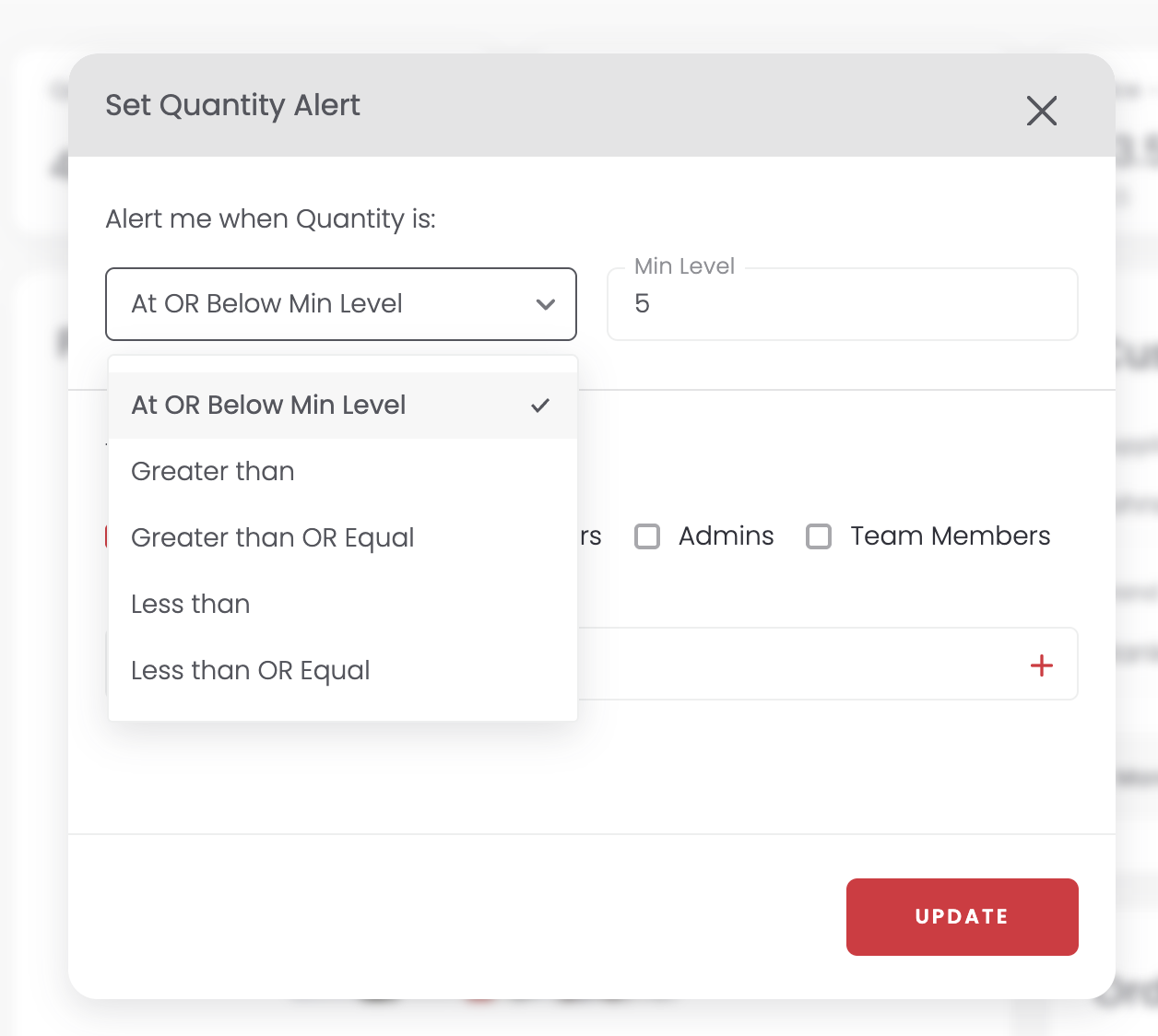
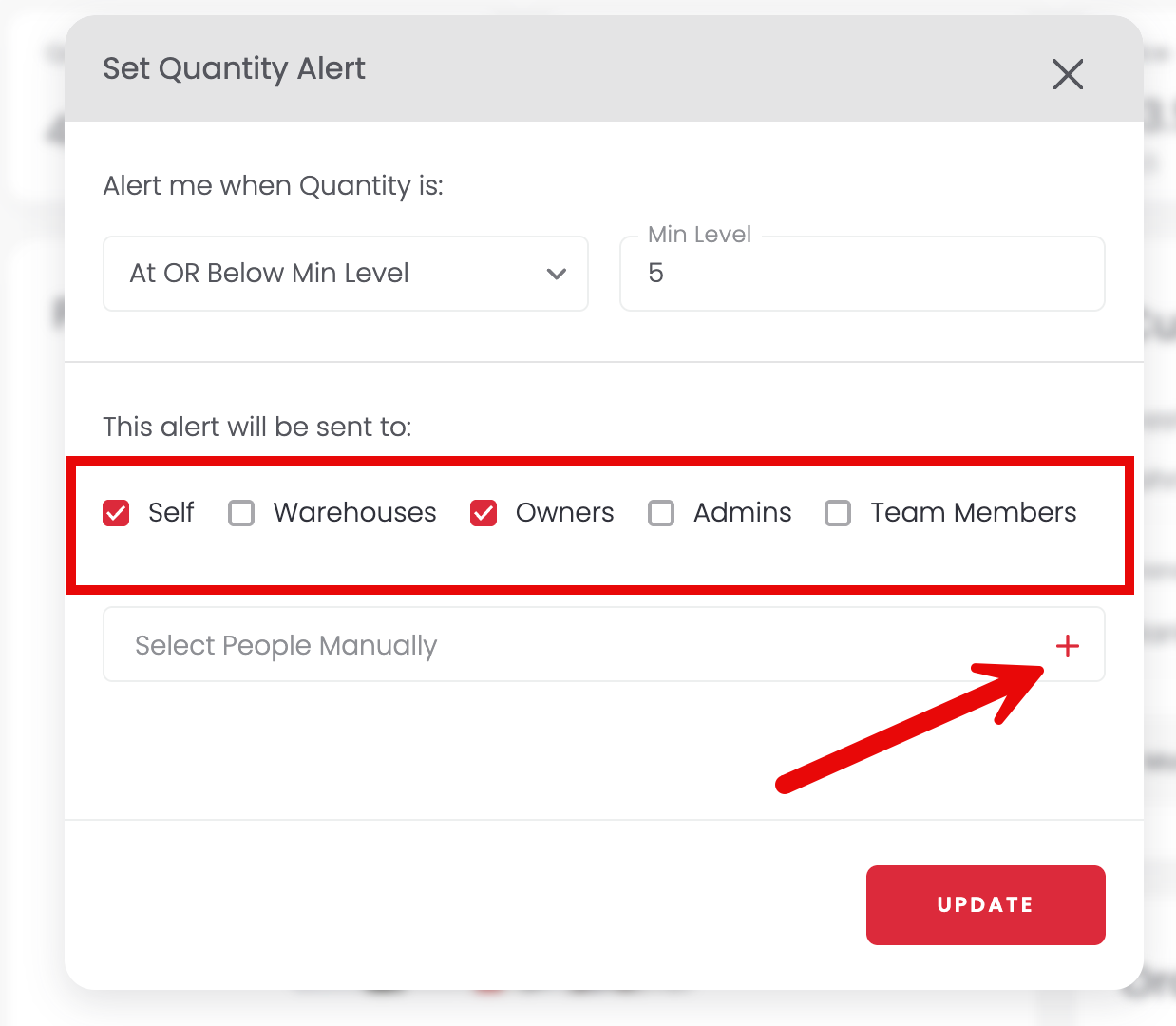
2Select the conditions and threshold quantity (example: alert me when quantity is at or below Min Level, or when Min Level is 5).
-
3Choose who should be alerted: yourself, all owners, all admins, all members, or specific people via Select People Manually.
-
4Press Update to finish.
Setting bulk alerts on desktop
Set alerts for groups of items at once from either the items page or Advanced Search, both work the same way:
-
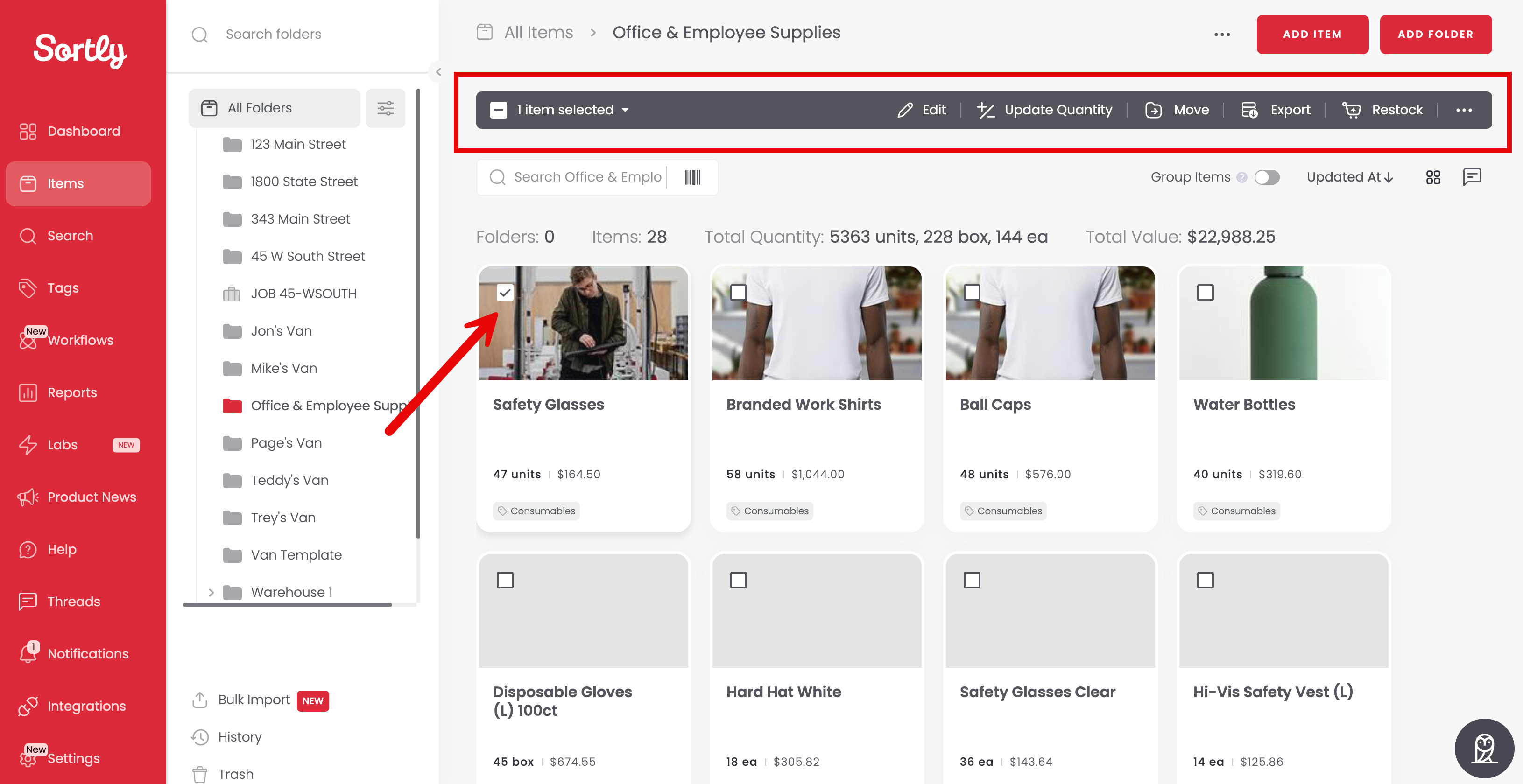
1Check the box at the top left of each item you want to include.
-
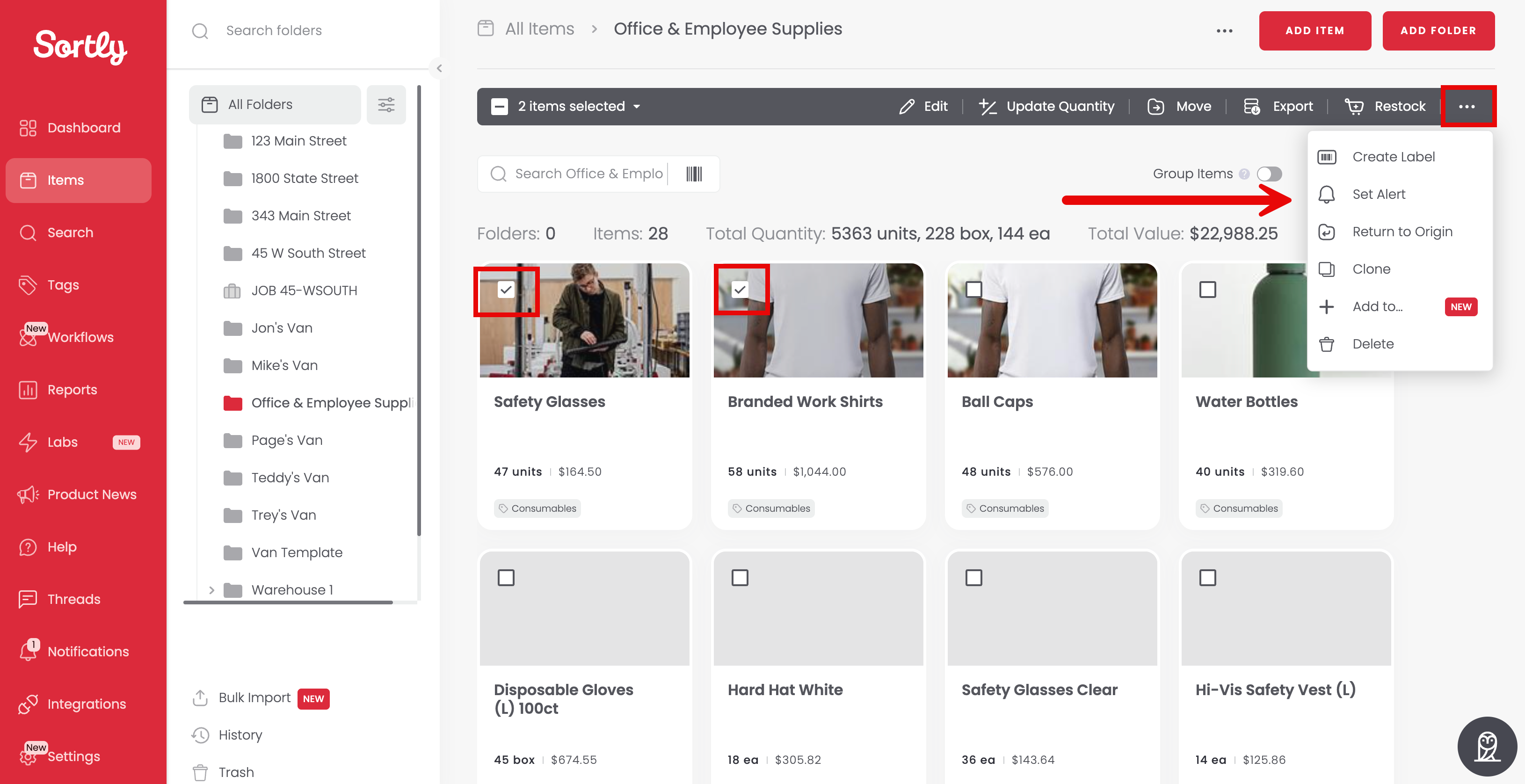
2Click the three dots at the top right of the Bulk Actions bar and select Set Alert.
-
3Choose the field to set the bulk alert for, then click Next.
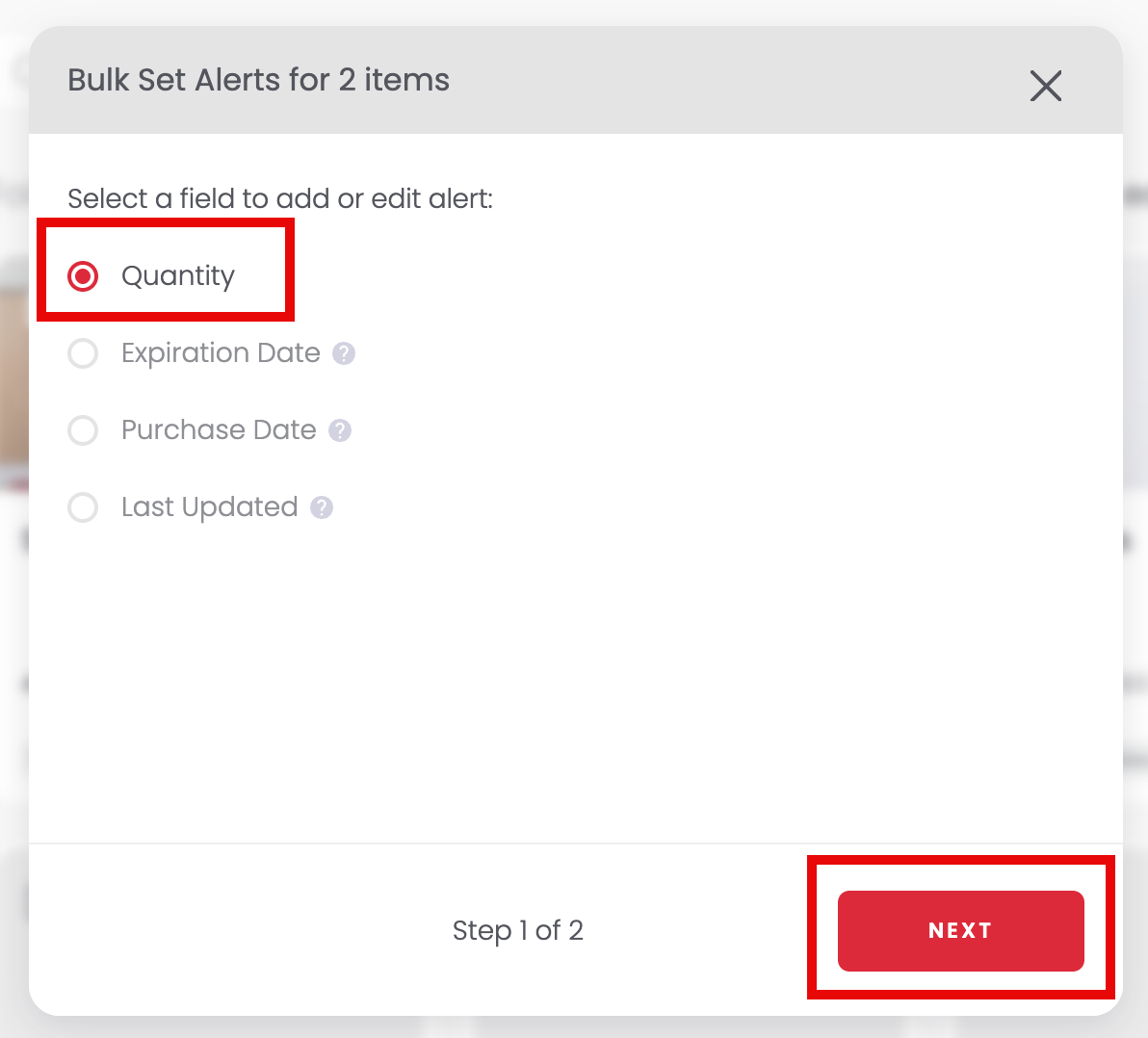
Note: if a field isn't filled in on some of the selected items, those items won't be eligible for the bulk alert. Fill in that field first, then set the alert.
-
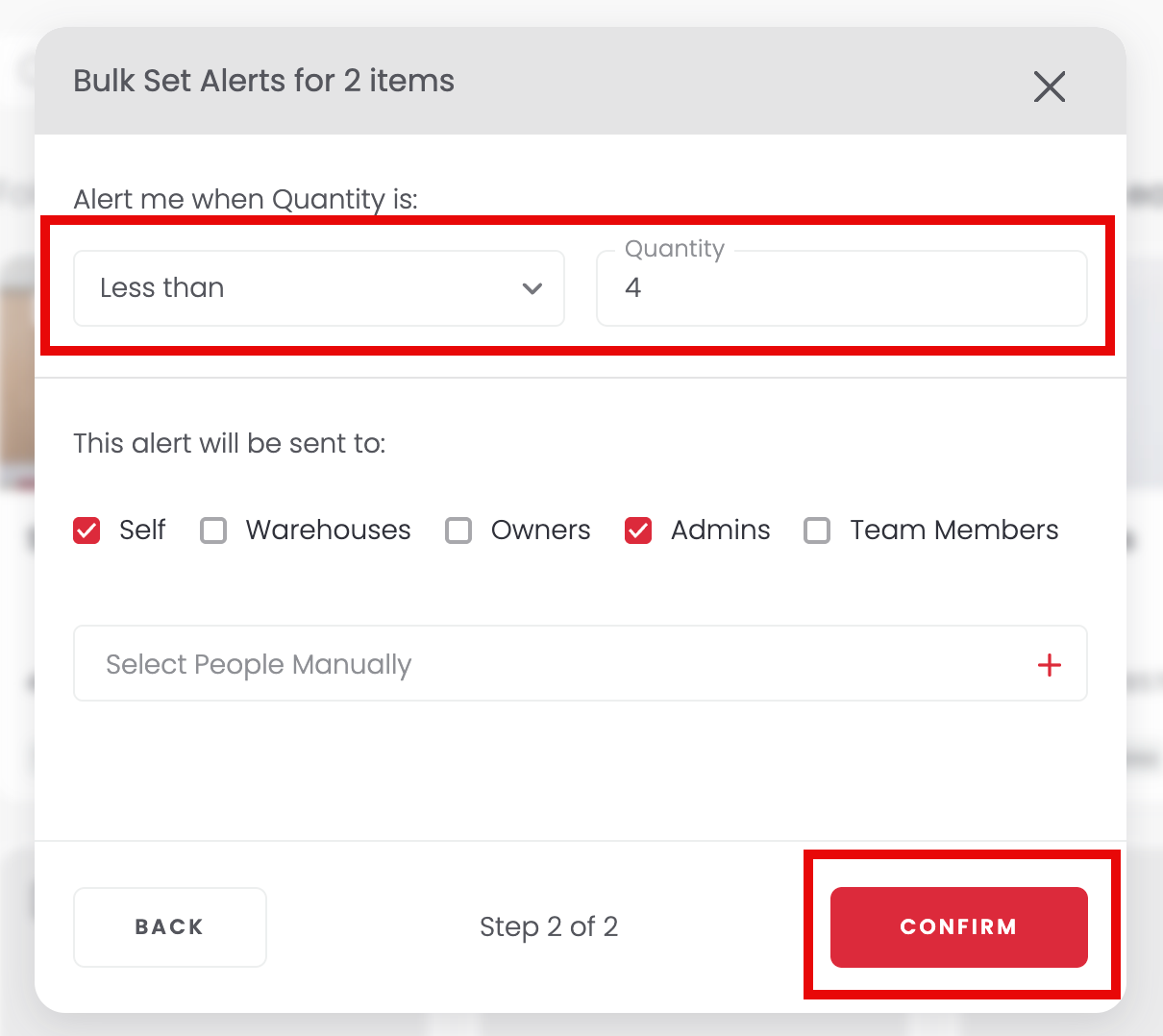
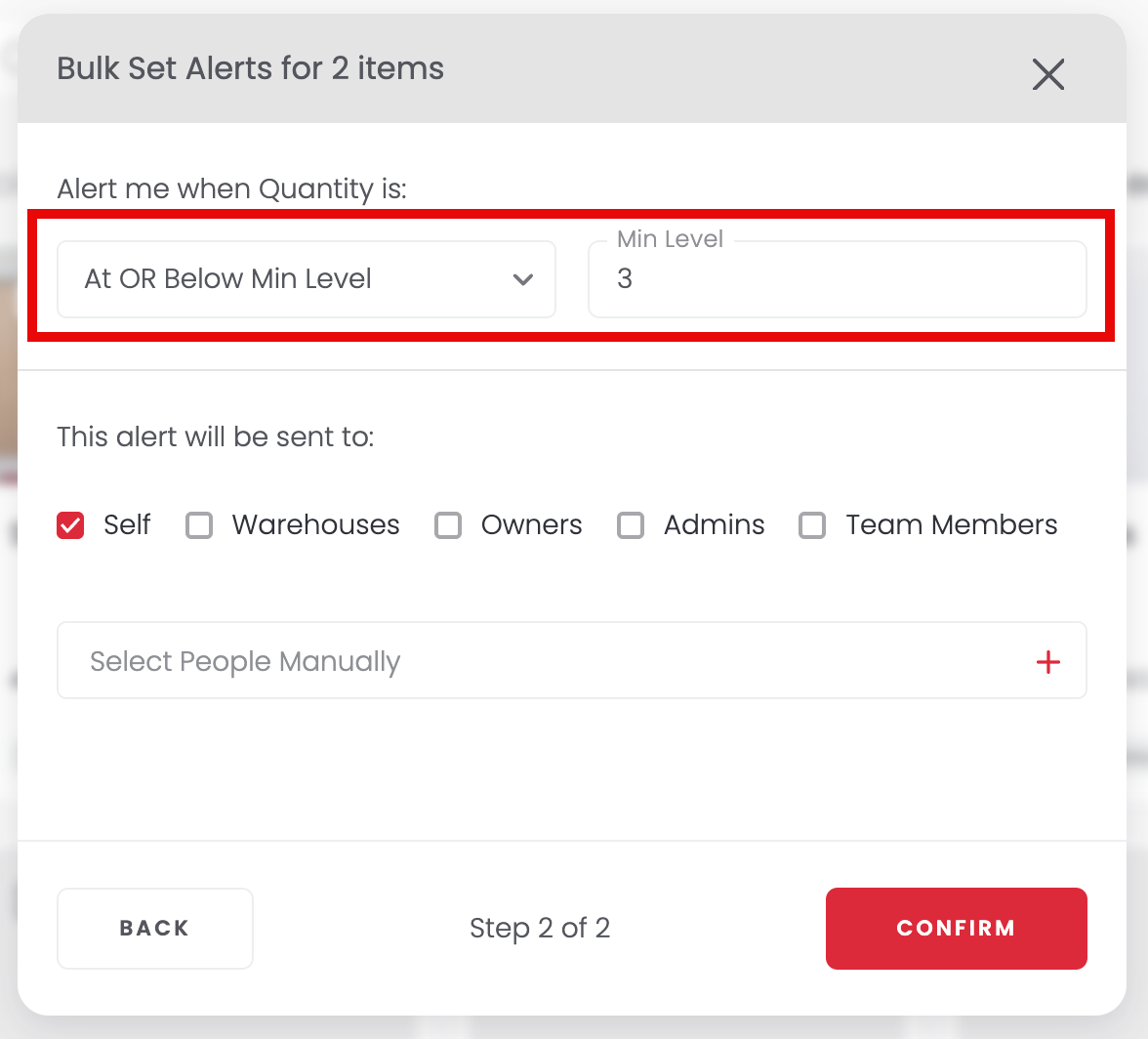
4Review the alert type and number of items it applies to, select who should be notified, then click Confirm.
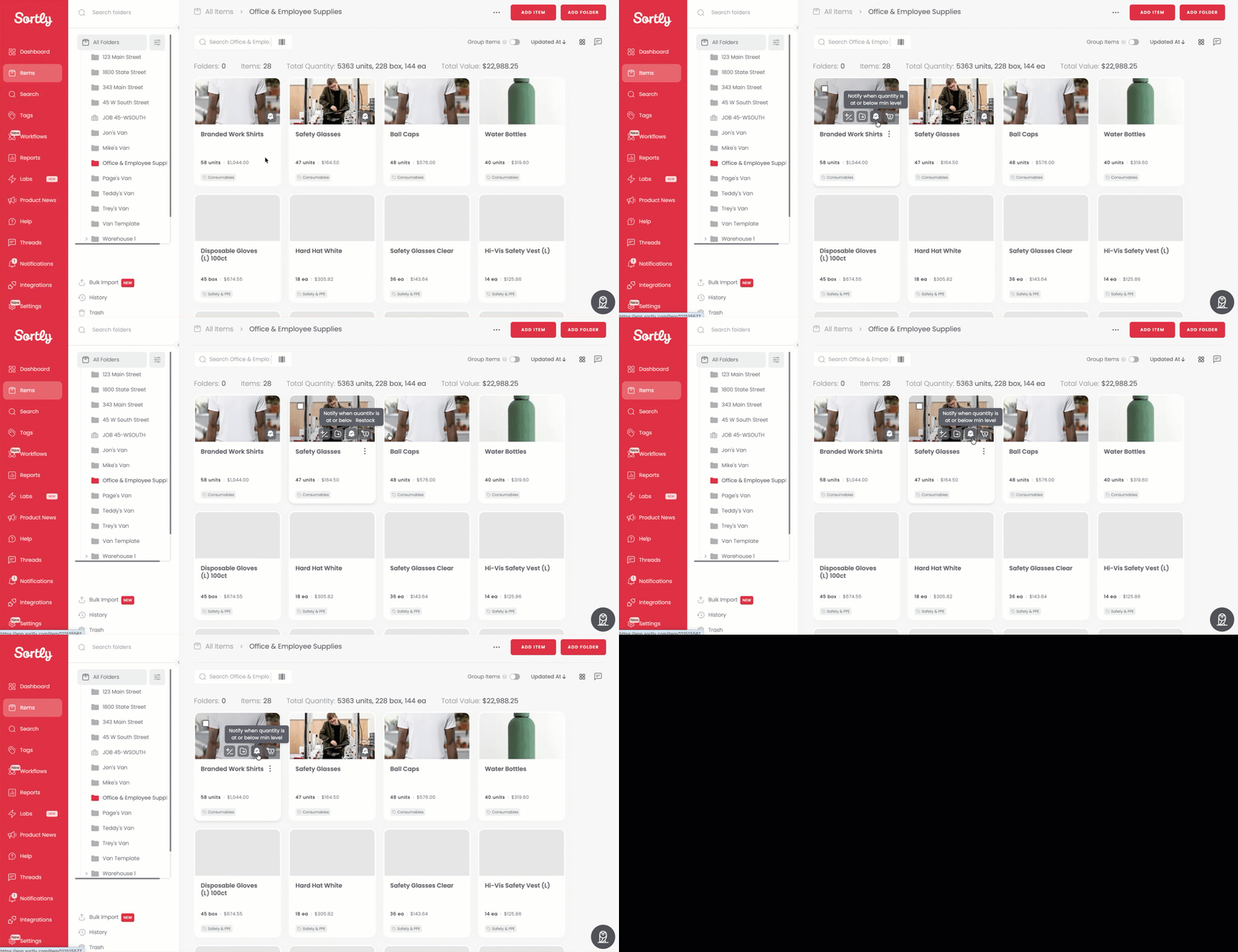
Once alerts are set, items with an active alert show a small bell icon. Hover over it to see the alert's details or edit it.
Setting quantity alerts on mobile app
-
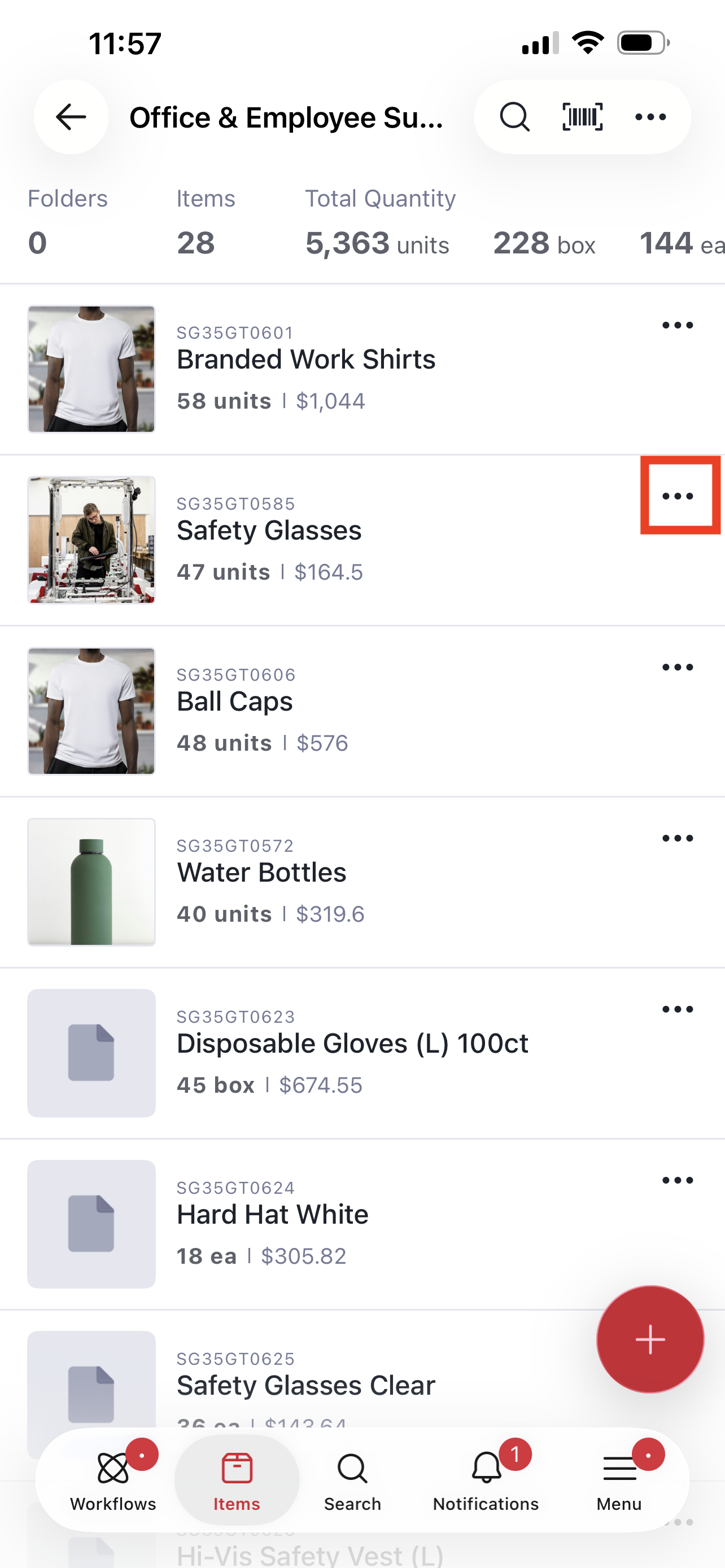
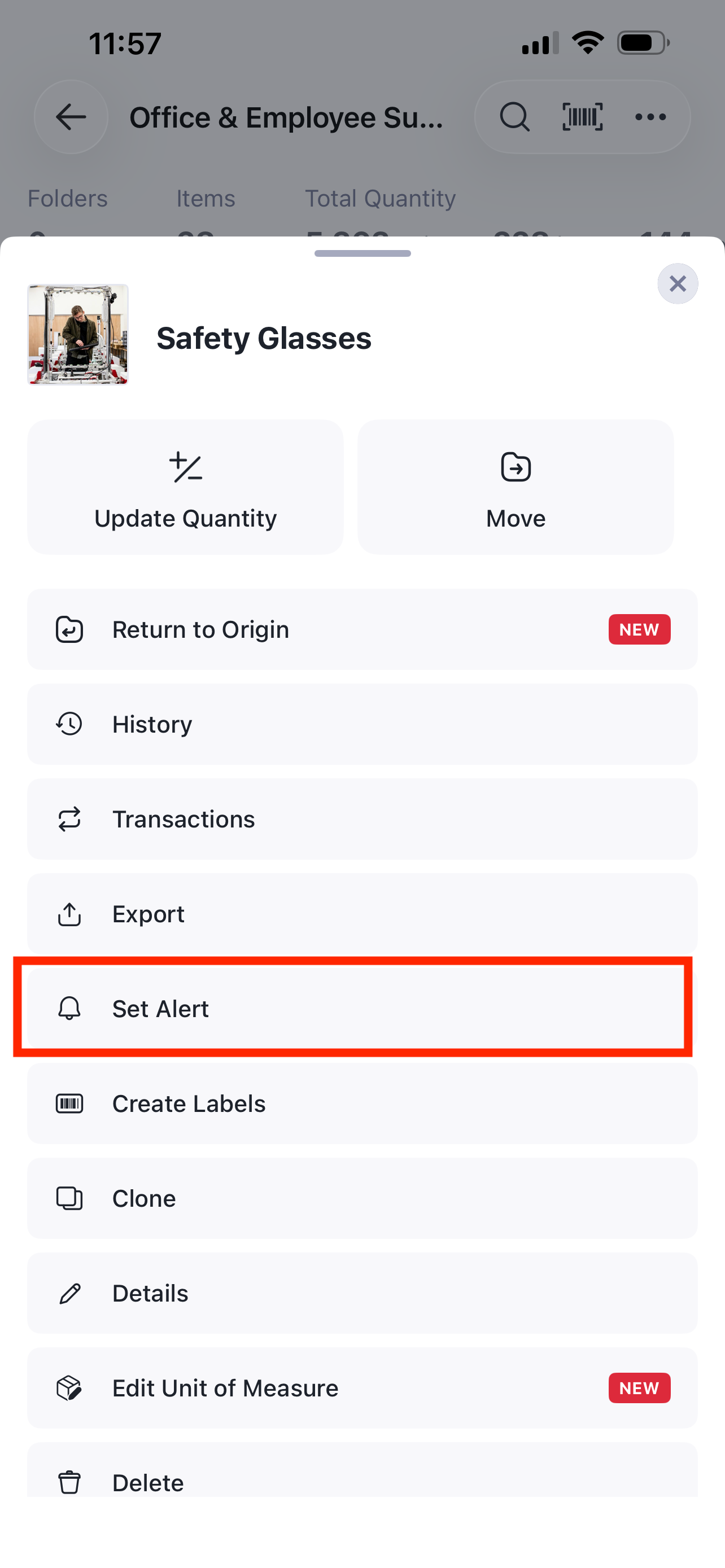
1Tap the three dots to the right of the item, then select Set Alert.
-
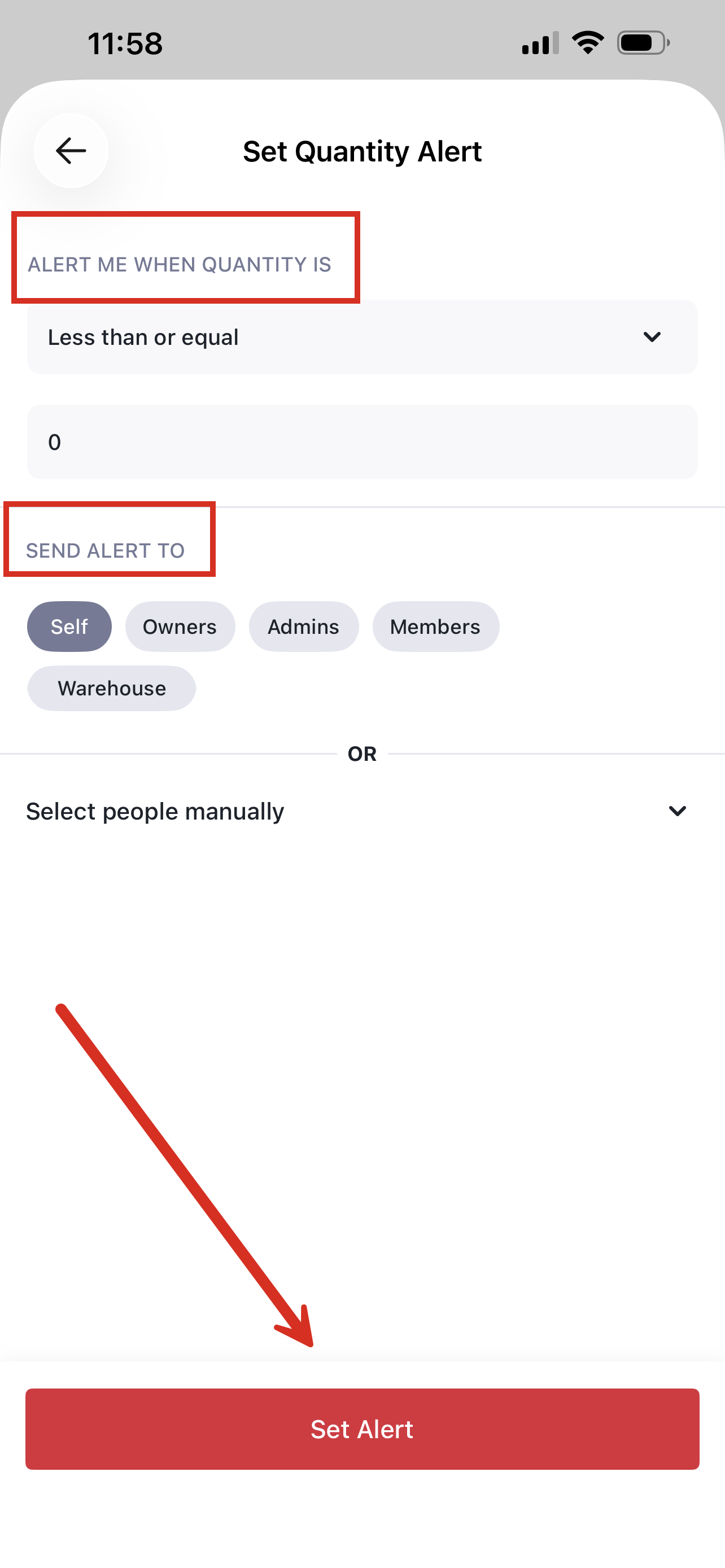
2Choose the conditions of the alert and select the users who should receive it, entered manually or as all Owners, Admins, Members, or a mix.
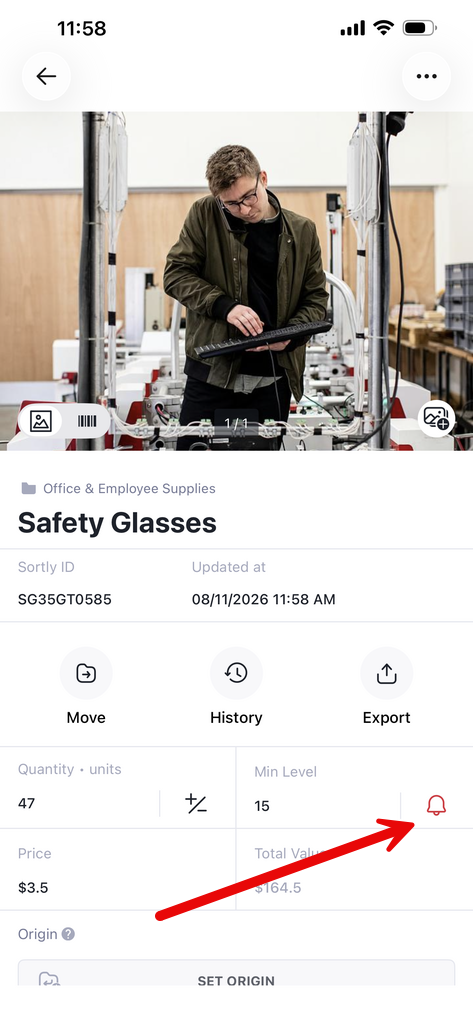
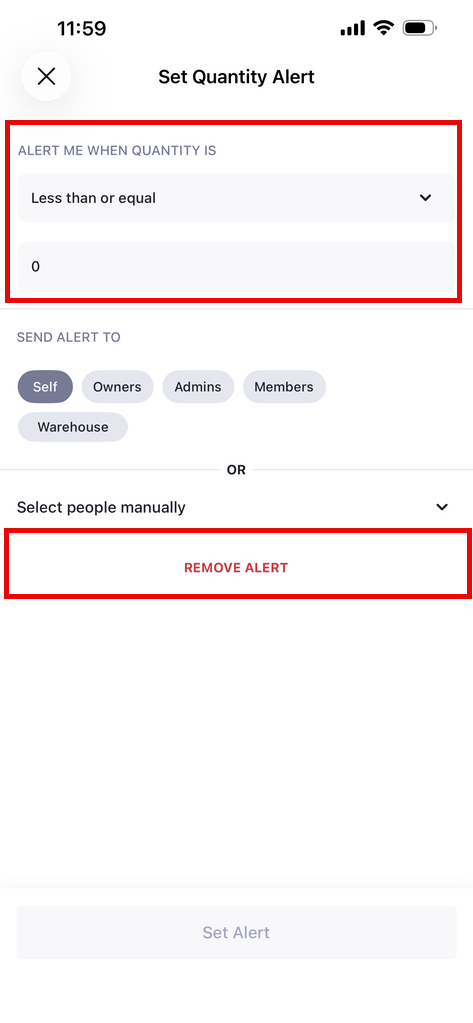
To check if an alert is set, tap the item and look for a red bell icon. Tapping the bell lets you edit or remove the alert.
Setting bulk alerts on mobile app
-
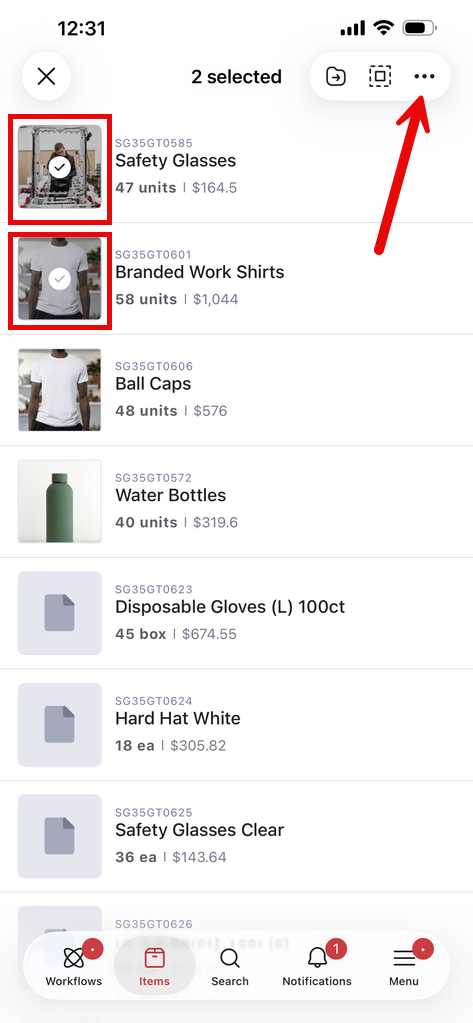
1Hold down an item until a checkmark appears over its image, then tap the three dots at the top right.
-
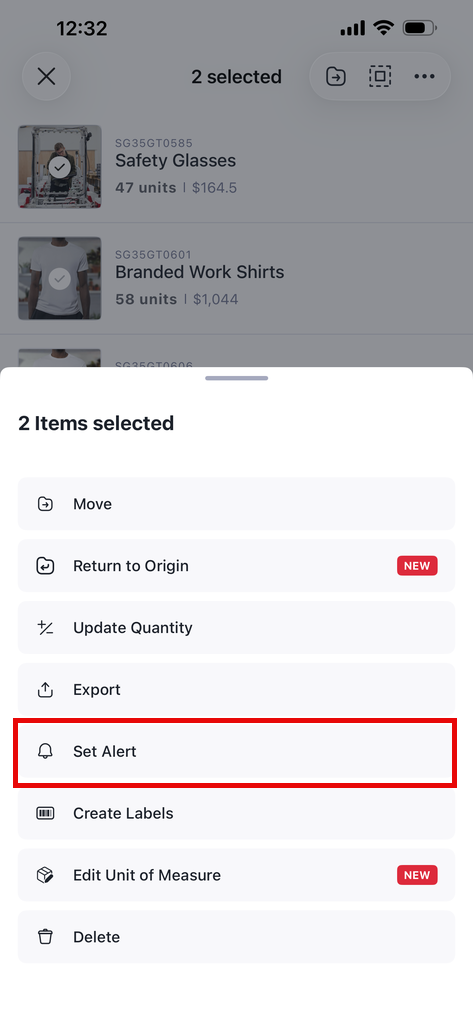
2From the bulk action options, select Set Alert.
-
3Follow the same process as above to set the conditions and choose the users who should receive the alert.