---
title: Quick Actions on the Sortly Mobile App
description: Learn how to set up Quick Actions in the Sortly mobile app to scan barcodes or QR codes and instantly update quantities, move items, and add tags.
---
[Skip to content](https://help.sortly.com/quick-actions-on-the-sortly-mobile-app#main-content)

Open main navigation
Close main navigation
Looking for answers? Start here.
- There are no suggestions because the search field is empty.
1. [Sortly Help Center](https://help.sortly.com/?hsLang=en)
2. [Getting started](https://help.sortly.com/getting-started?hsLang=en)
3. [Updating Inventory](https://help.sortly.com/getting-started?hsLang=en#updating-inventory)
# Quick Actions on the Sortly Mobile App
Quick Actions let you update inventory directly from the Sortly mobile app by scanning item barcodes or QR codes. After you scan, you can instantly perform common tasks like adjusting quantities, moving items, adding tags, cloning, editing, or deleting, making high volume inventory work faster and easier while you're on the go.
In this article
1. [Types of Quick Actions](https://help.sortly.com/quick-actions-on-the-sortly-mobile-app#types)
2. [How to Set a Quick Action](https://help.sortly.com/quick-actions-on-the-sortly-mobile-app#set-action)
3. [Scanner Settings](https://help.sortly.com/quick-actions-on-the-sortly-mobile-app#scanner-settings)
4. [FAQ](https://help.sortly.com/quick-actions-on-the-sortly-mobile-app#faq)
### Types of Quick Actions
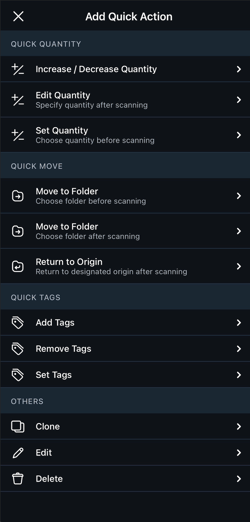
- **Quick Quantity**: Increase/Decrease Quantity, Edit Quantity (specify quantity after scanning), or Set Quantity (choose quantity before scanning)
- **Quick Move**: Move to Folder (choose folder before scanning), Move to Folder (choose folder after scanning), or Return to Origin (return to a designated origin after scanning)
- **Quick Tags**: Add Tags, Remove Tags, or Set Tags
- **Others**: Clone, Edit, or Delete
### How to Set a Quick Action
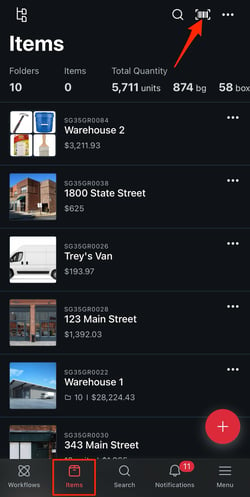
1. 1**Open the scanner**
From the Items tab, tap the scanner icon in the top right.
2. 2**Choose a Quick Action**
Select a [Quick Action](https://help.sortly.com/quick-actions-on-the-sortly-mobile-app#types) from the available options.
3. 3**Scan to perform the action**
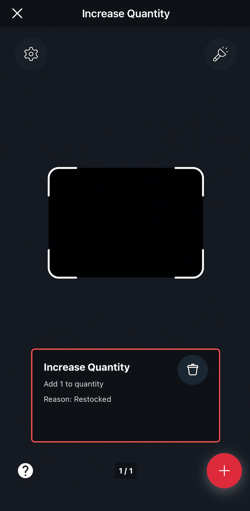
Once you choose an action, the scanner activates and you can perform the action right away.
4. 4**Add more actions (optional)**
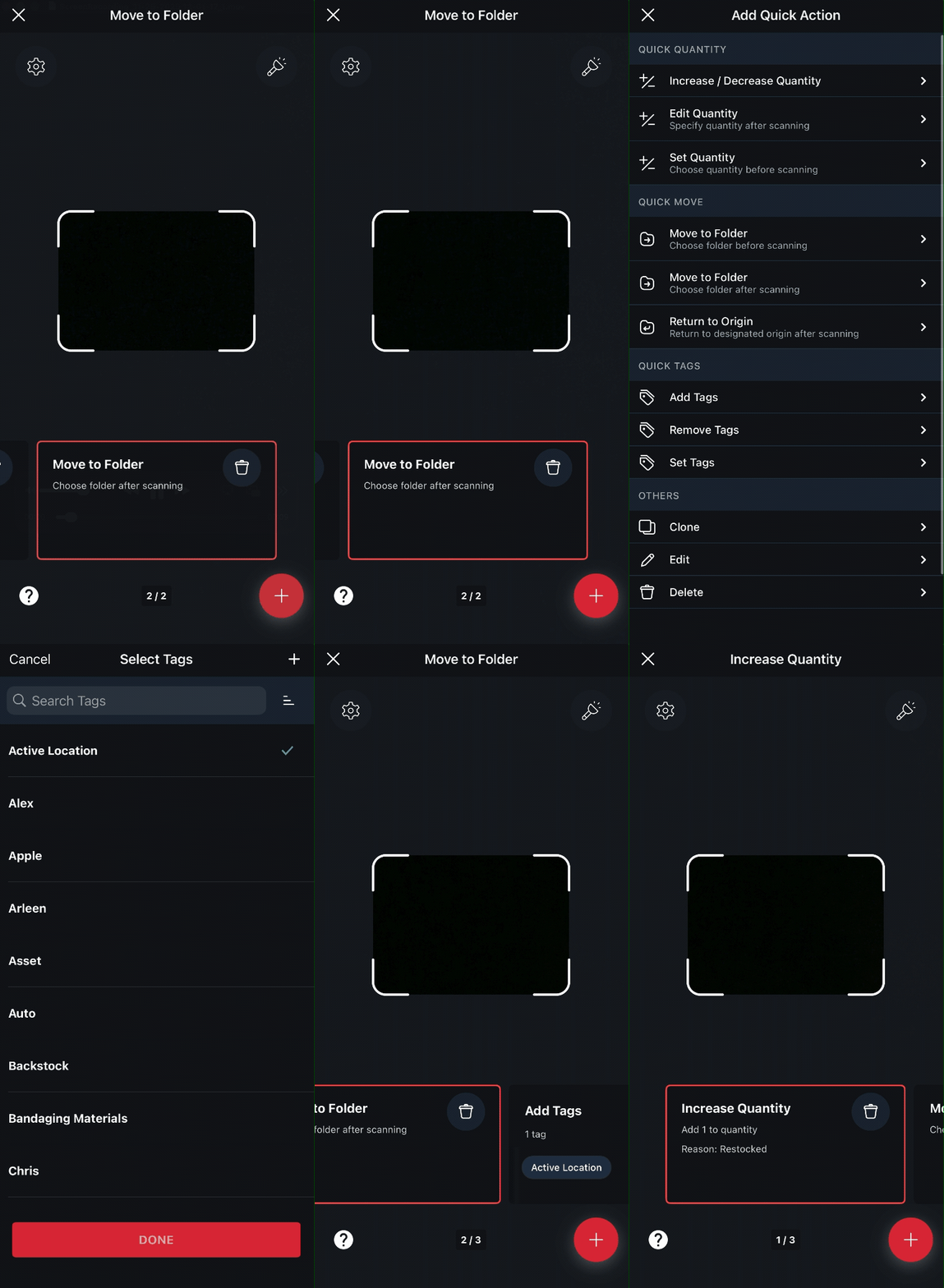
Tap the + sign to add another action. Then swipe between your saved actions at the bottom of the screen.
5. 5**Exit Quick Actions**
Tap the X in the upper left corner to leave the Quick Actions screen.
### Scanner Settings
- **Quantity**: scan once to update multiple identical items at once. For example, scan a QR code one time for 5 identical chairs instead of scanning each chair separately.
- **Confirm All Updates**: choose whether to see a confirmation popup before an update is finalized, or apply updates immediately without one.
- **Enable Bluetooth Scanning**: pair a third-party Bluetooth scanner with the mobile app for hands-free scanning.
- **Enable Sound**: play an audible beep each time an item is scanned successfully.
- **Vibrate**: vibrate the device on a successful scan.
💡 Bluetooth Scanning is available on Ultra, Premium, and Enterprise plans.
### Frequently Asked Questions
Is there a limit to how many Quick Actions I can save?
No, there's no limit. You can create and save as many Quick Actions as you need.
How do I make sure I scanned the correct item when using Quick Actions?
Turn on **Confirm All Updates** in Scanner Settings. With this setting enabled, Sortly shows a confirmation popup after each scan so you can review the item before the Quick Action is finalized. If it's off, updates apply immediately.
[](https://www.sortly.com/)
Copyright © 2026, Sortly Inc.