---
title: Report Subscriptions
description: With report subscriptions, Premium and Enterprise users can set up a custom report to run on a schedule and automatically deliver to their email.
---
[Skip to content](https://help.sortly.com/report-subscriptions#main-content)

Open main navigation
Close main navigation
Looking for answers? Start here.
- There are no suggestions because the search field is empty.
1. [Sortly Help Center](https://help.sortly.com/?hsLang=en)
2. [Reporting](https://help.sortly.com/reporting?hsLang=en)
3. [Reporting](https://help.sortly.com/reporting?hsLang=en#reporting)
# Report Subscriptions
Set up a custom report to run on a schedule and arrive in your email on its own, so you no longer have to generate and send it by hand. This article walks you through subscribing to a saved report, changing a subscription later, and the schedule options you can choose from.
Premium
Enterprise
In this article
1. [Creating a report subscription](https://help.sortly.com/report-subscriptions#create)
2. [Editing a report subscription](https://help.sortly.com/report-subscriptions#edit)
3. [Report subscription options](https://help.sortly.com/report-subscriptions#options)
4. [Frequently asked questions](https://help.sortly.com/report-subscriptions#faq)
### Creating a report subscription
Before you can subscribe, you need a saved custom report. If you haven't created one yet, see [Saved Reports](https://help.sortly.com/saved-reports?hsLang=en) to get started.
1
Select Reports in the left menu and find the saved report you want to subscribe to.
2
Select the three-dot menu on the report, then select Subscribe.

3
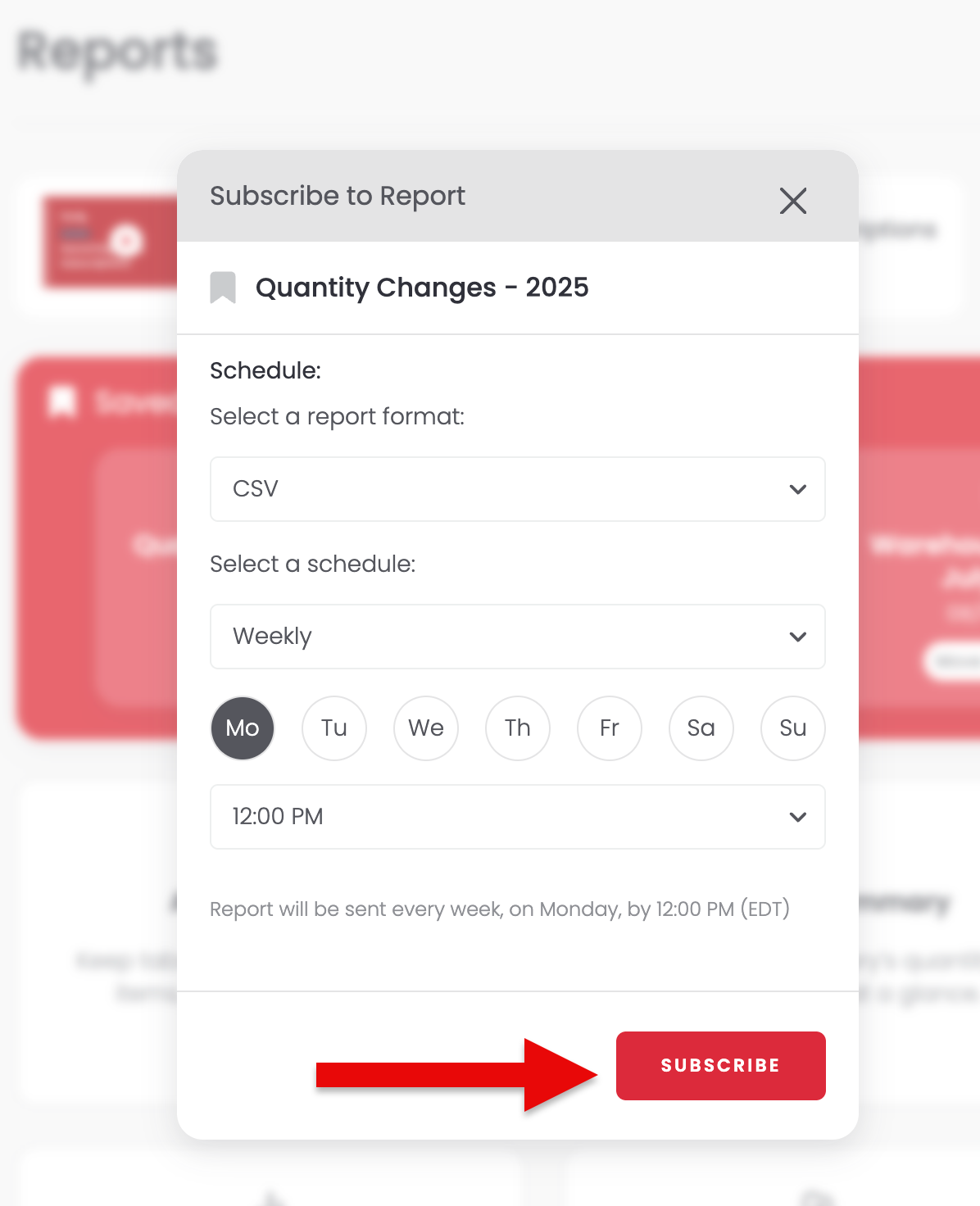
In Subscribe to Report, choose your report format, schedule, and time, then select Subscribe.
4
In the report list, an envelope icon appears next to the report to confirm your subscription.

---
### Editing a report subscription
Need to change the format, schedule, or time? Select the three-dot menu next to the report, then select Subscribed.

---
### Report subscription options
When you create a subscription, you can choose from these settings:
Setting
Choices
Format
CSV or XLSX
Schedule
Daily, Weekly, or Monthly
Day of the week
Any day (weekly and monthly only)
Time of day
8 AM, 12 PM, 4 PM, or 8 PM
### Frequently Asked Questions
Which plans support report subscriptions?
Report subscriptions are available on Premium and Enterprise plans.
Do I need a saved report before I can subscribe?
Yes. Report subscriptions are set up on top of an existing saved report, so create and save your custom report first.
Can I change the format, schedule, or delivery time later?
Yes. Select the three-dot menu next to the report, then select Subscribed to update any of your subscription settings.
How will I know a report is subscribed?
In the report list, subscribed reports show an envelope icon next to them confirming the subscription is active.
[](https://www.sortly.com/)
Copyright © 2026, Sortly Inc.