
Easily add inventory to Sortly to keep track of everything you carry, so you never have to start from a blank Catalog. This article walks you through choosing a method, starting with Sortly Assistant, importing a spreadsheet, and adding items manually.
In this article
How adding inventory works
In Sortly, an item is a product you carry, and stock is how many of it you have at a location. Adding inventory means creating the item in your Catalog and recording stock for it.
- On web, you can add stock for an item across multiple locations.
- On mobile, adding an item, by hand or by scanning a barcode, creates the item plus one stock row at the location you have open.
Choose a method
Pick the method that matches what you have on hand today. You can use more than one, and you can switch methods at any time.
Start with Sortly Assistant
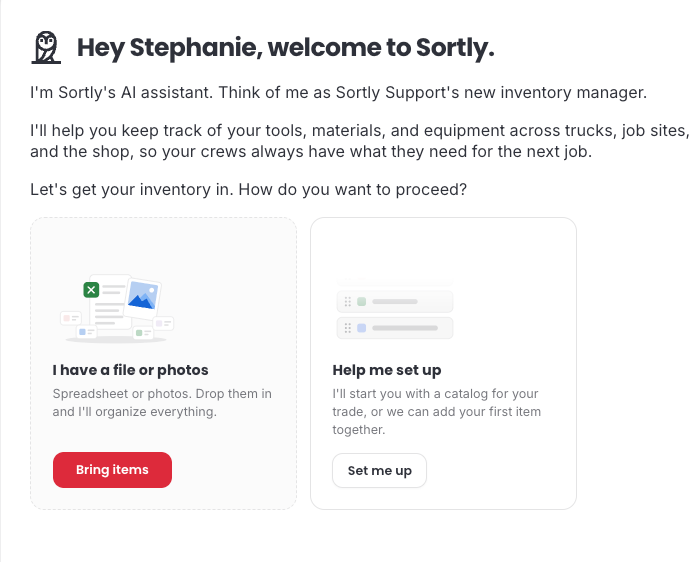
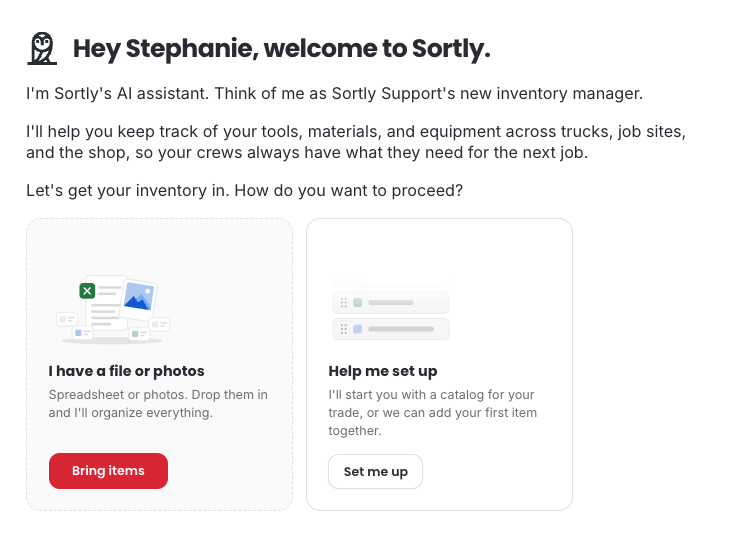
When you set up a new account on web, Sortly Assistant welcomes you and asks how you want to get your inventory in. You have two choices:
- I have a file or photos: choose this if you already have your items in a spreadsheet. Select Bring items to continue.
- Help me set up: choose this if you are starting fresh. Sortly Assistant starts you with a catalog for your trade, or you can add your first item together. Select Set me up to continue.
Let Sortly Assistant suggest a catalog
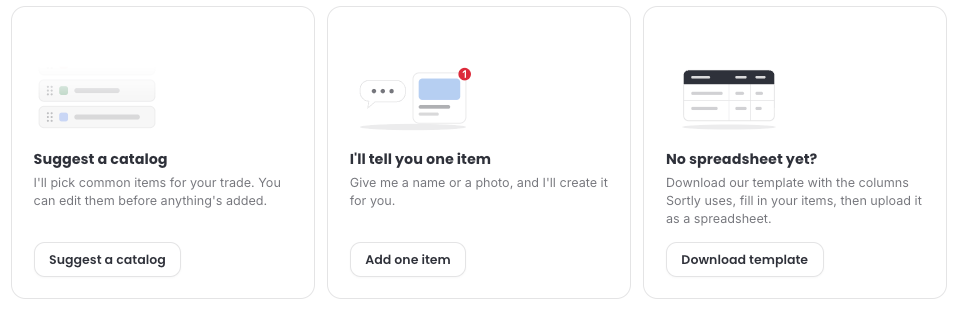
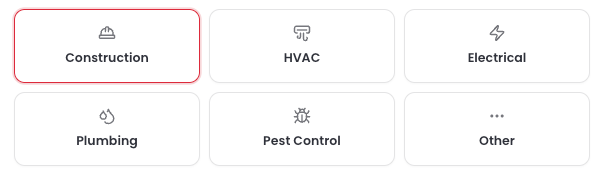
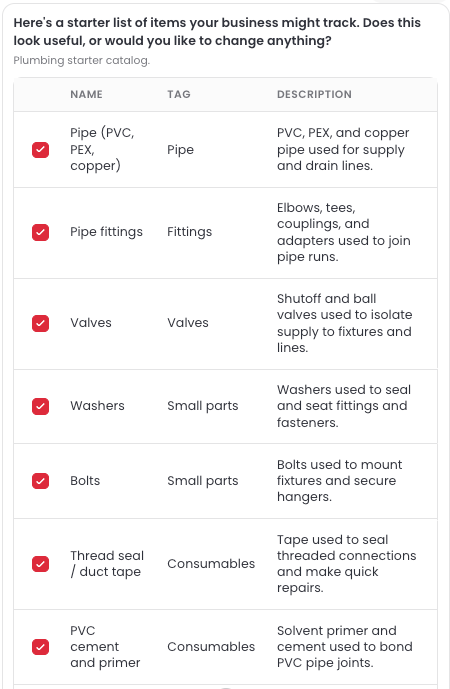
If you are not sure where to start, let Sortly Assistant pick common items for your trade. You can edit the list before anything is added.
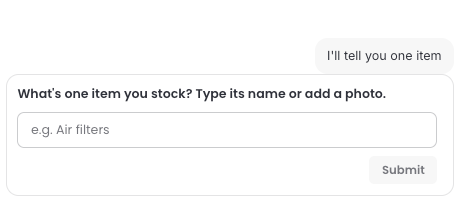
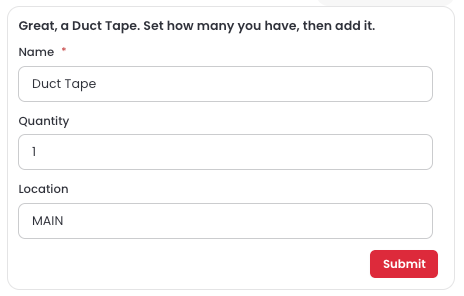
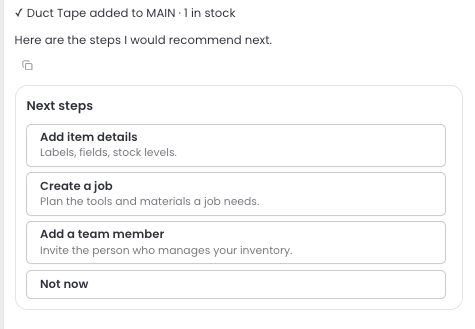
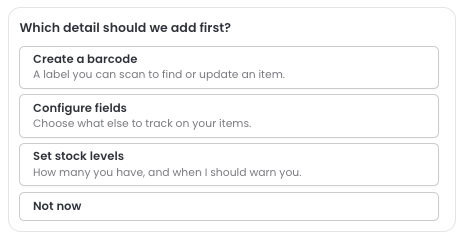
Add one item with Sortly Assistant
Prefer to start small? Tell Sortly Assistant about one item and it creates the item for you.
Import items from a spreadsheet
Already track your inventory in a spreadsheet? Bring it into Sortly instead of retyping every row. This method is available on web.
On the welcome screen, select Bring items on the I have a file or photos card.
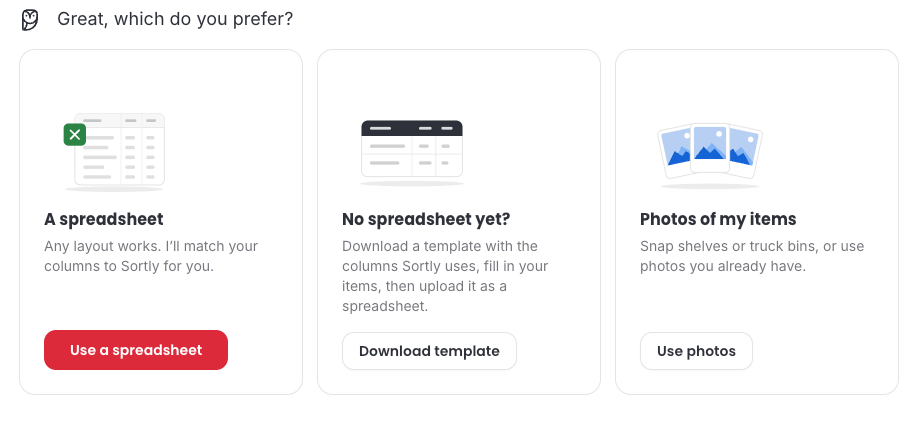
Sortly Assistant asks which you prefer. Choose one:
- A spreadsheet: any layout works. Sortly Assistant matches your columns to Sortly for you. Select Use a spreadsheet and choose your file.
- No spreadsheet yet?: select Download template to get a file with the columns Sortly uses. Fill in your items, then upload it as a spreadsheet.
For the full steps, including how your columns map to Sortly fields, see Import Items from a File.
Add items manually
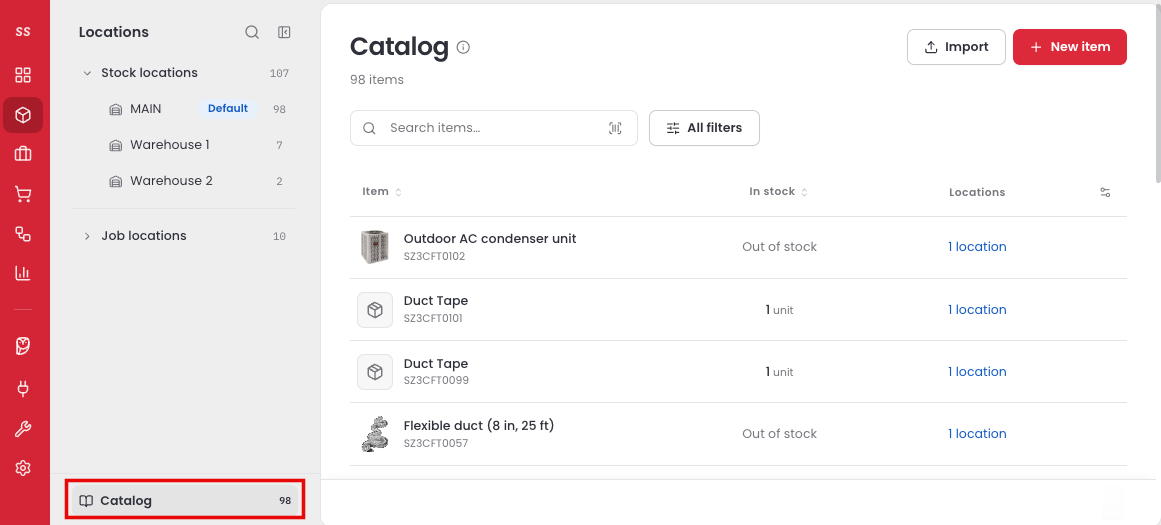
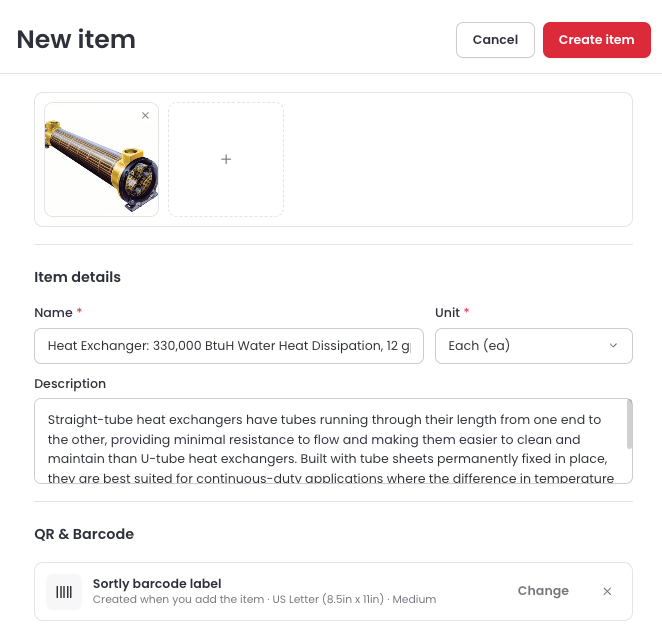
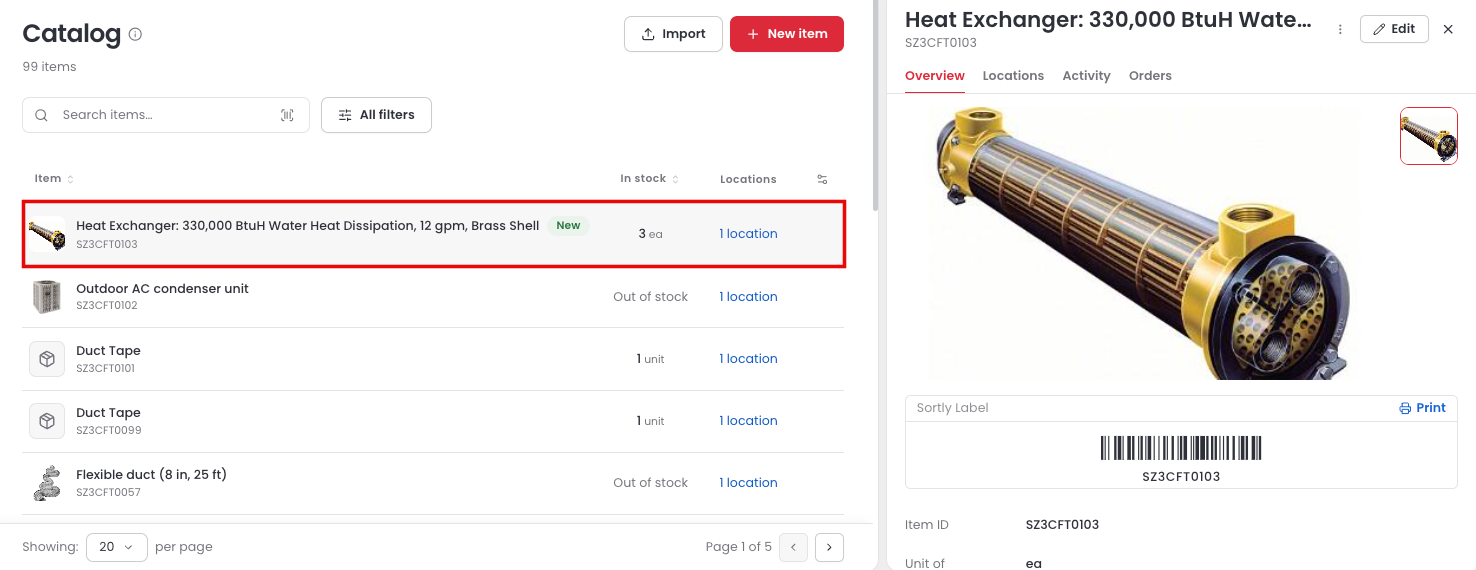
Prefer to add items one at a time? You can do that on both web and mobile. This works well when you have a few items to add or want to fill in every detail yourself.
On web
On mobile
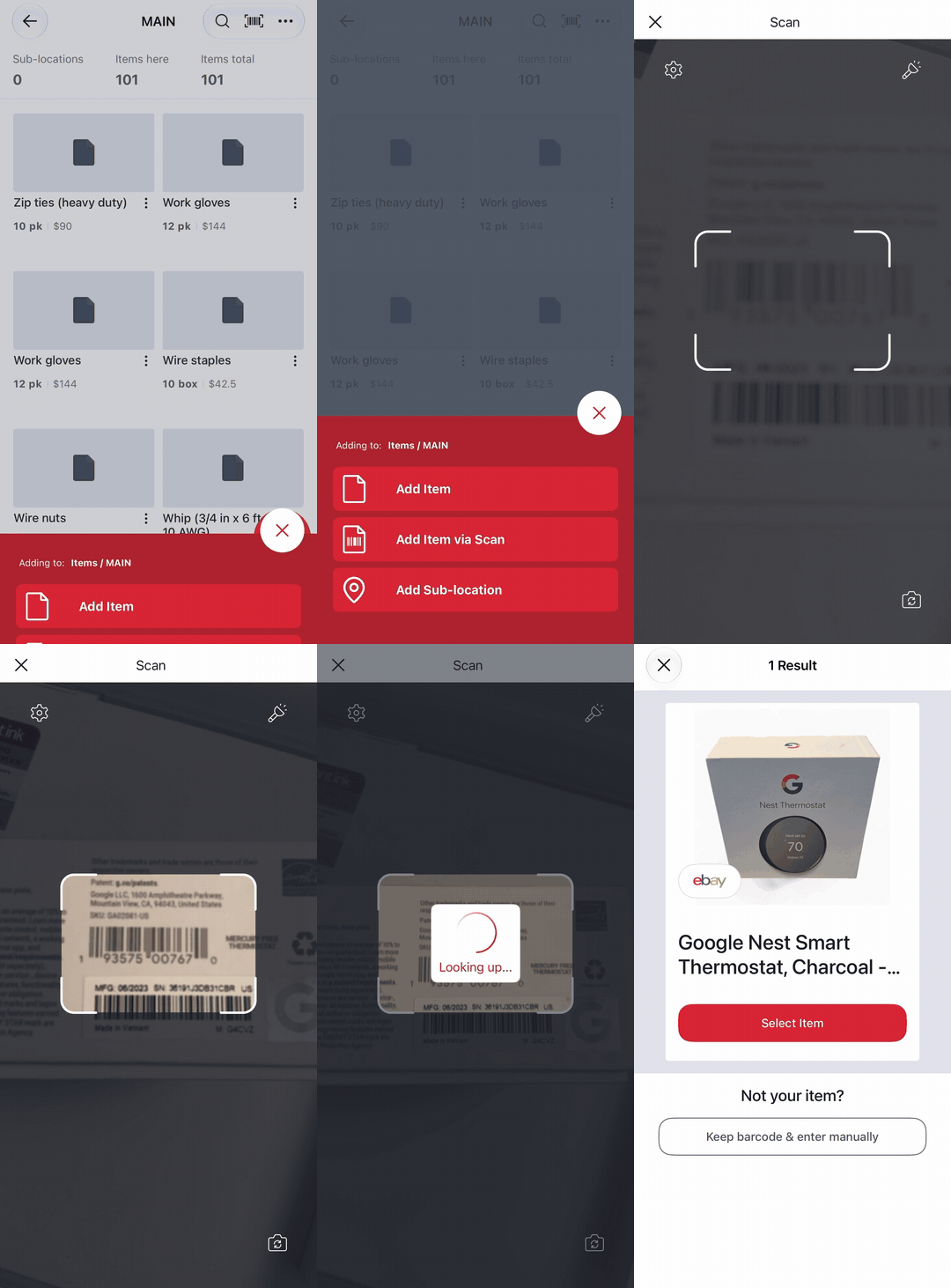
You can add items on the mobile app by hand or by scanning a code. Either way, the item is added to the location you have open, and it also shows up in your Catalog on web.
From a location, tap the plus icon. Choose Add Item to enter the details yourself, or Add Item via Scan to scan a code. When you scan, hold the code inside the frame. Sortly looks up the code and shows the matching item if it finds one. Tap Select Item to use it, or Keep barcode & enter manually if it is not your item. If Sortly can't find the code, enter the details yourself.
For the full steps, see Add New Items to the Catalog. Once an item exists, see Add Stock to an Item to record how many you have.