Locations help you keep track of where your inventory is stored, like a warehouse, a truck, or a shelf, so you always know where to find your items.
In this article
Locations
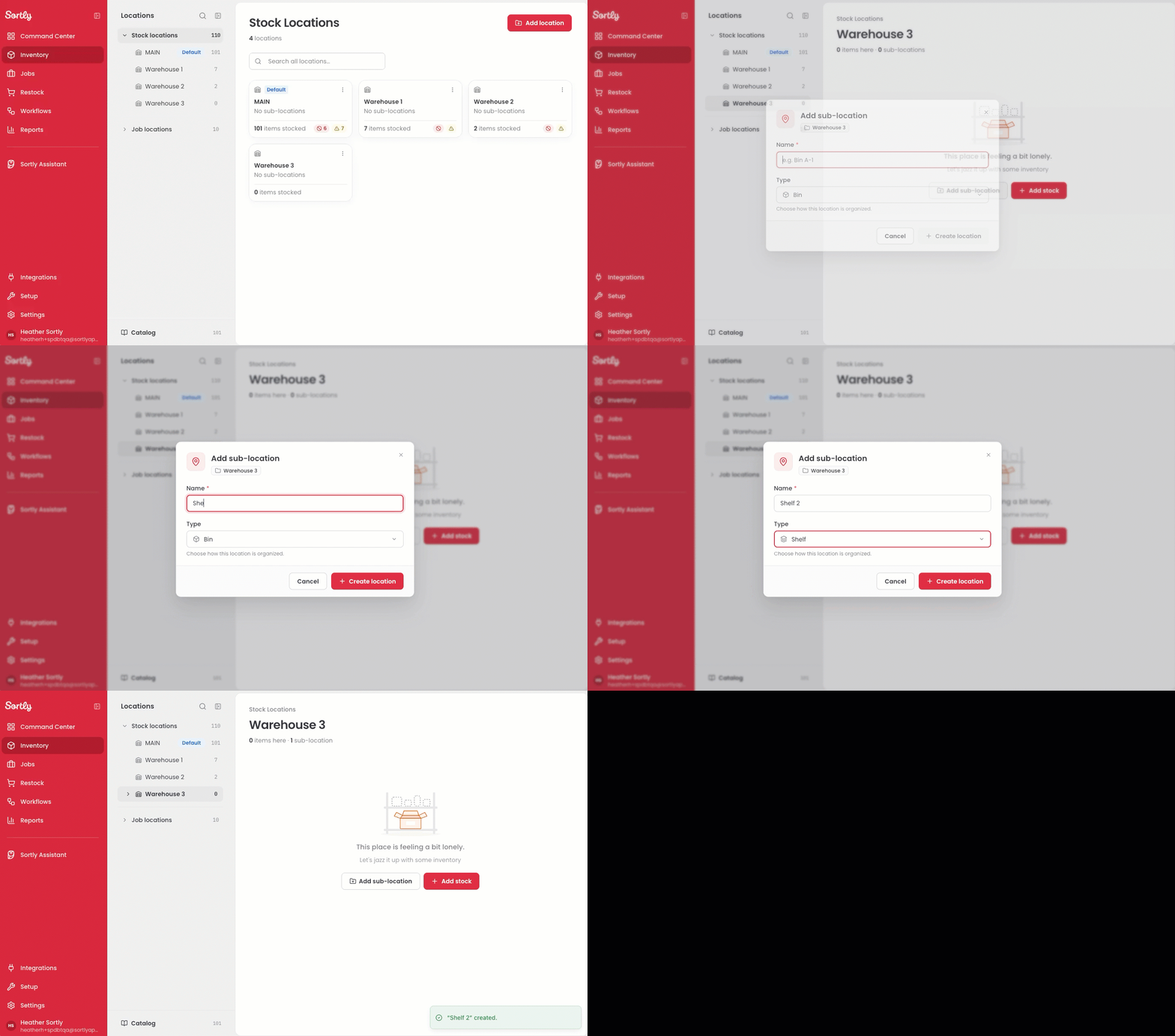
Locations in Sortly represent where your physical items are stored. A location can be a warehouse or stock room, and sub-locations break that space into smaller areas, like a shelf or drawer.
You can find your locations under the Inventory tab.
Location types
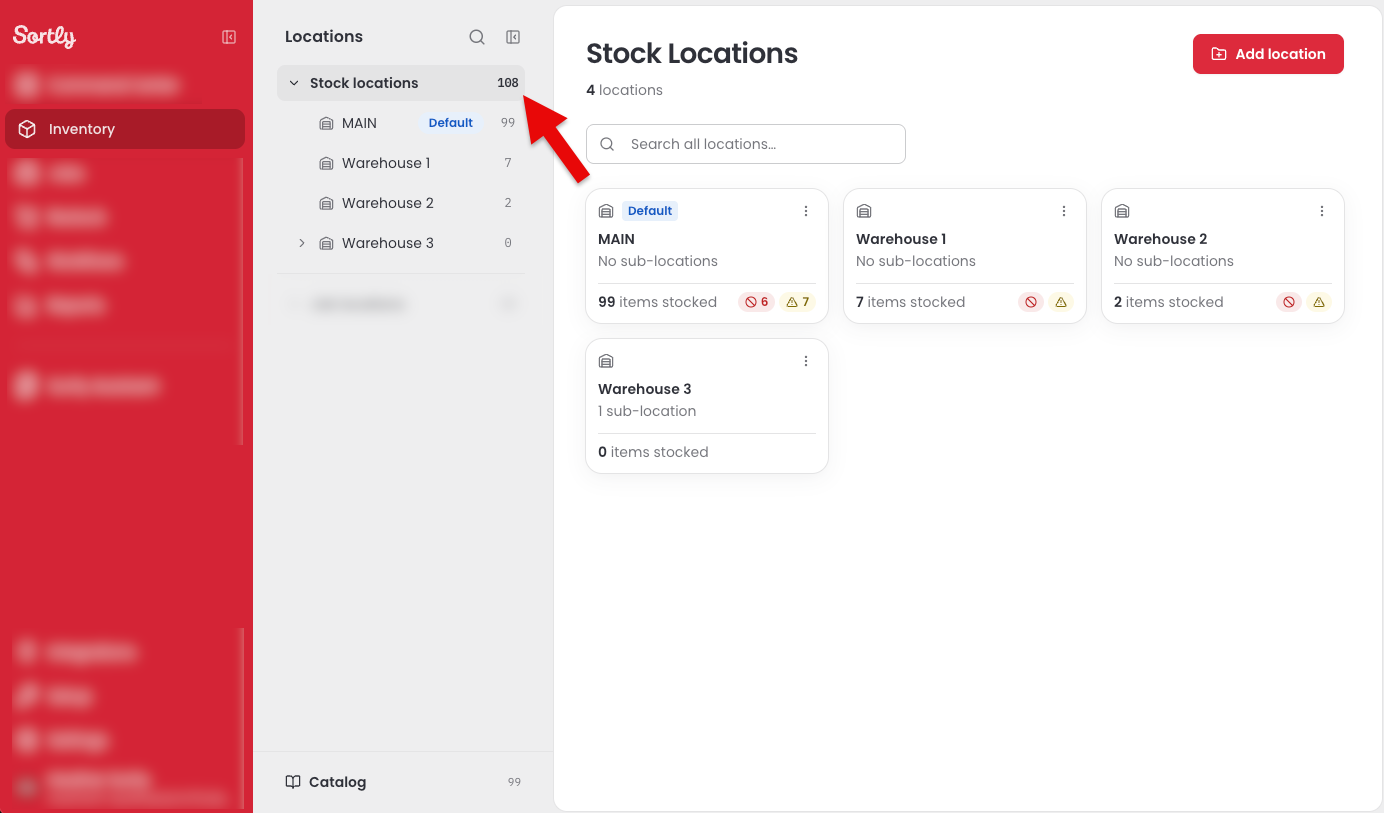
Each location has a type that describes what kind of space it is.
Add a location
-
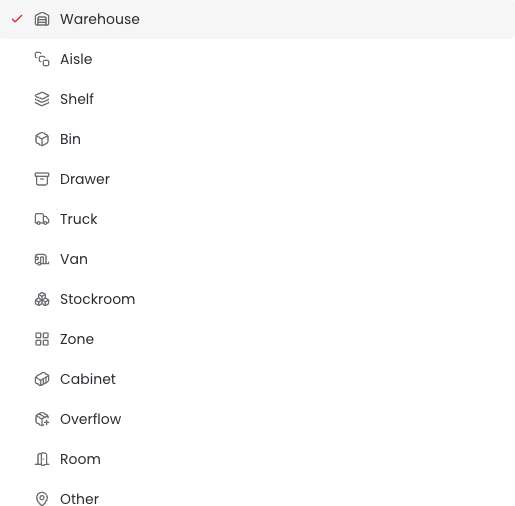
1Select Inventory in the left menu to open the Stock Locations page.
-
2Select Add location in the top right corner. The New location window opens.
-
3Enter a Location name.
-
4Open the Type dropdown and pick the option that fits best.
-
5Select Create location. You'll see a confirmation message, and your new location appears in the Locations panel and on the Stock Locations page.
Add a sub-location
-
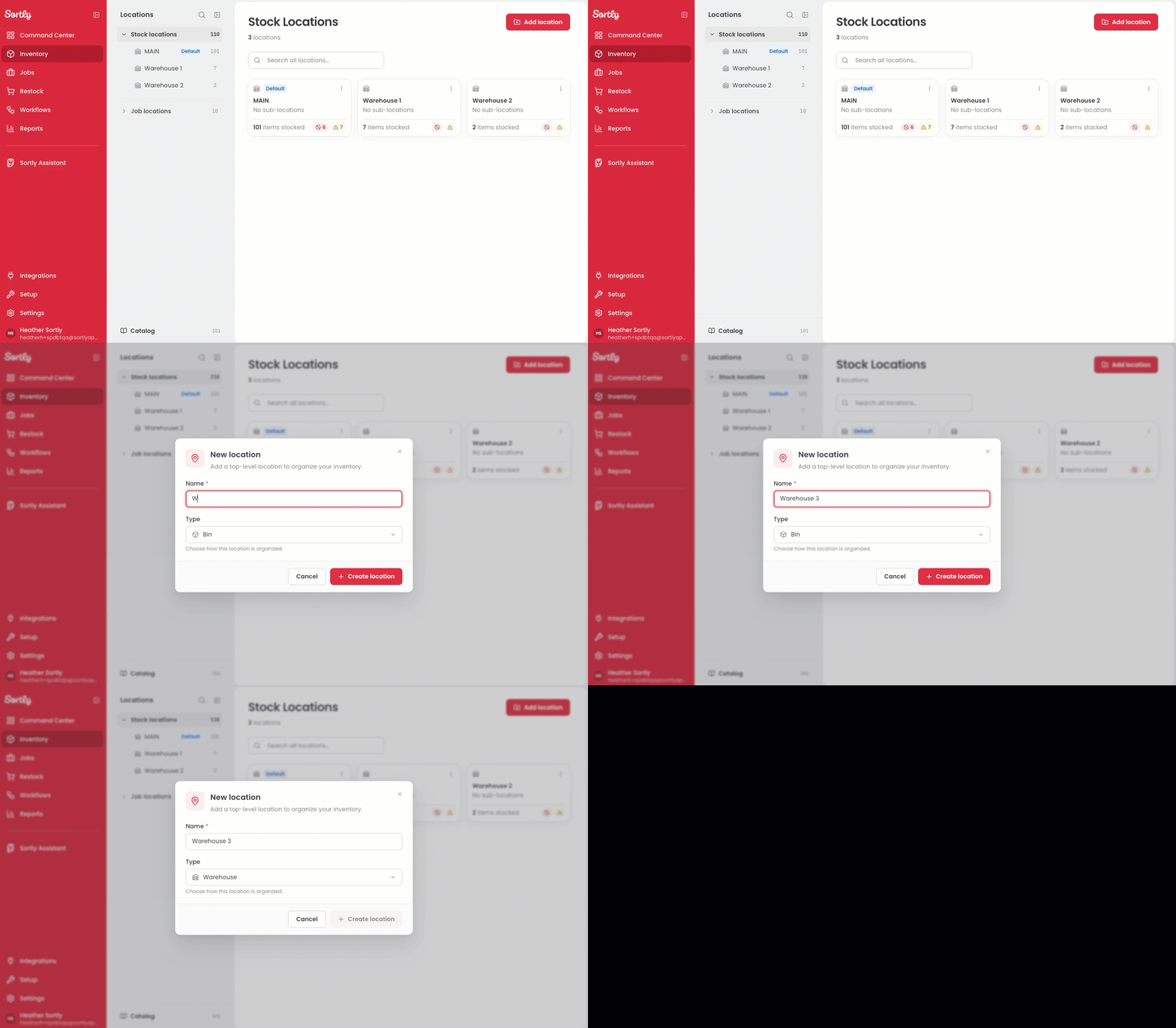
1On the Stock Locations page, select the location you want to add to.
-
2Select Add sub-location. You'll find the button in the middle of the page, or in the top right corner if the location already has sub-locations.
-
3The Add sub-location window will open. Enter a name and choose a type from the dropdown.
-
4Select Create location.