Skip to content
English
  • There are no suggestions because the search field is empty.

Create a Job

Set up a new job and list everything it needs in one place, so you can see what's ready and what to order before work starts. This article walks you through creating a job, adding items from your inventory or a spreadsheet, and filling in the job details.

Free
Advanced
Ultra
Premium
Enterprise

Before you start

Anyone on your team can create a job. Each job counts toward your plan's active job limit until it is Completed. To see your limit and learn how jobs move from Draft to Completed, read How Jobs Work.


Create a job

Prefer to fill in the details yourself? You can create a job from the Jobs page on web. This works well when you already know the job name and dates, or want to start from a template.
1
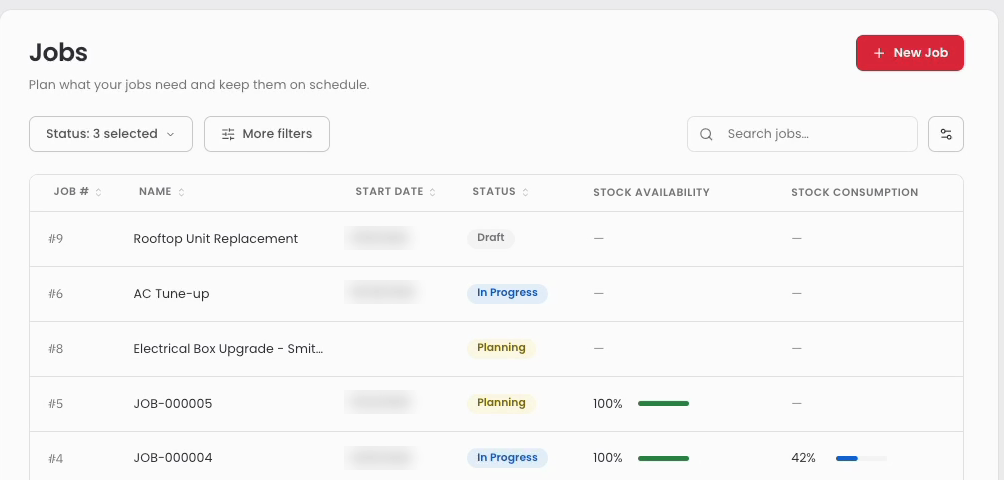
Select Jobs in the left menu, then select New Job.
Jobs page with the New Job button in the top right
2
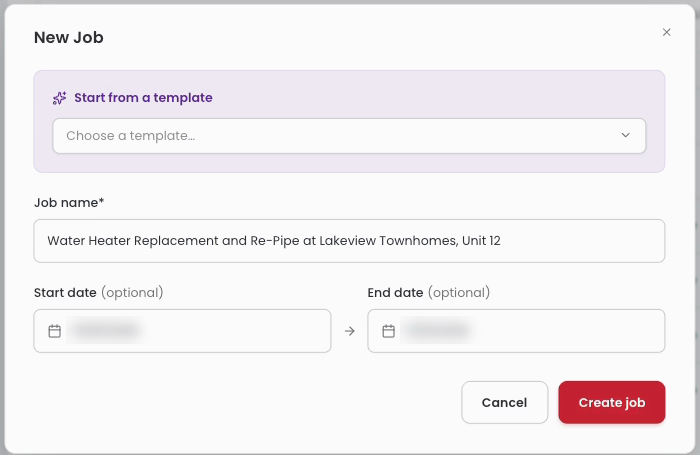
If you have a job template, choose it under Start from a template. This step is optional.
3
Enter a Job name. Add a Start date and End date if you know them.
New Job window with a job name, start date, and end date filled in
4
Select Create job. The job page opens.

A new job without items starts as a Draft. Next, add the items the job needs from your inventory or from a spreadsheet.


Create a job on mobile

Starting a job while you are out in the field? You can create one from the Jobs tab in the Sortly mobile app.
1
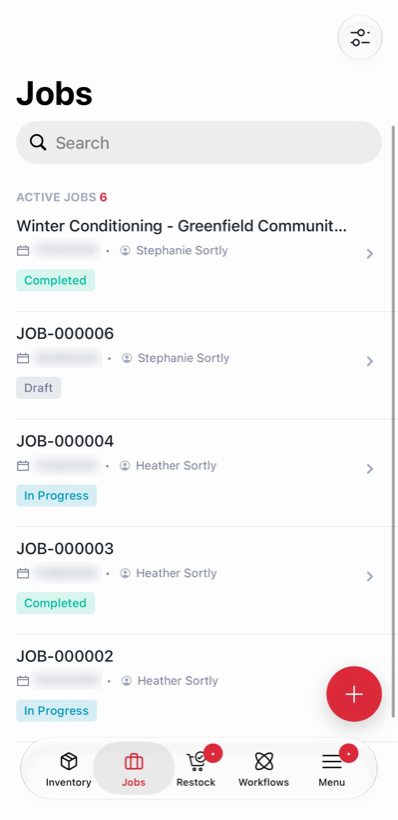
Tap Jobs in the bottom bar, then tap the red + button.
Jobs list on mobile with the red plus button
2
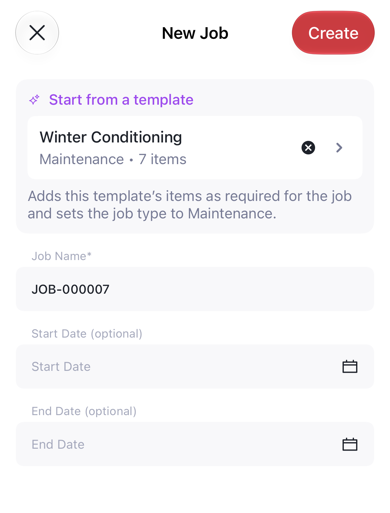
Choose a template under Start from a template if you have one. Enter a Job Name, add a start and end date if you know them, then tap Create.
New Job screen on mobile with a template selected

Pull items to a job

Need to bring stock to the job site? Pull Items moves items from your other locations into the job location.
1
Open the job and tap Pull Items.
2
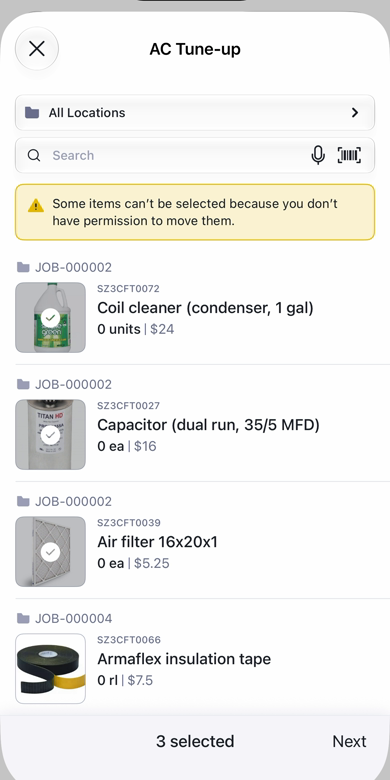
Tick the items you want to bring. Use Search or scan a barcode to find them, or tap All Locations to choose where they come from. Then tap Next. Items you do not have permission to move cannot be selected.
Pull Items screen with three items selected
3
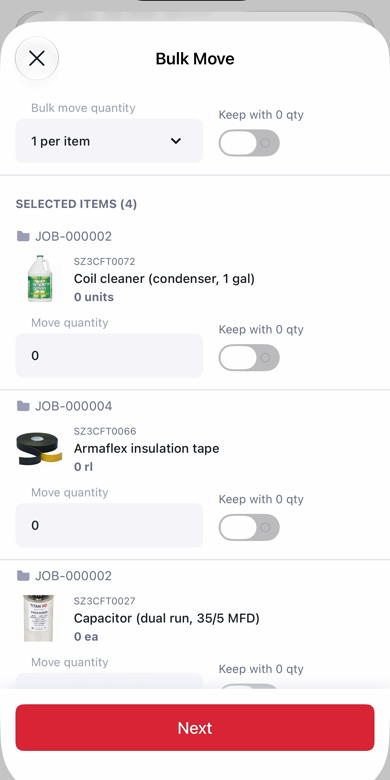
Enter a Move quantity for each item, or use Bulk move quantity to set the same amount for all of them. Then tap Next.
Bulk Move screen with a move quantity for each selected item
4
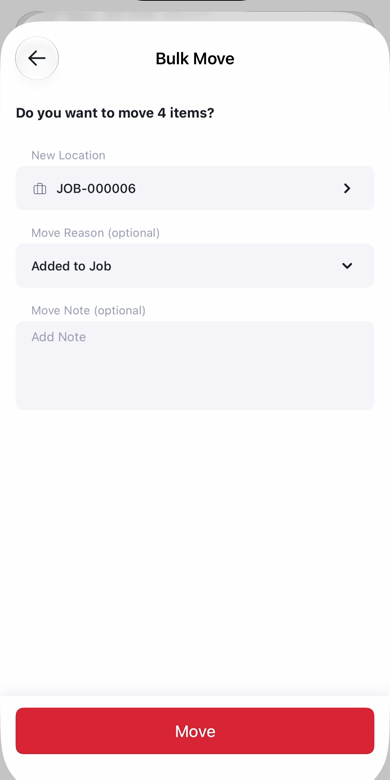
Check that New Location is set to the job. Add a Move Reason and Move Note if you want, then tap Move.
Bulk Move confirmation with the job as the new location and Added to Job as the reason

The items appear on the job, and Items here updates to match.

Start and complete a job on mobile

Heading out to do the work? Start the job from your phone, then complete it when you are done.
1
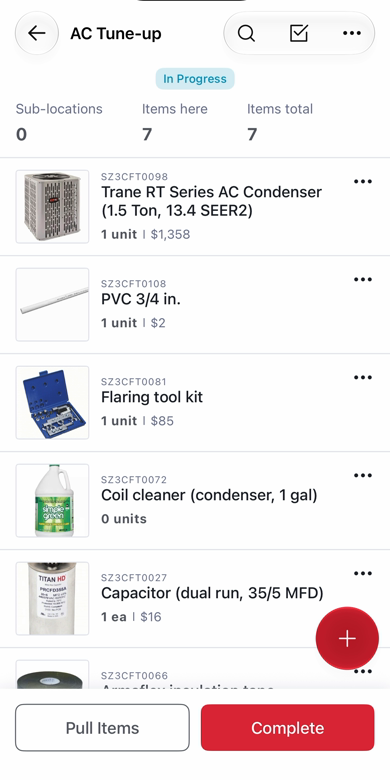
On the job page, tap Start Job. The job moves to In Progress.
2
When the work is done, tap Complete. The Complete Job screen opens.
Job page on mobile in In Progress with the Complete button
3
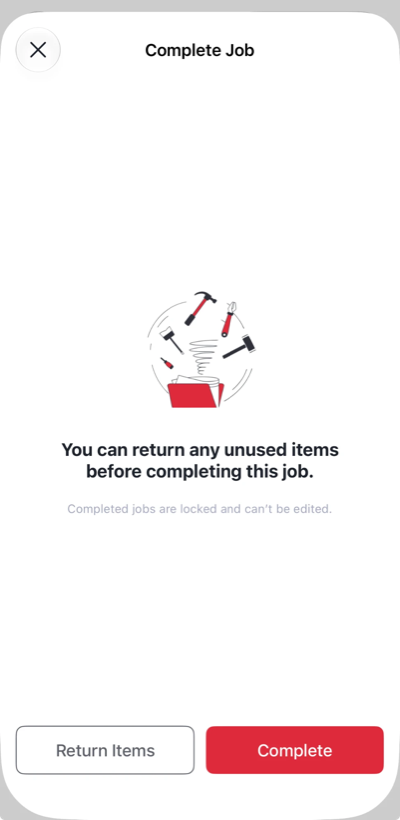
Have items left over? Tap Return Items to send unused items back before you finish. When you are ready, tap Complete.
Complete Job screen with the Return Items and Complete buttons
4
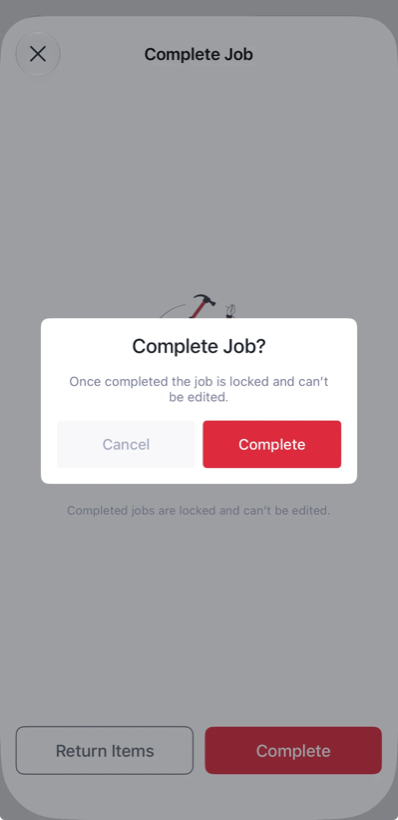
Tap Complete again to confirm. The job moves to Completed and is locked, so it can no longer be edited.
Complete Job confirmation asking you to confirm before the job is locked

Create a job with Sortly Assistant

Prefer to describe the job in your own words? Sortly Assistant can create it for you on web. This works well when you are new to jobs or want help getting the details in.
1
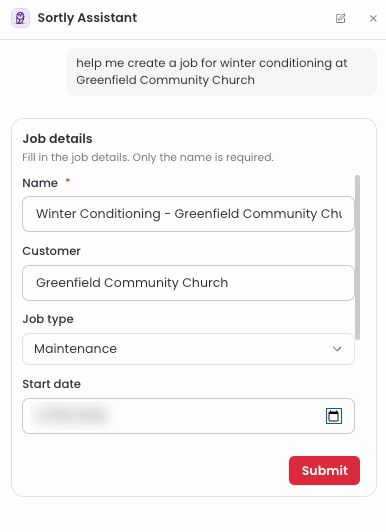
Open Sortly Assistant and tell it about the job, for example "help me create a job for winter conditioning at Greenfield Community Church."
2
Sortly Assistant fills in what it can from your message. Check the job details, add anything else you know, then select Submit. Only the name is required.
Sortly Assistant showing the Job details form with Name, Customer, Job type, and Start date filled in
3
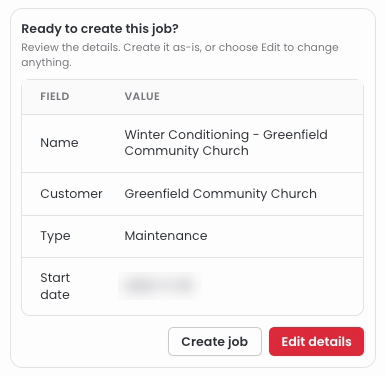
Review the summary. Select Create job to create it as is, or Edit details to change anything.
Ready to create this job summary with the Create job and Edit details buttons
4
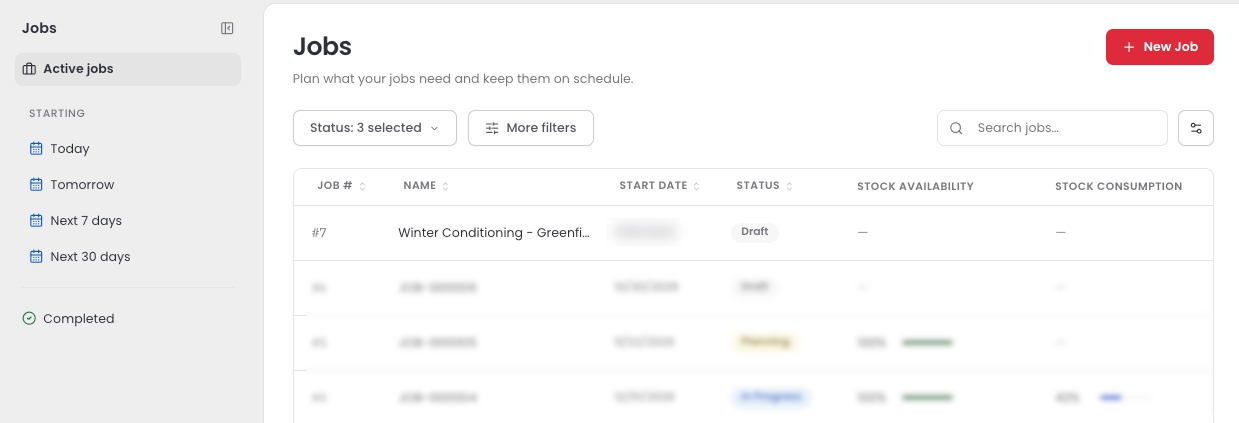
The new job appears in your Jobs list as a Draft.
Jobs list showing the new job in Draft status

Add items from your inventory

Already have the items in Sortly? Pick them from your inventory and enter how many the job needs. This works well for a short list.
1
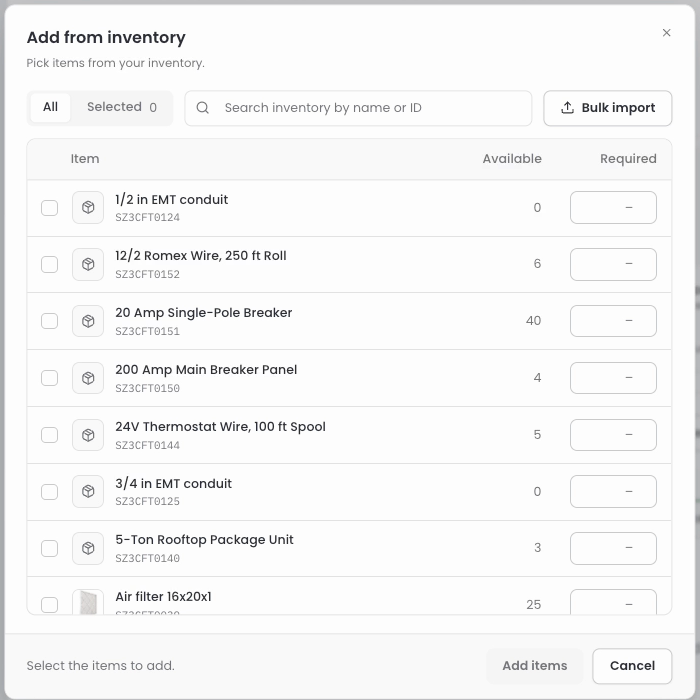
On the job page, select Add from inventory. You'll find it in the Stock availability tile and in the Job work center.
2
Search for or select the items the job needs, and enter a Required quantity for each one if you know it. Entering a quantity selects the item for you.
Add from inventory window listing items with Available and Required columns
3
Select Add items. The items appear in the Job work center and the job moves to Planning.

Import items from a spreadsheet

Already have the job's parts list in a spreadsheet? Import it to add every item at once on web. Items that aren't in your inventory yet are created for you.

Your file can be a CSV or Excel file (.csv or .xlsx) with these columns:
Column
What to enter
Required
item_name
The name of the item.
Yes
required_qty
How many the job needs. Leave it blank if you don't know yet.
No
unit
The unit of measure, such as Each or Roll.
No
item_id
The item's ID, if it is already in your inventory.
No
1
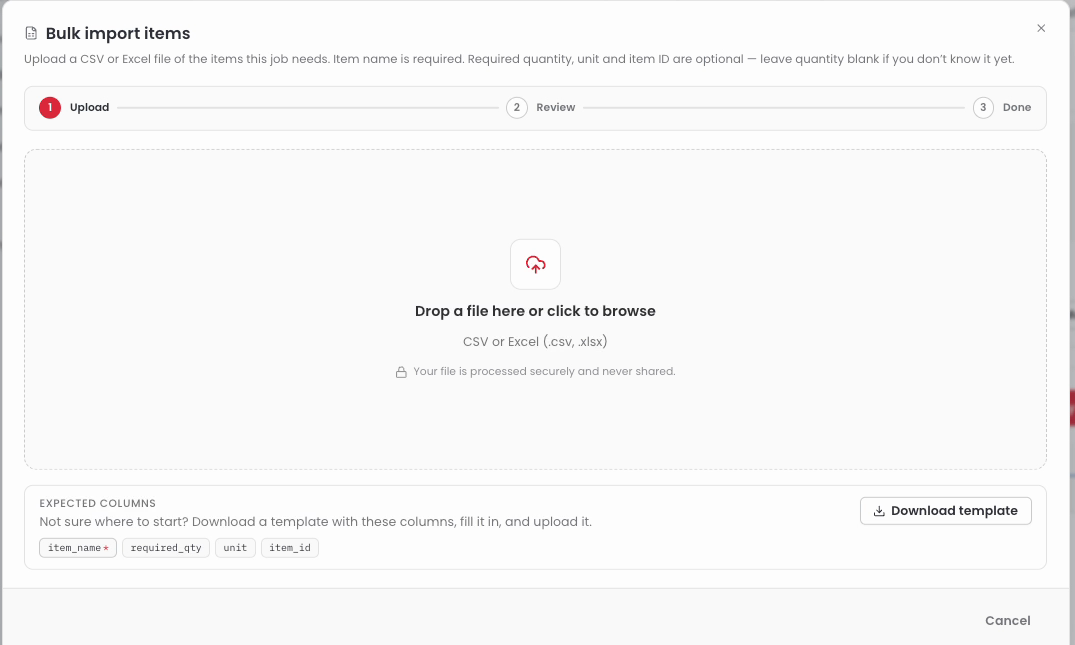
On the job page, select Add from inventory, then select Bulk import.
2
Drop your file into the window, or click to browse for it. Need a starting point? Select Download template, fill it in, and upload it.
Bulk import items window on the Upload step with the Download template button
3
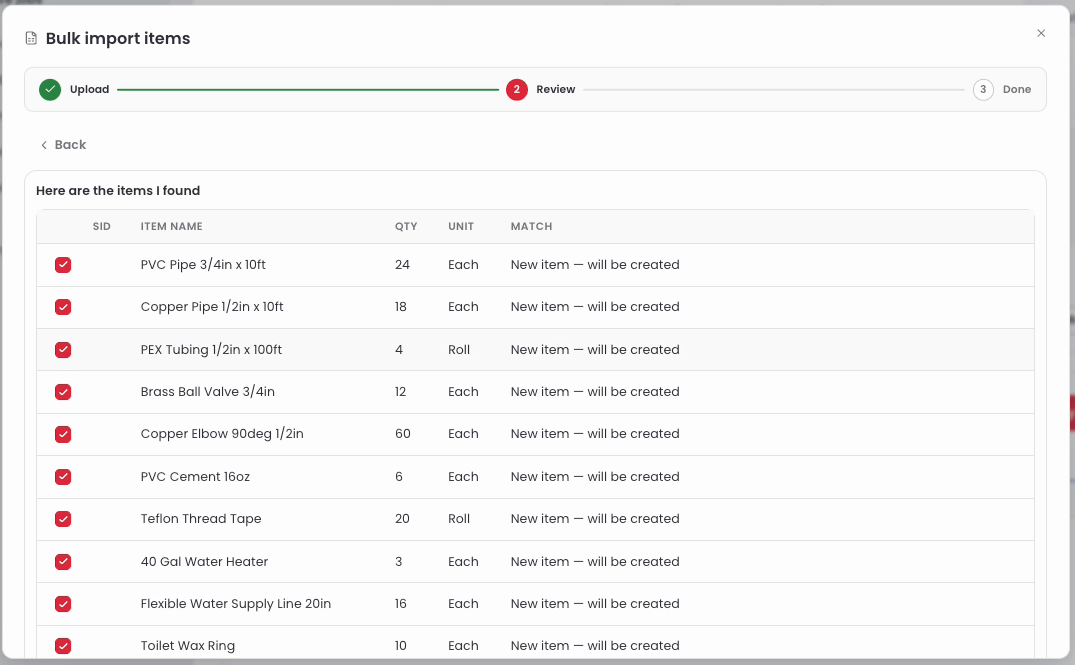
Sortly reads your file and lists the items it found. Check the Match column to see which items are already in your inventory and which will be created as new items.
Review step listing the items found in the file, each marked New item, will be created
4
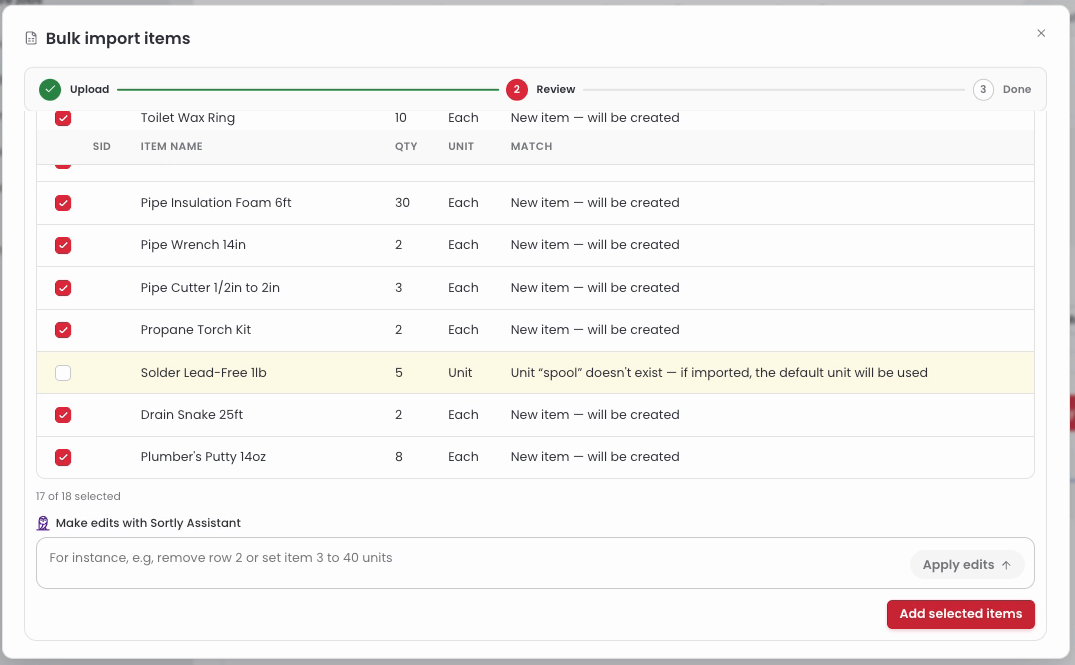
Rows that need attention are highlighted and not selected, such as a row with a unit that doesn't exist. To make changes, type them in Make edits with Sortly Assistant, for example "remove row 2," then select Apply edits.
5
Select Add selected items.
Bottom of the Review step showing a highlighted row, the Make edits with Sortly Assistant box, and the Add selected items button
6
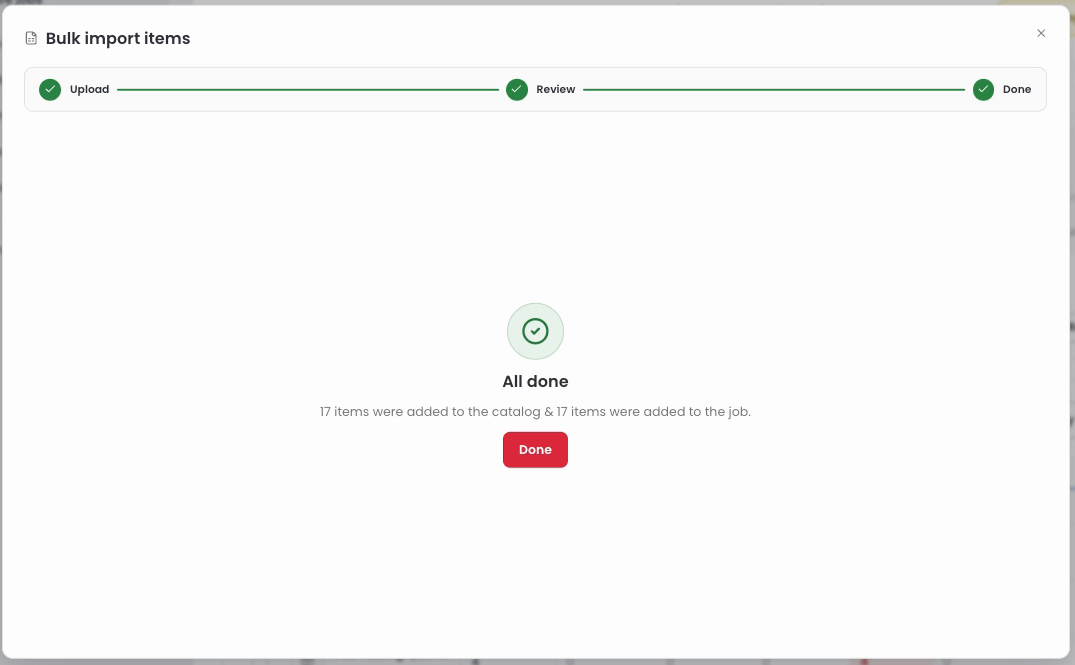
When you see All done, select Done. The items appear in the Job work center and the job moves to Planning.
All done screen confirming the items were added to the catalog and to the job
💡 New items start with no stock, so they show as Short on the job. Select Restock in the Stock availability tile to order what you need.

Add job details

Want your team to see who the job is for and what to expect on site? Add a customer, members, a job type, a link to the work order, and notes. You can do this on web at any time before the job is Completed.
1
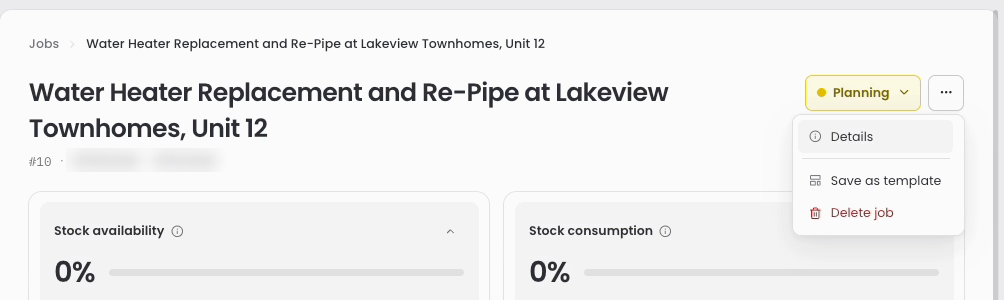
On the job page, select the three-dot menu in the top right, then select Details.
Job page three-dot menu showing Details, Save as template, and Delete job
2
In the Job details panel, select Edit details.
3
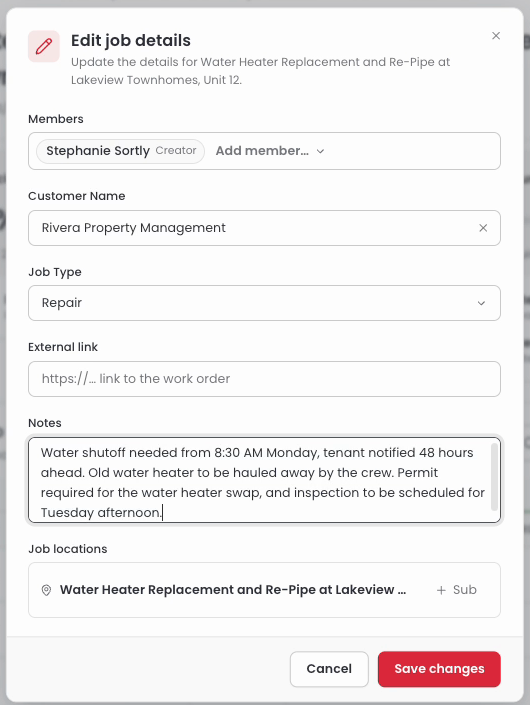
Fill in any of the fields: Members, Customer Name, Job Type, External link, and Notes. You can also change the name and dates here.
Edit job details window with a customer, job type, and notes filled in
4
Select Save changes. The customer and job type now show under the job name.
✅ Your job is set up. Next, reserve the stock, move it to the job location, and mark it as used. See Reserve, move, and use stock.

Frequently Asked Questions

Do I need to add items when I create a job?
No. Only the job name is required. The job stays a Draft until you add items, and then it moves to Planning.
Does adding items to a job reserve the stock?
No. Adding items only records what the job needs. Nothing is set aside until you reserve it. See Reserve, move, and use stock.
What file types can I import?
CSV and Excel files (.csv and .xlsx).
What happens to items in my spreadsheet that aren't in my inventory yet?
Sortly adds them to your inventory as new items and adds them to the job. They start with no stock, so they show as Short on the job until you restock them.
What if I don't know the quantity yet?
Leave the required_qty column blank. You can set it later from the row menu on the item by selecting Change required quantity.
Why is a row highlighted in the review step?
Sortly found something it couldn't match, such as a unit that doesn't exist in your account. The row is not selected, so it won't be imported. If you select it anyway, Sortly uses the default unit.
Can I create a job on mobile?
Yes. See Create a job on mobile. Creating a job with Sortly Assistant, importing items from a spreadsheet, and editing job details are on web.