---
title: Create Item and Stock Fields
description: Create item and stock fields in Sortly to record details about each item or stock entry, and add their values on web and mobile.
---
[Skip to content](https://help.sortly.com/sb/creating-item-and-stock-fields#main-content)
English
Show submenu for translations

Open main navigation
Close main navigation
- English
Show submenu for translations
Looking for answers? Start here.
- There are no suggestions because the search field is empty.
1. [Sortly Help Center](https://help.sortly.com/sb?hsLang=en)
2. [Getting started](https://help.sortly.com/sb/getting-started?hsLang=en)
3. [Set Up Your Account](https://help.sortly.com/sb/getting-started?hsLang=en#set-up-your-account)
# Create Item and Stock Fields
Record the details your team relies on, like brand, model, or serial number, with item fields and stock fields. This article walks you through choosing between the two, creating a field, and adding its values on web and mobile.
Free
Advanced
Ultra
Premium
Enterprise
In this article
1. [Item fields and stock fields](https://help.sortly.com/sb/creating-item-and-stock-fields#choose-type)
2. [Before you start](https://help.sortly.com/sb/creating-item-and-stock-fields#before-you-start)
3. [Create a field](https://help.sortly.com/sb/creating-item-and-stock-fields#create-field)
4. [Add values to your items](https://help.sortly.com/sb/creating-item-and-stock-fields#add-values)
5. [Create a stock field on mobile](https://help.sortly.com/sb/creating-item-and-stock-fields#mobile)
6. [Frequently asked questions](https://help.sortly.com/sb/creating-item-and-stock-fields#faq)
### Item fields and stock fields
Every custom field is either an item field or a stock field. The one you pick decides where its value is saved.
#### Item fields
Capture details that belong to the item itself. Each field is set once on a catalog item and is shared by every one of its stock entries.
Installation NotesSpec SheetSEER Rating
#### Stock fields
Capture extra details on your items. Each field appears on every item and on each of its stock entries.
Purchase Order #Warranty ExpirationCondition
If a detail could be different for two units of the same item, make it a stock field. If it is always the same, make it an item field.
---
### Before you start
Owners and Admins can create, edit, and delete custom fields. Your plan sets how many custom fields you can create, and item and stock fields count together. The [Custom Fields Overview](https://help.sortly.com/sb/custom-fields-overview?hsLang=en) lists the limit for each plan and every field type you can choose from.
---
### Create a field
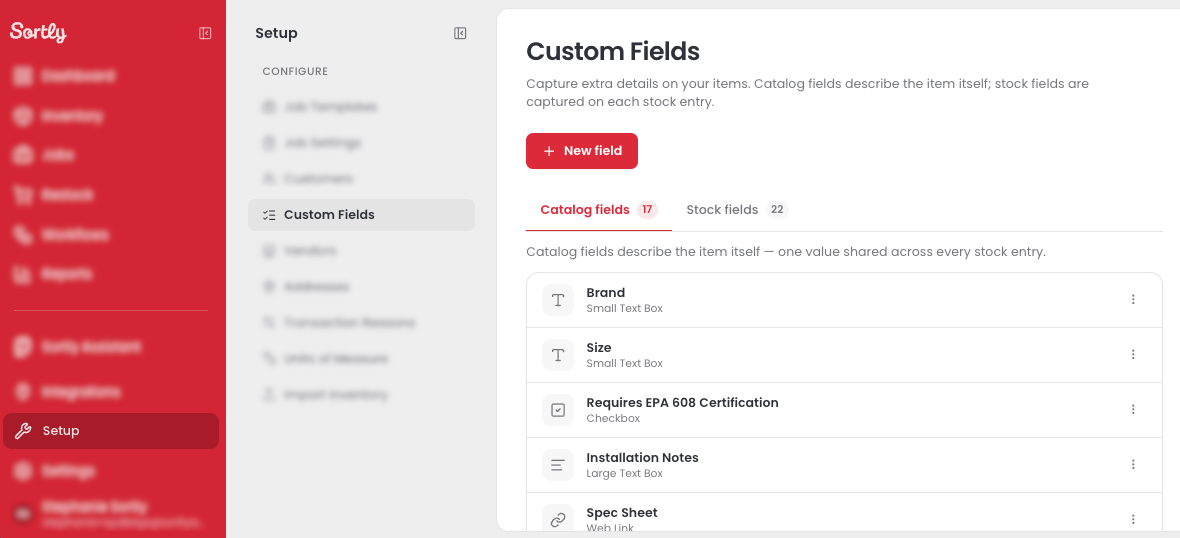
You create both kinds of field from the same place. The Item fields and Stock fields tabs list each kind separately.
1
Go to Setup \> Custom Fields, then select New field.
2
Choose Item or Stock under Applies to, pick a Field type, and enter a Field name. A Dropdown also needs its choices, one per line under Options.

3
Select Create field.
Your new field appears on the Item fields or Stock fields tab, and it is now available on every item.
---
### Add values to your items
A new field starts empty. Fill in its value on each item that needs one.
#### Item fields
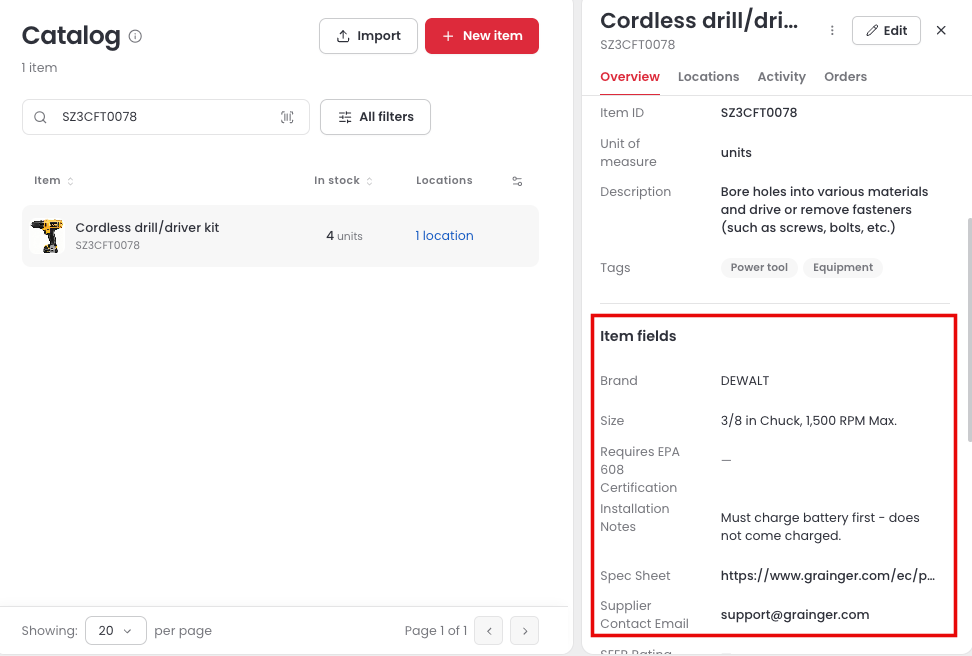
Item fields appear in the Item fields section when you open an item in the Catalog. A field without a value shows a dash. To fill one in, select Edit. Because the value belongs to the item, it is the same at every location. You can also change it any time when [editing the item](https://help.sortly.com/sb/editing-an-item?hsLang=en).
#### Stock fields
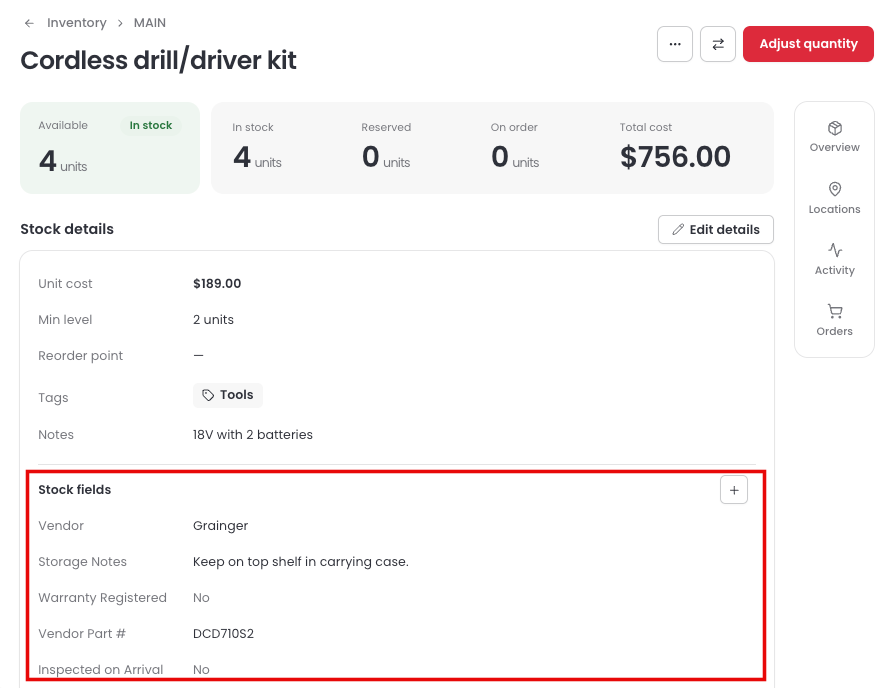
Stock fields appear in the Stock fields section of each stock entry's Stock details. Each entry keeps its own values, so you fill them in one entry at a time. To change them, select Edit details. The steps are covered in [Edit Stock Details](https://help.sortly.com/sb/editing-stock-details?hsLang=en).
---
### Create a stock field on mobile
Prefer to set up a field from your phone? You can create stock fields in the Sortly mobile app. Item fields are created on web.
1
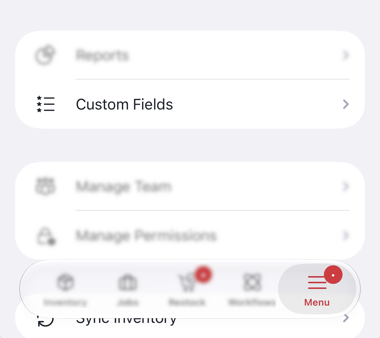
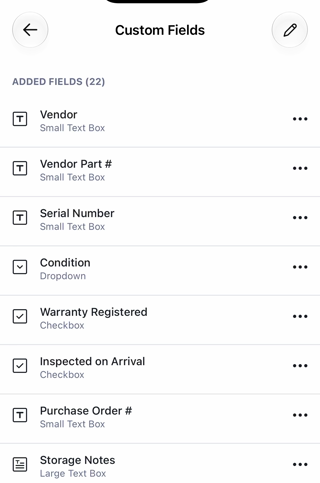
Select Menu, then Custom Fields.
2
Your stock fields are listed under Added fields. To add one, select the + button.
3
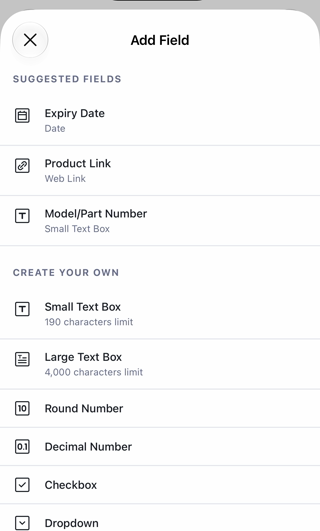
Choose one of the Suggested fields, such as Expiry Date, or pick a field type under Create your own.
---
### Frequently asked questions
Who can create custom fields?
Owners and Admins can create, edit, and delete custom fields.
Do I need to add a custom field to each item?
No. When you create a field, it is available on every item right away. You only fill in the values that matter for each item.
Can an item field have a different value at each location?
No. An item field has one value per item, and that value is the same at every location. If the value changes from one stock entry to the next, such as a serial number or lot number, use a stock field instead.
Can I create an item field on the mobile app?
No. You can create stock fields in the mobile app. Item fields are created on web.
What happens when I reach my plan's custom field limit?
You can keep using and editing the fields you have, but you cannot create a new one until you delete a field or move to a plan with a higher limit. Item and stock fields count together.
[](https://www.sortly.com)
Copyright © 2026, Sortly Inc.