Skip to content
English
  • There are no suggestions because the search field is empty.

Create a QR Code or Barcode Label for an Item

Keep track of every item on the shelf by giving it its own QR code or barcode label, so anyone on your team can see what it is and look it up in Sortly. This article walks you through where to find the label option, choosing what goes on your label, printing or editing it, and adding a label from the mobile app.

Advanced
Ultra
Premium
Enterprise

How item labels work

Each item in Sortly can have its own label. The label shows the item's QR code or barcode along with its Item ID. QR code labels can also show more details, like a tag, a photo, or your company logo.

You create the label once. After that, it appears as a Sortly Label in the item's Overview tab, where you can print it again or change it at any time.

Where to find Create label

You can start a label from two places on web. Both open the same Create label window. Using your phone? See Create a label on mobile.

From the Catalog. Browsing your Catalog? Select an item to open its side panel, then select + Create label under the item photo.
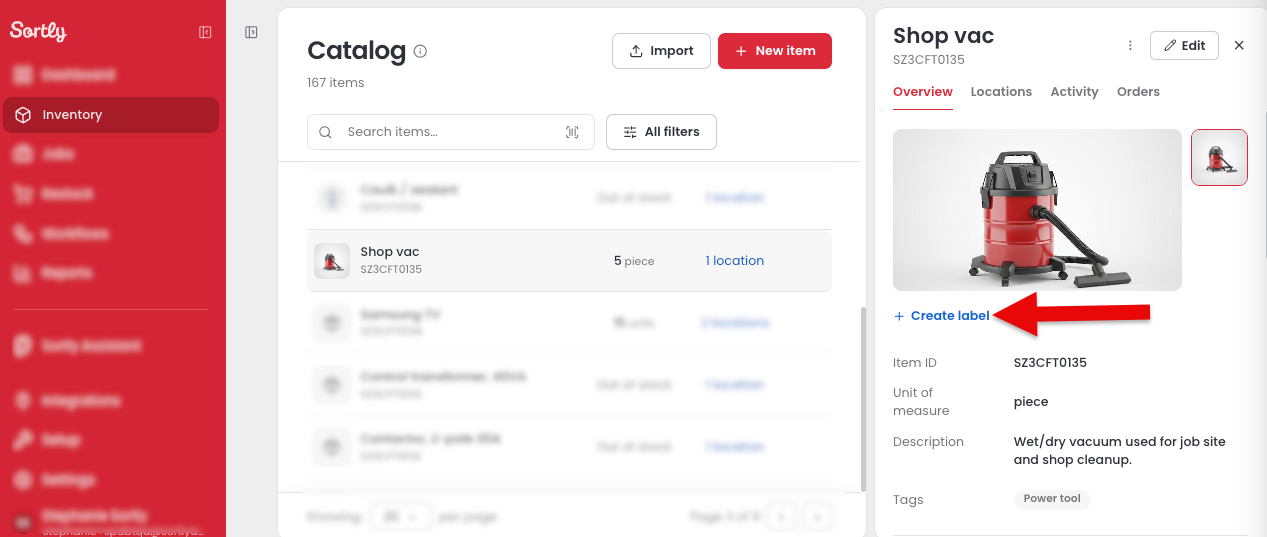
Create label link in the item side panel of the Catalog

From an item's stock page. Already looking at an item in a location? Select + Create label under the photo in the Item details panel.
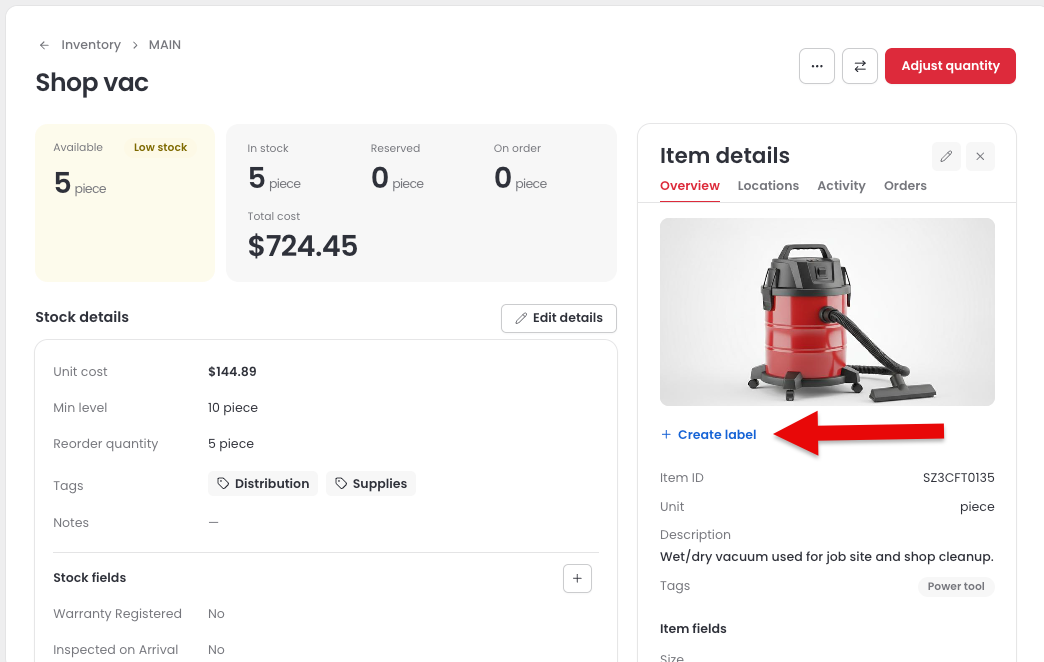
Create label link in the Item details panel on an item page

Choose your label options

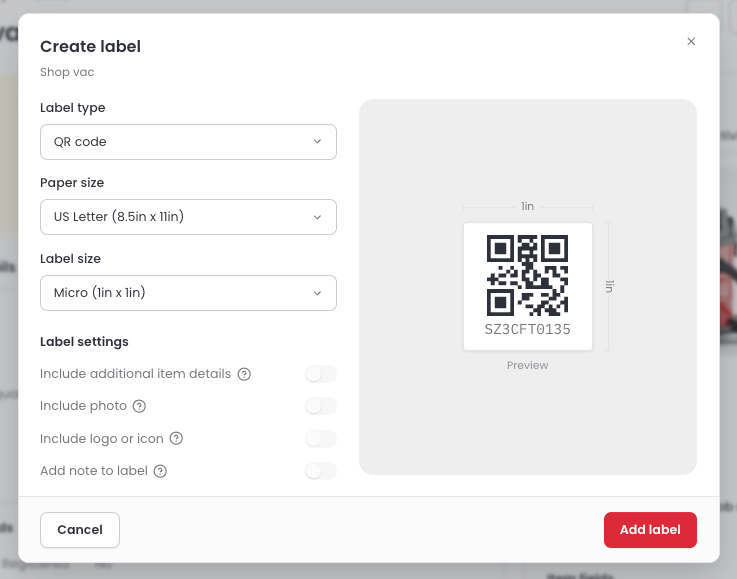
The Create label window has a live Preview on the right, so you can see exactly how your label will look as you make changes.

Label type

Choose QR code or Barcode. QR code labels can include extra details, like a tag, photo, or logo. Barcode labels show the barcode and Item ID only.

QR code labels are available on Advanced, Ultra, Premium, and Enterprise plans. Barcode labels are available on Ultra, Premium, and Enterprise plans.

Paper size

Choose what you're printing on:

  • US Letter (8.5in x 11in)
  • A4 Sheet (21.0cm x 29.7cm)
  • Label printer

Label size

The sizes you can pick depend on the label type and paper size. For example, a QR code label on US Letter paper can be as small as Micro (1in x 1in) or as large as Extra Large (5 1/2in x 8 1/2in). Each size shows its measurements in the list, and the preview updates to match.

Label settings

QR code labels have extra settings you can add to the label:

  • Include additional item details: show one more item detail, such as Tags or Notes. Choose the detail from the list that appears. To show the item's saved notes, choose Notes.
  • Include photo: add the item's photo.
  • Include logo or icon: add your Company logo, or choose an Icon shape and color to help you sort labels at a glance.
  • Add note to label: add an extra note that prints on this label only. It doesn't change the item's Notes field.
⚠️ Which settings you can add depends on the label size. Larger labels have room for more. For example, additional item details can be added to every QR code label size except Micro, and a label note can only be added to Large or Extra Large labels.

Create a label

1
Open the item in your Catalog or on its stock page, then select + Create label.
2
Under Label type, choose QR code or Barcode.
Create label window with label type, paper size, label size, and label settings
3
Choose a Paper size.
4
Choose a Label size.
5
Under Label settings, select anything else you want on the label. Check the Preview to make sure it looks right.
6
Select Add label. Sortly confirms the label was created and opens the Print label window.

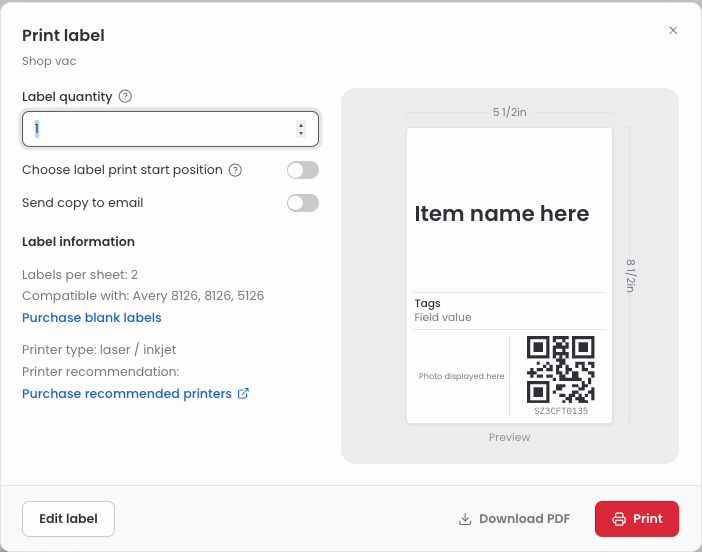
The Print label window opens right after you create a label. On the left, Label information shows how many labels fit on a sheet, which blank label sheets it works with, and what kind of printer to use. Use Purchase blank labels or Purchase recommended printers if you need supplies.
1
Enter how many labels you need in Label quantity.
Print label window with label quantity, print options, and label information
2
If you're printing on a sheet, select Choose label print start position to pick which spot on the sheet the first label prints in.
3
To get a copy of the label by email, select Send copy to email.
4
Select Print. To save the label as a file instead, select Download PDF.
💡 Using a label printer? Direct label printers from Brother, Zebra, Dymo, and others are supported.

Print or edit an existing label

Once an item has a label, you'll see it as Sortly Label in the item's Overview tab.
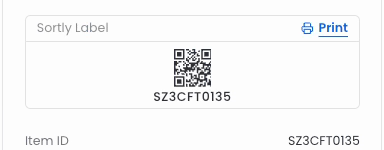
Sortly Label card with the Print link in the item Overview tab
1
Select Print on the Sortly Label card to open the Print label window.
2
To print as is, follow the steps in Print your label.
3
To make changes, select Edit label. Update the label type, paper size, label size, or settings, then select Next to go back to printing.

Your changes update the item's label, so the Sortly Label card shows the new version.

Create a label on mobile

Working from your phone? You can add a QR code or barcode to an item right from the Sortly mobile app.
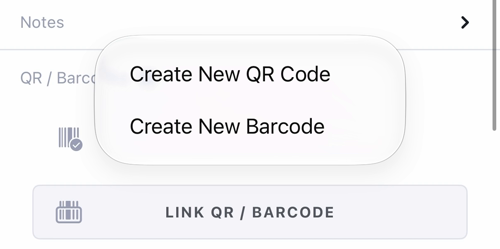
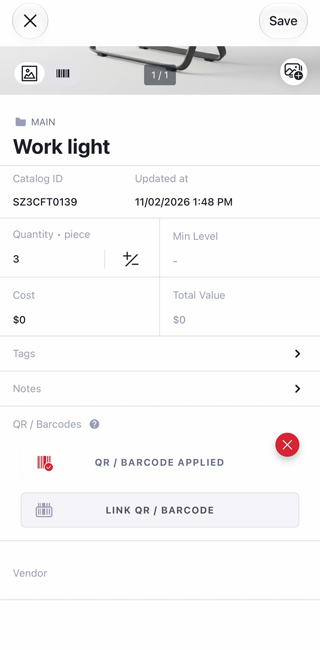
1
Open the item and scroll down to QR / Barcodes. Tap Create Custom Label.
2
Tap Create New QR Code or Create New Barcode.
Create New QR Code and Create New Barcode options on mobile
3
The section now shows QR / Barcode Applied. Tap Save at the top of the screen.
QR / Barcode Applied with the Save button on mobile

The label now appears under QR / Barcodes with the item's name and code. Tap it to see the code full screen, then tap Close. You can also see it at the top of the item by tapping the barcode icon next to the photo icon.
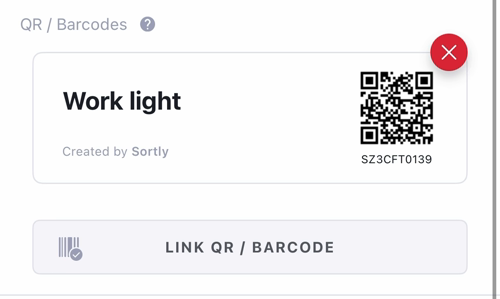
Saved label under QR / Barcodes on mobile

To remove the code from the item, tap the red X on the label, then tap Unlink.

💡 To choose the paper size, label size, and extra details, and to print your label, use Sortly on web.

Frequently Asked Questions

Can I create barcode labels on the Advanced plan?
No. The Advanced plan includes QR code labels. Barcode labels are available on Ultra, Premium, and Enterprise plans.
Why can't I select some label settings?
Some settings are only available on certain label sizes, since smaller labels have less room. If a setting can't be selected, try a larger label size.
How do I show an item's notes on its label?
Select Include additional item details, then choose Notes from the list. This works on every QR code label size except Micro.
What is Add note to label for?
Add note to label lets you add an extra note that prints on this label only, without changing the item's Notes field. It's available on Large and Extra Large labels.
What can I print labels on?
You can print on US Letter sheets, A4 sheets, or a direct label printer. The Print label window lists the blank label sheets each size works with, such as Avery 8126 and 5126 for Extra Large labels on US Letter.
Which label printers work with Sortly?
Direct label printers from Brother, Zebra, Dymo, and others are supported.
Can I save a label without printing it?
Yes. In the Print label window, select Download PDF to save the label as a PDF.
Can I change a label after I create it?
Yes. Select Print on the item's Sortly Label card, then select Edit label. You can switch between QR code and barcode, change the size, or update the settings.