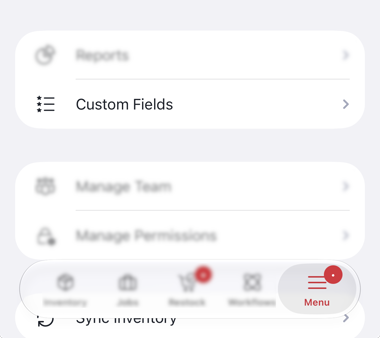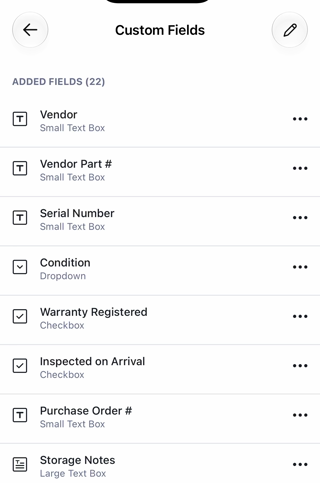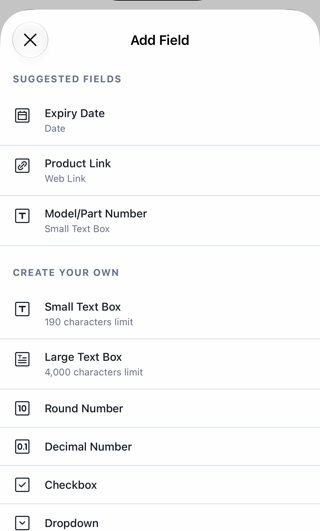
Keep track of the extra details your business relies on, like brand, model number, or serial number, so they live right on the item instead of in a separate spreadsheet. This article walks you through how custom fields work, the difference between catalog and stock fields, how many fields each plan includes, the field types you can use, and how to create and delete a field.
In this article
How custom fields work
Every item in Sortly comes with standard details like its name and quantity. Custom fields let you add your own, so you can record the information your team actually looks for.
You set up custom fields once, in Setup > Custom Fields. Each field you create shows up on every item, so you don't need to attach it item by item. Then you fill in the values that apply to each one.
Every custom field is either a catalog field or a stock field. Which one you pick decides where the value is saved, so it's worth knowing the difference before you create your first field.
Catalog fields and stock fields
A catalog field describes the item itself, and a stock field describes each stock entry of that item. On the Custom Fields page, they're on separate tabs: Catalog fields and Stock fields.
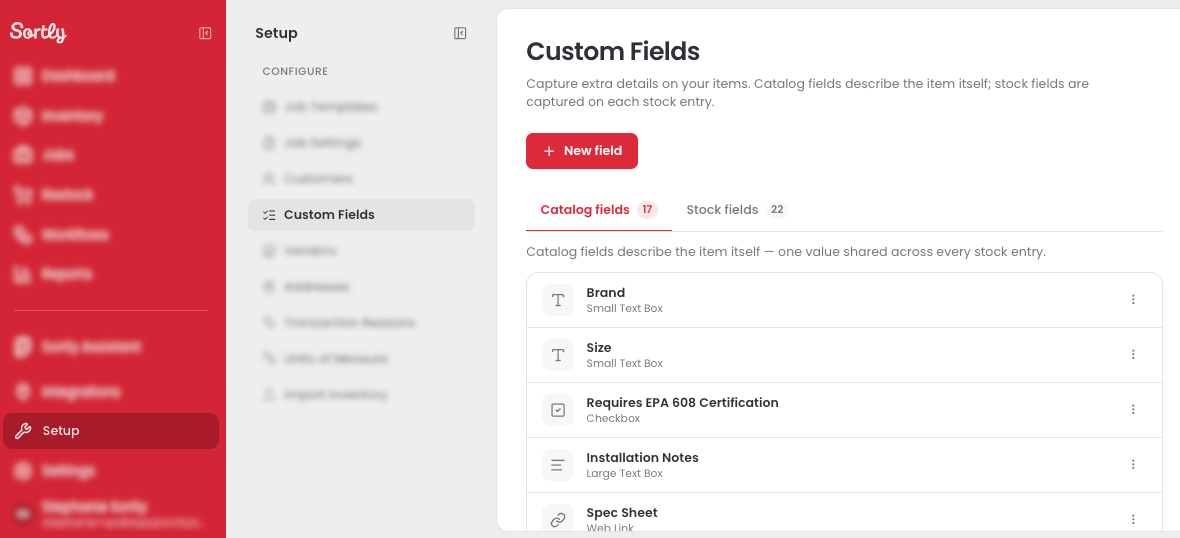
Catalog fields
A catalog field has one value that's shared across every stock entry of the item. If you change it, it changes everywhere the item is stocked.
For example, an air conditioner's Brand and SEER Rating are the same whether the unit is in your warehouse or on a truck. Set them once on the item, and every location shows the same value.
Stock fields
A stock field is captured on each stock entry, and every entry keeps its own value.
For example, two units of the same air conditioner each have their own Serial Number, and stock you bought from different suppliers can have a different Vendor. A stock field lets you record each one separately.
Who can manage custom fields
Creating, editing, and deleting custom fields is part of setting up your account, so it's limited to people who are allowed to manage custom fields. Anyone who can edit items can fill in and change the values on those items.
To see what each role can do, read What Each Team Role Can Do.
How many custom fields you can create
The number of custom fields you can create depends on your plan. The limit counts catalog fields and stock fields together, not separately.
For example, on the Advanced plan you could create 3 catalog fields and 2 stock fields. That uses all 5 of your custom fields.
Once you reach your limit, Sortly offers you an upgrade to the next plan when you try to create another field. Deleting a field you no longer need also frees up a spot.
Field types
Each custom field has a type, which decides what kind of information it holds. Catalog fields and stock fields use the same types, and every plan includes all of them.
Create a custom field
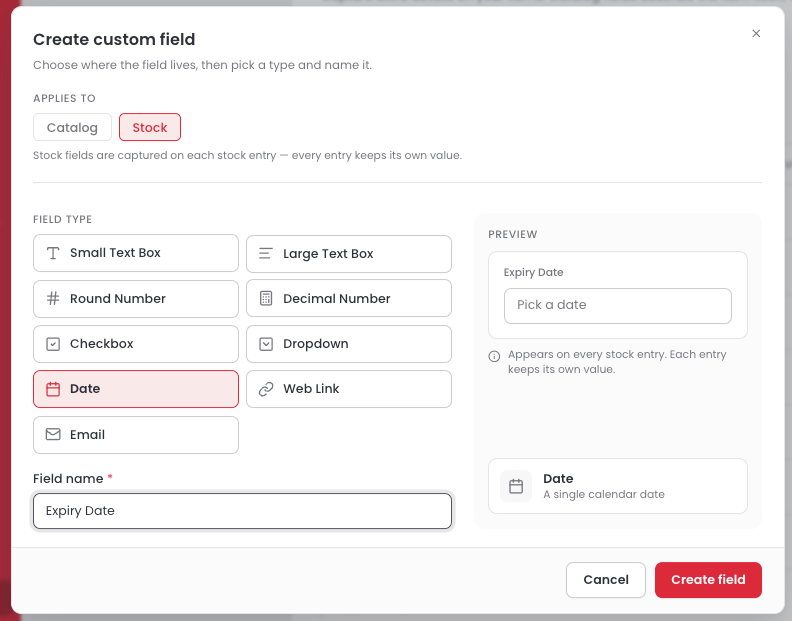
Your new field appears on the Catalog fields or Stock fields tab, and it's now available on every item.
Where custom field values appear
Once you've created a field, you fill in its values on your items.
Catalog fields
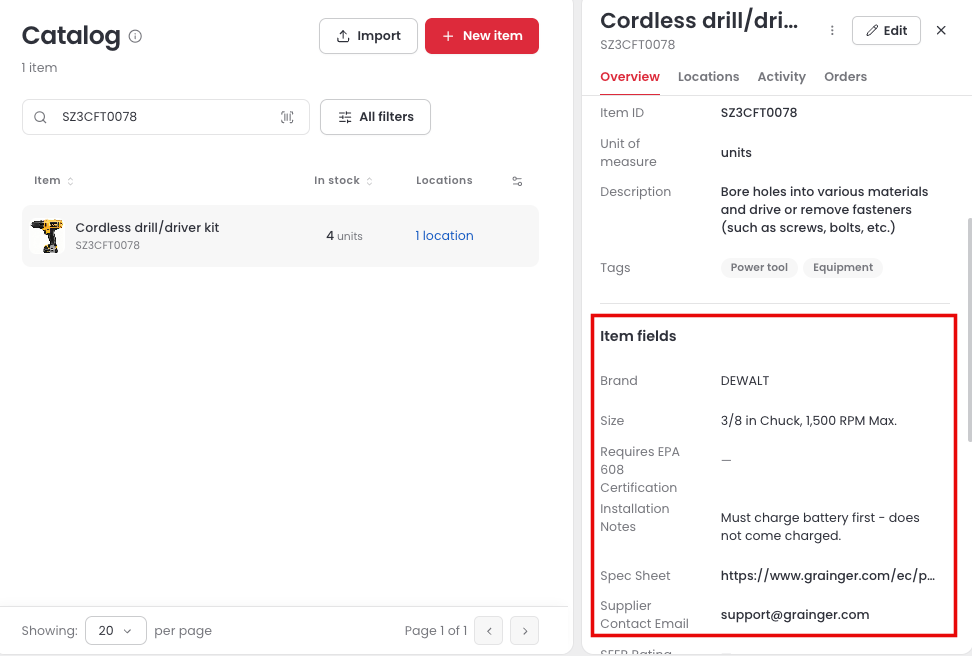
Catalog fields appear in the Item fields section when you open an item in the Catalog. A field without a value shows a dash. To fill one in, select Edit.
Stock fields
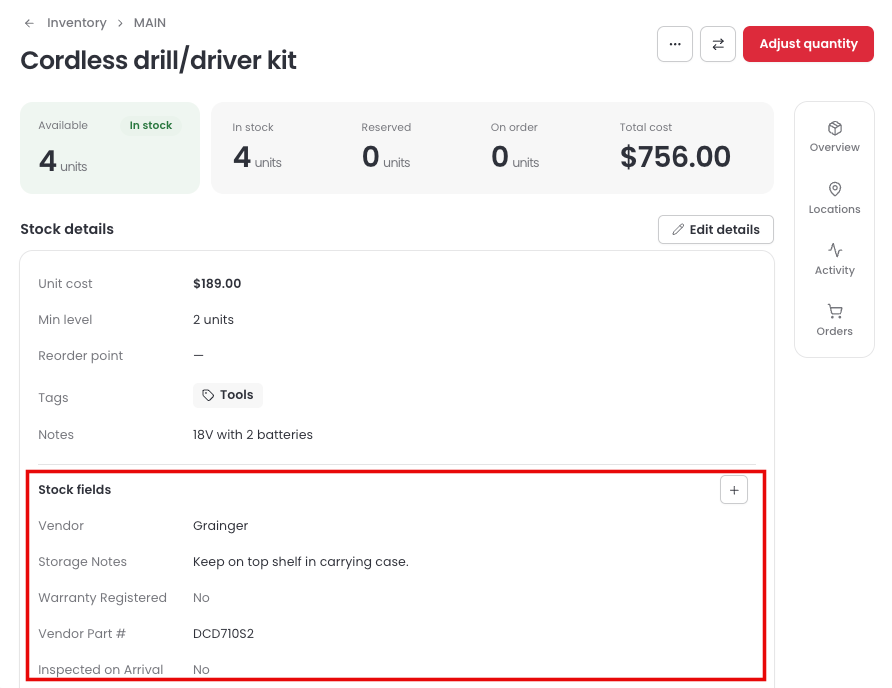
Stock fields appear in the Stock fields section of each stock entry's Stock details. Because every stock entry keeps its own values, you fill them in for each one. To change them, select Edit details.
Delete a custom field
If you no longer need a field, you can delete it from Setup > Custom Fields.
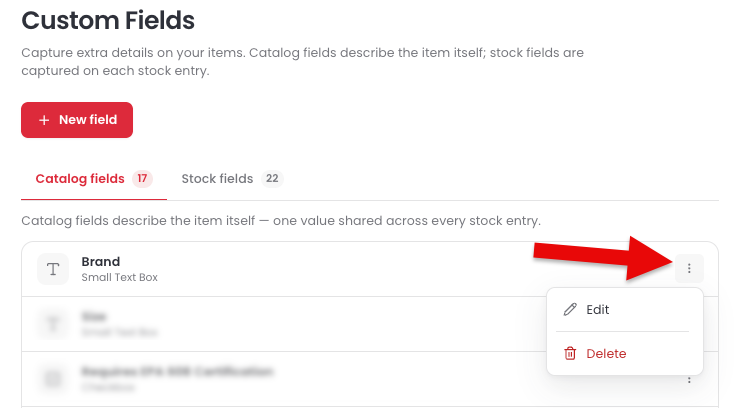
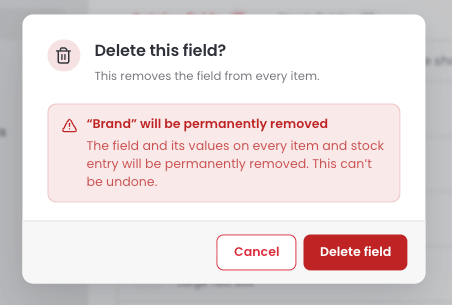
To change a field instead, choose Edit from the same menu.
Custom fields on mobile
Away from your desk? You can see and add stock fields from the Sortly mobile app. Catalog fields are managed on the web.