
See at a glance what needs your attention across your inventory, jobs, and restocking. The Dashboard lists the insights Sortly finds in your account, so you can open one, see what it found, and either act on it or snooze it. This article walks you through what is on the Dashboard, how to filter insights, and how to review and snooze them.
In this article
What you see on the Dashboard
The Dashboard shows you what needs attention today, such as items that are out of stock and jobs that are missing dates. Each one appears as an insight that you can open and act on.
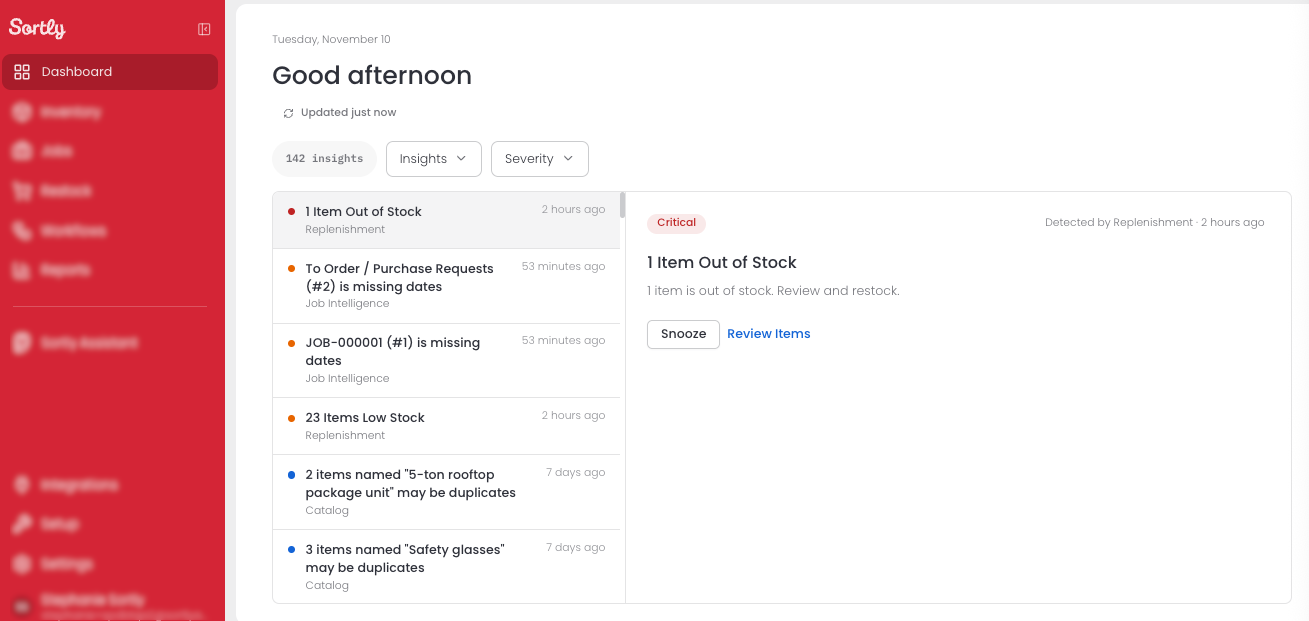
Header
The top of the page shows today's date and a greeting. Below the greeting, the Updated button shows when the list was last refreshed, such as "Updated just now". Select it to refresh the list. Sortly also refreshes it every 10 minutes.
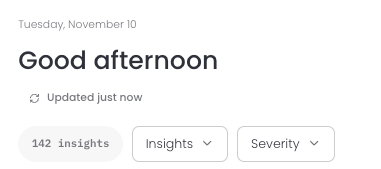
Insight list
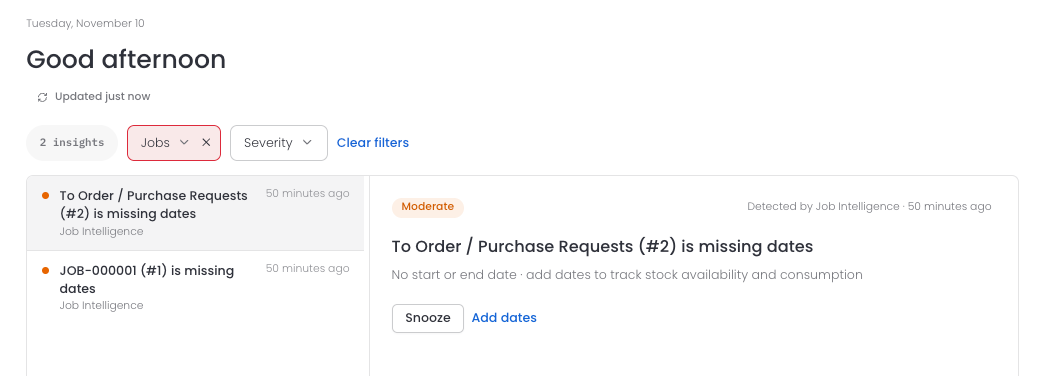
Your insights are listed on the left, with a count at the top, such as "143 insights". Each row shows a dot for its severity, a title, the area that found it, and how long ago it was found. Scroll down to load more.
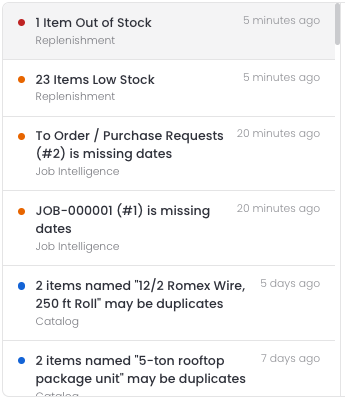
Detail pane
Select an insight to read it on the right. The first one opens automatically. The top of the detail pane shows the insight's severity, which area found it, and when, followed by a description. Select Snooze to remove the insight from your list, or select the action next to it to deal with it. The kinds of insights you see are explained in Understanding Dashboard Insights.
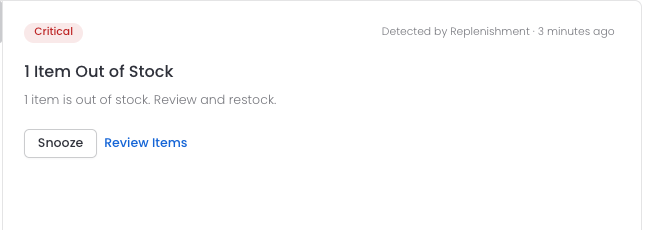
Filter insights
Two filters sit above the list: Insights and Severity. Use one, both, or neither. The count and the list update right away, and Sortly remembers your choices for next time.

Narrow by area
Use Insights to show one area at a time.
 Inventory
 Jobs
 Restock

Narrow by severity
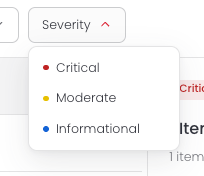
Use Severity to show only insights at the level you choose.
The Insights menu lists the three areas. For example, choosing Jobs shows insights such as a job that is missing dates. To see everything again, select the X on a filter or select Clear filters.
The Severity menu lists the three levels, so you can focus on the most serious insights first.
Review and snooze insights
Read what Sortly found in the detail pane, then choose what to do with it. Select the action next to Snooze to deal with the insight. For an out-of-stock insight, that action is Review Items. If you do not need the insight, select Snooze to remove it from your list. Sortly then opens the next insight.