---
title: Edit an Item
description: Update an item's photos, name, unit of measure, description, tags, and item fields in the Catalog or on mobile, and save the changes for all locations.
---
[Skip to content](https://help.sortly.com/sb/editing-an-item#main-content)
English
Show submenu for translations

Open main navigation
Close main navigation
- English
Show submenu for translations
Looking for answers? Start here.
- There are no suggestions because the search field is empty.
1. [Sortly Help Center](https://help.sortly.com/sb?hsLang=en)
2. [Inventory](https://help.sortly.com/sb/inventory?hsLang=en)
3. [Catalog](https://help.sortly.com/sb/inventory?hsLang=en#catalog)
# Edit an Item
Easily update an item's details in the Catalog whenever something changes, so your inventory info stays correct. This article walks you through changing an item's details and saving your changes.
Free
Advanced
Ultra
Premium
Enterprise
In this article
1. [What you can edit](https://help.sortly.com/sb/editing-an-item#what-you-can-edit)
2. [Edit an item](https://help.sortly.com/sb/editing-an-item#edit-an-item)
3. [Edit an item on mobile](https://help.sortly.com/sb/editing-an-item#edit-an-item-on-mobile)
4. [Frequently asked questions](https://help.sortly.com/sb/editing-an-item#faq)
### What you can edit
You can change any detail on an item, including its name, unit of measure, description, and tags. You can also update its custom item fields, add a label, and add vendors.
⚠️ When you edit an item in the Catalog, the change applies to every instance of that item in every location. For example, if you rename an item that's stocked in three locations, the new name shows in all three.
---
### Edit an item
1
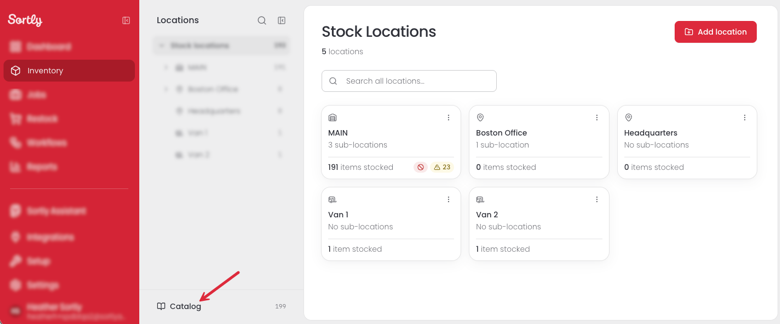
Select Inventory in the left menu, then select Catalog at the bottom of the Locations panel.
2
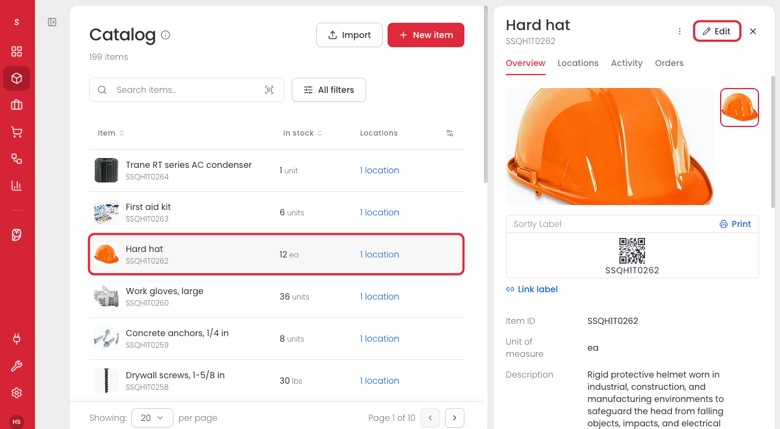
Select the item you want to edit. It opens in a panel on the right. Select Edit in the top right corner of the panel.
3
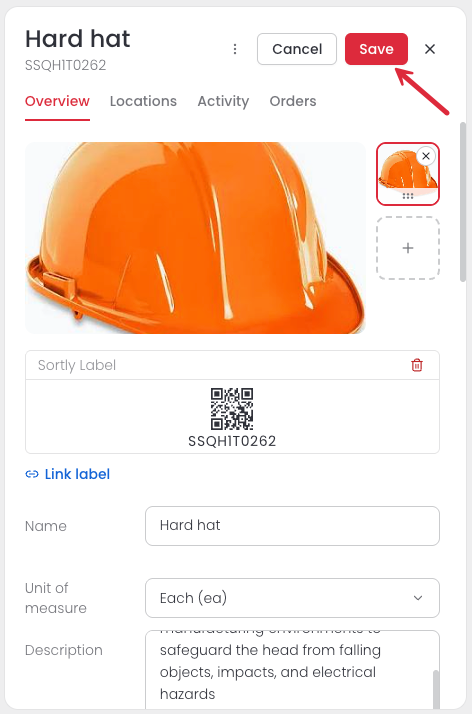
On the Overview tab, change the details you need, such as the photos, Name, Unit of measure, Description, Tags, or Item fields.
4
Select Save. To leave without saving, select Cancel.
---
### Edit an item on mobile
Prefer to update an item while you're on the move? You can change its details from the Sortly mobile app.
1
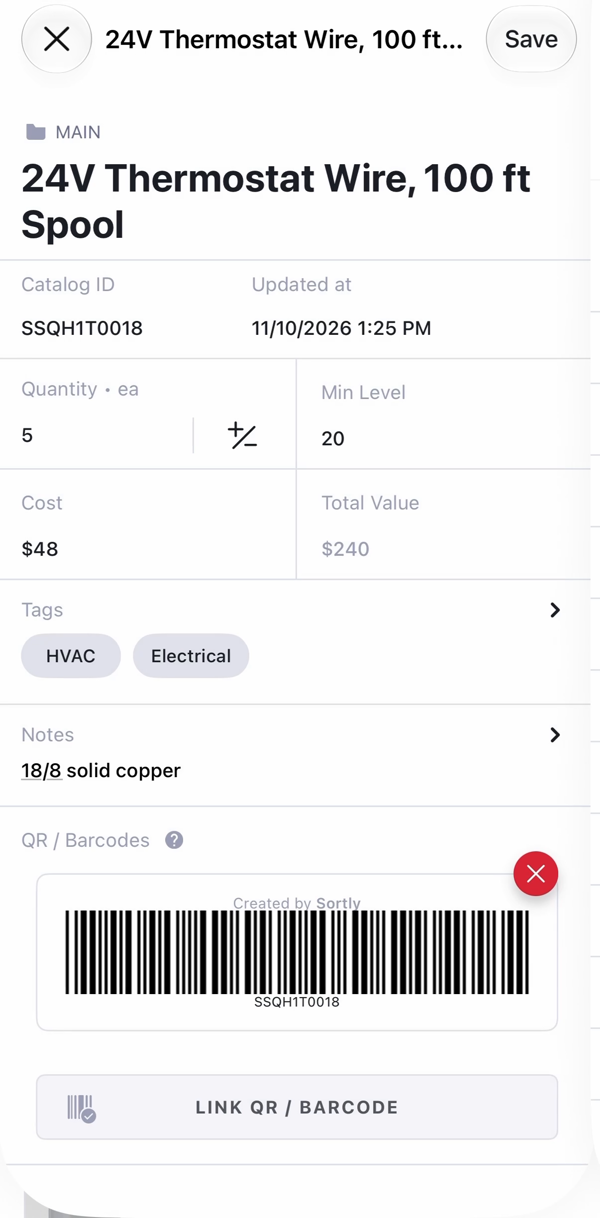
Open the item you want to edit, then tap inside any field to start editing.
2
Change the details you need, such as the photos, name, quantity, Min Level, or Notes. To update tags, select Tags, select the tags you want, then select Done.
3
Select Save in the top right corner.
---
### Frequently asked questions
Can I edit an item's SID?
No. An item's SID, which stands for Sortly ID, cannot be edited or changed.
Which fields are required?
Name and Unit of measure are required.
[](https://www.sortly.com)
Copyright © 2026, Sortly Inc.