
Skip to content
English
  • There are no suggestions because the search field is empty.

Find and Filter Jobs

Find the job you are looking for without scrolling through your whole list. Search by name, customer, or job number, or use the filters to find jobs by status or stock, on web and on mobile.

Free
Advanced
Ultra
Premium
Enterprise

Find a job on web

You can find a job by its name, customer, or job number.

1
Choose Jobs in the main menu to see a list of your Active jobs.
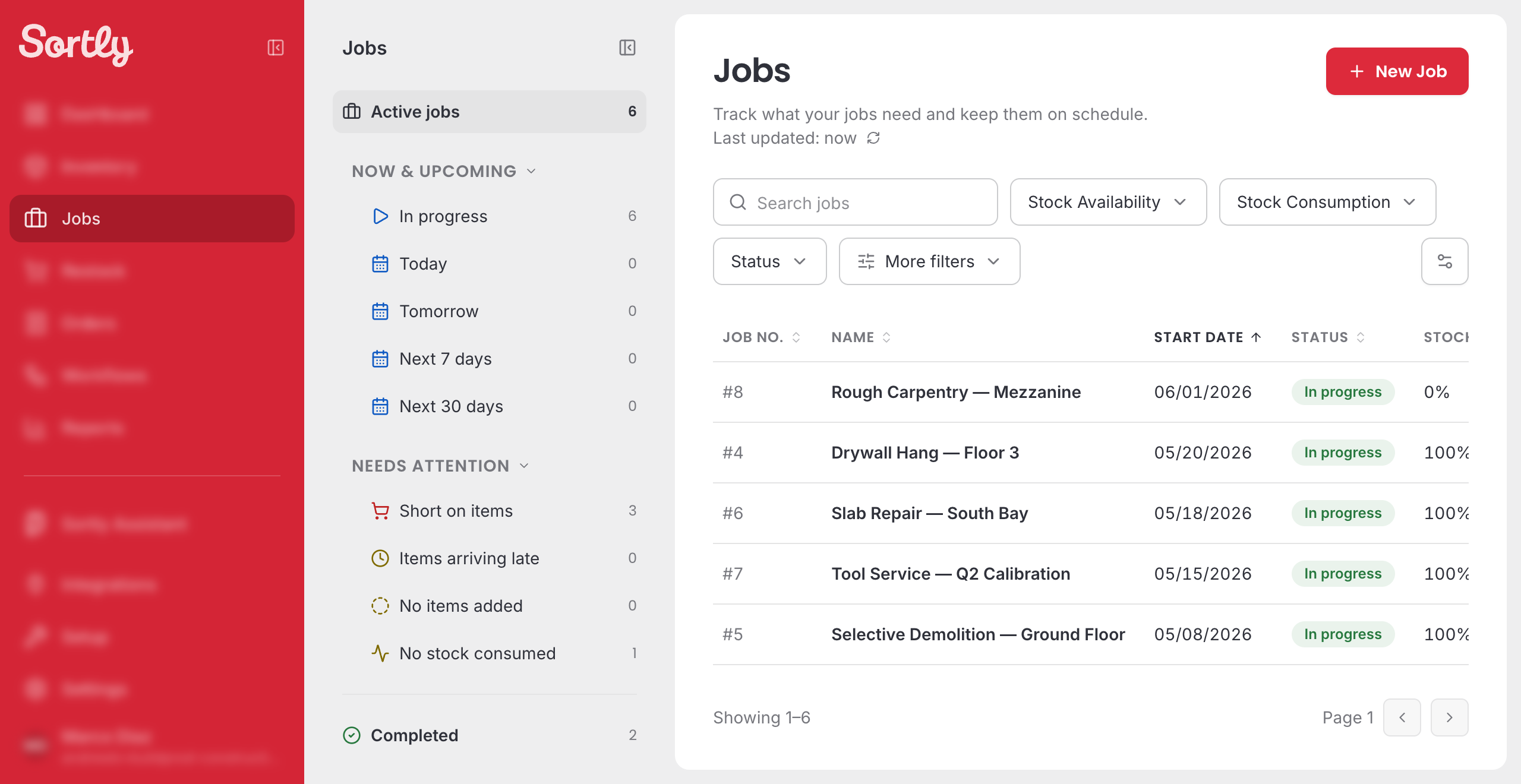
The Jobs page with the list menu on the left and Active jobs selected
2
Search Jobs by name, customer, or job number.
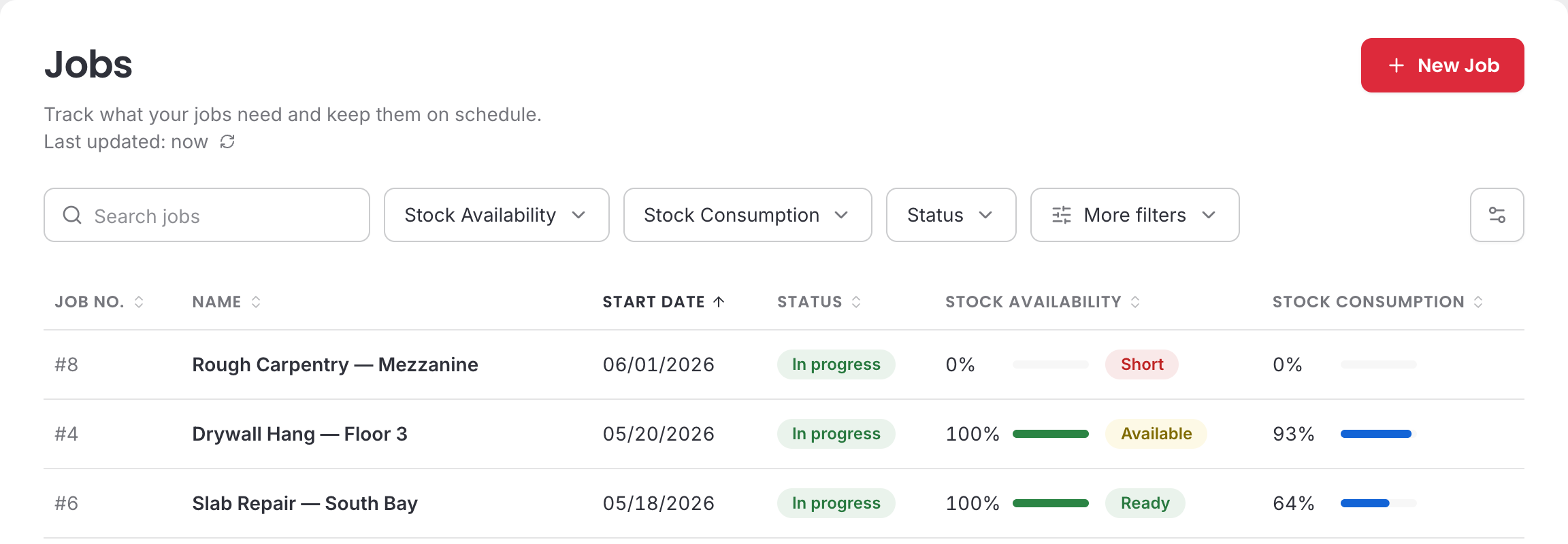
The Jobs list with the search box and the filter buttons above the table
3
Filter your jobs by Stock Availability, Stock Consumption, or Status, then select the job you want.
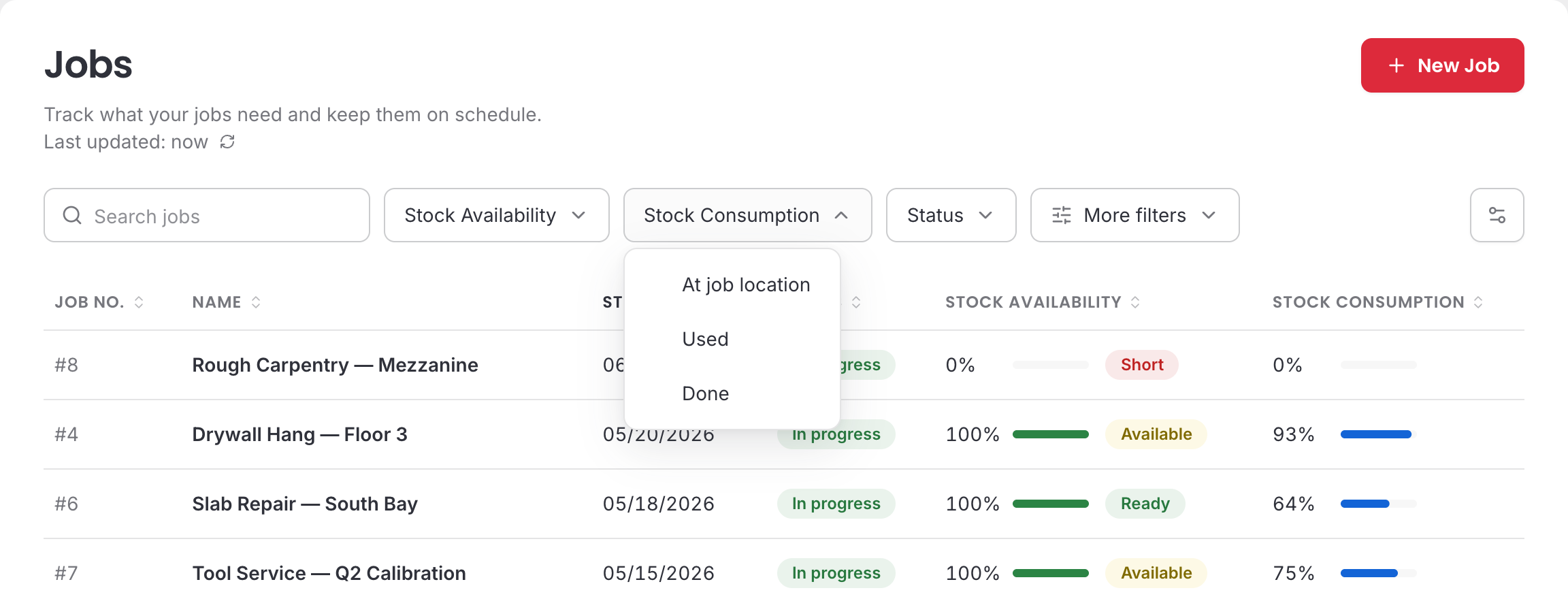
The Stock Consumption filter open with At job location, Used, and Done

Stock Availability

See which jobs have the stock they need.

ShortAvailableOn orderReadyNo items required

Stock Consumption

Check how much stock has been moved to the job or used.

At job locationUsedDone

Status

Show only the jobs in one stage.

DraftIn progressCompleted
Looking for a Completed job? Choose Completed at the bottom of the list menu, or use the Status filter.

What is in the Jobs menu

The Jobs menu on the left sorts your jobs by activity, status, and start date, and flags the ones that need attention. Each option shows a count beside its name.


Active jobs
Every job that is not Completed.
Now & upcoming
Jobs that are underway or starting soon.
In progressTodayTomorrowNext 7 daysNext 30 days
Short on items
Jobs that do not have all the stock they need.
Items arriving late
Jobs with an order that arrives after the job starts.
No items added
Jobs with nothing added to them yet.
No stock consumed
Jobs in progress with no stock moved or used yet.
Completed
Jobs that are Completed.

Find a job on mobile

Prefer to check on a job from the field? The Jobs list on mobile has search, filters, and sorting too.

1
Open Jobs from the bottom bar. You see your active jobs, each with its status and a short summary. To look for one, enter a job name, customer, or job number in Search.
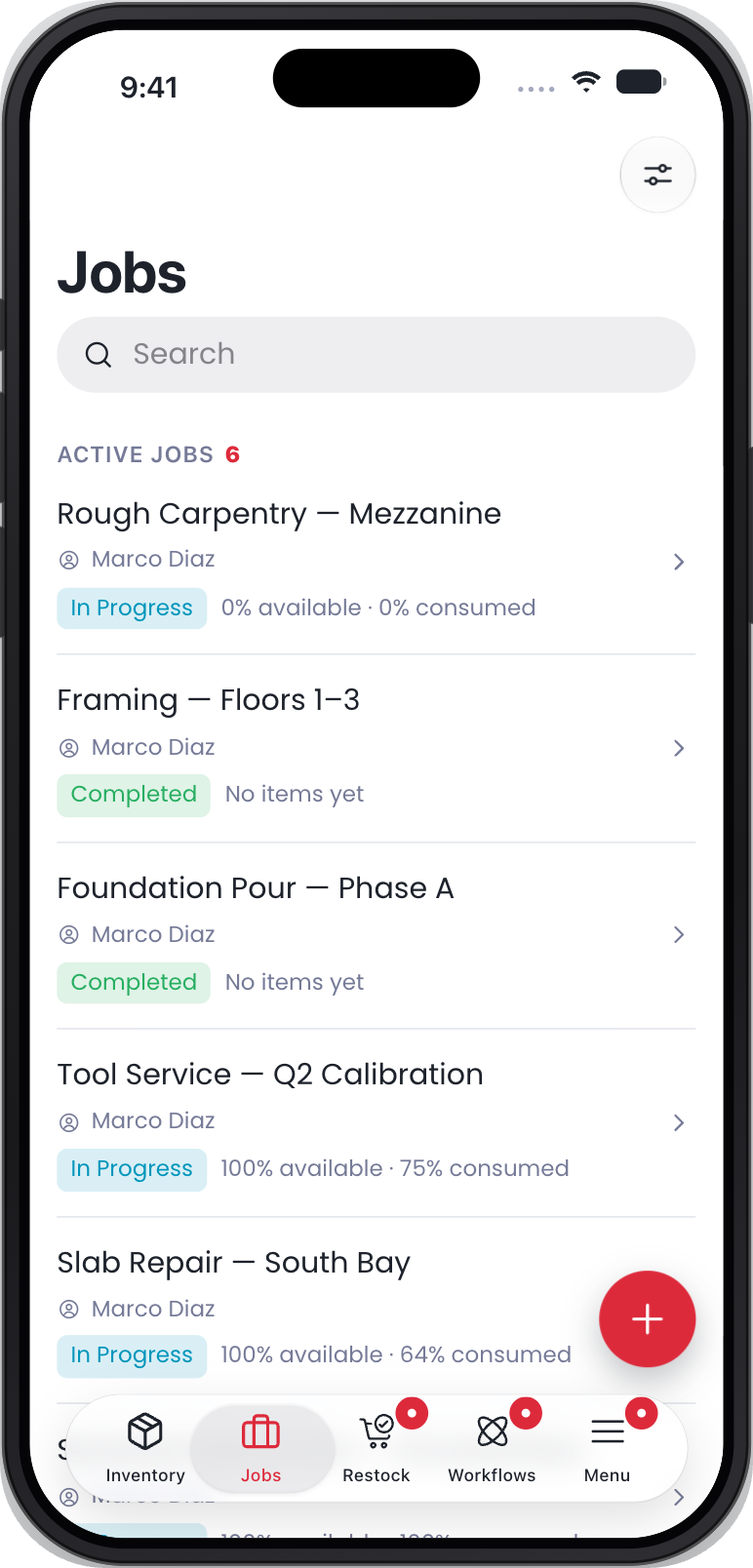
The mobile Jobs list with the search box and the filter and sort button
2
Select the filter and sort button at the top right. In the Settings sheet, choose which statuses to show and how to sort, then select Apply and a job to open it.
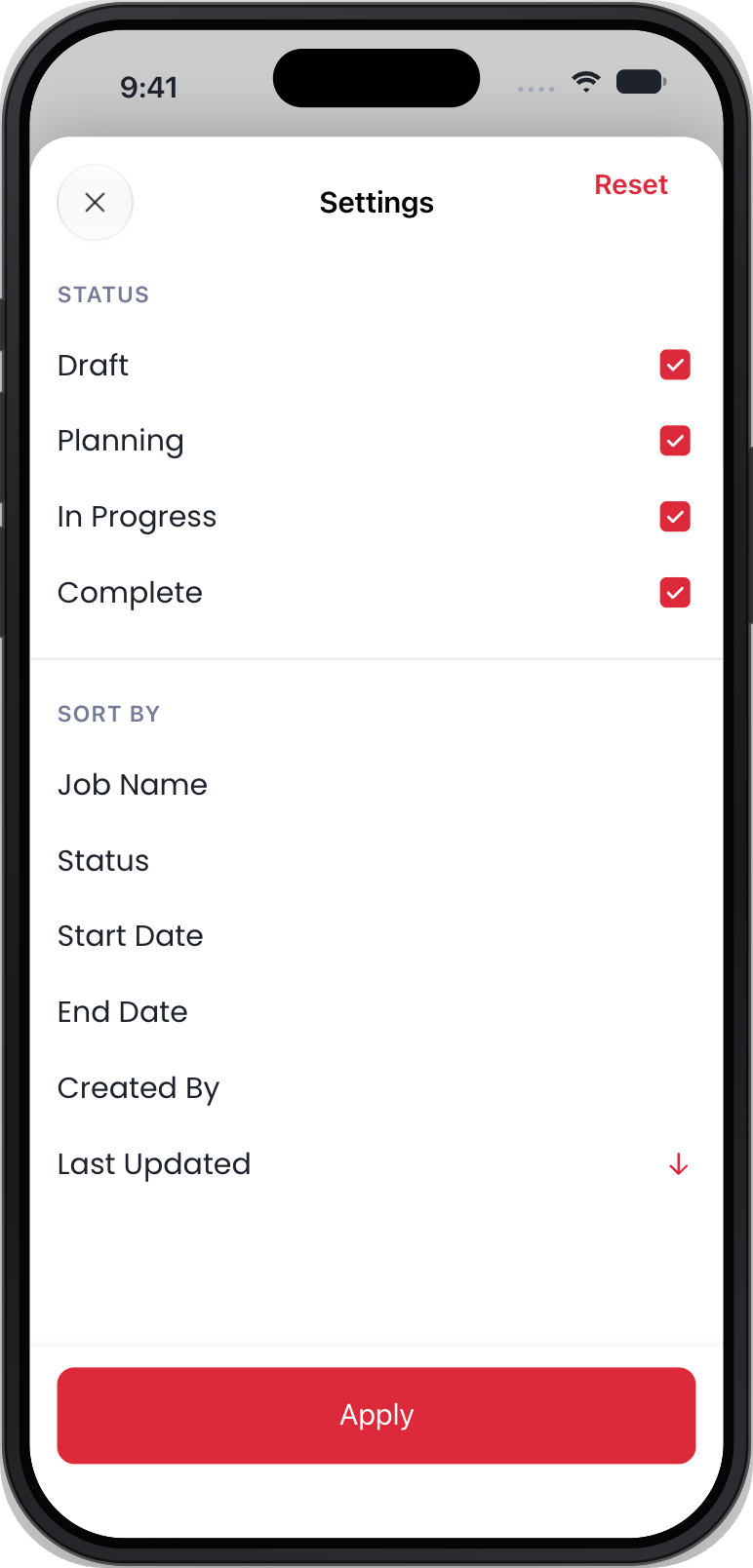
The Settings sheet on mobile with status choices and sort options

Frequently asked questions

Where did my Completed job go?
Active jobs only shows jobs that are not Completed. On web, select Completed in the menu on the left to find it. To learn what happens when a job wraps up, see how to complete a job.
Why am I not seeing all of my jobs?
A filter may be turned on. Try clearing your filters to see every job in the list.
Can I search for a job by the items on it?
No. Search looks at the job name, the customer, and the job number.
Can I filter by stock or customer on mobile?
No. On mobile you can filter by status and choose how the list is sorted. The stock filters are on web only.
Is there a limit on how many active jobs I can have?
Yes. The limit depends on your plan: 2 on Free, 5 on Advanced, 10 on Ultra, 15 on Premium, and unlimited on Enterprise. Completed jobs do not count toward it. See your plan limits for more.