
Save time by letting Sortly Assistant read your spreadsheet, match your columns to Sortly fields, and flag anything that needs fixing, so you don't have to reformat your file first. This article walks you through choosing a spreadsheet, reviewing the field mapping, fixing errors, and importing your items.
In this article
How importing with Sortly Assistant works
Already track your inventory in a spreadsheet? You can bring it into Sortly as it is. Sortly Assistant reads your file, matches your columns to Sortly fields, and checks your data for problems before anything is imported.
Here is what it does with your file:
- Matches your column headers to Sortly fields, such as Item Name, Quantity, and Price.
- Creates a custom field for any column that does not match an existing Sortly field.
- Finds rows with errors and suggests a fix for each one. Nothing changes until you review and apply the fixes.
You review every step before you import. Importing with Sortly Assistant is available on the web app.
Choose how to start
You can start an import from three places. All three lead to the same process: you upload your spreadsheet, then work with Sortly Assistant to review and edit it.
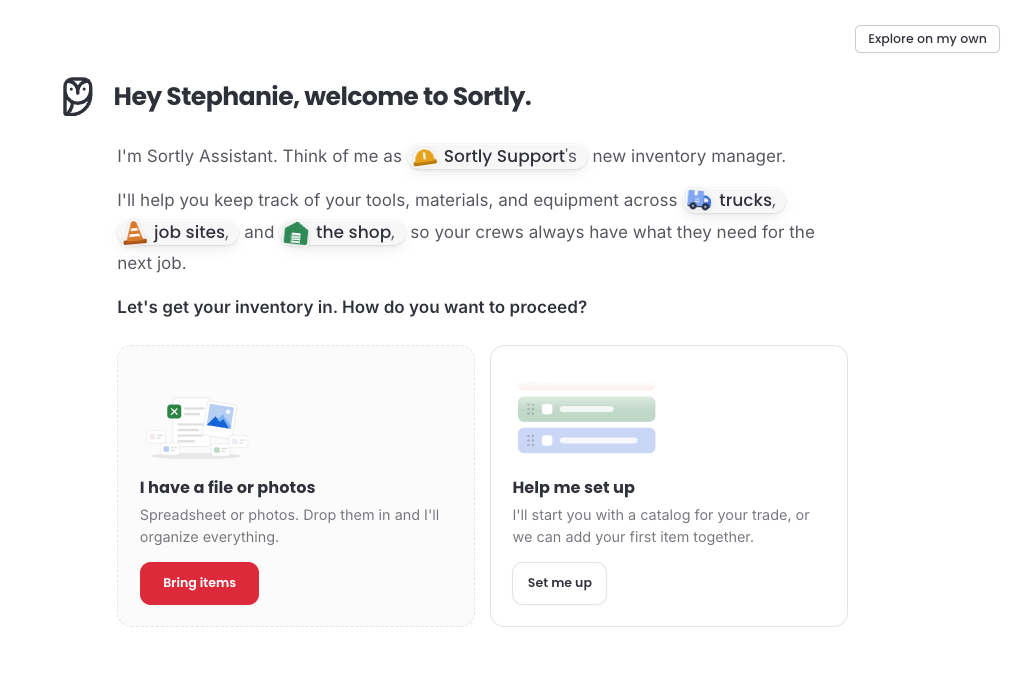
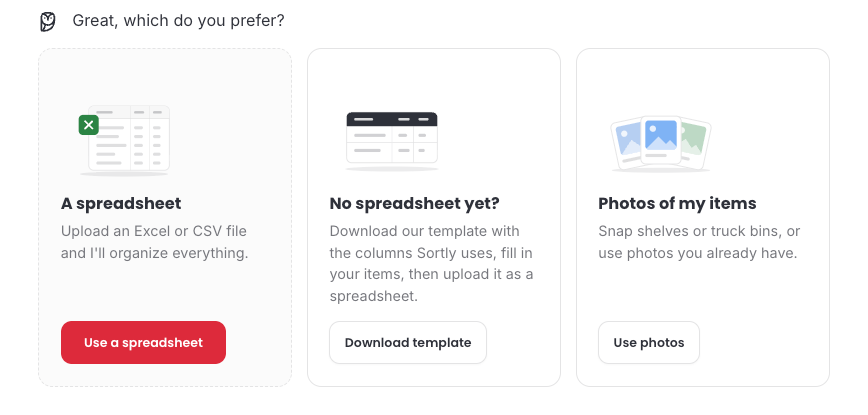
From the welcome screen
Just getting started with a spreadsheet of items? Begin from the welcome screen.
From Setup
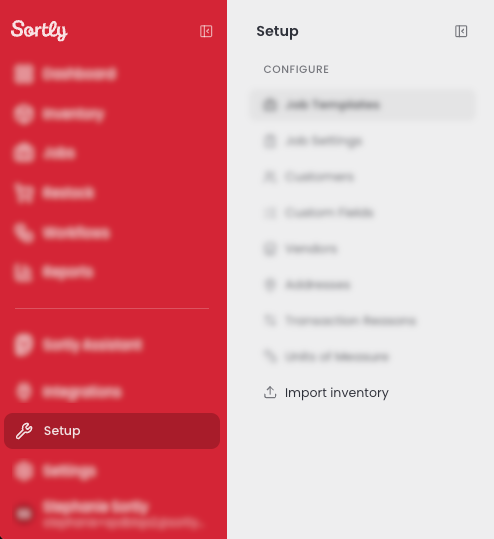
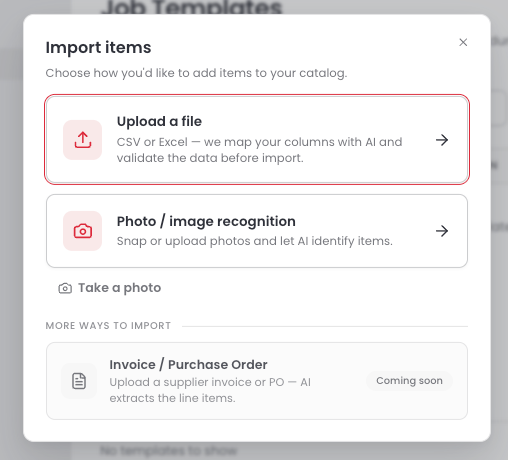
Past the welcome screen and ready to import more items? You can start from Setup at any time.
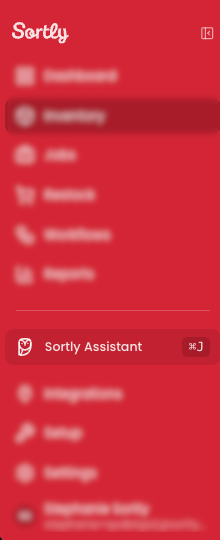
From Sortly Assistant
Prefer to just ask? Tell Sortly Assistant what you want to do.
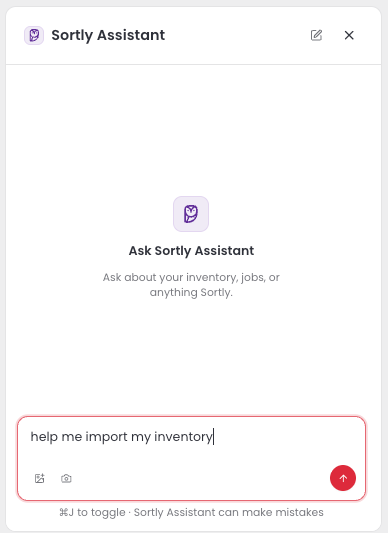
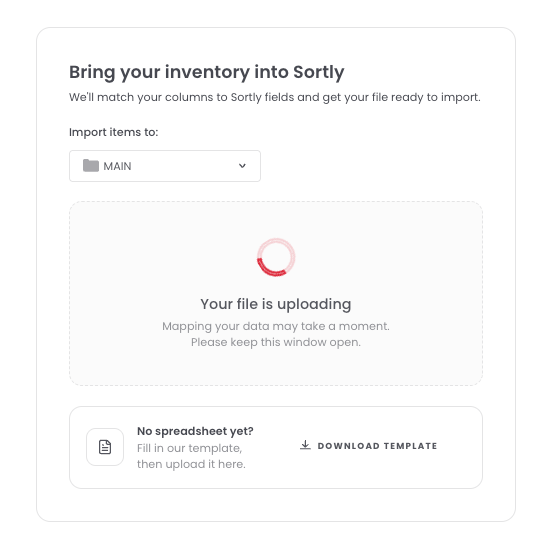
Upload your file
Once you choose to upload a file, the same screen opens however you got there.
Review the file summary
After Sortly Assistant reads your file, it shows a summary of what it found and what it changed. In the example below, the file has 225 rows.
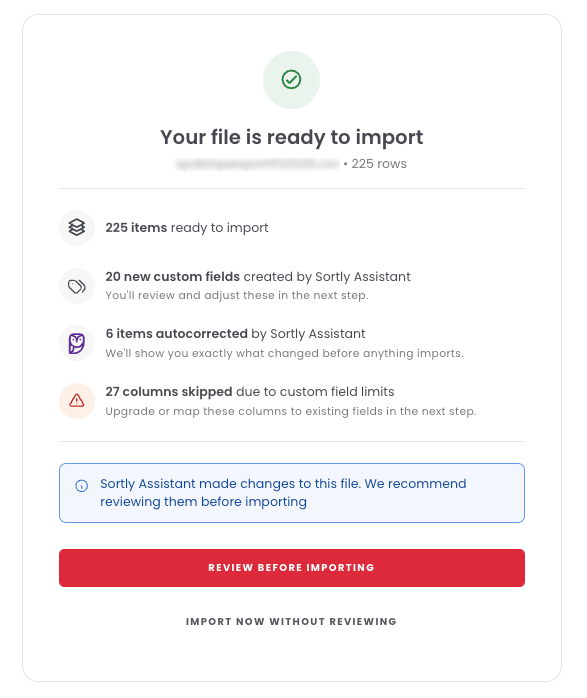
The summary can include:


Select Review before importing to check the changes. Select Import now without reviewing to import right away.
Review your field mapping
The Map Fields step shows how each column in your file lines up with a Sortly field. Each row shows the Sortly field, the column it is mapped to, a sample of your data, and its status.
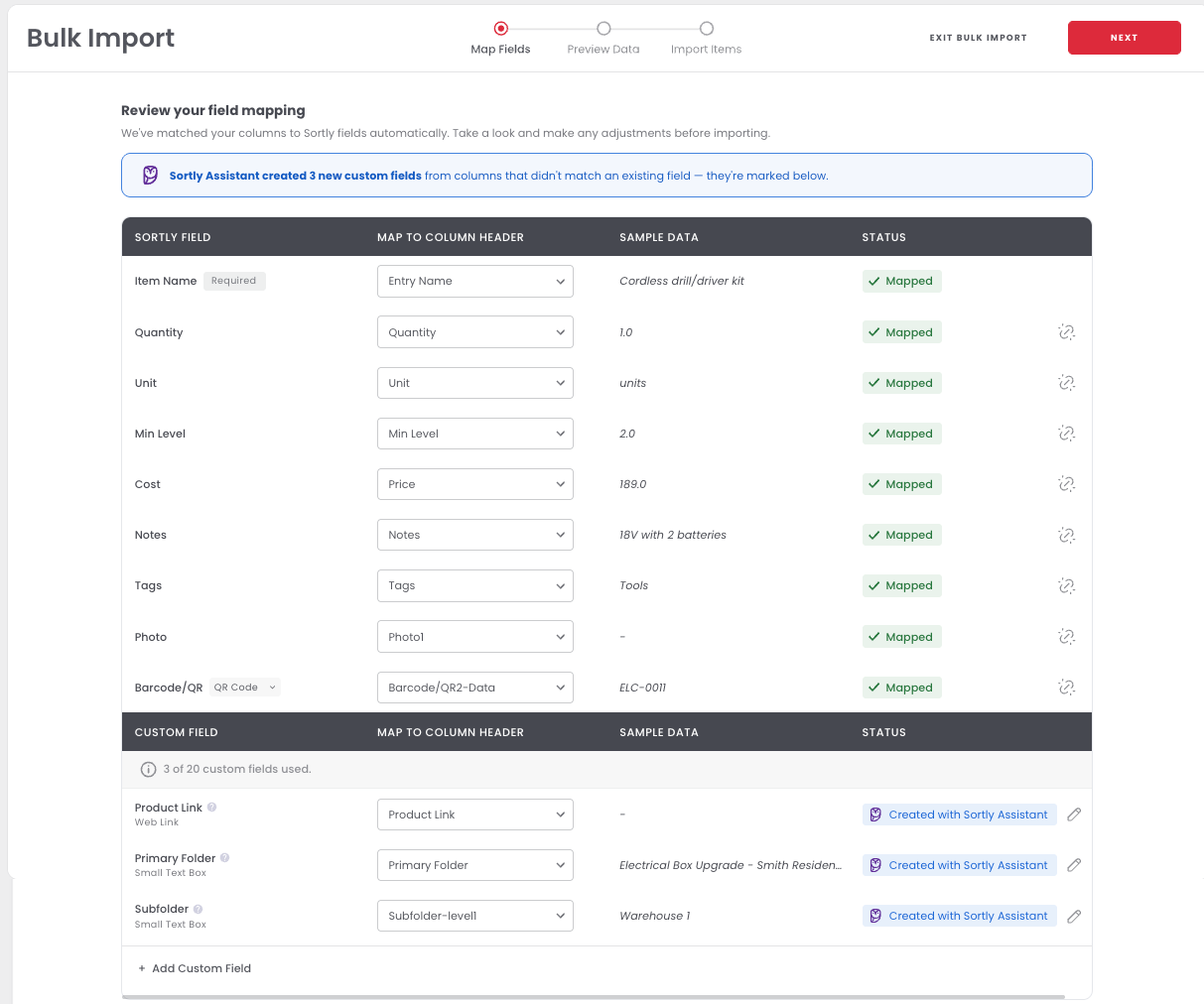
The screen also shows how many custom fields you have used, such as 3 of 20.
Fix errors with Sortly Assistant
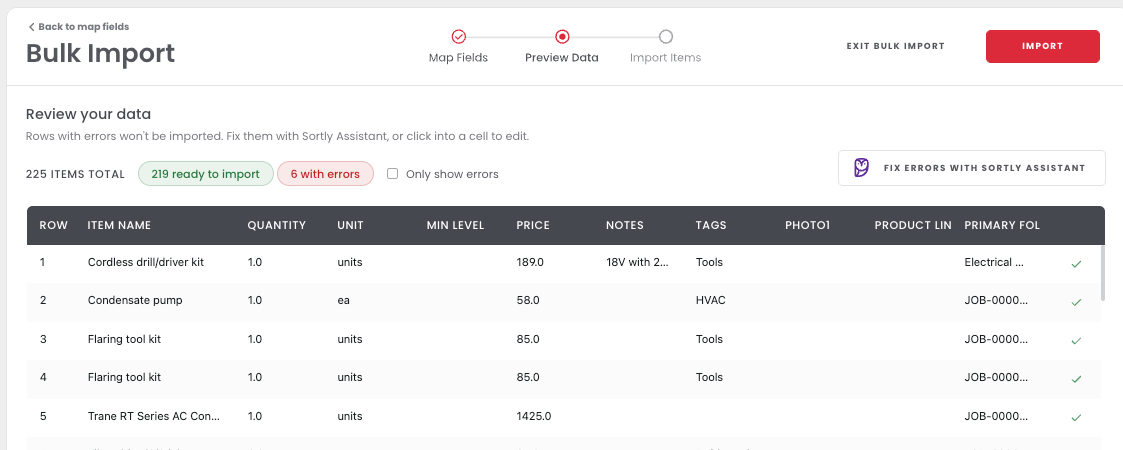
The Preview Data step shows your items in a table before you import. Rows with errors will not be imported until they are fixed.

If some rows have errors, the page shows how many are ready and how many have errors. Cells with a problem are highlighted in red.
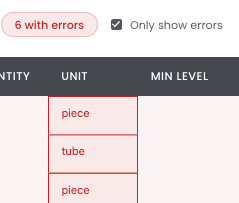
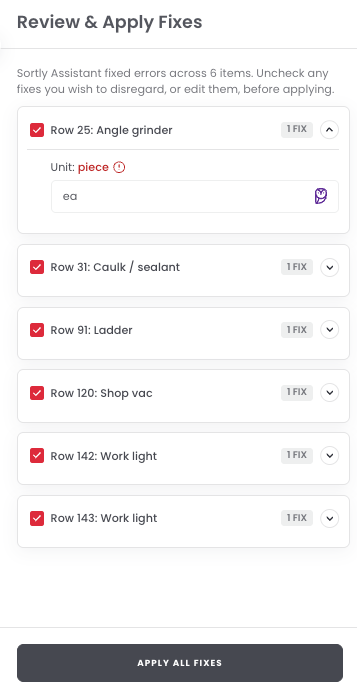
For example, if a Unit cell contains piece, Sortly Assistant might suggest ea. You can keep that suggestion or type your own before you apply it.
Import your items
Once your rows are ready, you can bring everything into Sortly.
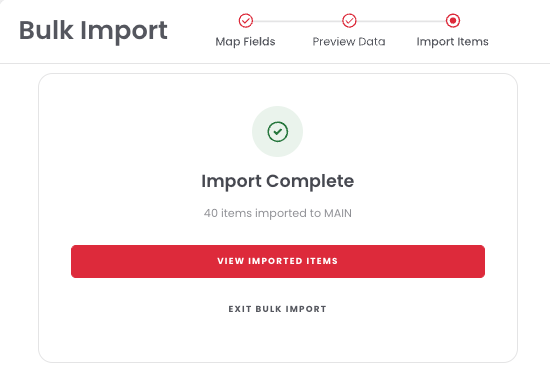
Select View Imported Items to see your new items, or Exit Bulk Import to leave.