
The Inventory Summary report shows what you have in stock right now, including quantities, costs, and total value. This article shows you how to open the report, tailor it to the details you care about, and export a copy to share or keep.
In this article
Open the Inventory Summary Report
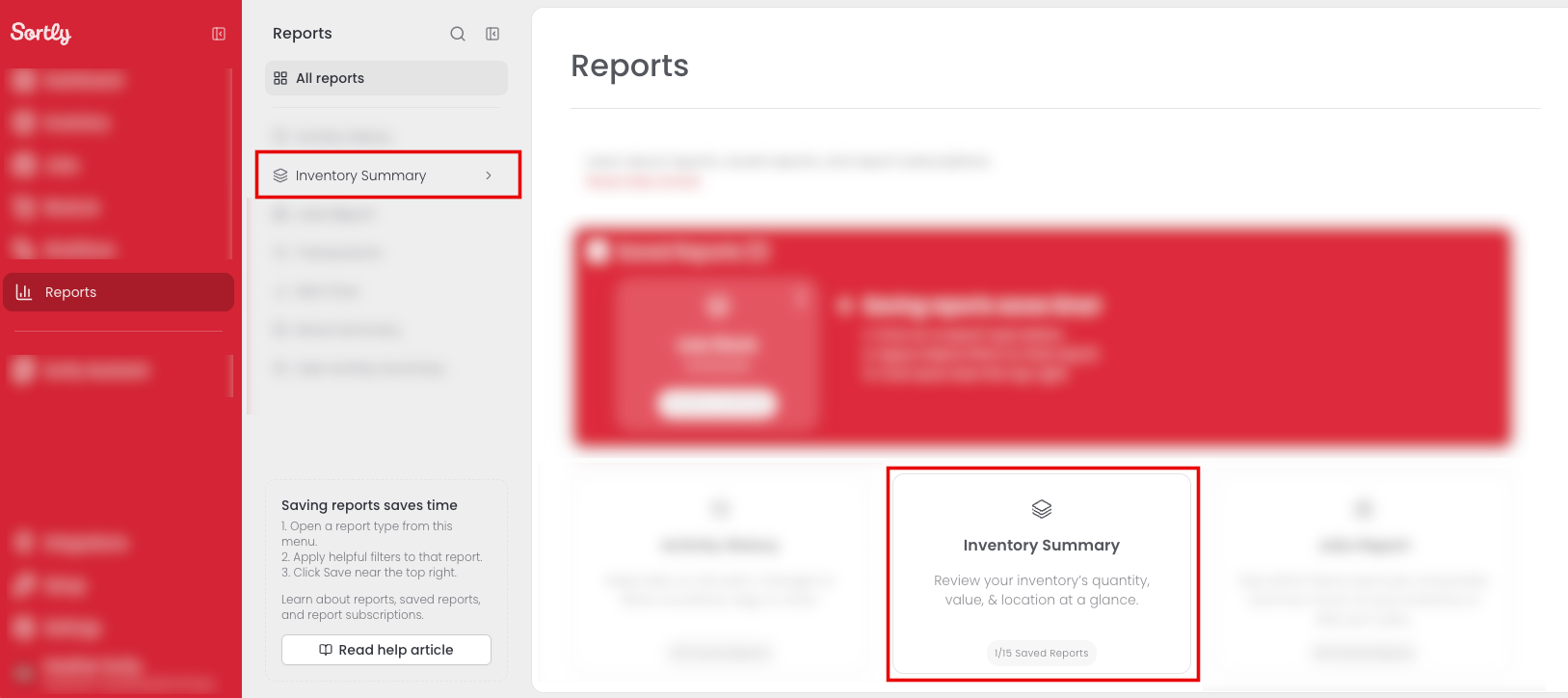
You can open the Inventory Summary report from either the left side menu or the Inventory Summary card.
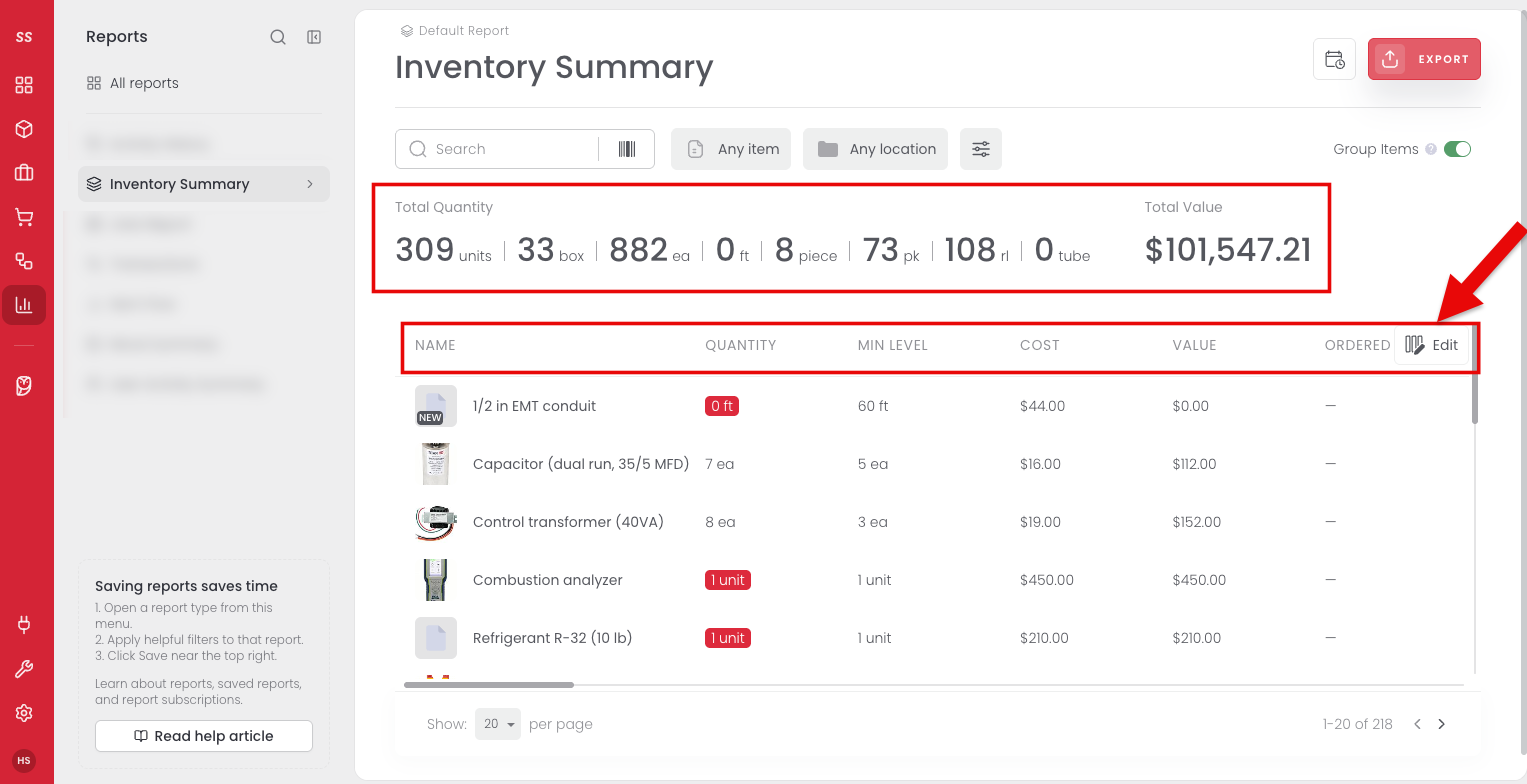
At the top of the report, you'll see the total quantity and total value of your current inventory. The table below lists each item with details such as its Quantity, Min Level, Cost, and Value.
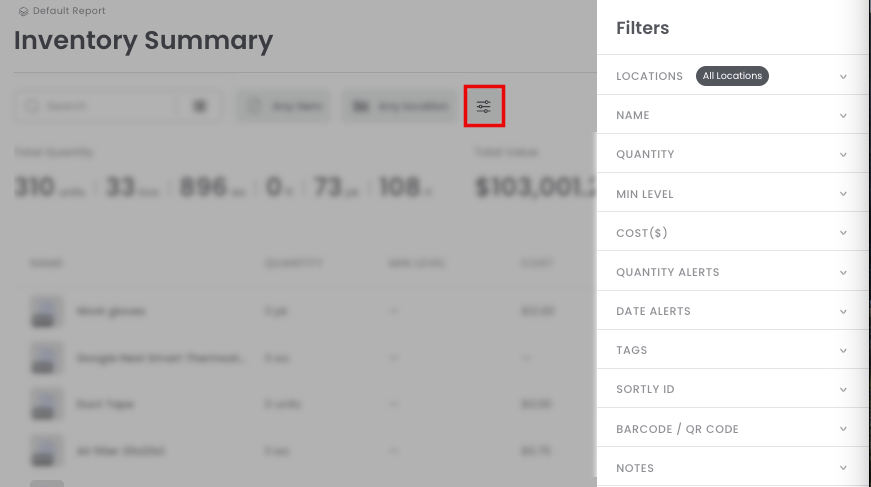
Filter the Report
Use filters to narrow your report down to just the information you need. You can filter by details such as min level, date-based alerts, custom fields, and more.
Export the Report
Export the report when you need a copy to share or keep.
- Export settings: whether to export as an .xlsx (Excel) file or include the total value.
- Fields to export: the item information that appears in your file, such as name, Sortly ID, unit, price, quantity, min level, value, tags, notes, photos, barcodes, and your custom fields. Use Select All or Unselect All to change every field at once.
- Remember these selections: turn this on to keep your choices for next time.