---
title: Invite and Manage Members
description: Learn how to invite new users to Sortly, edit their permissions and location access, and remove users from your account.
---
[Skip to content](https://help.sortly.com/sb/inviting-team-members#main-content)
English
Show submenu for translations

Open main navigation
Close main navigation
- English
Show submenu for translations
Looking for answers? Start here.
- There are no suggestions because the search field is empty.
1. [Sortly Help Center](https://help.sortly.com/sb?hsLang=en)
2. [Settings](https://help.sortly.com/sb/settings?hsLang=en)
3. [Team](https://help.sortly.com/sb/settings?hsLang=en#team)
# Invite and Manage Members
Easily invite new users and manage their permissions. With Sortly, you decide who can view or edit specific parts of your inventory, so your whole team can work together with the right level of access. Owners and Admins have full account access, while Team Members have access based on the permissions you assign.
Advanced
Ultra
Premium
Enterprise
In this article
1. [Inviting a User](https://help.sortly.com/sb/inviting-team-members#invite-member)
2. [Editing a User's Permissions](https://help.sortly.com/sb/inviting-team-members#edit-member)
3. [Removing a User](https://help.sortly.com/sb/inviting-team-members#remove-user)
4. [Frequently asked questions](https://help.sortly.com/sb/inviting-team-members#faq)
### Inviting a User
#### On the web
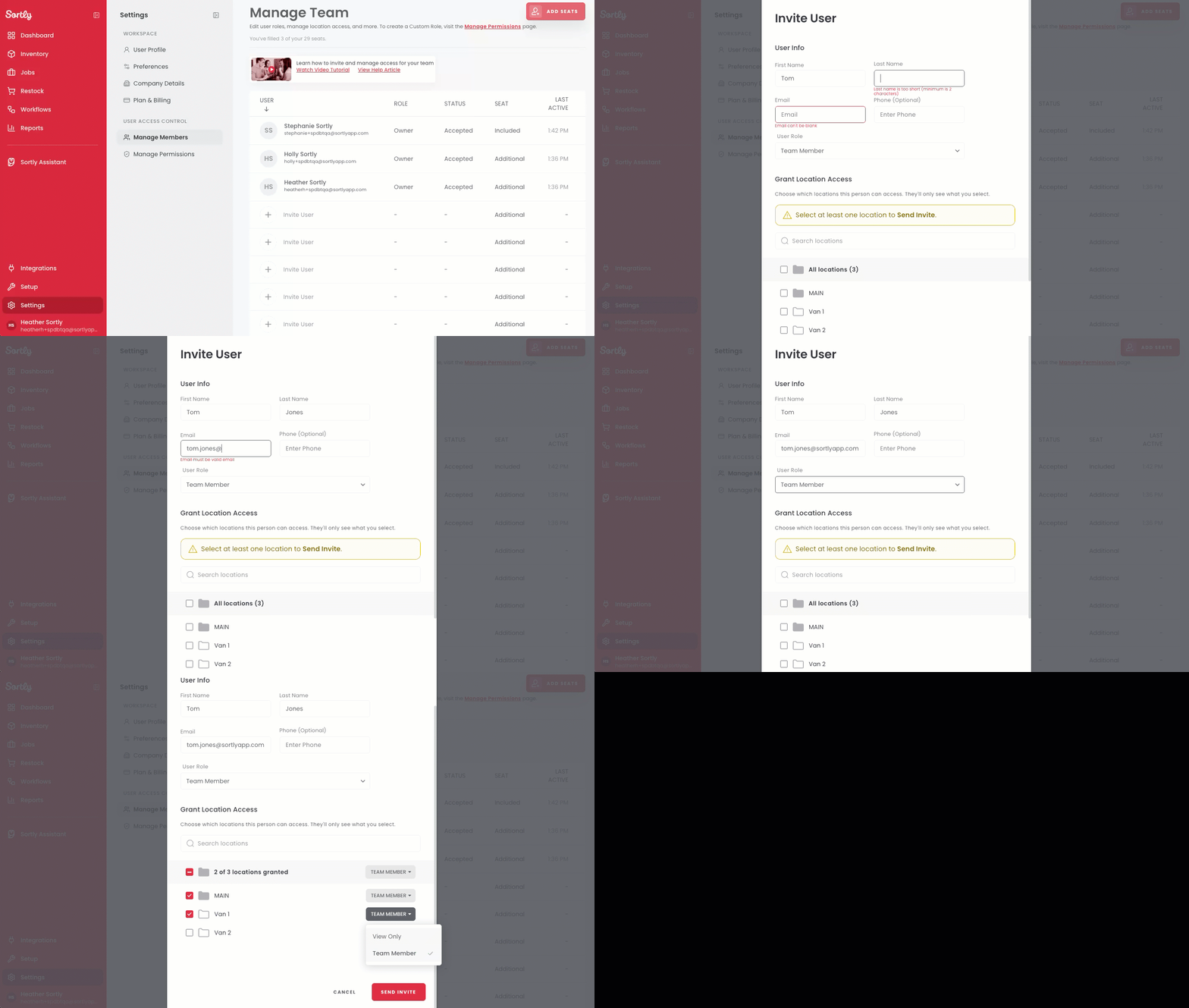
Setting up a new team member at your desk? Use the web app to invite them and choose their role and location access in one place.
1
Select Settings at the bottom of the left menu.
2
Under User Access Control, select Manage Members.
3
Select Invite User.
4
Enter the user's name and email. Phone number is optional.
5
Choose a User Role.
6
Under Grant Location Access, select the locations this person can access. Choose at least one.
7
Choose the access type for each location: View Only or based on their role permissions.
8
Select Send Invite. The user appears in the list with a status of Pending Invitation until they accept.
#### On the mobile app
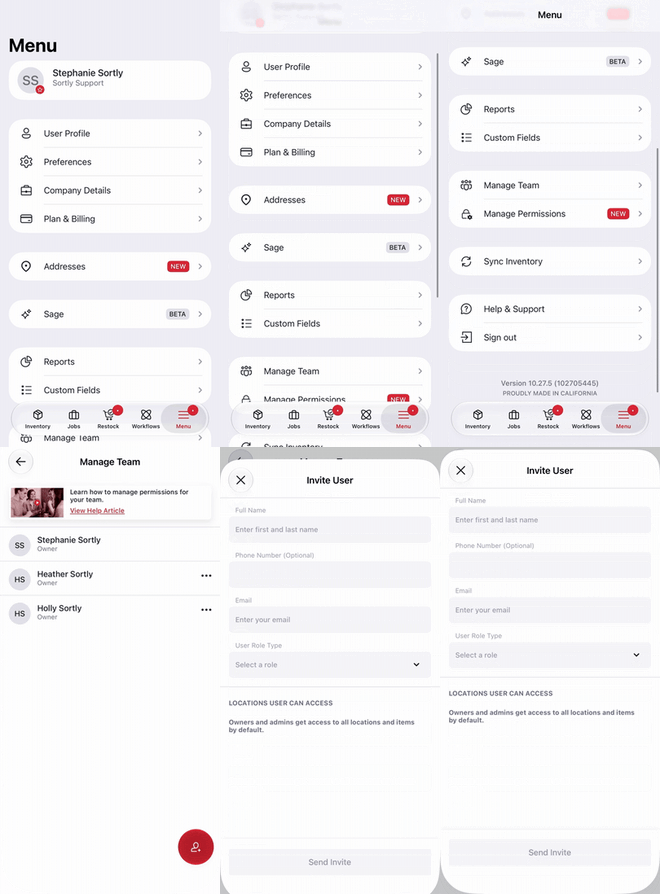
Need to add someone while you are away from your computer? You can send an invite from the Sortly mobile app on iOS or Android.
1
Tap Menu in the bottom navigation.
2
Tap Manage Team.
3
Tap the invite button (person with a plus sign) in the bottom right corner.
4
Enter the user's full name and email. Phone number is optional.
5
Under User Role Type, select a role.
6
Under Locations User Can Access, select the locations this person can access. Owners and Admins get access to all locations by default.
7
Tap Send Invite. The user appears on the Manage Team list once the invite is sent.
### Editing a User's Permissions
1
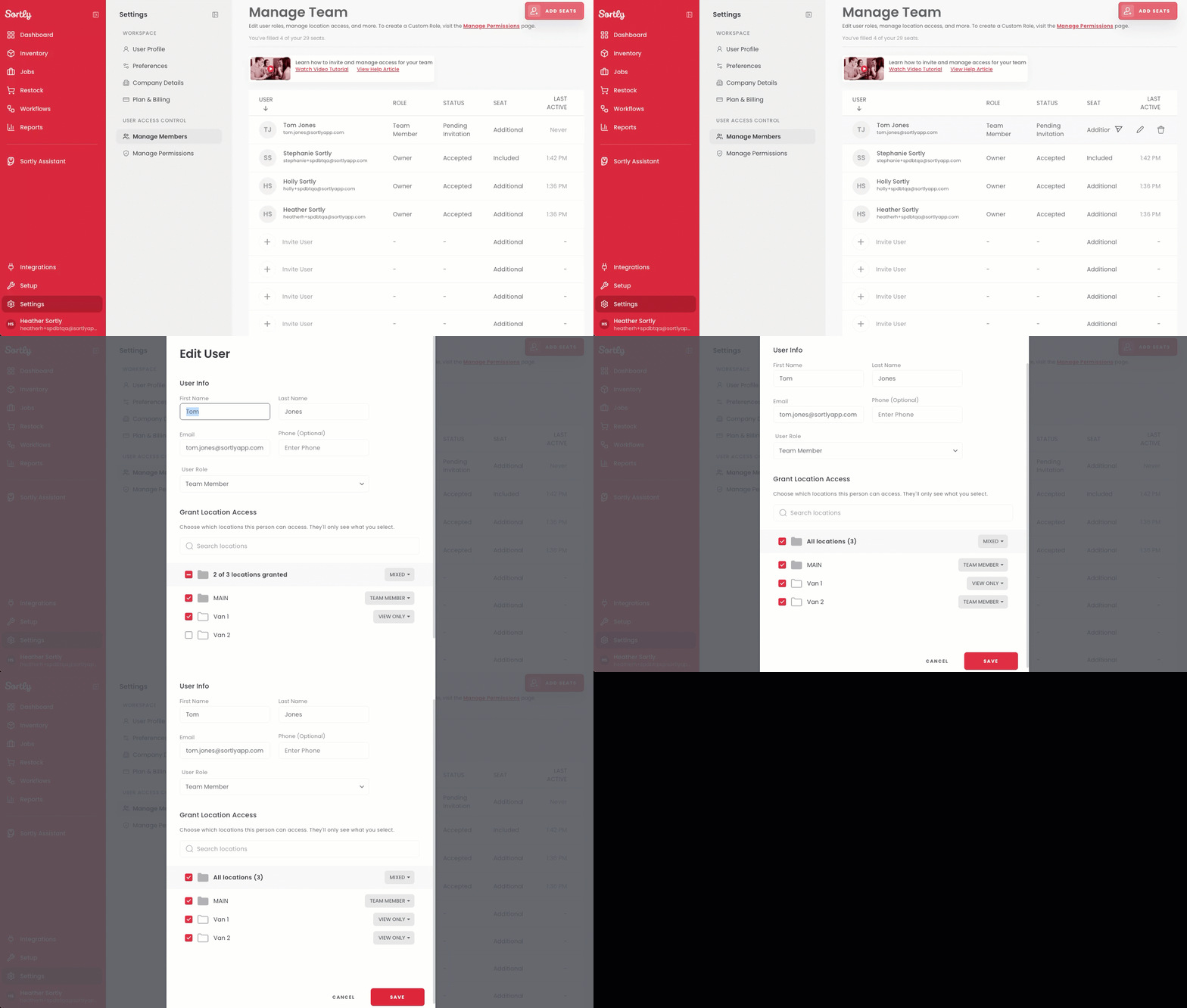
Select Settings, then select Manage Members.
2
Hover over the user and select the pencil icon.
3
Make any desired changes to the user.
4
Select Save.
### Removing a User
1
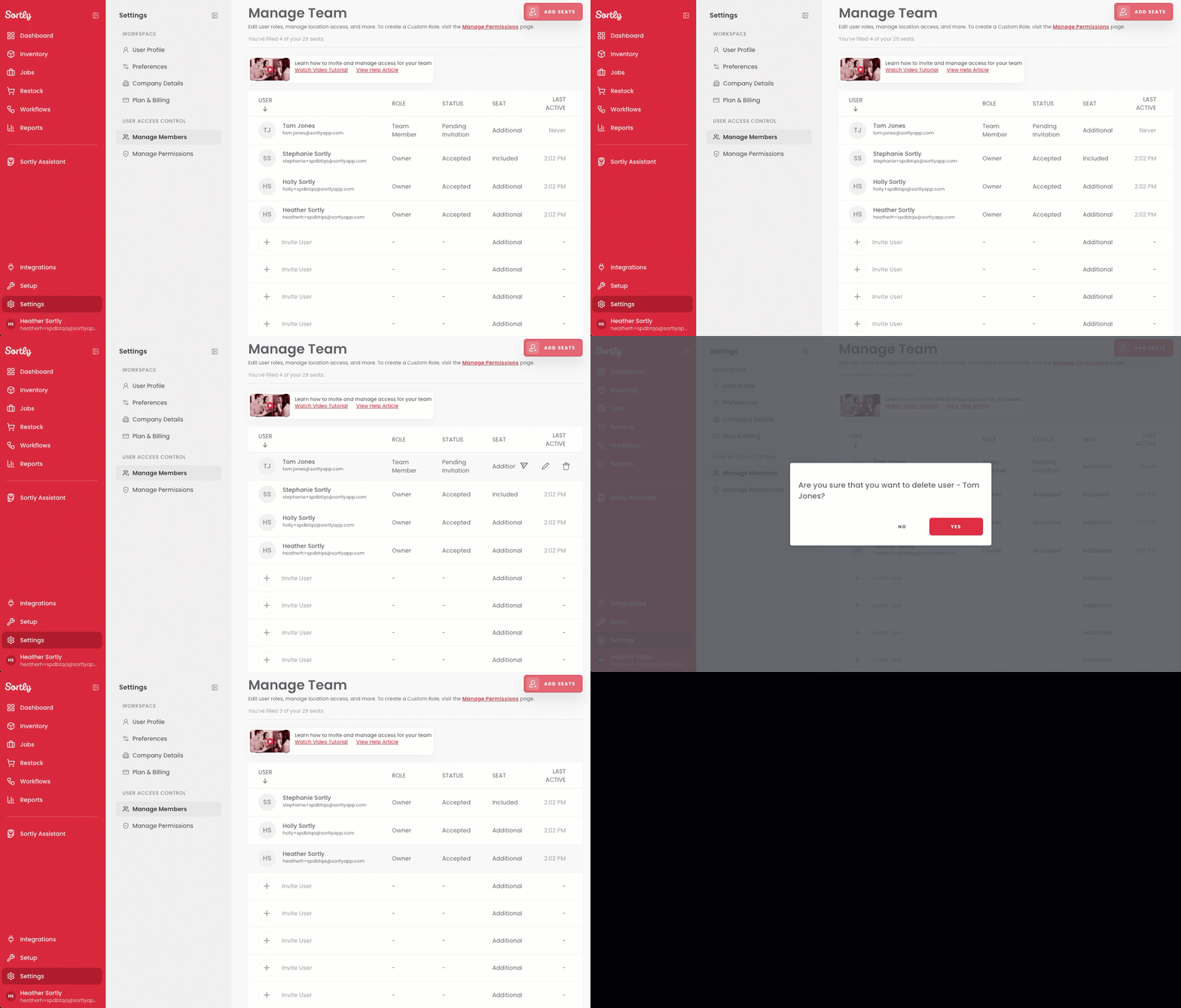
Select Settings, then select Manage Members.
2
Hover over the user and select the trash icon.
3
Select Yes to confirm.
### Frequently Asked Questions
How can I tell if a user accepted my invitation?
Check the Status column on the Manage Members page. It shows Pending Invitation until they accept, then Accepted.
Which locations can a user see?
Only the locations you select when you invite them. Every user needs access to at least one location.
Can a user have different access levels in different locations?
Yes. After you select a location, use the dropdown next to it to choose the access level for that location, such as View Only.
What does each role have access to?
To see what each role can do, check out the article [What Each Team Role Can Do](https://help.sortly.com/sb/team-roles?hsLang=en).
Can I create my own roles?
Yes, on Premium and Enterprise plans. To create a custom role, go to Manage Permissions in Settings. To learn more, check out the article [Create a Custom Role and Manage Permissions](https://help.sortly.com/sb/custom-roles?hsLang=en).
[](https://www.sortly.com)
Copyright © 2026, Sortly Inc.