In this article, we will show you how to see the history of an item in Sortly, so you can find out who changed it, when it happened, and what they did. You can open an item's activity from the Catalog or from the location where it is stored, and narrow the list to find exactly what you are looking for.
In this article
What an item's activity history shows
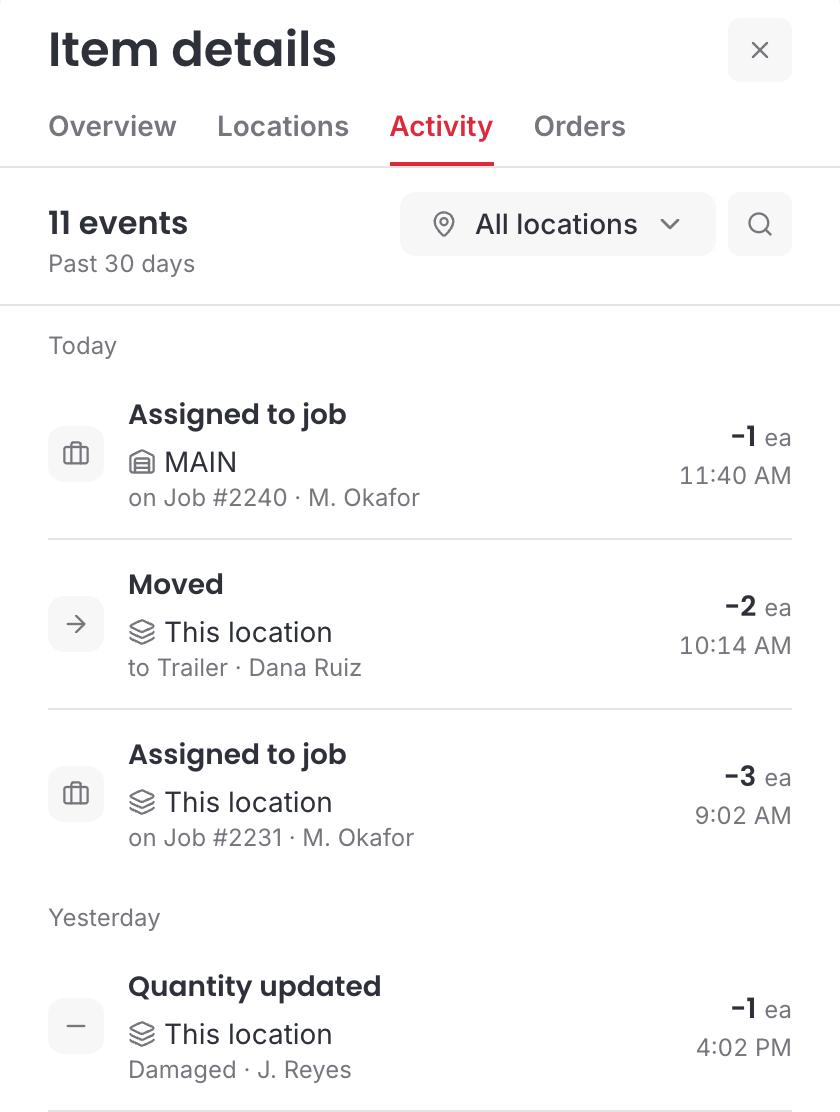
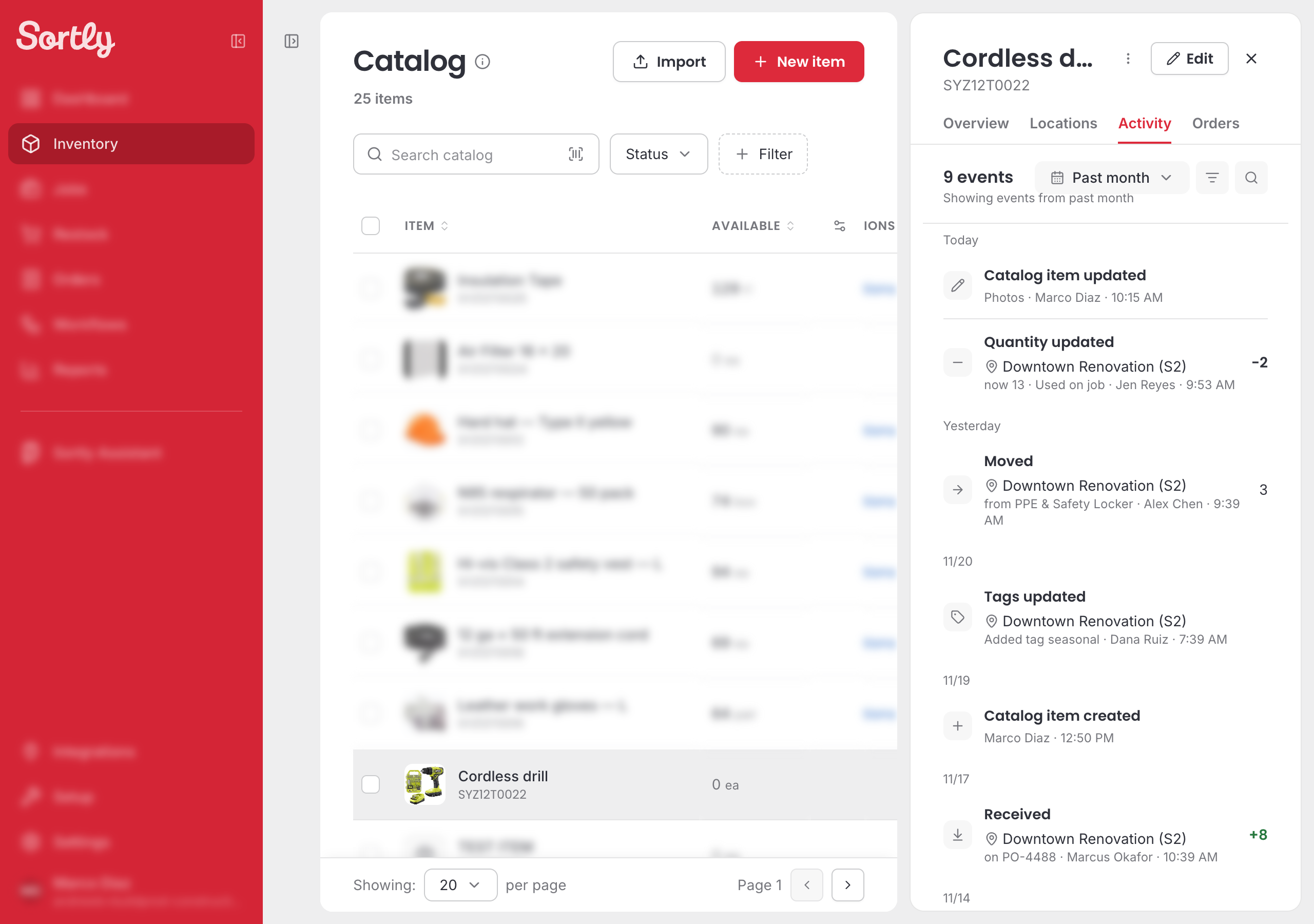
Every item keeps its own history, so you never have to guess what happened to it. Each entry in the history tells you four things.
What happened
See whether the item was created, updated, moved, received, counted, or deleted. For quantity changes, you also see how many units went in or out.
Who
See which teammate made the change.
When
See the date and time, with the newest entries at the top.
Where
See which location it happened at.
Viewing activity history
There are two ways to open an item's activity. Use whichever one is closest to where you are working.
From the Catalog
Looking for an item and not sure where it is stored? Start in the Catalog.

Created
A new item or stock entry was added.

Edited
Someone changed the details, such as photos, notes, or tags.

Moved
Units were moved from one location to another.

Quantity change
The quantity went up or down, such as stock used on a job.

Counted
A count was done to check how many are on hand.

Ordered
A purchase order was placed for the item.

Received
Units from a purchase order arrived.

Order voided
A purchase order for the item was canceled.

Deleted
The item or its stock was removed.
From a location
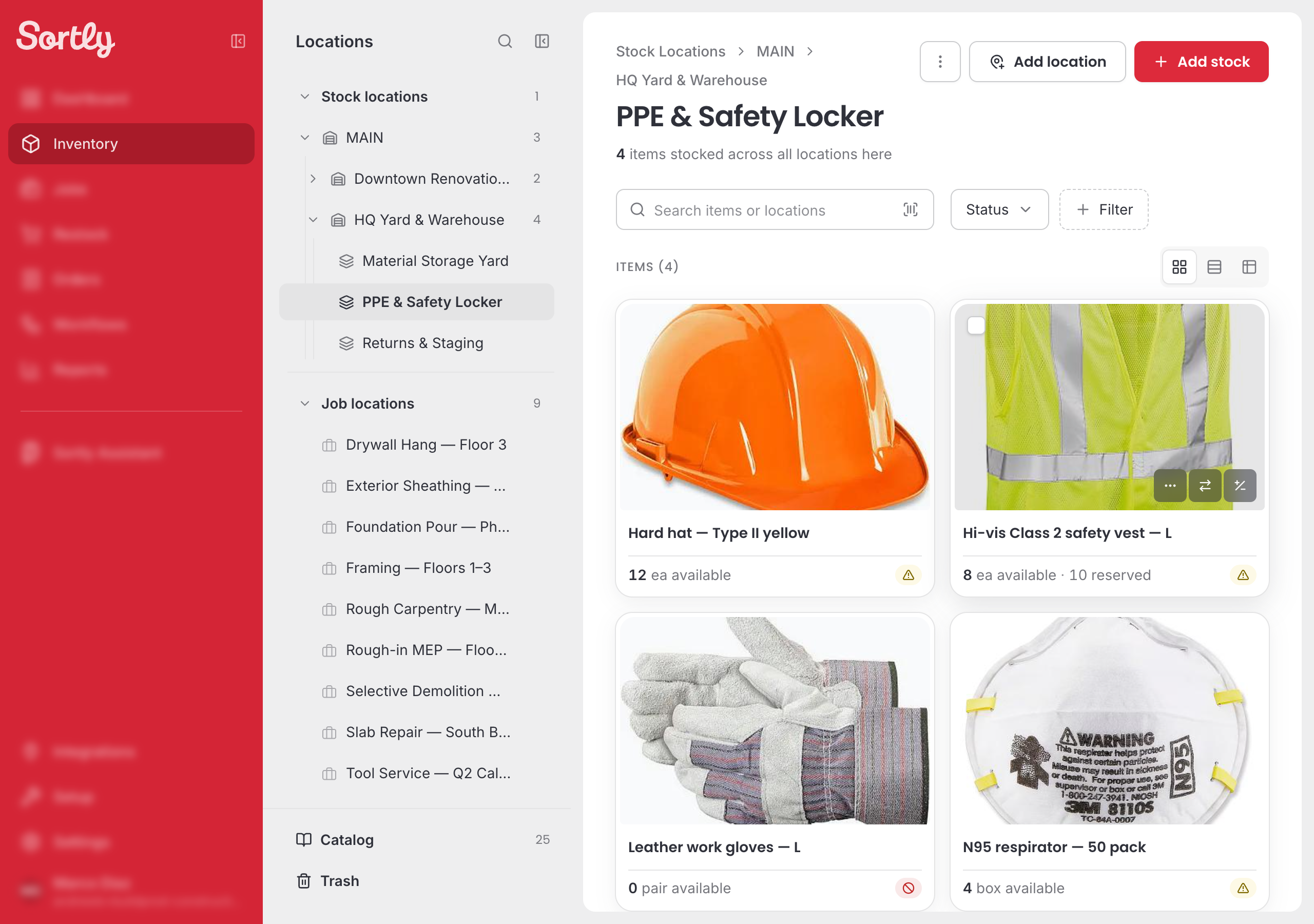
If you're already working in a location, you can check an item's history right from there.